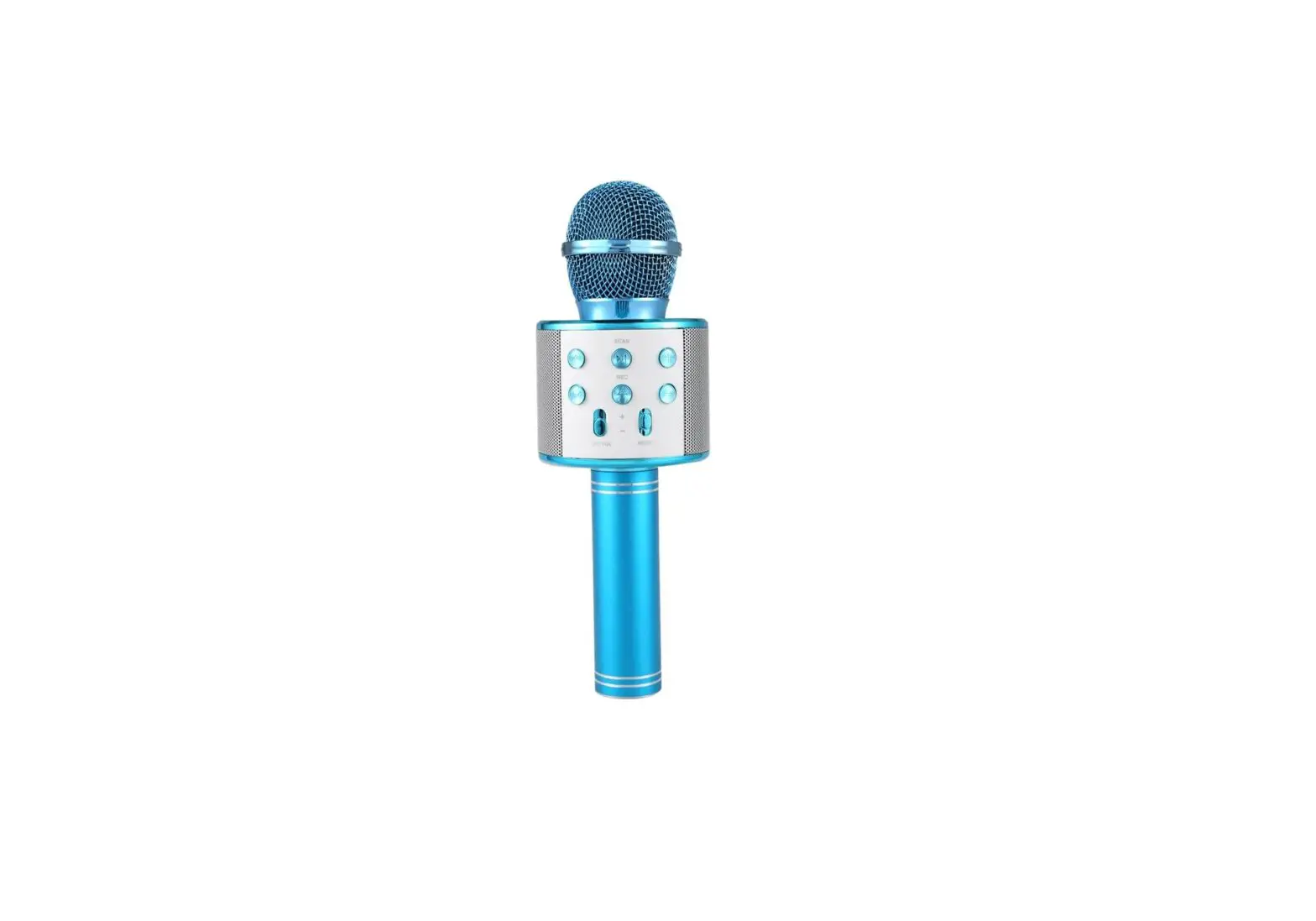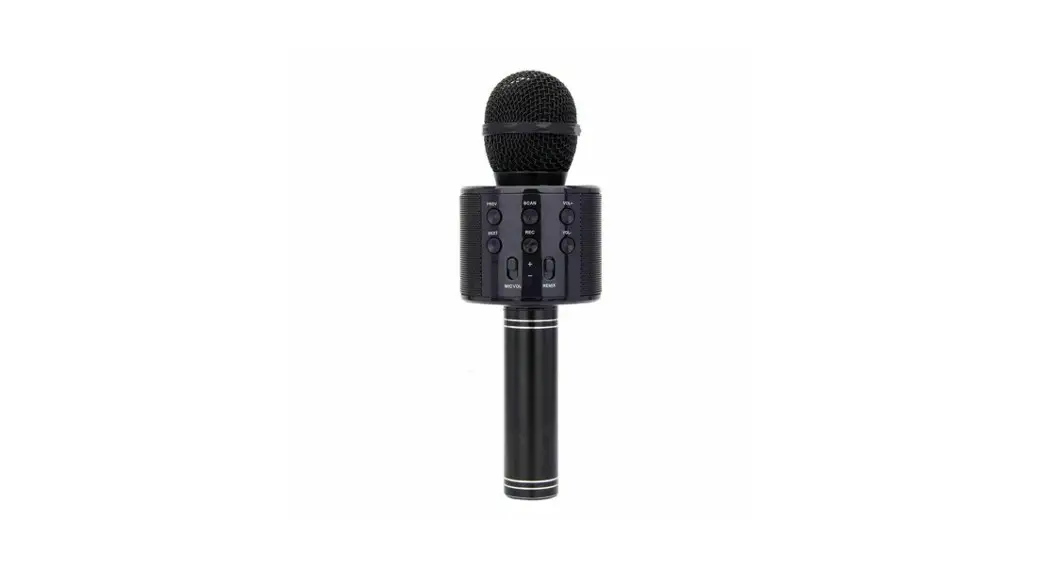
 EARISE W2 Wireless Microphones
 EARISE W2 Wireless Microphones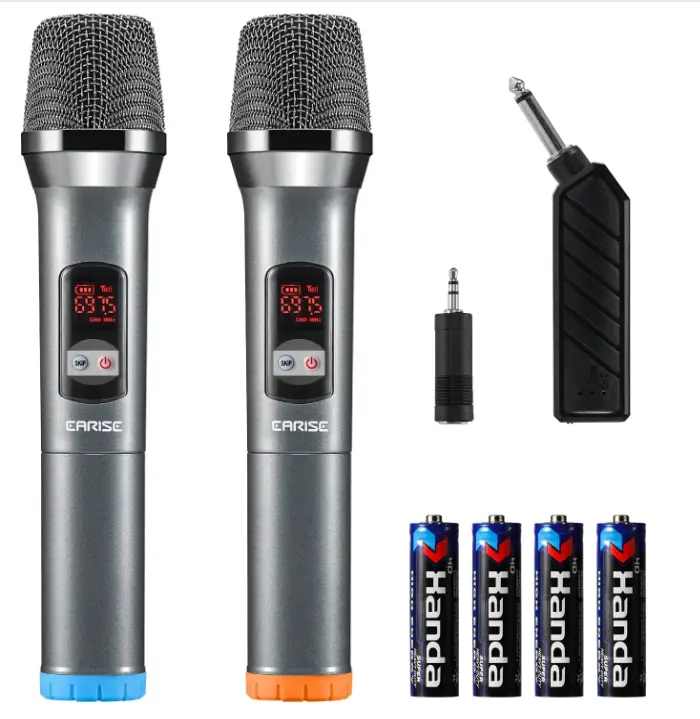
INTRODUCTION
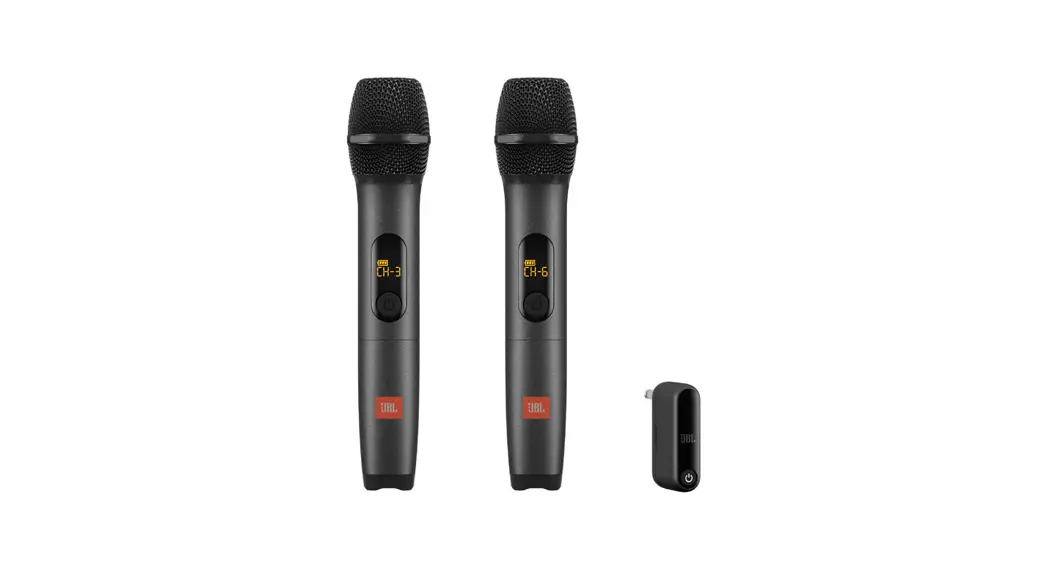
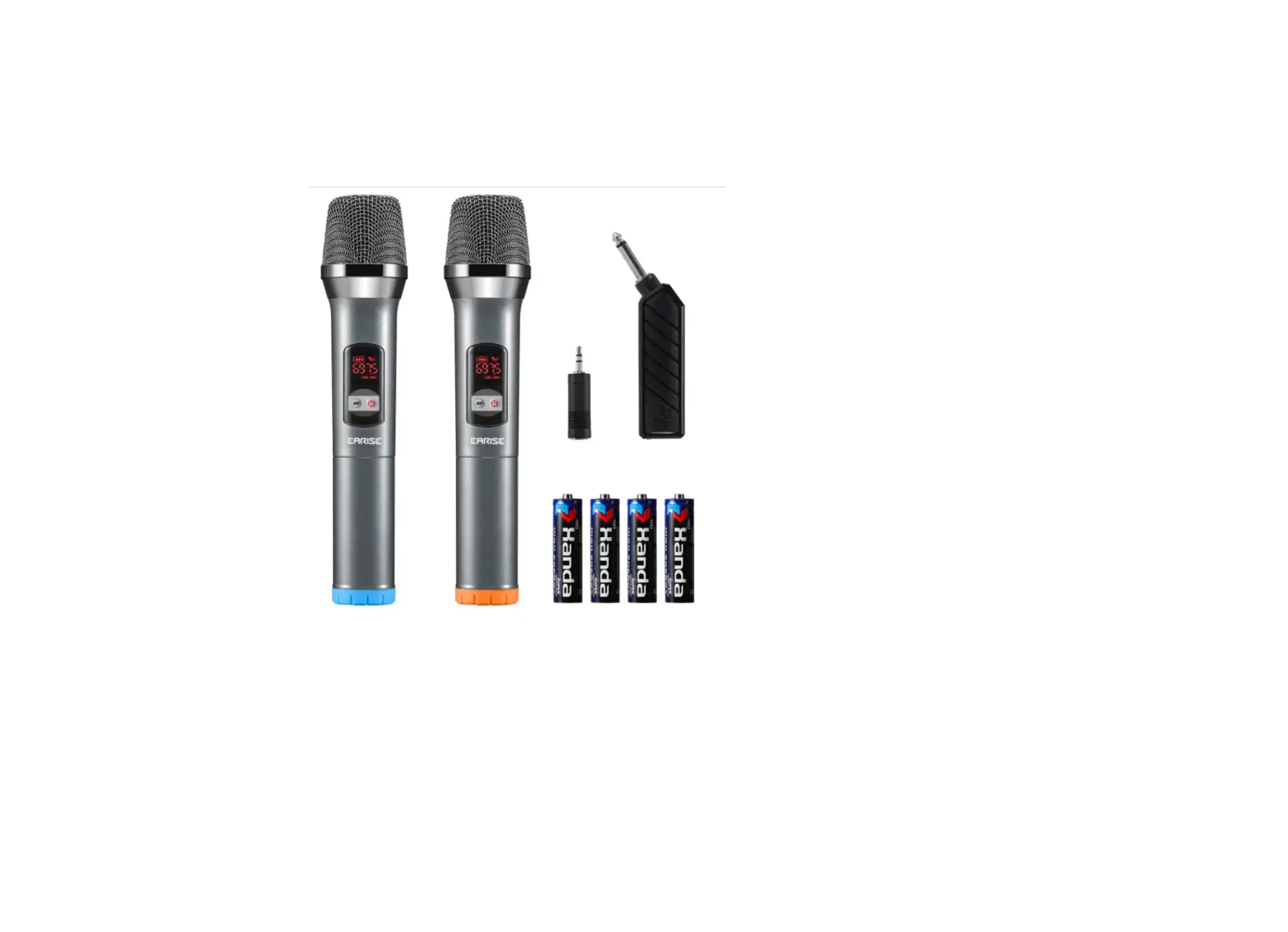
The microphone has a smooth sound-pickup and transmission dynamic cardioid pickup pattern. It can provide crystal-clear, smooth sound that is at its best, while also reducing feedback and interference and getting rid of background noise and howling. There are more options than other microphones on the market because to each microphone’s 48 programmable frequencies. It is appropriate for any situation, has a 160-foot working range, and offers interference-free performance. When completely charged, the rechargeable receiver with a built-in battery may operate for six hours. The receiver’s plug measures 6.35 mm (1/4″), and a 3.5 mm (1/8″) plug converter is available for speakers of different types.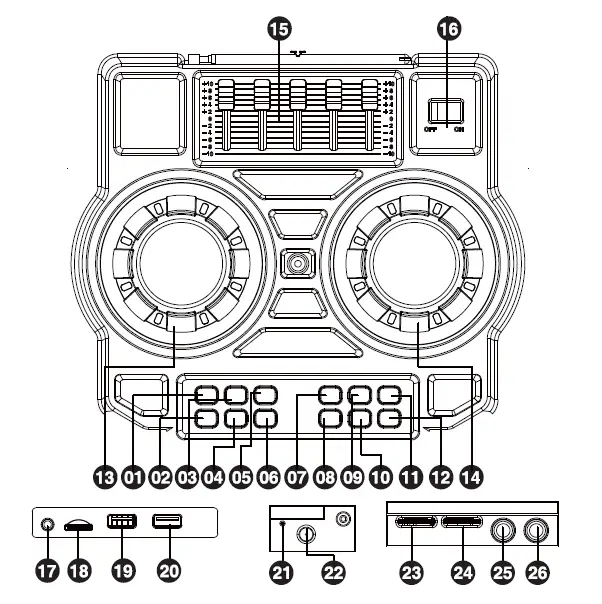
- Previous Track for Mode 1
- Mode 1
- Play / Pause for Mode 1
- Mode2
- Next Track for Mode 1
- LED Lights Control
- Previous Track for Mode 2
- Sound Effect 1
- Play / Pause for Mode 1
- Sound Effect 2
- Next Track for Mode 1
- Sound Effect 3
- DJ Mixer Control
- Master Volume Control
- 5-Band Equalizer
- Power On / Off
- 5mm AUX In Port
- TF / SD Card Slot
- USB Flash Drive Slot for Mode 1
- USB Flash Drive Slot for Mode 2
- Charging Indicator
- Charging Port
- Microphone Echo Control
- Microphone Volume Control
- 1/4″ Mic 1 Jack
- 1/4″ Mic 2 Jack

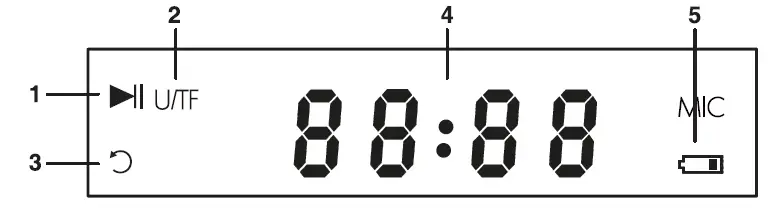
- With a USB flash drive or TF card inserted, this symbol will light up when music is paused. As for AUX in or FM radio mode, this symbol will light up when music is muted.
- U/TF: When a USB flash drive or TF card inserted, this symbol will light up.
- This symbol will light up when you select to repeat a track.
- 8 8:8 8: When in the AUX mode, “LINE” will be displayed on the screen; When in the FM radio mode, it shows the number of current channel; When in the U/TF mode, it shows the elapsed time of the track; When in Bluetooth mode, it will display “BLUE 1” or “BLUE 2”.
- This symbol will light up when there’s only a few power left. The volume will automatically decrease to about 70%.
BLUETOOTH
- Power on the speaker and press the “Mode 1” button to switch to Bluetooth 1 mode.
- Turn on the Bluetooth on your Bluetooth device, search for “EARISE M61 A”, and click to pair.
- A prompt to be heard indicates a successful connection.
- If you want to connect a second Bluetooth device, just press the “Mode 2” button to switch to Bluetooth 2 mode.
- Search the Bluetooth list for “EARISE M61 B” on your second Bluetooth device, and click to pair.
- Then you can use 2 Bluetooth devices at the same time.
USB FLASH DRIVE
- Please ensure that there is at least one song in the USB flash drive, or the speaker can’t recognize it.
- Insert a USB flash drive into a USB flash drive slot, and the speaker will automatically switch to U / TF mode and start playing the existing music from the first song.
- There are 2 USB flash drive slots, which can be used at the same time.
- The song file format must be MP3.
- The USB flash drive must have a capacity of BG to 32G.
- The USB flash drive must be USB 2.0 and the file system must be FAT32.
- If the USB flash drive is formatted and the file system is not FAT32, it will not work properly.
TF / SD CARD
- Please ensure that there is at least one song in the TF / SD card, or the speaker can’t recognize it.
- Insert a TF / SD card, and the speaker will automatically switch to U / TF mode and start playing the existing music from the first song. Alternatively, you can switch to the U / TF mode by pressing the “Mode 1” button.
- The song file format must be MP3.
- The USB flash drive must have a capacity of BG to 32G.
- The USB flash drive must be USB 2.0 and the file system must be FAT32.
- If the USB flash drive is formatted and the file system is not FAT32, it will not work properly.
AUXIN
- You can connect a non-Bluetooth device via AUX IN mode.
- Connect the speaker with an AUX cable, it will automatically switch to AUX IN mode. Alternatively, you can switch to the AUX IN mode by pressing the “Mode 1” button.
FM RADIO
- Press the “Mode 1” button to switch to FM radio mode.
- Press and hold the “PLAY/PAUSE” button for Mode 1 to search FM stations from 87.5MHz to 108.0MHz automatically.
- Press the “PLAY/PAUSE” button to stop searching FM stations.
- After searching, press the “FORWARD” or “REWIND” button to select a station.
- If you are listening to a saved station “P05” in which FM range is 92.0MHz, press and hold “FORWARD” button to searching stations from 92.0MHz to 108.0MHz, and the found station will be saved automatically as “P06”; press and hold “REWIND” button to searching stations from 87.5MHz to 92.0MHz, and the found station will be saved automatically as “P04”
- It is suggested to search for radio stations automatically the first time you use it.
DJ MIXER
- Rotate the “DJ Mixer” knob to adjust the music output for Mode 1 and Mode 2, the maximum value is 30.
- Rotate the knob anticlockwise for Mode 1, and clockwise for Mode 2.
- If rotate the knob anticlockwise for Mode 1 to the maximum value, the display screen will show “30:00”, which means there is only music output of Mode 1.
- If rotate the knob clockwise for Mode 2 to the maximum value, the display screen will show “00:30”, which means there is only music output of Mode 2.
LIGHTS
- The light is default on when power on.
- Press the “Light” button to turn off the lights.
MICROPHONE
- There are two 1 / 4″ “MIC IN” jacks at the backside of the speaker. You can connect wired microphones or wireless microphone set with Bluetooth receiver.
- The microphone volume and echo can be adjusted.
CHARGING
- Use the included charger to charge the speaker.
- During charging, the red charging indicator will light up and will be off when fully charged.
- Before using for the first time, please fully charged the speaker.
- If it’s not in use for a long time, please fully charged before use.
SPECIFICATION
- DRIVER SIZE: 10″ 4 Q+ 1″ 4 Q
- PEAK POWER: 180W Input Power: 10V 1A
- FREQUENCY: 90 Hz-20 kHz S I N Ratio: e,60d
- DIMENSION (W X D X H): 12.3″ x 12.2″ x 22.8″ Net. Weight: 6.9kg
WHAT’S IN THE BOX
- 1x M61 PA System
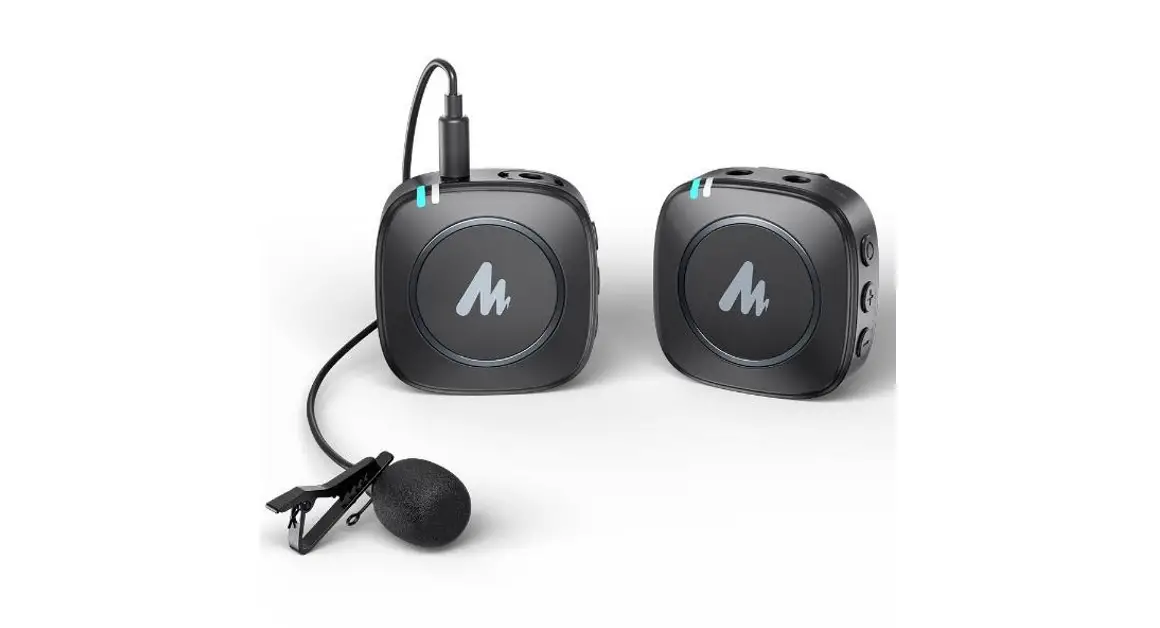
- 2x Wireless Microphone (Batteries not included)
- 1 x Tablet Stand
- 1 x Power Adapter
- 1 x User Manual
FAQs
How can I set up my wireless Earise microphone?
Turn on Bluetooth on the device, look for “EARISE T26,” and select Pair. A beep denotes an effective connection. “BLUE” on the monitor stops blinking. You can change the speaker’s master volume knob or the Bluetooth device’s volume to change the music’s volume.
How can I tell when the battery on my Bluetooth microphone is full?
When the device is fully charged, the red LED light goes out.
Why isn’t my Bluetooth microphone working?
To access the context menu, right-click the Bluetooth device and choose Properties. Activate the Services tab. Turn on each service. The mic will start working after you click OK.
Why does the wireless microphone not function?
Signal blockage is one of the most prevalent issues with wireless networks. Signals can be impacted by metal, walls, and even the human body.
How should a karaoke microphone be set up?
1) Use an RCA cable to connect the sound from your karaoke machine to an appropriate channel in the mixer. 2) Attach your Singa gadget to your screen using an HDMI cable. 3) Using an HDMI wire, connect your microphones to the correct mixer channels.
Where can I find songs for my karaoke system?
Using YouTube to download karaoke music is the simplest option. There are several professional karaoke tracks with both lyric and instrumental footage.
How can I get my microphone back online?
You may find the headset listed in the recording devices page by going to Control Panel > Hardware and Sound > Sound. Click on it with the right mouse button, select Disconnect, and then click again to select Connect. By resetting the connection, this should correct any potential misconnections.
How much time does a wireless microphone require to charge?
A karaoke microphone is a bluetooth device with a 1200Amh battery that can be used for around 3 hours before needing to be fully charged, which takes about 2 hours.
Can a Bluetooth device be overcharged?
A protection board is incorporated into the lithium battery even if it has already failed. As a result, the voltage applied to the cell will never be higher than 4.2V.
How can I get my microphone back online?
You may find the headset listed in the recording devices page by going to Control Panel > Hardware and Sound > Sound. Click on it with the right mouse button, select Disconnect, and then click again to select Connect. By resetting the connection, this should correct any potential misconnections.
How much time does a wireless microphone require to charge?
A karaoke microphone is a bluetooth device with a 1200Amh battery that can be used for around 3 hours before needing to be fully charged, which takes about 2 hours.
Can a Bluetooth device be overcharged?
A protection board is incorporated into the lithium battery even if it has already failed. As a result, the voltage applied to the cell will never be higher than 4.2V.
How can I determine my Bluetooth’s battery life?
Simply pair and connect the Bluetooth gadget to your phone is all that is required. After doing so, launch the Settings app and select Connect Devices. Click Bluetooth (not the switch next to it). With certain exclusions, you will receive a complete list of all connected devices along with their current battery levels.
What is the lifespan of a wireless microphone?
Most wireless lavalier mics run 5 to 10 hours on a single charge when using an AA battery.
A wireless microphone has a limited range.
The typical range for systems of the kind detailed here (10-50 mW, VHF or UHF) can range from 100 feet to 1000 feet.