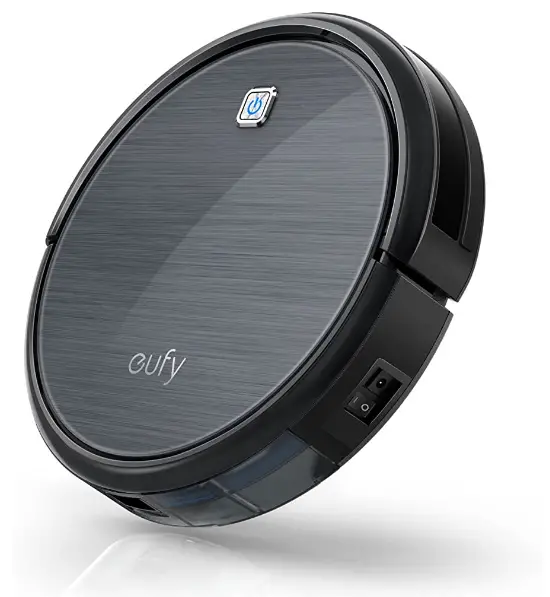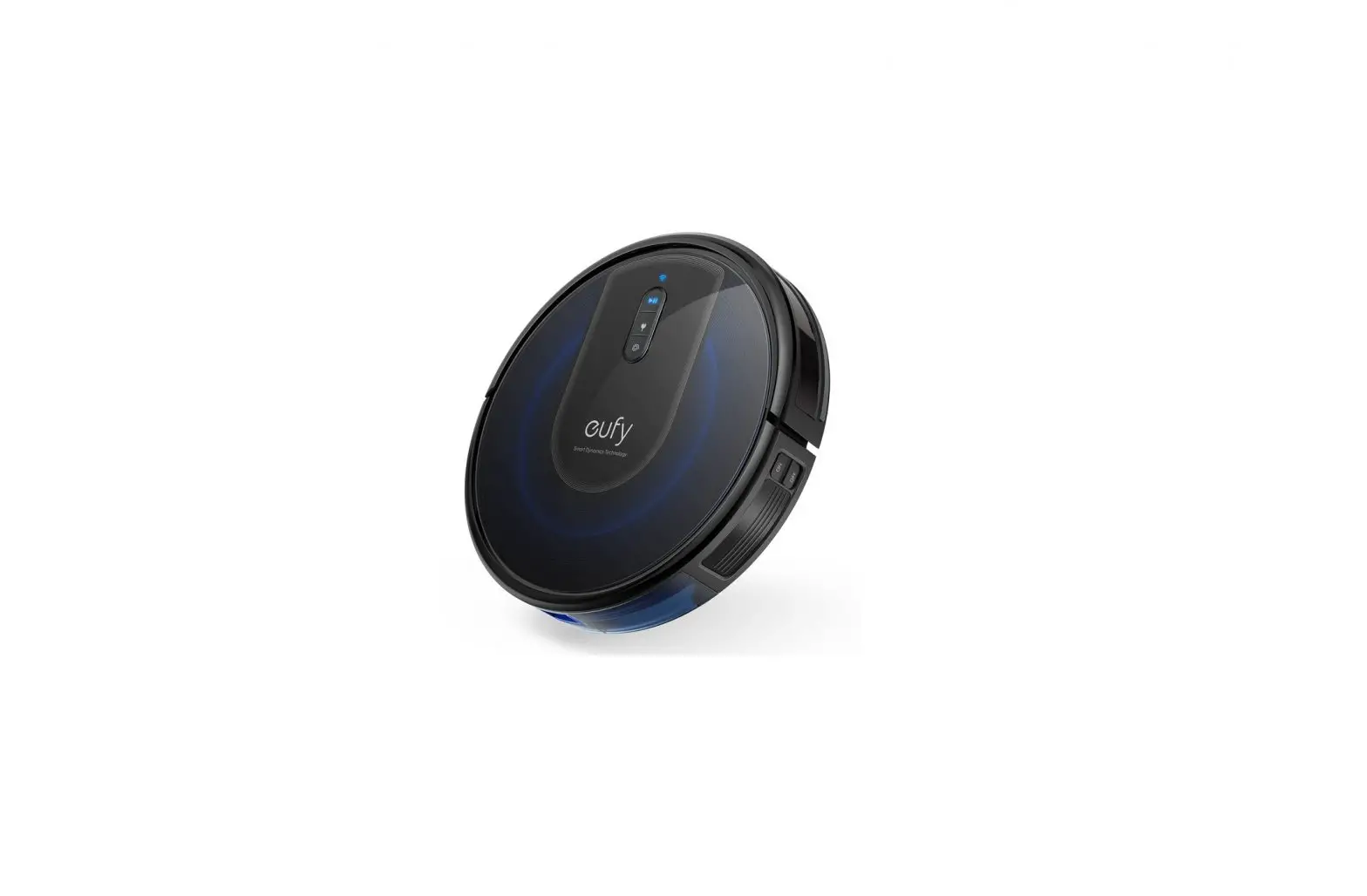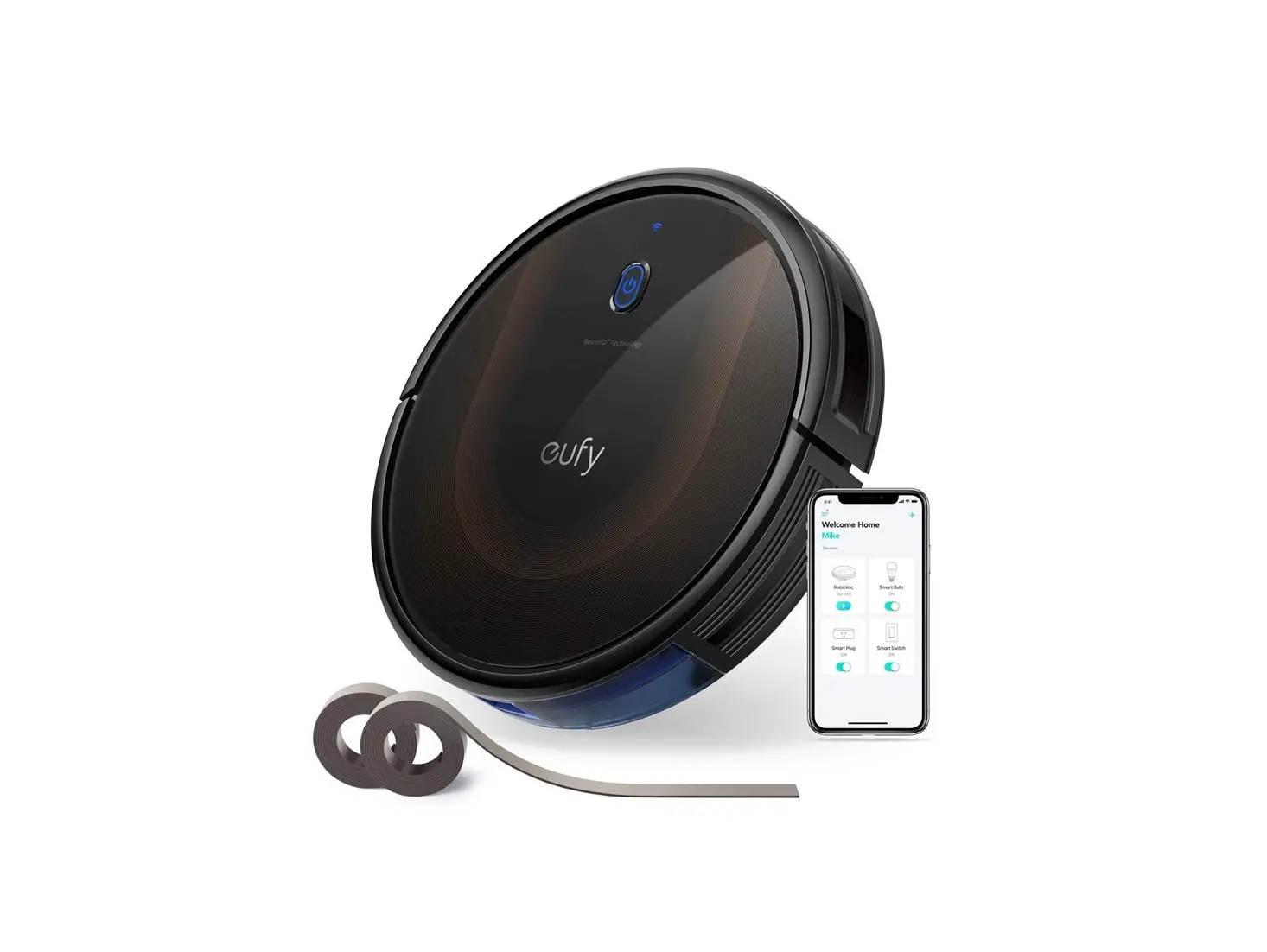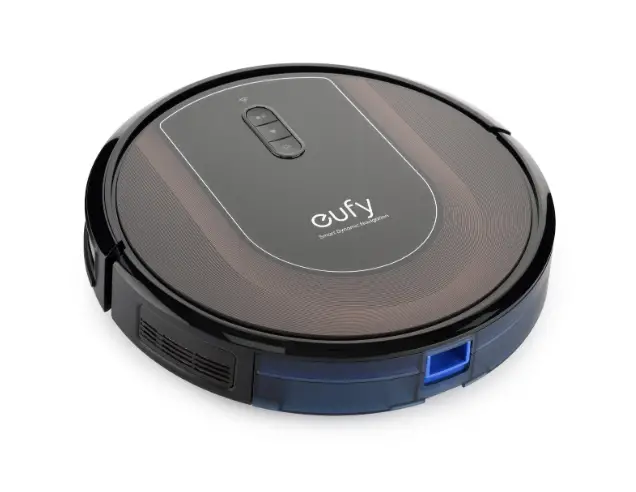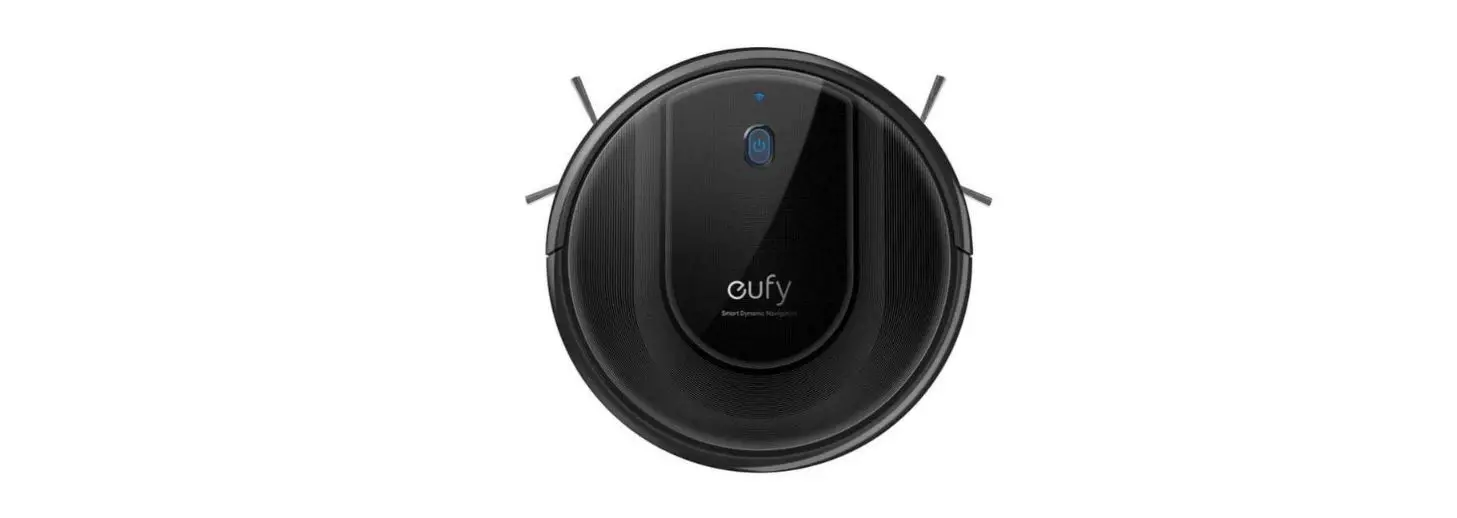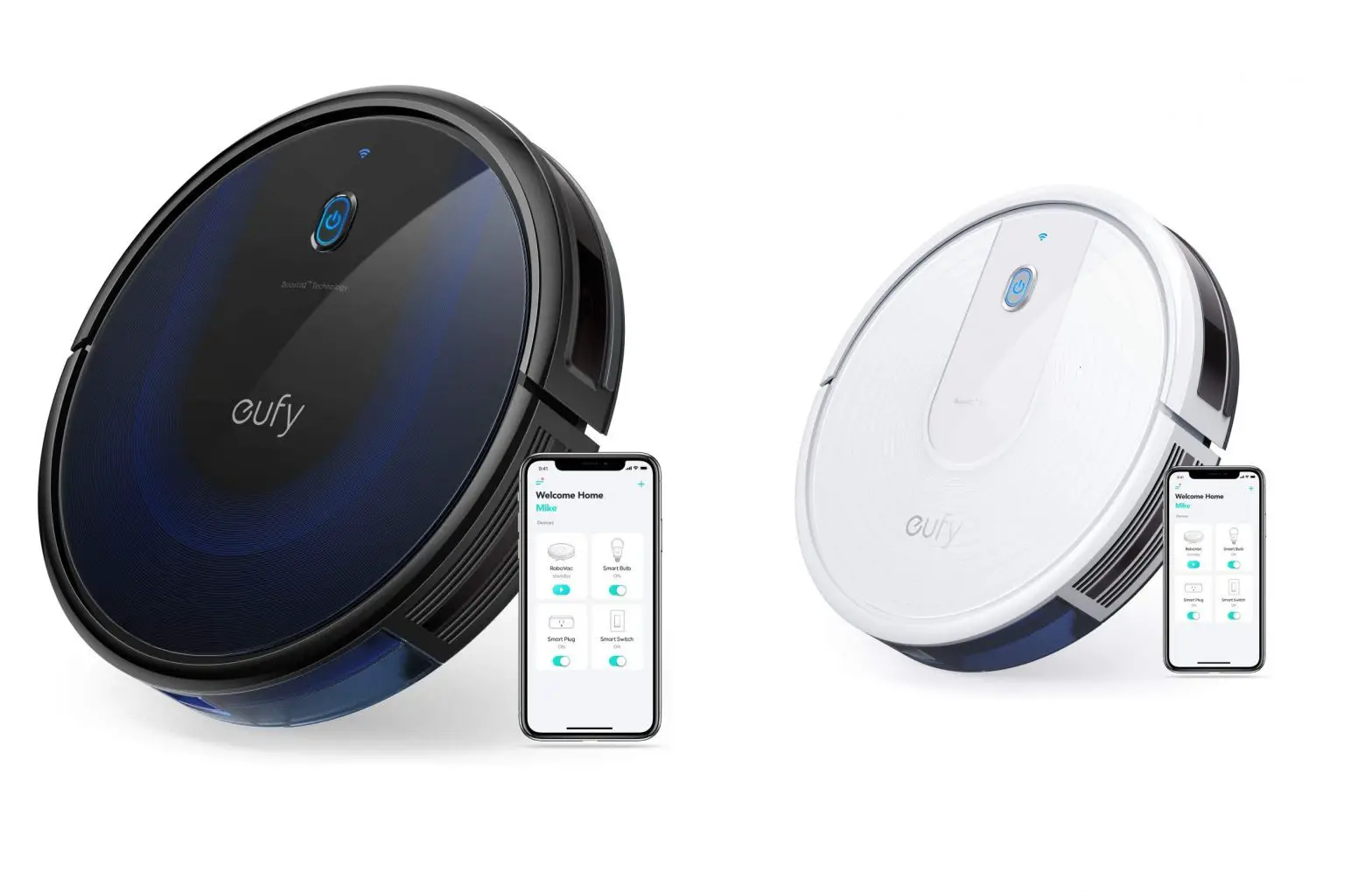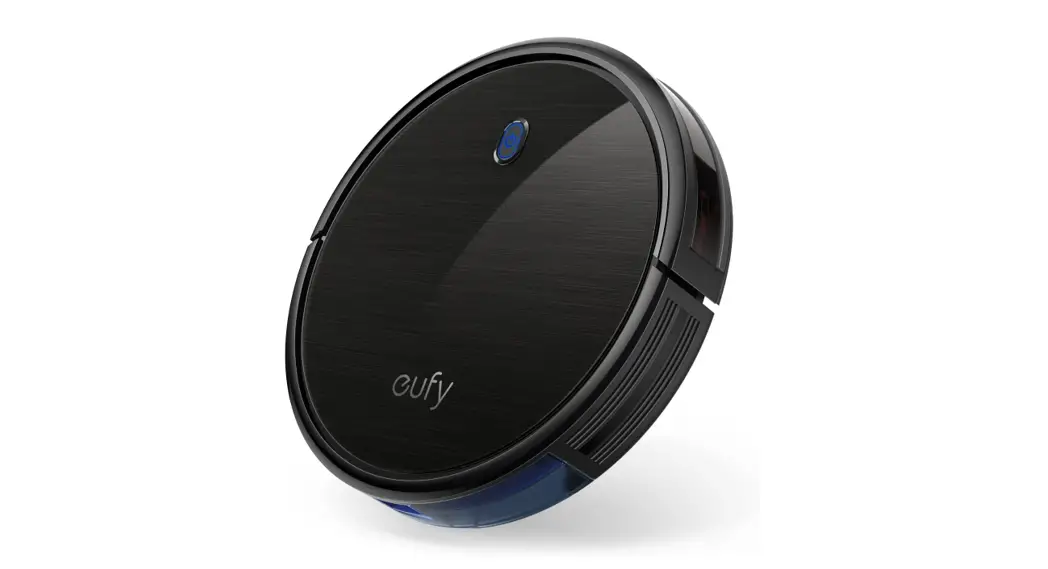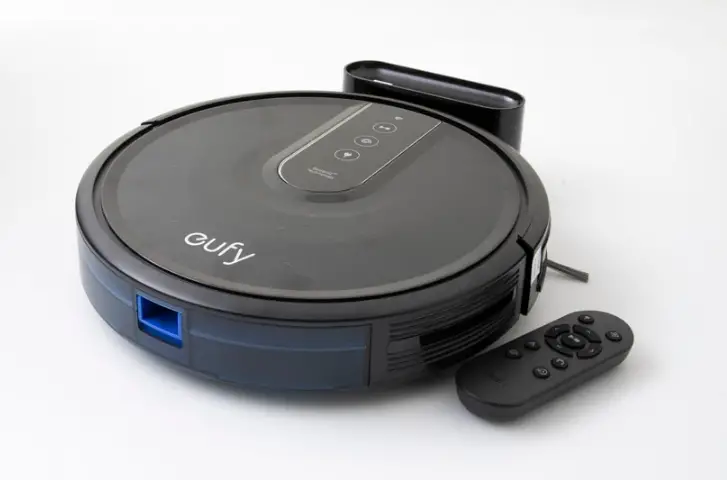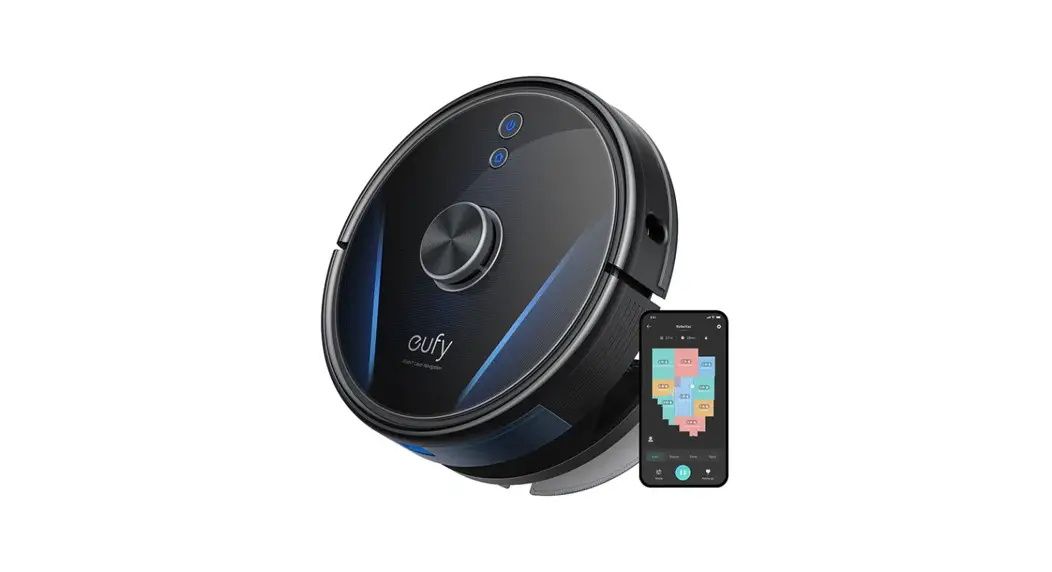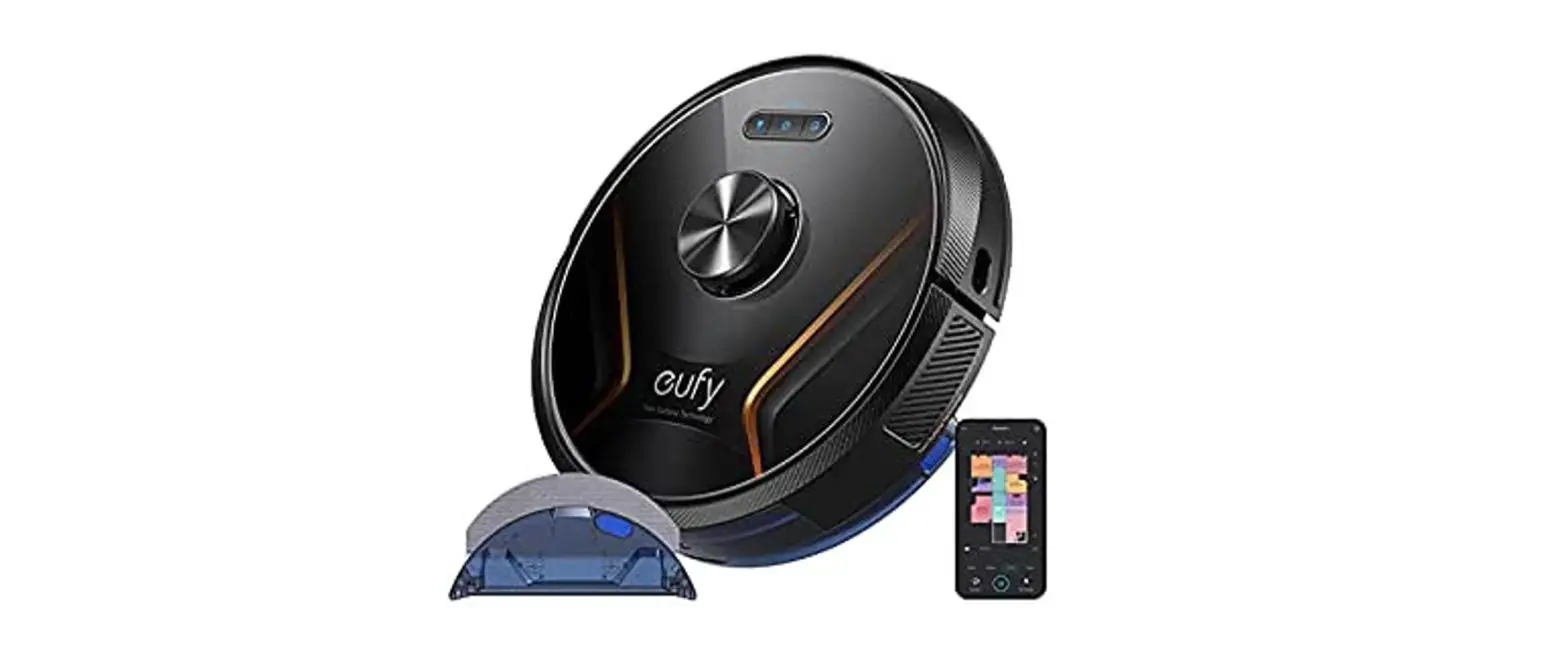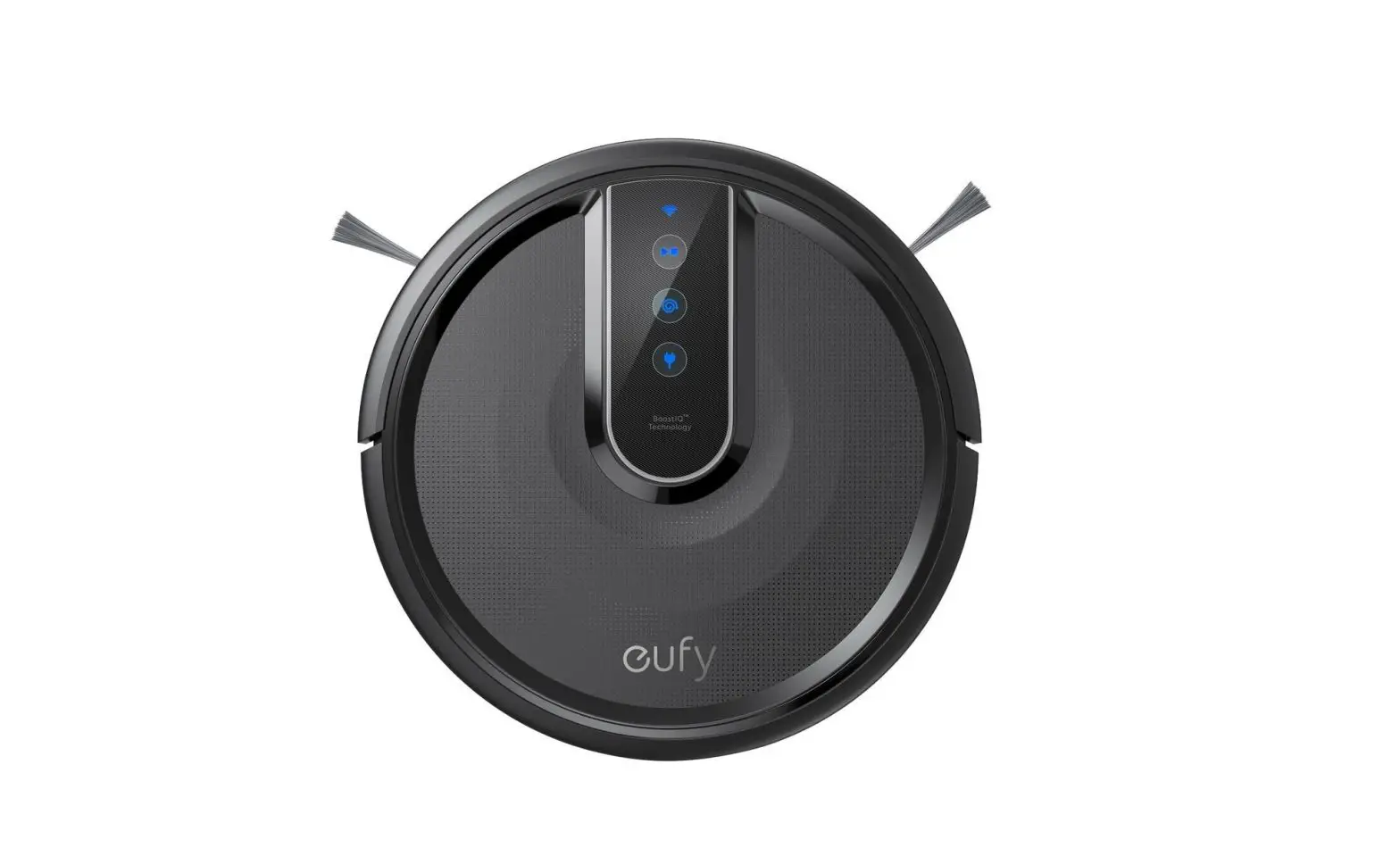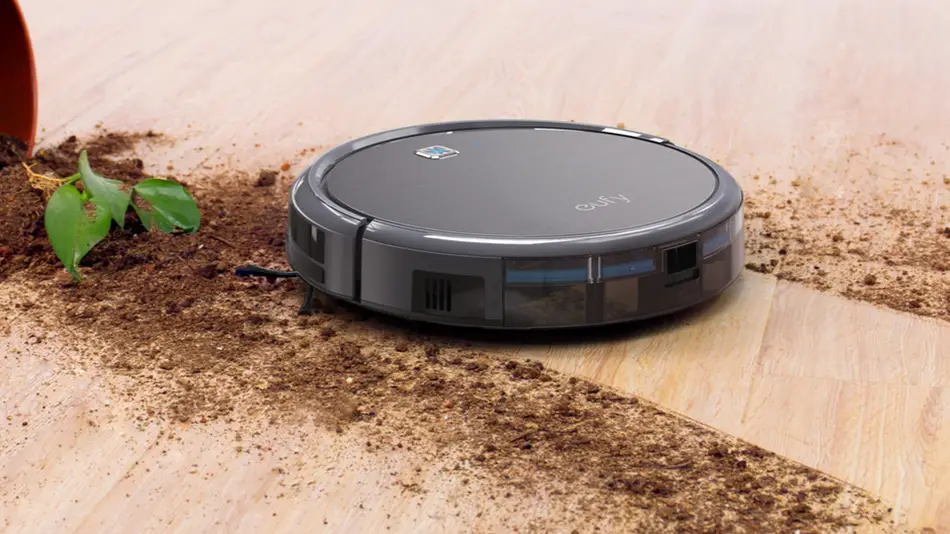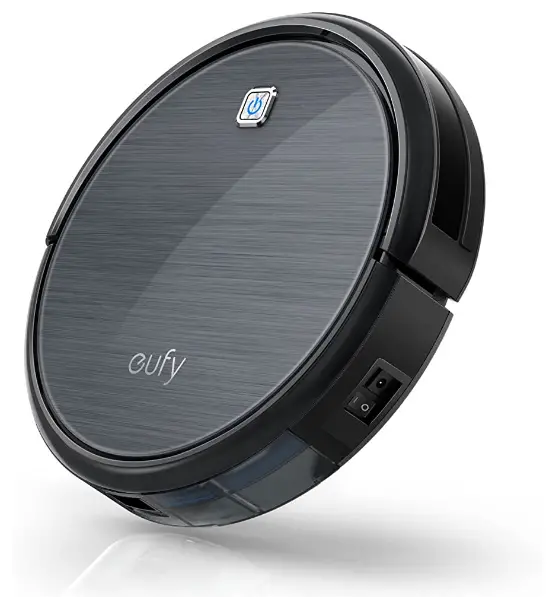
Eufy RoboVac 10+ (T2109)
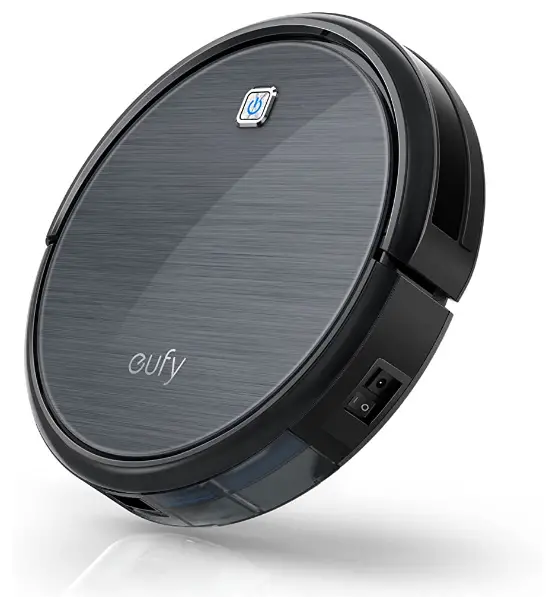
Owner’s Manual
Eufy RoboVac 10+ (T2109)
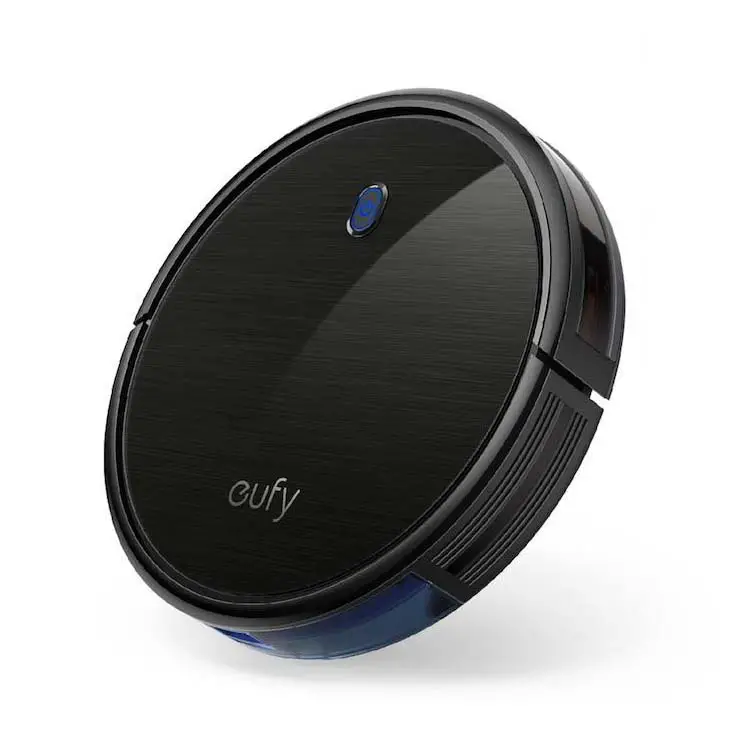
Eufy RoboVac 11 + (T2104)
About Your RoboVac
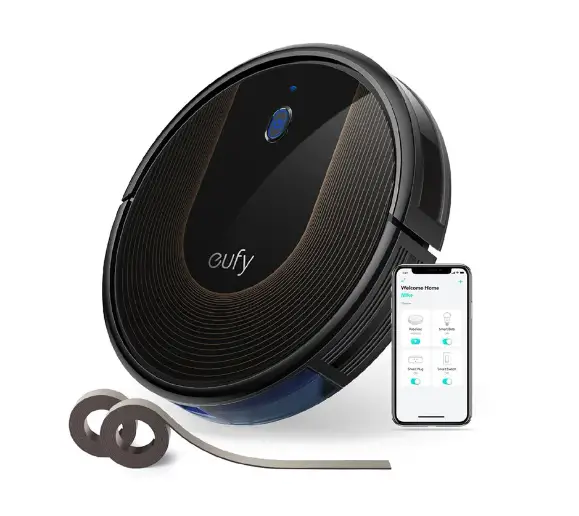
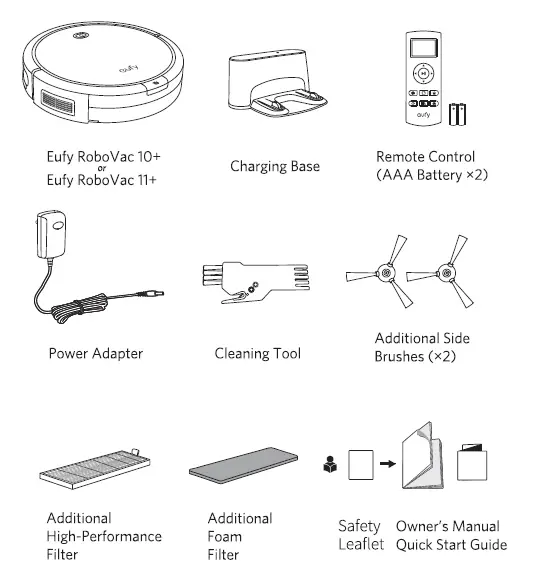
What’s In the Box
Robo Vac Anatomy
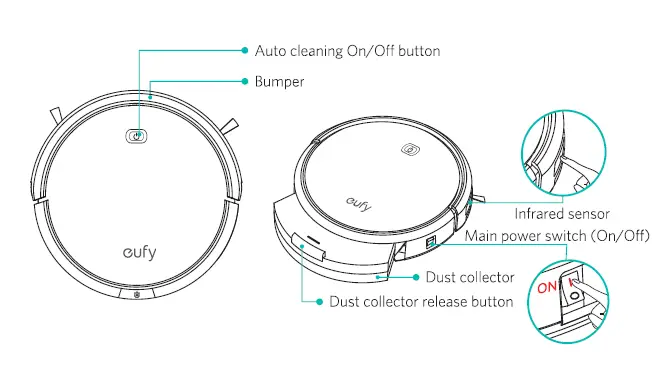
Top & Side
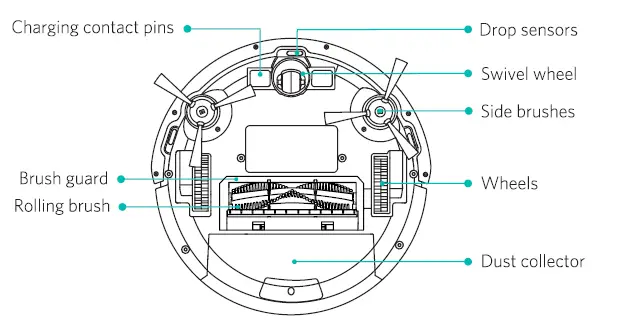
Bottom
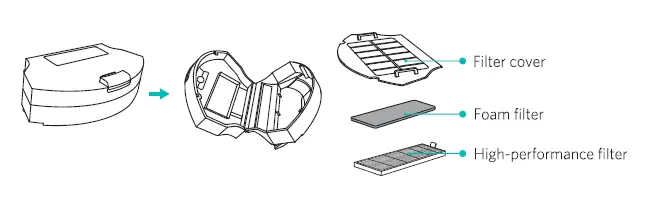
Dust Collector
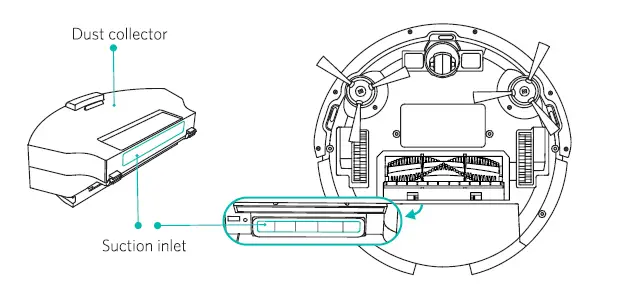
Suction Inlet
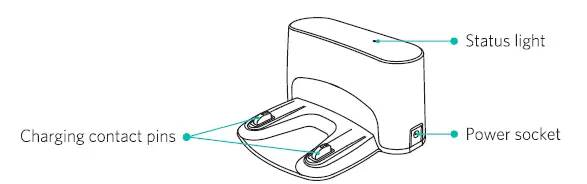
Charging Base
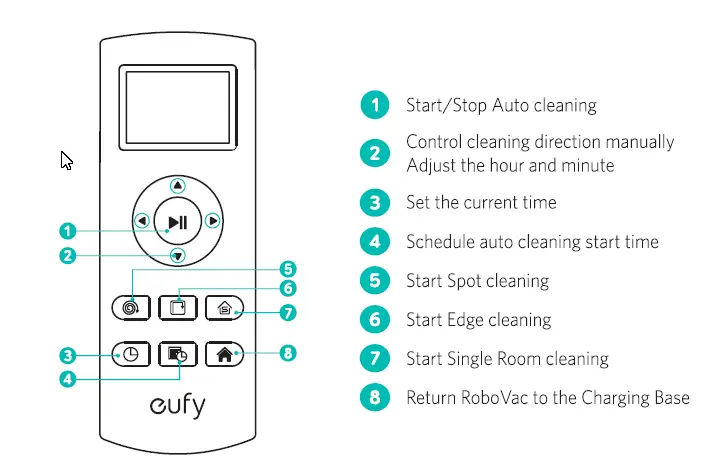
Remote Control
WARNING
Install 2 AAA batteries before using the remote control for the first time. Make sure the positive and negative ends are facing the correct polarity direction as marked in the battery compartment.
Using Your RoboVac
Important Tips Before Use
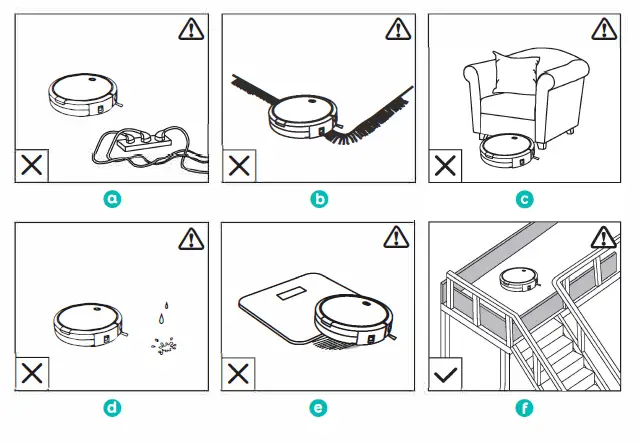
a. Remove power cords and small objects from the floor that may entangle RoboVac.
b. Remove rugs that are thicker than 0.87 in/22 mm as they may cause RoboVac to malfunction. Fold tasseled edges of area rugs underneath to prevent tangling RoboVac.
Do not use RoboVac on long-pile carpeting.
c. Avoid cleaning spaces lower than 3.9 in/100 mm to prevent RoboVac from getting stuck .
d. Keep RoboVac away from wet areas.
e. RoboVac may climb on top of objects less than 0.67 in/17 mm in height. Remove these objects if possible.
f. Anti-drop sensors prevent RoboVac from tumbling down stairs and steep drops. They may work less effectively if they are dirty or on reflective/dark-colored floors. It is recommended to place a physical barrier to block off problem areas where the device may fall.
Install the Charging Base
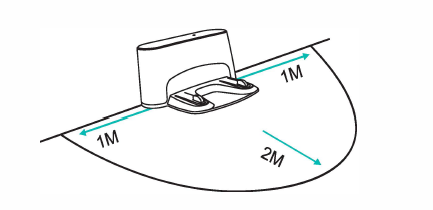
1. Place the Charging Base on a hard, level surface and against a wall.
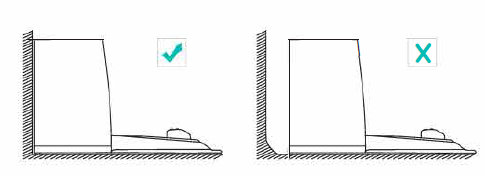
2. Remove objects within 3 ft/1 m of the left and right side and within 6 ft/2 m of the front of the charging base.
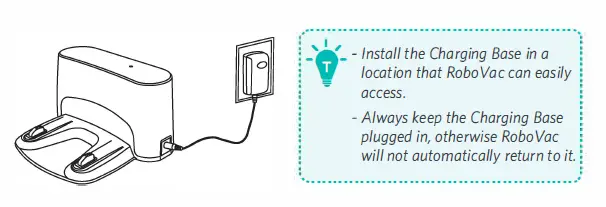
3. Connect the round connector of the adapter into the power socket on the Charging Base and the other end into a wall outlet.
WARNING
The LED indicator on the charging base is solid green when Robo Vac is not docked.
The LED indicator on the charging base is off when RoboVac is docked.
Charge Your RoboVac
- RoboVac has a pre-installed rechargeable battery that has to be fully charged before use.
- RoboVac returns to the Charging Base at the end of a cleaning cycle or when its battery is running low.
- Make sure the main power switch on the side of RoboVac is turned on before charging.
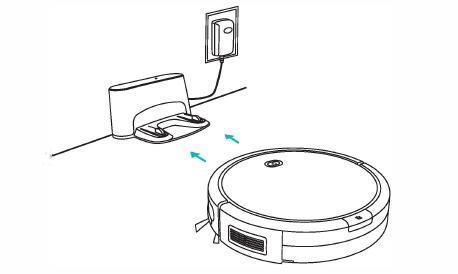
Method 1: Attach RoboVac to the Charging Base by aligning its charging pins with the charging pins on the base.
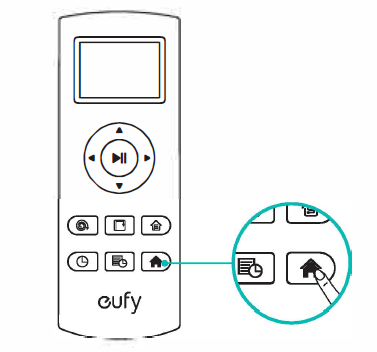
Method 2: Press  on the remote control to return RoboVac to the Charging Base.
 (Status Light) (Status Light) | Status |
| Breathing blue | Charging |
| Solid blue | Standby/ Cleaning/ Returning to charging base |
| Solid purplish-red | Low power and returning to charging base |
| Flashing/ Solid red + Beeping | RoboVac has an error |
| Off | • RoboVac powers off. • To save power, the light automatically turns off: – When RoboVac is not docked to the charging base and has been inactive for 10 minutes; – After RoboVac is docked to the charging base and has been fully charged for 10 minutes. |
WARNING:
Turn off the power switch if RoboVac will not be used for a long period of time. To preserve the battery’s lifespan, recharge at least once every 3 months.
Start/Stop Cleaning
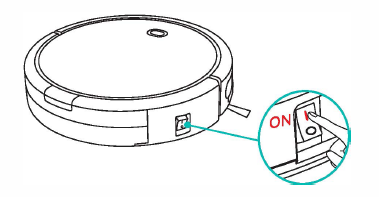
1. Turn on the main power supply
Press the main power switch on the side of RoboVac to turn on the main power supply.
2. Start cleaning
Press C) on RoboVac or IJll,II on the remote control to start cleaning in Auto mode.
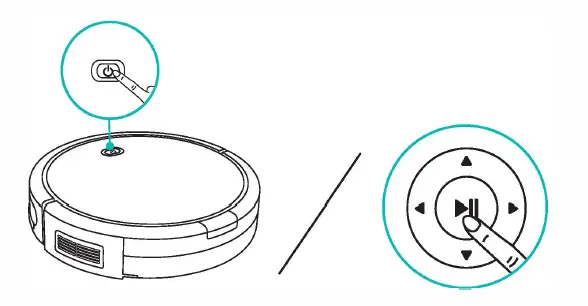
3. Stop cleaning
Press on RoboVac or  on the remote control to stop cleaning.
Select a Cleaning Mode
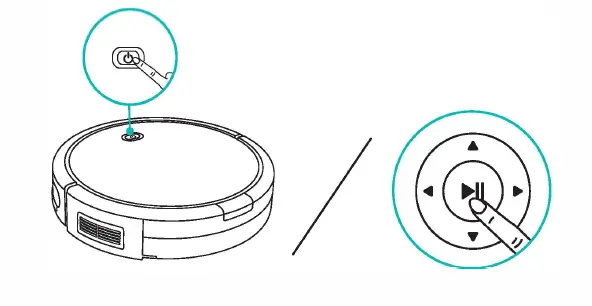
1. Auto cleaning
RoboVac automatically cleans in a back-and-forth, straight-line pattern. This is the most commonly used cleaning mode.
Press on RoboVac or on the remote control to start cleaning in Auto Mode.
WARNING:
– RoboVac will return to the Charging Base automatically when the power level becomes low or when RoboVac finishes cleaning.
– By default, RoboVac starts in Auto cleaning mode when it is turned on.
Power Boost Feature (Model T2104 only)
When the Power Boost feature is enabled, RoboVac will automatically increase the suction power if it detects stronger power is needed to ensure the best clean. Power Boost is ideal for cleaning thicker carpets and hard-to-sweep messes, which will reduce the cleaning time, but increase the noise level. If the vacuuming noise caused by Power Boost disturbs you, you can disable this feature. This feature only works in Auto cleaning mode.
To adust the default suction power in Auto Cleaning Mode, simultaneously press and hold the and  buttons for 2 seconds; you will hear a series of beeps that correspond to the suction power selected. Repeat to adjust the suction power level.
| Sound | Power Boost | Suction Power Setting |
| One beep | Off | Standard |
| Two beeps | On | Automatically switches between Standard and Maximum (default) |
| Three beeps | Off | Maximum |
Note: When RoboVac starts Auto cleaning the next time, it will clean according to the suction power level you previously selected.
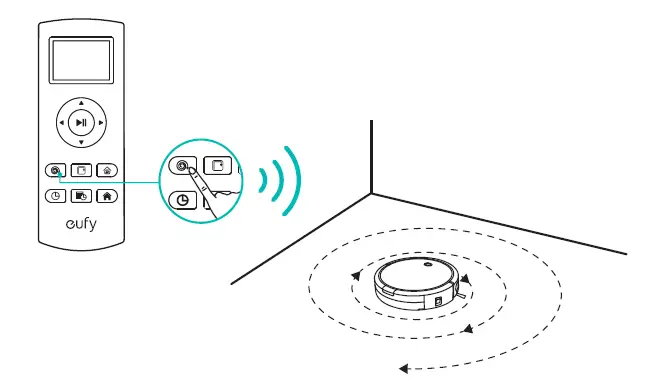
2. Spot cleaning
RoboVac intensively cleans a specific area in a spiral pattern. Useful if there is a concentrated area of dust or debris. In Spot mode, RoboVac will stop cleaning after 2 minutes.
Press  on the remote control to start cleaning in Spot Mode.
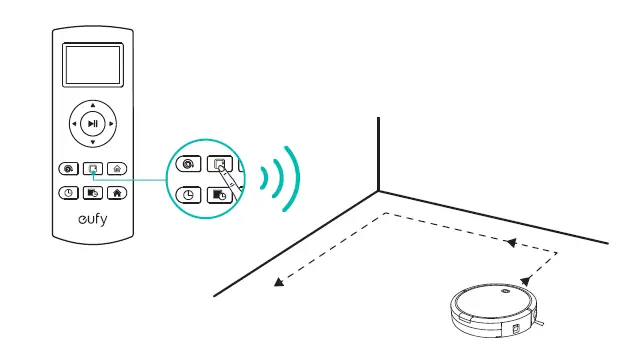
3. Edge cleaning
RoboVac reduces its speed when it detects a wall and then follows the wall to ensure the edge is cleaned thoroughly. In Edge mode, RoboVac will stop cleaning after 20 minutes.
Press  on the remote control to start cleaning in Edge Mode.
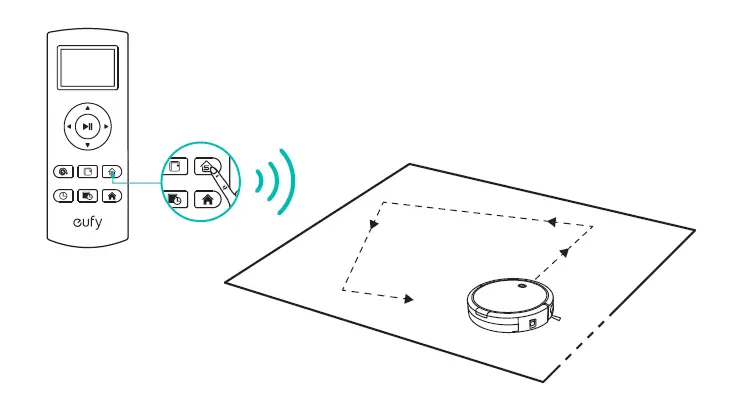
4. Single Room cleaning
RoboVac intensively cleans one single room and stops after 30 minutes. Select this mode only when one specific room needs to be cleaned. Make sure to confine RoboVac to the room by closing the door.
Press  on the remote control to start cleaning in Single Room Mode.
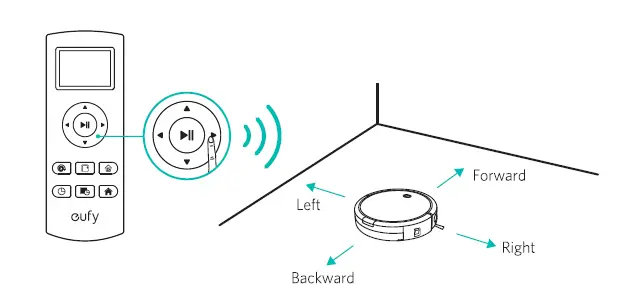
5. Manual cleaning
You can direct RoboVac to clean a particular area by using the directional buttons on the remote control.
Set Time and Schedule Cleaning
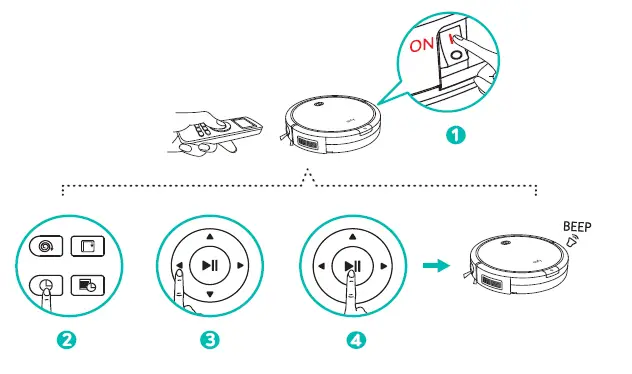
1. SetTime
Note: Make sure the time is set correctly to your focal time before setting a scheduled cleaning.
1. Make sure the main power switch on the side of RoboVac is turned on.
2. Press  on the remote control. will blink on the display.
3. Press  to set the “hour” and “minute”.
Note: Make sure AM/PM is set correctly.
4. Press or to save the setting. RoboVac will BEEP ONCE to indicate the time has been set.
WARNING
To ensure the time is set successfully, make sure RoboVac is turned on. You will hear a beep when the time has been set.
2. Schedule Cleaning
You can schedule RoboVac to start cleaning at a specified time. To cancel a previously scheduled cleaning, press and hold  for 3 seconds until RoboVac beeps twice and disappears.
1. Before setting a scheduled cleaning, make sure the time has been set correctly to your local time; refer to the previous section “Set Time” for how to set time.
2. Make sure the main power switch on the side of RoboVac is turned on.
3. Press on the remote control. will blink on the display.
4. Press to set the “hour” and “minute”.
Note: Make sure AM/PM is set correctly.
5. Press or to save the setting RoboVac will BEEP ONCE to indicate the schedule has been set.
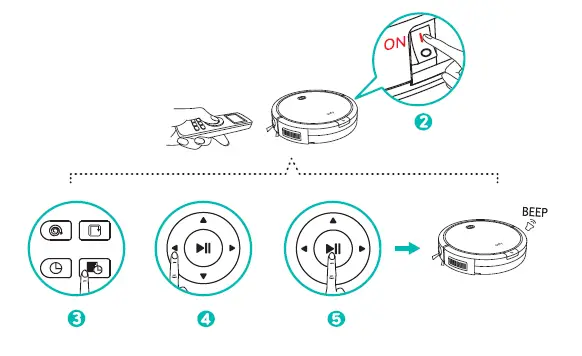
WARNING: To ensure the schedule is set successfully, make sure RoboVac is turned on. You will hear a beep when the schedule has been set.
Cleaning and Maintenance
Clean the Dust Collector and Filters
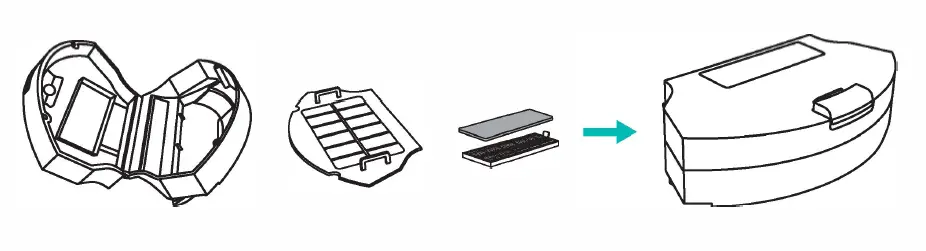
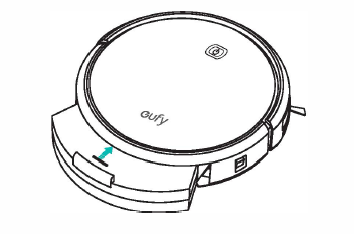
1. Press the dust collector release button to pull the dust collector out.
2. Open and empty the dust collector.
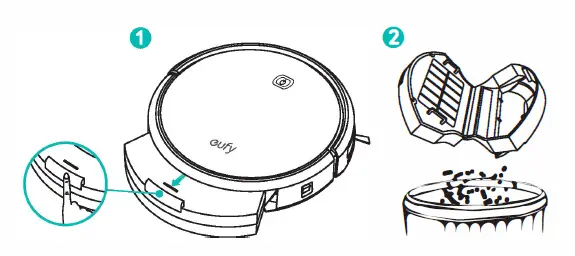
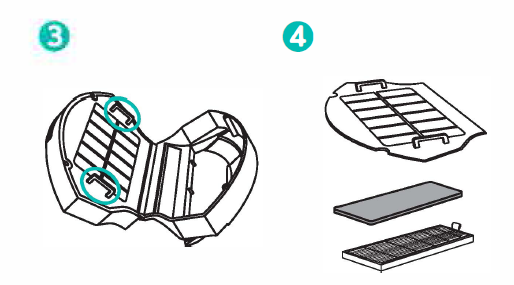
3. Separate the filter cover by pulling the hooks as shown.
4. Take out the foam filter and high-performance filter.
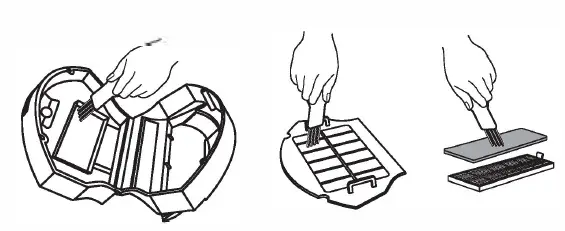
5. Clean the dust collector and filter with a vacuum cleaner or a cleaning brush.
6. Put the filters and filter cover back together in the dust collector
7. Push the dust collector back into the main unit.
WARNING:
It is recommended to empty the dust collector and clean the filter after every use.
You can wash the dust collector, filter cover and foam filter with water. Be sure to air-dry them thoroughly before reassembling. Do not wash the high-performance filter with water, as it may damage the filter and reduce the suction power.
Clean the Rolling Brush
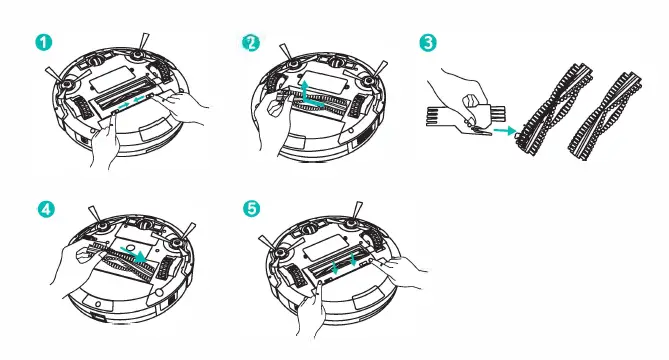
1. Pull on release tabs to unlock brush guard as shown.
2. Lift the rolling brush to remove.
3. Clean the rolling brush with the provided cleaning tool or a vacuum cleaner.
4. Reinstall the rolling brush by inserting the fixed protruding end first, then clicking into place.
5. Press down to snap the brush guard into place.
Clean the Sensors and Charging Pins
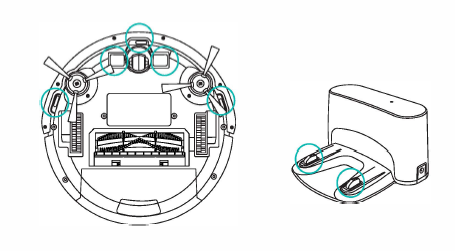
To maintain the best performance, clean the drop sensors and charging pins regularly.
- Dust off the drop sensors and charging contact pins using a cloth or cleaning brush.
Clean the Side Brushes
Foreign substances such as hair can easily get tangled in the side brushes and dirt may adhere to
them. Be sure to clean them regularly.
1. Carefully unwind and pull off any hair or string that is wrapped between the main unit and the side brushes.
2. Use a cloth dampened with warm water to remove dust from the brushes or to gently reshape them.
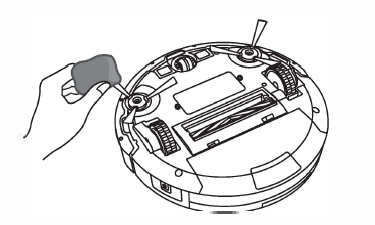
WARNING: Use the side brushes only when they are completely dry.
Replace the Side Brushes
The side brushes may become bent or damaged after being used for a period of time.
Follow the instruction below to replace them.
1. Use a screwdriver to unscrew the screws on the side brushes.
2. Pull off the old side brushes and snap the new ones into place.
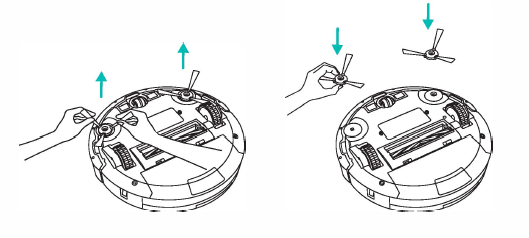
3. Screw down the screws to fasten the side brushes.
Troubleshooting
| Problem | Solutions |
| RoboVac cannot be activated. | • Make sure the main power switch is in the ON position. • Make sure the battery is fully charged. • Replace the batteries (2 AAA) in the remote control. • Make sure the remote control is within range (less than 6 ft/3 m from RoboVac). • If you still have trouble, turn off the main power switch and then turn it on. |
| The remote control does not work. | • Replace the batteries in the remote control. • Make sure RoboVac is turned on and fully charged. • If RoboVac and the remote control’s display work properly, but RoboVac does not respond to the remote control’s commands, it may be because the remote control has not been paired with RoboVac. In this case, do not dock RoboVac to the Charging Base. Turn off the main power switch and then: (1) press and hold IJJ,,II on the remote control until the 0 icon blinks on the display; (2) turn on the main power switch. You will hear three beeps after successful pairing. |
| RoboVac stops working suddenly. | • Check if RoboVac is trapped or stuck on an obstacle. • Check if the power level is too low. • If you still have trouble, turn off the main power switch and then turn it |
| RoboVac does not start scheduled cleaning. | • Make sure the main power switch on the side of RoboVac is turned on. • Make sure the time, time of day (AM/PM), and the scheduled time have been set correctly. • Check if RoboVac’s power is too low to start cleaning. |
| Suction power is weak. | • Check if any obstructions are blocking the suction inlet. • Empty the dust collector. • Clean the filter with a vacuum cleaner or a cleaning brush. |
| RoboVac cannot be charged. | • Check if the Charging Base is plugged into the outlet. • Remove objects within 3 ft/1 m to the left and right side and within 6 ft/2 m of the front of the Charging Base. • Dust off the charging contact pins with a dry cloth. |
| RoboVac cannot return to the charging base. | • Remove objects within 3 ft/1 m to the left and right side and within 6 ft/2 m of the front of the Charging Base. • When RoboVac is in the vicinity of the charging base, it will return more quickly. However, if the charging base is located far away, RoboVac will need more time to return. Please be patient as it works its way back. |
| The rolling brush does not rotate. | • Clean the rolling brush. • Check if the rolling brush has been installed properly. |
| RoboVac’s movements or travel path are abnormal. | • Clean the sensors carefully with a dry cloth. • Restart RoboVac by turning the power switch off and on. |
Error Tone
When RoboVac is in trouble, it will emit a series of short or long beeps and the red indicator on RoboVac will be solid or flashing.
Flashing red indicator light
| Error Tone | Cause | Solutions |
| One beep | RoboVac’s drop sensors are dirty. | Clean the drop sensors gently with a dry cloth. |
| Two beeps | RoboVac’s power level is too low. | Charge RoboVac for at least 5 hours. |
| Three beeps | RoboVac is hanging over a ledge or 1s trapped. | Turn off RoboVac and restart in a new location. |
| Four beeps | RoboVac’s suction fan is stuck. | • Turn off RoboVac, then remove and empty the dust collector. • Make sure the suction inlet is not blocked by any hair or debris. |
| Five beeps | RoboVac’s infrared sensor on the bumper is dirty. | Clean the infrared sensor gently with a dry cloth. |
Solid red indicator light
| Error Tone | Cause | Solutions |
| One beep | RoboVac’s left/right wheel is stuck. | Turn off RoboVac and remove any hair or debris from the left/right wheel. |
| Two beeps | RoboVac’s side brush is stuck. | Turn off RoboVac and remove any hair or debris from the side brush. |
| Three beeps | RoboVac’s rolling brush is stuck. | Turn off RoboVac and remove any hair or debris from the rolling brush. |
| Four beeps | RoboVac’s bumper is stuck. | Tap RoboVac’s bumper several times to dislodge any debris that may be trapped underneath. |
Specifications
 | Product Model | T2104 | T2 109 |
| Input | 19V=0.6A | 19V=0.6A | |
| Battery Voltage | DC 144 V | DC14.6 V | |
| Q Power Consumption | 28W | 25W | |
| Battery Type | DC 144 V ; Li-ion 2500 mAh | DC14.6 V ; Li-ion 2 050 mAh | |
| Dust Collector Capacity | OS5L | 0.55 L | |
| Cleaning Time | Max. 100 mins | Max. 100 mins | |
| Charging Time | 300 – 360 mins | 300 – 360 mins | |
 | Input | 19V=0.6A | |
| Output | 19V=0.6A |
Customer Service
12-Month Limited Warranty
Lifetime Technical Support
[email protected]
+1 (800) 988 7973 (US) Mon-Fri 9:00 -17:00 (PT)
+44 (0) 1604 936200 (UK) Mon-Fri 6:00 -11:00 (GMT)
+49 (0) 69 9579 7960 (DE) Mon-Fri 6:00 – 11:00
+81 03 4455 7823 CB 21,:) Fl- 9:00 – 17:00
+86 400 0550 036 ($§1) mJ-JUi 9:00 -17:30
Eufy RoboVac 10+ (T2109) User Manual – [Download PDF]