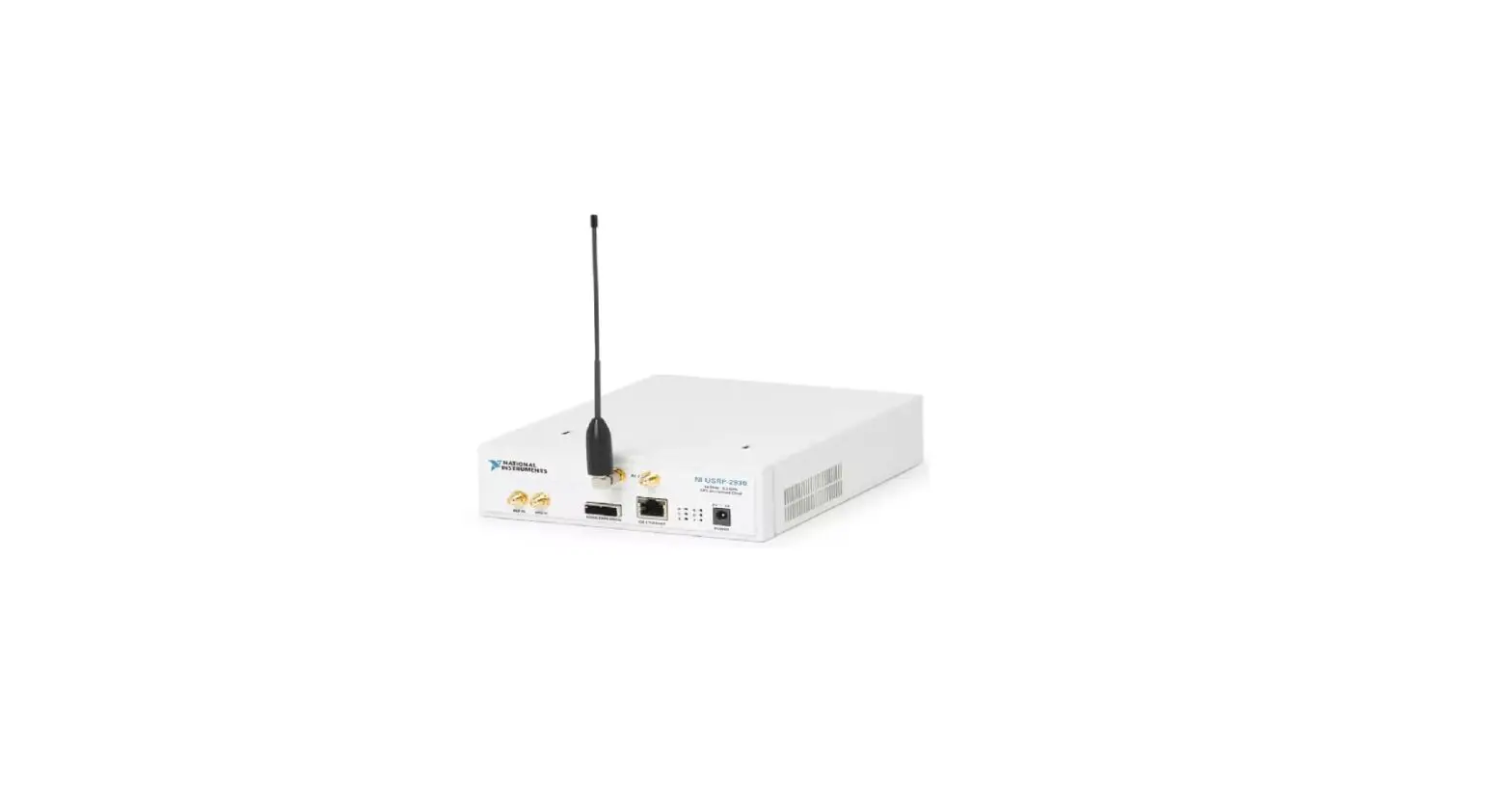
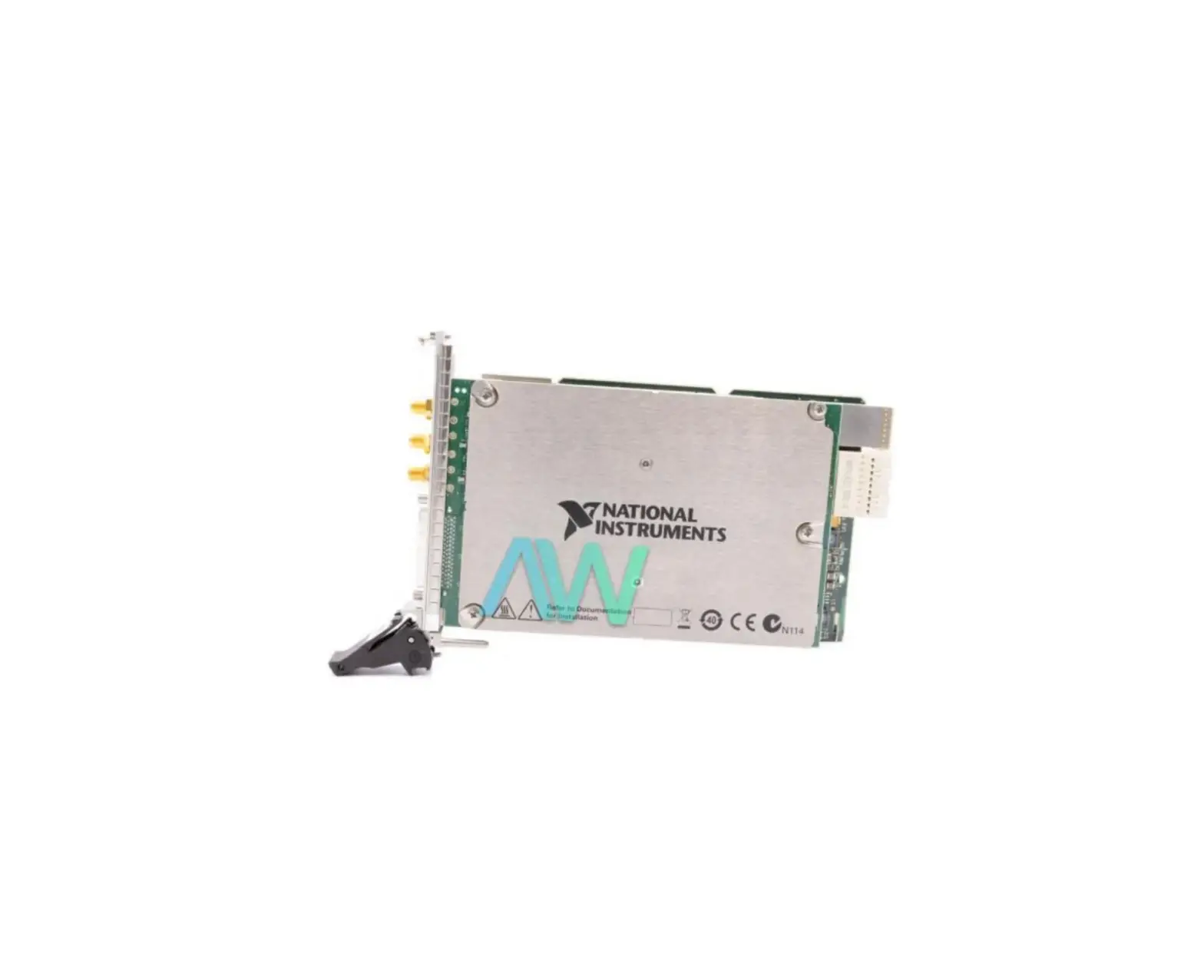
NI USRP-2930, 2932 Universal Software Radio Peripheral
Product Information
The NI USRP-2930/2932 is a universal software radio peripheral
(USRP) device manufactured by National Instruments. It is designed
for use in various communications applications and can send and
receive signals.
The device comes with the NIUSRP instrument driver, which allows
users to program and control the device.
Product Usage Instructions
- Electromagnetic Compatibility Guidelines:
It is important to note that this product complies with
regulatory requirements and limits for electromagnetic
compatibility (EMC) as stated in the product specifications.
However, to minimize interference and ensure optimal
performance:
- Use the product in industrial locations.
- Follow the instructions in the product documentation for
installation and usage. - Do not make any changes or modifications to the product without
National Instruments’ approval. - Operate the product only with shielded cables and
accessories. - The length of all I/O cables (except those connected to the
Ethernet and GPS antenna ports) must not exceed 3 m (10 ft). - Do not use the product with an antenna for transmission over
the air, as it may violate local laws.
Prior to using the NI-USRP instrument driver, ensure that your
system meets the following requirements:
- Refer to the product readme, available on the driver software
media or online at ni.com/manuals, for detailed information on
minimum system requirements, recommended system specifications, and
supported application development environments (ADEs).
Follow the instructions provided in the product documentation to
unpack the kit.
If you need to synchronize multiple NI 293x devices, refer to
the instructions provided in the product documentation.
Follow the instructions in the product documentation to
configure the NI 293x devices.
If you are using Ethernet connection, refer to the product
documentation for instructions on setting up the network.
Refer to the product documentation for instructions on
programming and utilizing the features of the NI 293x using the
NIUSRP instrument driver.
USRP-2930
GETTING STARTED GUIDE
NI USRP-2930/2932
Universal Software Radio Peripheral
This document explains how to install, configure, and test the National Instruments universal software radio peripheral (USRP) 2930 or 2932 (NI 293x) device. The NI 293x can send and receive signals for use in various communications applications. This device ships with the NIUSRP instrument driver, which you can use to program the device.
To access NI 293x documentation, navigate to Start»All Programs»National Instruments» NI-USRP»Documentation.
Contents
Electromagnetic Compatibility Guidelines……………………………………………………………………. 1 Verifying the System Requirements………………………………………………………………………………2 Unpacking the Kit……………………………………………………………………………………………………… 2
Verifying the Kit Contents…………………………………………………………………………………… 3 Preparing the Environment…………………………………………………………………………………………. 4 Installing the Software……………………………………………………………………………………………….. 4 Installing NI 293x Devices…………………………………………………………………………………………. 5
Synchronizing NI 293x Devices (Optional)…………………………………………………………….5 Configuring NI 293x Devices……………………………………………………………………………………… 6
Setting Up the Network (Ethernet Only)……………………………………………………………….. 6 Programming the NI 293x……………………………………………………………………………………………8
NI-USRP Instrument Driver………………………………………………………………………………… 8 NI-USRP Examples……………………………………………………………………………………………. 8 Testing the Device (Optional)………………………………………………………………………………. 9 Troubleshooting………………………………………………………………………………………………………… 9 Device Troubleshooting………………………………………………………………………………………. 9 Network Troubleshooting……………………………………………………………………………………11 Front Panels, Back Panels, and Connectors…………………………………………………………………. 13 Direct Connections to the NI 293x……………………………………………………………………… 13 NI USRP-2930…………………………………………………………………………………………………. 13 NI USRP-2932…………………………………………………………………………………………………. 15 Where to Go Next……………………………………………………………………………………………………. 18 Worldwide Support and Services……………………………………………………………………………….. 18
Electromagnetic Compatibility Guidelines
This product was tested and complies with the regulatory requirements and limits for electromagnetic compatibility (EMC) stated in the product specifications. These requirements
and limits provide reasonable protection against harmful interference when the product is operated in the intended operational electromagnetic environment.
This product is intended for use in industrial locations. However, harmful interference may occur in some installations, when the product is connected to a peripheral device or test object, or if the product is used in residential or commercial areas. To minimize interference with radio and television reception and prevent unacceptable performance degradation, install and use this product in strict accordance with the instructions in the product documentation.
Furthermore, any changes or modifications to the product not expressly approved by National Instruments could void your authority to operate it under your local regulatory rules.
Caution To ensure the specified EMC performance, operate this product only with shielded cables and accessories.
Caution To ensure the specified EMC performance, the length of all I/O cables except those connected to the Ethernet and GPS antenna ports must be no longer than 3 m (10 ft).
Caution This product is not approved or licensed for transmission over the air using an antenna. As a result, operating this product with an antenna may violate local laws. Ensure that you are in compliance with all local laws before operating this product with an antenna.
Verifying the System Requirements
To use the NI-USRP instrument driver, your system must meet certain requirements.
Refer to the product readme, which is available on the driver software media or online at ni.com/manuals, for more information about minimum system requirements, recommended system, and supported application development environments (ADEs).
Unpacking the Kit
Caution To prevent electrostatic discharge (ESD) from damaging the device, ground yourself using a grounding strap or by holding a grounded object, such as your computer chassis. 1. Touch the antistatic package to a metal part of the computer chassis. 2. Remove the device from the package and inspect the device for loose components or any other sign of damage.
Caution Never touch the exposed pins of connectors.
Note Do not install a device if it appears damaged in any way.
2 | ni.com | NI USRP-2930/2932 Getting Started Guide
3. Unpack any other items and documentation from the kit. Store the device in the antistatic package when the device is not in use.
Verifying the Kit Contents
NI USRP-2920R
1
2
3
4
5
6
1. NI 29xx Device 2. AC/DC Power Supply and Power Cable 3. Shielded Ethernet Cable
4. SMA (m)-to-SMA (m) Cable 5. 30 dB SMA Attenuator 6. Getting Started Guide (This Document)
Caution If you directly connect or cable a signal generator to your device, or if you connect multiple USRP devices together, you must connect a 30 dB attenuator to the RF input (RX1 or RX2) of each receiving USRP device.
Other Required Items
In addition to the kit contents, you must provide the following additional items: · Computer with available gigabit Ethernet interface.
Caution This product is not approved or licensed for transmission over the air using an antenna. As a result, operating this product with an antenna may violate local laws. Ensure that you are in compliance with all local laws before operating this product with an antenna.
Optional Items
· LabVIEW Modulation Toolkit (MT), included on the driver software media, which includes MT VIs and functions, examples, and documentation
Note You must install the LabVIEW Modulation Toolkit for proper operation of the NI-USRP Modulation Toolkit example VIs.
· LabVIEW Digital Filter Design Toolkit, included on the driver software media
NI USRP-2930/2932 Getting Started Guide | © National Instruments | 3
· LabVIEW MathScript RT Module, included on the driver software media · USRP MIMO sync and data cable, available at ni.com, to synchronize clock sources · Additional SMA (m)-to-SMA (m) cables to connect both channels with external devices
or to use the REF IN and PPS IN signals · GPS antenna for devices with GPS disciplined oscillator (GPSDO) support
Preparing the Environment
Ensure that the environment you are using the USRP device in meets the following specifications.
Operating temperature Operating humidity Pollution Degree Maximum altitude
23 ±5 °C 10% to 90% relative humidity, noncondensing 2 2,000 m
Indoor use only.
Note Refer to the USRP device specifications at ni.com/manuals for complete specifications.
Caution Do not operate the NI 293x in a manner not specified in this document. Product misuse can result in a hazard. You can compromise the safety protection built into the product if the product is damaged in any way. If the product is damaged, return it to NI for repair.
Installing the Software
You must be an Administrator to install NI software on your computer. 1. Install an ADE, such as LabVIEW. 2. Visit ni.com/info and enter the Info Code usrpdriver to access the driver download
page for the latest NI-USRP software. 3. Download the NI-USRP driver software. 4. Follow the instructions in the installation prompts.
Note Windows users may see access and security messages during installation. Accept the prompts to complete the installation.
5. When the installer completes, select Restart in the dialog box that prompts you to restart, shut down, or restart later.
4 | ni.com | NI USRP-2930/2932 Getting Started Guide
Installing NI 293x Devices
Install all the software you plan to use before you install the hardware.
Note The NI 293x device connects to a host computer using a standard gigabit Ethernet interface. Refer to the documentation for your gigabit Ethernet interface for installation and configuration instructions. 1. Power on the computer. 2. Attach the antenna or cable to the front panel terminals of the NI 293x device as desired. 3. Use the Ethernet cable to connect the NI 293x device to the computer. For maximum throughput over Ethernet, NI recommends that you connect each NI 293x device to its own dedicated gigabit Ethernet interface on the host computer. 4. Connect the AC/DC power supply to the NI 293x device. 5. Plug the power supply into a wall outlet. Windows automatically recognizes the NI 293x device.
Synchronizing NI 293x Devices (Optional)
You can connect two USRP devices so that they share clocks and the Ethernet connection to the host. 1. Connect the MIMO cable included with the kit to the MIMO EXPANSION port of each
device.
NI USRP-292X
NI USRP-292X
2. If you have not already done so, attach antennas to the USRP devices.
If you want to use one USRP device as a receiver and the other as a transmitter, attach one antenna to the RX 1 TX 1 port of the transmitter, and attach another antenna to the RX 2 port of the receiver.
The NI-USRP driver ships with some examples that you can use to explore the MIMO connection, including USRP EX Rx Multiple Synchronized Inputs (MIMO Expansion).vi and USRP EX Tx Multiple Synchronized Outputs (MIMO Expansion).vi.
NI USRP-2930/2932 Getting Started Guide | © National Instruments | 5
Configuring NI 293x Devices
Setting Up the Network (Ethernet Only)
The device communicates with a host computer over gigabit Ethernet. Set up the network to enable communication with the device.
Note The IP addresses for the host computer and each connected USRP device must be unique.
Configuring the Host Ethernet Interface with a Static IP Address
The default IP address for the NI 293x is 192.168.10.2. 1. Ensure the host computer uses a static IP address.
You may need to modify the network settings for the local area connection using the Control Panel on the host computer. Specify the static IP address in the Properties page for Internet Protocol Version 4 (TCP/IPv4). 2. Configure the host Ethernet interface with a static IP address on the same subnet as the connected device to enable communication, as shown in the following table.
Table 1. Static IP Addresses Component
Address
Host Ethernet interface static IP address Host Ethernet interface subnet mask Default USRP device IP address
192.168.10.1 255.255.255.0 192.168.10.2
Note NI-USRP uses user datagram protocol (UDP) broadcast packets to locate the device. On some systems, the firewall blocks UDP broadcast packets. NI recommends that you change or disable the firewall settings to allow communication with the device.
Changing the IP Address
To change the USRP device IP address, you must know the current address of the device, and you must configure the network. 1. Verify that your device is powered on and connected to your computer using the gigabit
Ethernet interface. 2. Select Start»All Programs»National Instruments»NI-USRP»NI-USRP
Configuration Utility to open the NI-USRP Configuration Utility. 3. Select the Devices tab of the utility.
Your device should appear in the list on the left side of the tab. 4. In the list, select the device for which you want to change the IP address.
If you have multiple devices, verify that you selected the correct device.
6 | ni.com | NI USRP-2930/2932 Getting Started Guide
The IP address of the selected device displays in the Selected IP Address textbox. 5. Enter the new IP address for the device in the New IP Address textbox.
6. Click the Change IP Address button or press <Enter> to change the IP address.
The IP address of the selected device displays in the Selected IP Address textbox. 7. The utility prompts you to confirm your selection. Click OK if your selection is correct;
otherwise, click Cancel. 8. The utility displays a confirmation to indicate the process is complete. Click OK. 9. Power cycle the device to apply the changes. 10. After you change the IP address, you must power cycle the device and click Refresh
Devices List in the utility to update the list of devices.
Confirming Network Connection
1. Select Start»All Programs»National Instruments»NI-USRP»NI-USRP Configuration Utility to open the NI-USRP Configuration Utility.
2. Select the Devices tab of the utility.
Your device should appear in the list on the left side of the tab.
Note If your device is not listed, verify that your device is powered on and correctly connected, then click the Refresh Devices List button to scan for USRP devices.
Configuring Multiple Devices with Ethernet
You can connect multiple devices in the following ways: · Multiple Ethernet interfaces–One device for each interface · Single Ethernet interface–One device connected to the interface, with additional devices
connected using an optional MIMO cable · Single Ethernet interface–Multiple devices connected to an unmanaged switch
Tip Sharing a single gigabit Ethernet interface among devices may reduce overall signal throughput. For maximum signal throughput, NI recommends that you connect no more than one device per Ethernet interface.
Multiple Ethernet Interfaces To configure multiple devices connected to separate gigabit Ethernet interfaces, assign each Ethernet interface a separate subnet, and assign the corresponding device an address in that subnet, as shown in the following table.
Table 2. Multiple Host Ethernet Interface Configuration
Device
Host IP Address
Host Subnet Mask
Device IP Address
USRP Device 0 192.168.10.1
255.255.255.0
192.168.10.2
USRP Device 1 192.168.11.1
255.255.255.0
192.168.11.2
NI USRP-2930/2932 Getting Started Guide | © National Instruments | 7
Single Ethernet Interface–One Device
You can configure multiple devices using a single host Ethernet interface when the devices are connected to each other using a MIMO cable. 1. Assign each device a separate IP address in the subnet of the host Ethernet interface, as
shown in the following table.
Table 3. Single Host Ethernet Interface–MIMO Configuration
Device
Host IP Address
Host Subnet Mask
Device IP Address
USRP Device 0 192.168.10.1
255.255.255.0
192.168.10.2
USRP Device 1 192.168.10.1
255.255.255.0
192.168.10.3
2. Connect Device 0 to the Ethernet interface and connect Device 1 to Device 0 using a MIMO cable.
Single Ethernet Interface–Multiple Devices Connected to an Unmanaged Switch
You can connect multiple USRP devices to a host computer through an unmanaged gigabit Ethernet switch that allows a single gigabit Ethernet adapter on the computer to interface with multiple USRP devices connected to the switch.
Assign the host Ethernet interface a subnet, and assign each device an address in that subnet, as shown in the following table.
Table 4. Single Host Ethernet Interface–Unmanaged Switch Configuration
Device
Host IP Address
Host Subnet Mask
Device IP Address
USRP Device 0 192.168.10.1
255.255.255.0
192.168.10.2
USRP Device 1 192.168.10.1
255.255.255.0
192.168.10.3
Programming the NI 293x
You can use the NI-USRP instrument driver to create communications applications for the NI 293x.
NI-USRP Instrument Driver
NI-USRP features a set of VIs and properties that exercise the functionality of the NI 293x, including configuration, control, and other device-specific functions. Refer to the NI-USRP Help for information about using the instrument driver in your applications.
NI-USRP Examples
The instrument driver examples are instructional tools that demonstrate some of the functionality of the NI 293x. You can use these examples separately or integrate them into your systems. NI-USRP includes examples for getting started and other SDR functionality. You can access the NI-USRP examples from the following locations:
8 | ni.com | NI USRP-2930/2932 Getting Started Guide
· From the Start menu at Start»All Programs»National Instruments»NI-USRP» Examples.
· In LabVIEW from Functions»Instrument I/O»Instrument Drivers»NIUSRP» Examples palette.
You can access additional examples from the code sharing community at ni.com/usrp.
Note The NI Example Finder does not include NI-USRP examples.
Testing the Device (Optional)
Perform a loopback test to confirm that the device transmits and receives signals and is connected correctly to the host computer. 1. Attach the included 30 dB attenuator to one end of the SMA (m)-to-SMA (m) cable. 2. Connect the 30 dB attenuator to the RX 2 TX 2 connector on the front panel of the USRP
device, and connect the other end of the SMA (m)-to-SMA (m) cable to the RX 1 TX 1 port. 3. On the host computer, open the niUSRP EX Tx Continuous Async example VI and run it. If the device is transmitting signals, the IQ graph displays I and Q waveforms. 4. Open the niUSRP EX Rx Continuous Async example VI and run it. If the device is receiving signals, the IQ graph displays I and Q waveforms.
Troubleshooting
If an issue persists after you complete a troubleshooting procedure, contact NI technical support or visit ni.com/support.
Device Troubleshooting
Should I Update Device Firmware and FPGA Images?
NI 293x devices ship with firmware and FPGA images compatible with NI-USRP driver software. You may need to update the device for compatibility with the latest version of the software. When you use the NI-USRP API, a default FPGA loads from persistent storage on the device. The driver software media also includes the NI-USRP Configuration Utility, which you can use to update the devices.
Updating NI 293x Firmware and FPGA Images (Optional) The firmware and FPGA images for NI 293x devices are stored in the device internal memory. You can reload the FPGA image or firmware image using the NI-USRP Configuration Utility and an Ethernet connection, but you cannot create custom FPGA images using the Ethernet connection.
NI USRP-2930/2932 Getting Started Guide | © National Instruments | 9
1. If you have not already done so, connect the host computer to the device using the Ethernet port.
2. Select Start»All Programs»National Instruments»NI-USRP»NI-USRP Configuration Utility to open the NI-USRP Configuration Utility.
3. Select the N2xx/NI-29xx Image Updater tab. The utility automatically populates the Firmware Image and FPGA Image fields with the paths to the default firmware and FPGA image files. If you want to use different files, click the Browse button next to the file you want to change, and navigate to the file you want to use.
4. Verify that the firmware and FPGA image paths are entered correctly. 5. Click the Refresh Device List button to scan for USRP devices and update the device
list.
If your device does not appear in the list, verify that the device is on and is correctly connected to the computer. If your device still does not appear in the list, you can manually add the device to the list. Click the Manually Add Device button, enter the IP address of the device in the dialog box that displays, and click OK. 6. Select the device to update from the device list, and verify that you selected the correct device. 7. Verify that the version of the FPGA image file matches the board revision for the device you are updating. 8. To update the device, click the WRITE IMAGES button. 9. A confirmation dialog box displays. Confirm your selections and click OK to continue.
A progress bar indicates the status of the update. 10. When the update completes, a dialog box prompts you to reset the device. A device reset
applies the new images to the device. Click OK to reset the device.
Note The utility is unresponsive while it verifies that the device reset correctly. 11. Close the utility.
Related Information Refer to the Load the images onto the on-board flash (USRP-N Series only) section of the UHD – USRP2 and N Series Application Notes
Why Doesn’t the USRP Device Appear in MAX?
MAX does not support NI 293x devices. Use the NI-USRP Configuration Utility instead. Open the NI-USRP Configuration Utility from the Start menu at Start»All Programs» National Instruments»NI-USRP»NI-USRP Configuration Utility.
10 | ni.com | NI USRP-2930/2932 Getting Started Guide
Why Doesn’t the Device Power On?
Check the power supply by substituting a different adapter.
Why Doesn’t the USRP Device Appear in the NI-USRP Configuration Utility?
1. Check the connection between the USRP device and the computer. 2. Ensure that the USRP device is connected to a computer with a gigabit-compatible
Ethernet adapter. 3. Ensure that a static IP address of 192.168.10.1 is assigned to the adapter in your
computer. 4. Allow up to 15 seconds for the device to completely start up.
In the NI-USRP Configuration Utility, Why Does USRP2 Appear Instead of NI 293x?
An incorrect IP address on the computer may cause this error. Check the IP address and run the NI-USRP Configuration Utility again.
An old FPGA or firmware image on the device may also cause this error. Upgrade the FPGA and firmware using the NI-USRP Configuration Utility.
Why Don’t NI-USRP Examples Appear in the NI Example Finder?
NI-USRP does not install examples into the NI Example Finder.
You can access the NI-USRP examples from the following locations: · From the Start menu at Start»All Programs»National Instruments»NI-USRP»
Examples. · In LabVIEW from Functions»Instrument I/O»Instrument Drivers»NIUSRP»
Examples palette.
Network Troubleshooting
Why Doesn’t the Device Respond to a Ping (ICMP Echo Request)?
The device should reply to an internet control message protocol (ICMP) echo request. To ping the device, open a Windows command prompt and enter ping 192.168.10.2, where 192.168.10.2 is the IP address for your USRP device. If you do not receive a response, verify that the host network interface card is set to a static IP address corresponding to the same subnet as the IP address of the corresponding device. Also verify that the device IP address is set properly.
Related Information Changing the IP Address on page 6
NI USRP-2930/2932 Getting Started Guide | © National Instruments | 11
Why Doesn’t the NI-USRP Configuration Utility Return a Listing for My Device?
If the NI-USRP Configuration Utility does not return a listing for your device, search for a specific IP address. 1. Navigate to <Program Files>National InstrumentsNI-USRP. 2. <Shift>-right-click the utilities folder, and select Open command window here
from the shortcut menu to open a Windows command prompt. 3. Enter uhd_find_devices –args=addr=192.168.10.2 in the command prompt,
where 192.168.10.2 is the IP address for your USRP device. 4. Press <Enter>.
If the uhd_find_devices command does not return the listing for your device, the firewall may be blocking replies to UDP broadcast packets. Windows installs and enables a firewall by default. To allow UDP communication with a device, disable any firewall software associated with the network interface for the device.
Why Doesn’t the Device IP Address Reset to the Default?
If you cannot reset the default device IP address, your device may be on a different subnet than the host network adapter. You can power cycle the device in a safe (read-only) image, which sets the device to the default IP address of 192.168.10.2. 1. Open the device enclosure, making sure to take appropriate static precautions. 2. Locate the safe-mode button, a push-button switch (S2), inside the enclosure. 3. Press and hold the safe-mode button while you power cycle the device. 4. Continue to press the safe-mode button until the front panel LEDs blink and remain solid. 5. While in safe-mode, run the NI-USRP Configuration Utility to change the IP address
from the default, 192.168.10.2, to a new value. 6. Power cycle the device without holding the safe-mode button to return the normal mode.
Note NI recommends that you use a dedicated network with no other USRP devices connected to the host computer to avoid the possibility of an IP address conflict. Also, verify that the static IP address of the host network adapter on the computer that runs the NI-USRP Configuration Utility is different from the device default IP address of 192.168.10.2 and different from the new IP address to which you want to set the device.
Note If the device IP address is on a different subnet from the host network adapter, the host system and configuration utility cannot communicate with and configure the device. For example, the utility recognizes, but cannot configure a device with an IP address of 192.168.11.2 connected to a host network adapter with a static IP address of 192.168.10.1 and a subnet mask of 255.255.255.0. To communicate with and configure the device, change the host network adapter to a static IP address on the same subnet as the device,
12 | ni.com | NI USRP-2930/2932 Getting Started Guide
such as 192.168.11.1, or change the subnet mask of the host network adapter to recognize a wider range of IP addresses, such as 255.255.0.0.
Related Information Changing the IP Address on page 6
Why Does the Device Not Connect to the Host Interface?
The host Ethernet interface must be a gigabit Ethernet interface to connect to the USRP device.
Ensure the connection between the host network interface card and the device cable connection is valid and both the device and computer are powered on.
A lit green LED in the upper left corner of the gigabit Ethernet connection port on the device front panel indicates a gigabit Ethernet connection.
Front Panels, Back Panels, and Connectors
Direct Connections to the NI 293x
The NI 293x is a precision RF instrument that is sensitive to ESD and transients. Ensure you take the following precautions when making direct connections to the NI 293x to avoid damaging the device.
Caution Apply external signals only while the NI 293x is powered on. Applying external signals while the device is powered off may cause damage. · Ensure you are properly grounded when manipulating cables or antennas connected to the NI 293x TX 1 RX 1 or RX 2 connector. · If you are using noninsulated devices, such as a noninsulated RF antenna, ensure the devices are maintained in a static-free environment. · If you are using an active device, such as a preamplifier or switch routed to the NI 293x TX 1 RX 1 or RX 2 connector, ensure that there are no signal transients greater than the RF and DC specifications for the device that are being generated and sourced to the NI 293x TX 1 RX 1 or RX 2 connector.
NI USRP-2930
Figure 1. NI USRP-2930 Front Panel
REF IN PPS IN
RX 1 TX 1
RX 2
NI USRP-2930
50 MHz – 2.2 GHz
MIMO EXPANSION
A
B
C
D
E
F
GB ETHERNET
6V 3A POWER
NI USRP-2930/2932 Getting Started Guide | © National Instruments | 13
Table 5. NI USRP-2930 Module Front Panel Connectors
Connector
Use
RX1
Input and output terminal for the RF signal. RX1 TX1 is an SMA (f)
TX1
connector with an impedance of 50 and is a single-ended input or output channel.
RX2
Input terminal for the RF signal. RX2 is an SMA (f) connector with
an impedance of 50 and is a single-ended input channel.
REF IN
This terminal is not used for this device.
PPS IN
Input terminal for the PPS timing reference. PPS IN is an SMA (f) connector with an impedance of 50 and is a single-ended input channel. PPS IN accepts 0 V to 3.3 V TTL and 0 V to 5 V TTL signals.
MIMO EXPANSION The MIMO EXPANSION interface port connects two USRP devices using a compatible MIMO cable.
GB ETHERNET
The gigabit Ethernet port accepts an RJ-45 connector and gigabit Ethernet compatible cable (Category 5, Category 5e, or Category 6).
POWER
The power input accepts a 6 V, 3 A external DC power connector.
Table 6. NI USRP-2930 Module LEDs
LED
Indication
A Indicates the transmit status of the module: OFF–The module is not transmitting data. GREEN–The module is transmitting data.
B Indicates the status of the physical MIMO cable link: OFF–The modules are not connected using the MIMO cable. GREEN–The modules are connected using the MIMO cable.
C Indicates the receive status of the module: OFF–The module is not receiving data. GREEN–The module is receiving data.
D Indicates the firmware status of the module: OFF–The firmware is not loaded. GREEN–The firmware is loaded.
14 | ni.com | NI USRP-2930/2932 Getting Started Guide
Table 6. NI USRP-2930 Module LEDs (Continued)
LED
Indication
E Indicates the reference lock status of the LO on the module: OFF–There is no reference signal, or the LO is not locked to a reference signal. BLINKING–The LO is not locked to a reference signal. GREEN–The LO is locked to a reference signal.
F Indicates the power status of the module: OFF–The module is powered off. GREEN–The module is powered on.
Figure 2. NI USRP-2930 Back Panel
GPS ANT
GPS ANT is the input terminal for the GPS antenna signal. GPS ANT is an SMA (f) connector with an impedance of 50 .
NI USRP-2932
Figure 3. NI USRP-2932 Front Panel
REF IN PPS IN
RX 1 TX 1
RX 2
NI USRP-2932
400 MHz – 4.4 GHz
MIMO EXPANSION
A
B
C
D
E
F
GB ETHERNET
6V 3A POWER
NI USRP-2930/2932 Getting Started Guide | © National Instruments | 15
Table 7. NI USRP-2932 Module Front Panel Connectors
Connector
Use
RX1
Input and output terminal for the RF signal. RX1 TX1 is an SMA (f)
TX1
connector with an impedance of 50 and is a single-ended input or output channel.
RX2
Input terminal for the RF signal. RX2 is an SMA (f) connector with
an impedance of 50 and is a single-ended input channel.
REF IN
This terminal is not used for this device.
PPS IN
Input terminal for the PPS timing reference. PPS IN is an SMA (f) connector with an impedance of 50 and is a single-ended input channel. PPS IN accepts 0 V to 3.3 V TTL and 0 V to 5 V TTL signals.
MIMO EXPANSION The MIMO EXPANSION interface port connects two USRP devices using a compatible MIMO cable.
GB ETHERNET
The gigabit Ethernet port accepts an RJ-45 connector and gigabit Ethernet compatible cable (Category 5, Category 5e, or Category 6).
POWER
The power input accepts a 6 V, 3 A external DC power connector.
Table 8. NI USRP-2932 Module LEDs
LED
Indication
A Indicates the transmit status of the module: OFF–The module is not transmitting data. GREEN–The module is transmitting data.
B Indicates the status of the physical MIMO cable link: OFF–The modules are not connected using the MIMO cable. GREEN–The modules are connected using the MIMO cable.
C Indicates the receive status of the module: OFF–The module is not receiving data. GREEN–The module is receiving data.
D Indicates the firmware status of the module: OFF–The firmware is not loaded. GREEN–The firmware is loaded.
16 | ni.com | NI USRP-2930/2932 Getting Started Guide
Table 8. NI USRP-2932 Module LEDs (Continued)
LED
Indication
E Indicates the reference lock status of the LO on the module: OFF–There is no reference signal, or the LO is not locked to a reference signal. BLINKING–The LO is not locked to a reference signal. GREEN–The LO is locked to a reference signal.
F Indicates the power status of the module: OFF–The module is powered off. GREEN–The module is powered on.
Figure 4. NI USRP-2932 Back Panel
GPS ANT
GPS ANT is the input terminal for the GPS antenna signal. GPS ANT is an SMA (f) connector with an impedance of 50 .
NI USRP-2930/2932 Getting Started Guide | © National Instruments | 17
Where to Go Next
Refer to the following figure for information about other product tasks and associated resources for those tasks.
Located online at ni.com/manuals
EXPLORE
the application development environment (ADE)
for your application.
LEARN
about hardware features or review device specifications.
CREATE
custom applications within an application programming
interface (API).
LabVIEW Help
NI USRP-29xx Specifications*
NI-USRP Help*
NI-USRP Instrument Driver NI-USRP Sample Projects* NI-USRP Help*
RF Solutions ni.com/rf
DISCOVER
more about your products through ni.com.
Services ni.com/services
*This item is also installed with the driver software.
Updates ni.com/updates
Tip The NI-USRP Help is an HTML version of a traditional user manual that includes detailed information about RF fundamentals, device features, and programming with NI-USRP.
Worldwide Support and Services
The National Instruments website is your complete resource for technical support. At ni.com/ support, you have access to everything from troubleshooting and application development self-help resources to email and phone assistance from NI Application Engineers.
Visit ni.com/services for NI Factory Installation Services, repairs, extended warranty, and other services.
18 | ni.com | NI USRP-2930/2932 Getting Started Guide
Visit ni.com/register to register your National Instruments product. Product registration facilitates technical support and ensures that you receive important information updates from NI. A Declaration of Conformity (DoC) is our claim of compliance with the Council of the European Communities using the manufacturer’s declaration of conformity. This system affords the user protection for electromagnetic compatibility (EMC) and product safety. You can obtain the DoC for your product by visiting ni.com/certification. If your product supports calibration, you can obtain the calibration certificate for your product at ni.com/calibration. National Instruments corporate headquarters is located at 11500 North Mopac Expressway, Austin, Texas, 78759-3504. National Instruments also has offices located around the world. For telephone support in the United States, create your service request at ni.com/support or dial 1 866 ASK MYNI (275 6964). For telephone support outside the United States, visit the Worldwide Offices section of ni.com/niglobal to access the branch office websites, which provide up-to-date contact information, support phone numbers, email addresses, and current events.
NI USRP-2930/2932 Getting Started Guide | © National Instruments | 19
Refer to the NI Trademarks and Logo Guidelines at ni.com/trademarks for information on NI trademarks. Other product and company names mentioned herein are trademarks or trade names of their respective companies. For patents covering NI products/technology, refer to the appropriate location: Help»Patents in your software, the patents.txt file on your media, or the National Instruments Patent Notice at ni.com/patents. You can find information about end-user license agreements (EULAs) and third-party legal notices in the readme file for your NI product. Refer to the Export Compliance Information at ni.com/ legal/export-compliance for the NI global trade compliance policy and how to obtain relevant HTS codes, ECCNs, and other import/export data. NI MAKES NO EXPRESS OR IMPLIED WARRANTIES AS TO THE ACCURACY OF THE INFORMATION CONTAINED HEREIN AND SHALL NOT BE LIABLE FOR ANY ERRORS. U.S. Government Customers: The data contained in this manual was developed at private expense and is subject to the applicable limited rights and restricted data rights as set forth in FAR 52.227-14, DFAR 252.227-7014, and DFAR 252.227-7015.
© 2011–2015 National Instruments. All rights reserved.
376356A-01 Sep15
References
 USRP Hardware Driver and USRP Manual: USRP2 and N2x0 Series
 Engineer Ambitiously - NI
-
Engineer Ambitiously - NI
-
Calibration Services - NI
-
Product Certifications - NI
-
Using Info Codes - NI
-
Product Documentation - NI
-
Contact Us - NI
-
National Instruments Patents - NI
-
Log In - National Instruments
-
5G and 6G Technology - NI
-
NI Services - NI
-
Support - NI
-
NI Trademarks and Logo Guidelines - NI
-
Software and Driver Downloads - NI
-
What is a USRP Software Defined Radio? - NI
-
Calibration Services - NI
-
Product Certifications - NI
-
Product Documentation - NI
-
Contact Us - NI
-
Log In - National Instruments
-
NI Services - NI
-
Support - NI
 USRP-2930 National Instruments Software Defined Radio Device | Apex Waves
 USRP Hardware Driver and USRP Manual: USRP2 and N2x0 Series
 Engineer Ambitiously - NI
 Calibration Services - NI
 USRP-2930 National Instruments Software Defined Radio Device | Apex Waves