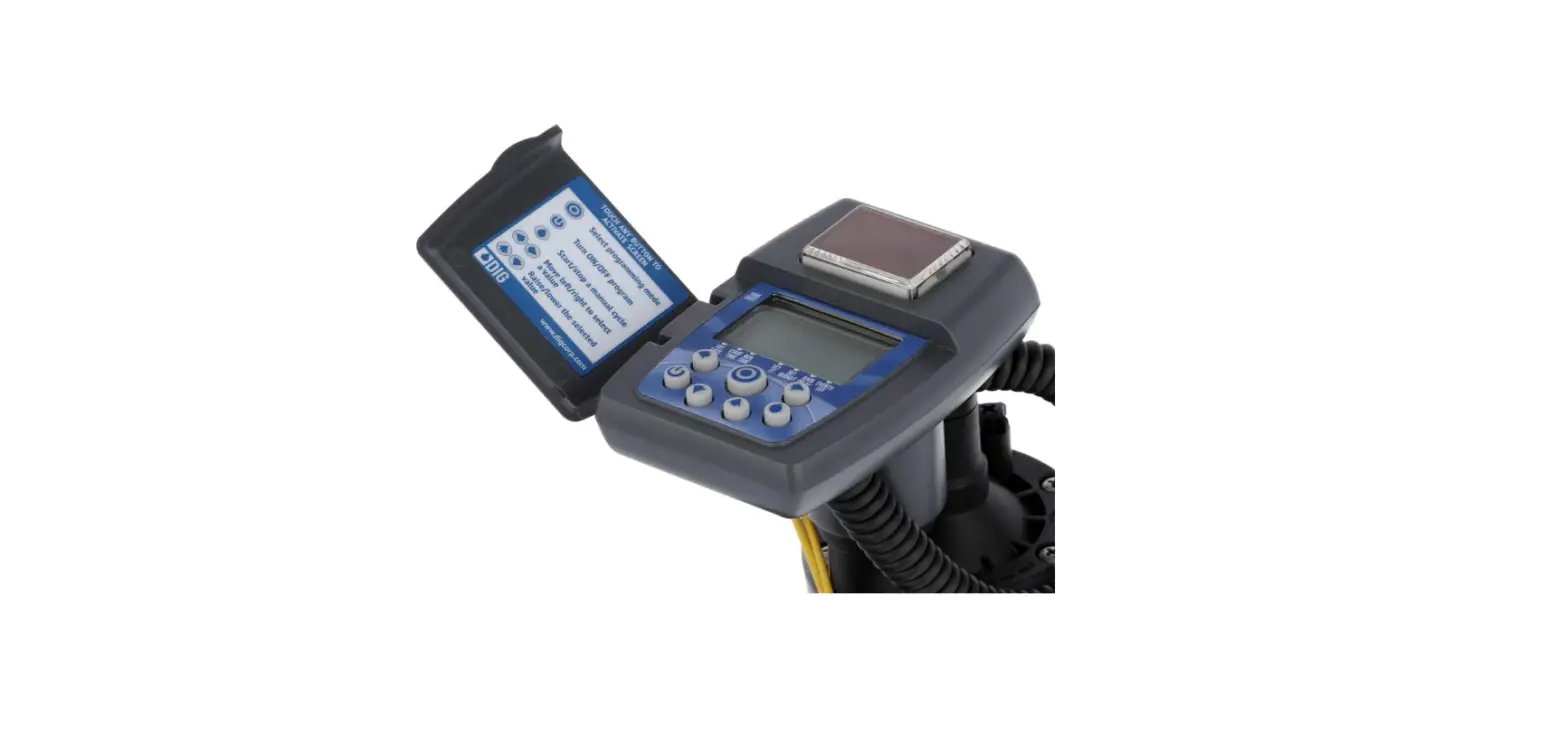
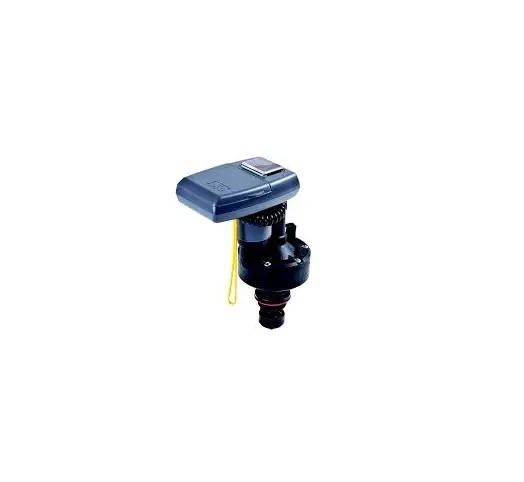
LEIT-1TM Ambient Light Powered Irrigation Controller
Product Information:
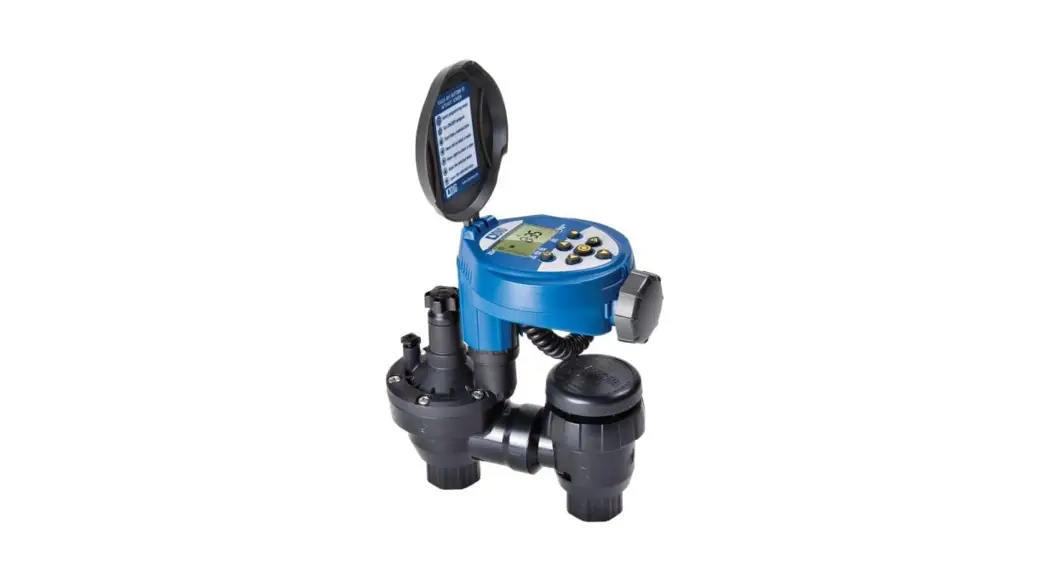
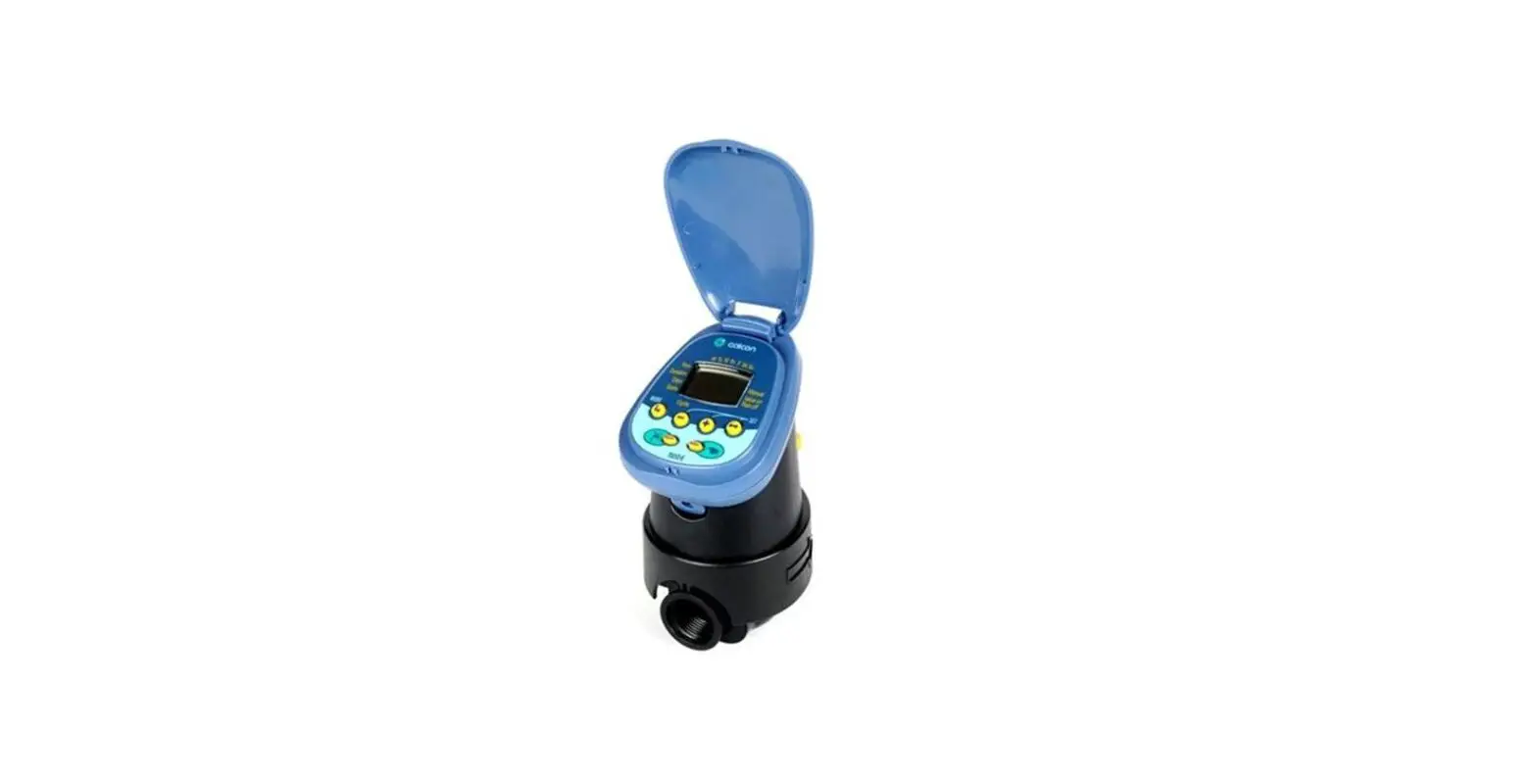
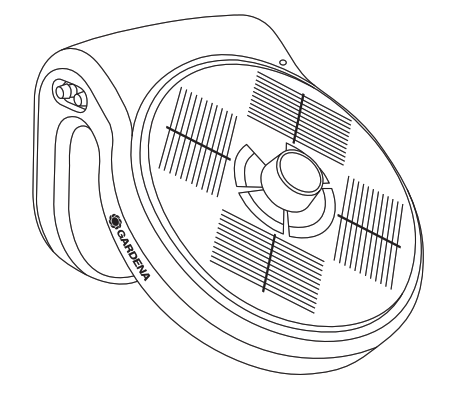
The LEITMVA LEIT1ASV.075 LEIT1ASV.100 is an ambient light
powered smart irrigation controller. It is designed to efficiently
control the watering of plants and gardens based on various
customizable settings. The controller features a solar PVM for
power supply, an LCD screen for easy navigation and programming, a
7-button keypad for user input, and a rain sensor connection for
automatic rain delay. It also includes a manual flow control,
external bleed screw, and collapsible solenoid wire for easy
installation and maintenance.
Product Usage Instructions:
- Ensure that the main water supply is turned off before
installing the LEIT-1TM controller. - Connect the LEIT-1TM controller to the irrigation system using
the appropriate adapters based on the type of valves being used
(plastic or brass). - Turn on the main water supply and pressurize the system.
- To test the LEIT-1TM controller, press the button on the
controller. A click sound will indicate that the valve is open. An
icon of a droplet and the run time remaining will appear on the LCD
screen. Check that the system is operating correctly and press the
button again to turn it off. A second click sound will indicate
that the valve is closed. The droplet icon and the manual icon will
disappear from the display, and “OFF” will appear momentarily
before the display reverts to the time of day. - Program the LEIT-1TM controller by following the instructions
in section 5 of the user manual.
Ambient light powered, smart irrigation controller
LEITMVA LEIT1ASV.075 LEIT1ASV.100
INSTRUCTION MANUAL
Table of conTenTs IntroductIon ……………………………………………………………… 3
1. About the controllers …………………………………………………… 3 2. component identification ……………………………………………… 4
2.1 LEIt1.ASV with anti-siphon valve …………………………………… 4 2.2 LEIt1.MVA manual valve actuator …………………………………… 5 3. System components …………………………………………………… 6 4. Anti-siphon valve installation …………………………………………… 7 4.1 changing actuator adapters ………………………………………… 9 4.2 Manual valve actuator installation …………………………………… 11 5. Programming ………………………………………………………… 13 6. Setting time and date …………………………………………………… 13 7. Setting watering day schedules ………………………………………… 15 8. Setting watering start time ……………………………………………… 17 9. Setting watering run times ……………………………………………… 19 10. Setting the SimpleSmartTM option ………………………………………… 21 11. Setting seasonal adjustment (monthly budget) …………………………… 24 12. rain delay setting ……………………………………………………… 25 13. Events off setting ……………………………………………………… 26 14. Manual watering ……………………………………………………… 28 15. connecting a rain sensor ……………………………………………… 29 16. Maintenance, troubleshooting and repairs ……………………………… 30 17. Warranty ……………………………………………………………… 33 18. technical assistance …………………………………………………… 34
2
thank you for purchasing dIG’s LEIt-1TM ambient light powered irrigation controller. 1. abouT The conTrollers the LEIt-1TM is a one-station, ambient light (solar) powered smart controller that uses a patented energy management system to power the controller day and night. the controller requires no batteries, Ac power or direct sunlight and can be installed above grade anywhere in the landscape. the controller employs the latest in water conservation features and can be pre-set to automatically adjust the watering durations according to regional seasonal changes.
3
2. componenT IDenTIfIcaTIon
2.1 leIT1.asv wITh anTI-sIphon valve
1. Solar PVM
6. collapsible
10. Anti-siphon cap
2. Lcd screen
solenoid wire
11. Pipe thread outlet
3. 7 button keypad
7. Manual flow control 12. Pipe thread inlet
4. rain sensor connection 8. External bleed screw 13. Anti-siphon valve
5. Quick reference label 9. dc Solenoid
y o a
t
u i
q w e
r
d s
f
4
2.2 leIT1.mva manual valve acTuaTor
See section 4.1 to change adapters from the factory 3/4 in. assembly to the 1 in. assembly.
1. Solar PVM
2. Lcd screen
q
3. Quick reference label
4. 7 button keypad
5. rain sensor connection 6. dc Solenoid
u
7. collapsible solenoid wire
e
w
8. Manual flow control
i
9. External bleed screw 10. Actuator stem
o
r y
t
ASSEMBLY FOR ALL PLASTIC VALVES & 1 IN. BRASS VALVES CHAMPION & ORBIT adapter for 1 in. brass & RAINJET, RAIN BIRD &
ORBIT 3/4 in. & 1 in. plastic
1 in. brass washer Retainer clip
1 in. & 3/4 in. seat washer body
Main screw for seat washer assembly
a
Seat washer assemblies
5
AS FACTORY ASSEMBLED FOR 3/4 IN. BRASS VALVES ONLY CHAMPION, RAIN BIRD & ORBIT 3/4 in. brass adapter
3/4 in. brass washer Retainer clip
3/4 in. seat washer body
Main screw for seat washer assembly
3. sYsTem componenTs
q
a
s
d
et u o wry i
LCD Display 1. Time and Date – Indicates current time and day 2. Set Watering Days – choose either specific days, odd/even days, or up to once
every 30 days 3. Start Time – up to 5 start times per day available 4. Run Time – Watering duration from 1 minute to 6 hours 5. Manual Run – Appears when manual button is pushed 6. Set ET – used to set one of the 20 SimpleSmartTM presets 7. Set Monthly Budget – Seasonal adjustment setting (0%-200%) in 5%
increments or to fine-tune SimpleSmartTM programming 8. Rain Delay – delay irrigation setting from 1>99 days with automatic restart 9. Events Off – Suspends watering for any month or any specific day within
the month. 10. Power Level – represents current charge level 11. Sensor – Appears only when sensor is connected and active
12. Watering – Appears when valve is open
6
Control Buttons
Select programming mode
turn on/oFF program
Start/stop a manual cycle
Move left/right to select a value
raise/lower the selected value
4. anTI-sIphon valve InsTallaTIon the LEIt1ASV.075 can be installed directly to PVc pipe. (Inlet 3/4 in. FnPt, outlet 3/4 in. FnPt.) operating pressure: 10 to 125 PSI recommended operating pressure: 10 to 80 PSI NOTE: Wrap all fittings with Teflon tape. Do not use pipe cement on the valve as this will damage the valve and void the warranty. Make sure when wrapping fittings with teflon tape that no excess gets into the internal assembly. tighten the fittings with a wrench, but do not over tighten. NOTE: The LEIT1.ASV must be installed at least 6 in. higher than the highest sprinkler head on the system or back-drainage may occur. Additional control valves must not be installed downstream of the anti-siphon valve. The valve must not be operated continuously for more than 12 hours in any 24-hour period. consult local codes for specific details. 1. Flush main line until water runs clear before installation. 2. Shut off main water supply. 3. Install the anti-siphon valve directly to PVc pipe using 3/4 in. PVc male adapter or use
Schedule 80 nipple. the arrow on valve body indicates direction of water flow
7
(see Figure 6).
4. turn the main water supply on and pressurize the system. 5. to test the LEIt-1TM, press the button. A click will be heard, indicating the
valve is open. An icon of a droplet on the upper left of the screen and the run time remaining will appear on the display in 5 seconds. check that the system is operating correctly and press the button again to turn it off. A second click will be heard indicating that the valve closed. the droplet icon and the manual icon will disappear from the display and oFF will appear momentarily; then the display will revert to the time of day. 6. Program the LEIt-1TM controller (see section 5).
6 IN. MINIMUM
FIGURE 6
FIGURE 7
8
4.1 changIng acTuaTor aDapTers
the LEIt-1TM with actuator is factory set to fit a 3/4 in. brass manual anti-siphon valve. to install the controller with actuator on a 1 in. manual anti-siphon valve the 3/4 in. seat washer and adapter must be removed and replaced with the 1in. adapter and seat washer, which are included in this box.
1. turn the actuator so that the seat washer and the 3/4 in. threaded adapter face up.
2. using pliers, or a /5 16 in. wrench, remove the seat washer screw by turning counter clockwise and pull off the 3/4 in. seat washer assembly (see Figure A).
FIGURE A
3. Push the 3/4 in. threaded adapter down towards the actuator to ease the tension on the retainer clip (see Figure B).
FIGURE B
4. next, place your thumb on one
side of the retainer clip and with
a pair of pliers grip the other
side of the retainer clip and pull
FIGURE C
outwards, away from your thumb, and upwards, removing it from the base of the 3/4
in. threaded adapter then, remove the adapter (see Figure c).
9
5. Install the 1 in. threaded adapter by pushing it onto the actuator stem and making sure the notch on the adapter lines up with the notch on the stem of the actuator (see Figure d).
6. Spread the retainer clip with your thumbs and push the retainer into the adapter until it clicks (see Figure E).
7. Install the 1 in. seat washer assembly as shown. Insert the seat washer screw into the bottom of the actuator stem and tighten turning clockwise (see Figure F).
NOTE: Do not over-tighten.
FIGURE D FIGURE E FIGURE F
10
4.2 manual valve acTuaTor InsTallaTIon operating pressure: 10 to 125 PSI recommended operating pressure: 10 to 80 PSI 1. Shut off main water supply. 2. remove the manual stem from the existing valve and temporarily remove the
anti-siphon cap (Figure A). 3. replace any existing worn washers with the new ones provided (Figure B). 4. Install the actuator into the manual anti-siphon valve body by turning actuator
clockwise. tighten firmly, but do not over tighten (Figure c).
MANUAL STEM
ANTI-SIPHON CAP
WASHERS
VALVE BODY
FIGURE A
FIGURE B
11
FIGURE C
5. turn actuator flow control knob clockwise until it stops to shut off flow (Figure d).
6. turn on main water supply.
7. Activate the solenoid through the controller, a click will be heard indicating the valve is open. (the manual symbol will appear on the display.)
8. turn the actuator flow control knob counter clockwise to allow flow and check the system to make sure that the sprinklers or the drip system is working properly (Figure E).
FLOW CONTROL KNOB
FLOW CONTROL KNOB
FIGURE D
FIGURE E
9. de-activate the solenoid through the controller, a faint click will be heard and the valve should close. (the manual symbols will disappear and water flow will stop). If flow continues, turn flow knob clockwise, one full turn at the time until flow is completely shut off.
10. repeat steps 7 and 9 and make sure that flow is turned on and off.
Note: Turn flow control knob clockwise to decrease flow, counter-clockwise to increase flow. For low-flow drip systems below 60 gallons per hour, flow control knob should be turned no more than 1 to 3 turns up (counter-clockwise) from the fully closed position.
11. the unit is now ready to be programmed.
12
5. programmIng
In order to program the LEIt-1TM, you must first let the unit sit out in the light to charge. In bright light conditions (full sun) this will take under 30 minutes. In shaded conditions this could take up to 2 hours.
this section explains the programming features, and the steps necessary to assign
irrigation schedules. to program the controller use the to select the desired
programming mode, the to make the entry flash and the
buttons to
change the value.
NOTE: only a flashing value can be changed.
NOTE: If the last data entered stops blinking, press programming and repeat the steps.
again to resume
6. seTTIng TIme anD DaTe the controller can display the time in either a 12 or 24 hour format. to change the time format, from the home screen:
1. Press and hold the button for three seconds until the display switches format (AM/PM disappears).
SETTING THE CURRENT TIME AND DATE To enable the controller to operate properly, the current time and date must be set. 1. Press the button, until the icon appears along with the time and the day
of the week.
13
2. If the current time has not been set and needs to be updated press hour digit starts blinking.
and the
3. to set the current hour, press or (note AM and PM designations).
4. to set the minutes, press again and the minute digit starts blinking. Press the or to set the current time in minutes.
5. repeat the steps to set the current date including, month, day and year. When the date is selected and updated, the day of the week will be update at the same time to correspond with the date.
MONTH DAY YEAR
14
6. Press to proceed to the next step SEt dAYS Press to move backward.
or review the program.
7. seTTIng waTerIng DaY scheDules
Option 1 – Setting Specific Days of the Week: this setting determines which days the LEIt-1TM controller will operate. choose either watering on specific days of the week, EVEn/odd days or cyclical from daily up to once every 30 days. the controller’s default setting is to water on all specific days of the week.
For example, if you want to water every tuesday, thursday and Sunday:
1. Press the button until the icon and the days of the week appear on the screen.
2. Press once and M (for Monday) starts blinking.
3. Press, and underscore under M (Monday) disappears. Monday is de-selected.
4. Press twice and W (for Wednesday) starts blinking.
5. Press and the underscore under W (Wednesday) disappears. Wednesday is de-selected.
6. Press 7. Press 8. Press
twice and F (Friday) starts blinking. and the underscore under F (Friday) disappears. Friday is de-selected. and the underscore under Sa (Saturday) starts blinking.
15
9. Press and the underscore under Sa disappears. Saturday is de-selected.
10. Press the button to proceed to the next step or to set even/odd days. Option 2 – Setting Even or Odd Days: To select EVEN days, ODD days or cyclical days from one day up to every 30 days refer to the following example. Example: setting the controller to water every 10 days: 1. Press the button until the icon and the days of the week appear. 2. Press and to skip all the days of the week (underscore must be
removed beneath all days). 3. Press and EVEn appears blinking. (to select odd days press )
4. Press again and 1 dAY appears blinking. to select the number of days between watering of 10 days, press until 10 appears on the display.
16
5. to return to a weekly schedule, Press and the program returns to the weekly schedule for selecting the day of the week.
6. Press the button to proceed to the next step StArt tIME or to review the program.
8. seTTIng waTerIng sTarT TIme The LEIT-1TM smart controller can have up to five separate irrigation start times per day. to set a start time, 1. Press the button until the icon appears. StArt 1, displays oFF or the
last start time programmed in StArt 1 appears.
2. Press and oFF (or the first start time programmed) begins blinking. 3. to set the desired first start time hour (note AM and PM designations), press
or . 4. Press and the minutes start blinking. 5. Press or and set the desired start time minutes.
17
6. Press again, the second start time and oFF (or the last start time programmed) appear blinking.
7. to set the desired second start time hour (note AM and PM designations), press or .
8. Press again and the minutes begin blinking, press or to select the watering start time in minutes. repeat the steps to set the third and if needed the fourth and fifth start times. during programming, the screen also shows which days the controller will operate.
Press the button to proceed to the next step run tIME or to review the program.
18
9. seTTIng waTerIng run TImes Note: If you have already set a SimpleSmartTM Et preset (example: SP02) and then change the run time, your SimpleSmartTM program will be turned oFF. You must reactivate the SimpleSmartTM programming each time you adjust your run time (see section 10). this setting determines the length of time the LEIt-1TM smart controller will allow the valve to remain open (duration is from 1 minute up to 6 hours). For example, setting watering run time to 10 minutes on certain days of the week will program the controller to turn the water on for 10 minutes on each of the days chosen and at every start time selected. to set the watering run time :
1. Press the button until the icon appears and oFF or the last run time setting appears.
2. Press the button, and oFF (or the last run time programmed) appears with hours blinking.
3. to set a desired watering run time in hours, press or and select the number of hours.
19
4. If only watering duration in minutes is required, press to skip the hour digit, and the minutes will start blinking.
5. to set the desired watering duration in minutes (example of 10 minutes), press or to select minutes. When programming the watering duration the
screen will also show the days the controller will operate.
NOTE: If the last data entered stops blinking after 10 seconds, press resume or to move backward.
again to
Press the button to proceed to the next step SEt Et or to review the program.
20
10. seTTIng The sImplesmarTTM opTIon (seT eT)
the LEIt-1TM smart controller’s main feature includes twenty preset programs for sprays and drip irrigation based on three years of historical evapotranspiration (Et) from various climate regions. How dIG’s LEIt-1TM smart controller operates using Historical Evapotranspiration (Et):
After programming the watering schedule, watering start time and watering duration, the user can select one of the preset SimpleSmartTMevapotranspiration (Et) programs for spray or drip irrigation systems. See the color map in the centerfold of this manual to select the appropriate pre-set for your location and type of system or reference cHArt A on page 22 and choose from the region description. Selecting SP1 through SP20 sets the LEIt-1TM controller to water a predetermined number of minutes per month. the amount to water is pre-programmed into the controller and is determined by which program (SP) is selected and by the month. If you have already set a SimpleSmartTM Et preset (example: SP02) and then change the run time, your SimpleSmartTM program will be turned oFF. You must reactivate the SimpleSmartTM programming each time you adjust your run time (see section 10). NOTE: If using one of the SimpleSmartTM presets we recommend evaluating the plants’ health for the first month and making adjustments to the system as needed. If an adjustment or fine tuning of the SimpleSmartTM programming is required, this adjustment can be made for each month in the SEASONAL ADJUSTMENT (%) SETTING (see section 11).
For example:
the user entered watering run time will be adjusted monthly based upon the forecast Et pattern for the selected region.
By selecting SP02, the controller may adjust the programmed run time of 10 minutes in the month of January to 3 minutes, or less. this reduces the irrigation run time by 7 minutes, providing a water savings of nearly 70% for the month of January.
21
cHArt A – SELEctInG HIStorIcAL Et ProGrAM
program SP01 SP02 SP03 SP04 SP05 SP06 SP07 SP08 SP09 SP10 SP11 SP12 SP13 SP14 SP15 SP16 SP17 SP18 SP19 SP20
regIons Cool Mediterranean Cool Mediterranean Humid Continental Humid Continental Warm Mediterranean Warm Mediterranean Humid Sub-Tropical Humid Sub-Tropical
Highlands Highlands Dry Inland Valleys Dry Inland Valleys Tropical Wet & Dry Tropical Wet & Dry Tropical Wet Tropical Wet Semi-Arid Semi-Arid
Arid Arid
IrrIgaTIon meThoD Drip Systems
Sprinkler Systems Drip Systems
Sprinkler Systems Drip Systems
Sprinkler Systems Drip Systems
Sprinkler Systems Drip Systems
Sprinkler Systems Drip Systems
Sprinkler Systems Drip Systems
Sprinkler Systems Drip Systems
Sprinkler Systems Drip Systems
Sprinkler Systems Drip Systems
Sprinkler Systems
22
to activate the SimpleSmartTM Et feature: 1. Press the button until the icon appears and oFF appears.
2. Press and oFF (or the last SP program #) appears.
3. to select a desired SimpleSmartTM preset press or and select one of the twenty programs from the list using one that is similar to your climate region and irrigation method (see map in centerfold or reference chart A).
4. to deactivate the preset program, press 5. Press until oFF appears.
and the program # appears blinking.
Press the button to proceed to the next step SEt BudGEt or to review the program.
23
11. seTTIng seasonal aDJusTmenT (monThlY buDgeT)
the amount of water required by plants varies throughout the year. the Seasonal Adjustment percentage feature can be utilized to alter the programmed watering run time on a monthly basis.
this program features two options: A. It can be used as an adjustment to the programmed run time by altering the
programmed watering duration on a monthly basis. B. It can be used to modify the total run time setting of the SimpleSmartTM
programming per month by percentage. to set seasonal adjustment in %: 1. Press the button until 100% and the current month # appears.
2. Press the button and the 100% appears blinking.
3. to set the desired seasonal adjustment % (0-200%), press or . Example, if a 20 minute duration is programmed, and then the monthly budget is changed from 100% to 50%, the duration will now be 10 minutes for the selected month.
4. repeat the steps to set the desired seasonal adjustment % for each month by pressing and following the previous steps for each month
Press the button to proceed to the next step rAIn dELAY the program.
24
or to review
12. raIn DelaY seTTIng the rain delay setting is used to temporarily suspend all irrigation for a defined number of days. For example, during rainy weather regularly scheduled programs can be turned off from 1-99 days. At the end of the designated period, regularly scheduled programming will resume automatically. to set a temporary suspension of the program: 1. Press the button until the icon appears and oFF appear.
2. Press the button and oFF starts blinking. 3. to set the desired temporary suspension of the program (1-99 days), press
or .
4. the temporary suspension of the program can be cancelled at any time by re-entering rain delay screen and changing the setting to oFF. (Press or until oFF appears.) 25
Note: oFF appears in between numeric value of 99 and 1. Press the button to proceed to the next step EVEntS oFF the program.
or to review
13. evenTs off seTTIng this mode allows the user to program the timer to not water during specific months of the year, or to program the timer to not water on specific days of the week during a specific month. To turn off specific days of a month:
1. Push the button until the desired month is selected and dAYS appear above the symbol. the number of the month is on the left (1 = January, 12 = december).
2. Push the button until the desired day of the week flashes.
3. Push the to remove the underline under the day of the week. during the selected month, watering will not occur on the days of the week without the underline.
To turn off an entire month:
1. Push the button until the icon appears. 2. Push the button through each day of the week until the Mo appears above
the icon.
26
3. When on is flashing for the desired month to turn off, push the button and the word oFF will appear. the selected month is now turned off, and no watering will occur during the entire month.
the controller is now fully programmed. Press the button to review the program or to return to the home screen.
Here is an example of the home screen showing all the icons of the programs that are currently set and active, which is the SimpleSmartTM (SET ET), monthly budget, rain delay and events off programs.
27
14. manual waTerIng
the manual mode allows the user to test the system and water for a specified run time. the controller will automatically close the actuator or valve at the end of the defined irrigation period. the originally programmed irrigation schedule continues to function at the times assigned. the sensor condition is disregarded in this mode.
to start a manual run,
1. Press the button, and the icon and icon appears. on appears
momentarily and then the last watering duration is displayed with
. the
controller will open the valve and in 10 seconds a count down of the remaining
irrigation duration appears, showing when the controller will close the valve.
2. Press the button to end manual run. 3. After 10 seconds the display will revert to the current time screen.
28
15. connecTIng a raIn sensor Most “normally closed” rain or soil moisture sensors can be connected to the LEIt-1TM controller. the function of the sensor is to prevent automatic watering by the set program due to excessive rainfall or when the soil is too moist. To connect the sensor to the controller, please follow these steps: 1. cut the yellow wire loop that exits the controller in the middle of the loop. 2. Strip approximately 1/2 in. of insulation from the end of each wire. 3. Splice one yellow wire to each of the wires coming from the sensor.
use waterproof wire connectors to secure the connections. 4. Follow the sensor manufacturer’s instructions for calibrating the sensor. 5. When the sensor is active and preventing automatic operation, a icon will
appear on the display.
Icon will only appear when sensor is active.
SENSFOIGRURE B
YELLOW SENSOR WIRES
WATERPROOF WIRE CONNECTORS
recommended rain sensors are the rain Bird rSd and Hunter Mini-clik recommended soil moisture sensor is the Irrometer WEM-B
29
16. maInTenance, TroubleshooTIng anD repaIrs to restore the controller to the default settings (Budgeting and rain delay settings will remain): 1. Press the button until the START EVERY is displayed and the icon
appears on the bottom left of the screen. 2. Press and hold down the for three seconds. 3. the screen returns to the home screen (clock) and all the default settings are
restored. the current time and date is retained.
SCREWS
BONNET ASSEMBLY
SPRING
AIR VENT WITH POPPET ASSEMBLY
DIAPHRAGM ASSEMBLY
INLET
AIR VENT SEAT OUTLET
PROBLEM: Water is flowing out under the anti-siphon cap. cAuSE: Valve is not installed at least 6 in. above the highest outlet on the system SoLutIon: raise valve up so it is at least 6 in. above the highest outlet on the system cAuSE: Anti-siphon float is obstructed or stuck SoLutIon: unscrew anti-siphon cap and check float assembly and clear out any debris or foreign material inside.
30
cAuSE: Valve is installed backwards. SoLutIon: reverse valve and make sure arrow on valve body is pointing away from water source.
PROBLEM: Valve/actuator is not opening automatically or manually cAuSE: no water pressure SoLutIon: open main water supply valve cAuSE: Faulty solenoid SoLutIon: replace solenoid cAuSE: Flow control handle is turned down SoLutIon: open flow control handle on valve or actuator
PROBLEM: Valve/actuator functions in manual mode but not automatically cAuSE: controller is set to oFF mode SoLutIon: Verify that controller does not show oFF in current time mode cAuSE: AM/PM not set correctly in current time mode SoLutIon: check current time, change AM/PM if necessary cAuSE: AM/PM not set correctly in start time mode SoLutIon: check start time(s), change AM/PM if necessary cAuSE: Watering restriction or rain delay is preventing watering SoLutIon: remove watering restrictions or set rain delay to off cAuSE: Yellow sensor wires have been cut SoLutIon: re-connect sensor wires together with waterproof connector cAuSE: Sensor is installed and is in a state that prevents watering SoLutIon: check sensor and wire splices and verify sensor is normally closed
PROBLEM: the display is blank cAuSE: no buttons have been pushed in the previous 15 minutes SoLutIon: Push any button
31
PROBLEM: Valve/actuator fails to close cAuSE: Valve/actuator is installed backwards SoLutIon: check flow arrow and verify arrows points away from water source cAuSE: debris is blocking solenoid port SoLutIon: Shut off water supply, unscrew and remove solenoid, then open water supply and flush out solenoid port, re-install solenoid
PROBLEM: rain sensor does not prevent watering cAuSE: rain sensor is normally open, malfunctioning, or not wired correctly SoLutIon: Verify that sensor icon appears on display when pin is pushed down & check all wire splices
PROBLEM: controller waters more than once per day cAuSE: More than one start time has been programmed SoLutIon: change start time 2,3,4, and 5 to oFF
32
17. warranTY
dIG corPorAtIon warrants these products to be free from defects in material and workmanship for a period of three years from date of purchase. this warranty does not cover damage resulting from accident, misuse, neglect, modification, improper installation or subjection to line pressure in excess of 80 lbs. per square inch for anti-siphon valves and for actuators. this warranty shall extend only to the original purchaser of the product for use by the purchaser. the obligation of dIG corPorAtIon under this warranty is limited to repairing or replacing at its factory this product which shall be returned to the factory within three years after the original purchase and which on examination is found to contain defects in material and workmanship. DIG CORPORATION SHALL IN NO EVENT BE LIABLE FOR ANY INCIDENTAL OR CONSEQUENTIAL DAMAGES OF ANY KIND; THE SOLE OBLIGATION OF DIG BEING LIMITED TO REPAIR OR REPLACEMENT OF DEFECTIVE PRODUCTS. SOME STATES DO NOT ALLOW THE EXCLUSION OR LIMITATION OF INCIDENTAL OR CONSEQUENTIAL DAMAGES, SO THE ABOVE LIMITATION OR EXCLUSION MAY NOT APPLY TO YOU. unattended use for prolonged periods without inspection to verify proper operation is beyond the intended use of this product, and any damage resulting from such use shall not be the responsibility of dIG corPorAtIon. there are no warranties, which extend beyond the description on the face hereof. In the case of purchase of the product for use other than, for irrigation purposes, dIG corPorAtIon hereby disclaims any implied warranties including any warranties of merchantability and fitness for a particular purpose. In the case of the purchase of the product for personal, family or household purposes, dIG corPorAtIon disclaims any such warranties to the extent permitted by law. to the extent that any such disclaimer or implied warranties shall be ineffectual, then any implied warranties shall be limited in duration to a period of three years from the date of the original purchase for use by the purchaser. Some states do not allow limitation on how long an implied warranty lasts, so the above limitation may not apply to you. In order to obtain performance under this warranty, the unit must be returned to the factory, along with proof of purchase indicating original date of purchase, shipping prepaid, addressed as follows: dIG corPorAtIon, 1210 Activity drive, Vista, cA 92081. repaired or replaced units will be shipped prepaid to the name and address supplied with the unit returned under warranty. Allow four weeks for repairs and shipping time. repair of damaged units not otherwise within warranty may be refused or done at a reasonable cost or charge at the option of dIG corPorAtIon. this warranty gives you specific legal rights, and you may also have other rights, which vary from state to state.
33
18. TechnIcal assIsTance
Should you encounter any problem(s) with this product or if you do not understand its many features, please refer to this instruction manual first. If further assistance is required, dIG offers the following customer support: tEcHnIcAL SErVIcE uSA · dIG’s technical Service team is available to answer questions in English and Spanish from
8:00 AM to 5:00 PM (PSt) Monday-Friday (except holidays) at 800-344-2281. · Questions in English and Spanish can be emailed to [email protected] or faxed to
760-727-0282. · Specification documents and manuals are available for downloading in English and Spanish at
www.digcorp.com.
34
35
1210 Activity drive Vista, cA 92081-8510, uSA
E
www.digcorp.com email: [email protected]
26-210 rEVA 041613 dIGcorP Printed in the uSA dIG is a registered Service Mark of dIG corp.
36
 Drip Irrigation System - DIG Corporation