 Smart Breaker to Wi-Fi
Instructions
Step 1
Install Smart Circuit Breaker
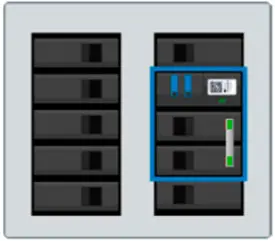
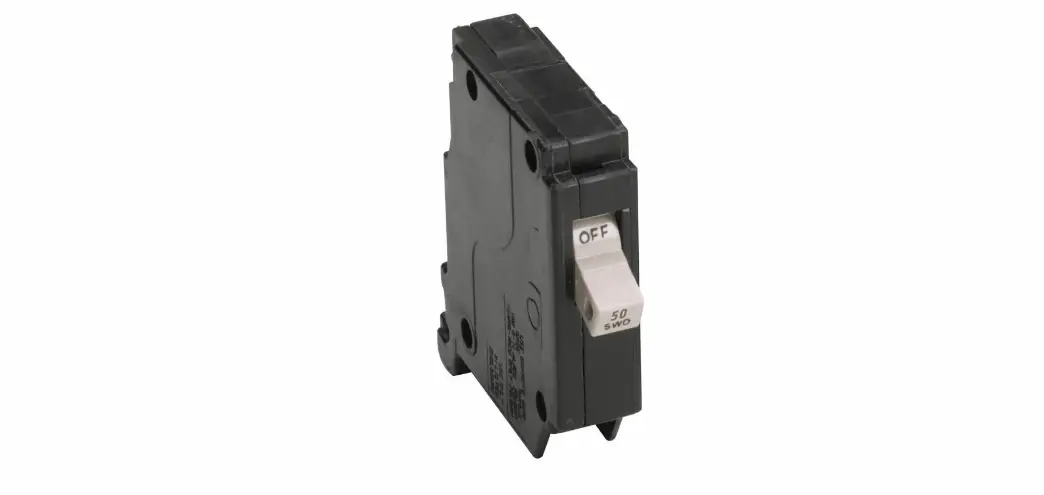
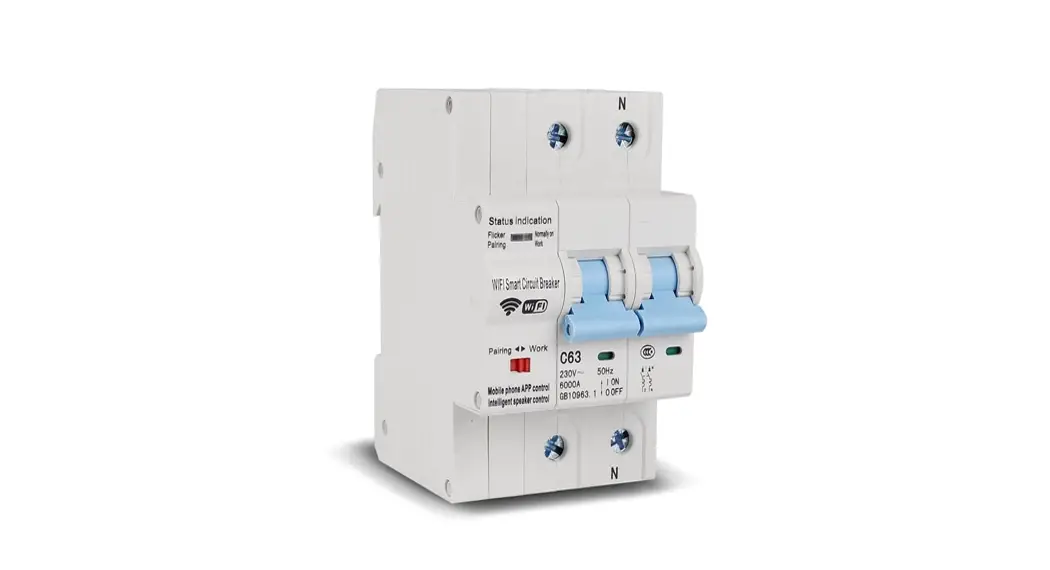
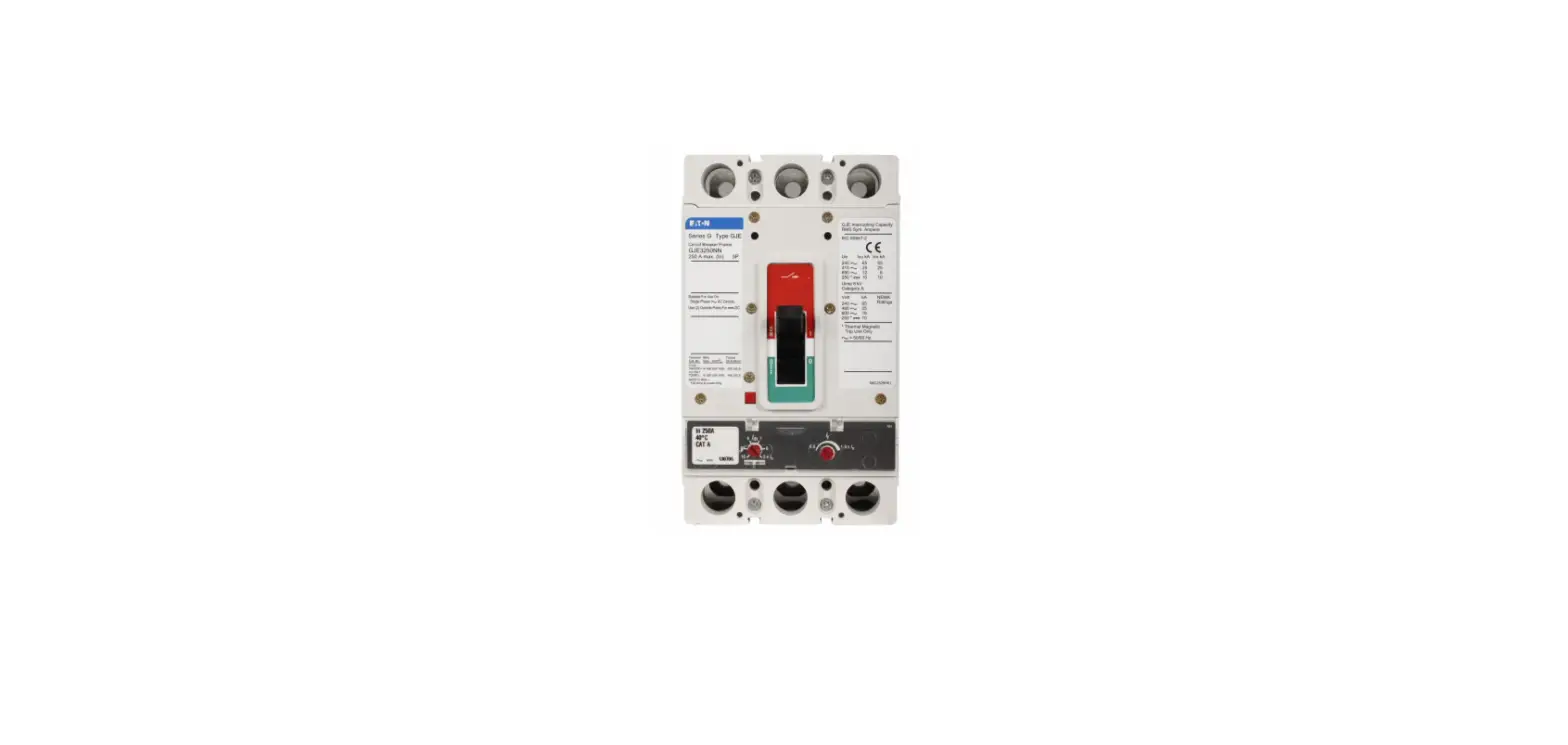
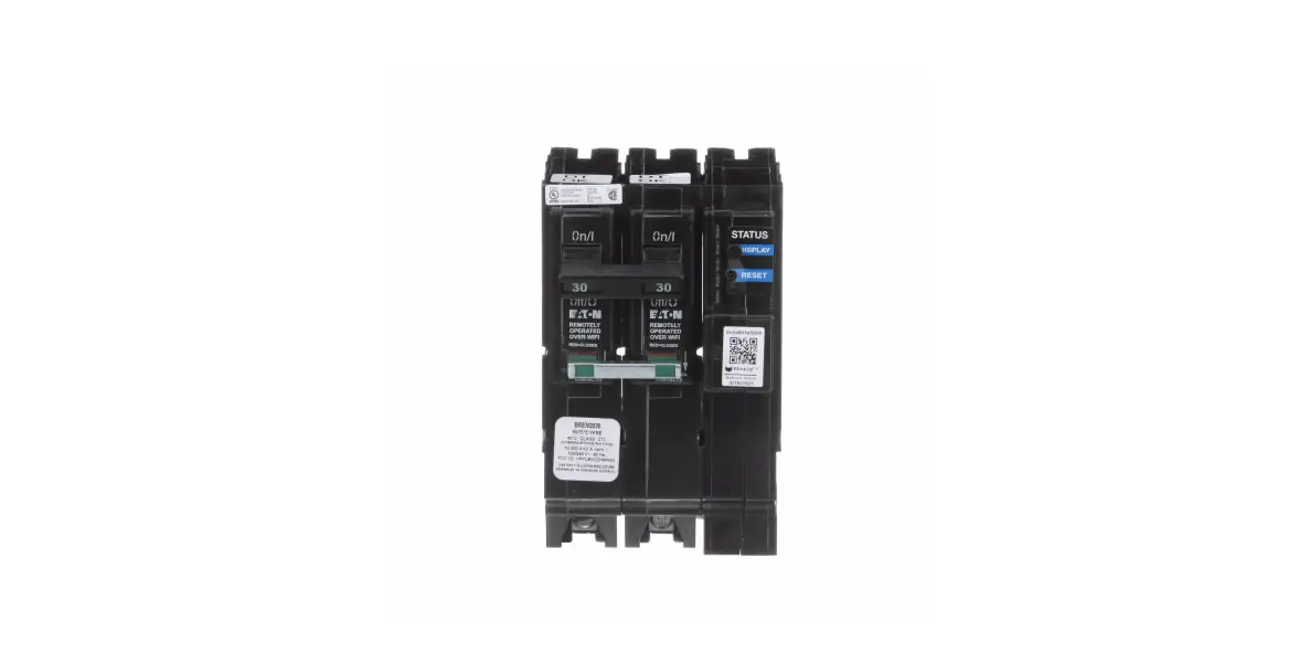
Ensure that the smart circuit breaker is installed into the load center and powered up.
Refer to the instructions in the box or the installation video.
Always use a qualified electrician to install and wire the smart circuit breaker.
Step 2A
Create an Account
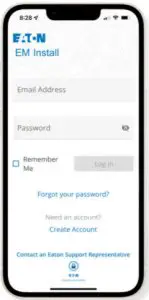
Download the EM Install app on the Apple App Store and Google Play Store.
Create an account and verify it with an active email address.
Log in at the home page.
Step 2B
Enter Network Information
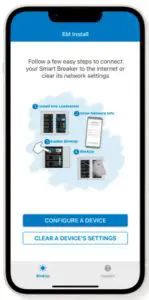 | 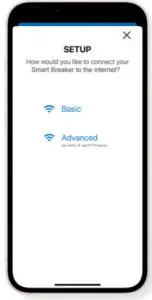 | 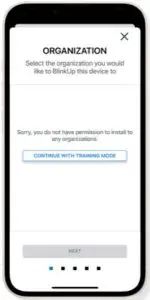 |
| Touch the “CONFIGURE A DEVICE” button and select “Basic” setup. | Note: “Basic” setup is recommended. Configuration through the “Advanced” setup is not covered. | The app will automatically select the Organization you have been invited to. Note: If you have been invited by other organizations, their names will appear in this list. If you have not been invited to any Organizations, select the “Continue with Training Mode” button and select “Use Test Organization”. |
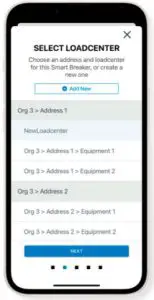 | 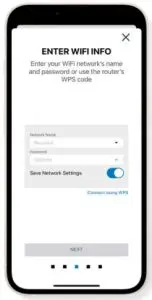 |
| Add the address and load center location where the smart breaker is installed and touch “NEXT” | Enter the name and password for the Wi-Fi network you would like to connect the smart circuit breaker to. Note: For future smart breaker setups, the Wi-Fi network info will be saved and accessible in the drop-down menu for the Network Name. |
Installer Quick Start Guide – EM Install App Effective December 2021
Step 3
Enable BlinkUp
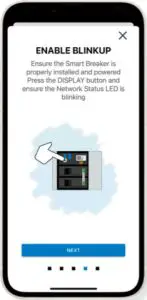
On the Smart Breaker, press the “DISPLAY” button and ensure that the Network Status LED is blinking. If it is, then touch the “NEXT” button on your phone.
Step 4
BlinkUp
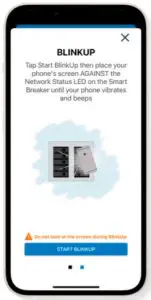 | 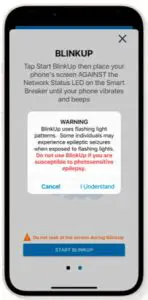 | 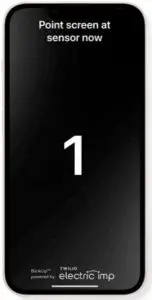 |
| After reading the instructions on the phone, touch the “START BLINKUP” button. | After reading the Warning message, touch “I UNDERSTAND”, then place your phone’s screen AGAINST the Network Status LED on the smart breaker until your phone vibrates and beeps. | Note: Do NOT look at the screen during BlinkUp. This should take no more than 90 seconds. If your device is already blinking orange, it failed to connect. Touch the “CANCEL” button to try to connect again. |
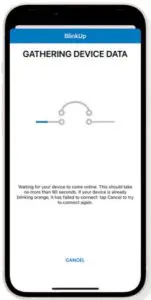 | 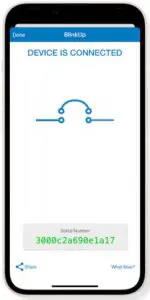 |
| Once the BlinkUp process completes, you will see the smart breaker’s progress on your phone and will be notified once the device is successfully connected to the Wi-Fi network. | The device is connected. |
| Eaton 1000 Eaton Boulevard Cleveland, OH 44122 United States Eaton.com | © 2021 Eaton All Rights Reserved Printed in the USA Publication No. PA003026EN December 2021 | Eaton is a registered trademark. All other trademarks are property of their respective owners. |