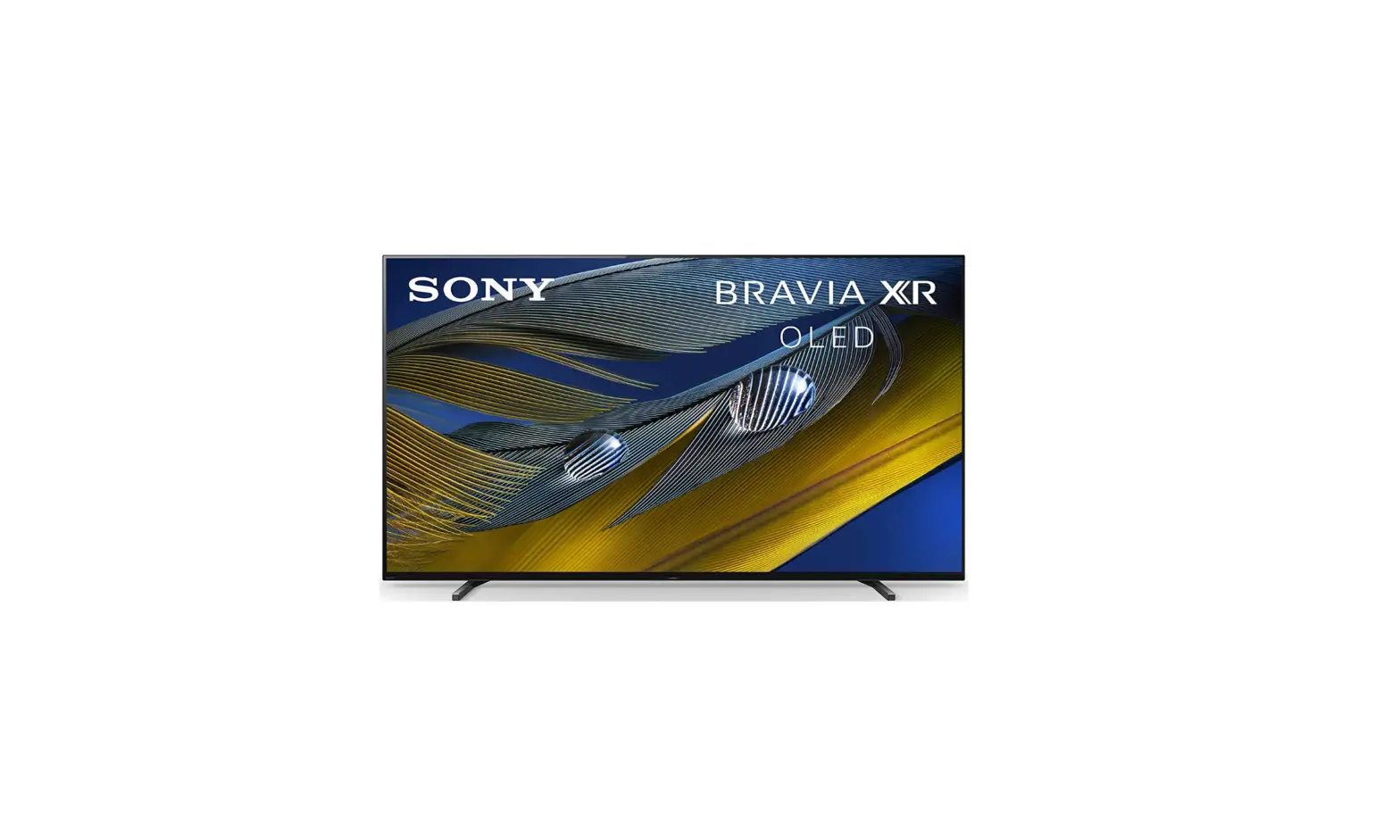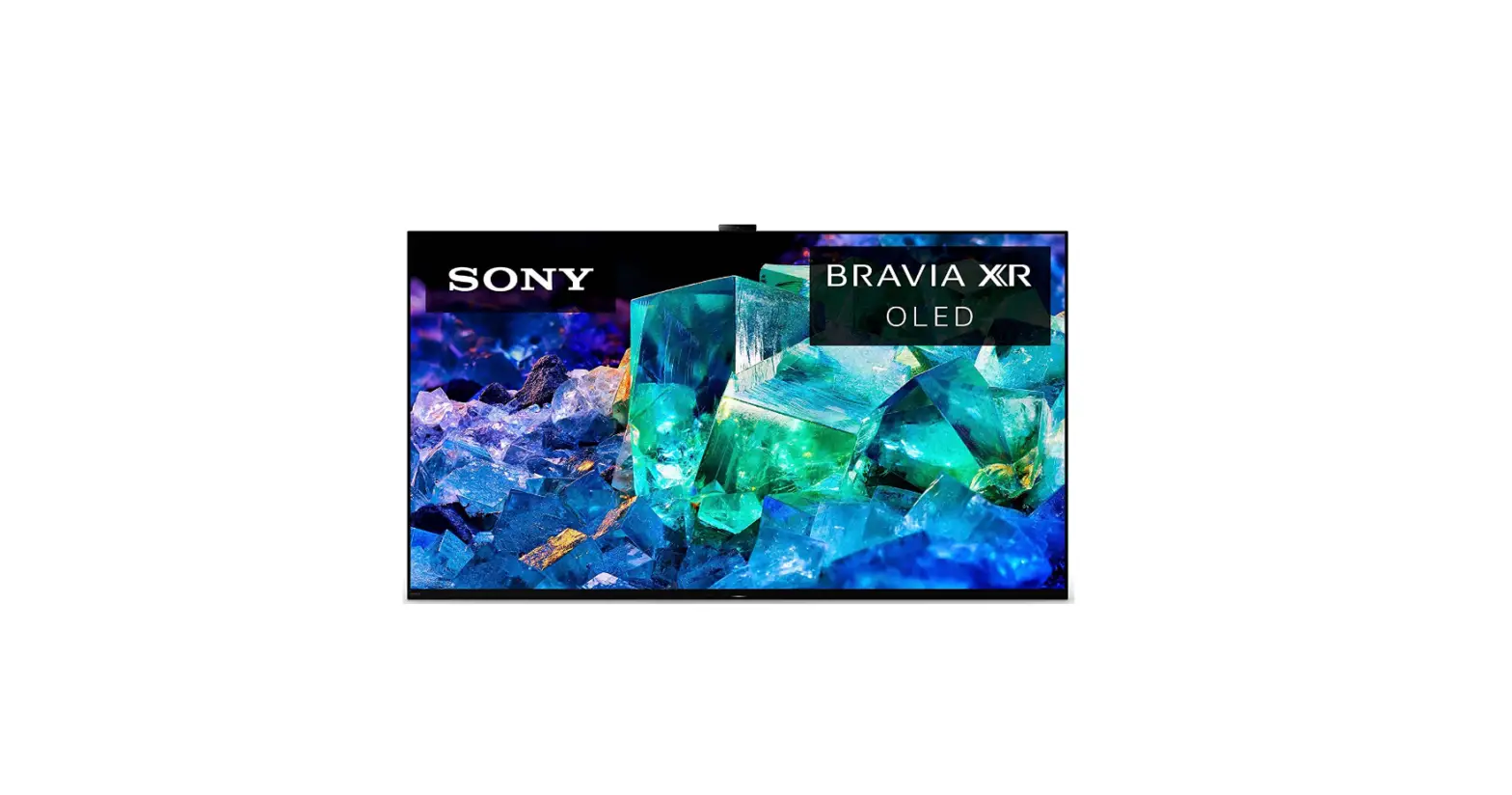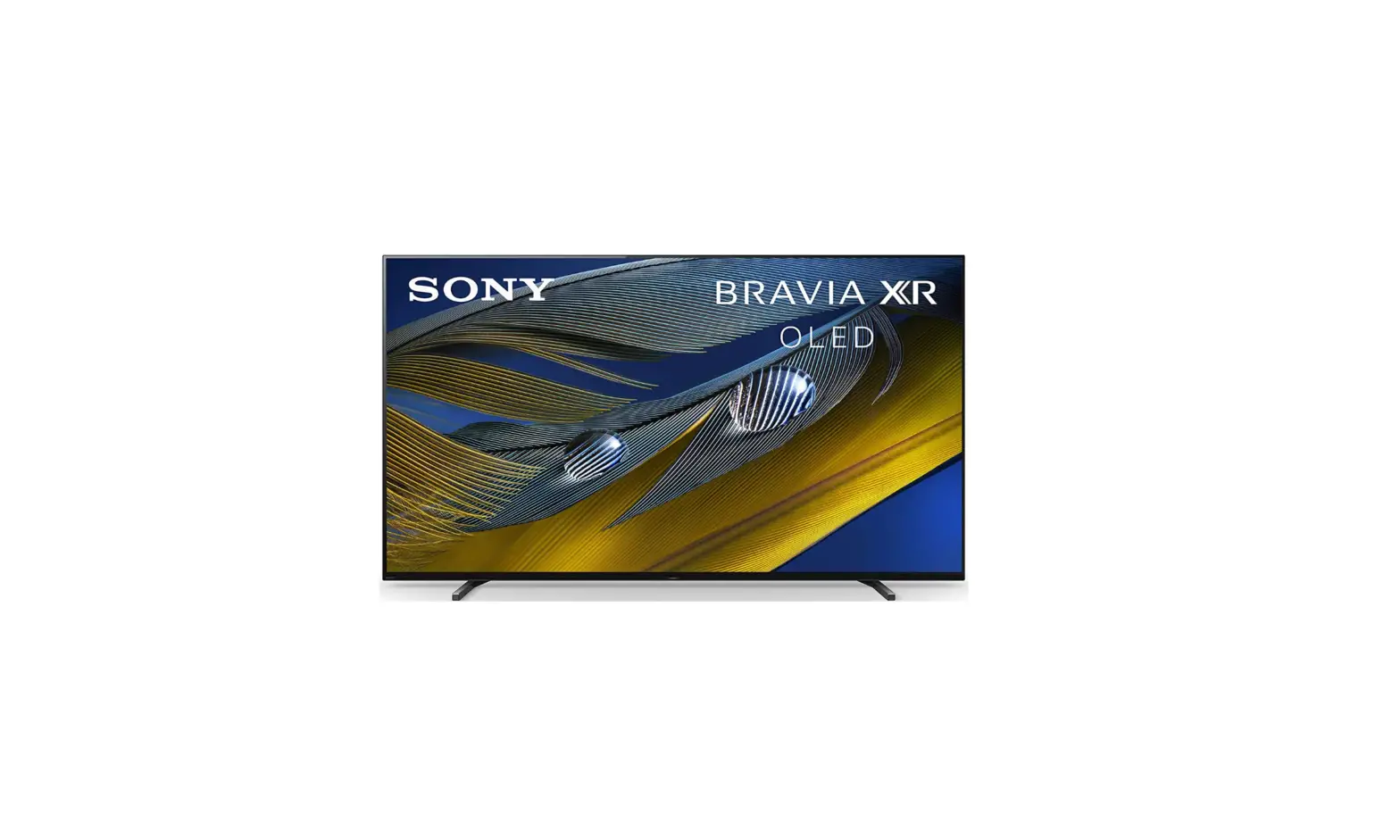

Sony XR-55A90J Ultra HD Smart Google TV
What’s in the box
What’s included
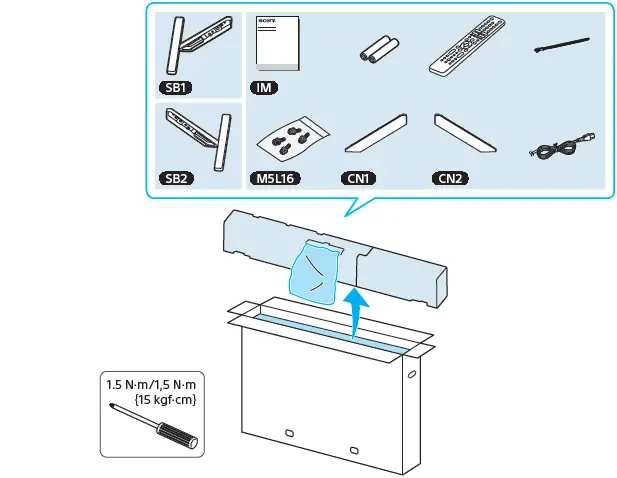
Unboxing
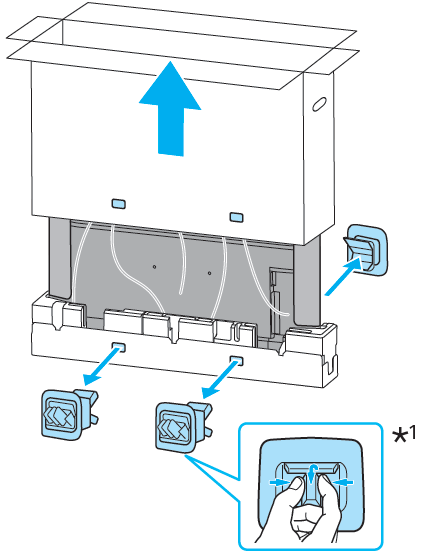
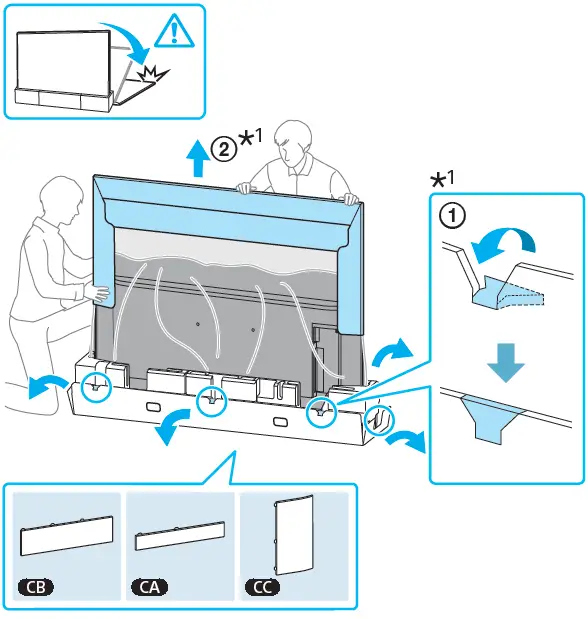
Warning
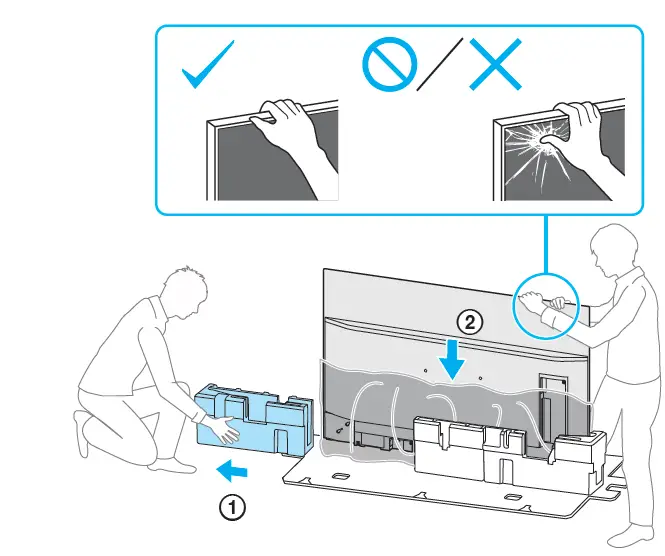
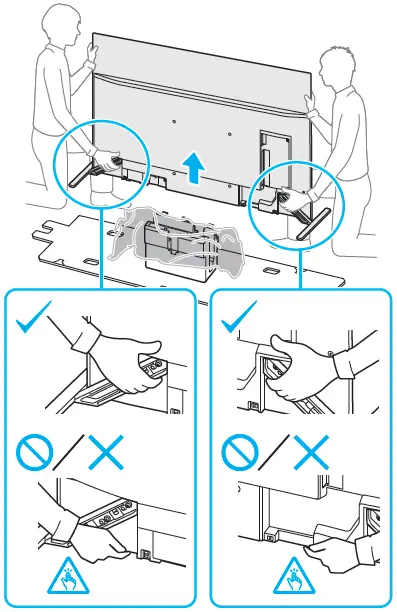
- Don’t grab the LCD through its screen.
- Grab the LCD with its edges carefully
Preventing the TV from Toppling
- Secure the TV to a wall and/or Stand.
- Do not allow children to play or climb on furniture and TV sets.
- Avoid placing or hanging items on the TV.
- Never install the TV on:
- slippery, unstable, and/or uneven surfaces.
- furniture that can easily be used as steps, such as a chest of drawers.
- Install the TV where it cannot be pulled, pushed, or knocked over.
- Install the TV so that the TV’s Table-Top Stand does not protrude out from the Stand (not supplied). If the Table-Top Stand protrudes out from the Stand, it may cause the TV set to topple over, fall, and cause personal injury or damage to the TV.
- Route all AC power cords and connecting cables so that they are not accessible to curious children.
Before setting up your TV
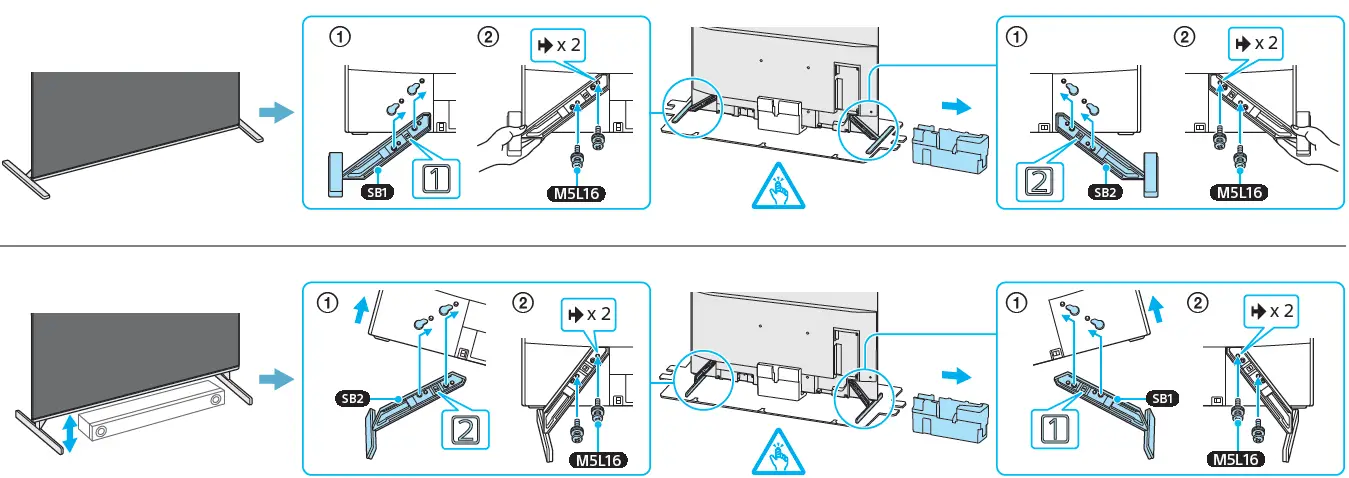
Some TV models are packaged with a detached Table-Top Stand so you can mount your TV to a wall immediately. See “Installing the TV to the Wall” if you want to mount the TV to a wall. If you are not mounting the TV to a wall, you will need to attach the Table-Top Stand (refer to the Setup Guide).
Be sure to consider the following while setting up your TV:
- Disconnect all cables when carrying the TV.
- Before transporting the TV set, remove the stand cover and terminal covers.
- Carry the TV with an adequate number of people; larger size TVs require two or more people(three or more people for XR-83A90J).
- Correct hand placement while carrying the TV is very important for safety and to avoid damage.
Recommended Measures to Secure the TV
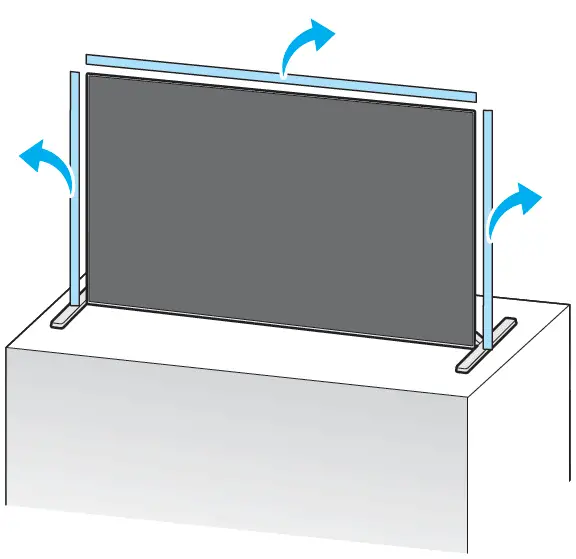
Consider the following measures when securing your TV to a Stand (not supplied). Secure the Stand for the TV. Make sure the Stand can adequately support the weight of the TV. Use two angle braces (not supplied) to secure the Stand. For each angle, the brace uses the appropriate hardware to:
- Attach one side of the angle brace to the wall stud.
- Attach the other side to the Stand.
Using TV as Part of an Audio System
Note
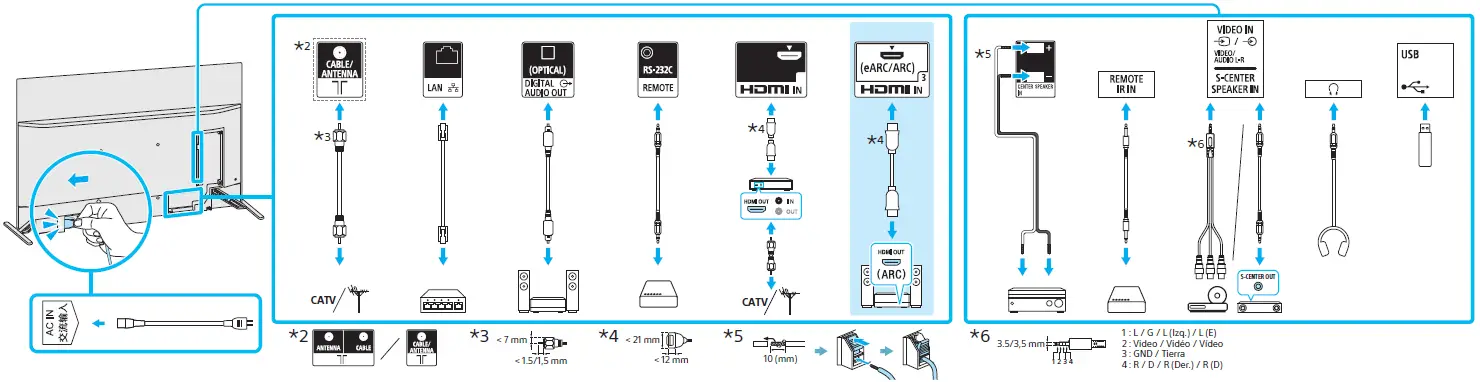
- Before connecting cables, disconnect the AC power cord of both the TV and AV receiver.
- Refer to the instruction manual of the Audio system with the S-CENTER OUT terminal for detail.
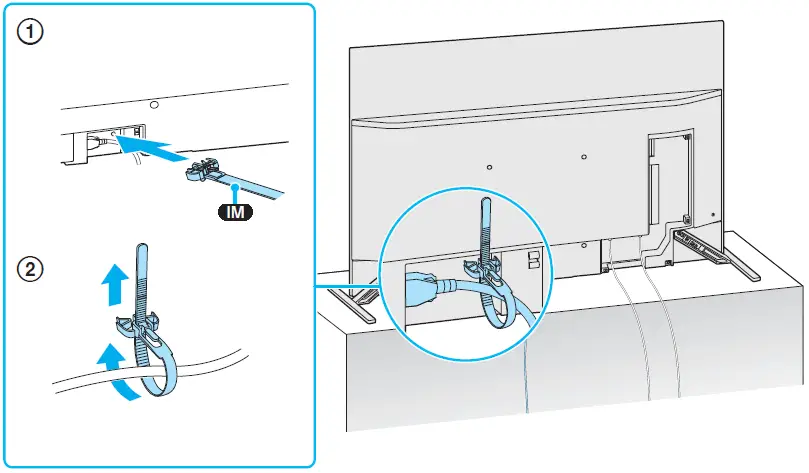
Cable assemble
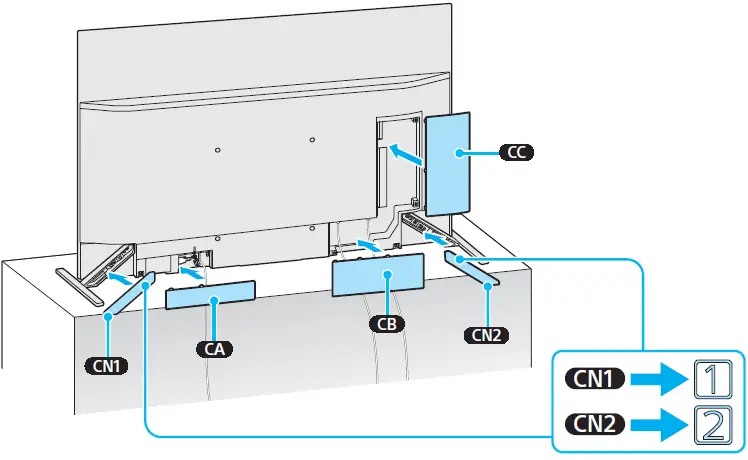
CN1 & CN2
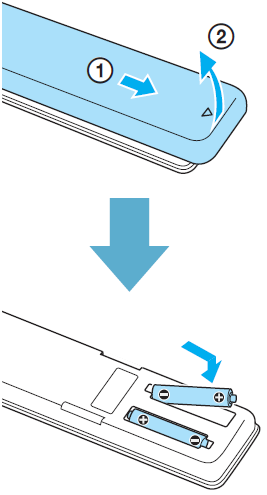
Installation of batteries
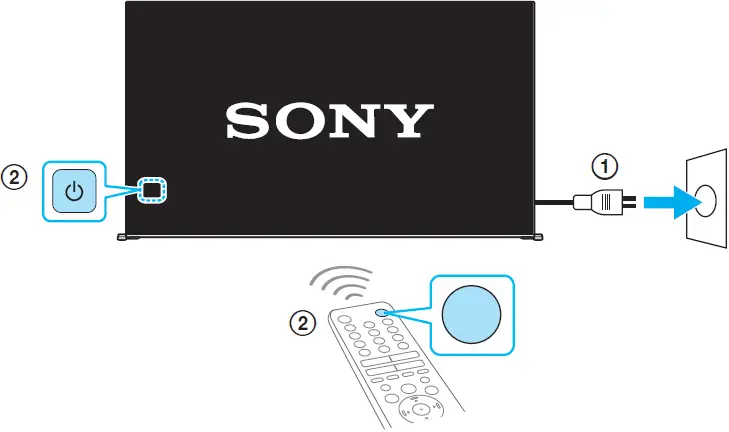
Remote Control and TV
The remote control shape, layout, availability, and function of remote control buttons may vary depending on your region/country/TV model/TV settings.
First power on the TV and then through the power button of the remote turn on the TV.
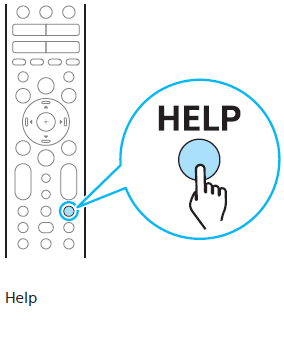
For more troubleshooting information, refer to the Help Guide.
FAQ’s
Google TV brings together movies, shows, live TV, and more from across your apps and subscriptions and organizes them just for you. Discover new things to watch with recommendations based on what you watch and what interests you, from across your subscriptions and the content available to you.
You can enjoy some functions of the Android TV or Google TV even without a Google account logged in. You can watch TV programs and enjoy all Sony applications, home network functions for the Media Player app, Album app, Music app, Video app, and the Network Electronic Program Guide (EPG).
Yes, it’s possible to use the basic TV functions without having an Internet connection. However, to get the most out of your Sony Android TV, we recommend you connect your TV to the Internet.
The Sony A90J is a 4K OLED TV with a 120Hz refresh rate. It supports high dynamic range (HDR) content in HDR10, HLG, and Dolby Vision.
We recommend choosing ‘Custom’, as it’s the most accurate out of the box and allows for the most customization. We recommend leaving the Contrast at ’90’, Gamma at ‘0’, Black Level at ’50’, and Peak Luminance at ‘High’.
For the majority of TVs, the Movie or Cinema mode is generally the most accurate, which means the image will look closer to what the filmmaker or content creator intended. However, you might notice this setting makes the image darker and warmer.
EyeComfort Mode is a viewing option under the Adaptive Picture feature that provides a picture setting comfortable to viewers’ eyes based on sunrise/sunset times and surrounding ambient light.
Most TV modes are far cooler, with a bluer tint, than they should be. The warmer Movie or Cinema mode is actually more accurate. Give your eyes a few days to adjust and you won’t want to go back.
The two brands’ high-end TVs pick a different standard for enhanced HDR, where metadata is incorporated to optimize your settings for the content on the screen automatically. At the same time, Samsung opts for HDR10+, while Sony goes with Dolby Vision, which is usually a better choice.
The most significant improvement of the Sony Bravia X85K 4K HDR TV is only relevant for gamers, as the VRR range at 1080p has been increased to 20-120 Hz from 48-60 Hz
Blue light emission rates from OLED displays are 50% lower than the standard (100W/sr/m2) set by the International Electrotechnical Commission (IEC), which may help promote better sleep and eye comfort.
Applicable Products and Categories of This Article. High Dynamic Range (HDR) HDR enables the handling of brightness information of a wide dynamic range on your Android TV™ or Google TV™ compared to Standard Dynamic Range (SDR) signals used in normal broadcasts.
If your TV screen brightness suddenly changes, check the following: Check the Ambient light sensor, Light and Color sensor, or Light sensor settings. … Change the channel or the input source to see if the brightness returns to normal.
Live Colour Creation is a backlight system that produces 30% wider color, seen particularly with the red and green areas of the spectrum. So your TV picture will have more lifelike and natural colors with no smudging or dulling of the image.
Download this PDF Link: Sony XR-55A90J Ultra HD Smart Google TV Quick Setup Guide