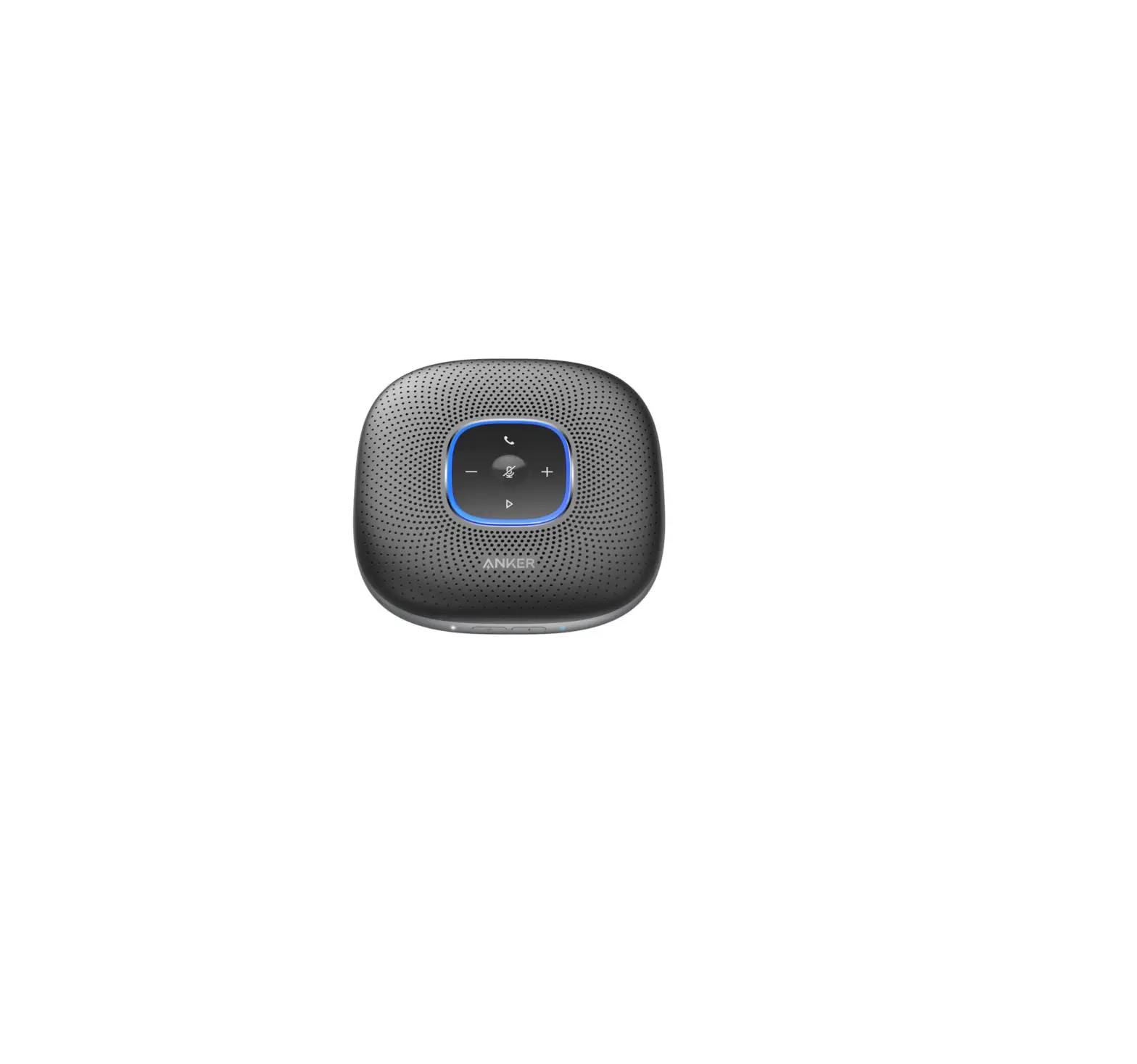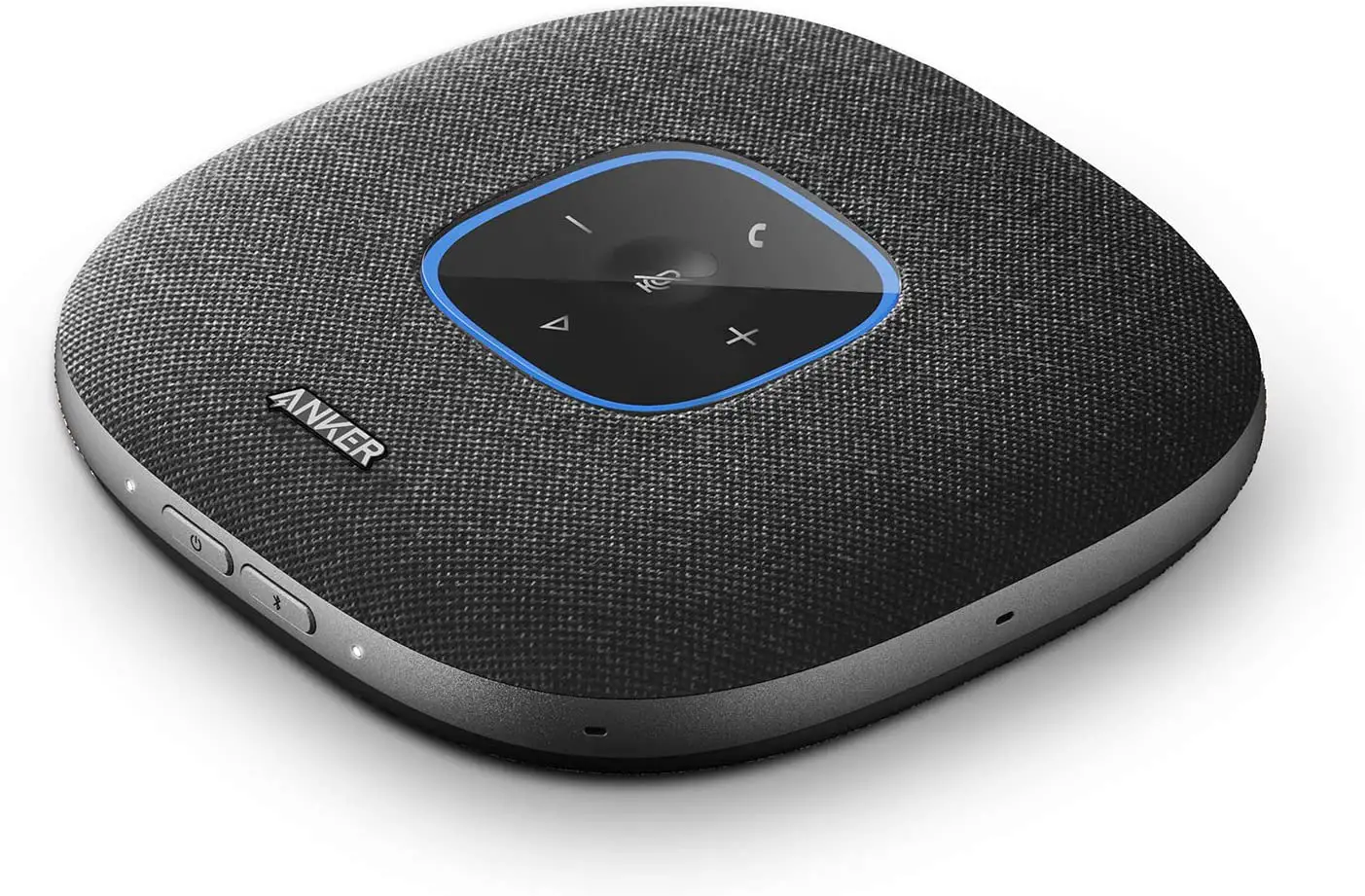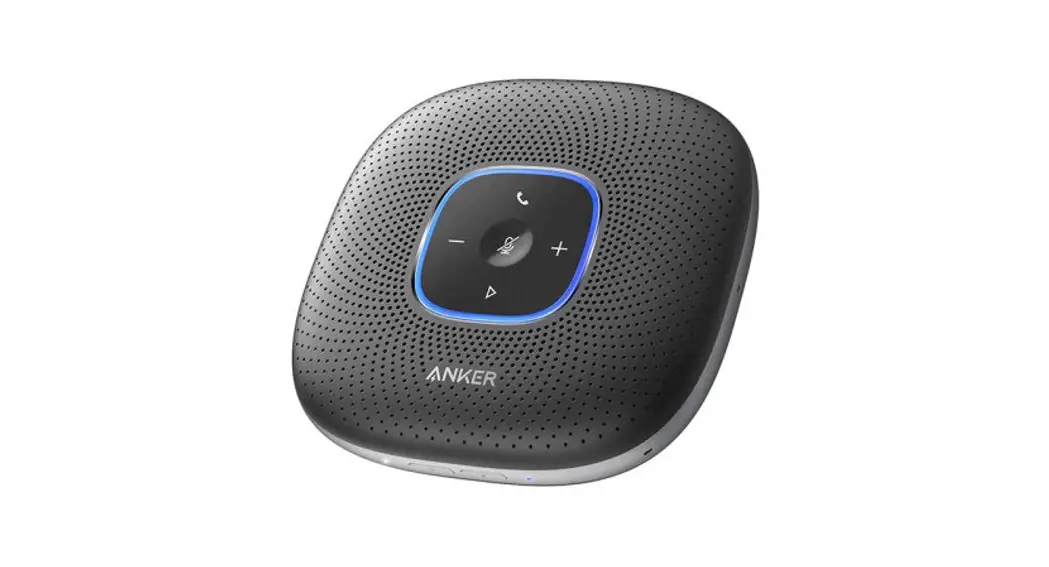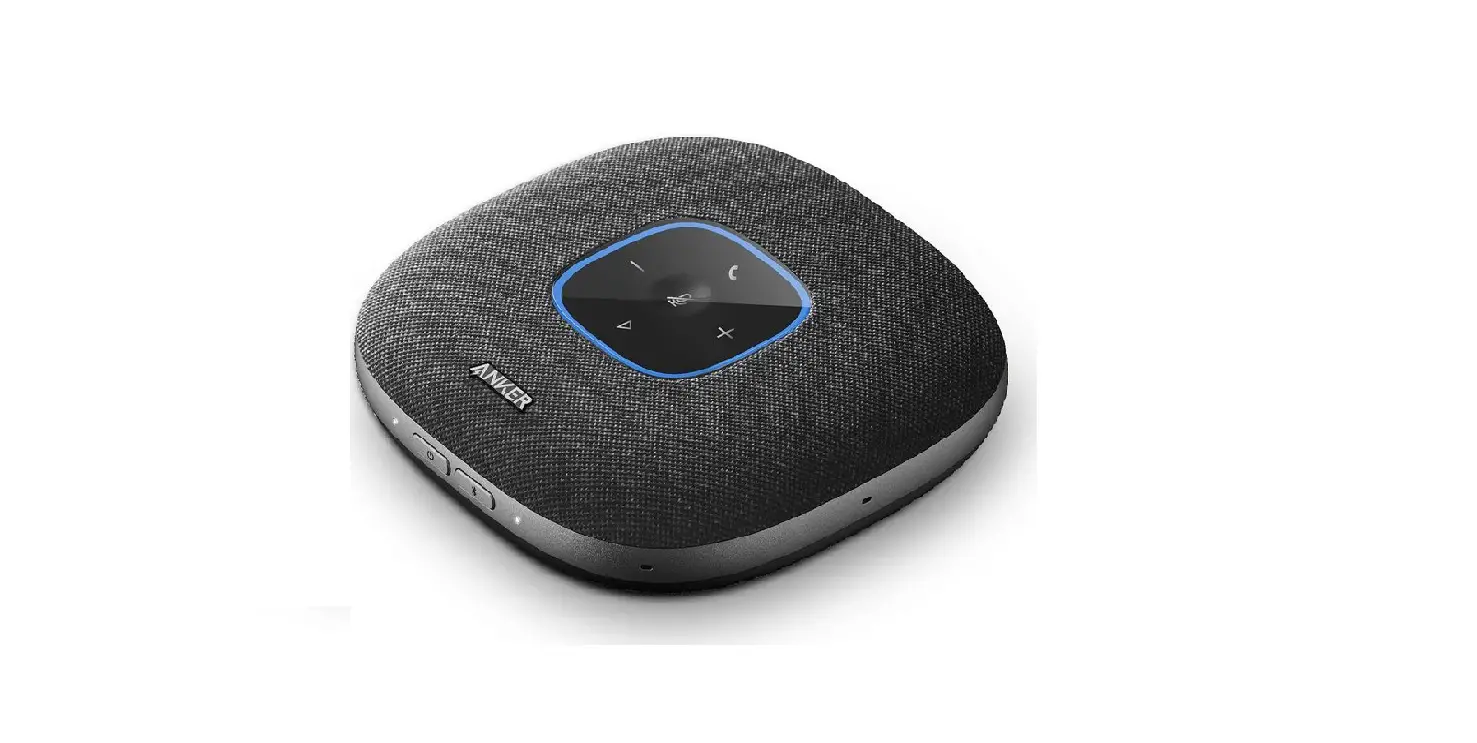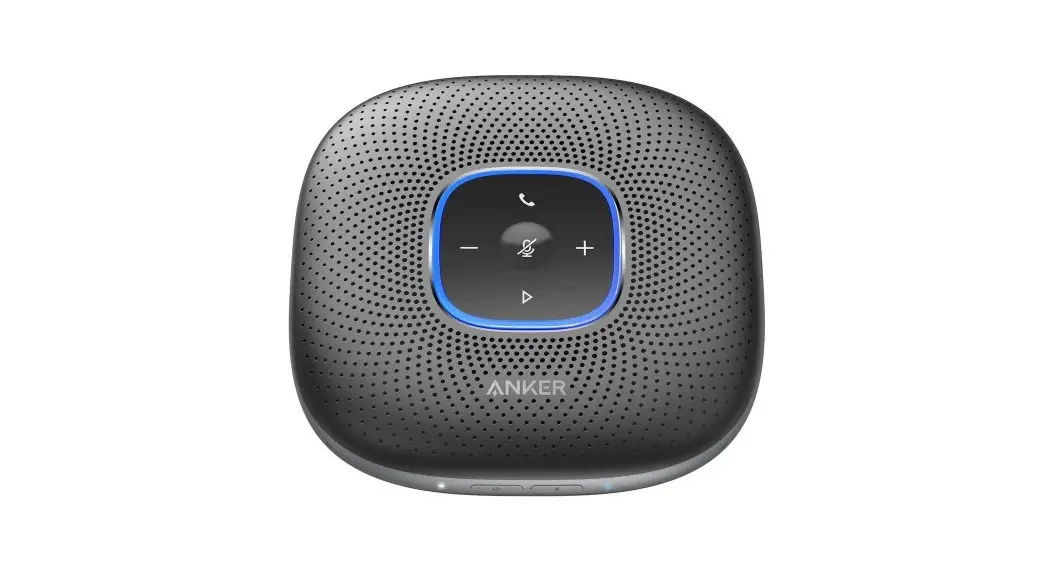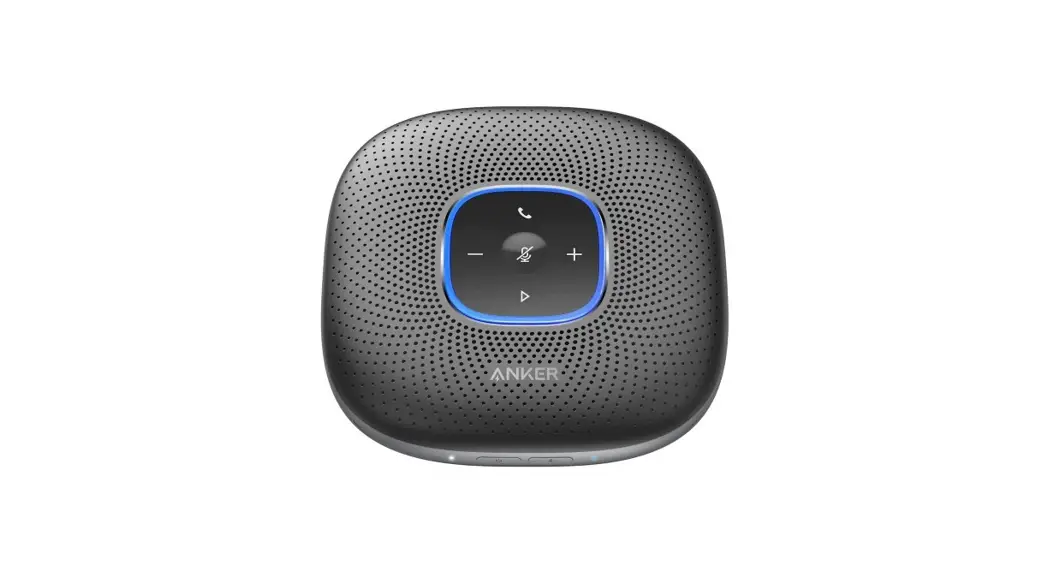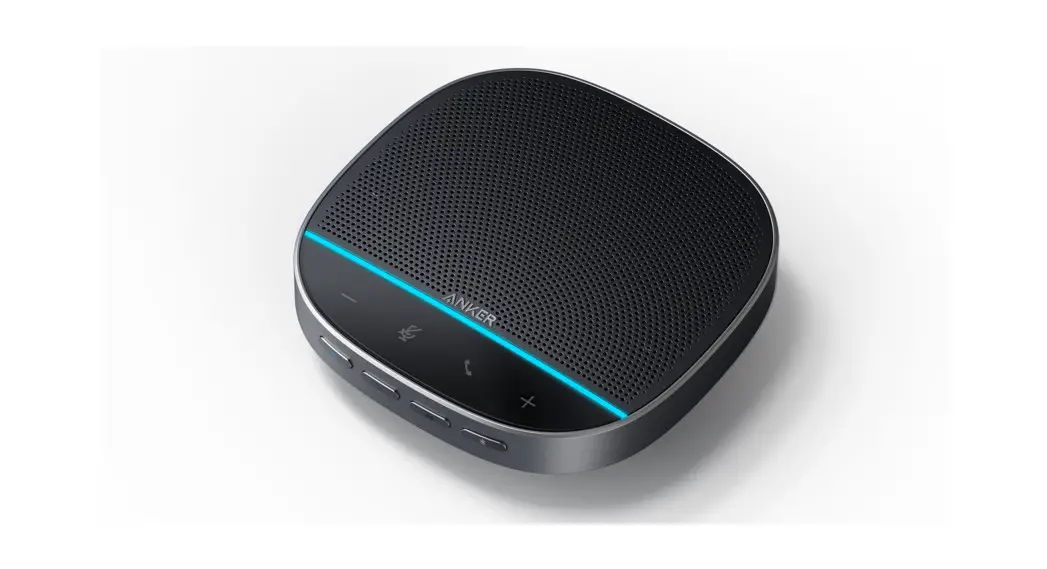
 Anker PowerConf S500
USER MANUAL
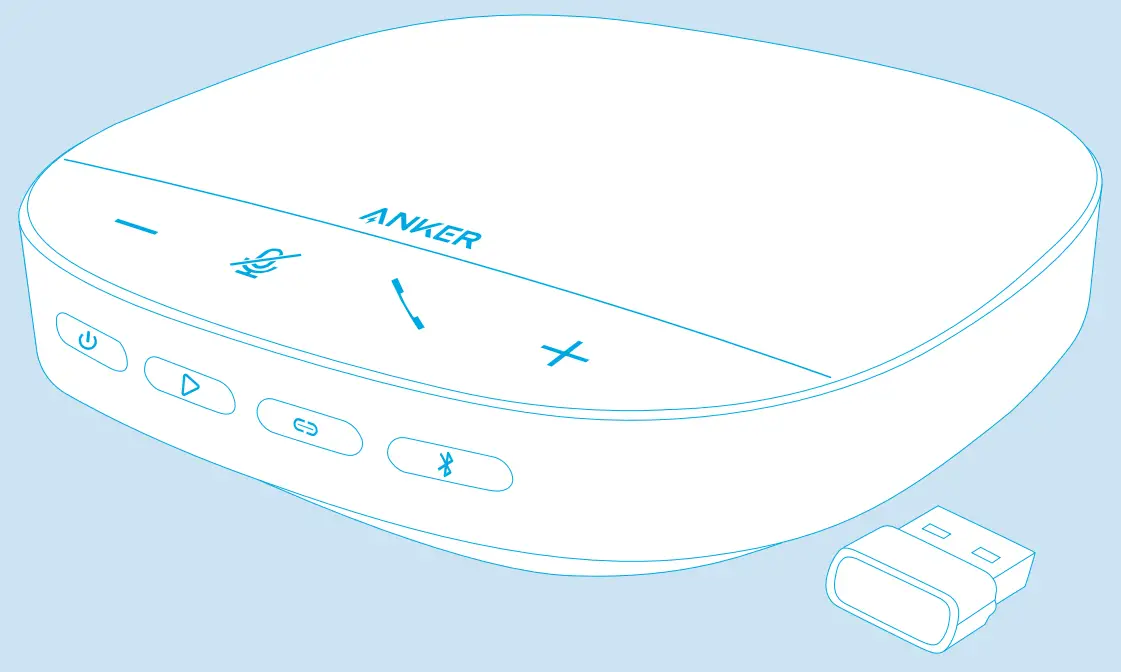
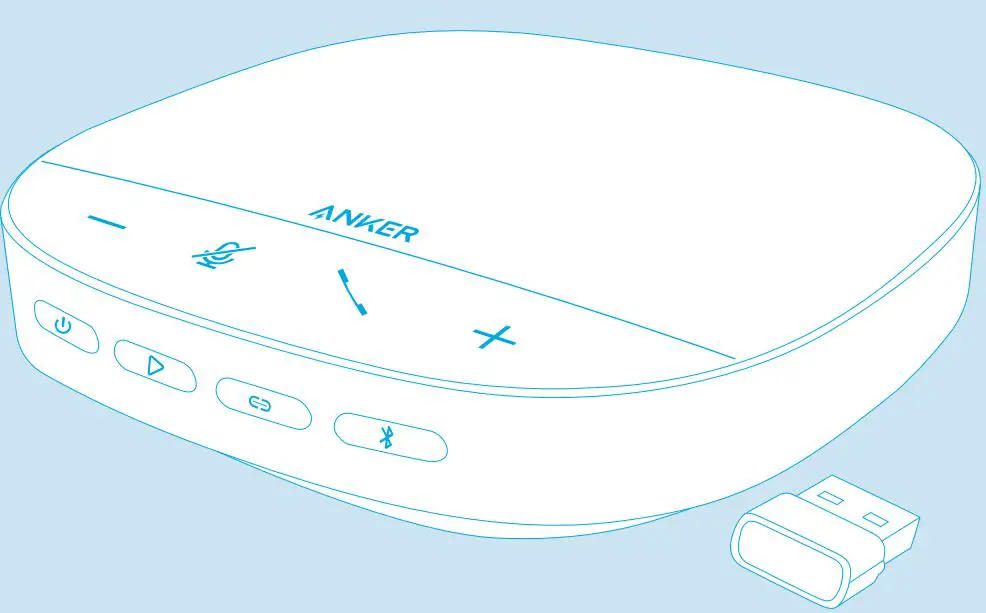
At a Glance
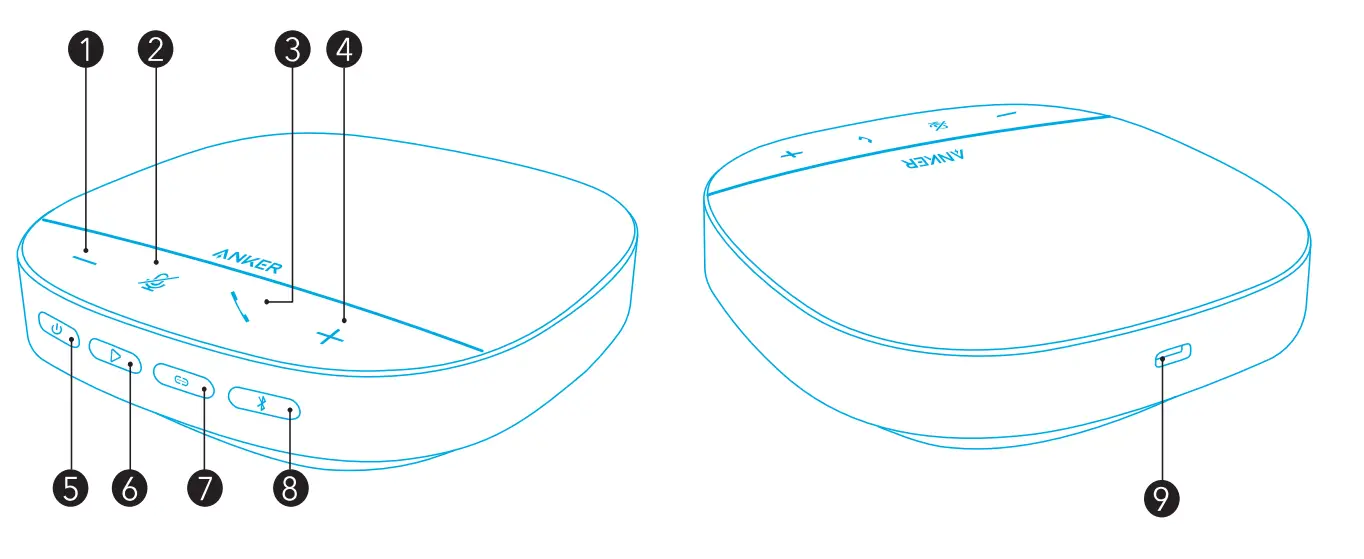
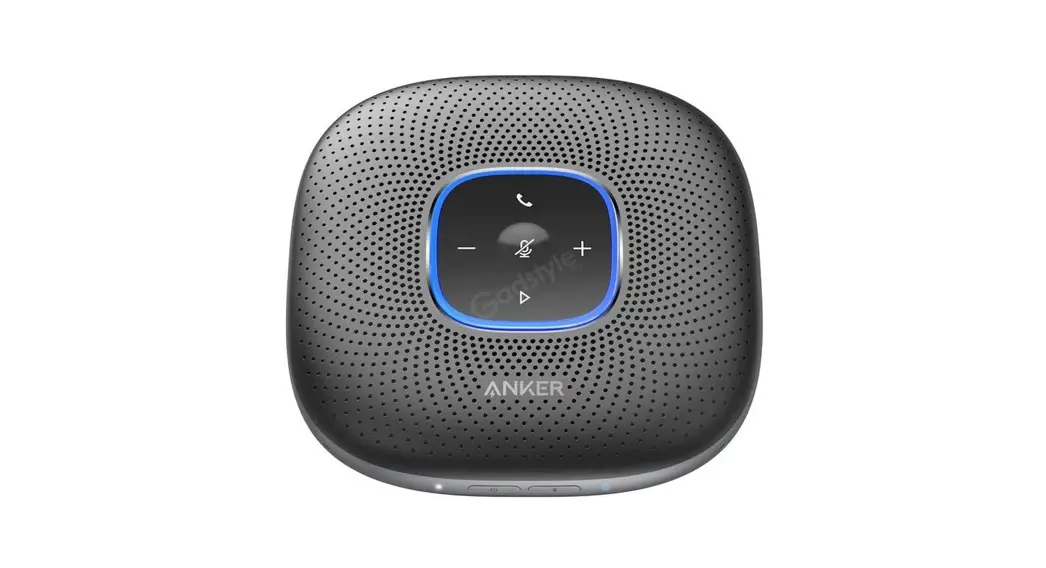
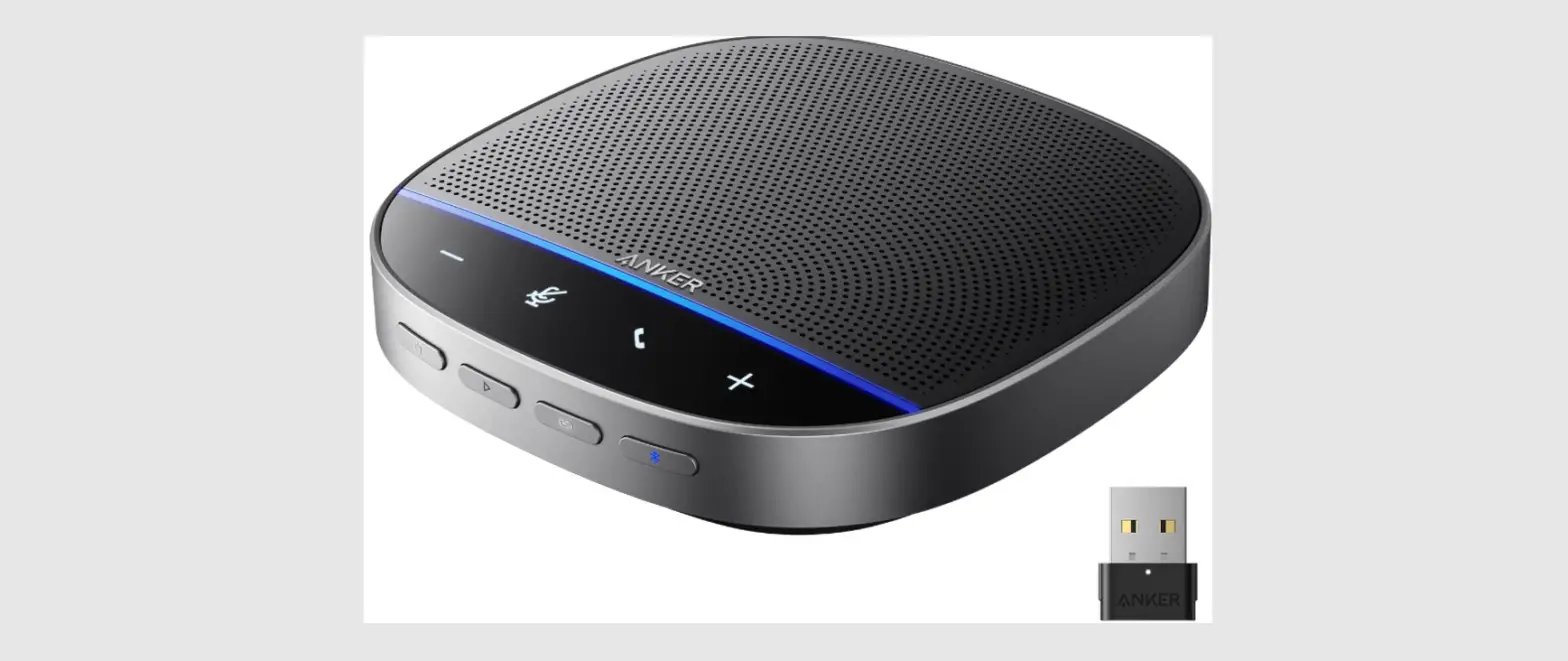
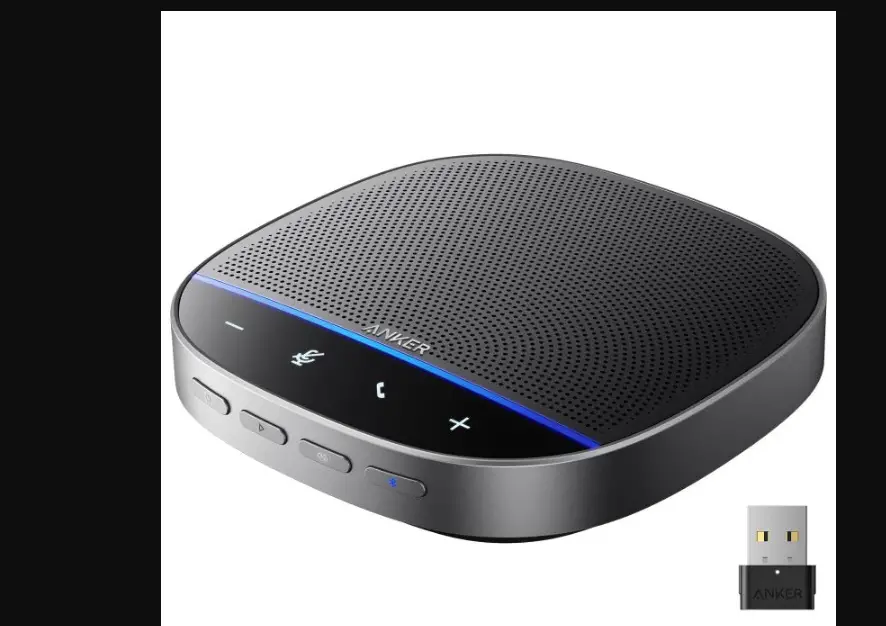
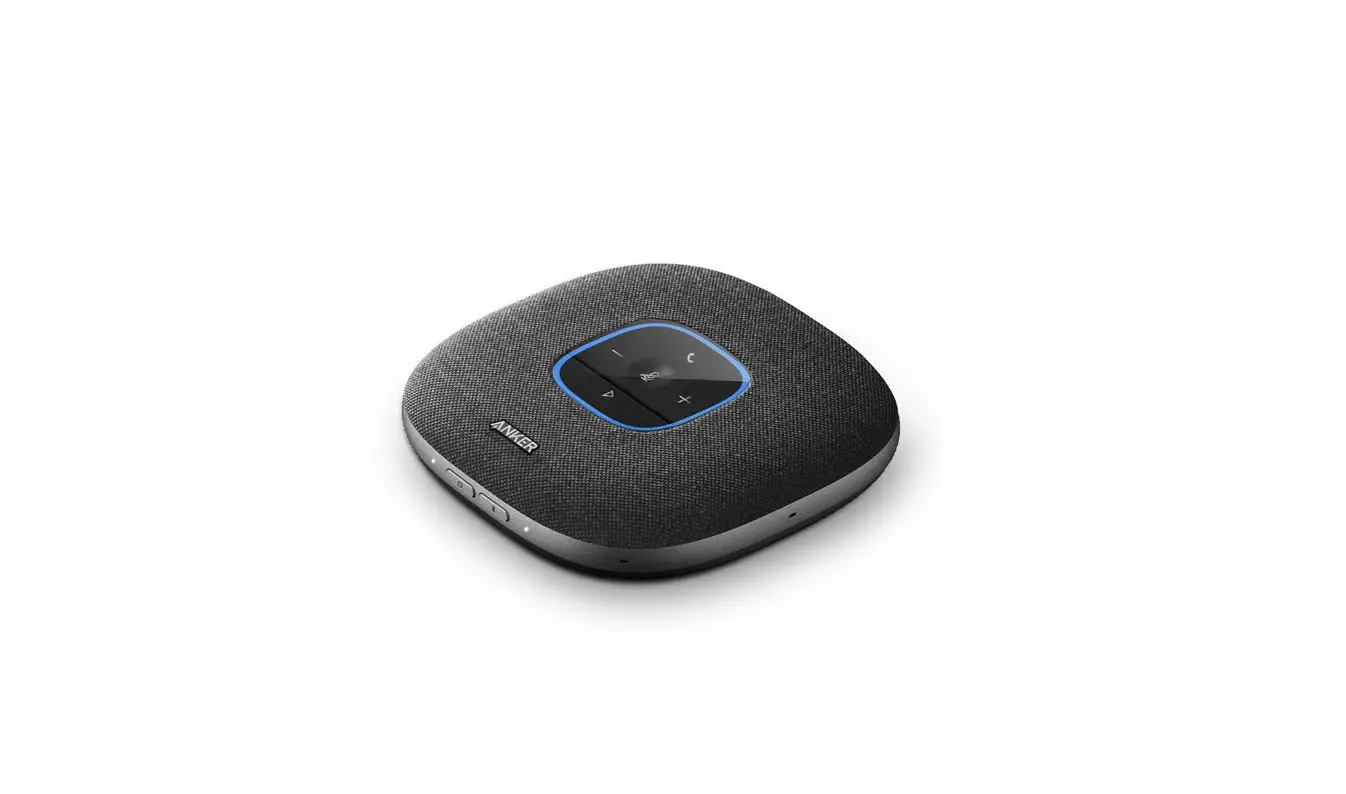
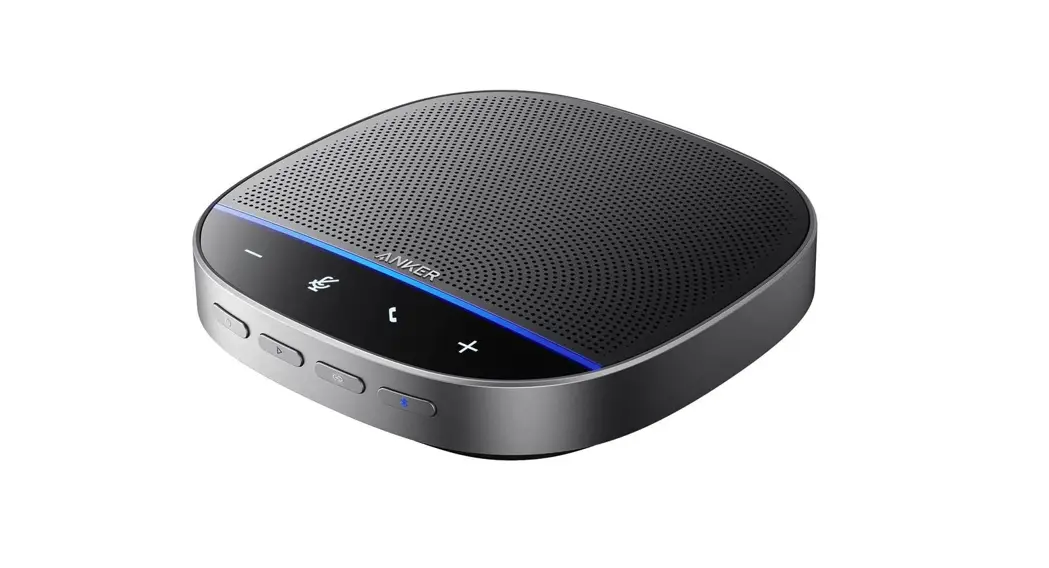
| 1. Volume down button 2. Mute button 3. Phone call button 4. Volume up button 5. Power button | 6. Play button 7. Link button 8. Bluetooth button 9. USB-C charging port |
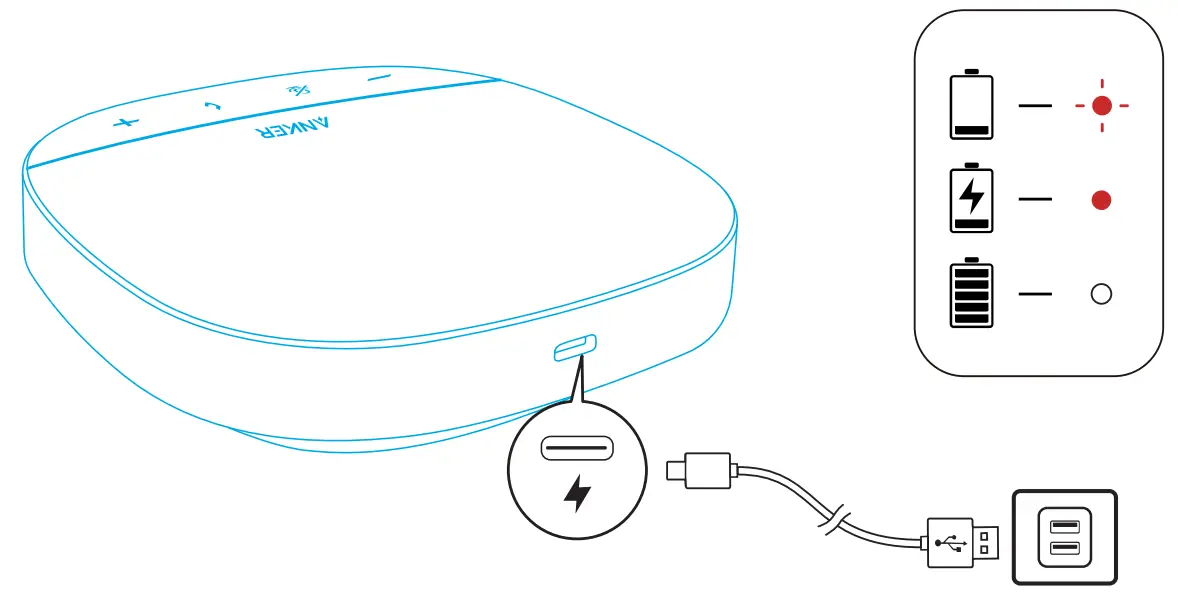
Charging

- Fully dry off the USB-C charging port before charging.
- Fully charge the speakerphone before the first use to extend the lifespan.
- Use a certified USB-C charging cable and charger to prevent any damage.
Powering On/Off
Press and hold the power button for 3 seconds to power on or off.
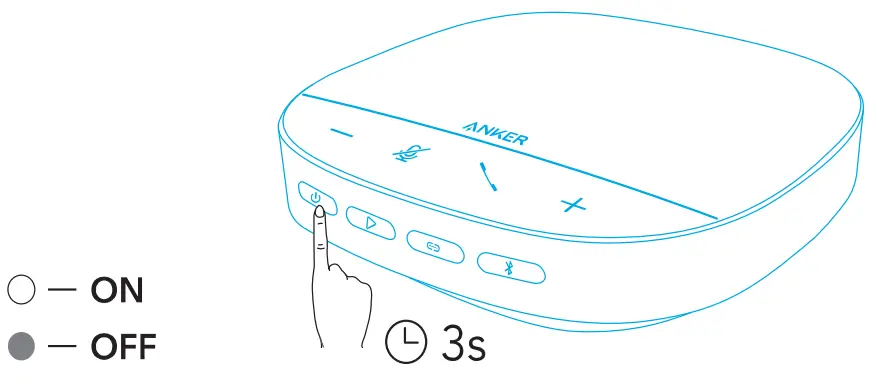
- The PowerConf speakerphone will automatically power on once connected to your PC by using the USB-C cable.
- The PowerConf speakerphone will automatically power off after 30 minutes if no device is connected.
- To check the battery level, press the power button again when powered on.
Connecting
There are 3 ways that you can connect the PowerConf speakerphone to your devices.
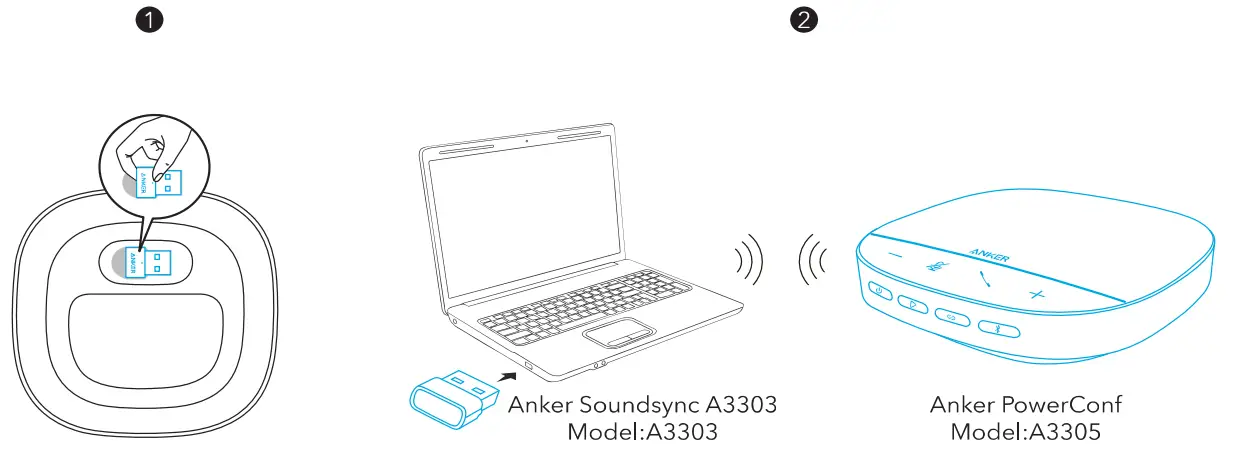
Option A: Connect to PC (Bluetooth USB adapter)
- Plug the provided Bluetooth USB adapter into a USB port on your PC, PowerConf S500 is ready to use when powered on.

- You might need to manually set PowerConf 5500 as the audio device for your PC system or conference software.
• macOS
System Preferences > Sound > Sound Effects/Output / Input
• Windows
Right-click on the sound icon > Open Sound settings > Choose your output device / Choose your input device
• Software (Zoom, Skype or more)
Settings > Audio > Speaker / Microphone
Option B: Connect to PC (USB-C cable)
Connect PowerConf 5500 to a PC using the provided USB-C cable, it will be powered on and ready to use.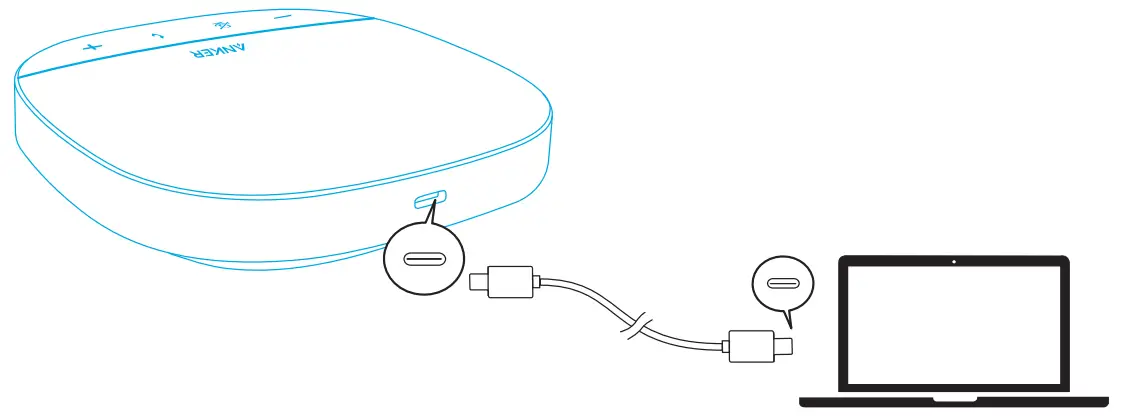 Option C: Connect to smartphone or tablet (Bluetooth)
- When powered on, PowerConf 5500 will automatically enter Bluetooth pairing Alternatively, press the Bluetooth button to enter Bluetooth pairing mode.
- Select “Anker PowerConf 5500” on your smartphone’s Bluetooth list to connect.
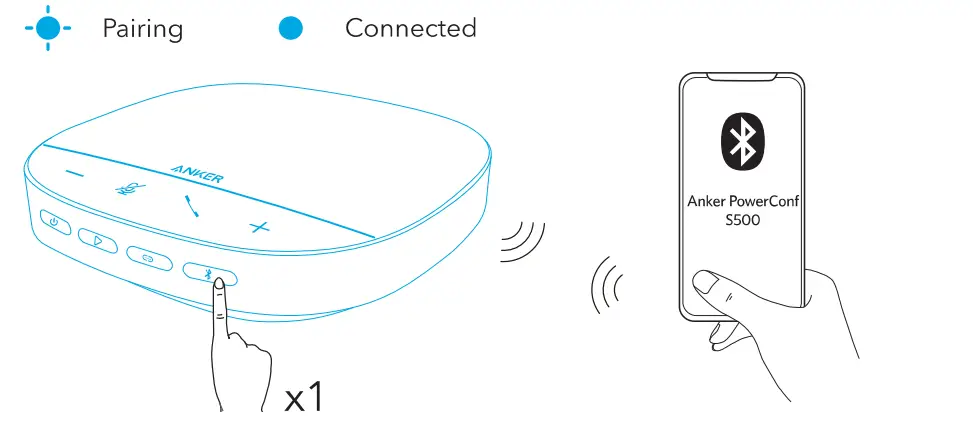
 | Press | Enter Bluetooth pairing mode |
 | Flashing blue | Pairing |
 | Steady blue | Connected |
- Each time you power on PowerConf 5500, it will automatically connect with the last successfully connected device if available. If not, press the Bluetooth button to enter Bluetooth pairing mode.
- This speakerphone can pair up with 2 mobile devices via Bluetooth at a time. To pair with another Bluetooth device, press the Bluetooth button to re-enter Bluetooth pairing mode.
- To break the Bluetooth connection from one device, press the Bluetooth button again on the device that’s currently active.
Using Your PowerConf
 | Press and hold for 3 seconds | Power on or off |
| Press (when powered on) | Check the battery level | |
| Press | Enter Bluetooth pairing mode or disconnect Bluetooth |
 | Press | Answer/End a call |
| Press and hold for 2 seconds | Reject a call | |
 | Press or press and hold | Volume up/down |
| Press | Mute or restore the microphone |
 | Press | Play/Pause/Resume music |
| Press twice | Skip to the next track | |
| Press and hold for 2 seconds | Activate Siri or other voice assistant software | |
 | Press | Link with another PowerConf 5500 |

LED Light Bar
| Lights up then turns off | Powered on |
| Lights up green (Battery level >10%) | Check the battery level |
| Lights up red then flashes (Battery level <10%) | |
| Flashes blue | Incoming call |
| Lights up cyan (Standard mode) | Sound direction detected |
| Lights up purple (Broadcasting mode) | |
| Lights up blue then turn off | Adjust volume |
| Turns red | Muted |
| Lights up purple | Enter linking mode |
Anker Work App
Download the Anker Work app to enhance your experience.
- Check product information
- Read user manual
- Check the battery level
- Check the latest software updates
- Adjust volume
- Set auto-power off
- Manage devices
- Turn LED light bar off
- Set voice pickup modes
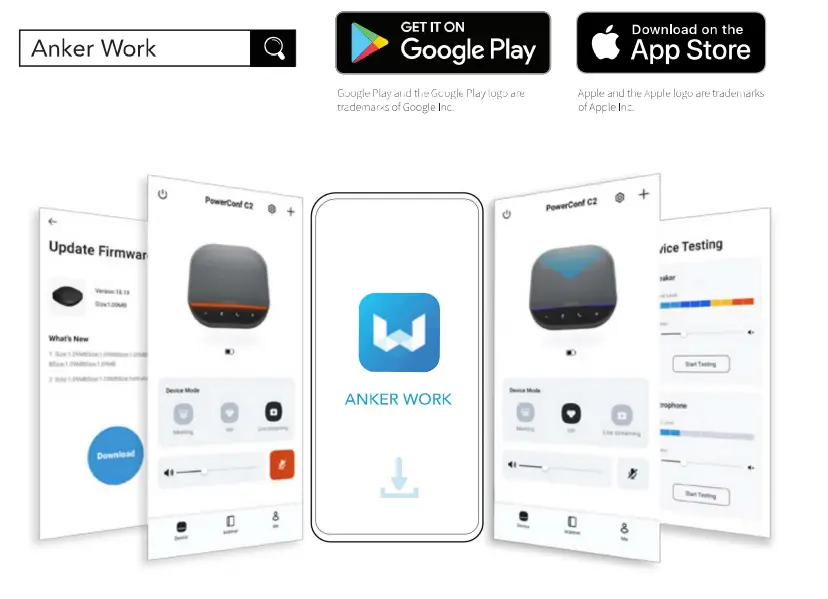
There are 2 voice pickup modes you can choose from in the Anker Work app.
- Standard mode: Pick up all sounds from the near end.
- Broadcasting mode: Restore and deliver original sounds by turning the speaker You will not hear the far end anymore when in this mode. (You are strongly suggested to use this mode via USB connection).
Linking Mode
Linking mode is available only when you connect one PowerConf S500 with your PC using the USB-C cable. It is not available when connected via Bluetooth.
- Connect one PowerConf S500 with your PC using the provided USB-C cable.
- Power on another PowerConf 5500, then press the link button on both PowerConf 5500 speakerphones simultaneously to enter linking mode.
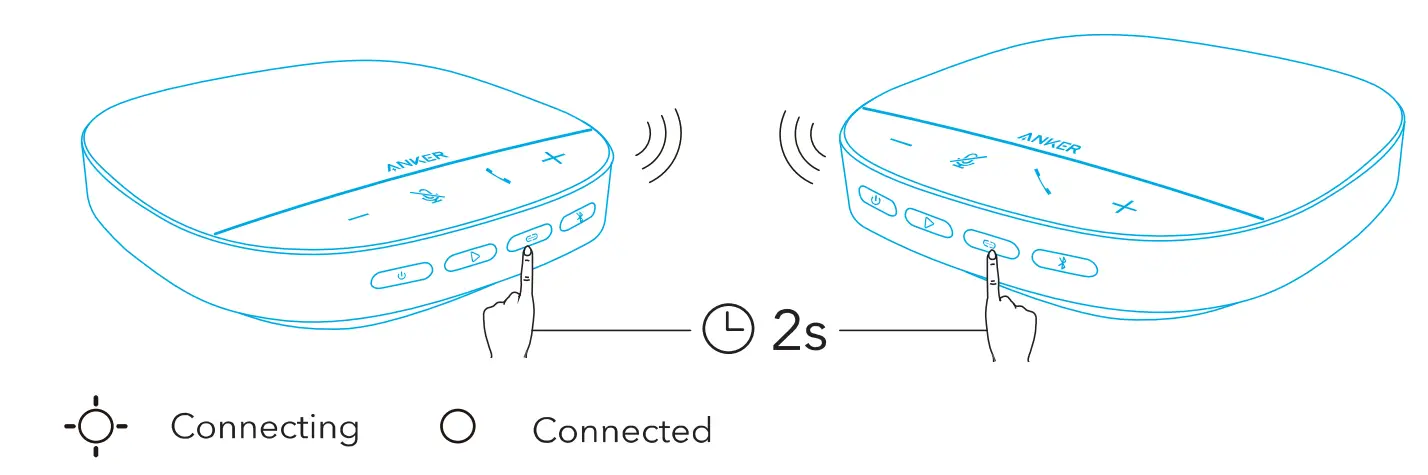
| Press | Enter linking mode |
 | Flashing blue | Connecting |
 | Steady blue | Connected |
- To exit linking mode, press and hold the link button for 2 seconds simultaneously on both PowerConf S500 speakerphones.
Specifications
Specifications are subject to change without notice.
| Input | 5V 2A 2A |
| Rated output power | 10W |
| Battery capacity | 6700 mAh |
| Charging time | 4 hours |
| Talktime | 16 hours |
| Driver size | 1 x 1.75″ (full range) |
| Frequency response | 20 Hz – 20 kHz |
| Voice pickup range | 5 m / 16 ft |
| Microphone | 4 stereo microphones |
| Bluetooth version | 5.0 |
| Bluetooth range | 10m/33ft |