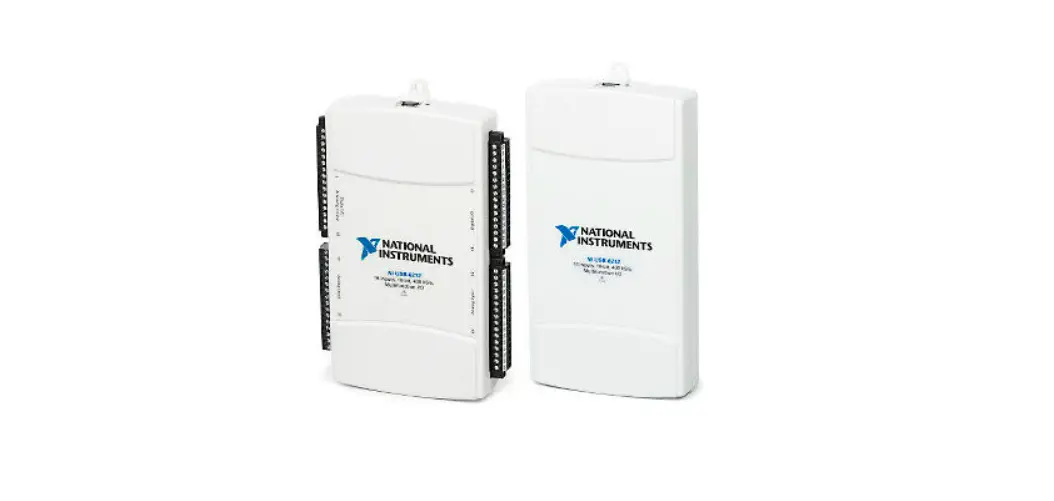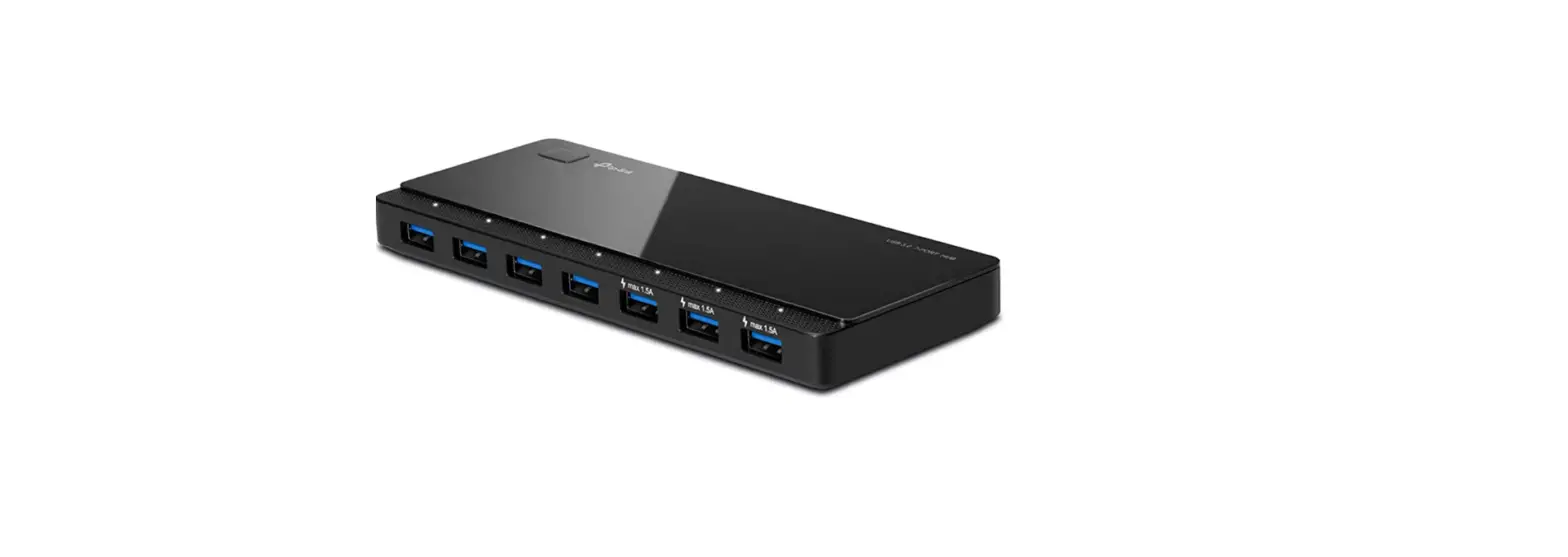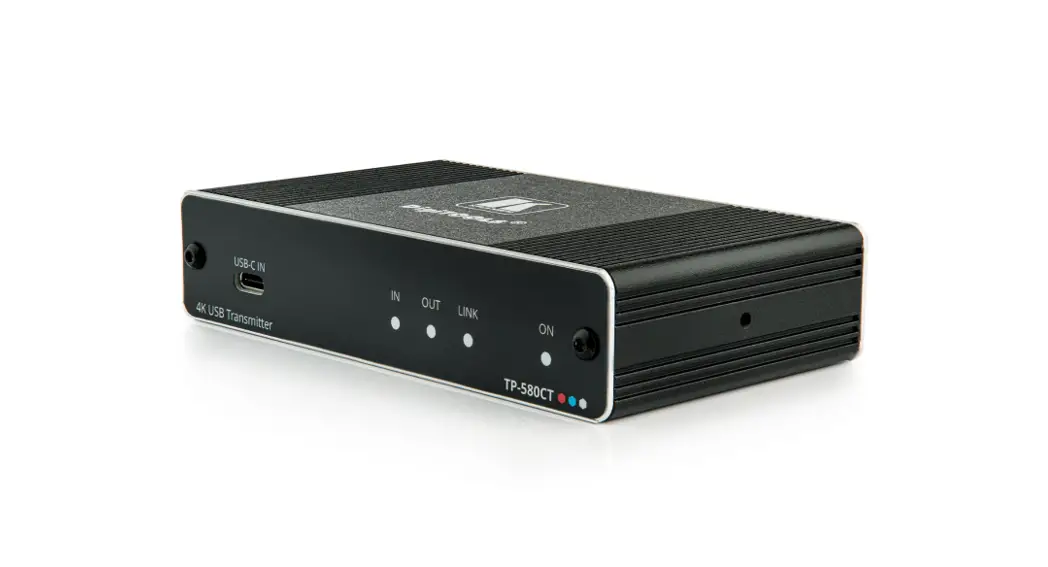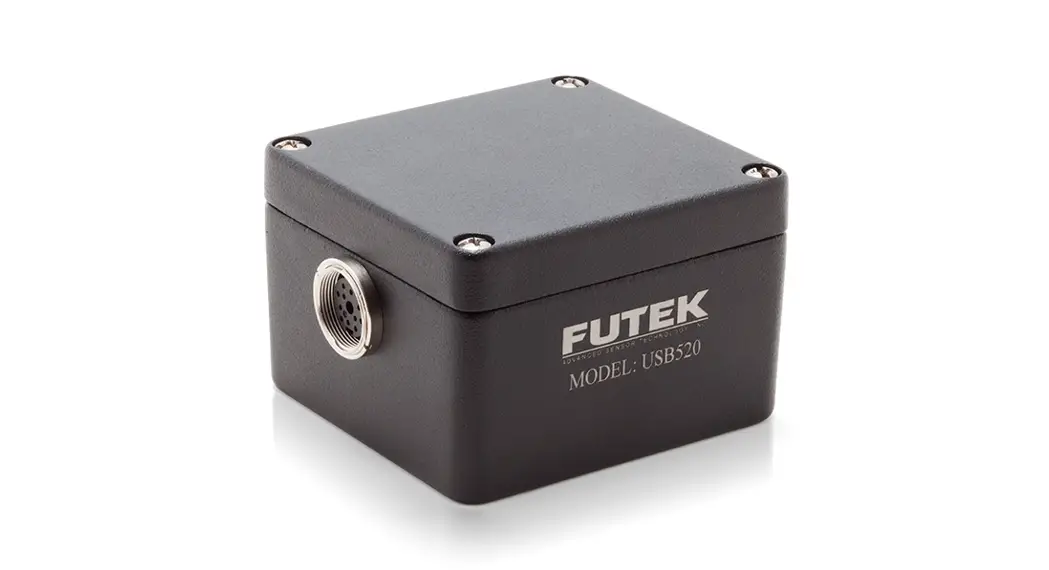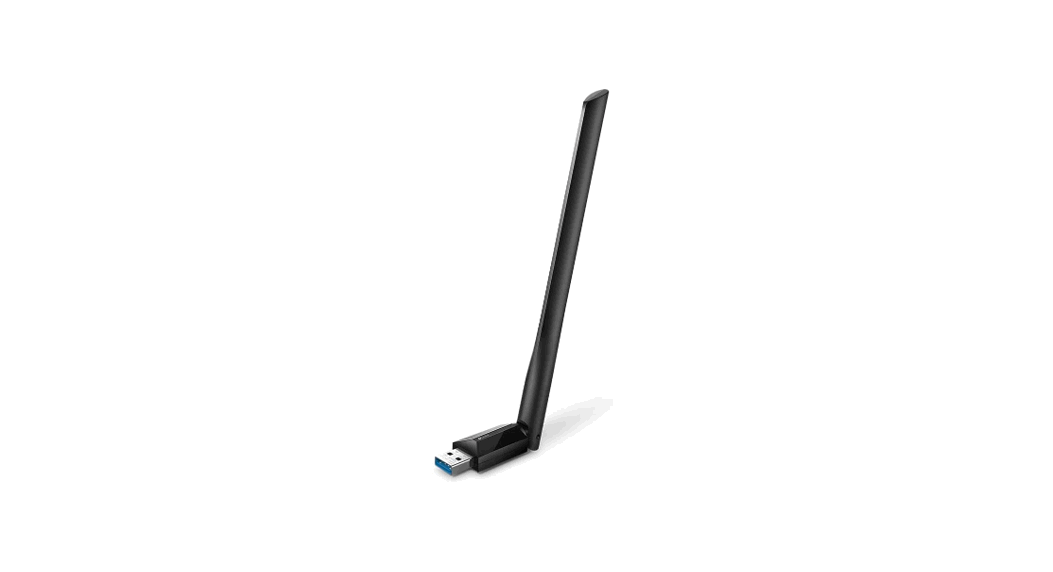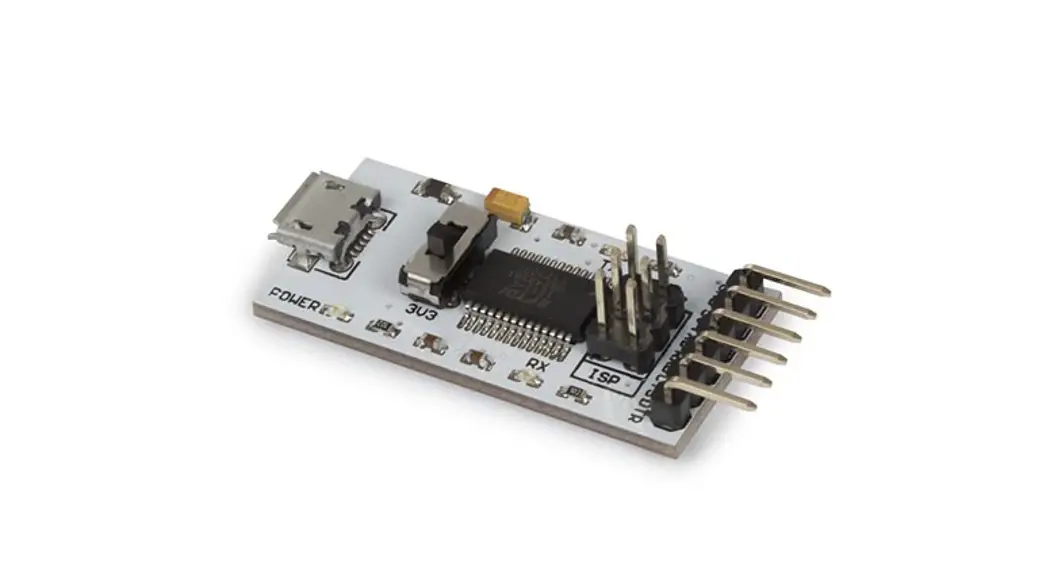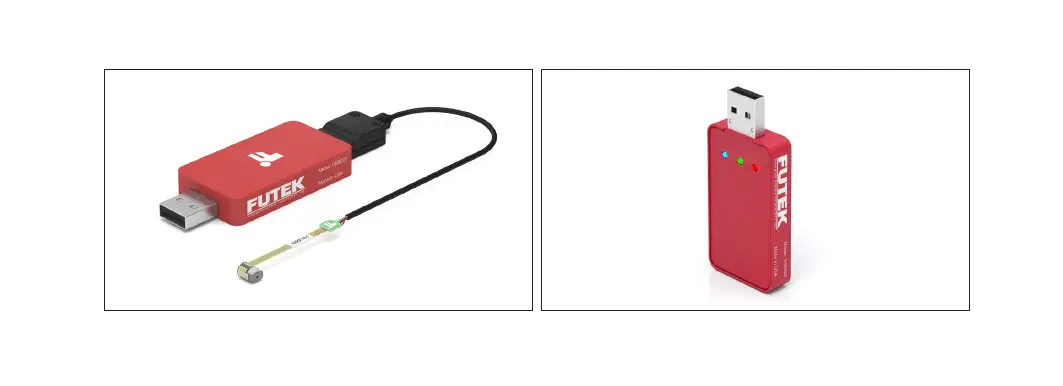

FUTEK TG1003 USB Series High-Resolution USB Output Devices
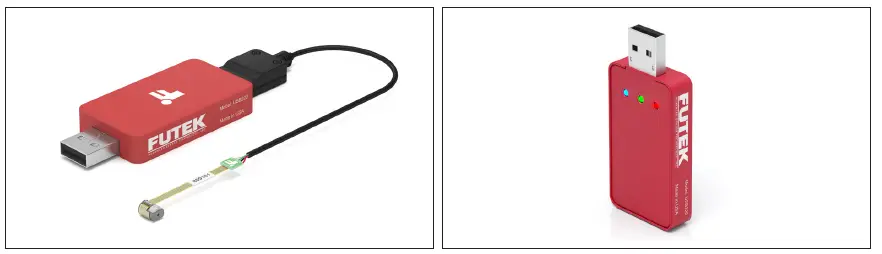
TG1003
FUTEK reserves the right to modify its design and specifications without notice. Please visit http://www.futek.com/salesterms for complete terms and conditions.
10 Thomas, Irvine, CA 92618 USA
Tel: (949) 465-0900
www.futek.com
Important Tips
Use only with USB 2.0.
Be sure that you have the latest version of SENSIT installed. Download it at https://www.futek.com/sensit-software-download
SENSIT release notes can be found on the SENSIT download page. See link above.
Have FUTEK USB device plugged into computer before starting SENSIT.
The 14-day free trial provides the Full Version of SENSIT for a period of 14 days. If a purchase code is entered, the Full Version will remain permanently.
Sensors with Teflon cables are more prone to “wiggling” out of their Hirose connections due to the stiffness of the cable. Practice caution when placing and moving these sensors.
LED indicators function as follows:
| LED INDICATORS | |
| Blinking blue (10 Hz) | Module Auto-Calibration |
| Blinking blue (1 Hz) | Module Normal Operation |
| Green | USB Power |
| Red | USB Data Link |
Troubleshooting
COMPUTER DOES NOT SEE FUTEK USB INSTRUMENT
The USB driver can be found on the SENSIT support page at: https://www.futek.com/sensit-software-support. The driver used is a standard FTDI USB driver and may also be available from FTDI at the FTDIChip website under D2XX drivers.
For best USB detection install driver prior to USB instrument connection to computer.
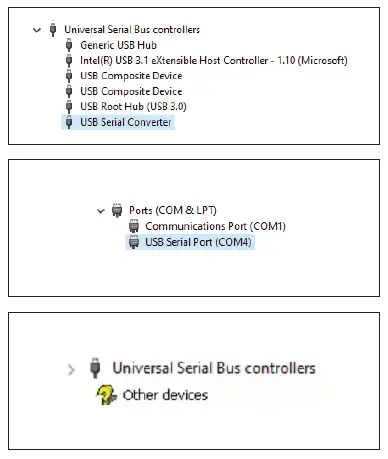
- When recognized by the computer the USB device will be listed as USB Serial Converter under Universal Serial Bus controllers in the Device Manager.
- Additionally, a virtual comport will be created under Ports (COM &LPT) in Device Manager.
- If Windows incorrectly sees the USB device under Device Manager it may be necessary to uninstall the other device, disconnect the FUTEK USB instrument, and re-install the FUTEK FTDI USB driver, and re-plug in the USB device.
ASCII OUTPUT DOES NOT WORK
If the USB kit has been previously used with the SENSIT USB Software, it may be in “Command mode”. Re-inserting the USB will perform a reset, disabling the command mode and activating the automatic ASCII output mode.
USB DEVICE WILL NOT RESPOND TO COMMANDS AFTER A CLOSE OF PROGRAM
If any software communicating with USB closes unexpectedly, a reset will be needed for the USB device as it may be stuck in an unknown state. Unplug and re-plug the device to perform a reset.
EVERYTHING WAS INSTALLED CORRECTLY.
WHAT ELSE COULD BE WRONG?
If the software has been installed correctly following the Software Installation Guide and the USB kit still is not being recognized, all it may take is a computer restart.
SEE SENSIT TROUBLESHOOTING GUIDE FOR POSSIBLE SENSIT SOFTWARE RELATED ISSUES
https://media.futek.com/docs/troubleshooting/sensit_tsg.pdf
Contact Information
A one-year recalibration is recommended. But verification and calibration period shall be defined based on application, conditions, endurance and usage. Calibration data may be available online at:
https://www.futek.com/support/calibrationdata
To send in your sensor or system for recalibration visit our FUTEK calibration web page at:
https://www.futek.com/recalibration
FUTEK Technical Support may be reached at:
https://www.futek.com/contact/technical-request
To send in your sensor or system for evaluation and repair visit our FUTEK RMA web page at: https://www.futek.com/rma
10 Thomas, Irvine, CA 92618 USA Tel: (949) 465-0900
www.futek.com
References
 Load Cell | Torque Sensors | Force Measurement Solutions | FUTEK
-
FUTEK Terms & Conditions
-
Technical Support Contact FUTEK
-
Home - FUTEK Advanced Sensor Technology
-
Home - FUTEK Advanced Sensor Technology
-
Load Cell | Torque Sensors | Force Measurement Solutions | FUTEK
-
SENSIT Test and Measurement Software | Support | Sensor Solutions
-
Calibration Data
 Load Cell | Torque Sensors | Force Measurement Solutions | FUTEK