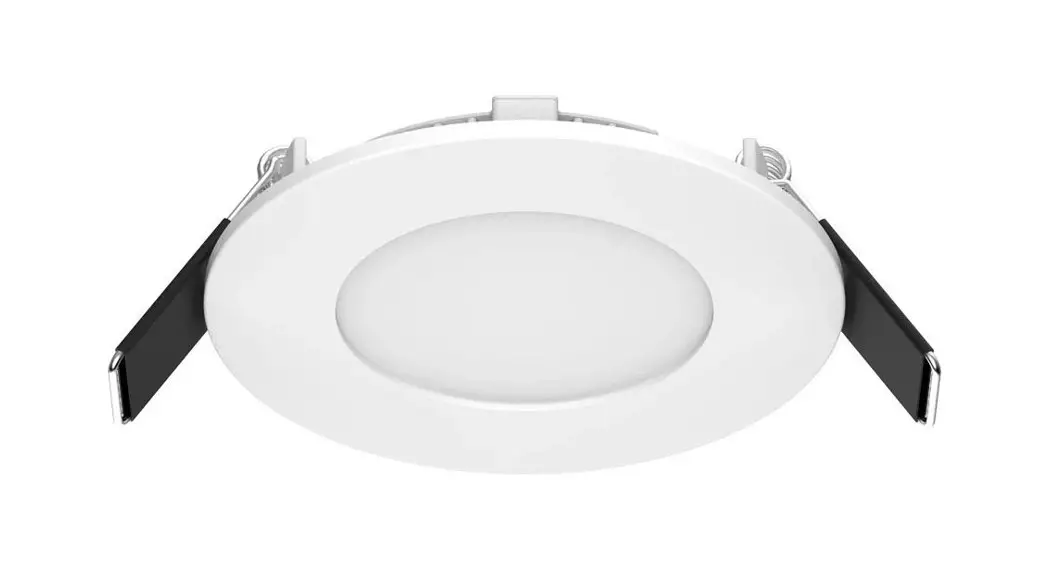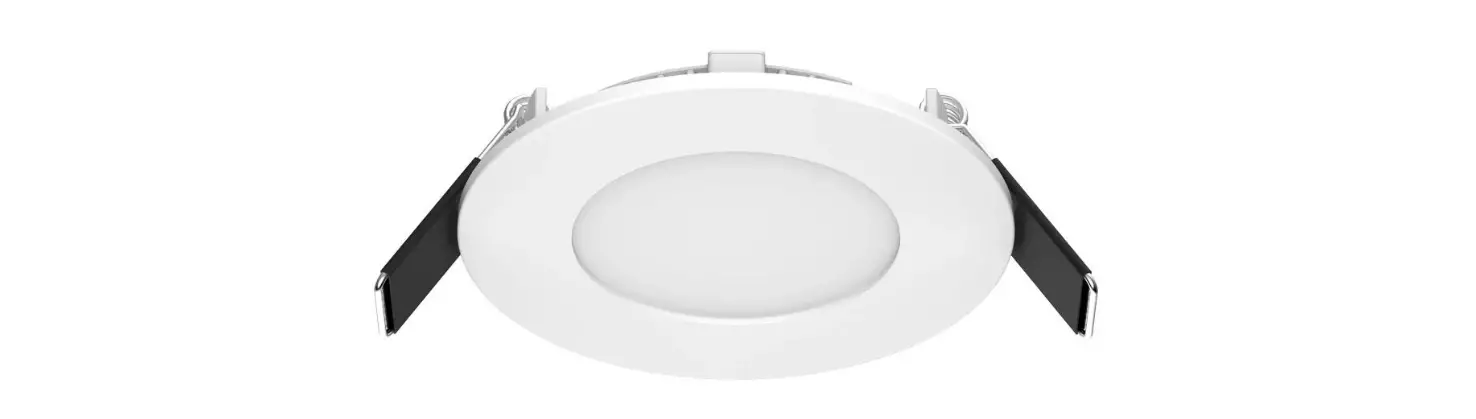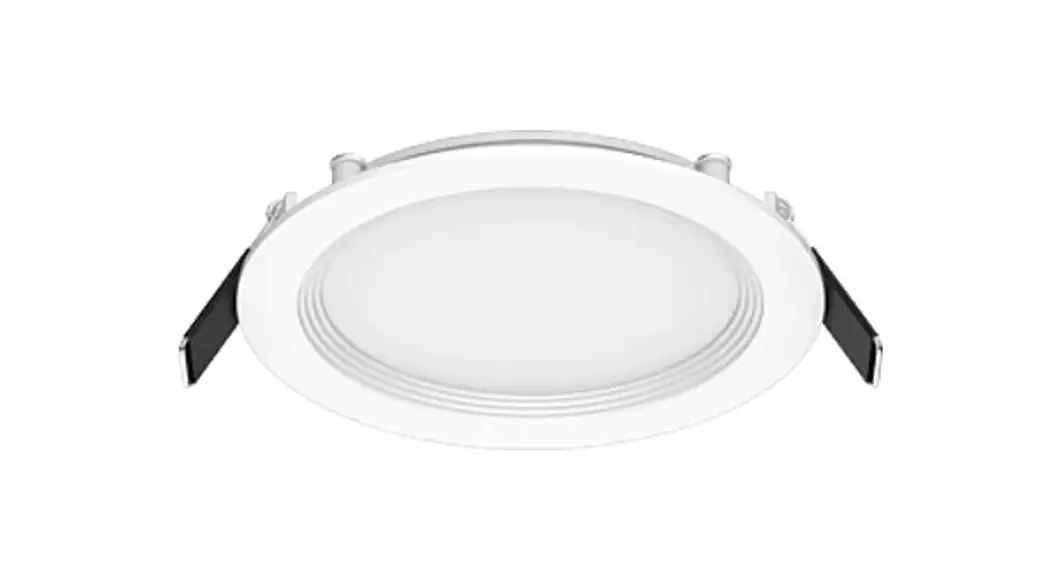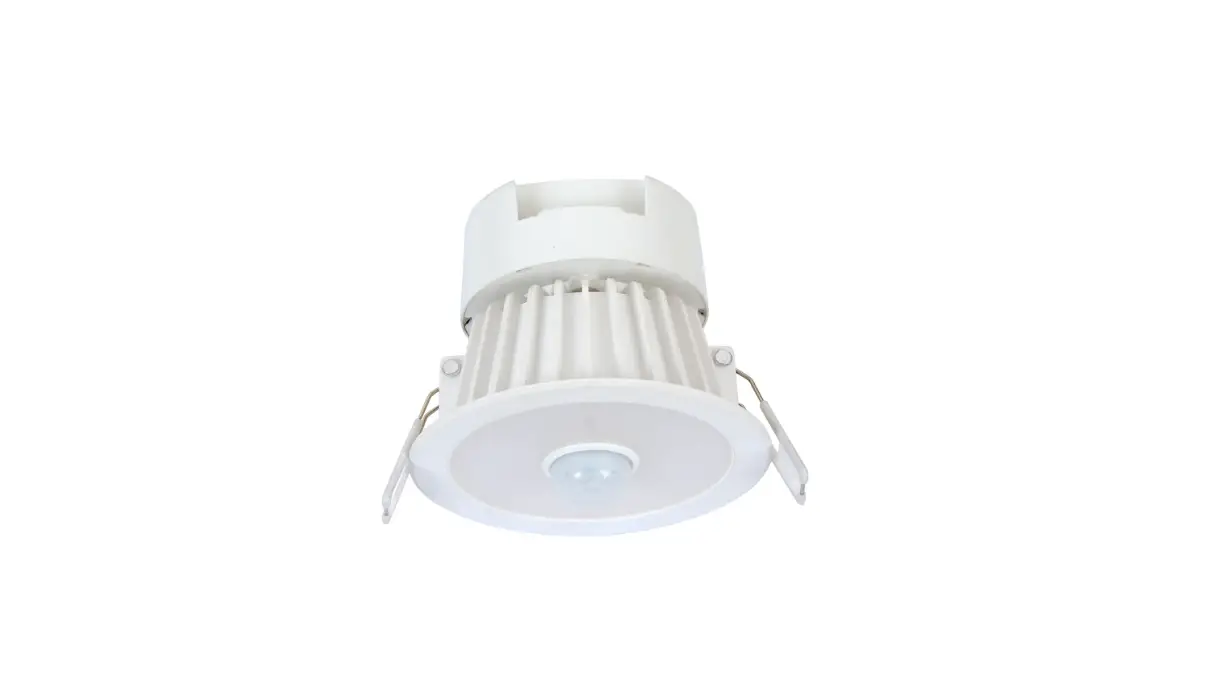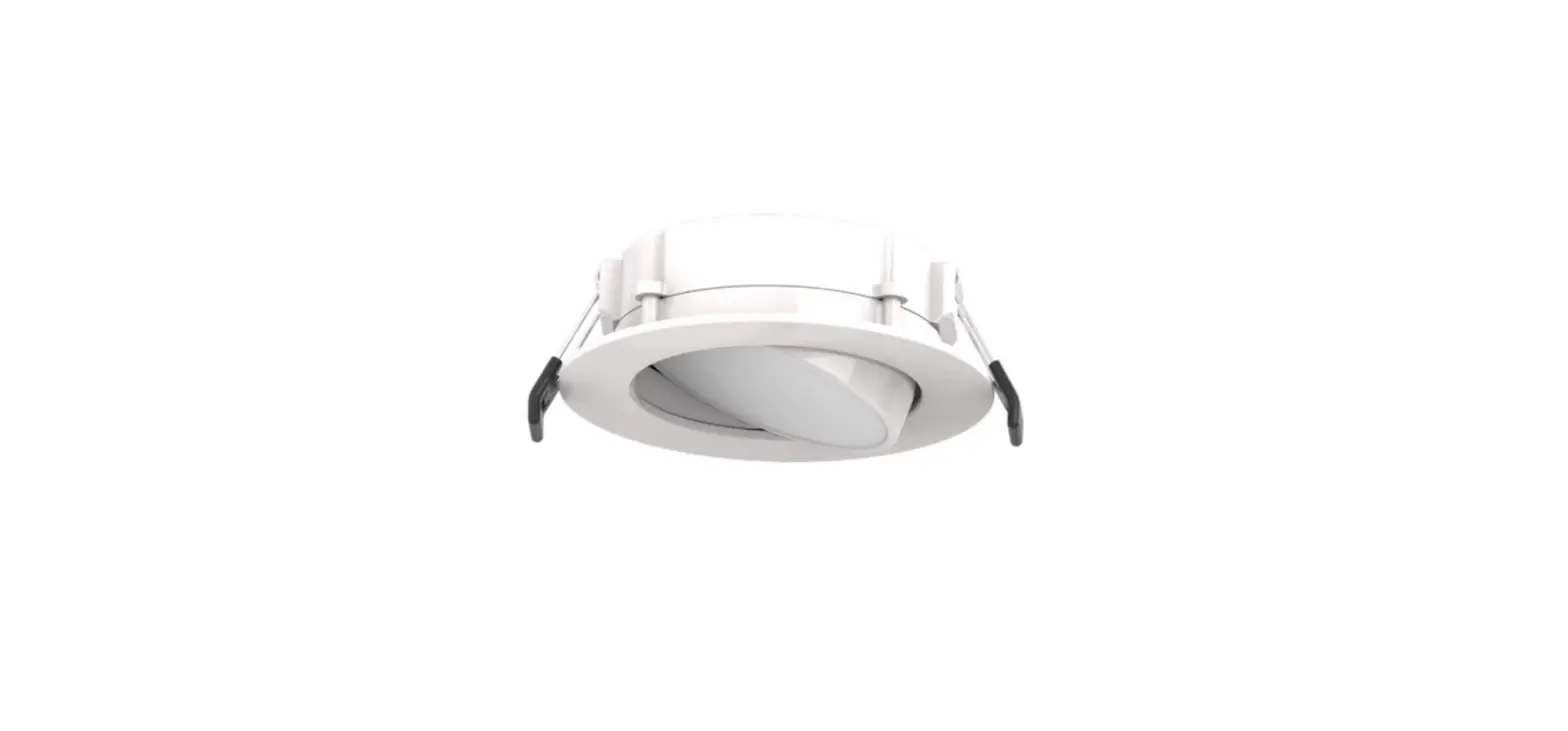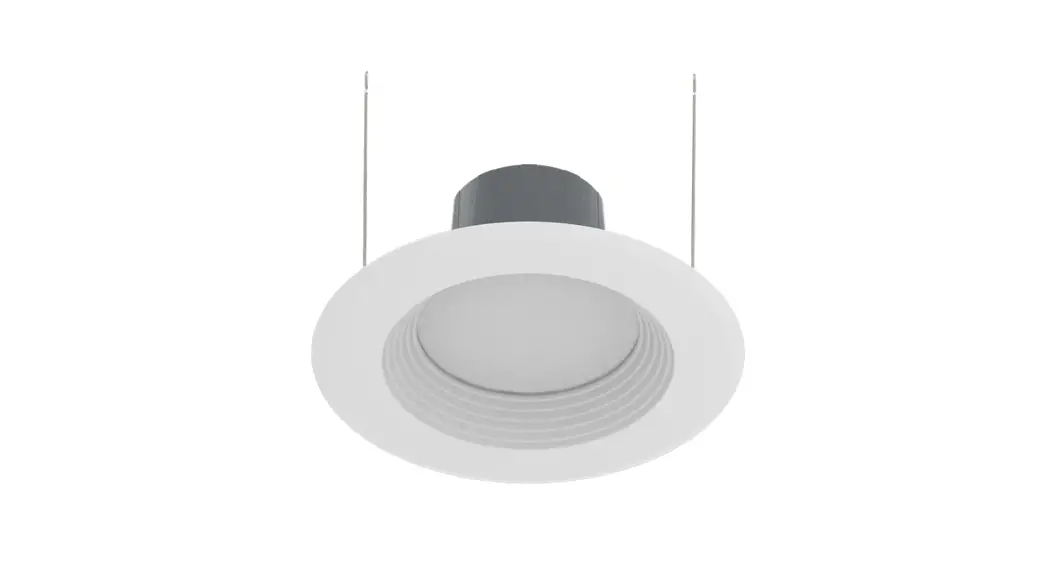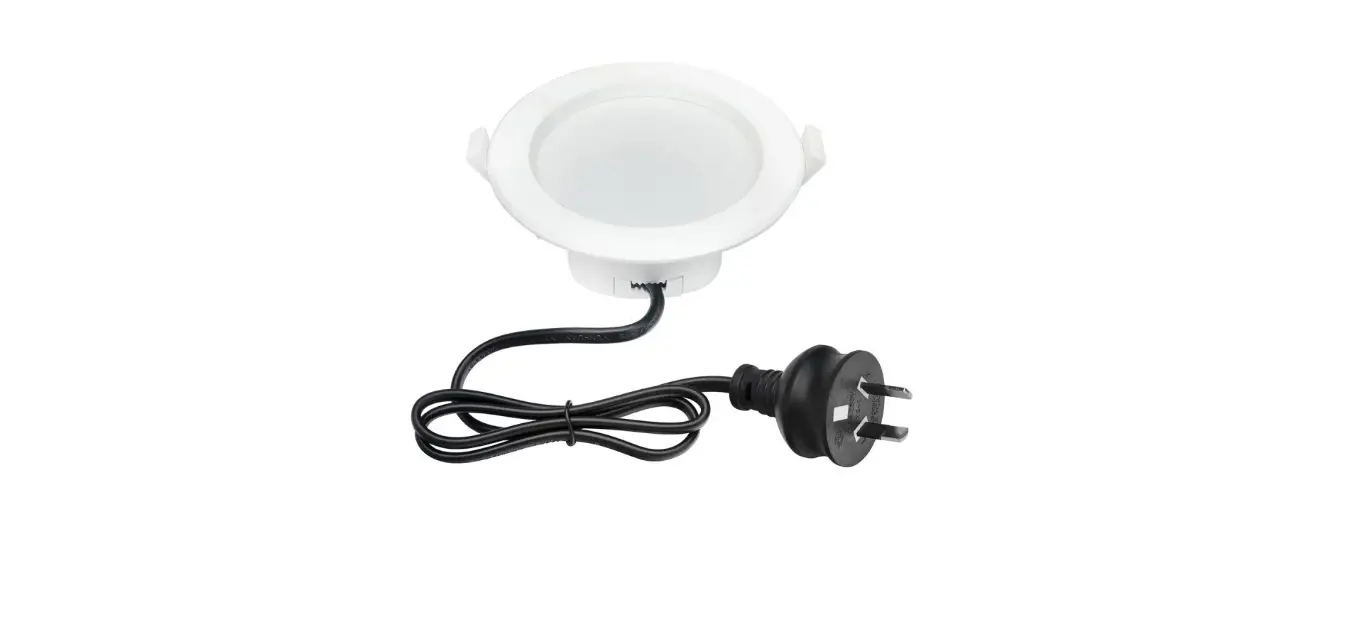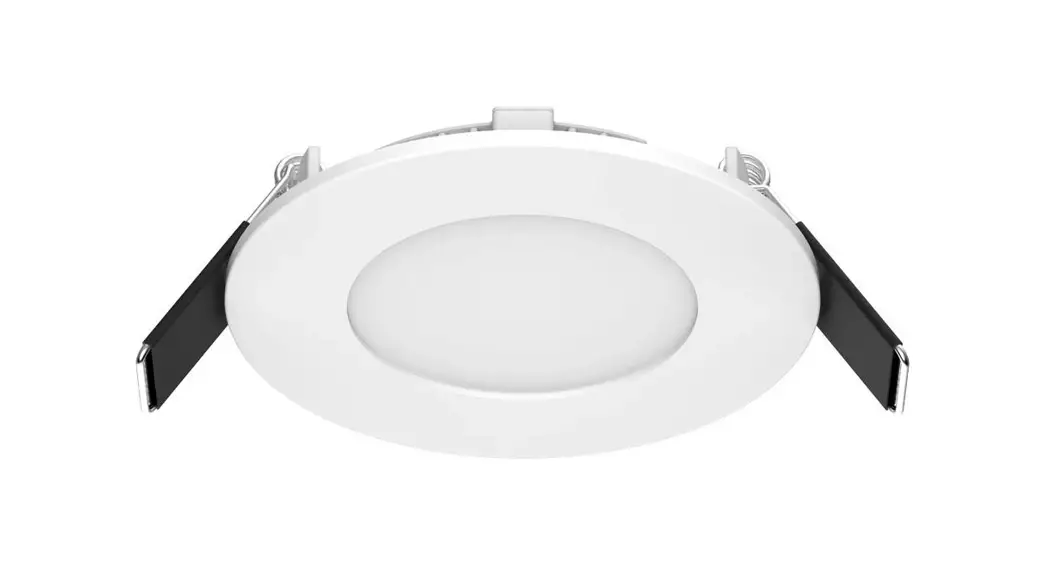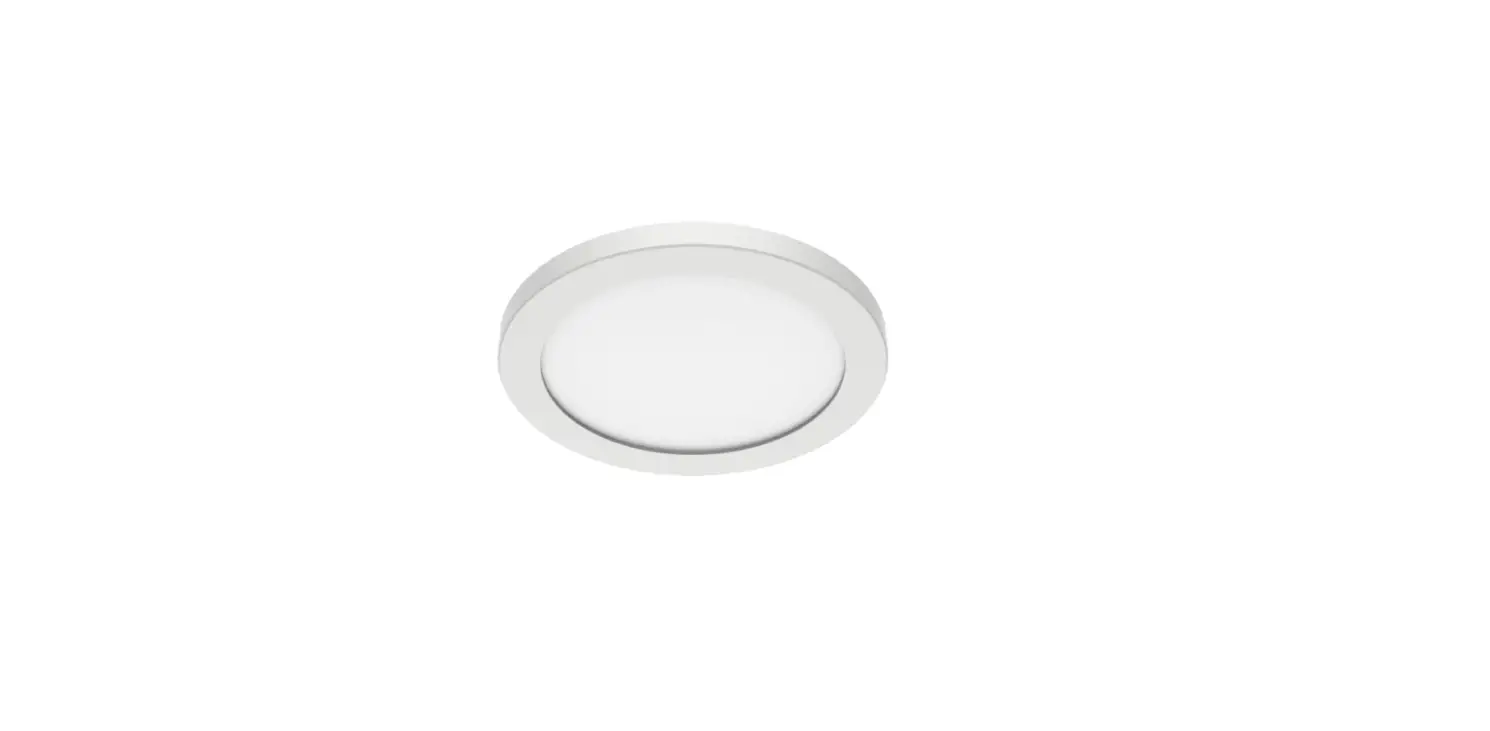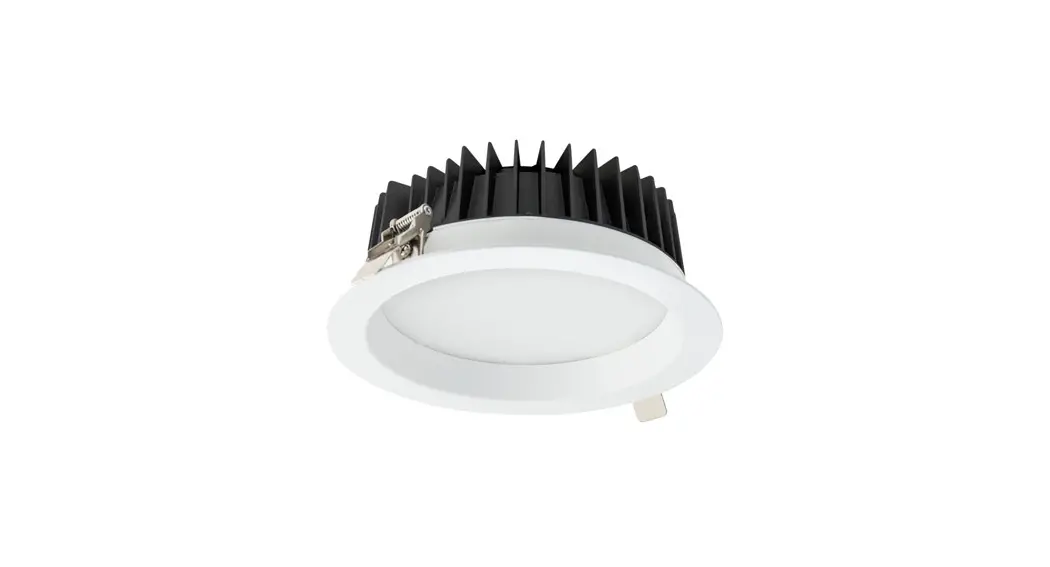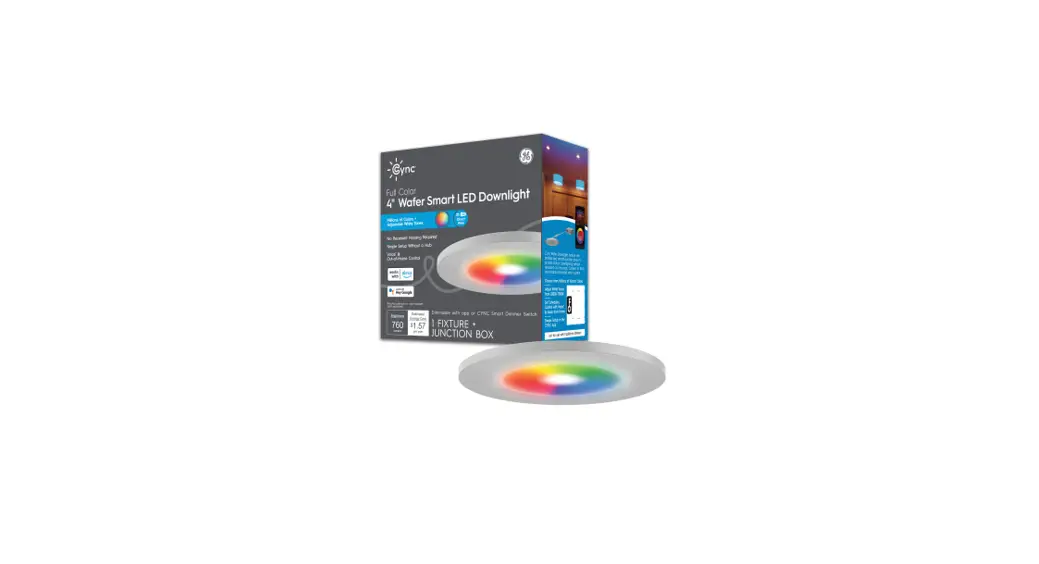
 Wafer Downlight Installation Guide
4-in & 6-in Integrated LED Recessed Fixture
Getting Started
 | Download the CYNC App, powered by Savant |
 | Determine location and complete installation |
 | Add your Wafer Downlight to the Cync App |
 | Connect to your voice assistant (Optional) |
For set up help, visit cyncsupportgelighting.com or call 1-844-302-2943 
Let’s Do It
Included:
Sold separately:
 | Junction Box with Wiring Connectors |
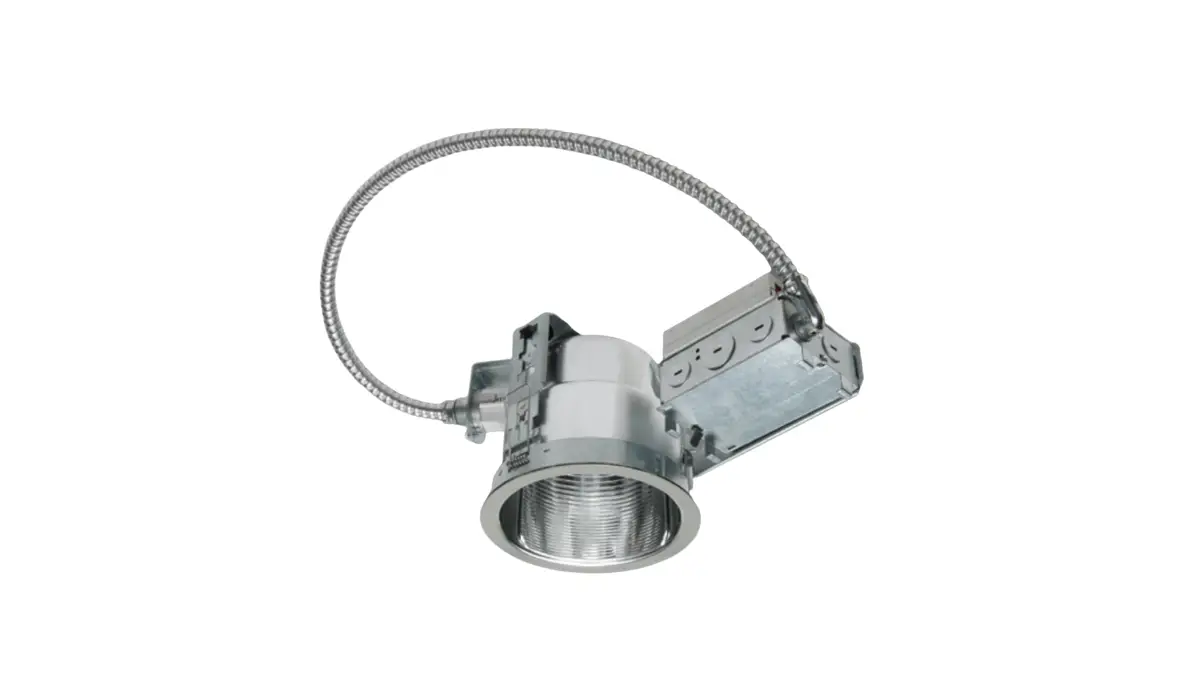
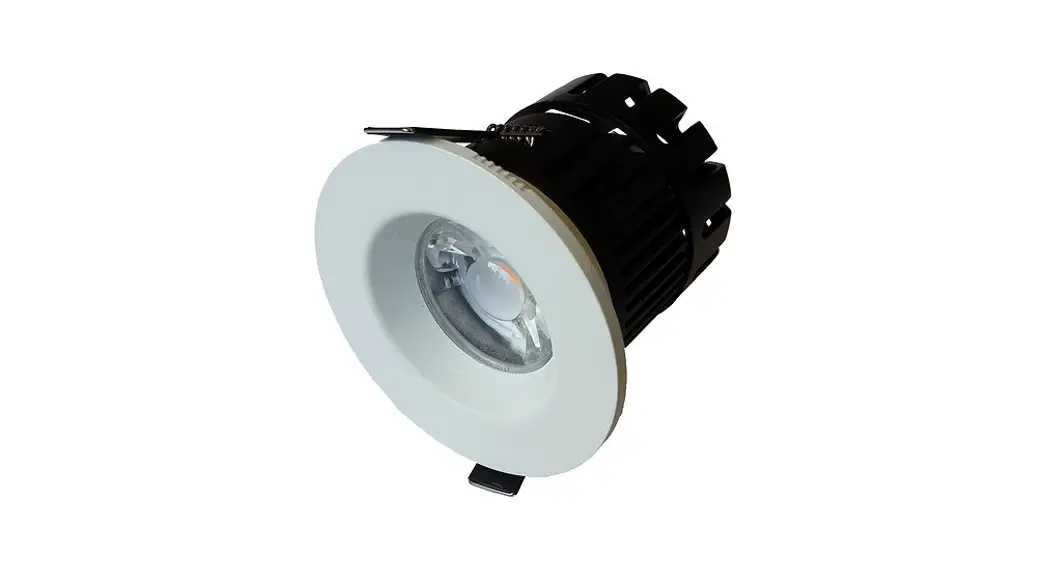
 | Integrated Light Fixture |
 | Hole Template |
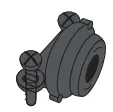 | Strain Relief (optional) |
You’ll need: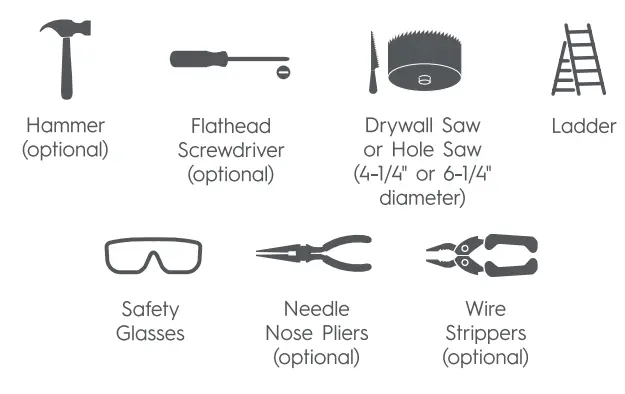
GE is a trademark of General Electric Company. Used under trademark license. Amazon, Alexa, and all related logos are trademarks of Amazon.com, Inc. or its affiliates. Google and other related marks and logos are trademarks of Google LLC.
Specifications
| Model | Input Voltage (Vac, Hz) | Current (mA) | Wattage (W) |
| Full Color Wafer Downlight 4″ CFIXCNLR4CRVD | 120, 60 | 110 | 13 |
| Full Color Wafer Downlight 6′ CFIXCNLR6CRVD | 120, 60 | 130 | 16 |
| Tunable white wafer downlight 4′ CFIXCNLR4SD | 120, 60 | 110 | -3 |
| Tunable white wafer downlight 6′ CFIXCNLR6SD | 120, 60 | 130 | 16 |
Dimming Capability
NOT FOR USE WITH DIMMER SWITCHES. Compatible with only CYNC smart dimmers that provide dimming at the switch or through the CYNC App.
Before you begin: Read these instructions completely and carefully.
 WARNING: RISK OF ELECTRIC SHOCK
Risk of fire or electric shock. Installation requires knowledge of luminaire electrical systems. If not qualified, do not attempt
installation. Minimum 90°C Conductors, if uncertain contact a qualified electrician.
- To prevent wiring damage or abrasion, do not expose wiring to edges of sheet metal or other sharp objects.
- These products are intended to be used in dry, damp, or wet locations.
- IC rated for direct contact with insulation. rare or airect contact wi INSULATION:
Prepare Electrical Wiring
ELECTRICAL REQUIREMENTS
The LED fixture must be supplied with 1I20VAC 60Hz
GROUNDING INSTRUCTIONS
The grounding and bonding of the overall system shall be done in accordance with National Electric Code (NEC) Article 410 and local codes.
| Wafer Model | Compatible Trim Accessory |
| CFIXCNLR4CRVD CFIXCNLR4SD | CANACO4BNRO/ CANAC040BRO/ CANACO4BNSQ/ CANACO4OBSQ/ CANACO4WHSQ/ CANACO4WHWW |
| CFIXCNLR6CRVD CFIXCNLR6SD | CANACO6BNRO/ CANAC060BRO/ CANACO6BNSQ/ CANACO6OBSQ/ CANACO6WHSQ/ CANACO6WHWW |
You Got This!
And we’re here to help.
For in-depth instructional videos and a guided tour through the installation, go to: cyncsupport.gelighting.com or call 1-844-302-2943 Scan here for videos & guided installation steps.

BEFORE YOU DO ANYTHING: Step 1
Turn Off The Power!
Turn off power source at the main circuit breaker or fuse box.
Step 2
Mark the Location on the Ceiling & Cut the Hole
- Determine the position of your downlight:
Maximum distance from junction box to the downlight is 24 inches.
Location must be within range of 2.4GHz Wi-Fi to enable smart control.
If retrofitting, find path of access above the ceiling. - Once determined, use the hole template to trace the hole size. Cut the hole using a drywall or hole
4 inch wafer requires a 4-1/4 inch hole
6 inch wafer requires a 6-1/4 inch hole
Note: Reference the guide included with the Installation Mounting Template if using for installation. Installation mounting template sold separately. Not necessary for installation.
Step 3
Use the Wire Connectors to Wire the Wafer Downlight 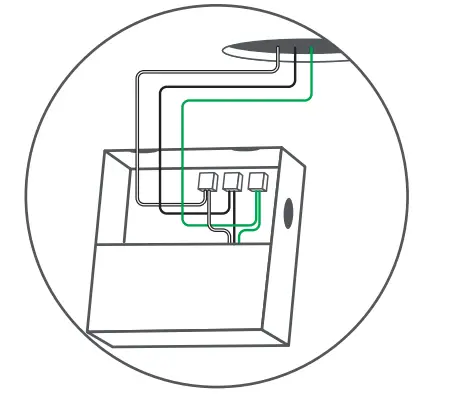
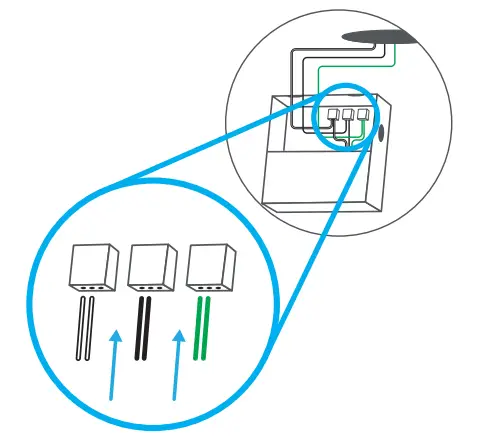
- Open the top of the junction box and locate the three quick connectors inside.
- Connect the wires inside the junction box to the provided quick connector.
– Insert the black wire into the left hole of the first quick connector.
– Insert the white wire into the left hole of the second quick connector.
– Insert the green wire into the left hole of the third quick connector. - Route the wires from the switch through the wire notch on side of the junction box.
- Connect the wires to the quick connectors by inserting the wire into the middle hole. Using the quick connectors:
– Connect the black wire to the black wire.
– Connect the white wire to the white wire.
– Connect the green or bare copper wire to the green wire.
- Gently pull on the wires to make sure they are properly connected.
- Tuck the wires and connectors inside the junction box.
- Close the junction box.
Alternative Installation
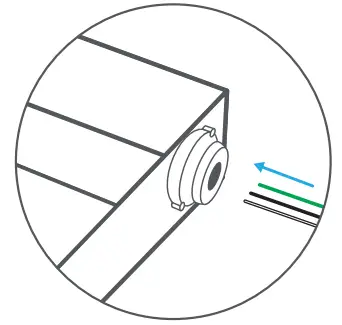
- Remove knockouts using a hammer and screwdriver, mount the strain relief (sold separately) and route the wires through.
- Follow the wiring instructions in Step 3 to complete wiring installation.

Step 4
Place Junction Box in the Ceiling & Install the Fixture
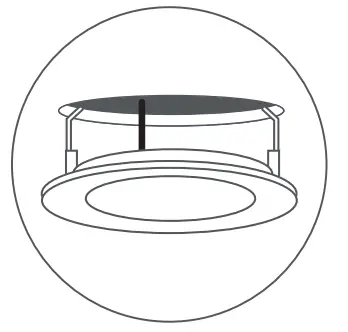
- Place the junction box in the ceiling through the hole.
Note: While it is not necessary to mount this fixture to a joist, be sure to follow your building code requirements, as well as national and local electric code for mounting. - Connect the light to junction box using the connector.
- Screw the connector together to complete the connection.

Step 5
Complete Setup
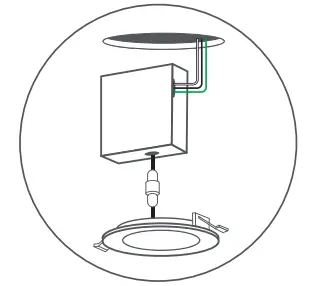
- Hold the spring clips against the fixture and gently guide into the ceiling until the clips snap into place.
- Complete setup in the Cync App.

Congratulations!
You’ve completed the Wafer Downlight installation.
Next…
| Download the CYNC App |
| Add your Wafer Downlight to the CYNC App |
| Set up your Alexa or Hey Google voice assistant (optional) |
Enable Your Voice Assistant
Connect to your Amazon Alexa or Google Assistant devices in the CYNC App
Alexa, turn off the living room.
Alexa, turn on the bedroom.
Alexa, set kitchen to 50%
Hey Google, turn on the lights.
Hey Google, good morning.
Hey Google, I’m leaving.
Like your new Wafer Downlight?
Share your experience!
Leave a review where you purchased the product.