Send photo, video, or audio messages on your iPhone, iPad, or iPod touch
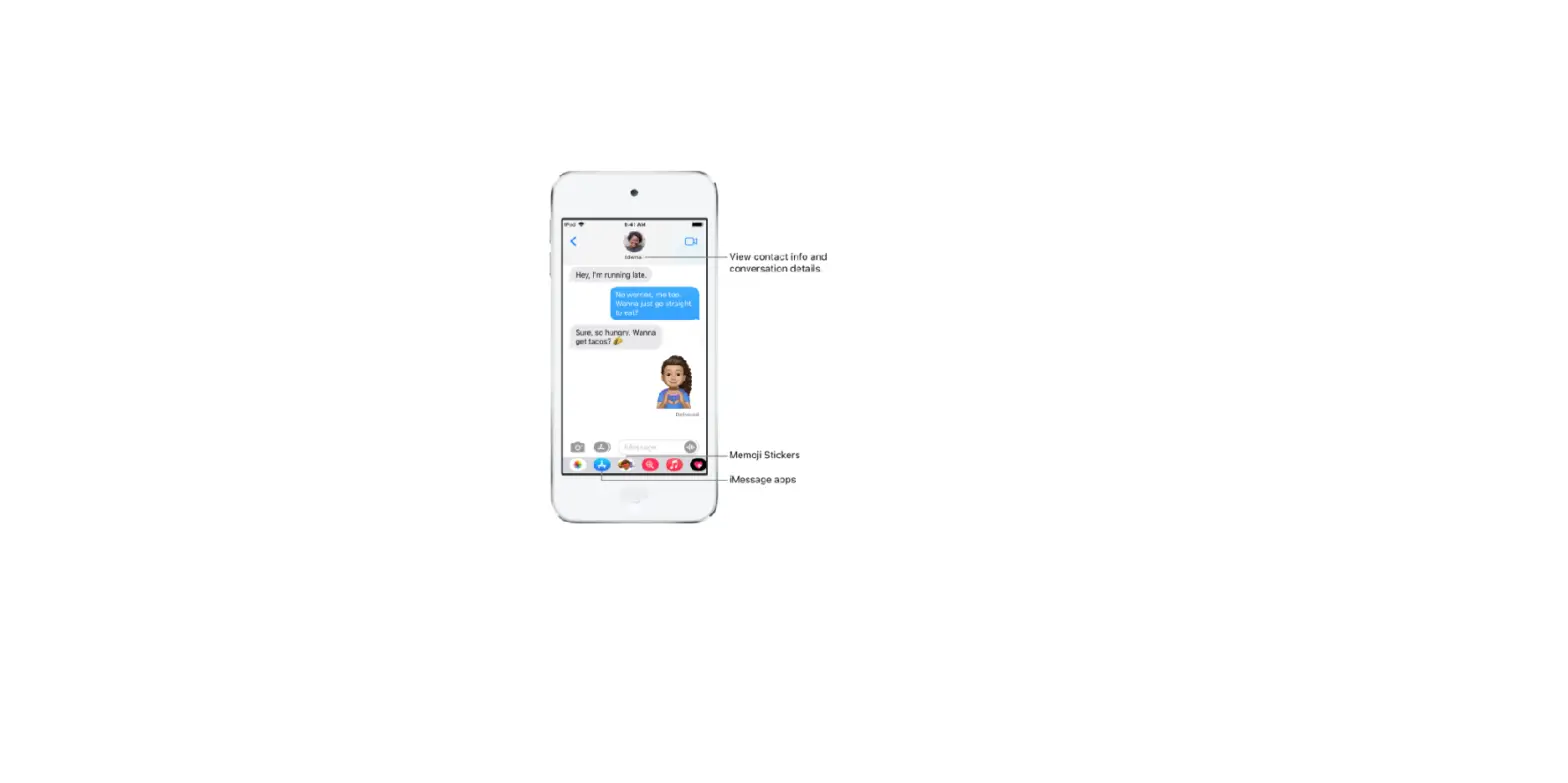
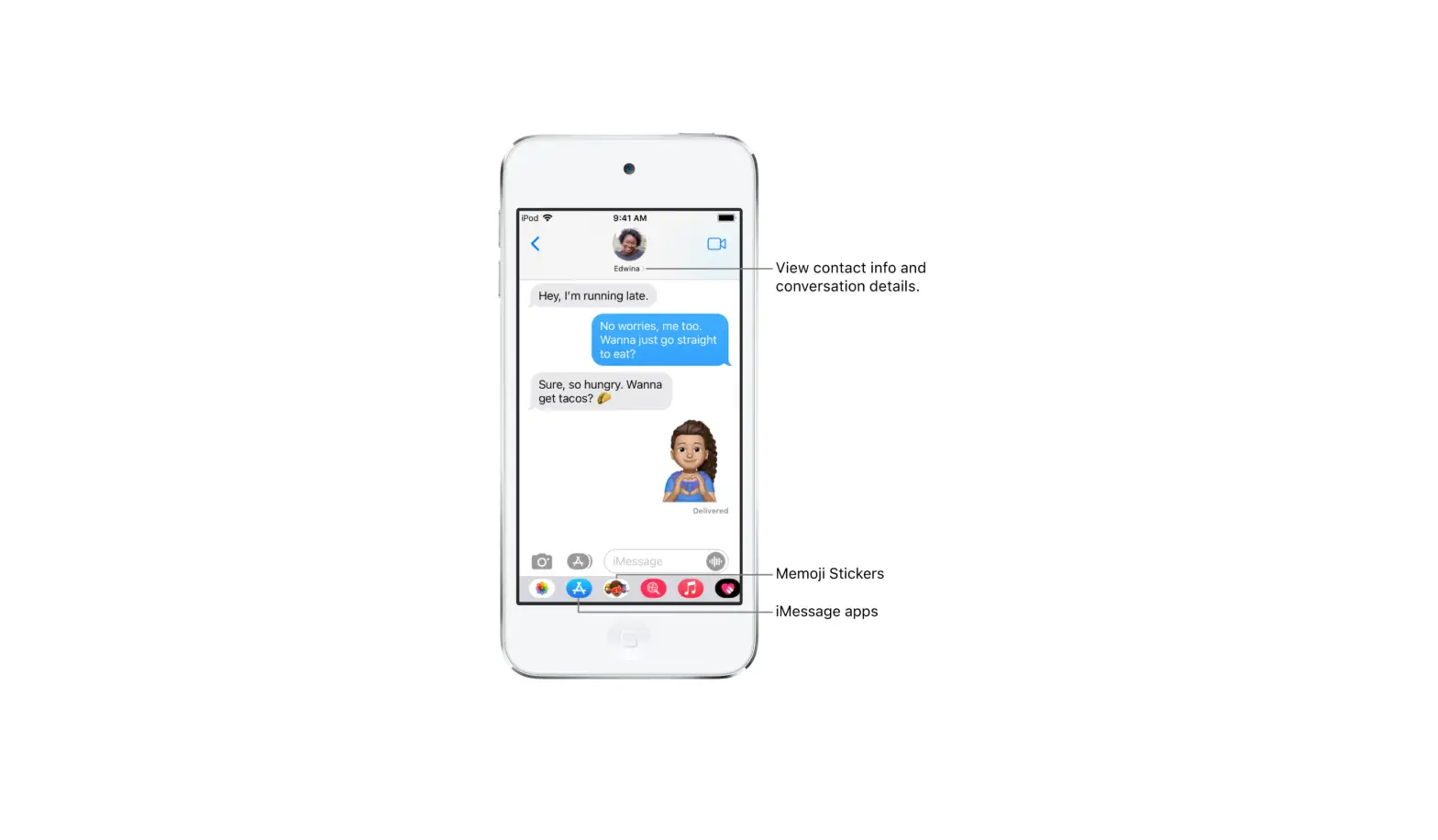
Personalize your messages even more with interactive photos, videos, and audio messages.
Depending on your carrier, messaging rates might apply when you send SMS/MMS. If you use iMessage and Wi-Fi is unavailable, cellular datarates might apply.
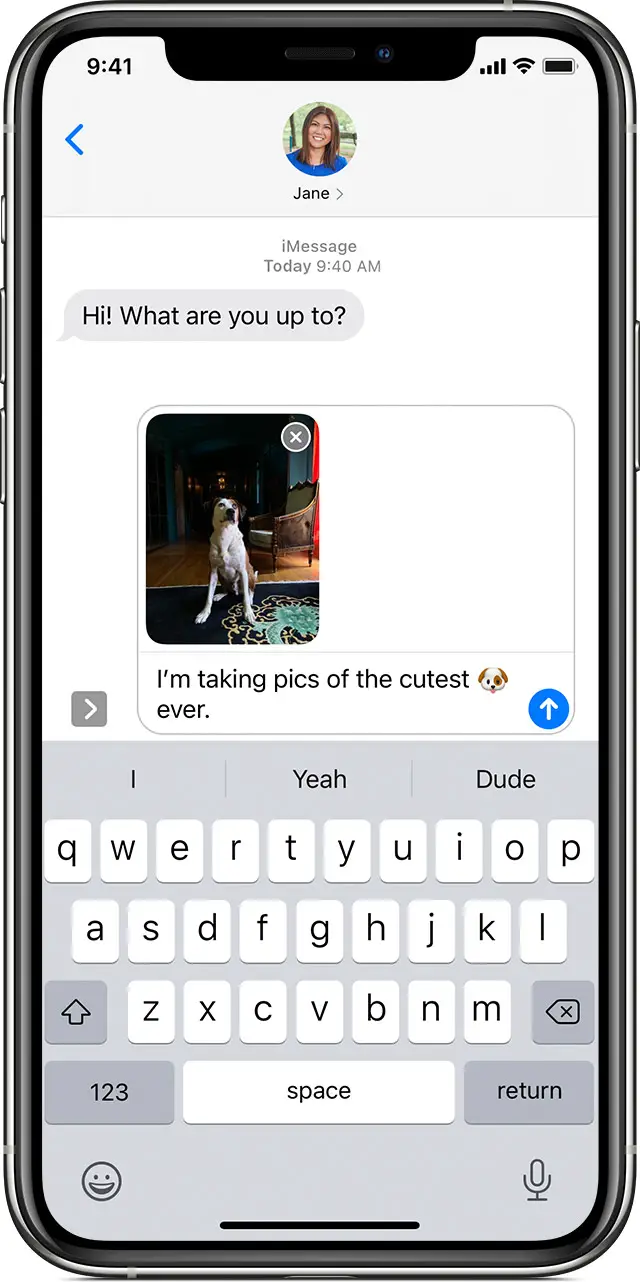
Send and personalize your photo messages
 .
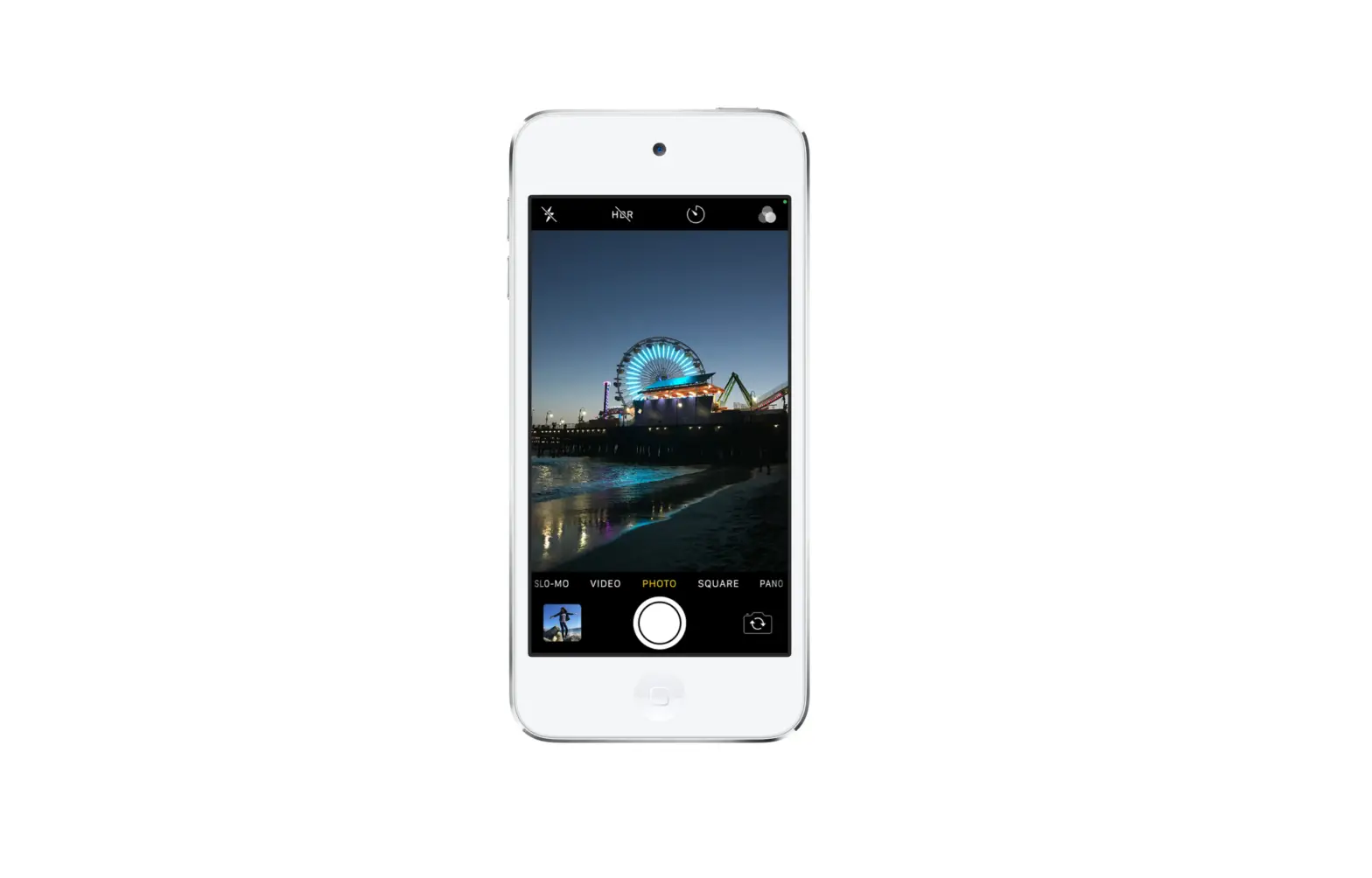
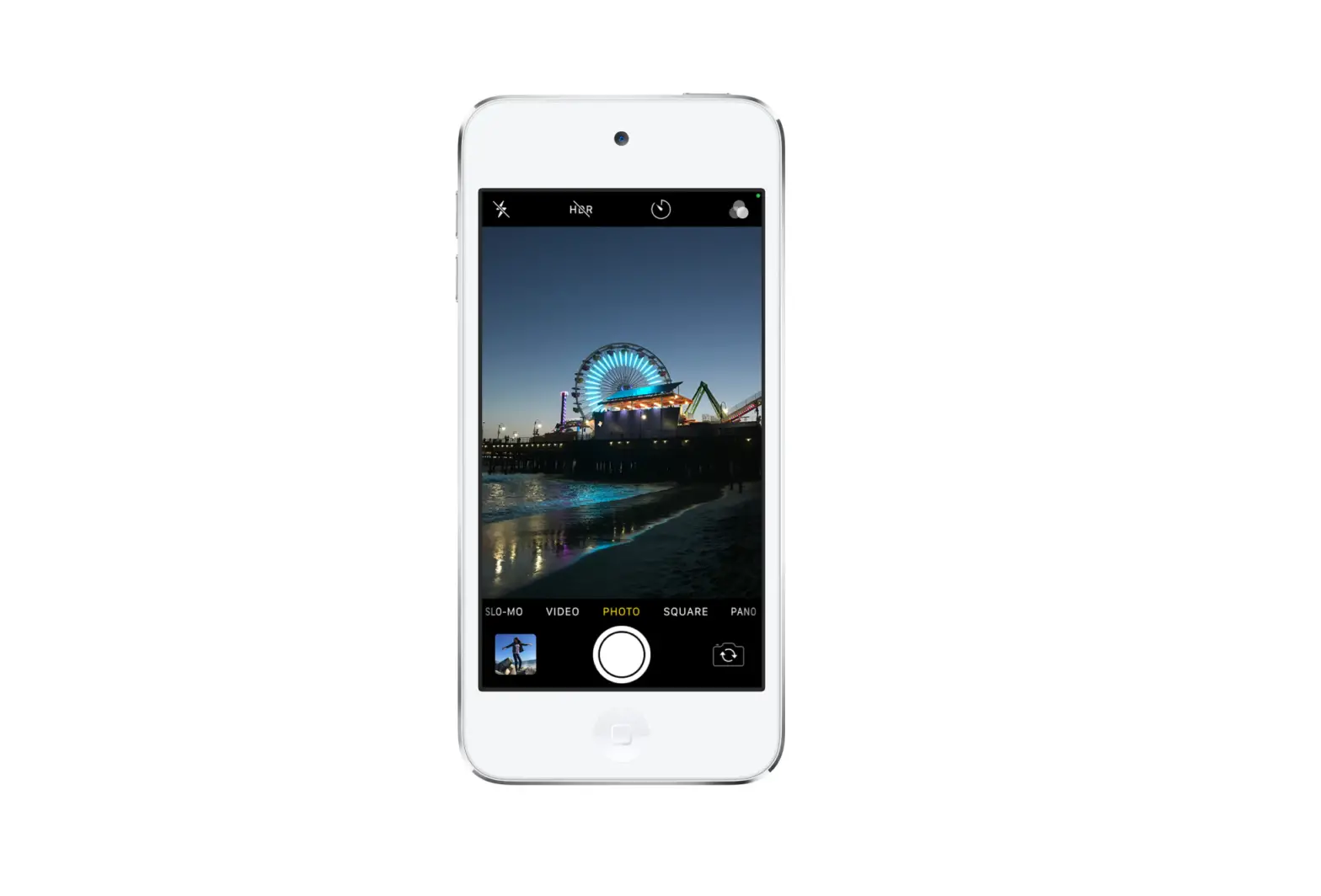
. to take a photo.
 ,
,  , or
, or  to personalize the photo.
 to send or tap Done to add a personal message before you send your photo. If you don’t want to send the photo, tap
  in the upper-right corner of the photo.
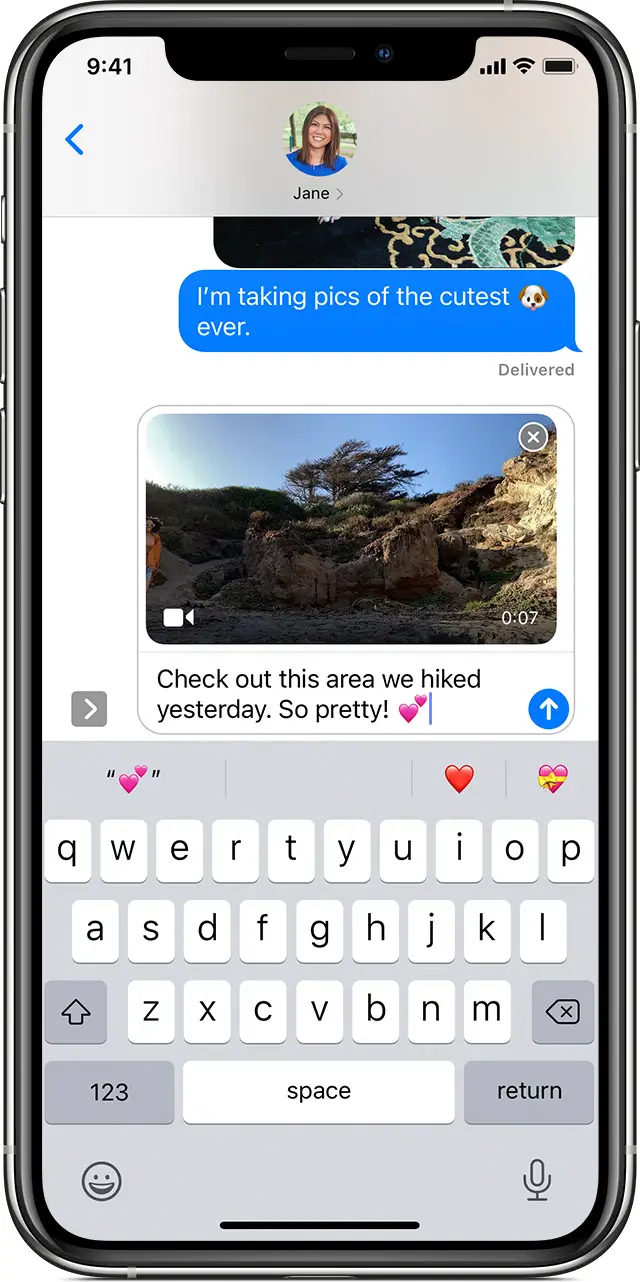
Send video messages
- In a message conversation, tap
 .
. - When the Camera app opens, choose Video.*
- Tap
 to start recording or tap
  to add an effect to your video before or after you record.
 - When you’re done recording, tap . From here, you can tap Edit to edit your video or tap Done.
- Tap
 send message to send. If you don’t want to send the video, tap
  message in the upper-right corner.
 to start recording or tap
 * Video isn’t available when you’re on a call.
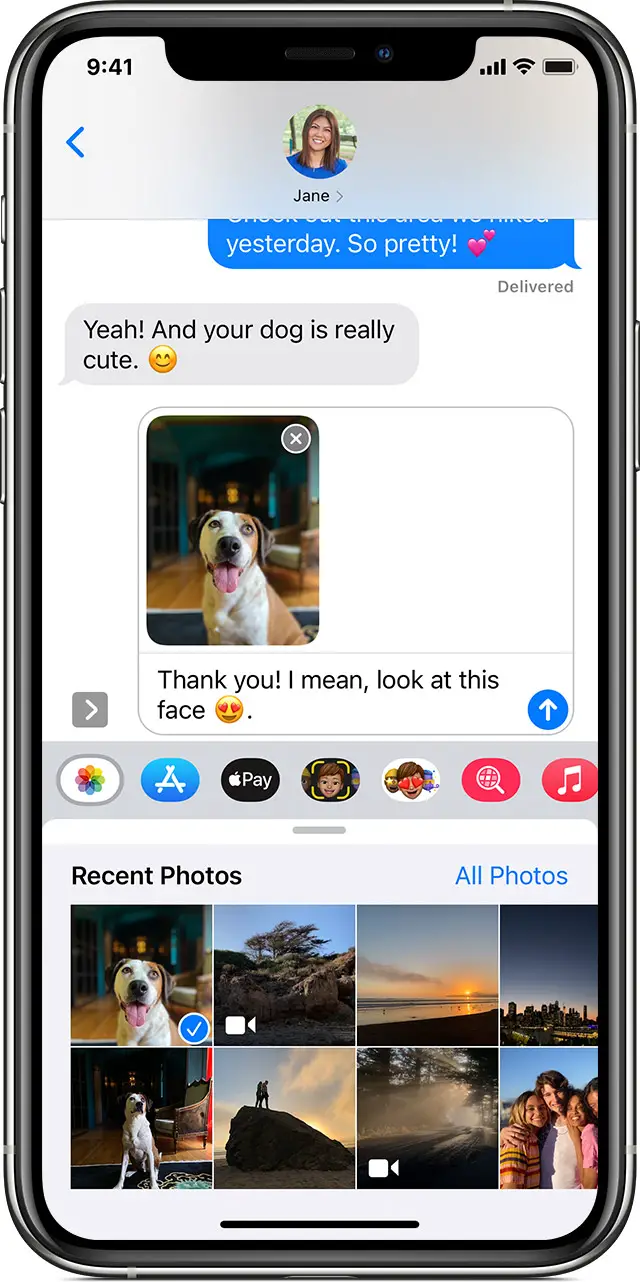
Send an existing photo or video
- In a message conversation, tap
 .
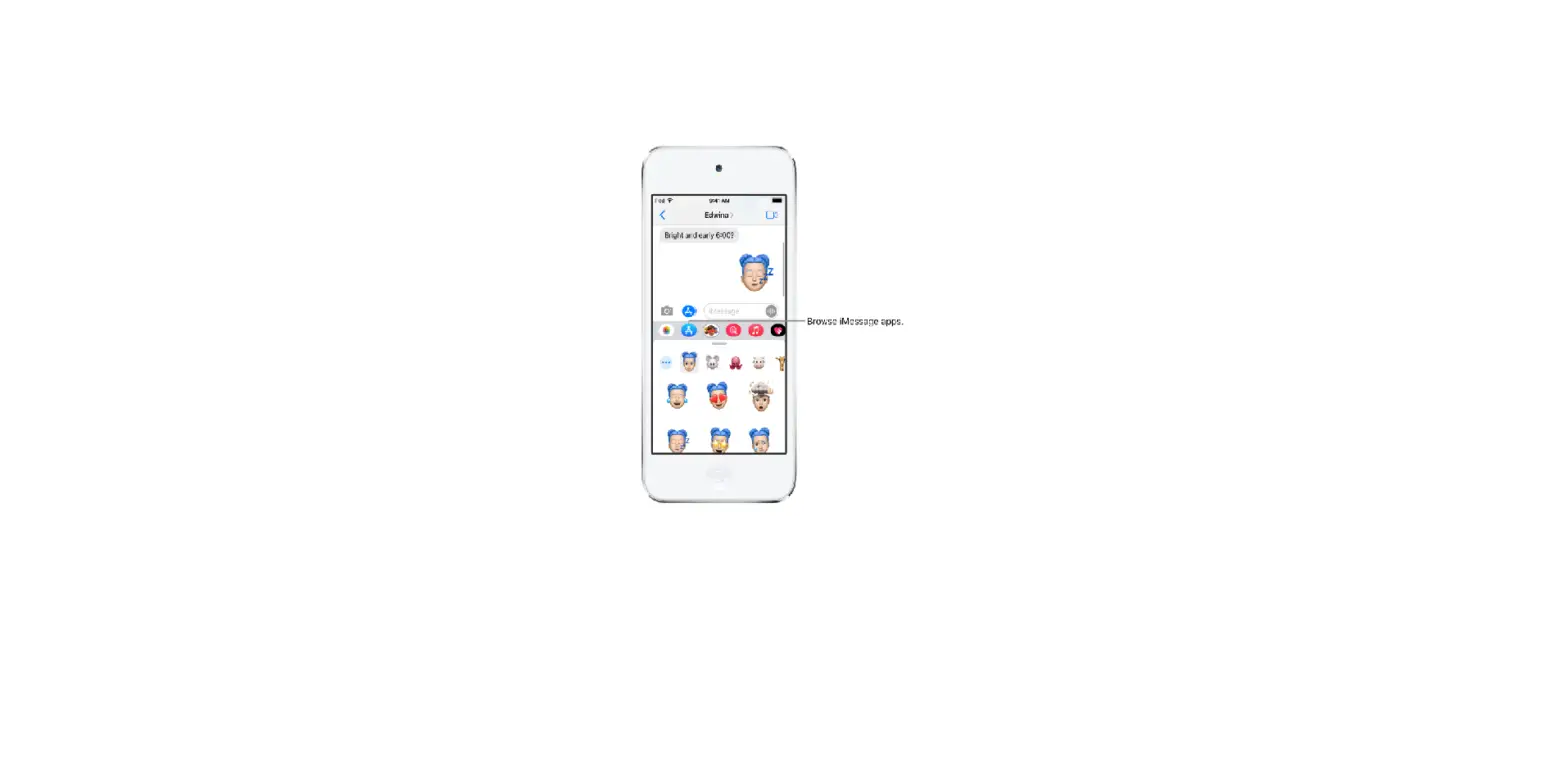
. - Select a photo or tap All Photos to pick a photo from your Photos app. After you choose a photo, you can edit the photo or use Markup before you send it. Just tap the photo thumbnail in the message thread and select Markup or Edit.
- Tap to send.
 .
.
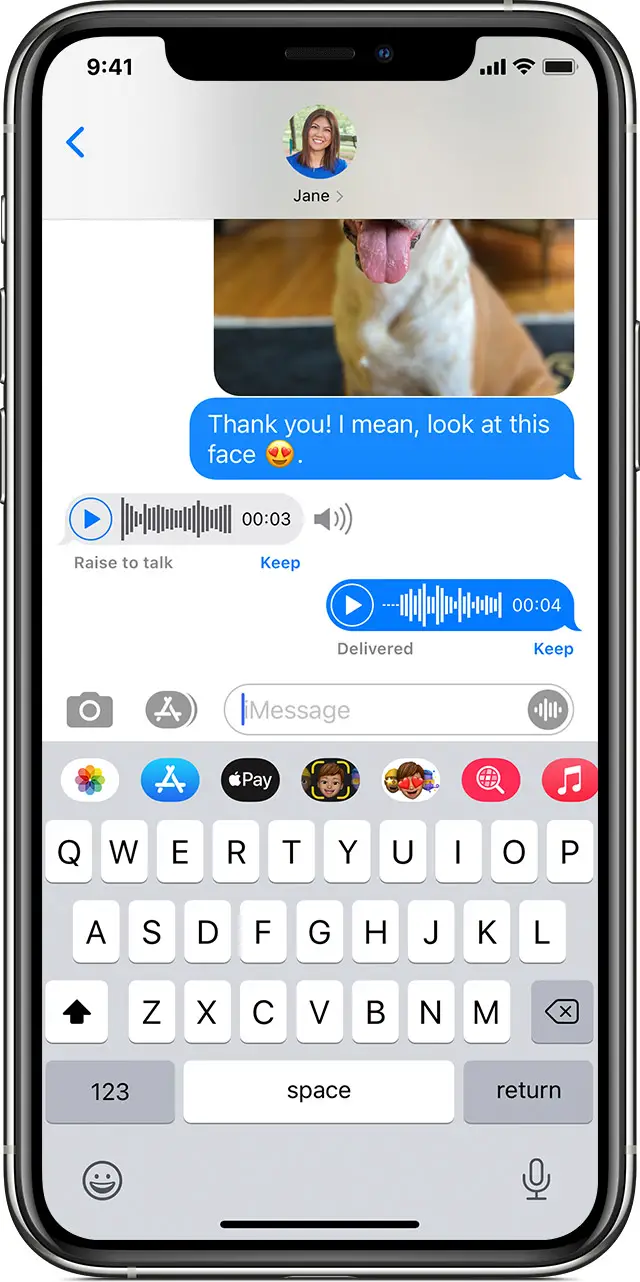
Send audio messages
- In a message conversation, touch and hold to record an audio message.
- To preview your message, tap . To cancel, tap . To send, tap
 .
.
 to record an audio message.
 . To cancel, tap
  .
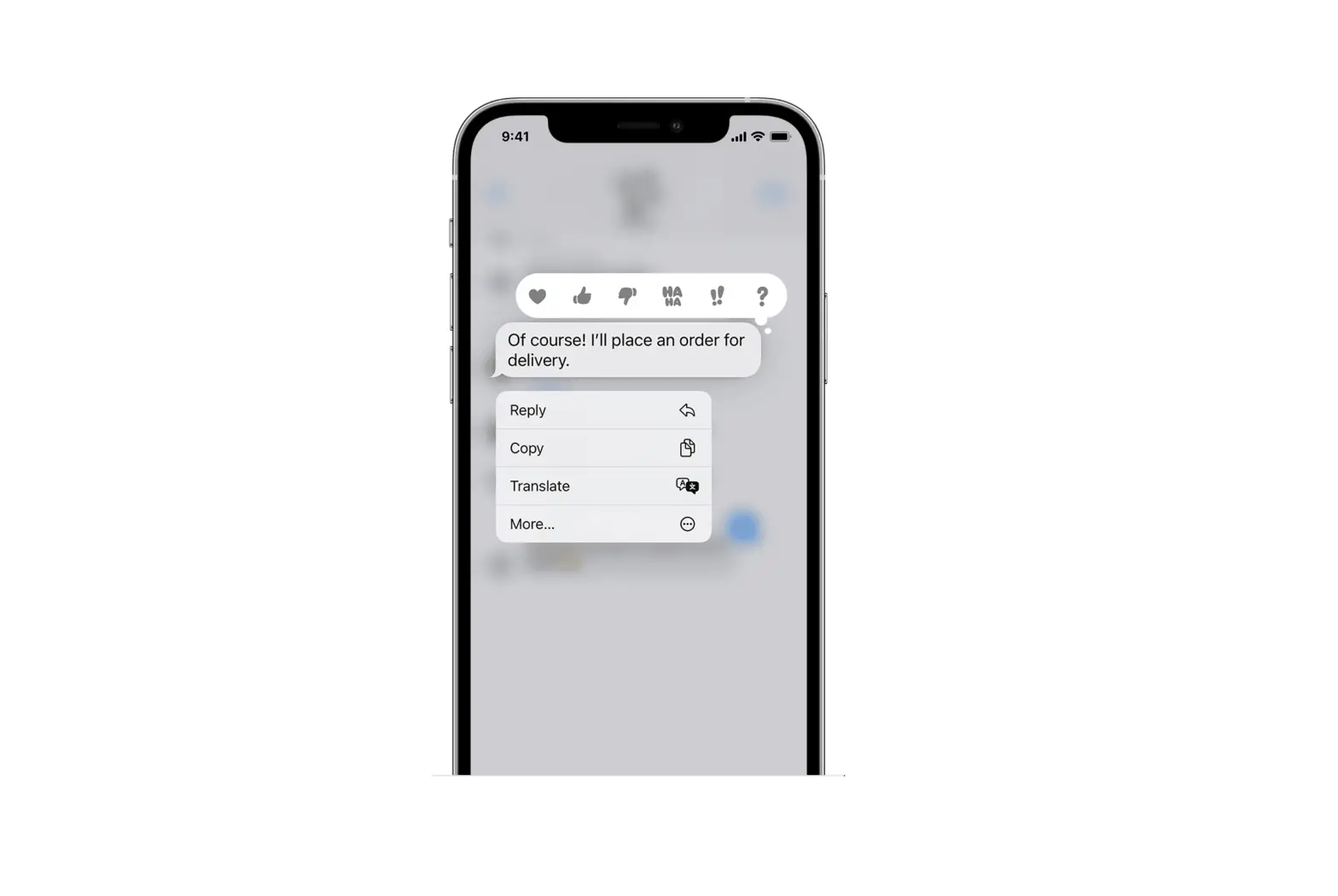
.To play an audio message, tap the message. To save an audio message, tap Keep underneath the message.
The Messages app deletes audio messages after 2 minutes. To keep your audio messages longer, go to Settings > Messages. Scroll down and tap Expire under Audio Messages, then select After 2 Minutes or Never.
Learn more
- Learn more about the Messages app.
- If you can’t send or receive messages, learn what to do.
Published Date: