
iFORA Diabetes Manager App

Getting Started
- Download and install the latest app version of ‘ iFORA Diabetes Manager’ on your phone.
- Make sure that Bluetooth is enabled in smartphone settings.
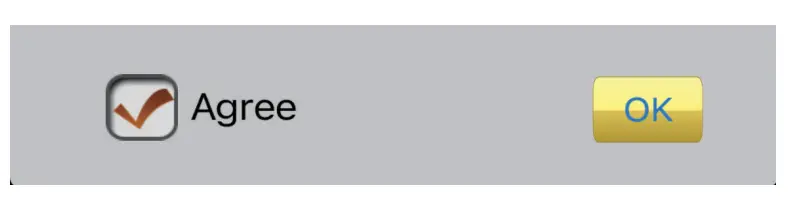
- Read the terms and conditions, then check the box next to “Agree” and press “OK

Connecting a Device
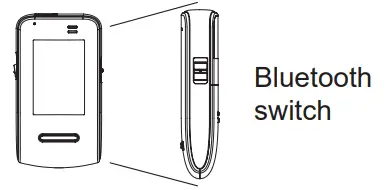
- Press and hold the Bluetooth switch on the right side of the meter (5 seconds) until the Bluetooth indicator starts to flash blue.

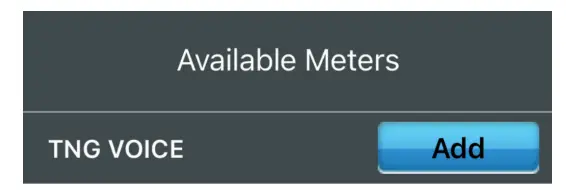
- From your phone app, select ‘Add’ for the TN’G Voice meter.

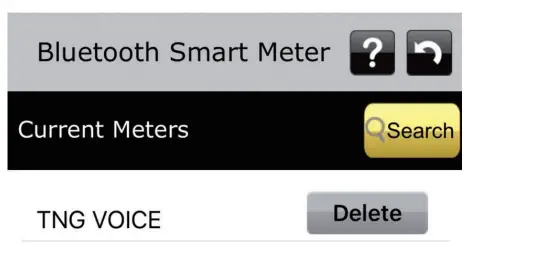
- This device will be added to the ‘Current Meters’ list.

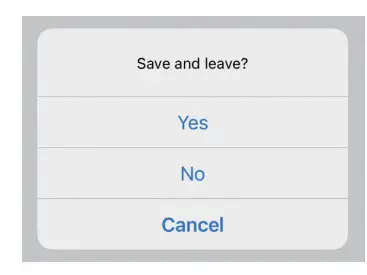
- Hit the back arrow to exit the Bluetooth Smart Meter page. When prompted to save, press ‘Yes’. data will be automatically imported.

Uploading Data to Telehealth Service
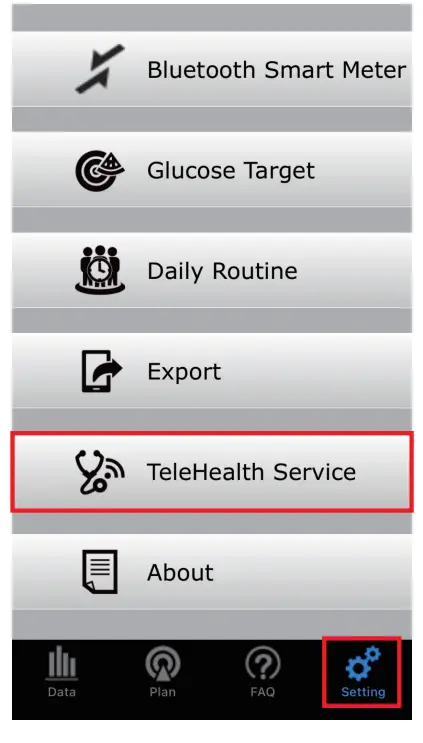
- Launch iFORA Diabetes Manager. Go to the settings icon and find the “ TeleHealth Service” page

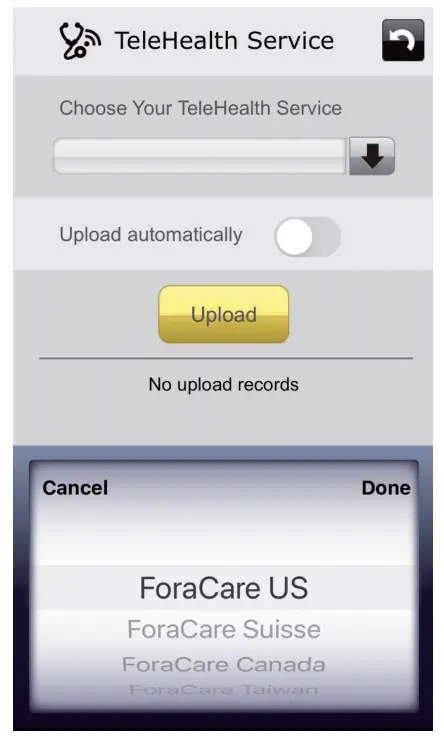
- Select “ForaCare US” from the list under “Choose Your Telehealth Service”.

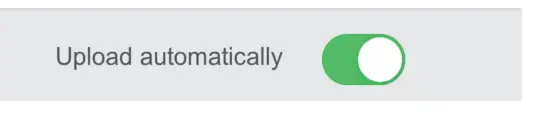
- Switch on “Upload automatically ” to automatically send data to the telehealth service.

- Hit the back button to exit, and when prompted to save, press “Yes”. Data will be automatically uploaded each time your FORA device syncs with the app.
Toll free: 1-888-307-8188 www.foracare.com
 Homepage - ForaCare