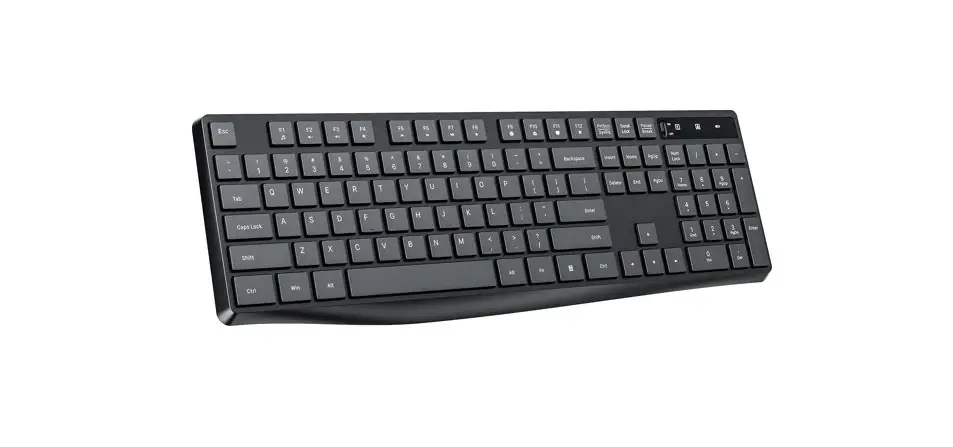
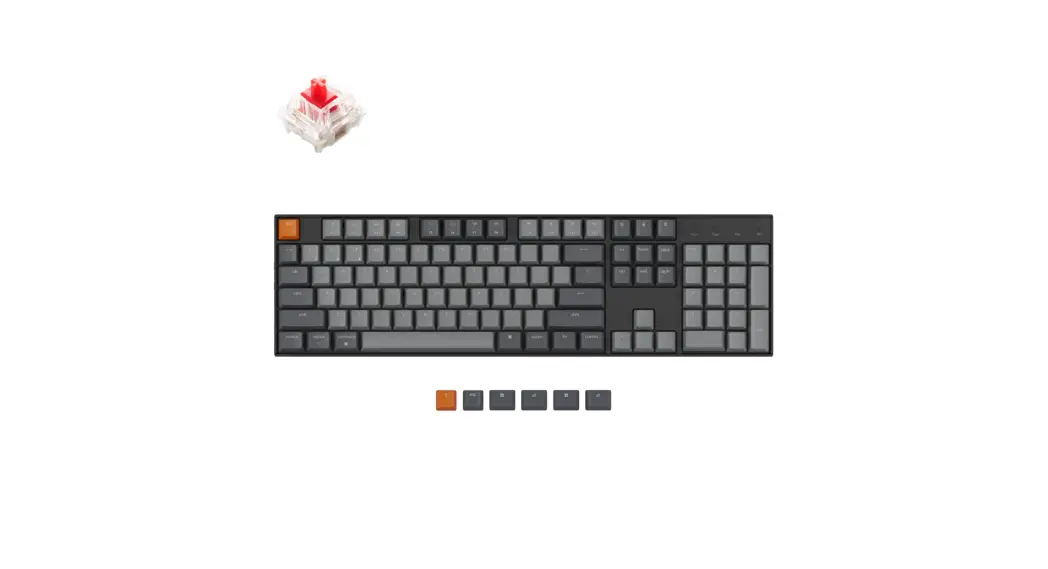
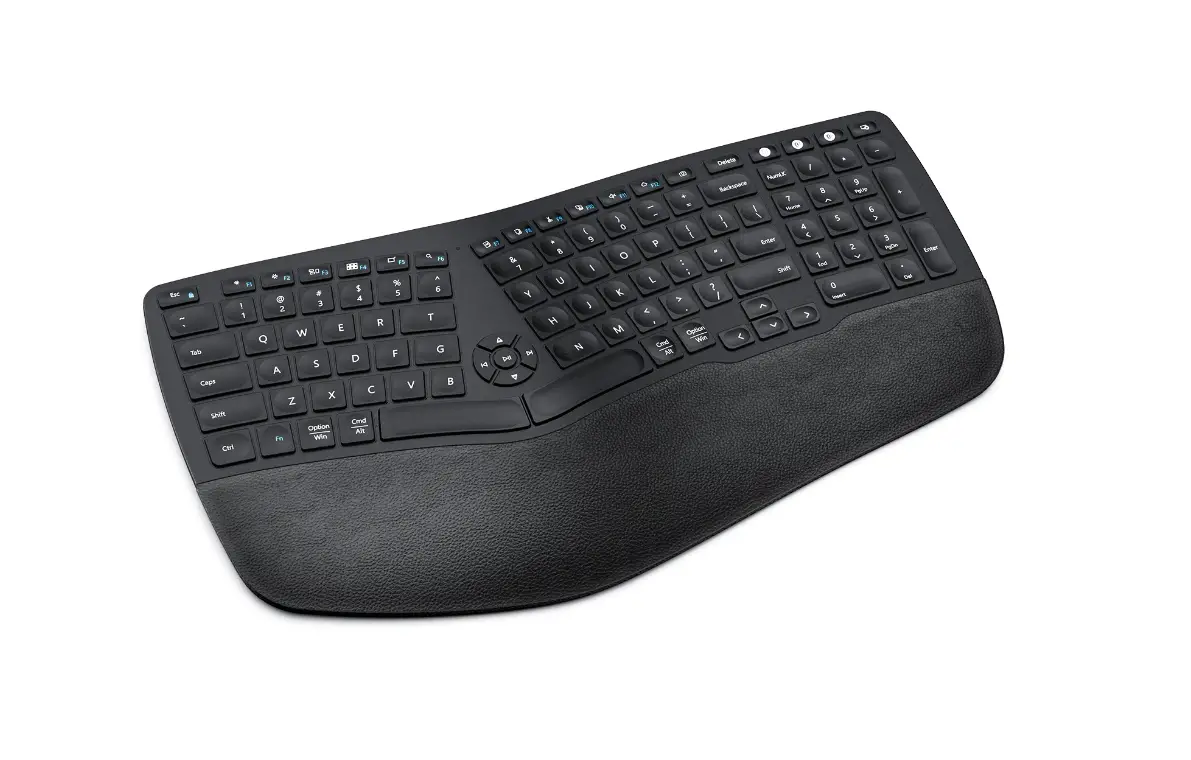
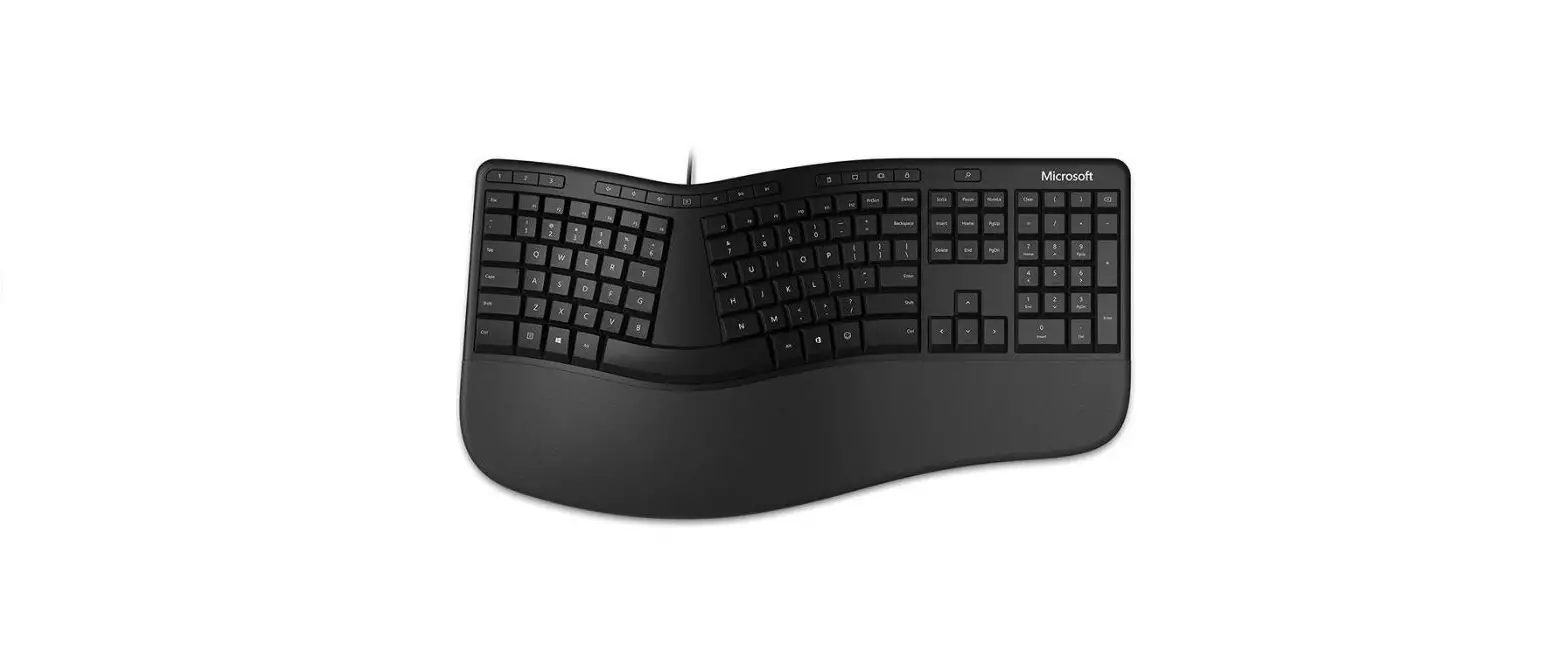
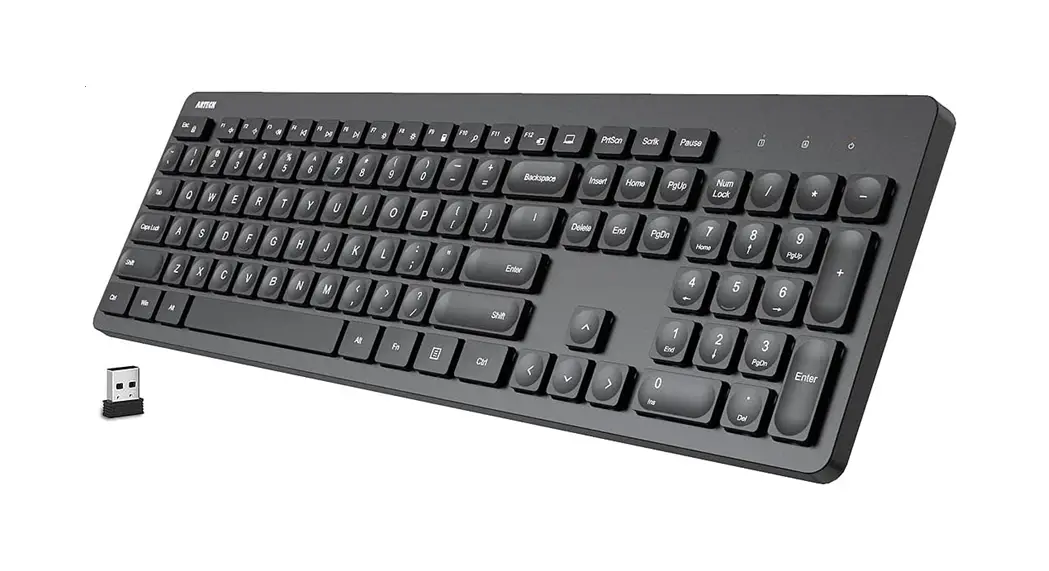
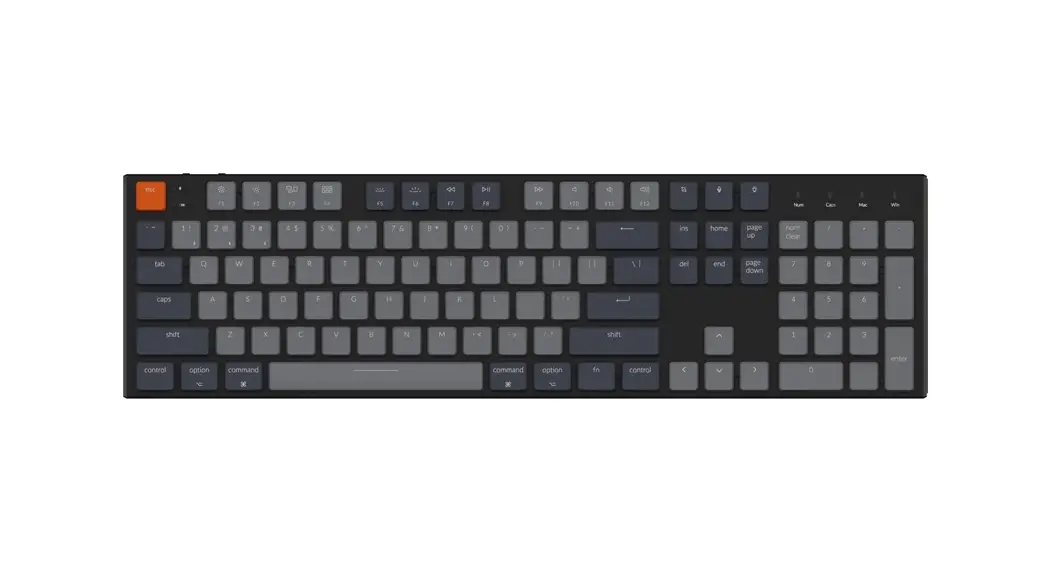
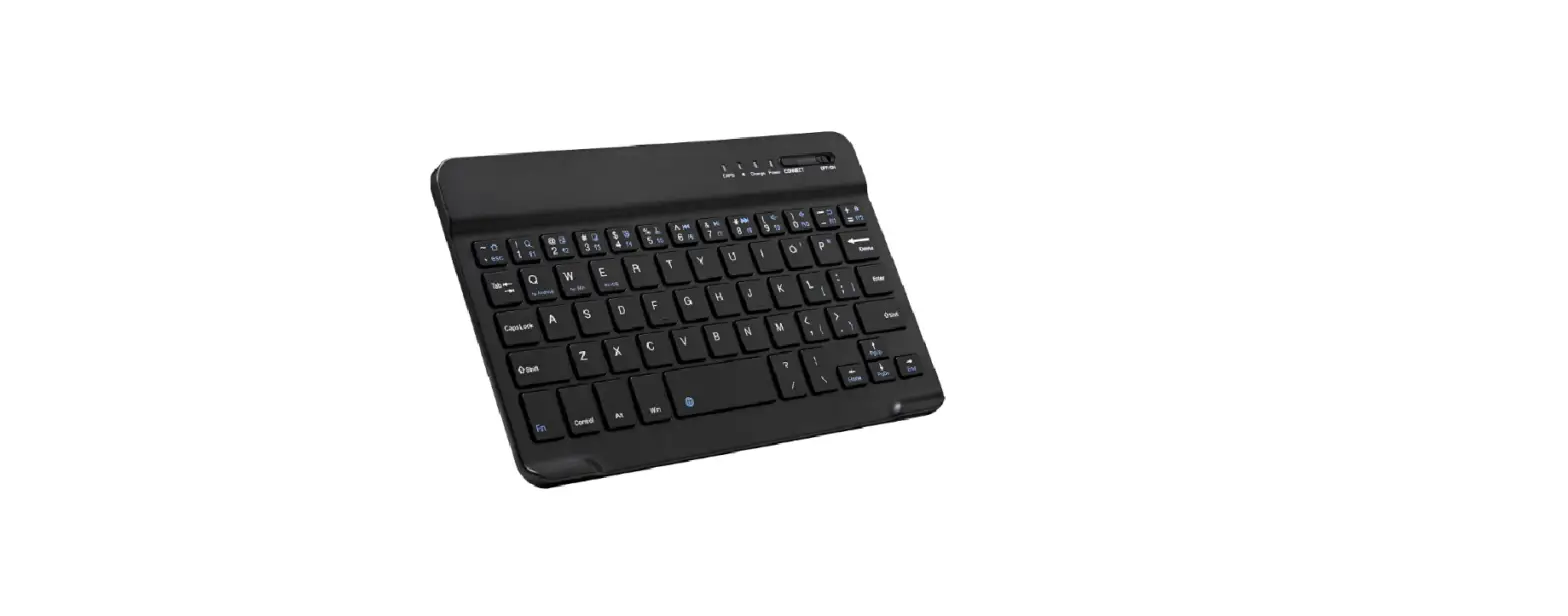
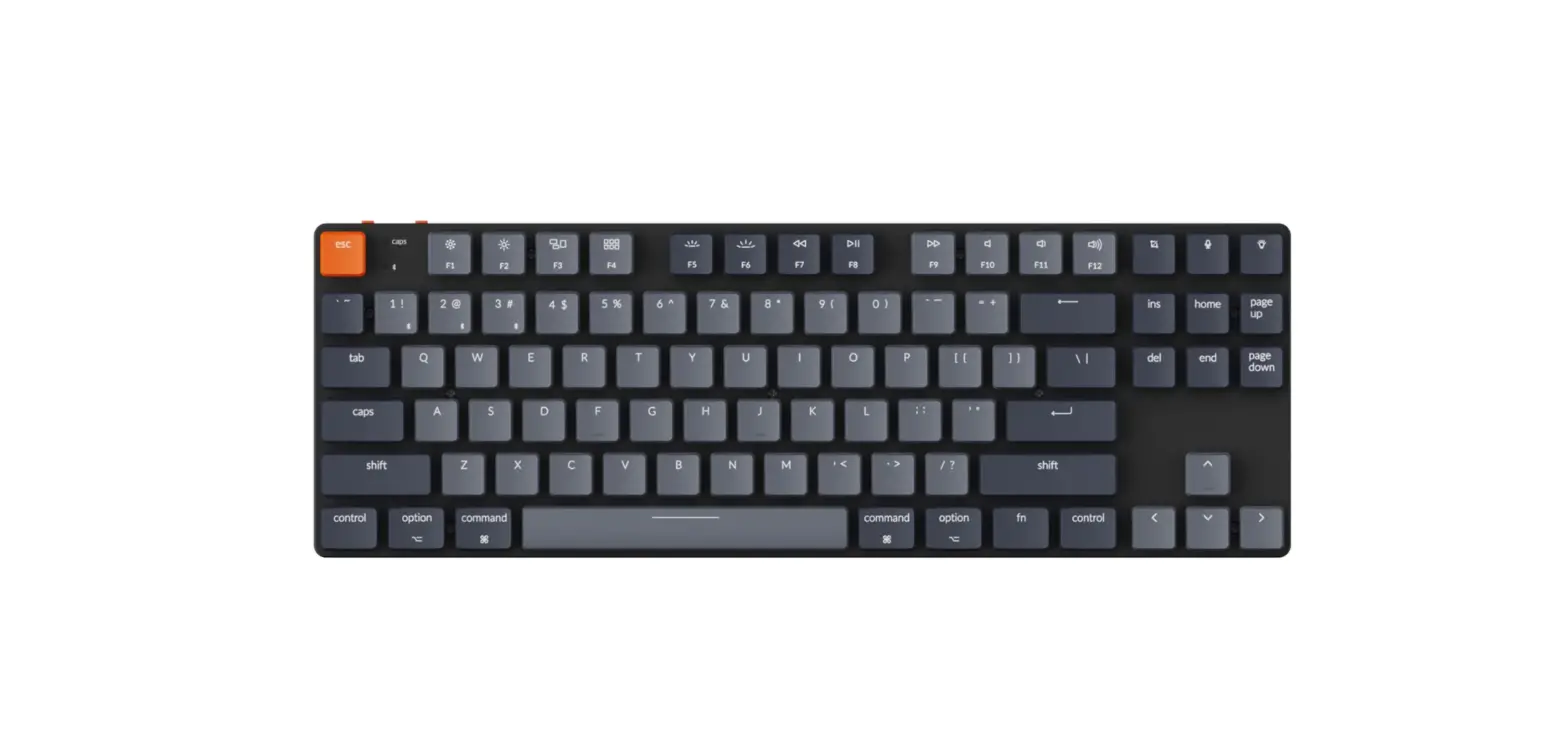
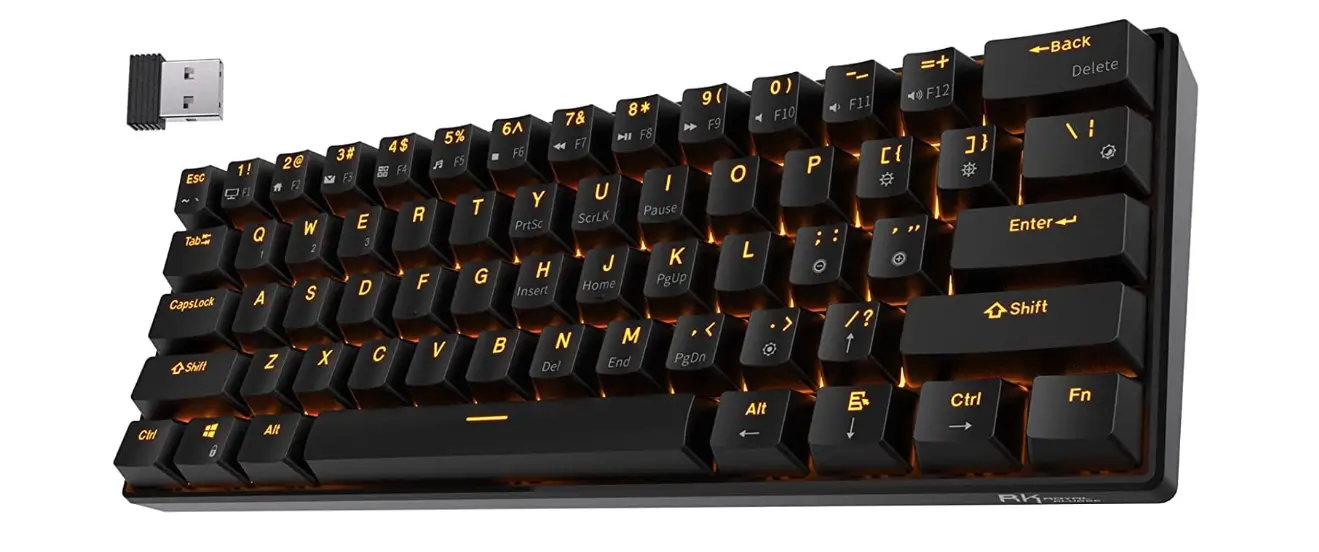
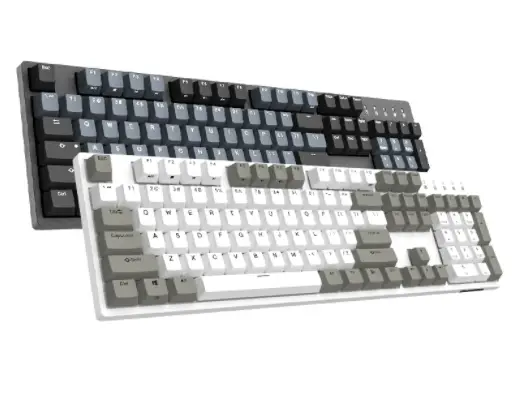
K550D Wireless Keyboard
Product Information
- Product Name: K550D Wireless Keyboard
- Package Contents:
- Ergonomic keyboard
- Type-C charging cable
- User manual
- Product Description:
- Wireless keyboard with 2.4G and Bluetooth connectivity
- Compatible with Windows 7/8/10/11, MAC, iOS, and Android
- Built-in palm rest for ergonomic comfort
- Volume and brightness control buttons
- Battery indicator for monitoring battery capacity
Product Usage Instructions
- Get Started:
- Find the battery compartment and insert the battery.
- Locate the ON/OFF switch at the bottom of the keyboard and
slide it to the ON position to turn on the keyboard. - Use the mode button to select the connection channel
(2.4G/BT1/BT2). The corresponding mode indicator will light up and
keep flashing.
- Connect via USB Receiver:
- Turn on the keyboard and select 2.4G mode.
- Insert the USB receiver into the USB port of your computer for
plug and play connectivity.
- Connection via Bluetooth:
- Select either BT1 or BT2 channel.
- Open the Bluetooth settings on your device and find “Bluetooth
5.0 KB1” to pair and connect.
- Connection Exception:
- If you experience connection issues, follow these steps:
- Make sure the keyboard has enough power.
- For USB receiver connection issues:
- Press and hold the ESC key and = key simultaneously for 3
seconds. - Slide the ON/OFF switch to the OFF position.
- Remove the USB receiver from the computer.
- Power on the keyboard again.
- Insert the USB receiver into the computer.
- Press and hold the ESC key and = key simultaneously for about 3
seconds until the 2.4G mode indicator flashes quickly. - If the connection is successful, the indicator LED will turn
off automatically.
- Press and hold the ESC key and = key simultaneously for 3
- For Bluetooth connection issues:
- Restart the keyboard.
- Select either BT1 or BT2 channel.
- Press and hold the BT mode button (BT1 or BT2) for about 3
seconds until the mode indicator flashes quickly. - Open the Bluetooth settings on your device and find “Bluetooth
5.0 KB1” to pair and connect. - If the connection is successful, the indicator LED will turn
off automatically.
- If the issue persists, try again or test the connection on
other devices. For further assistance, contact customer
support.
- Low Battery Indicator:
- When the battery capacity is under 10%, the battery indicator
will flash in red light. Replace the battery promptly.
- When the battery capacity is under 10%, the battery indicator
- Key Functions:
- The keyboard has various shortcut functions including paste,
search, screenshot, pause, language switch, calculator, settings,
brightness control, mute, and volume control.
- The keyboard has various shortcut functions including paste,
K550D
wireless keyboard
USER MANUAL
Thank you for purchasing the keyboard. For better experience, please read this user manual before using this keyboard.
Package Contents
Ergonomic keyboard
×1
Type-C charging cable
×1
User manual
×1
Product Description
Caps 2.4G Mode Battery Indicator Indicator Indicator
BT Mode Indicator
Instructions 1.Get Started
1
Model : GM905DB
Compatible with Windows 7/8/10/11/ MAC/iOS/Android Rating :3.2V 7mA Made in China
S/N:GM90522H000001
Ergonomic Keyboard
GM905 Ergonomic Keyboard
USER MANUAL
Compatibility
Windows 8/Windows 10/Windows 11/Mac OS Website: http://www.deluxworld.com/en/service/download/
Built-in Palm Rest
Volume and Brightness Control
2
Model : GM905DB
/8/10/11/
Ergonomic Keyboard
OFF
ON
Model : GM905DB
Compatible with Windows 7/8/10/11/ MAC/iOS/Android Rating :3.2V 7mA Made in China
S/N:GM90522H000001
Ergonomic Keyboard
3
Battery Compartment (USB receiver is stored in it)
1.
2.
Find the battery compartment, and insert the battery.
Find the ON/OFF switch at the bottom of the keyboard, and slide the switch to the ON position to turn on the keyboard.
Find the mode button and select the connection channels among 2.4G/BT1/BT2. When the mode is activated, the relative mode indicator will light up and keep flashing.
3.
4 Connect via USB Receiver
Turn on the keyboard, select 2.4G mode. Insert the USB receiver into the USB port of your computer, plug and play.
5 Connection via BT
Bluetooth 5.0 KB1
There are two BT channels, BT1 and BT2, and select one of them. Open the BT settings of your device, and find “Bluetooth 5.0 KB1” to pair and connect.
2.Connection Exception
If you experience issues with connection, please follow the below guidance. Make sure the keyboard with enough power. For the issue of failing to build up the connection by the USB receiver or BT: (the situation of the mode indicator LED keeping blinking will be seen).
1 How to rebuild the connection by USB receiver
Press at the same time for 3s
Slide the ON/OFF switch to the OFF position. Remove the USB receiver from the computer. Power on the keyboard again. Insert the USB receiver into the computer. Press “ESC” key and “=” key at the same time for about 3 seconds, then the 2.4G mode indicator will keep flashing quickly. If the connection was built up, the indicator LED will automatically turn off.
4.
2 How to rebuild the BT connection
BT mode indicator
light up
Press for 3s
Restart the keyboard Select BT1 or BT2 channel. Press the BT mode button “BT1 or BT2” for about 3 seconds. The mode indicator will keep flashing quickly. Open the BT settings, and find “Bluetooth 5.0 KB1” to pair and connect. If the connection was built up, the indicator LED will automatically turn off.
If not successful, please try again. Or try to test the connection on other devices. If need more suggestions and help, please contact us.
3.Low Battery Indicator
When the battery capacity is under 10%, the battery indicator will flash in red light, please replace the battery in time.
Flashing in red light
5.
4.Key Function
Keys
Shortcuts Function
FN Lock Paste Search
Screenshot Pause
Language switch Calculator Settings Brightness + Mute Volume + Select
2.4G channel
Keys
Shortcuts Function
Copy
Cut
Back
Previous
Next Application
switching Printer
Lock screen
Brightness –
Volume Short press: select BT1 channel Long press (3s): turn on pairing
mode
6.
NOTE: This equipment has been tested and found to comply with the limits for a Class B digital device, pursuant to part 15 of the FCC Rules. These limits are designed to provide reasonable protection against harmful interference in a residential installation. This equipment generates, uses and can radiate radio frequency energy and, if not installed and used in accordance with the instructions, may cause harmful interference to radio communications. However, there is no guarantee that interference will not occur in a particular installation. If this equipment does cause harmful interference to radio or television reception, which can be determined by turning the equipment off and on, the user is encouraged to try to correct the interference by one or more of the following measures: – Reorient or relocate the receiving antenna. – Increase the separation between the equipment and receiver. -Connect the equipment into an outlet on a circuit different from that to which the receiver is connected. -Consult the dealer or an experienced radio/TV technician for help.
Changes or modifications not expressly approved by the party responsible for compliance could void the user’s authority to operate the equipment.
7.
1100 x70mm( +/-1mm) 2 70g 3 4
GM905DB R3.4.GM90506001A /22.10.26
 DELUX | GAMING DEVICE | ERGONOMIC MOUSE AND KEYBOARD | OFFICE DEVICE