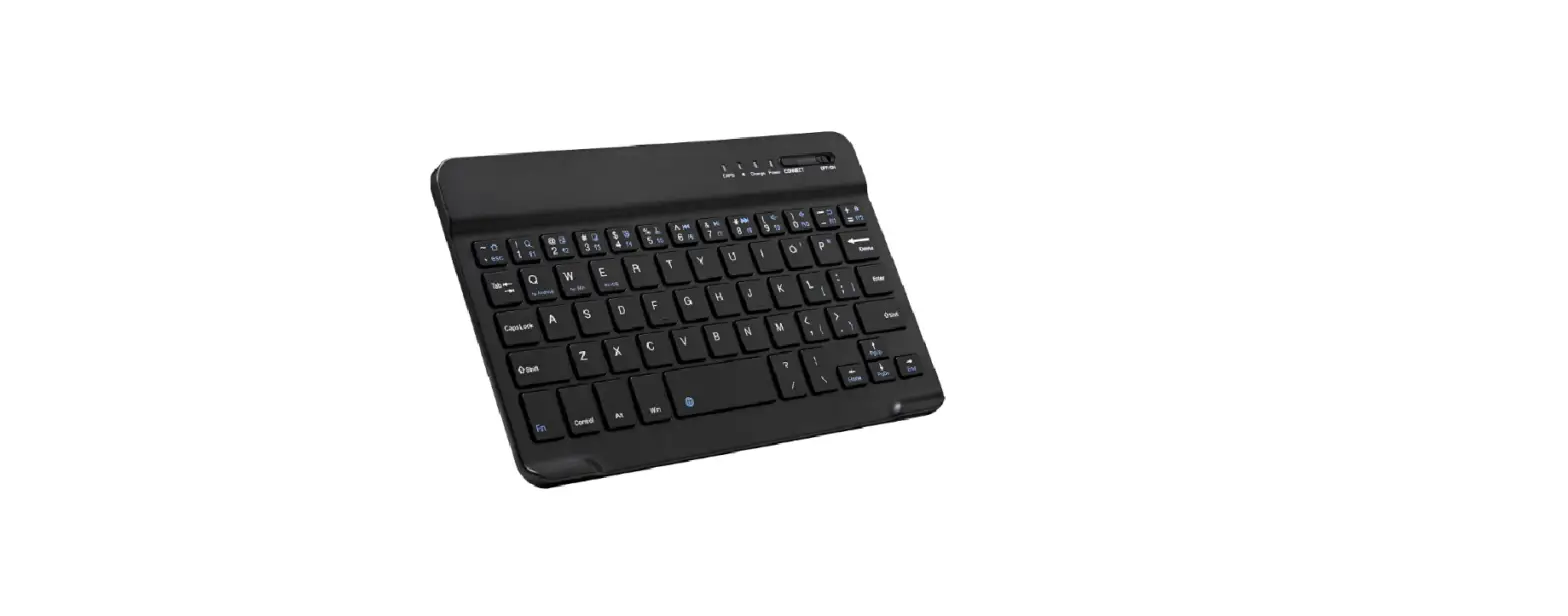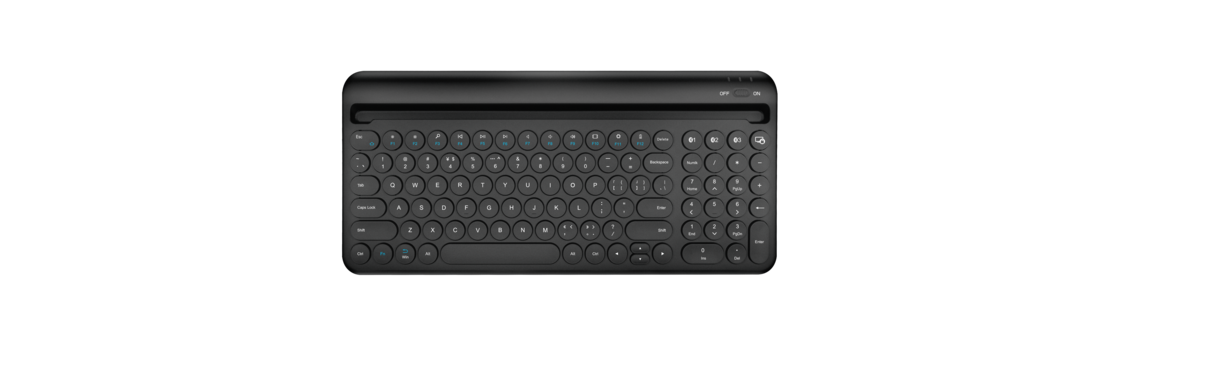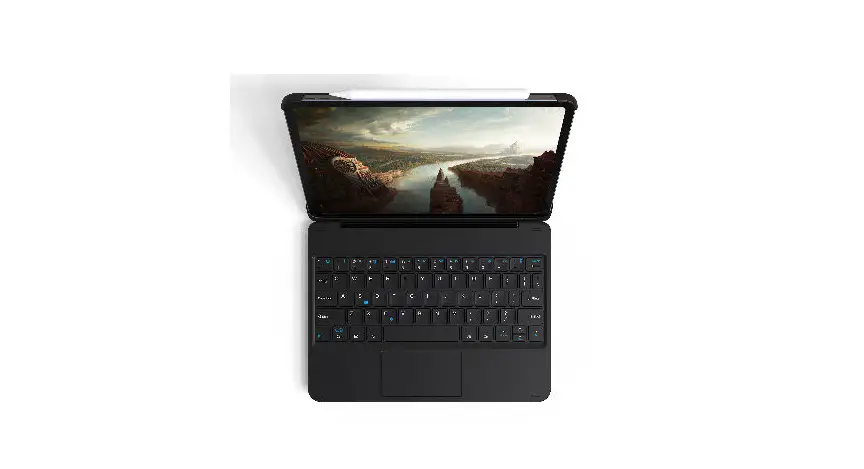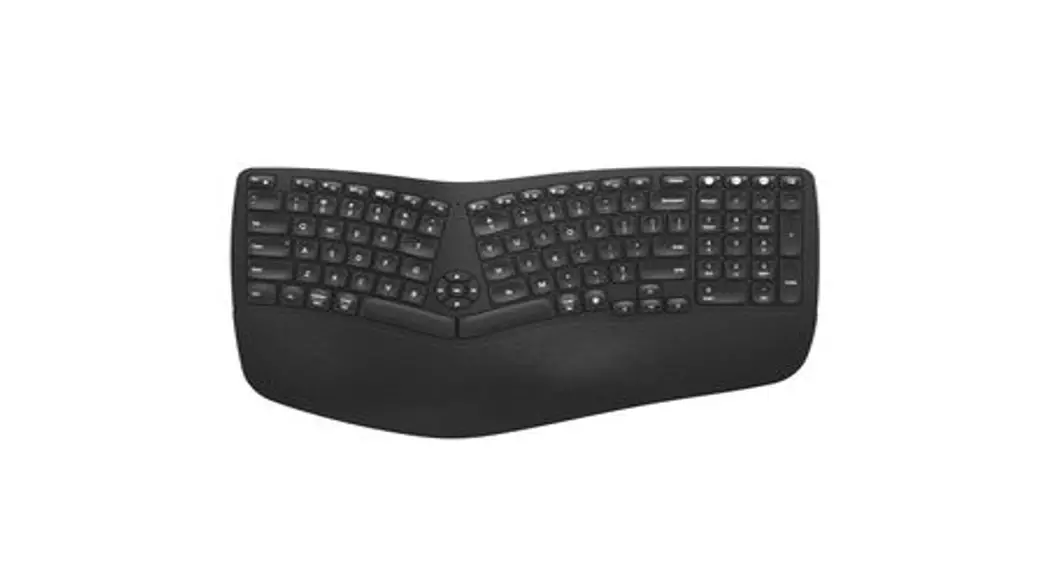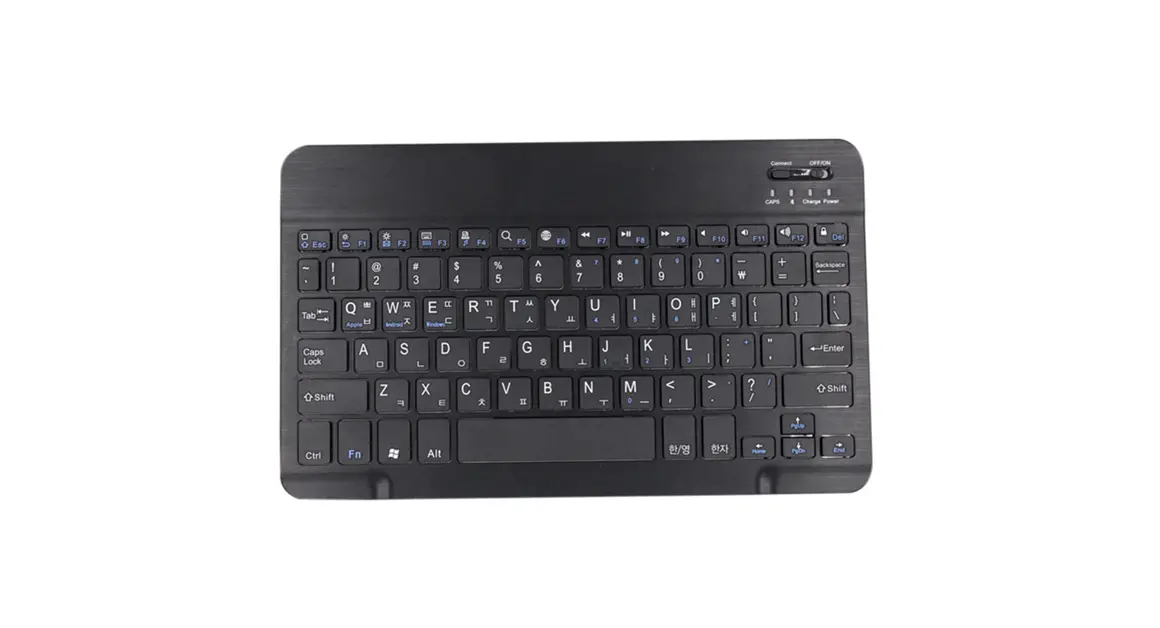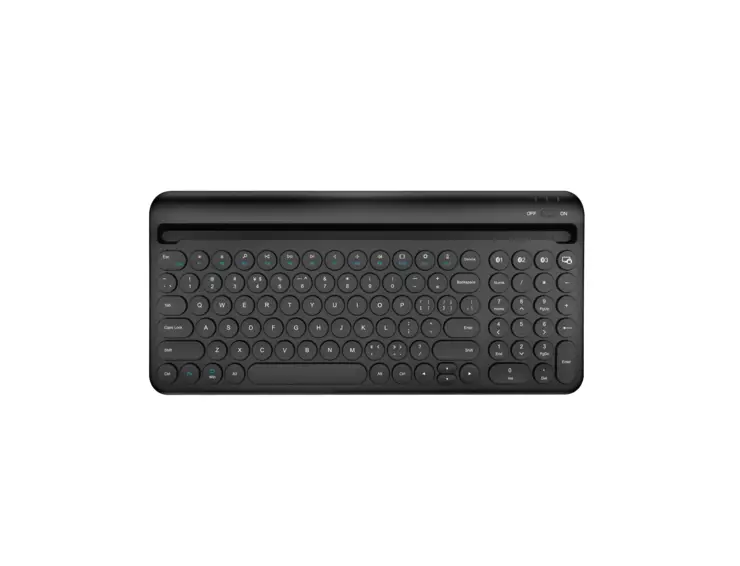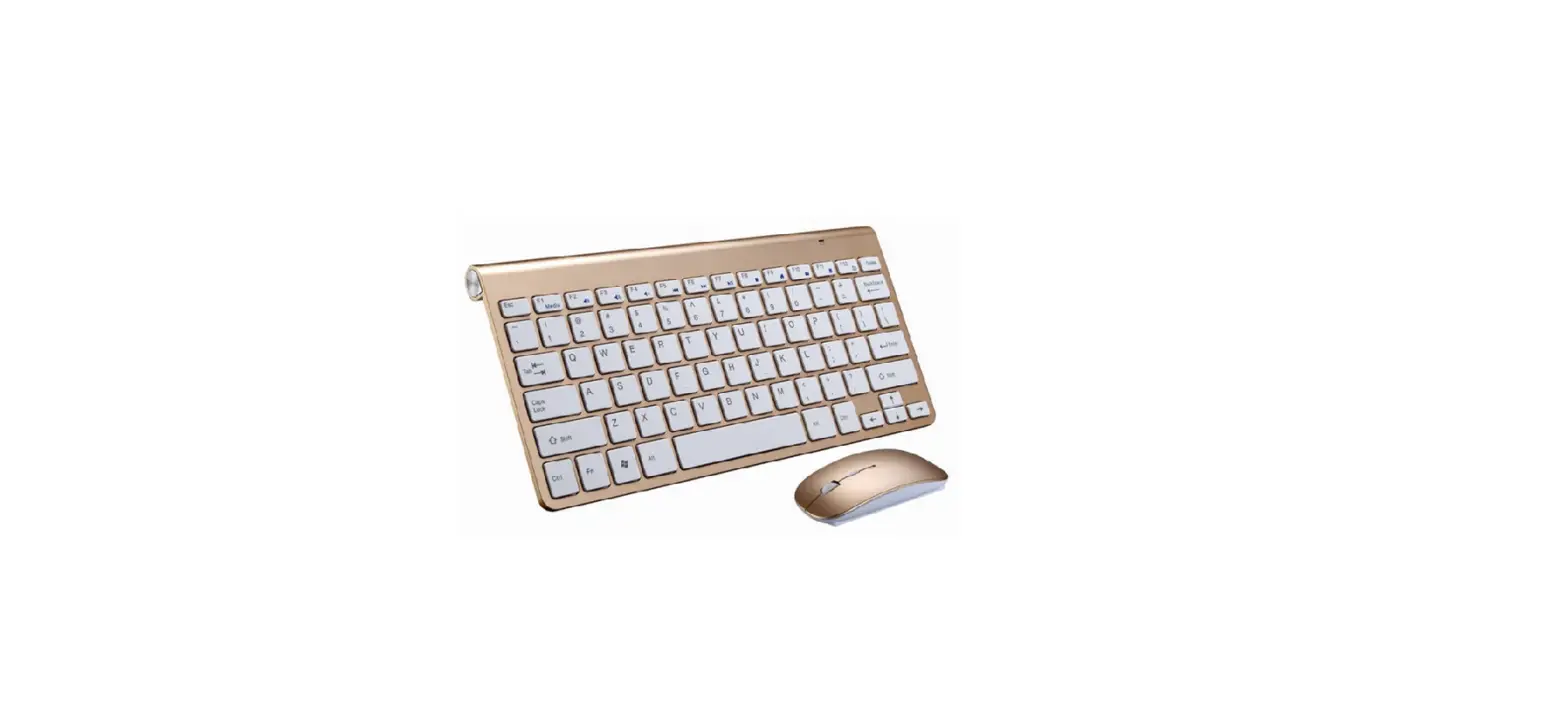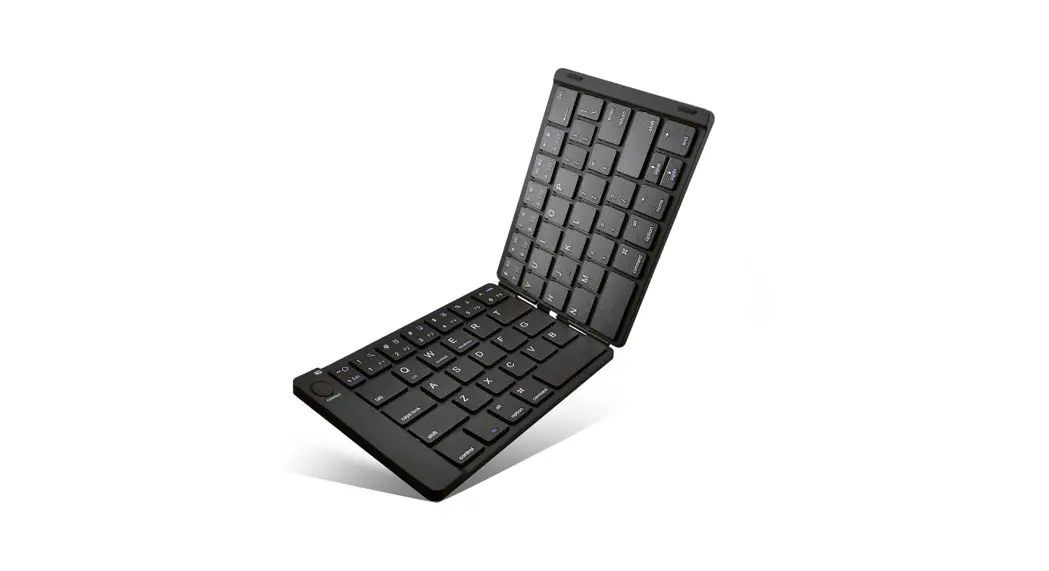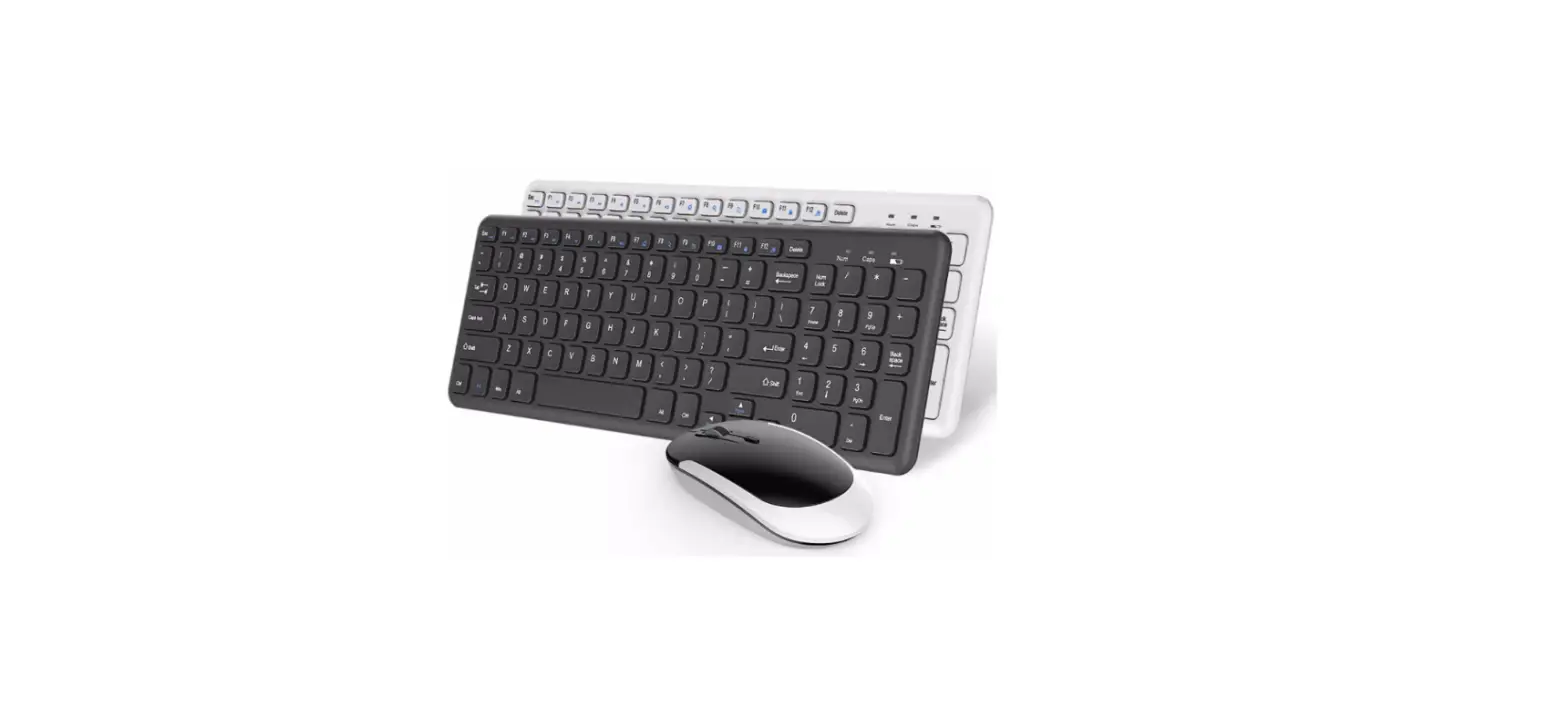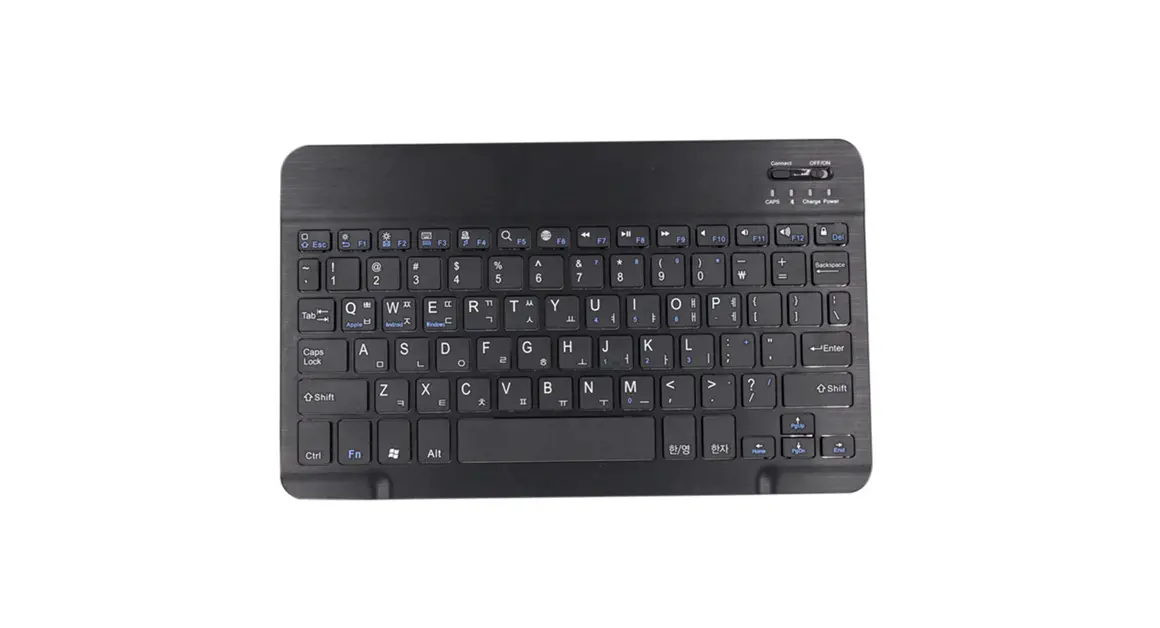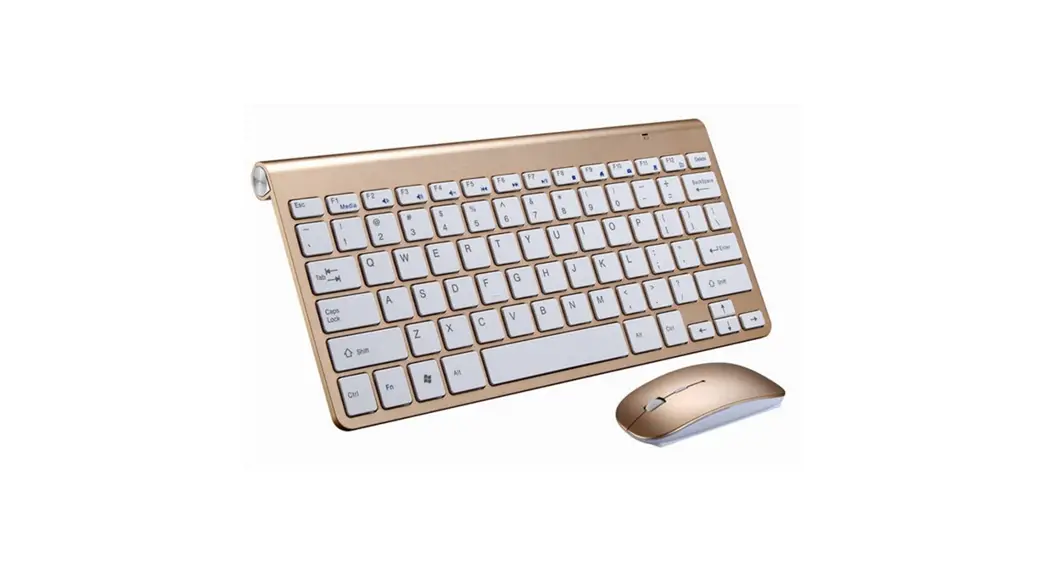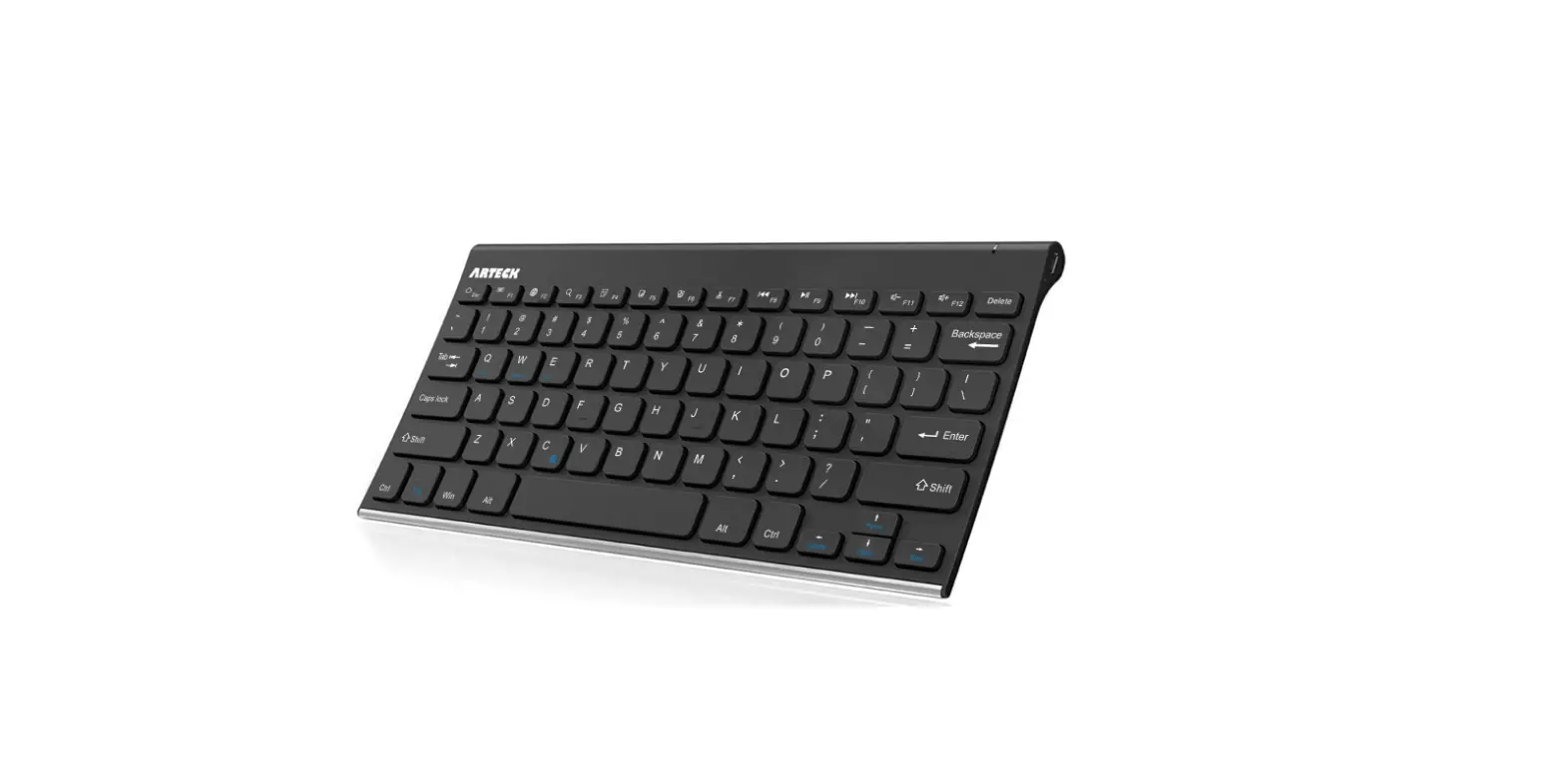
HB361
Bluetooth keyboard
User Manual
Package Contents
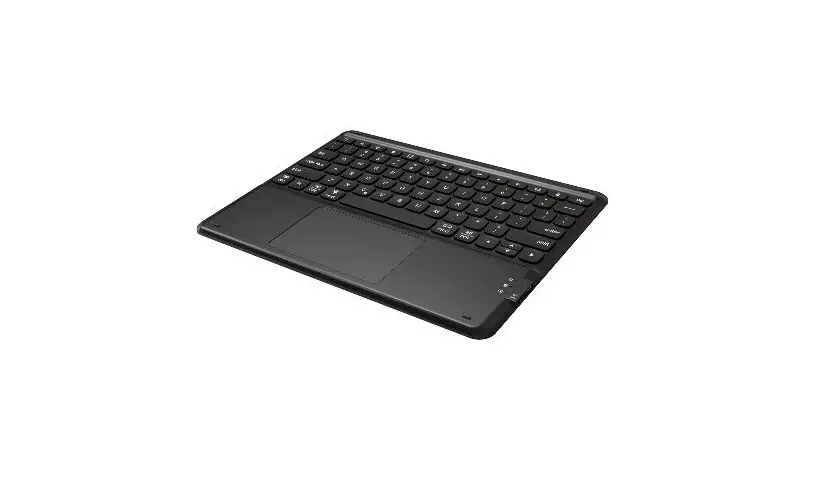
- HB361 Bluetooth keyboard
- Type C charging cable
- User manual
Connecting
- Slide the power switch on the keyboard , status indicator light will light up for 5 seconds, and then goes off.
- Press the connect keys, the Bluetooth indicator light (Status) will flash.
- Open your device’s Bluetooth and searching, automatically or manually
search to find the keyboard by name (bluetooth name: Bluetooth keyboard), click on it. - Bluetooth indicator light goes off when keyboard successfully connected to the device.
Specifications
| Bluetooth Specification | Bluetooth 5.1 |
| Chipset | Broadcom |
| Operating Range | Up to 10 meters |
| Modulation System | GFSK |
| Standby time | >100 days |
| Charge time | < 2 hours |
| Uninterrupted Work Time | <44 hours |
| Lithium Battery Capacity | 110 mAh |
| Lithium Battery Life | 3 years |
| Key Life | 5 million clicks |
| Support systems | Android |
Led Display
 – Code indicator light
To connect the Bluetooth keyboard to the tablet, press the Connect code button and the indicator light is blue. It will flash until the Bluetooth keyboard is successfully connected to the tablet , and the Bluetooth indicator will automatically turn off
Charge- Low voltage charge indicator
Charging status is shown in red. It will go out when fully charged
Power- Power light
Turn on the Bluetooth switch and the indicator shows blue.The lights will go off automatically after 5 seconds.When the voltage is lower than 3.5V, the “Charge” indicator will flash in blue until the Bluetooth keyboard stops working and the “Charge” indicator will go out automatically.
Keys and Function
Functional description, in addition to the home page for a single bond implementation, other key functions are implemented in the form of key combination. For example: FN + 6 implementation on a curve function.
| Button | FN on iOS | FN on Android | FN+shift on Win (tablet) |
 | Home | Home | Web Browser |
 | Search | Search | Search |
 | Language switch | Language switch | Language switch |
 | N/A | ||
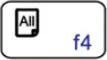 | Select all | Select all | Select all |
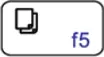 | Copy | Copy | Copy |
 | Cut | Cut | Cut |
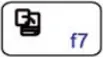 | Paste | Paste | Paste |
 | Last track | Last track | Last track |
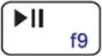 | Play/pause | Play/pause | Play/pause |
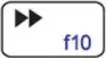 | Next track | Next track | Next track |
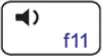 | Volume – | Volume – | Volume – |
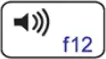 | Volume + | Volume + | Volume + |
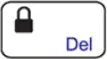 | Lock screen | Lock screen | Lock screen |
 | Virtual keybaord | Virtual keybaord | Virtual keybaord |
 | Combination function key | Combination function key | Combination function key |
 | N/A | Back | Back |
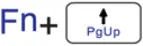 | Page up | Page up | Page up |
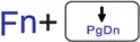 | Page down | Page down | Page down |
 | Top of line | Top of line | Top of line |
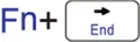 | End of line | End of line | End of line |
Power Saving Mode
When the keyboard 30 minutes without any operating instructions, the keyboard will automatically enter the sleep mode. Need to use, only need to press any key and wait for 3 seconds, the keyboard will be awakened, the keyboard can be normal work.
Charging
when the voltage is less than 3.2 V, “Charge” indicator light blue flashing, at this time to recharge your keyboard,
- Connect the B end of the original USB cable to charging keyboard interface
- Connected to the original USB cable end to A power adapter or computer USB.
- When connection is successful, charging status “Charge” red indicator, when power is full of “Charge” will automatically lights go out.
Caution
When not in use for a prolonged period of time, it is recommended that you turn off the keyboard to lengthen the battery life.
Troubleshooting
If you are unable to connect the keyboard to your tablet, please try the following:
- Starting with a full charge on both devices ensures that process won’t be interrupted by a low battery.
- Make sure your tablet’s Bluetooth is on.
- Make sure that the keyboard is within the effective operation distance of 33 feet (10 M).
Safety Instructions
- Keep the keyboard away from sharp objects that could damage it.
- Do not put heavy objects on the keyboard.
- Do not stretch, twist or apply force to the keyboard.
- To clean the keyboard, gently wipe it by using a moist cotton cloth.
- Make sure the keyboard is turned off before cleaning. Do not use liquid cleanser.
- Please do not spill coffee, tea or other liquids on the keyboard.
NOTE: This equipment has been tested and found to comply with the limits for a Class B digital device, pursuant to part 15 of the FCC Rules. These limits are designed to provide reasonable protection against harmful interference in a residential installation. This equipment generates uses and can radiate radio frequency energy and, if not installed and used in accordance with the instructions, may cause harmful interference to radio communications. However, there is no guarantee that interference will not occur in a particular installation. If this equipment does cause harmful interference to radio or television reception, which can be determined by turning the equipment off and on, the user is encouraged to try to correct the interference by one or more of the following measures:
– Reorient or relocate the receiving antenna.
– Increase the separation between the equipment and receiver.
-Connect the equipment into an outlet on a circuit different from that to which the receiver is connected.
-Consult the dealer or an experienced radio/TV technician for help
Changes or modifications not expressly approved by the party responsible for compliance could void the user’s authority to operate the equipment.
This device complies with Part 15 of the FCC Rules. Operation is subject to the following two conditions:
(1) this device may not cause harmful interference, and
(2) this device must accept any interference received, including interference that may cause undesired operation.