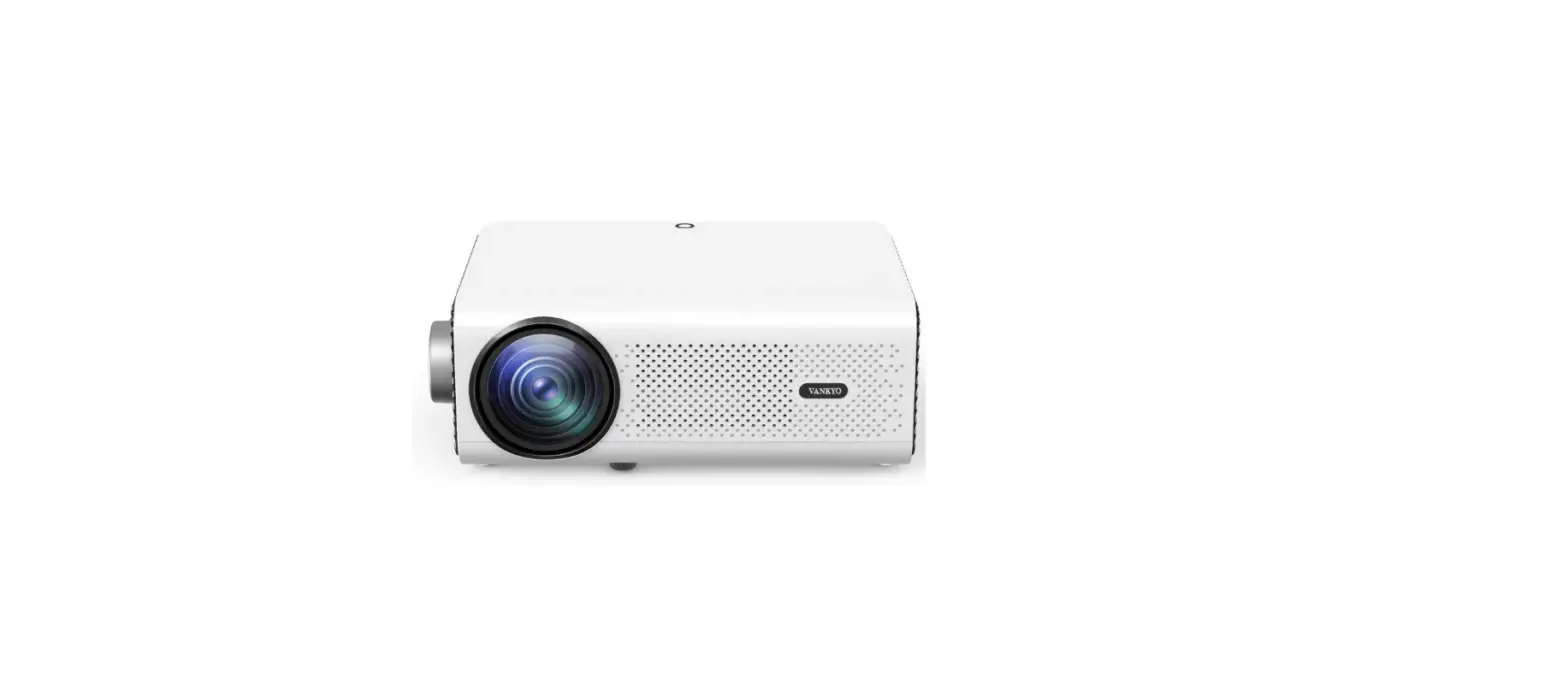
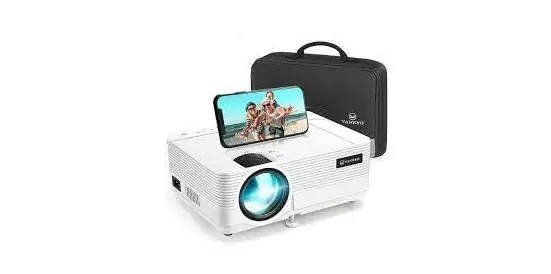
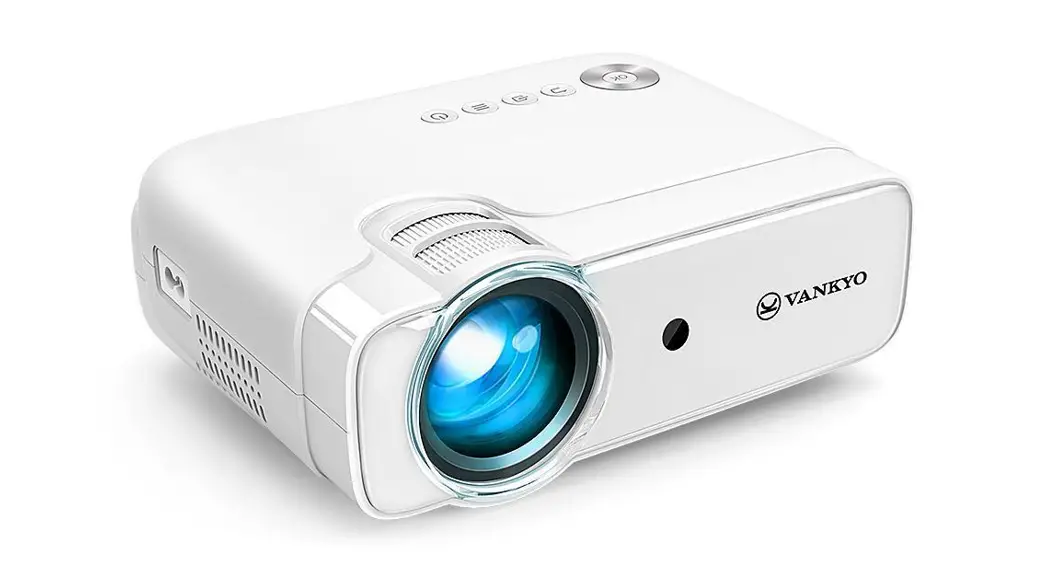
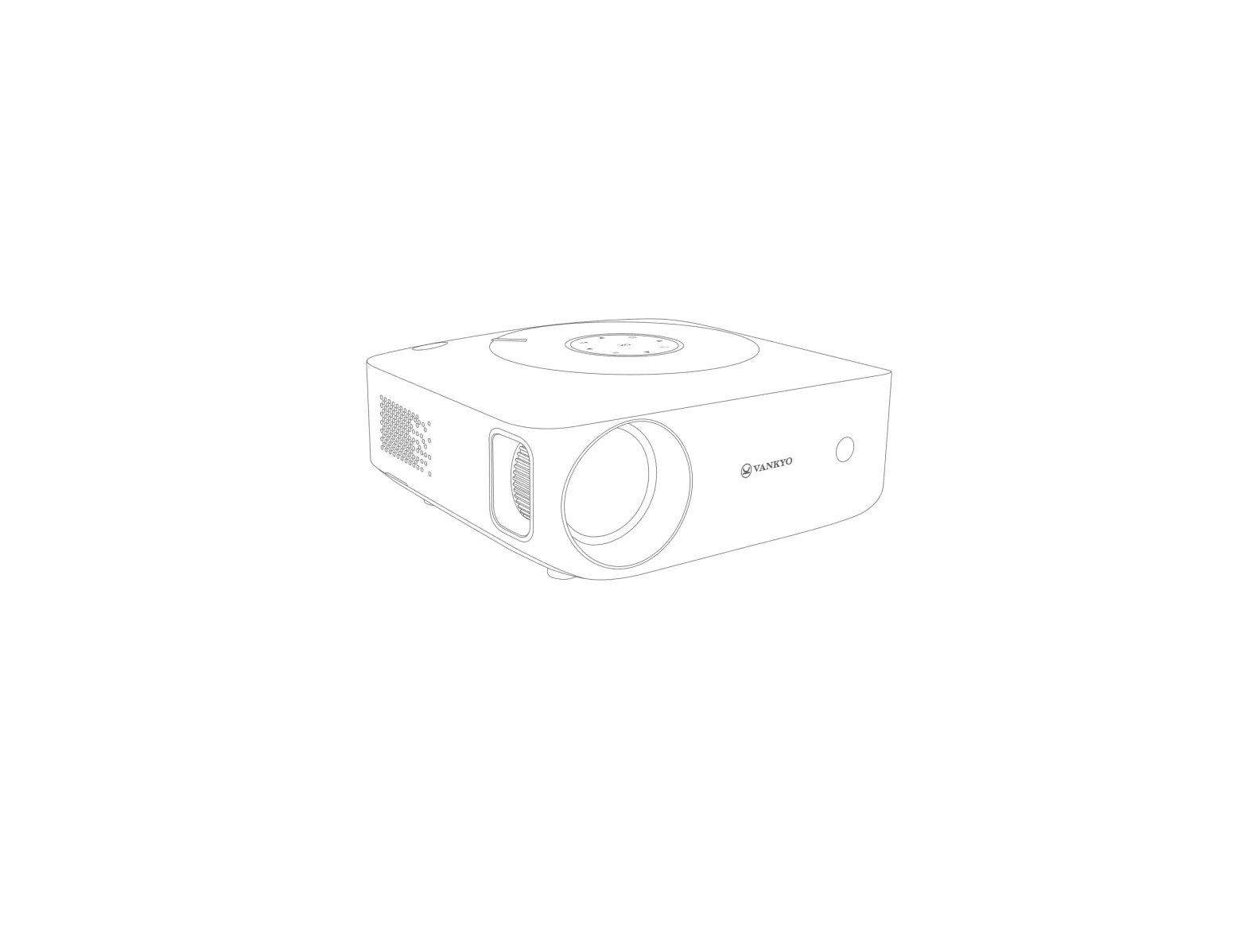
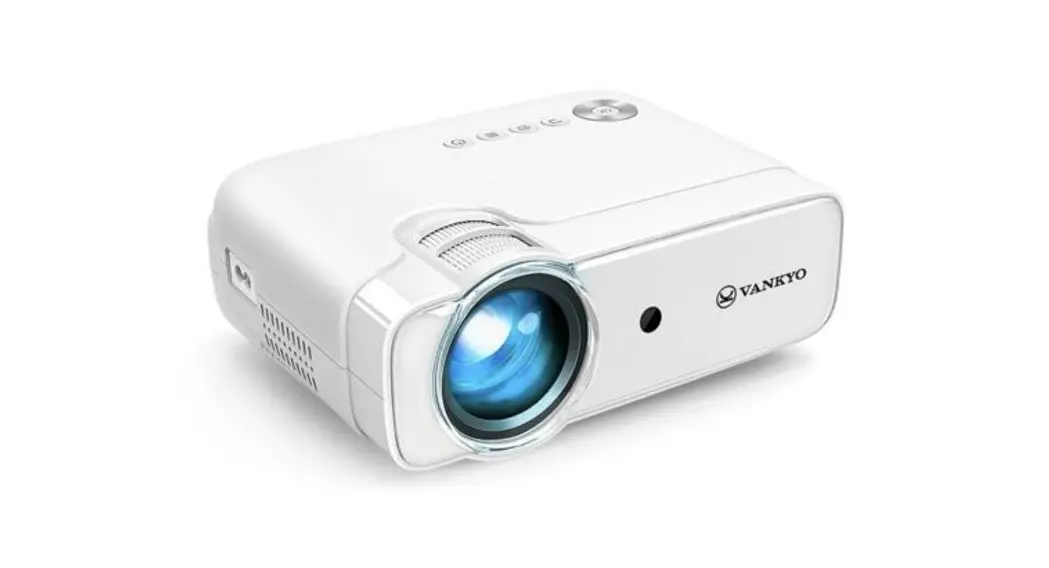
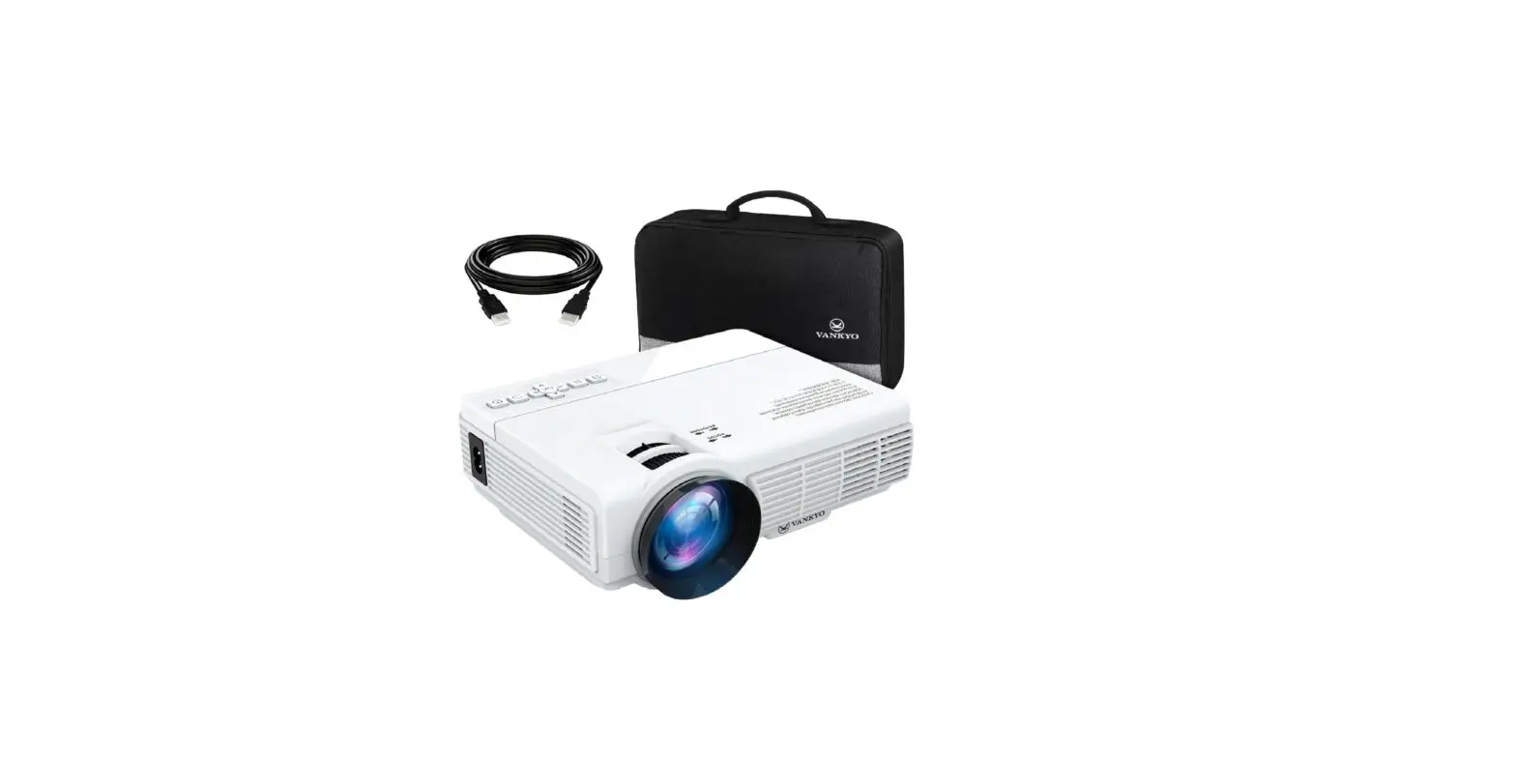
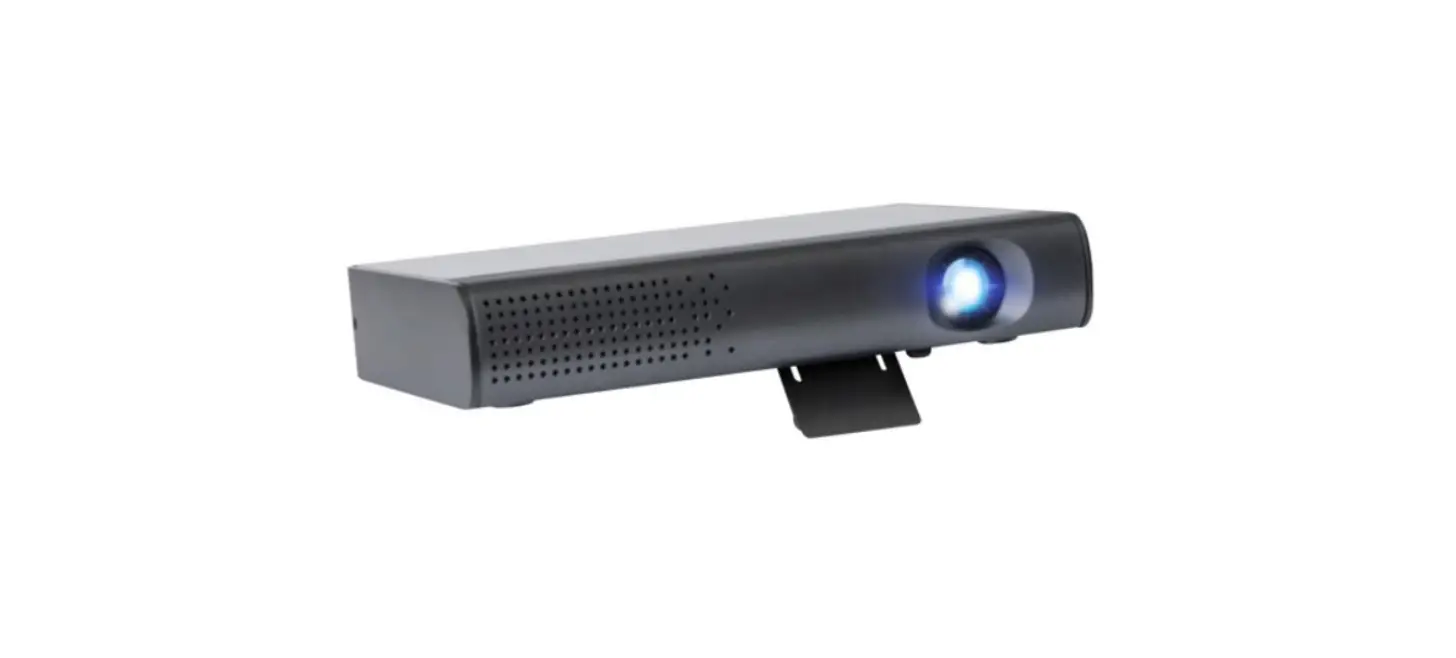
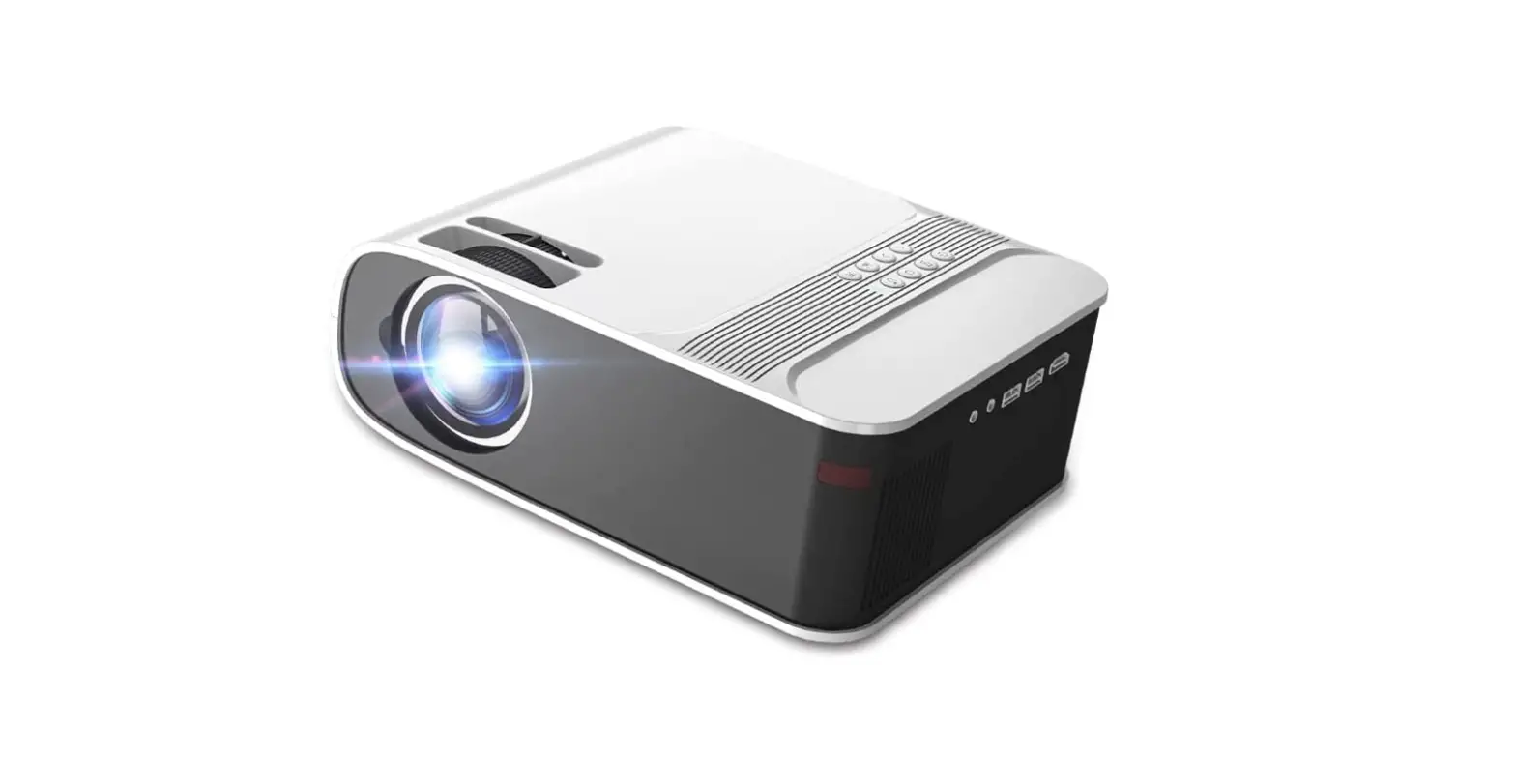
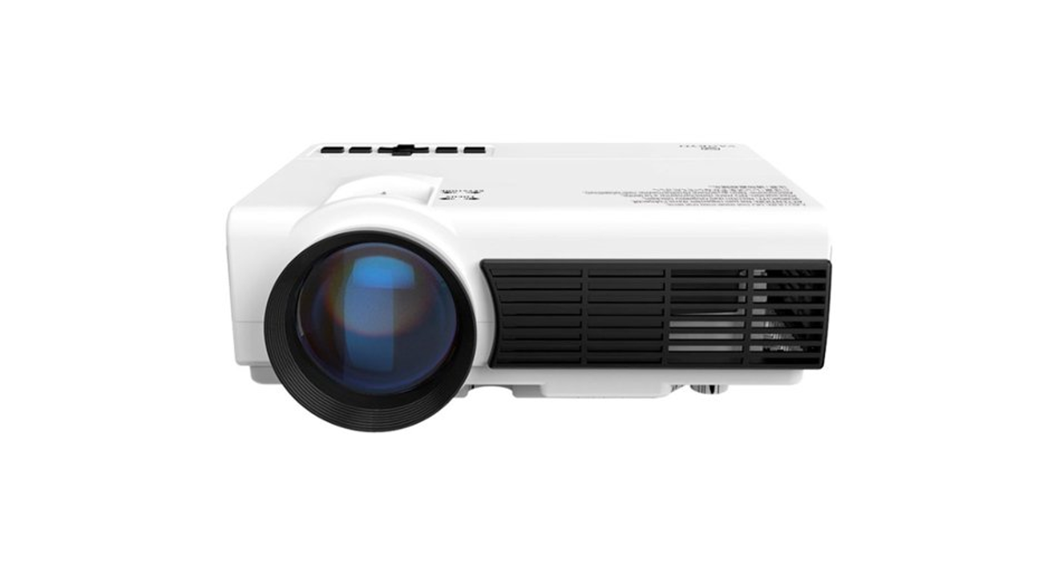
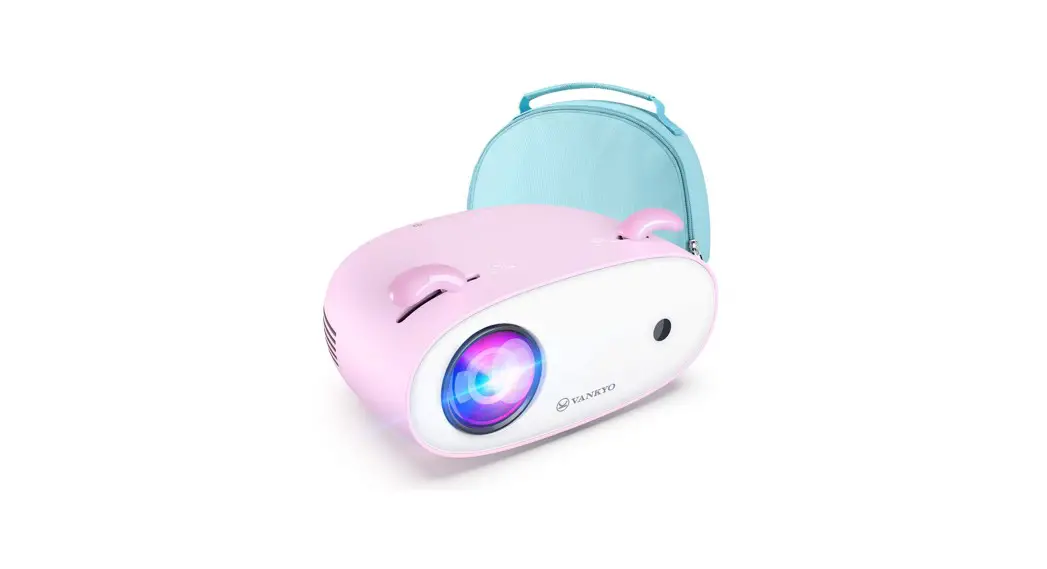
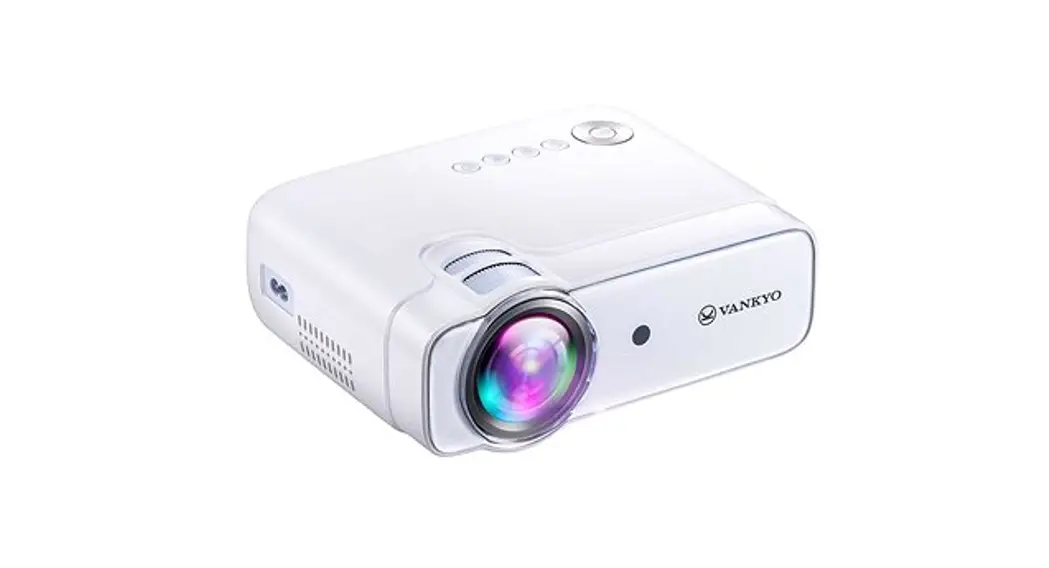
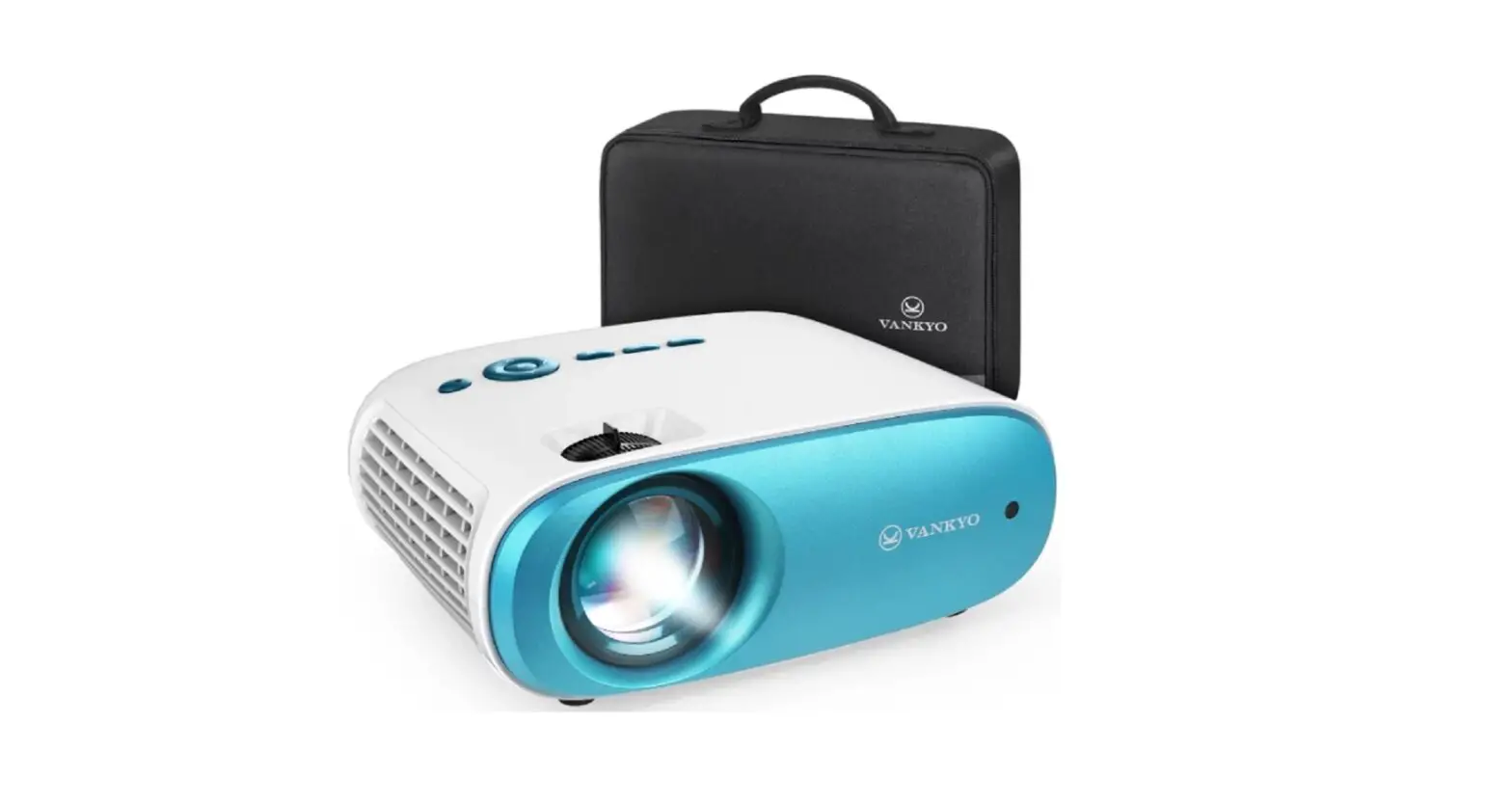
Leisure 470 Pro Native 1080P Phone Projector
Product Information: Leisure 470 Pro
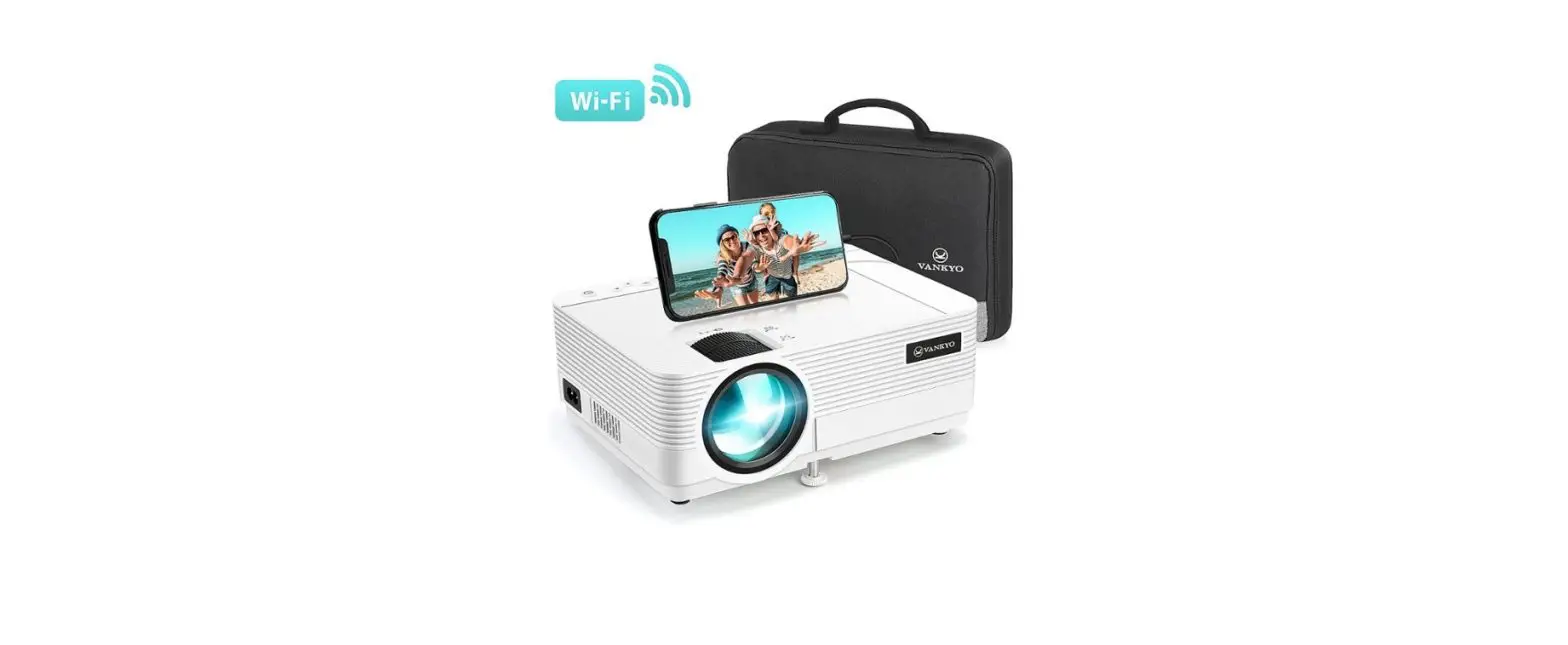
The Leisure 470 Pro is a projector that allows you to project
images and videos on a projection screen or wall. It comes with a
remote control, user manual, HD cable, and a carrying bag. The
projector has a lens focus, keystone adjustment, and multiple input
sources such as USB, TF card, HD, and AV. It also has a Wi-Fi
connection option for screen mirroring with iOS devices.
Product Usage Instructions
- Plug the power cord into an outlet.
- Take off the lens cover.
- Connect your device to the projector correctly using the
original USB cable (not included). - Press the Power Button to turn on the projector.
- Select the correct input source by pressing the button.
- Adjust the kickstand accordingly.
- Adjust the keystone and focus ring to get the best image
performance. - Press the Power Button twice to turn off the projector.
Projector Connection and Input Source
Connect your device to the projector correctly, then select the
right input source on the homepage.
- USB Connection: Connect your device to the
projector using a USB cable. - TF Card Connection: Insert your TF card into
the memory card slot. - HD Connection: Connect a device with an HDMI
output port using an HD cable. - AV Connection: This option is not
provided.
Wi-Fi Connection
To connect the projector to your router’s Wi-Fi, go to Homepage
> Settings > Network Setting.
Screen Mirroring for iOS System
To wirelessly mirror your iPhone, iPad, or iPod touch, follow
these steps:
- Connect the projector and your mobile device to the same
router’s Wi-Fi or directly connect your mobile device to the
projector’s AP hotspot. - Go to Homepage and select iOS Cast to enter the interface.
- Activate Screen Mirroring / AirPlaying Mirroring in the Control
Centre of your iOS device and search for the projector. - Select NETLINK-(icast) from the searching list. The contents on
your iOS device will be mirrored on the projection screen/wall
after a successful connection.
To mirror your iOS device using a lightning cable, follow these
steps:
- Go to Homepage and select iOS Cable to enter the
interface. - Connect the lightning connector to the phone. Connect the other
end to the projector. - Click Trust on the window that pops up on the screen. Enter
device password. - Connect your mobile device to the USB Port on the projector
using the ORIGINAL lightning cable. - Select Trust in the pop-up window of Trust This Computer?
- The contents on your iOS device will be mirrored on the
projection screen/wall after a successful connection.
Leisure 470 Pro
User Manual · Uzívateský manuál · Használati utasítás ·
Benutzerhandbuch
English 3 23 Slovencina 24 44
Magyar 45 65 Deutsch 66 86
2
Dear customer,
Thank you for purchasing our product. Please read the following instructions carefully before first use and keep this user manual for future reference. Pay particular attention to the safety instructions. If you have any questions or comments about the device, please contact the customer line.
www.alza.co.uk/kontakt
+44 (0)203 514 4411
Importer Alza.cz a.s., Jankovcova 1522/53, Holesovice, 170 00 Praha 7, www.alza.cz
3
What’s included
Projector
Remote (Batteries Not Included)
User Manual
HD Cable
Notice
Recommended
Power Cable
Video, Movie
Carrying Bag
4
Not Recommended
PowerPoint, Excel, Word
Product Overview
Lens Focus Keystone
Input Source Menu / Back Play / pause
Left
Up
Power Button Right Down OK
5
Play / Pause Power Button
Fast Reverse Up Left
Back Volume
Mute Fast Forward
Right Down Input Source Volume +
Menu
Audio Out
Memory Card Slot
AV In HD-1 HD-2 USB
Air Outlet
6
Power Input
Air Inlet
IR
Speaker
Quick Start
1. Plug the power cord into an outlet.
7
2. Take off the lens cover
3. Connect your device to the projector correctly. *Original USB Cable (Not Included)
8
4. Press the Power Button to turn on the projector. 5. Select the correct input source by pressing the button 6. Adjust the kickstand accordingly.
9
7. Adjust the keystone and focus ring to get the best image performance. Keystone Focus
8. Press the Power Button twice to turn off the projector.
10
Projector Connection and Input Source
Connect your device to the projector correctly, then select the right input source on the homepage.
1. USB Connection
2. TF Card Connection
11
3. HD Connection
This option is for connecting a device with an HDMI output port.
12
4. AV Connection
(Not provided)
13
Wi-Fi Connection
Go to Homepage > Settings > Network Setting to connect the projector to your router’s Wi-Fi.
Network Setting System Setting Projection Setting
Screen Mirroring
For iOS System
Screen Mirroring Wirelessly Step 1: Connect the projector and your mobile device to the same router’s Wi-Fi or directly connect your mobile device to the projector’s AP hotspot. Tip: When you are using the projector’s AP hotspot, the content will be mirrored via the cellular data.
14
Step 2: Go to Homepage and select iOS Cast to enter the interface below.
Mirror your iPhone, iPad or iPod touch: Make sure that your iOS device is connected to the same network as your projector, or connect iOS device with AP by projector: 1. On your iOS device, open control centre and tap Screen Mirroring 2. Looking for devices that can be mirrored on. 3. Select NETLINK-XXXX-(icast) from the list.
1.
2.
3.
Step 3: Activate Screen Mirroring / AirPlaying Mirroring in the Control Centre of your iOS device and search for the projector. Step 4: Select NETLINK-(icast) from the searching list. The contents on your iOS device will be mirrored on the projection screen/wall after a successful connection.
15
Screen mirroring via a Lightning Cable Step 1: Go to Homepage and select iOS Cable to enter the interface below.
iOS Cable Cast: 1. Connect the lightning connector to the phone. Connect the other end to the projector. 2. Click “Trust” on the window that pops up on the screen. 3. Enter device password Step 2: Connect your mobile device to the USB Port on the projector using the ORIGINAL lightning cable. Step 3: Select Trust in the pop-up window of Trust This Computer? Step 4: The contents on your iOS device will be mirrored on the projection screen/wall after a successful connection.
16
For Android System
To activate this function, please make sure your Android device supports Multiscreen/Smart View/Wireless Display. Names may vary on different Android devices. Step 1: Go to the Wi-Fi settings of your Android mobile device to switch on the option of Wi-Fi. Note: Successful Wi-Fi connection is not a must, but please make sure the Wi-Fi switch on your Android device is ON. Step 2: Go to Homepage and select Miracast to enter the interface below.
Miracast: To connect Android / Pad Device with Projector Based on Wi-Fi-Display Technology:
1. On your Android Mobile / Pad, open the settings menu. 2. Access your display settings or screen-mirroring. 3. Select your Miracast receiver NETLINK-XXXX. 4. Wait for the connection.
17
Step 3: Activate the Multi-screen/Smart View/Wireless Display function on your Android device and search for the projector. Step 4: Select NETLINK-XXXX from the searching list. The contents on your Android device will be mirrored on the projection screen/wall after a successful connection.
Settings
1. Press the Menu button on any interface to check the PICTURE, SOUND and OPTION settings.
Picture
Sound
Option
Tips: 1. After you select User in the option of Picture Mode, you can change the settings of the Contrast, Brightness, Colour, Tint and Sharpness to adjust the image quality. 2. If you select User in the option of SOUND, you could change the settings of the Treble and Bass to adjust the sound effect. 3. When you are using the USB connection or HD connection on the projector, the option of Aspect Ratio will be activated. You can then adjust the aspect ratio of the projection image.
2. Go to Homepage > Settings to connect the projector to a Wi-Fi network, change language, restore the projector to factory settings, change the projection mode and adjust the image size.
Connect to WI-Fi
Set Language and Factory Reset
Set Projection Mode and Image Size
18
Projection Distance and Size
* The recommended projection distance varies with different projection contents. Please adjust the distance between the wall/screen and the projector properly as needed. * Ambient darkness will improve the clarity of the projected images.
Specifications
Display Technology Resolution Aspect Ration Keystone Speaker Unit Dimension
Photo Format Supported Video format Supported
Video Format Supported for TF Card
LCD
Light Source
LED
Native 1920 x 1080 4:3/16:9/Auto ±15° 3 W/7 ohm 198*145*75 mm (7.8*5.7*3 inches) BMP/JPG/PNG/JPEG
AVI / MP4 / MKV / FLV /MOV / RMVB / 3GP / MPEG / H.264 / XVID MP4 / MKV /MOV (24 FPS, 1280 x 720)
Input Signal Focus Installation Type Power Supply Unit Net Wight
Audio Format Supported Ports
Mounting Screws
576i/720P/1080i/1080P Manual Front/Rear/Ceiling AC 100-240 V, 50/60 Hz 1 kg (2,2 lbs)
MP3 / WMA / MP2 / AAC / FLAC / PCM HD In x2 / USB Port x1 / Audio Out x1 / Memory Card Slot x1
1/4”
19
Troubleshooting Guide
1. The content from Hulu, Netflix, and similar services cannot be mirrored or cast. · Due to the copyright restriction from Hulu, Netflix, and similar services, the contents MAY NOT be mirrored or cast.
2. What should I do if I want to watch the content from Hulu, Netflix, and similar services via the projector?
· Please prepare a Fire TV stick, Roku stick or ChromecastTM (not included), then connect it to the projector to watch the content.
3. Blurry Image · Adjust focus ring/keystone. · Projector and screen/wall must be in effective distance. · 4. Remote Unresponsive · Make sure remote points at IR receiver directly. · Do not cover IR receiver. · Replace the old AAA batteries with new ones.
5. Upside Down Images · Go to Homepage > Settings > Projection Setting > Projection Mode to flip the projection image.
6. Factory Reset · Go to Homepage > Settings > System Setting > Restore Factory Default to restore the projector to default settings.
20
Warranty Conditions
A new product purchased in the Alza.cz sales network is guaranteed for 2 years. If you need repair or other services during the warranty period, contact the product seller directly, you must provide the original proof of purchase with the date of purchase. The following are considered to be a conflict with the warranty conditions, for which the claimed claim may not be recognized: · Using the product for any purpose other than that for which the product is intended
or failing to follow the instructions for maintenance, operation, and service of the product. · Damage to the product by a natural disaster, the intervention of an unauthorized person or mechanically through the fault of the buyer (e.g., during transport, cleaning by inappropriate means, etc.). · Natural wear and aging of consumables or components during use (such as batteries, etc.). · Exposure to adverse external influences, such as sunlight and other radiation or electromagnetic fields, fluid intrusion, object intrusion, mains overvoltage, electrostatic discharge voltage (including lightning), faulty supply or input voltage and inappropriate polarity of this voltage, chemical processes such as used power supplies, etc. · If anyone has made modifications, modifications, alterations to the design or adaptation to change or extend the functions of the product compared to the purchased design or use of non-original components.
21
EU Declaration of Conformity
Identification data of the manufacturer’s / importer’s authorized representative: Importer: Alza.cz a.s. Registered office: Jankovcova 1522/53, Holesovice, 170 00 Prague 7 CIN: 27082440 Subject of the declaration: Title: Vankyo Leisure 470 Pro Model / Type: Leisure 470 Pro The above product has been tested in accordance with the standard(s) used to demonstrate compliance with the essential requirements laid down in the Directive(s): Directive No. 2014/53/EU Directive No. 2011/65/EU as amended 2015/863/EU Prague
22
WEEE
This product must not be disposed of as normal household waste in accordance with the EU Directive on Waste Electrical and Electronic Equipment (WEEE – 2012/19 / EU). Instead, it shall be returned to the place of purchase or handed over to a public collection point for the recyclable waste. By ensuring this product is disposed of correctly, you will help prevent potential negative consequences for the environment and human health, which could otherwise be caused by inappropriate waste handling of this product. Contact your local authority or the nearest collection point for further details. Improper disposal of this type of waste may result in fines in accordance with national regulations.
23
Vázený zákazník,
akujeme vám za zakúpenie násho výrobku. Pred prvým pouzitím si pozorne precítajte nasledujúce pokyny a uschovajte si tento návod na pouzitie pre budúce pouzitie. Venujte osobitnú pozornos bezpecnostným pokynom. Ak máte akékovek otázky alebo pripomienky k zariadeniu, obráte sa na zákaznícku linku.
www.alza.sk/kontakt
+421 257 101 800
Dovozca
Alza.cz a.s., Jankovcova 1522/53, Holesovice, 170 00 Praha 7, www.alza.cz
24
Co je súcasou balenia
Projektor
Diakové ovládanie (batérie nie sú súcasou balenia)
Pouzívateská prírucka
Kábel HD
Upozornenie
Odporúcané stránky
Napájací kábel
Taska na prenásanie
Video, film
25
Neodporúca sa
PowerPoint, Excel, Word
Prehad produktov
Zaostrenie objektívu
Vstupný zdroj
Menu/Spä
Prehrávanie/pau
za
Vavo
Na
Tlacidlo napájania Vpravo dole
26
Prehrávanie/pozasta venie
Tlacidlo napájania Rýchly spätný chod
nahor
Vavo
Spä Hlasitos –
Stlmenie rýchleho posunu vpred
Vpravo dole Vstupný zdroj Hlasitos +
Ponuka
Zvukový výstup
Slot na pamäovú kartu
AV In HD-1 HD-2 USB
Výstup
27
Príkon
Prívod
IR
Reproduktor
Rýchly start
1. Zapojte napájací kábel do zásuvky.
28
2. Odstráte kryt objektívu
3. Správne pripojte zariadenie k projektoru. *Originálny kábel
USB (nie je súcasou balenia)
29
4. Stlacením tlacidla napájania zapnite projektor. 5. Stlacením tlacidla vyberte správny vstupný zdroj 6. Poda toho nastavte stojan.
30
7. Nastavte lichobezníkový a zaostrovací krúzok, aby ste dosiahli co najlepsí obrazový výkon.
Keystone Zameranie 8. Stlacením tlacidla napájania dvakrát vypnite projektor.
31
Pripojenie projektora a vstupný zdroj
Správne pripojte zariadenie k projektoru a potom na domovskej stránke vyberte správny vstupný zdroj.
1. Pripojenie USB
2. Pripojenie karty TF
32
3. Pripojenie HD
Táto moznos slúzi na pripojenie zariadenia s výstupným portom HDMI.
33
4. Pripojenie AV
(Nie je k dispozícii)
Pripojenie Wi-Fi
Prejdite na Domovská stránka > Nastavenia > Nastavenie siete a pripojte projektor k WiFi routeru.
Nastavenie
Nastavenie systému
Nastavenie
34
Zrkadlenie obrazovky
Pre systém iOS
Bezdrôtové zrkadlenie obrazovky Krok 1: Pripojte projektor a mobilné zariadenie k rovnakému smerovacu Wi-Fi alebo priamo pripojte mobilné zariadenie k prístupovému bodu projektora. Tip: Ke pouzívate prístupový bod AP projektora, obsah sa zrkadlí prostredníctvom mobilných dát. Krok 2: Prejdite na domovskú stránku a výberom polozky iOS Cast vstúpte do nizsie uvedeného rozhrania.
Zrkadlenie iPhonu, iPadu alebo iPodu touch: Uistite sa, ze je vase zariadenie iOS pripojené k rovnakej sieti ako projektor, alebo pripojte zariadenie iOS k AP pri projektore: 1. V zariadení iOS otvorte ovládacie centrum a uknite na polozku Zrkadlenie obrazovky. 2. Hadáte zariadenia, ktoré mozno zrkadli. 3. Zo zoznamu vyberte polozku NETLINK-XXXX-(icast).
35
1.
2.
3.
Krok 3: V ovládacom centre zariadenia iOS aktivujte funkciu Screen Mirroring / AirPlaying Mirroring a vyhadajte projektor.
Krok 4: V zozname vyhadávania vyberte polozku NETLINK-(icast). Obsah vásho zariadenia iOS sa po úspesnom pripojení zrkadlí na projekcnú plochu/stenu.
Zrkadlenie obrazovky pomocou kábla Lightning Krok 1: Prejdite na domovskú stránku a výberom polozky Kábel iOS vstúpte do nizsie uvedeného rozhrania.
36
Obsadenie kábla iOS: 1. Pripojte konektor lightning k telefónu. Druhý koniec pripojte k projektoru. 2. V okne, ktoré sa zobrazí na obrazovke, kliknite na tlacidlo “Trust”. 3. Zadajte heslo zariadenia
Krok 2: Pripojte mobilné zariadenie k portu USB na projektore pomocou originálneho kábla Lightning. Krok 3: Vo vyskakovacom okne Trust This Computer? Krok 4: Po úspesnom pripojení sa obsah vásho zariadenia iOS zrkadlí na projekcnej ploche/stene.
Pre systém Android
Ak chcete aktivova túto funkciu, uistite sa, ze vase zariadenie so systémom Android podporuje funkciu Multi-screen/Smart View/Wireless Display. Názvy sa môzu v rôznych zariadeniach so systémom Android lísi.
Krok 1: Prejdite do nastavení Wi-Fi mobilného zariadenia so systémom Android a zapnite moznos Wi-Fi. Poznámka: Úspesné pripojenie k sieti Wi-Fi nie je nevyhnutné, ale uistite sa, ze je prepínac Wi-Fi na vasom zariadení so systémom Android zapnutý. Krok 2: Prejdite na domovskú stránku a výberom polozky Miracast vstúpte do nizsie uvedeného rozhrania.
37
Miracast: Prepojenie zariadenia Android/Pad s projektorom na základe technológie Wi-Fi-Display:
1. V mobilnom telefóne/tablete so systémom Android otvorte ponuku nastavení. 2. Pristúpte k nastaveniam displeja alebo zrkadlenia obrazovky. 3. Vyberte prijímac Miracast NETLINK-XXXX. 4. Pockajte na pripojenie.
Krok 3: Aktivujte funkciu Multi-screen/Smart View/Wireless Display v zariadení so systémom Android a vyhadajte projektor. Krok 4: V zozname vyhadávania vyberte polozku NETLINK-XXXX. Obsah vásho zariadenia so systémom Android sa po úspesnom pripojení zrkadlí na projekcnú plochu/stenu.
Nastavenie
1. Stlacením tlacidla Menu na ubovonom rozhraní skontrolujte nastavenia PICTURE, SOUND a OPTION.
Obrázok
Zvuk 38
Moznos
Tipy: 1. Po výbere polozky Pouzívate v moznosti Rezim obrazu môzete zmeni nastavenia Kontrast, Jas, Farba, Odtie a Ostros a upravi tak kvalitu obrazu. 2. Po výbere polozky User (Pouzívate) v moznosti SOUND (Zvuk) môzete zmeni nastavenia poloziek Treble (Výsky) a Bass (Basy), aby ste upravili zvukový efekt. 3. Ak na projektore pouzívate pripojenie USB alebo pripojenie HD, aktivuje sa moznos Pomer strán. Potom môzete nastavi pomer strán premietaného obrazu.
2. Prejdite na Úvodná stránka > Nastavenia a pripojte projektor k sieti Wi-Fi, zmete jazyk, obnovte výrobné nastavenia projektora, zmete rezim premietania a upravte vekos obrazu.
Pripojenie k sieti
Nastavenie jazyka a obnovenie
továrenského nastavenia
Vzdialenos a vekos projekcie
Nastavenie rezimu premietania a vekosti obrazu
* Odporúcaná projekcná vzdialenos sa lísi v závislosti od obsahu projekcie. Vzdialenos medzi stenou/obrazovkou a projektorom si poda potreby správne nastavte. * Okolitá tma zlepsí jasnos premietaných obrázkov.
39
Specifikácia
Technoló gia zobrazov ania Rozlíseni e Aspekt
LCD
Natívne 1 920 × 1080 4:3/16:9/Auto
Keystone ±15°
Reprodu ktor Rozmer jednotky
3 W/7 ohmov
198*145*75 mm (7,8*5,7*3 palca)
Podporo vaný formát fotografi e Podporo vaný formát videa Podporo vaný formát videa pre kartu TF
BMP/JPG/PNG/JPEG
AVI/MP4/MKV/FLV/MOV/RMVB/3GP/ MPEG/H.264/XVID MP4/MKV/MOV (24 FPS, 1 280 × 720)
Zdroj
LED
svetla
Vstupný signál Zameran ie Typ instaláci e Napájani e Jednotka Net Wight Podporo vaný zvukový formát
576i/720P/1080i/1080 P Manuálne
Predné/zadné/stropn é
AC 100-240 V, 50/60 Hz 1 kg (2,2 lbs)
MP3/WMA/MP2/AAC/ FLAC/PCM
Porty
Montázn e skrutky
Vstup HD x2/Port USB x1/Zvukový výstup x1/Slot na pamäovú kartu x1 1/4”
40
Prírucka na riesenie problémov
1. Obsah sluzieb Hulu, Netflix a podobných sluzieb nie je mozné zrkadli ani prehráva. · Vzhadom na obmedzenie autorských práv zo strany sluzieb Hulu, Netflix a podobných sluzieb sa obsah NEMÔZE zrkadli ani obsadzova.
2. Co mám robi, ak chcem prostredníctvom projektora sledova obsah sluzieb Hulu, Netflix a podobných sluzieb?
· Pripravte si zariadenie Fire TV stick, Roku stick alebo ChromecastTM (nie je súcasou balenia) a potom ho pripojte k projektoru, aby ste mohli sledova obsah.
3. Rozmazaný obraz · Nastavenie zaostrovacieho krúzku/keystonu. · Projektor a plátno/stena musia by v efektívnej vzdialenosti. · 4. Diakové ovládanie nereaguje · Uistite sa, ze diakový ovládac mieri priamo na IR prijímac. · Nezakrývajte IR prijímac. · Vymete staré batérie AAA za nové.
5. Obrázky hore nohami · Prejdite na Domovská stránka > Nastavenia > Nastavenie premietania > Rezim premietania a otocte premietaný obraz.
6. Obnovenie továrenského nastavenia · Prejdite na Domovská stránka > Nastavenia > Systémové nastavenia > Obnovi predvolené výrobné nastavenia, aby ste obnovili predvolené nastavenia projektora.
41
Zárucné podmienky
Na nový výrobok zakúpený v predajnej sieti Alza.cz sa vzahuje záruka 2 roky. V prípade potreby opravy alebo iných sluzieb pocas zárucnej doby sa obráte priamo na predajcu výrobku, je potrebné predlozi originálny doklad o kúpe s dátumom nákupu. Za rozpor so zárucnými podmienkami, pre ktorý nemozno uzna uplatnenú reklamáciu, sa povazujú nasledujúce skutocnosti: · Pouzívanie výrobku na iný úcel, nez na aký je výrobok urcený alebo nedodrziavanie
pokynov na údrzbu, prevádzku a servis výrobku. · Poskodenie výrobku zivelnou pohromou, zásahom neoprávnenej osoby alebo
mechanicky vinou kupujúceho (napr. pri preprave, cistení nevhodnými prostriedkami at.). · Prirodzené opotrebovanie a starnutie spotrebného materiálu alebo komponentov pocas pouzívania (napr. batérie at.). · Pôsobenie nepriaznivých vonkajsích vplyvov, ako je slnecné ziarenie a iné ziarenie alebo elektromagnetické polia, vniknutie tekutín, vniknutie predmetov, prepätie v sieti, elektrostatické výbojové napätie (vrátane blesku), chybné napájacie alebo vstupné napätie a nevhodná polarita tohto napätia, chemické procesy, ako sú pouzité napájacie zdroje at. · Ak niekto vykonal úpravy, modifikácie, zmeny dizajnu alebo adaptácie s cieom zmeni alebo rozsíri funkcie výrobku v porovnaní so zakúpeným dizajnom alebo pouzitím neoriginálnych komponentov.
42
EÚ prehlásenie o zhod
Identifikacné údaje splnomocneného zástupcu výrobcu/dovozcu: Dovozca: Alza.cz a.s. Sídlo spolocnosti: Jankovcova 1522/53, Holesovice, 170 00 Praha 7 ICO: 27082440 Predmet prehlásenia: Názov: Vankyo Leisure 470 Pro Model/typ: Leisure 470 Pro Vyssie uvedený výrobok bol testovaný v súlade s normou (normami) pouzitou (pouzitými) na preukázanie zhody so základnými poziadavkami stanovenými v smernici (smerniciach): Smernica c. 2014/53/EÚ Smernica c. 2011/65/EÚ v znení 2015/863/EÚ Praha
43
WEEE
Tento výrobok sa nesmie likvidova ako bezný domáci odpad v súlade so smernicou EÚ o odpade z elektrických a elektronických zariadení (OEEZ – 2012/19/EÚ). Namiesto toho sa musí vráti na miesto nákupu alebo odovzda na verejnom zbernom mieste recyklovateného odpadu. Zabezpecením správnej likvidácie tohto výrobku pomôzete predís mozným negatívnym dôsledkom pre zivotné prostredie a udské zdravie, ktoré by inak mohlo spôsobi nevhodné nakladanie s odpadom z tohto výrobku. alsie informácie získate na miestnom úrade alebo na najblizsom zbernom mieste. Nesprávna likvidácia tohto druhu odpadu môze ma za následok pokuty v súlade s vnútrostátnymi predpismi.
44
Kedves vásárló,
Köszönjük, hogy megvásárolta termékünket. Kérjük, hogy az els használat eltt figyelmesen olvassa el az alábbi utasításokat, és rizze meg ezt a használati útmutatót a késbbi használatra. Fordítson különös figyelmet a biztonsági utasításokra. Ha bármilyen kérdése vagy észrevétele van a készülékkel kapcsolatban, kérjük, forduljon az ügyfélvonalhoz.
www.alza.hu/kapcsolat
+36-1-701-1111
Importr Alza.cz a.s., Jankovcova 1522/53, Holesovice, 170 00 Prága 7, www.alza.cz
45
Mit tartalmaz
Kivetít
Távirányító (elemeket nem tartalmaz)
Felhasználói kézikönyv
HD kábel
Értesítés
Ajánlott
Videó, film
Tápkábel
Hordtáska
46
Nem ajánlott
PowerPoint, Excel, Word
Termék áttekintés
Objektív Fókusz Keystone
Bemeneti forrás Menü / Vissza
Lejátszás / Szünet Balra
Fel
Bekapcsoló gomb Jobbra Lefelé OK
47
Lejátszás / szünet Bekapcsoló gomb
Gyors vissza Fel
Balra
Vissza Hanger –
Néma Gyors elretekerés
Jobbra Lefelé Bemeneti forrás Hanger +
Menü
Memóriakártya
Audio Out AV-Be HD-1 HD-2 USB
Leveg
48
Tápfeszültség
Leveg
IR
Hangszóró
Gyors indítás
1. Csatlakoztassa a tápkábelt egy konnektorba.
49
2. Vegye le a lencse fedelét
3. Csatlakoztassa megfelelen a készüléket a kivetíthöz. *Original USB kábel (nem tartozék)
50
4. Nyomja meg a bekapcsológombot a projektor bekapcsolásához. 5. Válassza ki a megfelel bemeneti forrást a gomb megnyomásával 6. Állítsa be a lábtartót ennek megfelelen.
51
7. Állítsa be a keystone és a fókuszgyrt a legjobb képteljesítmény elérése érdekében. Keystone Fókusz
8. Nyomja meg kétszer a bekapcsológombot a projektor kikapcsolásához.
52
Projektor csatlakoztatása és bemeneti forrás
Csatlakoztassa megfelelen a készüléket a kivetíthöz, majd válassza ki a megfelel bemeneti forrást a kezdlapon.
1. USB-csatlakozás
2. TF kártya csatlakoztatása
53
3. HD kapcsolat
Ez az opció HDMI-kimeneti porttal rendelkez eszköz csatlakoztatására szolgál.
54
4. AV-csatlakozás
(Nincs mellékelve)
55
Wi-Fi kapcsolat
Menjen a Kezdlap > Beállítások > Hálózati beállítások menüpontba, hogy csatlakoztassa a projektort az útválasztó Wi-Fi hálózatához.
Hálózati beállítás
Rendszer beállítása
Vetítés beállítása
Képerny tükrözés
iOS rendszerhez
Vezeték nélküli képernytükrözés
1. lépés: Csatlakoztassa a kivetítt és a mobilkészüléket ugyanazon útválasztó Wi-Fi hálózatához, vagy csatlakoztassa a mobilkészüléket közvetlenül a kivetít AP hotspotjához. Tipp: Ha a kivetít AP hotspotját használja, a tartalom a mobiladatokon keresztül tükrözdik.
56
2. lépés: Menjen a Kezdlapra, és válassza az iOS Cast lehetséget, hogy belépjen az alábbi felületre.
Tükrözze iPhone, iPad vagy iPod touch készülékét: Gyzdjön meg róla, hogy iOS-eszköze ugyanahhoz a hálózathoz van csatlakoztatva, mint a kivetít, vagy csatlakoztassa az iOS-eszközt a kivetít AP-jéhez:
1. Az iOS-eszközön nyissa meg a vezérlközpontot, és koppintson a Screen Mirroring (Képernytükrözés) lehetségre.
2. Olyan eszközök keresése, amelyeken tükrözni lehet.
3. Válassza ki a listából a NETLINK-XXXX-(icast) lehetséget.
1.
2.
3.
3. lépés: Aktiválja a Screen Mirroring / AirPlaying Mirroring funkciót az iOS-eszköz Vezérlközpontjában, és keresse meg a projektort. 4. lépés: Válassza ki a NETLINK-(icast) lehetséget a keresési listából. Az iOS-eszközén lév tartalmak a sikeres kapcsolat után a kivetítn/falon fognak tükrözdni.
57
Képernytükrözés Lightning kábelen keresztül 1. lépés: Menjen a kezdlapra, és válassza az iOS Cable lehetséget az alábbi felületre való belépéshez.
iOS Cable Cast: 1. Csatlakoztassa a lightning csatlakozót a telefonhoz. Csatlakoztassa a másik végét a kivetíthöz. 2. Kattintson a képernyn megjelen ablakban a “Bizalom” gombra. 3. Adja meg a készülék jelszavát
2. lépés: Csatlakoztassa mobileszközét a projektor USB-portjához az Eredeti lightning kábel segítségével. 3. lépés: Válassza a Trust This Computer? felugró ablakban a Trust This Computer!-t 4. lépés: Az iOS-eszközén lév tartalmak a sikeres kapcsolat után a kivetítn/falon tükrözdnek.
58
Android rendszerhez
A funkció aktiválásához gyzdjön meg arról, hogy Android készüléke támogatja a többképernys/okos nézetet/vezeték nélküli kijelzt. A különböz Android-eszközökön a nevek eltérek lehetnek. 1. lépés: Menjen az Android mobilkészülék Wi-Fi beállításaihoz, és kapcsolja be a Wi-Fi opciót. Megjegyzés: A sikeres Wi-Fi kapcsolat nem kötelez, de kérjük, gyzdjön meg róla, hogy az Android készülék Wi-Fi kapcsolója be van kapcsolva. 2. lépés: Menjen a Kezdlapra, és válassza a Miracast lehetséget, hogy belépjen az alábbi felületre.
Miracast: Android / Pad eszköz és a kivetít összekapcsolása Wi-Fi-kijelz technológián alapuló kivetítvel:
1. Az Android Mobile / Pad készülékén nyissa meg a beállítások menüt. 2. Lépjen be a kijelz beállításaiba vagy a képernytükrözésbe. 3. Válassza ki a Miracast-vev NETLINK-XXXX. 4. Várjon a kapcsolatra.
59
3. lépés: Aktiválja a Több képerny/Smart View/Wireless Display funkciót az Android készülékén, és keresse meg a projektort.
4. lépés: Válassza ki a NETLINK-XXXX-t a keresési listából. A sikeres kapcsolódás után az Android készülékén lév tartalom megjelenik a vetítvásznon/falon.
Beállítások
1. Nyomja meg a Menu gombot bármelyik kezelfelületen a KÉP, HANG és OPCIÓ beállítások ellenrzéséhez.
Kép
Hang
Opció
Tippek: 1. Miután a Képmód opcióban kiválasztotta a Felhasználó lehetséget, a képminség beállításaihoz módosíthatja a Kontraszt, a Fényer, a Szín, a Színárnyalat és az Élesség beállításait. 2. Ha a HANG opcióban kiválasztja a Felhasználó lehetséget, akkor a hanghatás beállításaihoz módosíthatja a Magasság és a Basszus beállításait. 3. Ha a kivetítn USB-csatlakozást vagy HD-csatlakozást használ, akkor az Aspect Ratio (Képarány) opció aktiválódik. Ekkor beállíthatja a vetített kép képarányát.
2. Válassza a Kezdlap > Beállítások menüpontot a projektor Wi-Fi hálózathoz való csatlakoztatásához, a nyelv megváltoztatásához, a projektor gyári beállításainak visszaállításához, a vetítési mód megváltoztatásához és a képméret beállításához.
Csatlakozás WI-Fi-
Nyelv beállítása és gyári visszaállítás
Vetítési mód és képméret beállítása
60
Vetítési távolság és méret
* Az ajánlott vetítési távolság a különböz vetítési tartalmaktól függen változik. Kérjük, szükség szerint megfelelen állítsa be a fal/képerny és a projektor közötti távolságot.
* A környezeti sötétség javítja a vetített képek tisztaságát.
Mszaki adatok
Kijelz technológia Felbontás Képarány Keystone Hangszóró Egység Méret
Támogatott fényképformátum Támogatott videó formátum
A TF-kártya támogatott videóformátumai
LCD
Natív 1920 x 1080 4:3/16:9/Autó ±15° 3 W/7 ohm 198*145*75 mm (7,8*5,7*3 hüvelyk) BMP/JPG/PNG/PNG/JPEG
AVI / MP4 / MKV / FLV /MOV / RMVB / 3GP / MPEG / H.264 / XVID / MKV / FLV /MOV / RMVB / 3GP / MPEG / H.264 / XVID MP4 / MKV /MOV (24 FPS, 1280 x 720)
Fényforrás
Bemeneti jel Fókusz Telepítés típusa Tápegység Egység Net Wight Támogatott hangformátum Portok
Szerelcsavarok
LED
576i/720P/1080i/1080P Kézi Elöl/hátul/mennyezet AC 100-240 V, 50/60 Hz 1 kg (2,2 font)
MP3 / WMA / MP2 / AAC / FLAC / PCM HD bemenet x2 / USB port x1 / Audio kimenet x1 / memóriakártya foglalat x1
1/4”
61
Hibaelhárítási útmutató
1. A Hulu, Netflix és hasonló szolgáltatások tartalma nem tükrözhet vagy vetíthet. · A Hulu, Netflix és hasonló szolgáltatások szerzi jogi korlátozása miatt a tartalmakat NEM lehet tükrözni vagy leadni.
2. Mit tegyek, ha a Hulu, Netflix és hasonló szolgáltatások tartalmát a kivetítn keresztül szeretném nézni?
· Kérjük, készítsen el egy Fire TV sticket, Roku sticket vagy ChromecastTM (nem tartozék), majd csatlakoztassa a kivetíthöz a tartalom megtekintéséhez.
3. Elmosódott kép · Állítsa be a fókuszgyrt/keystone-t. · A kivetítnek és a vetítvászonnak/falnak tényleges távolságban kell lennie.
4. Távirányító nem reagál · Gyzdjön meg róla, hogy a távirányító közvetlenül az IR-vevre mutat. · Ne takarja le az IR-vevt. · Cserélje ki a régi AAA elemeket újakra.
5. Fejjel lefelé képek · A vetítési kép megfordításához lépjen a Kezdlap > Beállítások > Vetítési beállítások > Vetítési mód menüpontra.
6. Gyári visszaállítás · A projektor alapértelmezett beállításainak visszaállításához lépjen a Kezdlap > Beállítások > Rendszerbeállítás > Gyári alapbeállítások visszaállítása menüpontba.
62
Jótállási feltételek
Az Alza.cz értékesítési hálózatában vásárolt új termékre 2 év garancia vonatkozik. Ha a garanciális idszak alatt javításra vagy egyéb szolgáltatásra van szüksége, forduljon közvetlenül a termék eladójához, a vásárlás dátumával ellátott eredeti vásárlási bizonylatot kell bemutatnia. Az alábbiak a jótállási feltételekkel való ellentétnek minsülnek, amelyek miatt az igényelt követelés nem ismerhet el: · A terméknek a termék rendeltetésétl eltér célra történ használata, vagy a termék
karbantartására, üzemeltetésére és szervizelésére vonatkozó utasítások be nem tartása. · A termék természeti katasztrófa, illetéktelen személy beavatkozása vagy a vev hibájából bekövetkezett mechanikai sérülése (pl. szállítás, nem megfelel eszközökkel történ tisztítás stb. során). · A fogyóeszközök vagy alkatrészek természetes elhasználódása és öregedése a használat során (pl. akkumulátorok stb.). · Káros küls hatásoknak való kitettség, például napfény és egyéb sugárzás vagy elektromágneses mezk, folyadék behatolása, tárgyak behatolása, hálózati túlfeszültség, elektrosztatikus kisülési feszültség (beleértve a villámlást), hibás tápvagy bemeneti feszültség és e feszültség nem megfelel polaritása, kémiai folyamatok, például használt tápegységek stb. · Ha valaki a termék funkcióinak megváltoztatása vagy bvítése érdekében a megvásárolt konstrukcióhoz képest módosításokat, átalakításokat, változtatásokat végzett a konstrukción vagy adaptációt végzett, vagy nem eredeti alkatrészeket használt.
63
EU-megfelelségi nyilatkozat
A gyártó/importr meghatalmazott képviseljének azonosító adatai: Importr: Alza.cz a.s. Bejegyzett székhely: Jankovcova 1522/53, Holesovice, 170 00 Prága 7 CIN: 27082440 A nyilatkozat tárgya: Cím: Pro Vankyo Leisure 470 Pro Modell / típus: 470 Pro A fenti terméket az irányelv(ek)ben meghatározott alapvet követelményeknek való megfelelés igazolásához használt szabvány(ok)nak megfelelen vizsgálták: 2014/53/EU irányelv 2011/65/EU irányelv, a 2015/863/EU módosított változatban. Prága
64
WEEE
Ez a termék nem ártalmatlanítható normál háztartási hulladékként az elektromos és elektronikus berendezések hulladékairól szóló uniós irányelvvel (WEEE – 2012/19 / EU) összhangban. Ehelyett vissza kell juttatni a vásárlás helyére, vagy át kell adni az újrahasznosítható hulladékok nyilvános gyjthelyén. Azzal, hogy gondoskodik a termék megfelel ártalmatlanításáról, segít megelzni a környezetre és az emberi egészségre gyakorolt esetleges negatív következményeket, amelyeket egyébként a termék nem megfelel hulladékkezelése okozhatna. További részletekért forduljon a helyi hatósághoz vagy a legközelebbi gyjtponthoz. Az ilyen típusú hulladék nem megfelel ártalmatlanítása a nemzeti elírásoknak megfelelen pénzbírságot vonhat maga után.
65
Sehr geehrter Kunde,
vielen Dank für den Kauf unseres Produkts. Bitte lesen Sie die folgenden Anweisungen vor dem ersten Gebrauch sorgfältig durch und bewahren Sie diese Bedienungsanleitung zum späteren Nachschlagen auf. Beachten Sie insbesondere die Sicherheitshinweise. Wenn Sie Fragen oder Kommentare zum Gerät haben, wenden Sie sich bitte an den Kundenservice.
www.alza.de/kontakt
0800 181 45 44
www.alza.at/kontakt
+43 720 815 999
Lieferant
Alza.cz a.s., Jankovcova 1522/53, Holesovice, 170 00 Prag 7, www.alza.cz
66
Was ist inbegriffen?
Projektor
Fernbedienung (Batterien nicht im Lieferumfang enthalten)
Benutzerhandbuch
HD-Kabel
Hinweis
Empfohlen
Stromkabel
Video, Film
Tragetasche
67
Nicht empfohlen
PowerPoint, Excel, Word
Produktübersicht
Objektiv Fokus Trapezkorrektur
Eingangsquelle Menü / Zurück
Wiedergabe / Pause
nach oben
Einschalttaste nach rechts nach unten OK
68
Wiedergabe/Pause Einschalttaste
Schnellrücklauf aufwärts
nach links
Zurück Lautstärke
Stummschalten Schneller Vorlauf
nach rechts nach unten Eingang Quelle Lautstärke +
Menü
AudioSpeicherkartenstec
AV-Eingang HD-1 HD-2 USB
Luftauslass
69
Leistungsaufnahme
Lufteinlass
IR
Lautsprecher
Schnellstart
1. Schließen Sie das Netzkabel an eine Steckdose an.
70
2. Nehmen Sie die Objektivabdeckung ab.
3. Schließen Sie Ihr Gerät richtig an den Projektor an. *Original-USB-Kabel (nicht im Lieferumfang enthalten)
71
4. Drücken Sie die Starttaste, um den Projektor einzuschalten.
5. Wählen Sie die richtige Eingangsquelle, indem Sie die Taste
drücken.
6. Stellen Sie den Ständer entsprechend ein.
72
7. Stellen Sie den Trapez- und Fokusring ein, um die beste Bildleistung zu erzielen. Keystone
Schwerpunk 8. Drücken Sie die Starttaste zweimal, um den Projektor auszuschalten.
73
Projektoranschluss und Eingangsquelle
Schließen Sie Ihr Gerät korrekt an den Projektor an und wählen Sie dann die richtige Eingangsquelle auf der Homepage aus.
1. USB-Anschluss
2. TF-Karten-Anschluss
74
3. HD-Anschluss
Diese Option ist für den Anschluss eines Geräts mit einem HDMI-Ausgang vorgesehen.
75
4. AV-Anschluss
(Nicht vorgesehen)
76
Wi-Fi-Verbindung
Gehen Sie zu Startseite > Einstellungen > Netzwerkeinstellungen, um den Projektor mit dem Wi-Fi Ihres Routers zu verbinden.
Netzwerkeinstel lungen
Systemeinstellu ng
Projektion
Bildschirm-Spiegelung
Für iOS-System
Bildschirmspiegelung kabellos
Schritt 1: Verbinden Sie den Projektor und Ihr Mobilgerät mit dem Wi-Fi desselben Routers oder verbinden Sie Ihr Mobilgerät direkt mit dem AP-Hotspot des Projektors. Tipp: Wenn Sie den AP-Hotspot des Projektors verwenden, werden die Inhalte über die Mobilfunkdaten gespiegelt.
77
Schritt 2: Gehen Sie auf die Homepage und wählen Sie iOS Cast, um die untenstehende Schnittstelle zu öffnen.
Spiegeln Sie Ihr iPhone, iPad oder iPod touch:
Stellen Sie sicher, dass Ihr iOS-Gerät mit demselben Netzwerk wie Ihr Projektor verbunden ist, oder verbinden Sie Ihr iOS-Gerät mit dem AP des Projektors: 1. Öffnen Sie auf Ihrem iOS-Gerät das Kontrollzentrum und tippen Sie auf Screen Mirroring
2. Suche nach Geräten, auf die gespiegelt werden kann.
3. Wählen Sie NETLINK-XXXX-(icast) aus der Liste.
1.
2.
3.
Schritt 3: Aktivieren Sie Screen Mirroring / AirPlaying Mirroring im Kontrollzentrum Ihres iOS-Geräts und suchen Sie nach dem Projektor.
78
Schritt 4: Wählen Sie NETLINK-(icast) aus der Suchliste. Die Inhalte auf Ihrem iOS-Gerät werden nach erfolgreicher Verbindung auf der Projektionsfläche/Wand gespiegelt.
Bildschirmspiegelung über ein Lightning-Kabel Schritt 1: Gehen Sie auf die Homepage und wählen Sie iOS-Kabel, um die unten stehende Schnittstelle zu öffnen.
iOS Cable Cast: 1. Verbinden Sie den Lightning-Anschluss mit dem Telefon. Schließen Sie das andere Ende an den Projektor an. 2. Klicken Sie in dem Fenster, das sich auf dem Bildschirm öffnet, auf “Vertrauen”. 3. Gerätepasswort eingeben Schritt 2: Schließen Sie Ihr Mobilgerät mit dem ORIGINAL-Lightning-Kabel an den USBAnschluss des Projektors an. Schritt 3: Wählen Sie im Pop-up-Fenster von Trust This Computer? Schritt 4: Nach erfolgreicher Verbindung werden die Inhalte auf Ihrem iOS-Gerät auf der Projektionsfläche/Wand gespiegelt.
79
Für Android-System
Um diese Funktion zu aktivieren, stellen Sie bitte sicher, dass Ihr Android-Gerät MultiScreen/Smart View/Wireless Display unterstützt. Die Bezeichnungen können bei verschiedenen Android-Geräten variieren. Schritt 1: Gehen Sie zu den Wi-Fi-Einstellungen Ihres Android-Mobilgeräts und aktivieren Sie die Option Wi-Fi. Hinweis: Eine erfolgreiche Wi-Fi-Verbindung ist nicht zwingend erforderlich, aber stellen Sie bitte sicher, dass der Wi-Fi-Schalter an Ihrem Android-Gerät eingeschaltet ist. Schritt 2: Gehen Sie auf die Homepage und wählen Sie Miracast, um die unten stehende Schnittstelle zu öffnen.
Miracast: Zum Verbinden von Android-/Pad-Geräten mit Projektoren, die auf der Wi-Fi-DisplayTechnologie basieren:
1. Öffnen Sie auf Ihrem Android-Handy/Pad das Einstellungsmenü. 2. Greifen Sie auf Ihre Anzeigeeinstellungen oder die Bildschirmspiegelung zu. 3. Wählen Sie Ihren Miracast-Empfänger NETLINK-XXXX. 4. Warten Sie auf die Verbindung.
80
Schritt 3: Aktivieren Sie die Funktion Multi-Screen/Smart View/Wireless Display auf Ihrem Android-Gerät und suchen Sie nach dem Projektor. Schritt 4: Wählen Sie NETLINK-XXXX aus der Suchliste. Die Inhalte auf Ihrem AndroidGerät werden nach erfolgreicher Verbindung auf der Projektionsfläche/Wand gespiegelt.
Einstellungen
1. Drücken Sie die Menütaste auf einer beliebigen Schnittstelle, um die Einstellungen PICTURE, SOUND und OPTION zu überprüfen.
Bild
Ton
Option
Tipps: 1. Nachdem Sie Benutzer in der Option Bildmodus ausgewählt haben, können Sie die Einstellungen für Kontrast, Helligkeit, Farbe, Farbton und Schärfe ändern, um die Bildqualität anzupassen. 2. Wenn Sie Benutzer in der Option TON auswählen, können Sie die Einstellungen für Höhen und Tiefen ändern, um den Toneffekt anzupassen. 3. Wenn Sie den USB-Anschluss oder den HD-Anschluss des Projektors verwenden, wird die Option Seitenverhältnis aktiviert. Sie können dann das Seitenverhältnis des Projektionsbildes einstellen.
2. Gehen Sie zu Homepage > Einstellungen, um den Projektor mit einem Wi-Fi-Netzwerk zu verbinden, die Sprache zu ändern, den Projektor auf die Werkseinstellungen zurückzusetzen, den Projektionsmodus zu ändern und die Bildgröße anzupassen.
Verbindung mit WI-Fi
Sprache einstellen und Werksreset
Projektionsmodus und Bildgröße einstellen
81
Projektionsabstand und Größe
* Der empfohlene Projektionsabstand variiert je nach Projektionsinhalt. Bitte stellen Sie den Abstand zwischen der Wand/Leinwand und dem Projektor nach Bedarf ein.
* Die Dunkelheit der Umgebung verbessert die Klarheit der projizierten Bilder.
Spezifikationen
DisplayTechnologie Auflösung Aspekt Ration Keystone Sprecher Einheit Dimension Unterstützte Fotoformate Unterstützte Videoformat e
LCD
Lichtquelle
Native 1920 x 1080 Eingangssignal
4:3/16:9/Auto
Schwerpunkt
±15° 3 W/7 Ohm 198*145*75 mm (7,8*5,7*3 Zoll) BMP/JPG/PNG/JPE G AVI / MP4 / MKV / FLV /MOV / RMVB / 3GP / MPEG / H.264 / XVID
Einbauart Stromversorgung Einheit Net Wight
Unterstützte Audioformate Häfen
Unterstützte Videoformat e für TFKarten
MP4 / MKV /MOV (24 FPS, 1280 x 720)
Montageschraube n
LED
576i/720P/1080i/1080P Handbuch
Vorne/Hinten/Decke AC 100-240 V, 50/60 Hz 1 kg (2,2 lbs)
MP3 / WMA / MP2 / AAC / FLAC / PCM HD-Eingang x2 / USBAnschluss x1 / Audioausgang x1 / Speicherkartensteckplat z x1 1/4”
82
Leitfaden zur Fehlerbehebung
1. Die Inhalte von Hulu, Netflix und ähnlichen Diensten können nicht gespiegelt oder übertragen werden.
· Aufgrund der Urheberrechtsbeschränkung von Hulu, Netflix und ähnlichen Diensten dürfen die Inhalte NICHT gespiegelt oder übertragen werden.
2. Was soll ich tun, wenn ich die Inhalte von Hulu, Netflix und ähnlichen Diensten über den Projektor ansehen möchte?
· Bereiten Sie einen Fire TV-Stick, Roku-Stick oder ChromecastTM (nicht im Lieferumfang enthalten) vor und schließen Sie ihn dann an den Projektor an, um die Inhalte zu sehen.
3. Verschwommenes Bild · Fokusring/Keystone einstellen. · Der Projektor und die Leinwand/Wand müssen sich in effektivem Abstand befinden. · 4. Fernbedienung unempfindlich · Stellen Sie sicher, dass die Fernbedienung direkt auf den IR-Empfänger zeigt. · Decken Sie den IR-Empfänger nicht ab. · Ersetzen Sie die alten AAA-Batterien durch neue.
4. Auf den Kopf gestellte Bilder · Gehen Sie zu Startseite > Einstellungen > Projektionseinstellungen > Projektionsmodus, um das Projektionsbild zu drehen.
5. Werkseinstellung · Gehen Sie zu Startseite > Einstellungen > Systemeinstellung > Werkseinstellungen wiederherstellen, um den Projektor auf die Standardeinstellungen zurückzusetzen.
83
Garantiebedingungen
Auf ein neues Produkt, das im Vertriebsnetz von Alza gekauft wurde, wird eine Garantie von 2 Jahren gewährt. Wenn Sie während der Garantiezeit eine Reparatur oder andere Dienstleistungen benötigen, wenden Sie sich direkt an den Produktverkäufer. Sie müssen den Originalkaufbeleg mit dem Kaufdatum vorlegen. Als Widerspruch zu den Garantiebedingungen, für die der geltend gemachte Anspruch nicht anerkannt werden kann, gelten: · Verwendung des Produkts für einen anderen Zweck als den, für den das Produkt
bestimmt ist, oder Nichtbeachtung der Anweisungen für Wartung, Betrieb und Service des Produkts. · Beschädigung des Produkts durch Naturkatastrophe, Eingriff einer unbefugten Person oder mechanisch durch Verschulden des Käufers (z. B. beim Transport, Reinigung mit unsachgemäßen Mitteln usw.). · Natürlicher Verschleiß und Alterung von Verbrauchsmaterialien oder Komponenten während des Gebrauchs (wie Batterien usw.). · Exposition gegenüber nachteiligen äußeren Einflüssen wie Sonnenlicht und anderen Strahlungen oder elektromagnetischen Feldern, Eindringen von Flüssigkeiten, Eindringen von Gegenständen, Netzüberspannung, elektrostatische Entladungsspannung (einschließlich Blitzschlag), fehlerhafte Versorgungs- oder Eingangsspannung und falsche Polarität dieser Spannung, chemische Prozesse wie verwendet Netzteile usw. · Wenn jemand Änderungen, Modifikationen, Konstruktionsänderungen oder Anpassungen vorgenommen hat, um die Funktionen des Produkts gegenüber der gekauften Konstruktion zu ändern oder zu erweitern oder nicht originale Komponenten zu verwenden.
84
EU-Konformitätserklärung
Angaben zur Identifizierung des bevollmächtigten Vertreters des Herstellers/Importeurs: Lieferant: Alza.cz a.s. Eingetragener Sitz: Jankovcova 1522/53, Holesovice, 170 00 Prag 7 ID-Nr.: 27082440 Gegenstand der Erklärung: Produktbezeichnung: Vankyo Leisure 470 Pro Modell/Typ: Leisure 470 Pro Das oben genannte Produkt wurde nach der/den Norm(en) geprüft, die zum Nachweis der Einhaltung der in der/den Richtlinie(n) festgelegten grundlegenden Anforderungen verwendet wurde(n): Richtlinie Nr. 2014/53/EU Richtlinie Nr. 2011/65/EU in der Fassung 2015/863/EU Prag
85
WEEE
Dieses Produkt darf gemäß der EU-Richtlinie über Elektro- und Elektronik-Altgeräte (WEEE – 2012/19 / EU) nicht über den normalen Hausmüll entsorgt werden. Stattdessen muss es an den Ort des Kaufs zurückgebracht oder bei einer öffentlichen Sammelstelle für wiederverwertbare Abfälle abgegeben werden. Indem Sie sicherstellen, dass dieses Produkt ordnungsgemäß entsorgt wird, tragen Sie dazu bei, mögliche negative Folgen für die Umwelt und die menschliche Gesundheit zu vermeiden, die andernfalls durch eine unsachgemäße Abfallbehandlung dieses Produkts verursacht werden könnten. Wenden Sie sich an Ihre örtliche Behörde oder an die nächstgelegene Sammelstelle, um weitere Informationen zu erhalten. Die unsachgemäße Entsorgung dieser Art von Abfall kann gemäß den nationalen Vorschriften zu Geldstrafen führen.
86
 alza.at
 Alza | Alza.co.uk
 alza.de
 alza.hu
 alza.sk