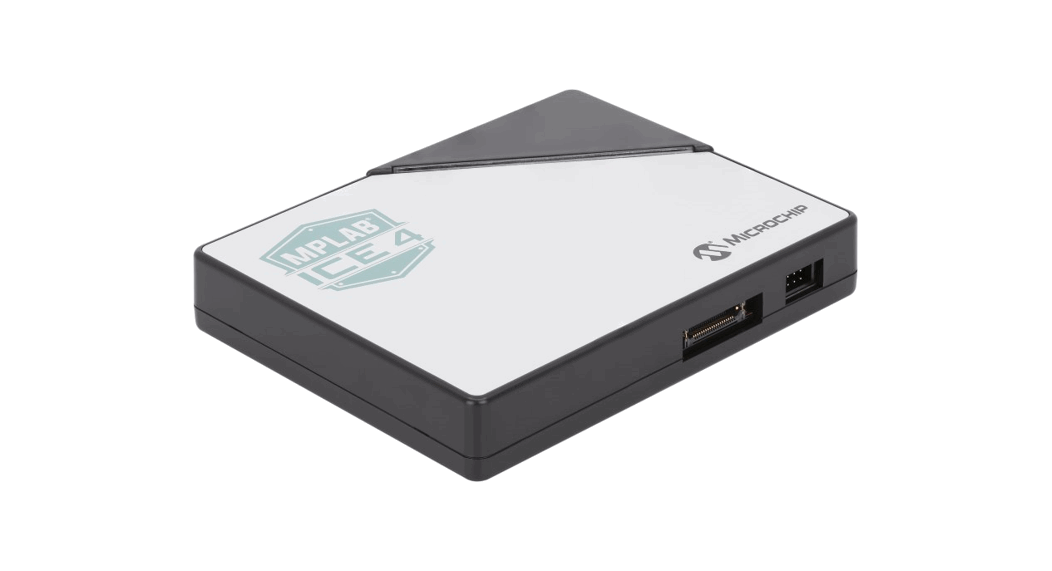
 MPLAB ICE 4 In Circuit Emulator
User Guide
Install the Latest Software
Download the MPLAB X IDE software from www.microchip.com/mplabx and install onto your computer. The installer automatically loads the USB drivers. Launch MPLAB X IDE.
Connect to Target Device
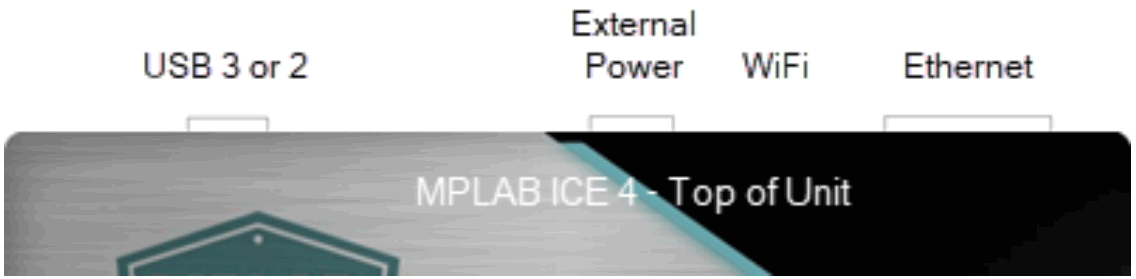
- Connect the MPLAB ICE 4 to the computer using
a USB cable. - Connect external power to the emulator. Connect external power* to the target board if not using emulator power.
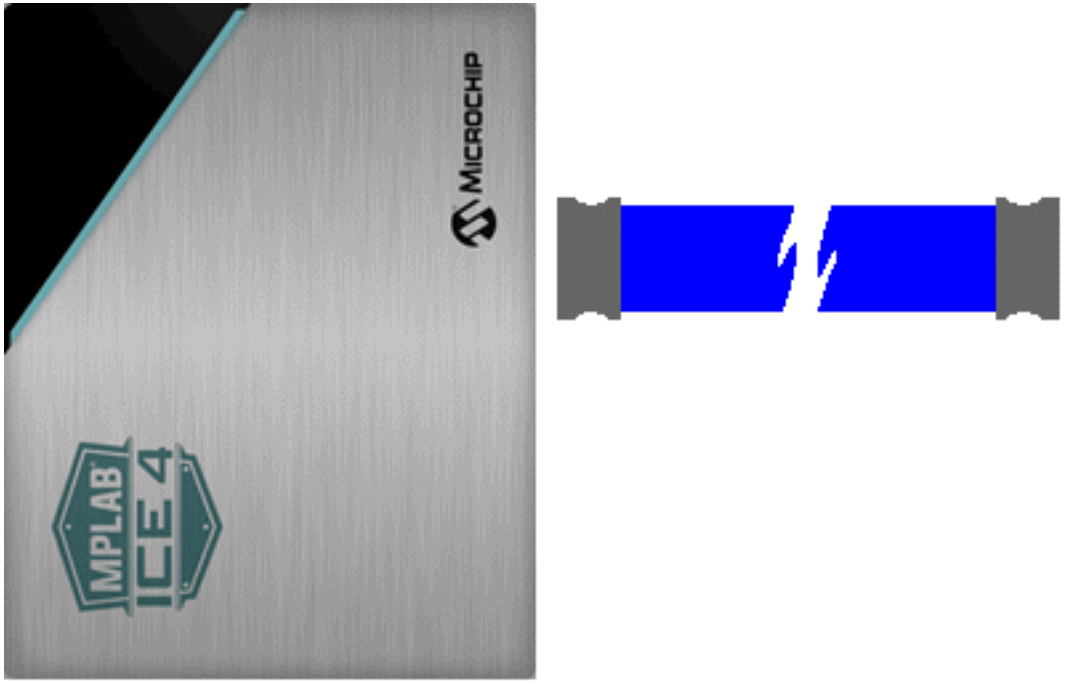
- Connect one end of the 40-pin debug cable into the emulator. Connect the other end to your target or optional adapter board.
Computer Connections
Target Connections
Setup Wi-Fi or Ethernet
To configure MPLAB ICE 4 for Wi-Fi or Ethernet, go to Project Properties>Manage Network Tools in MPLAB X IDE. 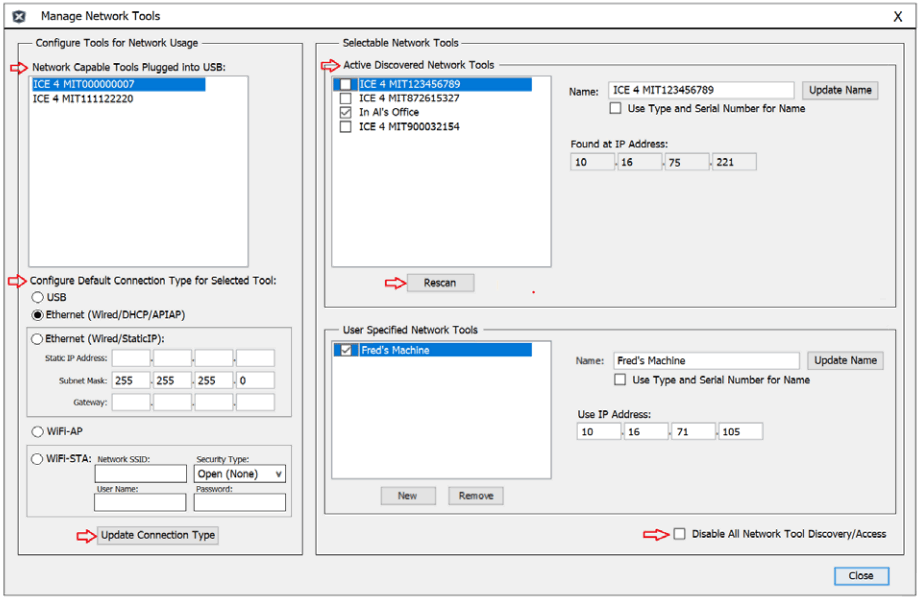
Use the following steps to set up your selected computer connection.
Ethernet or Wi-Fi Setup and Tool Discovery in MPLAB X IDE
- Connect the emulator to your PC via the USB cable.
- Go to Tools> Manage Network Tools in MPLAB® X IDE.
- Under “Network Capable Tools Plugged into USB”, select your emulator.
Under “Configure Default Connection Type for Selected Tool” select the radio button for the connection you want. - Ethernet (Wired/StaticIP): Input Static IP Address, Subnet Mask and Gateway.
Wi-Fi® STA: Input SSID, Security type and password, depending on the security type of your home/office router.
Click Update Connection Type. - Unplug the USB cable from your emulator unit.
- The emulator will restart automatically and come up in the connection mode you selected. Then either:
All Except Wi-Fi AP: The LEDs will display for either a successful network connection or a network connection failure/error.
Wi-Fi AP: The normal Wi-Fi scanning process of Windows OS / macOS / Linux OS will scan for available Wi-Fi networks on your PC. Find the tool with SSID “ICE4_MTIxxxxxxxxx” (where xxxxxxxxx is your tool unique serial number), and use the password “microchip” to connect to it.
Now go back to the “Manage Network Tools” dialog and click on the Scan button, which will list your emulator under “Active Discovered Network Tools”. Select the checkbox for your tool and close the dialog. - Wi-Fi AP: On Windows 10 computers, you may see the message “No Internet, Secured” and yet the button will say “Disconnect” showing that there is a connection. This message means that the emulator is connected as a router/AP but not by direct connection (Ethernet.)
- If your emulator is not found under “Active Discovered Network Tools”, you can manually enter information in the “User Specified Network Tools” section. You must know the IP address of the tool (by the way of network admin or static IP assignment.)
Connect to a Target
See the table below for the pin-out of the 40-pin connector on your target. It is recommended that you connect your target to the MPLAB ICE 4 using the high-speed 40-pin cable for best debug performance. However, you may use one of the legacy adapters provided in the MPLAB ICE 4 kit between the cable and an existing target, but this will likely degrade performance.
Additional Information
40-Pin Connector on Target
| Pin | Description | Function(s) |
| 1 | CS- A | Power Monitor |
| 2 | CS- B | Power Monitor |
| 3 | UTIL SDA | Reserved |
| 4 | DGI SPI nCS | DGI SPI nCS,PORT6, TRIG6 |
| 5 | DGI SPI MOSI | DGI SPI MOSI, SPI DATA, PORT5, TRIG5 |
| 6 | 3V3 | Reserved |
| 7 | DGI GPIO3 | DGI GPIO3, PORT3, TRIG3 |
| 8 | DGI GPIO2 | DGI GPIO2, PORT2, TRIG2 |
| 9 | DGI GPIO1 | DGI GPIO1, PORT1, TRIG1 |
| 10 | DGI GPIO0 | DGI GPIO0, PORT0, TRIG0 |
| 11 | 5V0 | Reserved |
| 12 | DGI VCP RXD | DGI RXD, CICD RXD, VCD RXD |
| 13 | DGI VCP TXD | DGI TXD, CICD TXD, VCD TXD |
| 14 | DGI I2C SDA | DGI I2C SDA |
| 15 | DGI I2C SCL | DGI I2C SCL |
| 16 | TVDD PWR | TVDD PWR |
| 17 | TDI IO | TDI IO, TDI, MOSI |
| 18 | TPGC IO | TPGC IO, TPGC, SWCLK, TCK, SCK |
| 19 | TVPP IO | TVPP/MCLR, nMCLR, RST |
| 20 | TVDD PWR | TVDD PWR |
| 21 | CS+ A | Power Monitor |
| 22 | CS+ B | Power Monitor |
| 23 | UTIL SCL | Reserved |
| 24 | DGI SPI SCK | DGI SPI SCK, SPI SCK, PORT7, TRIG7 |
| 25 | DGI SPI MISO | DGI SPI MISO, PORT4, TRIG4 |
| 26 | GND | GND |
| 27 | TRCLK | TRCLK, TRACECLK |
| 28 | GND | GND |
| 29 | TRDAT3 | TRDAT3, TRACEDATA(3) |
| 30 | GND | GND |
| 31 | TRDAT2 | TRDAT2, TRACEDATA(2) |
| 32 | GND | GND |
| 33 | TRDAT1 | TRDAT1, TRACEDATA(1) |
| 34 | GND | GND |
| 35 | TRDAT0 | TRDAT0, TRACEDATA(0) |
| 36 | GND | GND |
| 37 | TMS IO | TMS IO, SWD IO, TMS |
| 38 | TAUX IO | TAUX IO, AUX, DW, RESET |
| 39 | TPGD IO | TPGD IO, TPGD, SWO,TDO, MISO, DAT |
| 40 | TVDD PWR | TVDD PWR |
Create, Build and Run Project
- Refer to the MPLAB X IDE User’s Guide or online help for instructions to install compilers, create or open a project, and configure project properties.
- Consider the recommended settings below for configuration bits.
- To run the project:
 Execute your code in Debug mode
 Execute your code in Non-Debug (release) mode
 Hold a device in Reset after programming
Recommended Settings
| Component | Setting |
| Oscillator | • OSC bits set properly • Running |
| Power | External supply connected |
| WDT | Disabled (device dependent) |
| Code-Protect | Disabled |
| Table Read | Protect Disabled |
| LVP | Disabled |
| BOD | DVDs > BOD DVDs min. |
| Add and As | Must be connected, if applicable |
| Pac/Pad | Proper channel selected, if applicable |
| Programming | DVDs voltage levels meet programming spec |
Note: See MPLAB ICE 4 In-Circuit Emulator online help for more information.
Reserved Resources
For information on reserved resources used by the emulator, see the MPLAB X IDE Help>Release Notes>Reserved Resources
The Microchip name and logo, the Microchip logo, MPLAB and PIC are registered trademarks of Microchip Technology Incorporated in the U.S.A. and other countries. Arm and Cortex are registered trademarks of Arm Limited in the EU and other countries. All other trademarks mentioned herein are property of their respective companies.
© 2022, Microchip Technology Incorporated. All Rights Reserved. 1/22
DS50003240A
 Empowering Innovation | Microchip Technology
 MPLAB® X IDE | Microchip Technology