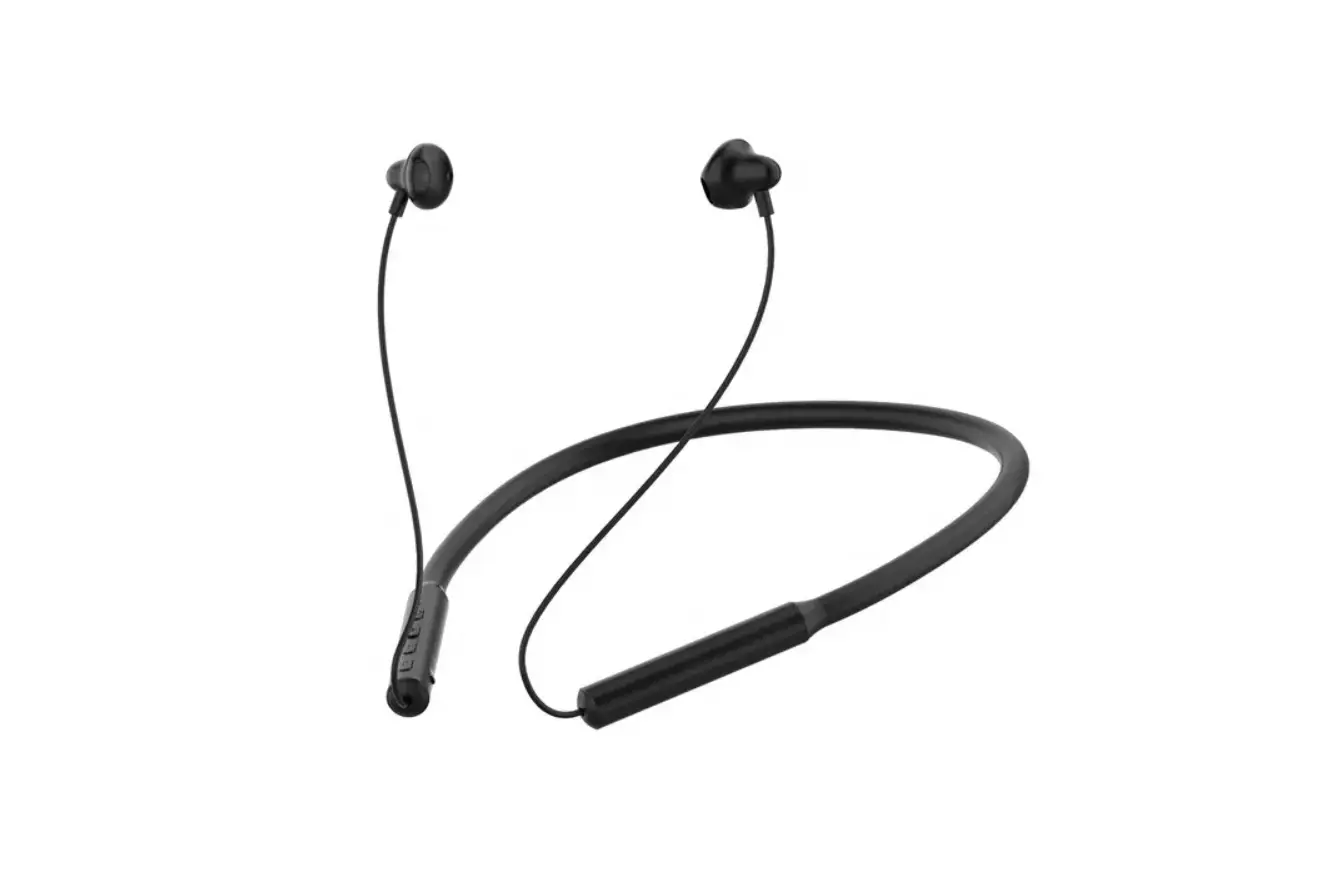
H1 Wireless Headset
Product Information
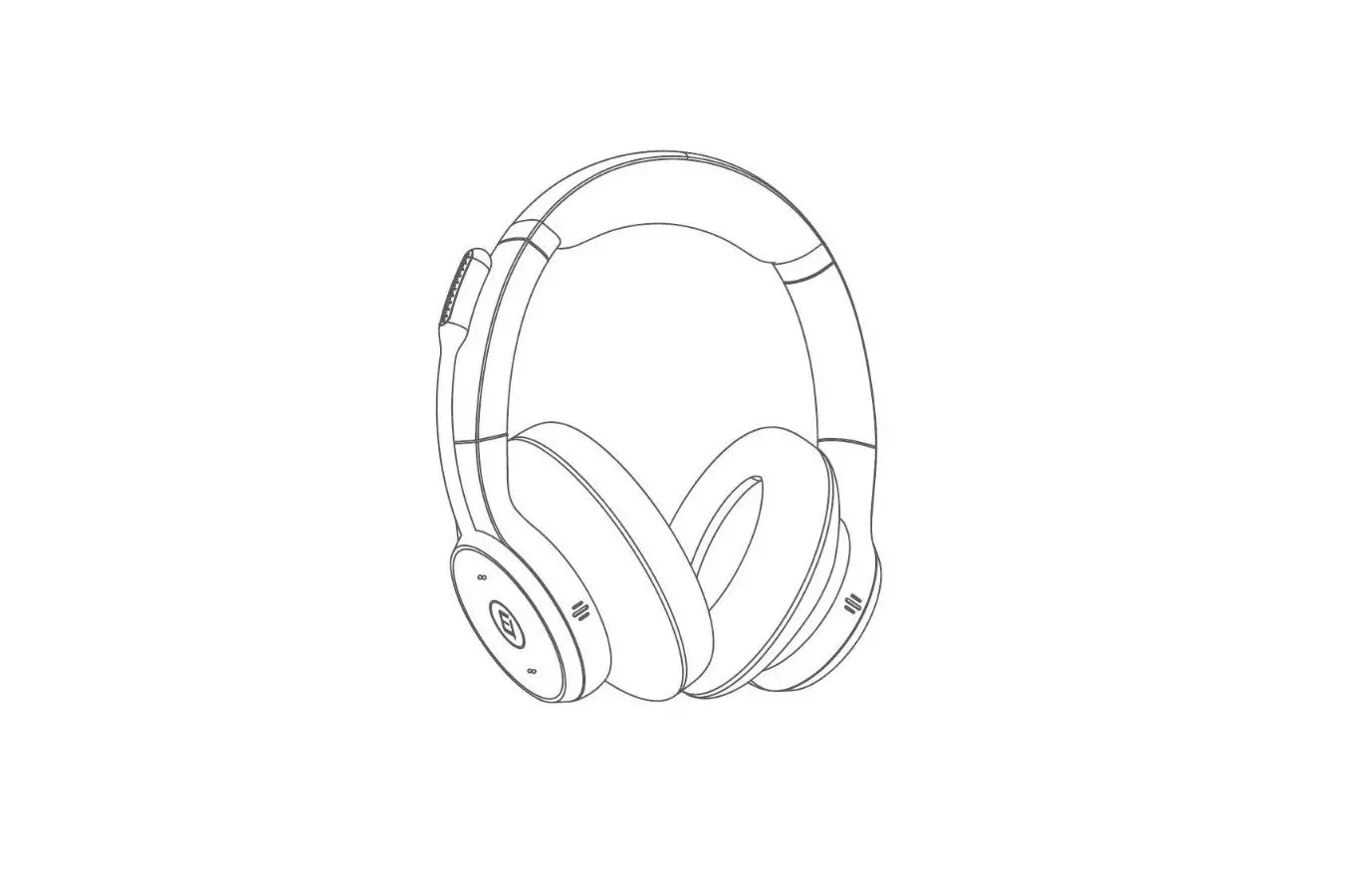
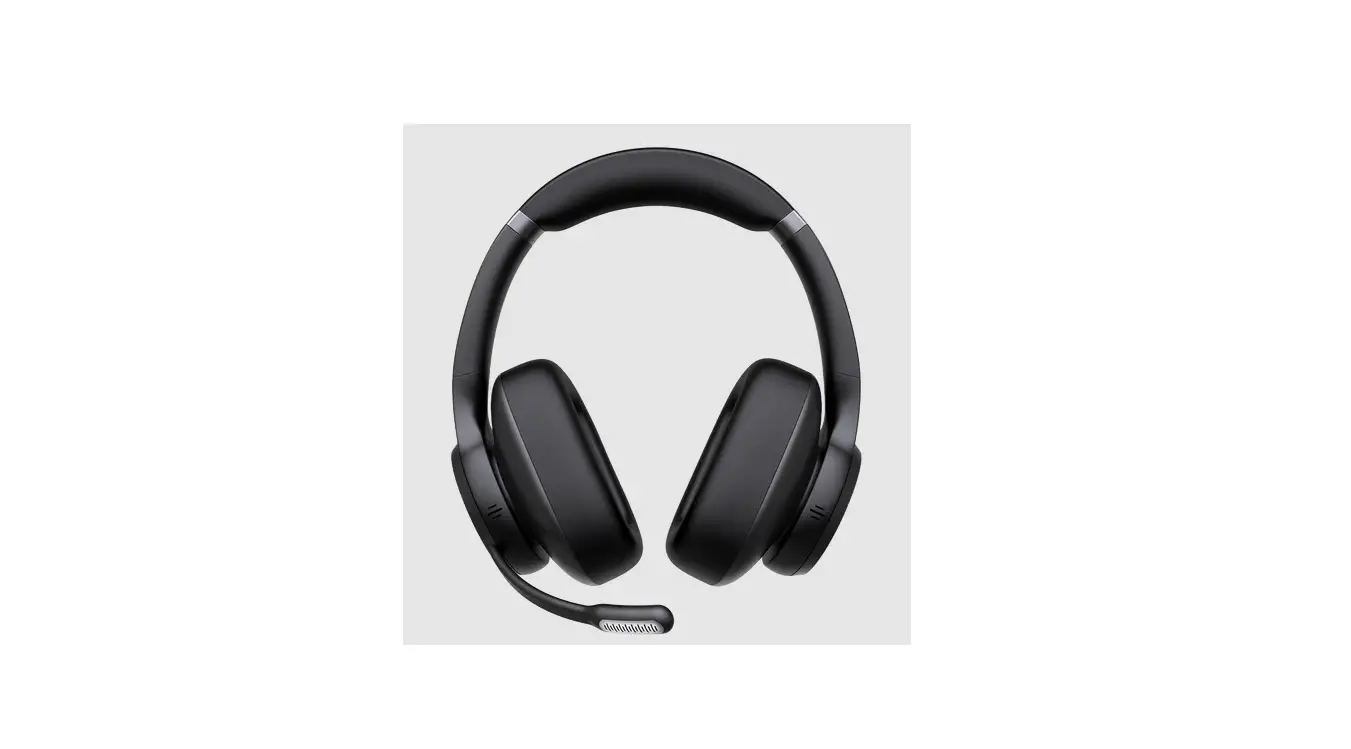
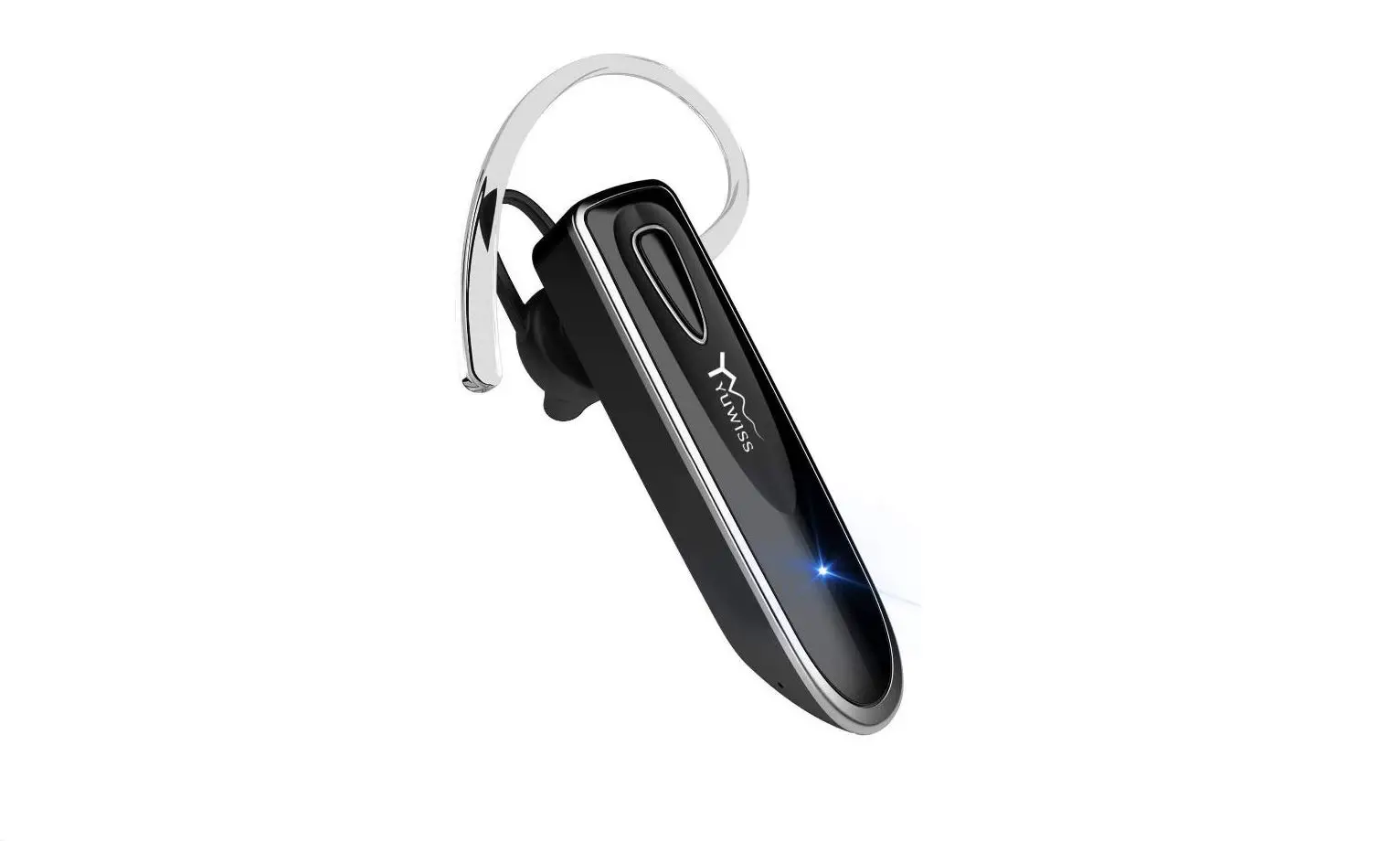
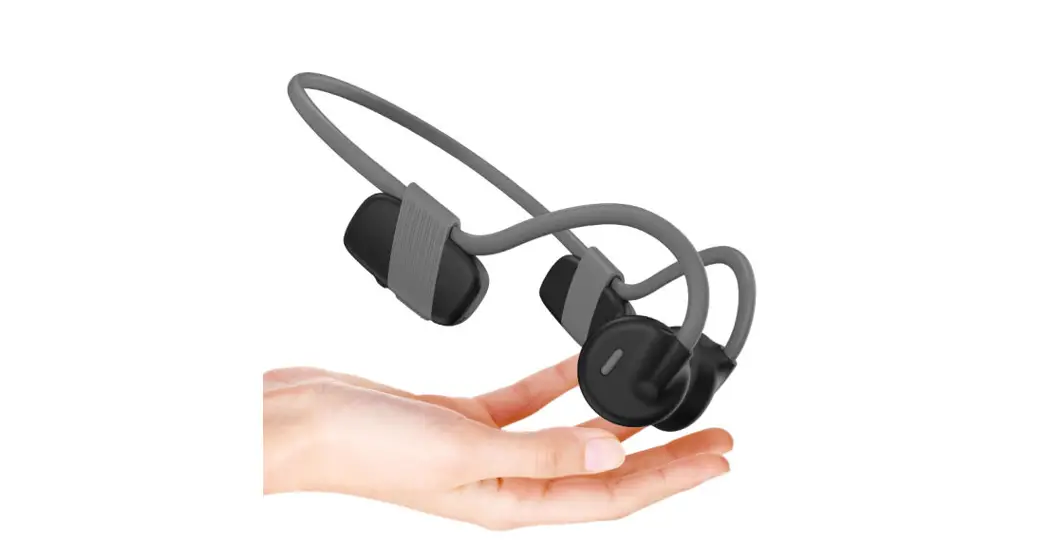
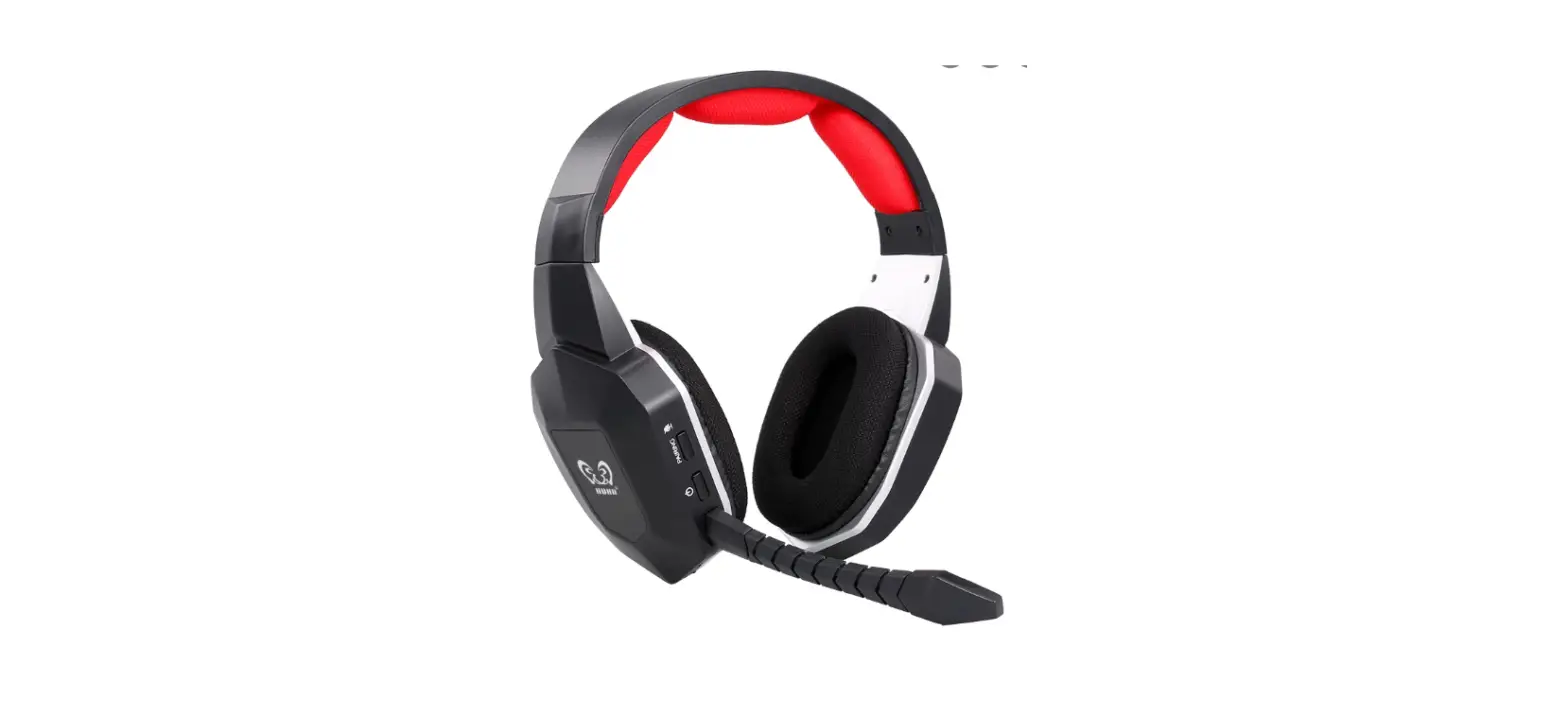
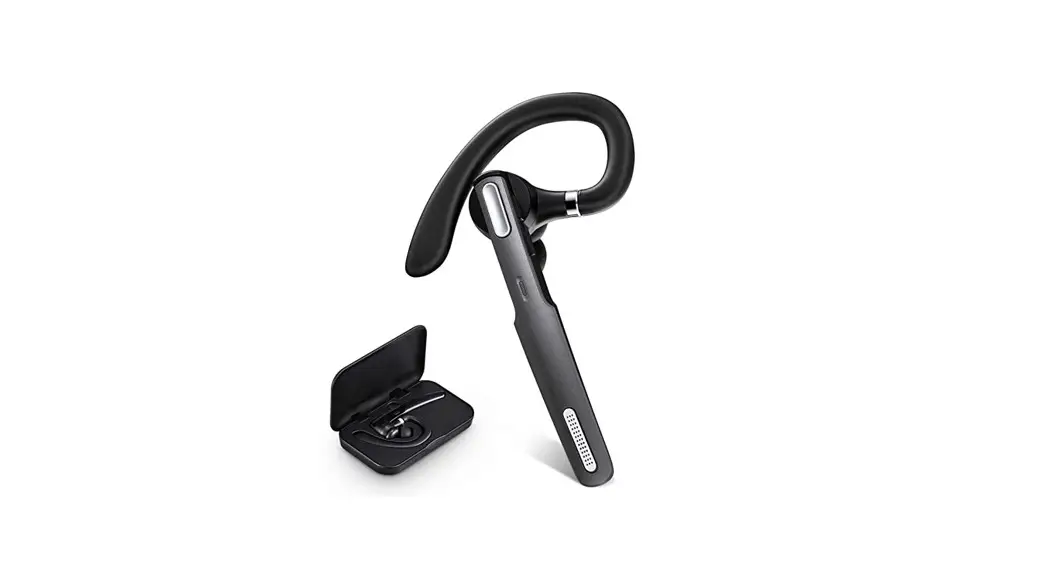
The Wireless Headset Hl is a versatile and user-friendly
wireless headset designed for convenient and high-quality audio
experiences. With its advanced features and comfortable design, it
is suitable for various activities such as making calls, listening
to music, and more.
Key Features:
- Supports A2DP/HFP/HSP/AVRCP protocols for seamless audio
streaming and control - Long battery life of up to 30 hours for continuous usage
- Type-C Charging Cable for convenient charging
- LED Indicator for easy status monitoring
- Voice prompts for clear notifications
- Lightweight and adjustable design for comfortable wearing
- SuperEasy Pairing for quick and hassle-free connections
Product Usage Instructions
What’s in the Box
The package includes the following items:
- Wireless Headset x 1
- Type-C Charging Cable x 1
- User Manual x 1
Basic Operation
The headset offers various functions that can be controlled
using the buttons on the device:
- Power On: Press and hold the C) button.
- Answer/End a Call: Press the . button.
- Volume Up: Long press the + button.
- Power Off: Press and hold the … button.
- Hang Up a Call: Press the -> button.
- Volume Down: Press the , button.
- Mute On/Off: Press the II button.
- Play/Pause: Press the :2 button.
- Reject a Call: Single click the + button.
- Next Track: Single click the -s- button.
LED Indicator
The LED indicator provides visual cues for different headset
states:
- Power On: LED flashes green for 1s
- Power Off: LED flashes red for 1s then turns
off - Pairing Mode: LED flashes green and red
alternately - Connected: Green and red LED lights off
- Charging Status: Red light on
- Charging Complete: Red light off, green light
on - Low Battery: Red light on with a voice
prompt - Reset: LED flashes green and red alternately
for 2 seconds
SuperEasy Pairing
To pair the headset with a device:
- Turn on the headset to enter pairing mode.
- On your device, go to Settings > Bluetooth & other
devices > Add Bluetooth or other device. - Select Bluetooth and click on the model number [Hl] of your
device. A window will pop up indicating the Bluetooth connection is
complete. You will hear “Your headset is connected” at the same
time. - Right-click the Speakers icon at the bottom right, then click
Open Sound settings. - Select [Hl] as your default output device (Speaker).
- Select [Hl] as your default input device (Microphone).
- Make sure that Hl has been selected as both the default output
and default input device. Then close Settings.
Note: The specific steps may vary depending on your device
and operating system.
Pairing with a Computer
If you are pairing the headset with a computer, follow these
additional steps to ensure proper sound settings:
- Make sure the headset is successfully paired with the
computer. - Right-click the Speakers icon at the bottom right, then click
Open Sound settings. - Select [Hl] as your default output device (Speaker).
- Select [Hl] as your default input device (Microphone).
- Make sure that Hl has been selected as both the default output
and default input device. Then close Settings.
Note: These steps are specifically for avoiding sound issues
when using conferencing platforms like Zoom or Teams.
WIRELESS HEADSET Hl
USER MANUAL
After-sale Email: [email protected] Official Website: www.gixxted.com
-1-
Contents: 1. What’s in the Box——————————— 3 2 Product Overv,ew———————————4 3. Basic Operation———————————–5 4. LED Indicator————————————–6 5. Basic Speccations——————————-6 6. Wearing on the Left or Right———————7 7. Super Easy Pairing——————————–7 8. Super Easy Pairing ——————————-8 9. Super Easy Pairing ——————————-9 10. Pairing with 2 Devices Simultaneously——–10 11. Charging—————————————-10
What’s in the Box
Product Overview
Basic Operation
Wireless Headset
Type-C Charging Cable
User Manual
Package Contents: A. Wireless Headset x 1 B. Type-C Charging Cable x 1 C. User Manual x 1
@ o © @
©
G)Multi-Function Button ®Volume-/Next Track Charging Port
-2-
-3-
Volume+/Previous Track @ LED Indicator ®Microphone
-4-
C) : Power on
. : Answer/End a call
– Volume up Previous track Long press
Power off
…, : Hang up a call -> : Volume down
Mute on/off
§:siri
II : Play/Pause
:2 : Reect a call
+
Next track
Single click
-s-
LED Indicator
Power on: LED flashes green for ls Power off: LED flashes red for ls then turns off Pairing mode: LED flashes green & red alternately Connected: Green & red LED lights off Charging status: Red light on Charging complete: Red light off, green light on Low battery: Red light on with a voice prompt Reset: LED flashes green & red alternately 2S
Basic Specifications
Supporting Protocols Time
: A2DP/HFP/HSP/AVRCP : 2-3 hours
30 hours
40 hours
90 days
400mAh
Operating Temperature : -10 — SO”C
·4
Blue/Reen LED light
85*135mm
Voice Prompts
1. When the headset is turned on, there will be a voice prompt: “Power on” 2. When the headset is turned off, there will be a voice prompt: “Power off” 3. After being connected successfully, there will be a voice prompt
” connected”. 4. When disconnected,there will be a voice prompt
“disconnected” -6-
105g
Wearing on the L eft or Right
To switch to your other ear,ust rotate the boom SuperEasy Pairing
1. Turn on the headset,the headset will enter pairing mode
=”
61,e,oo<h
2. Turn on the Bluetooth of your devices
Hl
-m II
and search for the model name “Hl” to connect. When pairing is complete, you will
hear a voice prompt saying ” connected”
-7- I
SuperEasy Pairing
B. How to pair with a computer B-1. How to pair? The headset can pair with the computer without using the dongle (not included in the package)
1. If your computer doesn’t have Bluetooth,first download a universal driver software according to the model of your computer on browser or contact your computer manufacturer. When Bluetooth is installed
successfully,you will have a little gray Bluetooth icon in the bottom right corner of your computer
2. Turn on your computer’s Bluetooth
3. Start with the headset off. Press and hold the MFB button of Hl for
2 seconds, it will turn on and enter pairing mode automatically with red and blue lights flash alternately. Keep the Hl close to the computer so it will be discovered by the computer. You will hear the voice guidance say
“Pairing”
4. On your PC,select Start > Settings > Bluetooth & other devices > Add
Bluetooth or other device > Bluetooth > Click on the model number [Hl] of your device. A window will pop up indicating the Bluetooth connection is complete. You will hear “Your headset is connected” at the same time
S. Right-click the Speakers icon at the bottom right, then click Open Sound
settings
Select [Hl] as your default output device (Speaker)
Select [Hl] as your default input device (Microphone)
make sure that Hl has been selected as both default output and default
input device.Then close Settings
Bluetooth
Connection
Setting
Bluetooth &other devices click on Add Bluetooth orother device
Search & Click (Hl)
Sound
Set (Hl) as default input & output device -8-
SuperEasy Pairing
B. How to pair with a computer B-2. The microphone and the speaker of the headset may be disabled or not set as the default device on your computer. To avoid the problem of having no sound when pairing the headset with your computer:
1. Make sure the headset is pairing with the computer successfully.
2. Please check the sound settings of your PC to make sure sound is played via the correct output and input after the headset is connected with your computer.
Please follow the steps below to set 1. Right-click the Speakers icon at the bottom right,then click Open Sound settings 2. Select [ Hl ] as your default output device (Speaker) 3. Select [ Hl ] as your default input device (Microphone) 4. Make sure that Hl has been selected as both default output and
default input device. Then close Settings
B-3. Zoom & Other meeting Apps settings
To avoid the problem of one side can not hear the voice from the other side when having calls via Zoom, Teams or other conferencing platforms when using it with a computer:
1. Make sure the headset is pairing with the computer successfully. 2. Make sure that [ Hl J has been selected as both default output
and default input device on the sound settings of your PC.
° · · 3. Please check the sound settings of the platforms you are using,
make sure the mic and the speaker are both set to Hl & the
microphone of these conferencing platforms is not muted.
Zoom, Teams o, othe, confmn,;ng platfo,ms
Sett;ng
Aud;o & v;deo Set (Hl) as M;, and Speake,s
C. Reconnect
The headphone has matching records. Hold the MFB button of Hl
for 2 seconds to power on, Hl will automatically enter pairing
mode with red and blue lights flash alternately and will search and
reconnect the last paired device automatically, other devices need
to be connected manually
-9-
Pairing with 2 Devices Simultaneously
— —— —– —– —– – — — —- – —— —–
1. Follow pairing instructions on
Page 7 to pair the 1st Bluetooth
device
2. Turn off the Bluetooth of your
The headset will e
: ::: (j
{(I·: ‘·>))
tr
l))
pairing model 3. Repeat the pairing procedure tq
·,::e:;:,:
om
1st device
5. Turn the headset off and then on to reset The headset will automatically connect to the 2 devices at the same time
Charg_ _i11_9_
NOTE If you connected the headset unsuccessfully or your device can’t findHl, please reset the headset With the charging cable plugged in, press and hold the MFB button for 5 seconds. The LED will alternately flashes green & red 2S. Reset is completed
WARRANTY ¥If you encounter any problems in the use of the product. please feel free to contact us. our professional customer service team will provide you with high-quality solutions Email: [email protected] Facebook: @Gixxted
-10-
FCC Statement This device complies with part 15 of the FCC rules. Operation is subject to the following two conditions: (1) this device may not cause harmful interference, and (2) this device must accept any interference received, including interference that may cause undesired operation.
Changes or modifications not expressly approved by the party responsible for compliance could void the user’s authority to operate the equipment.
NOTE: This equipment has been tested and found to comply with the limits for a Class B digital device, pursuant to part 15 of the FCC Rules. These limits are designed to provide reasonable protection against harmful interference in a residential installation. This equipment generates uses and can radiate radio frequency energy and, if not installed and used in accordance with the instructions, may cause harmful interference to radio communications. However, there is no guarantee that interference will not occur in a particular installation. If this equipment does cause harmful interference to radio or television reception, which can be determined by turning the equipment off and on, the user is encouraged to try to correct the interference by one or more of the following measures: ·Reorient or relocate the receiving antenna. ·Increase the separation between the equipment and receiver. ·Connect the equipment into an outlet on a circuit different from that to which the receiver is connected. ·Consult the dealer or an experienced radio/TV technician for help.
The device has been evaluated to meet general RF exposure requirement. The device can be used in portable exposure condition without restriction.
 Gixxted