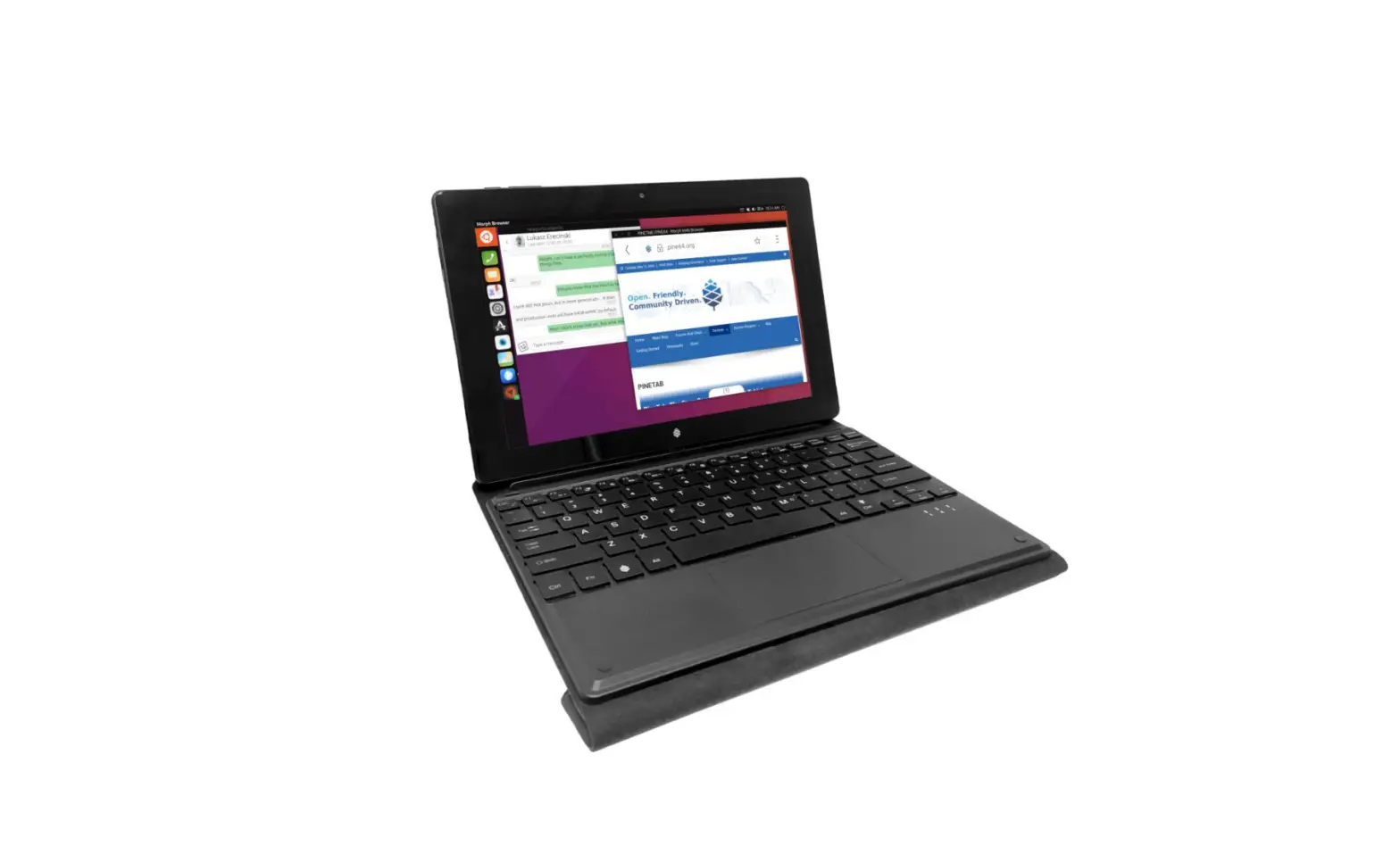
PineTab 2 Built In WiFi Chip
Product Information: PineTab 2
The PineTab 2 is a tablet device that allows you to connect to
the internet using various methods. It comes with a built-in Wi-Fi
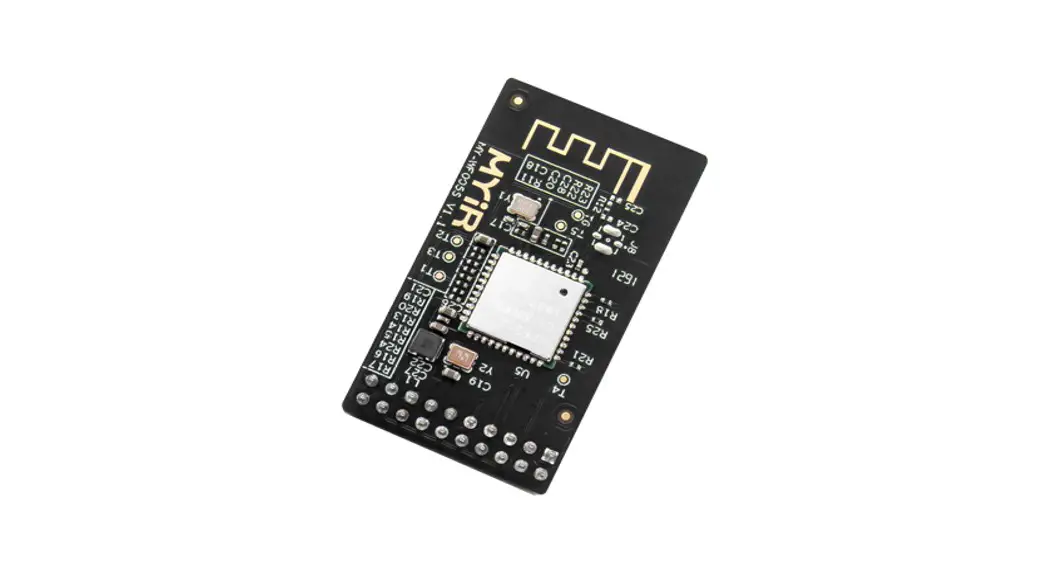
chip (BES2600), although the driver for this chip may not be stable
or functioning properly at the moment. The tablet is compatible
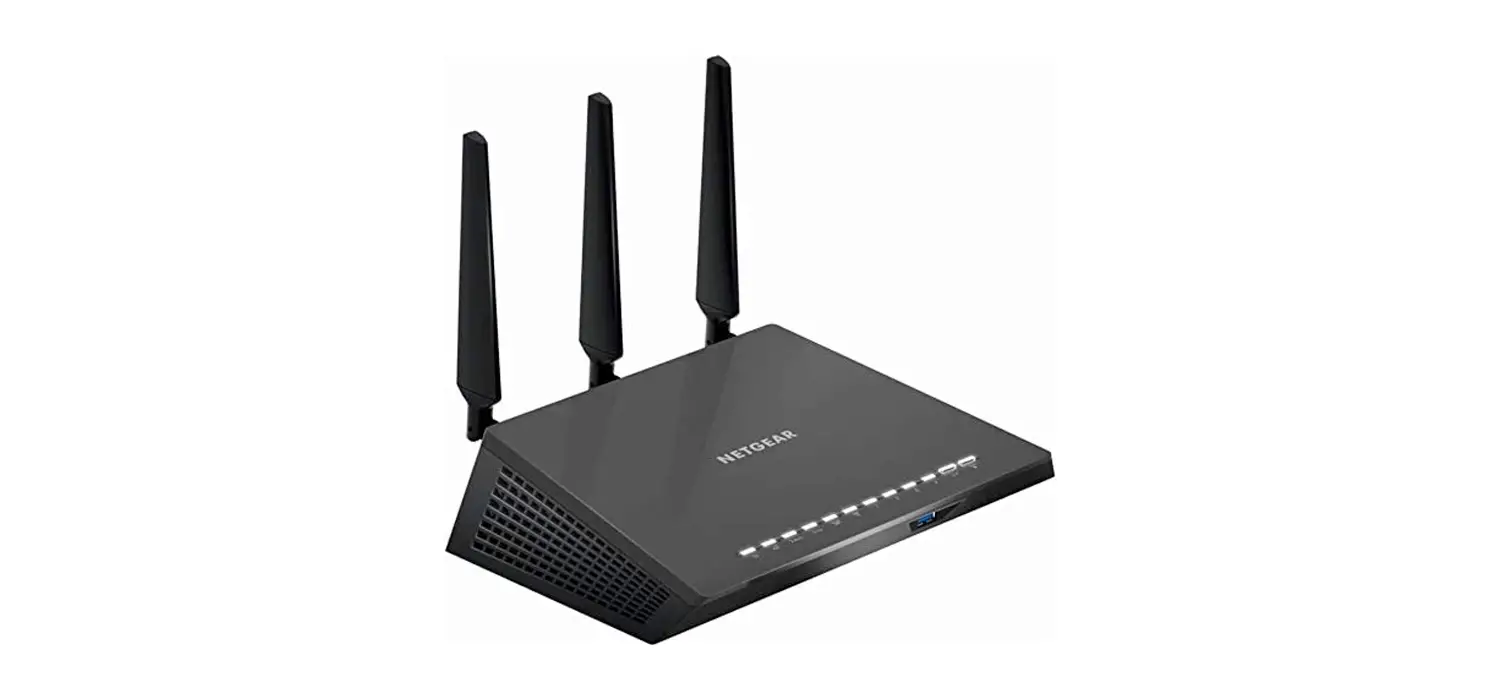
with USB Wi-Fi adapters and USB Ethernet adapters, which can be
used to establish an internet connection. Additionally, you can use
your mobile phone or tablet as a USB Wi-Fi adapter by connecting it
to the PineTab 2 using an OTG adapter.
Please note that when connecting USB adapters, it is important
to plug them into the top USB port of the PineTab 2. The bottom
port is solely for charging and data transfer between the tablet
and a computer.
Compatible USB Wi-Fi Adapters
You can find a list of compatible USB Wi-Fi adapters for the
PineTab 2 here.
It is recommended to avoid multi-state Wi-Fi adapters as they can
be challenging to set up under Linux.
Compatible USB Ethernet Adapters
Most USB Ethernet adapters should work with the PineTab 2,
including the RTL8152 (Fast Ethernet – USB 2.0) and RTL8153
(Gigabit Ethernet – USB 3.0) chipsets. It is advisable to check
reviews and ensure that the Ethernet adapter you purchase is
supported in the mainline Linux kernel.
Using Your Mobile Phone as a USB Wi-Fi Adapter
If you do not have any USB Wi-Fi adapters, you can utilize your
mobile phone or tablet as a USB Wi-Fi adapter. Connect your mobile
device to the PineTab 2’s top USB port using an OTG adapter.
However, please be aware that you may incur additional charges from
your mobile carrier for tethering. Check your mobile plan and
carrier policy regarding tethering before proceeding.
Android:
Different Android user interfaces (e.g., MIUI, OneUI) may have
varying menus and appearances. If you are unsure, it is recommended
to refer to a tethering guide specific to your device’s user
interface. The following instructions are for LineageOS 18.1
(Android 11):
- On your mobile device, open the Settings app.
- Navigate to Network & Internet.
- Navigate to Hotspot & Tethering.
- Tap on USB Tethering.
Your PineTab 2 should now detect a new network device. You can
test the connection by pinging a server or opening a website.
Apple iOS:
Please note that the developer and guide writer does not use an
Apple device. For instructions on how to set up USB tethering on
Apple iOS, you can refer to the support page provided by Apple:
https://support.apple.com/guide/iphone/share-your-internet-connection-iph45447ca6/ios
Copyright and Legal Information
Android is a trademark of Google LLC. Apple is a trademark of
Apple Inc., registered in the U.S. and other countries and regions.
iOS is a trademark or registered trademark of Cisco in the U.S. and
other countries and is used under license. LineageOS is a trademark
of LineageOS LLC. Linux is the registered trademark of Linus
Torvalds in the U.S. and other countries.
Connecting your PineTab 2 to the internet
Currently, the built-in Wi-Fi chip (BES2600) does not have a stable/functioning driver yet. We hope that this situation will change in the future.
For now, there are several ways to connect to the internet on your PineTab 2.
Using a USB Wi-Fi adapter
Most USB Wi-Fi adapter from the list below should work with the kernel shipped with the Linux distro used on PineTab 2.
You can see the list of compatible Wi-Fi adapter here: https://github.com/morrownr/USB-WiFi
It’s recommended to avoid multi-state Wi-Fi adapters as they can be difficult to setup under Linux.
When connecting your USB Wi-Fi adapter, make sure that the USB adapter is plugged on the top port. The bottom port is only for charging and transferring data to computer.
Using a USB Ethernet adapter
Most USB Ethernet adapter should work with the kernel shipped with the Linux distro used on the PineTab 2.
The following Ethernet chipset has been tested: – RTL8152 (Fast Ethernet – USB 2.0) – RTL8153 (Gigabit Ethernet – USB 3.0)
It’s recommended that you check reviews to see if the Ethernet adapter you buy is supported in the mainline Linux kernel.
When connecting your USB Ethernet adapter, make sure that the USB adapter is plugged on the top port. The bottom port is only for charging and transferring data from computer to tablet.
Last Modified: June 1st 2023
1
Using your mobile phone
If you do not own any USB Wi-Fi adapters, but have a mobile/tablet device which can connect to the internet (either via mobile data or Wi-Fi), you can use that as a USB Wi-Fi adapter!
You are responsible for any extra charge from your mobile carrier for tethering, so be sure to check your mobile plan and/or your mobile carrier policy about tethering.
The following is required for this method: · Mobile device running Android or iOS (other OS can be adapted but this will not be covered in the guide) · USB cable with plug type for your device · USB Type-C OTG adapter (you may not need this if you have a C-C cable, though the person writing this guide hasn’t tested it)
First, connect your mobile phone to the PineTab 2 to the top port using the OTG adapter.
The PineTab 2 has two USB ports. The below port is used for charging and transferring data from computer to tablet, the top port is only for host devices (e.g. flash drives, keyboard, mice, modem).
Android:
Some Android user interface (MIUI, OneUI,…) may have different menu and looks. If you’re unsure, then it’s recommended to look for a tethering guide for your specific UI.
The following instructions are for LineageOS 18.1 (Android 11): 1. On your mobile device, open the “Settings” app. 2. Navigate to “Network & Internet” 3. Navigate to “Hotspot & Tethering” 4. Tap on “USB Tethering”
Your PineTab 2 should now see a new network device, you can try to ping a server or open a website to see if the tablet can establish a connection.
Apple iOS:
The developer and guide writer does not use an Apple device. However, you can learn more on how to set up USB tethering from Apple’s support page:
https://support.apple.com/guide/iphone/share-your-internet-connection-iph45447ca6/ios
Last Modified: June 1st 2023
2
Copyright and legal stuff
Android is a trademark of Google LLC. Apple is a trademark of Apple Inc., registered in the U.S. and other countries and regions. IOS is a trademark or registered trademark of Cisco in the U.S. and other countries and is used under license. LineageOS is a trademark of LineageOS LLC. Linux is the registered trademark of Linus Torvalds in the U.S. and other countries.
This document is written by the Pine64 community and is licensed under GNU Free Documentation License v1.3 or later: https://www.gnu.org/licenses/fdl-1.3.en.html
Last Modified: June 1st 2023
3
 GitHub - morrownr/USB-WiFi: USB WiFi Adapter Information for Linux
 Share your internet connection from iPhone - Apple Support
 GNU Free Documentation License v1.3 - GNU Project - Free Software Foundation