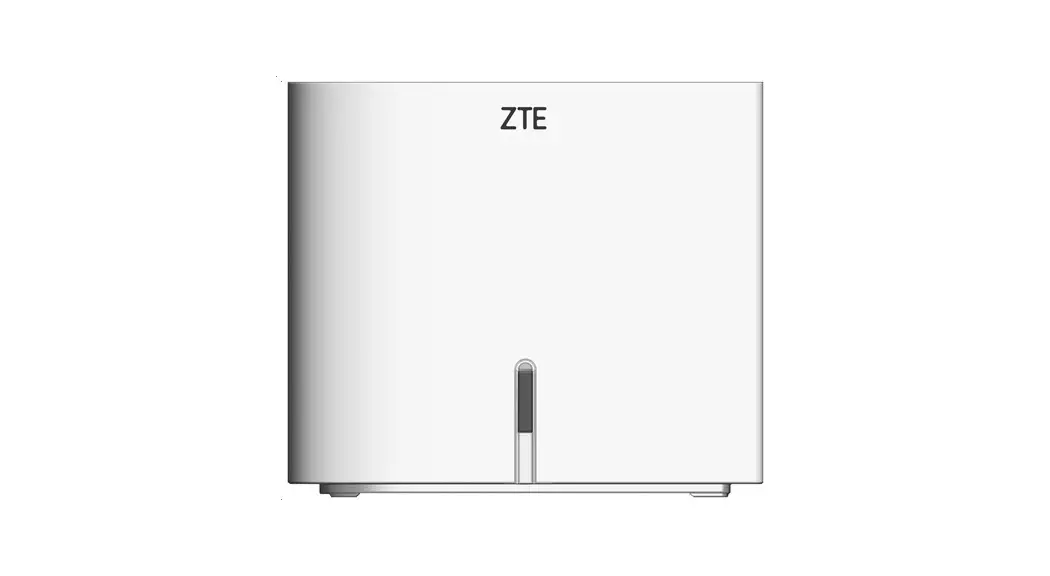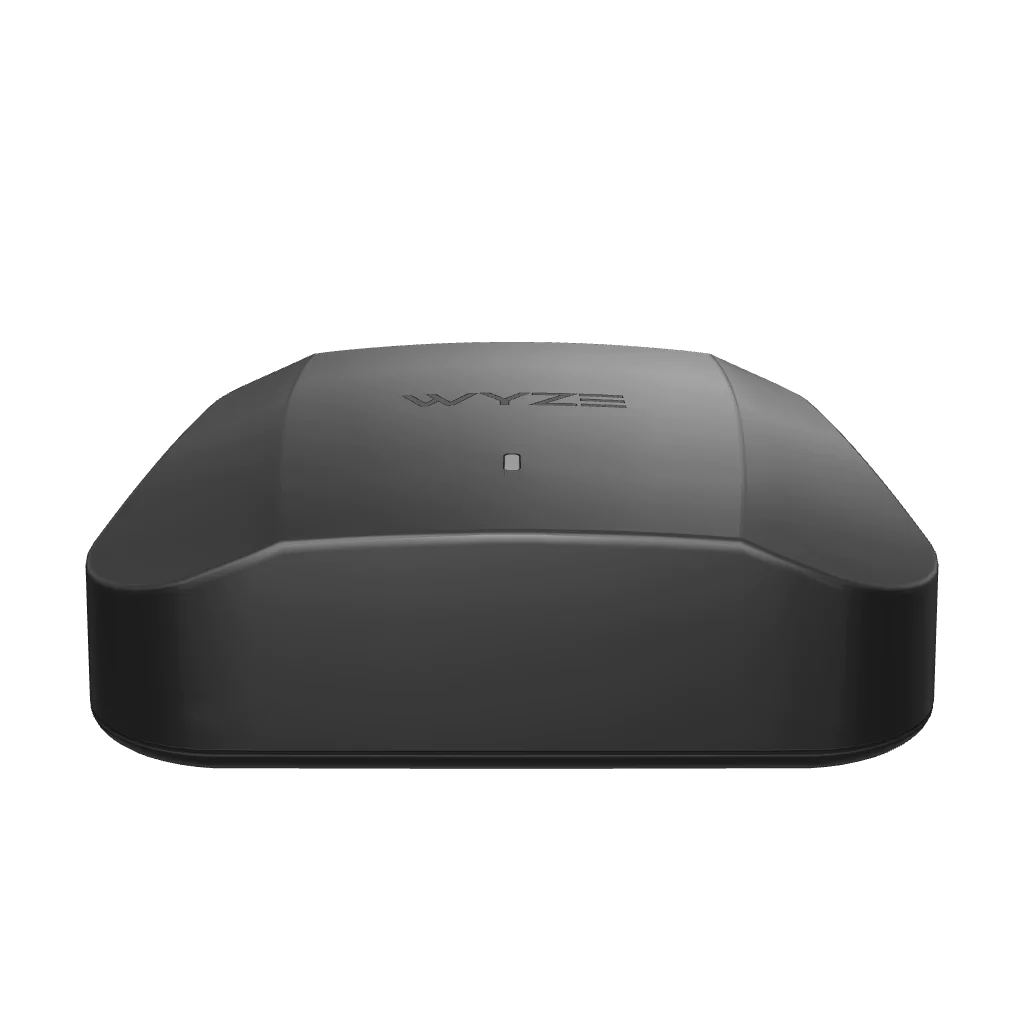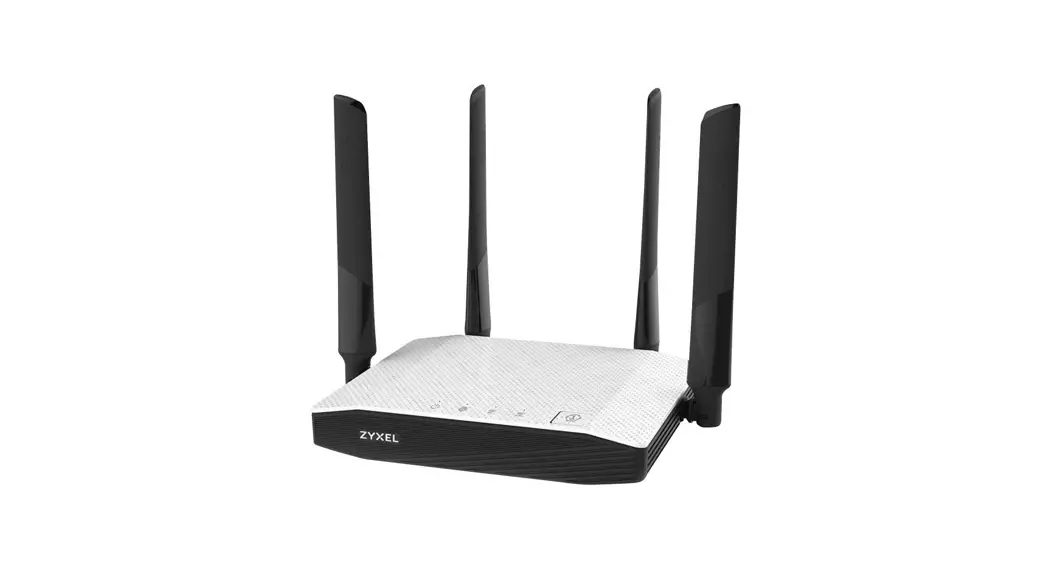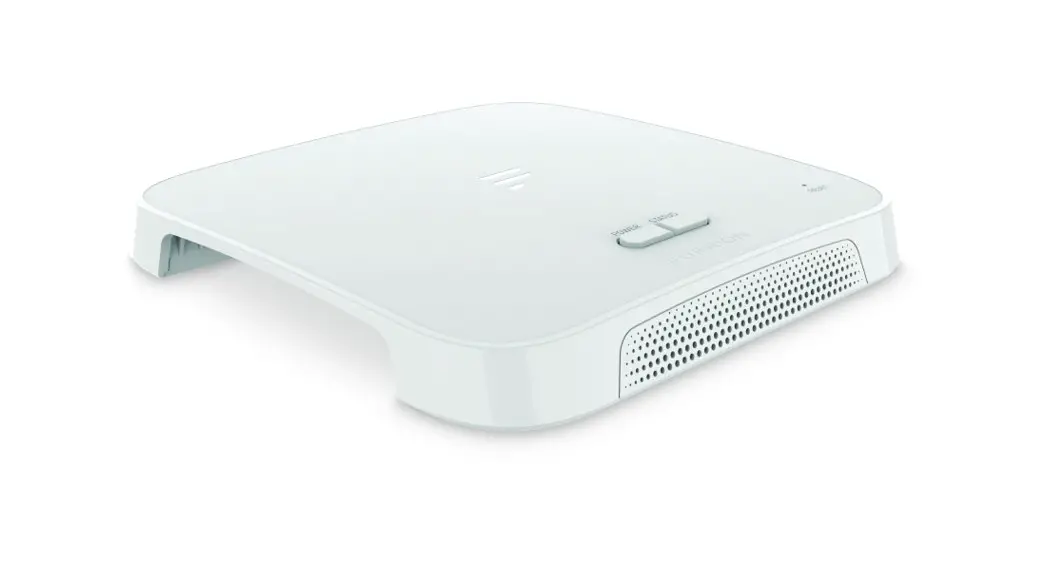

Wi-Fi Router
Routeur Wi-Fi
Enrutador Wi-Fi
Instruction Manual
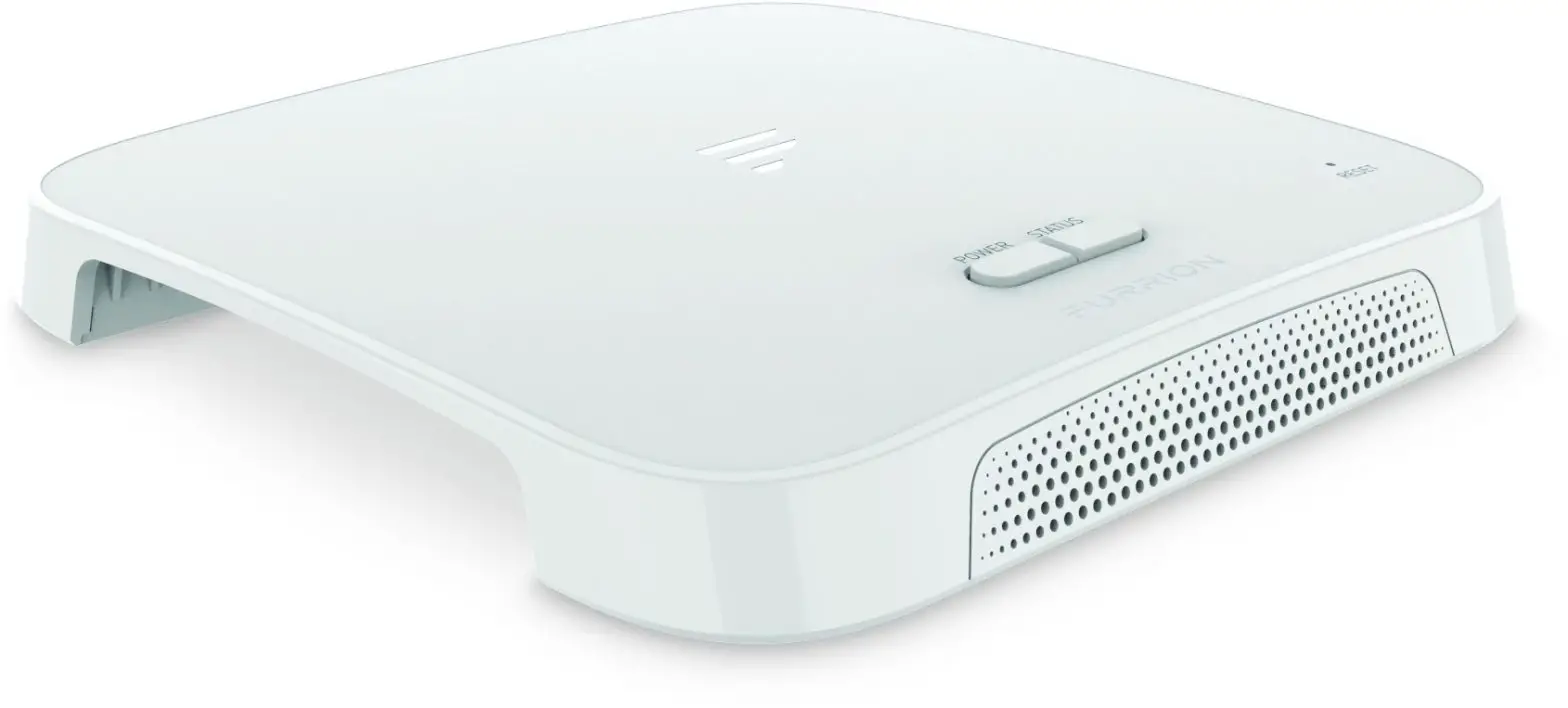 Model: FAN17A82
Welcome
Thank you for purchasing the Furrion ® Wi-Fi Router. Before operating your new product, please read these instructions carefully. This will ensure safe use and reduce the risk of injury. This instruction manual contains information for installation, maintenance of the product, and safe use.
Please keep this instruction manual in a safe place for future reference. Be sure to pass on this manual to any new owners of this product.
The manufacturer does not accept responsibility for any damages due to not observing these instructions.
If you have any questions regarding our products, please contact us at: [email protected]
About your Product
Furrion Wi-Fi Router supports such popular operating systems as Windows, Linux, and mac, and smart devices like iOS and Android are compatible with this product too.
Please read this manual before using Furrion Wi-Fi Router for the first time.
Product Features
- Slide-in Design – Easy Installation
- Web/APP for configuration
- Auto-detect web login/security check
- WPS supported
FCC Statements
Changes or modifications not expressly approved by the party responsible for compliance could void the user’s authority to operate the equipment.
This equipment has been tested and found to comply with the limits for a Class B digital device, pursuant to Part 15 of the FCC Rules. These limits are designed to provide reasonable protection against harmful interference in a residential installation. This equipment generates, uses, and can radiate radio frequency energy and, if not installed and used in accordance with the instructions, may cause harmful interference to radio communications. However, there is no guarantee that interference will not occur in a particular installation.
If this equipment does cause harmful interference to radio or television reception, which can be determined by turning the equipment off and on, the user is encouraged to try to correct the interference by one or more of the following measures:
− Reorient or relocate the receiving antenna.
− Increase the separation between the equipment and receiver.
− Connect the equipment into an outlet on a circuit different from that to which the receiver is connected.
− Consult the dealer or an experienced radio/TV technician for help.
This equipment complies with FCC radiation exposure limits set forth for an uncontrolled environment. This equipment should be installed and operated with a minimum distance 20cm between the radiator and your body. This transmitter must not be co-located or operating in conjunction with any other antenna or transmitter.
IC Statement
This device contains license-exempt transmitter(s)/receiver(s) that comply with Innovation, Science and Economic Development Canada’s license-exempt RSS(s). Operation is subject to the following two conditions: (1) This device may not cause interference. (2) This device must accept any interference, including interference that may cause undesired operation of the device.
This equipment complies with FCC/IC RSS-102 radiation exposure limits set forth for an uncontrolled environment. This equipment should be installed and operated with a minimum distance 20cm between the radiator and your body.
Product Overview
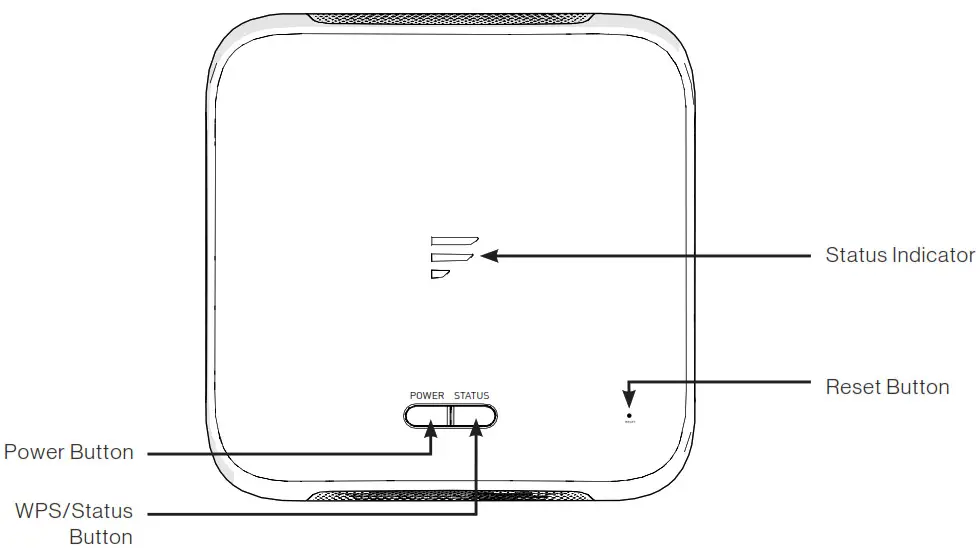
| Button/ Indicator | Description | |
| Power Button |
| |
| WPS/Status Button |
| |
| Reset Button |
| |
| Status Indicator | Wi-Fi Network connected and Internet-ready |
|
| No valid Wi-Fi connected or Internet not ready |
| |
Installation
What’s in the box
Make sure you have the following items included in the packaging. If any item is damaged or missing, contact your dealer.
- Wi-Fi Router x 1
- Device Identity Sticker x 1
- Warranty Card x 1
- Instruction Manual x 1
Slide-in the Wi-Fi Router
This Wi-Fi Router is designed for use with a Furrion rooftop antenna only. Refer to the separate Furrion outdoor antenna instruction manual about how to install it onto the RV rooftop.
NOTE: A Furrion Rooftop Antenna with a mounting bracket (sold separately, part#FAN73B7C) should already have been installed on your RV rooftop. If not,
contact your RV dealer or visit www.furrion.com to purchase it.
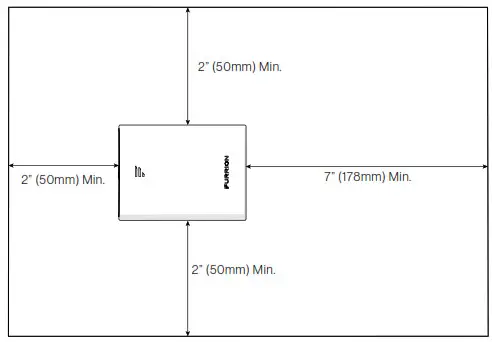
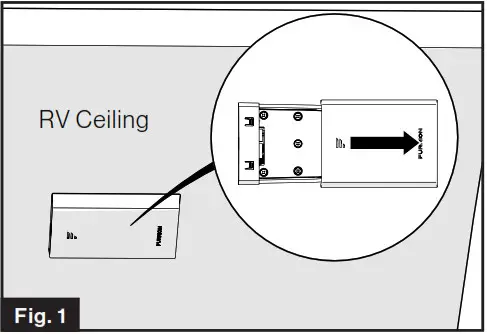
- Pull to remove the cover attached over the existing Ceiling Mount Bracket. (Fig. 1)

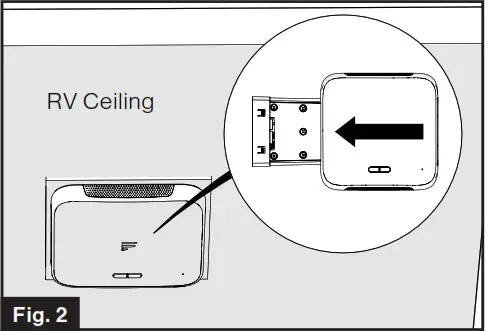
- Slide the Wi-Fi Router into the existing Ceiling Mount Bracket.(Fig. 2)

- Your Wi-Fi Router is now fully installed onto the RV ceiling.
Wi-Fi Router Configuration
Power on Your Wi-Fi Router
Turn on the power connected to the Ceiling Mount Bracket. The Wi-Fi Router will be turned on automatically upon receiving power.
NOTE: You may log in to the Wi-Fi Router and disable the auto power-on feature through the configuration interface. The default setting is Enabled. If the Wi-Fi Router is turned off, press and hold the POWER button on the top for about 4 seconds to turn it on.
Connect to Your Wi-Fi Router for Wi-Fi Configuration
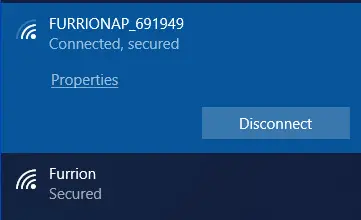
- Scan for wireless networks on your mobile device or laptop. It may take a few minutes for the network to appear.
- Select Local Wi-Fi network with SSID: FURRIONAP_xxxxxx Password: FAxxxxxx The “xxxxxx” in the example above corresponds to the last 6 characters of the unique network ID address. The default password can be found on the SSID/WPA sticker.

- Confirm and join the network.
Log in to the Configuration Interface
The default IP of this Wi-Fi Router is 192.168.0.1 with subnet 255.255.255.0. Make sure the smart device or PC attached to this router is in the same subnet and has an IP address in the range between 192.168.0.2~ 192.168.0.254.
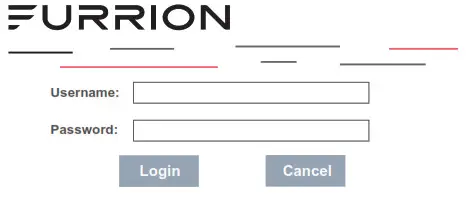
- Launch a web browser and enter
192.168.0.1 in the address bar, then the login window will pop up.
- Enter the default user name: admin and password: admin.

- Click Login.

System Icon Definition
 | Reboot the system. |
 | Click to logout of the system. |
 | Click for quick setup of your system. |
Quick Setup of your Wi-Fi Router
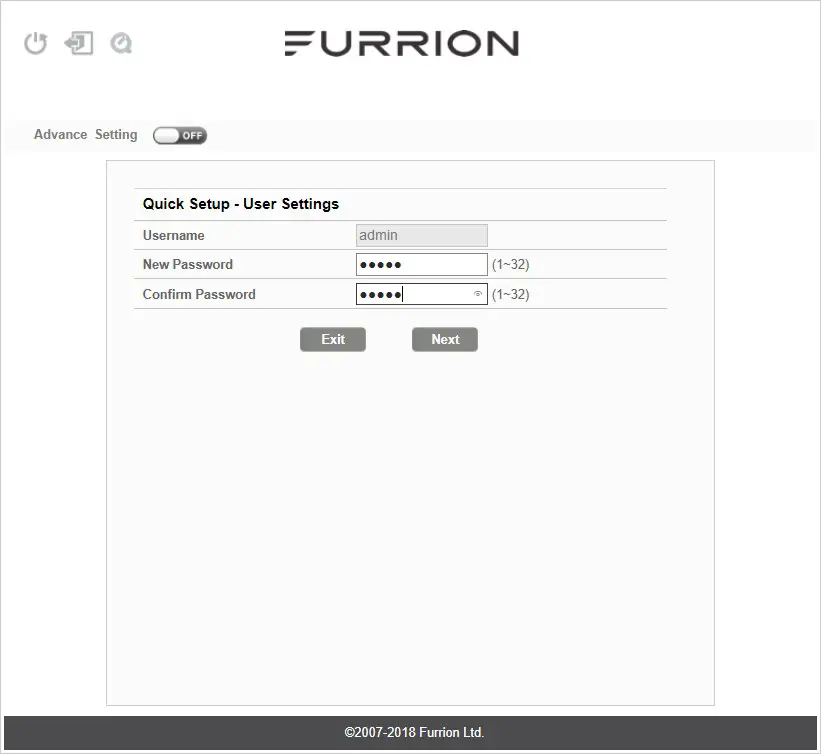
Change Administration Password
After successful login, the following screen will appear and you will be required to setup a new password for the “admin” account for device management.
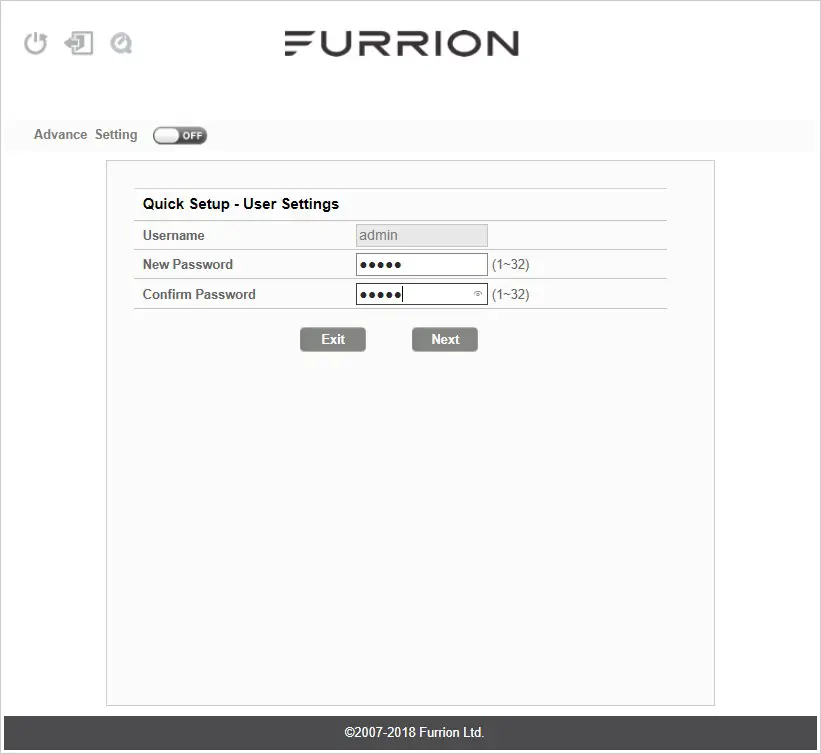
Username: Show the current user name.
New Password: You can enter 1-32 characters as your new password.
Confirm Password: Enter the new password again.
Click Next to go on to the next step.
Connect to an External Wi-Fi Network
The following window will appear, allowing you to select an available AP(Access Point) for Internet access.
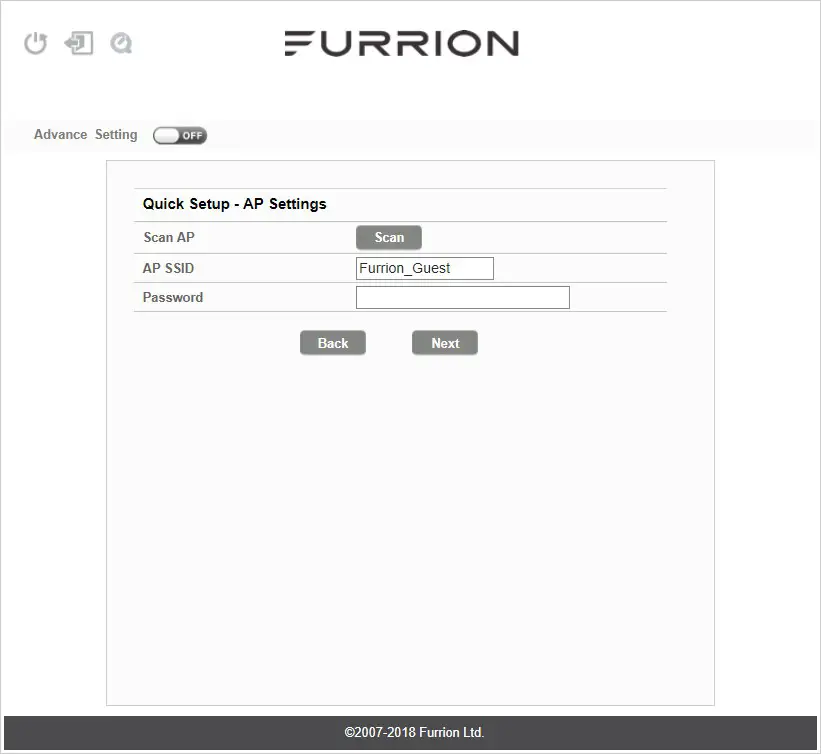
SCAN AP: Click SCAN to scan available APs and the following window will appear:
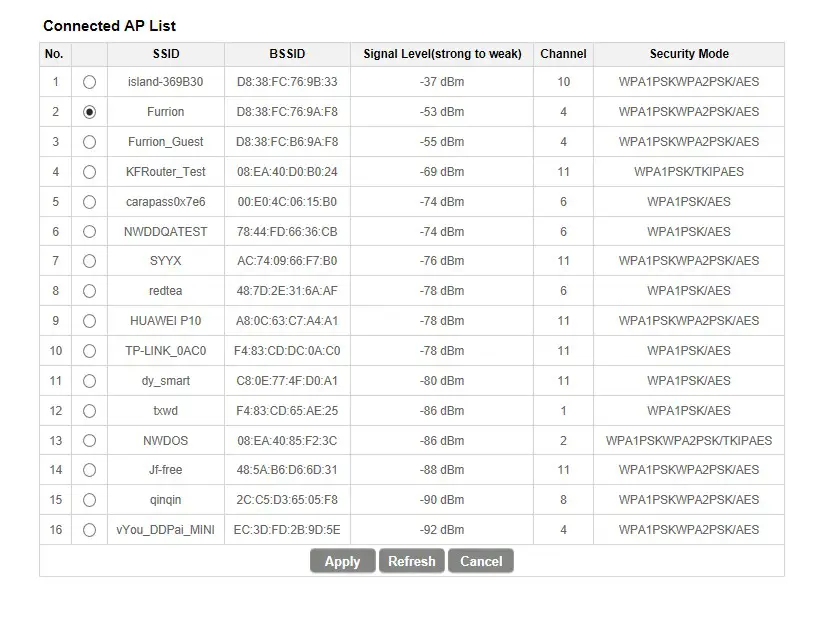 Choose the AP you want to connect from the pop-up window and click Apply to apply the network settings.
AP SSID: The SSID of the scanned and applied AP will appear here. You can also enter an available network SSID here directly.
Password: Enter the password of the selected AP.
Click Next to go on to the next step.
Change Wireless Settings
A new window will pop up, where you can change wireless settings.
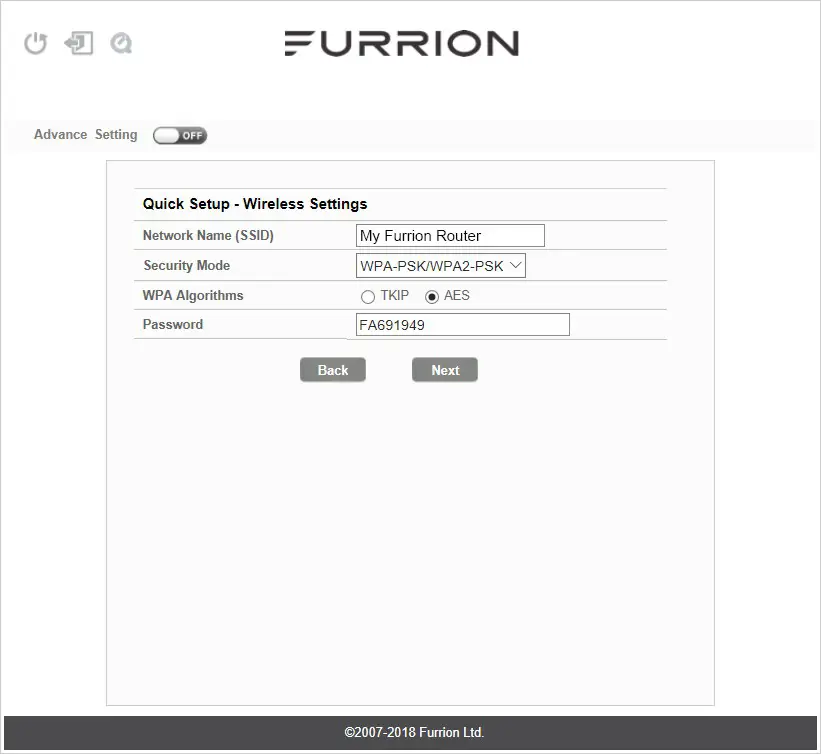 Network Name (SSID): Rename the SSID of the Wi-Fi Router. For example, rename it to My Furrion Router.
NOTE: Make sure that your SSID is unique if there are other wireless networks operating in your area.
Security Mode: Select a security mode: No Encryption, WPA-PSK, WPA2-PSK, or WPA-PSK/WPA2-PSK.
WPA Algorithms: TKIP or AES.
Password: Set the password for Internet access through the Wi-Fi Router.
Click Next to go on to the next step.
Confirm Your Settings
In the pop-up window, click “Finish” to save and finish the quick setup.
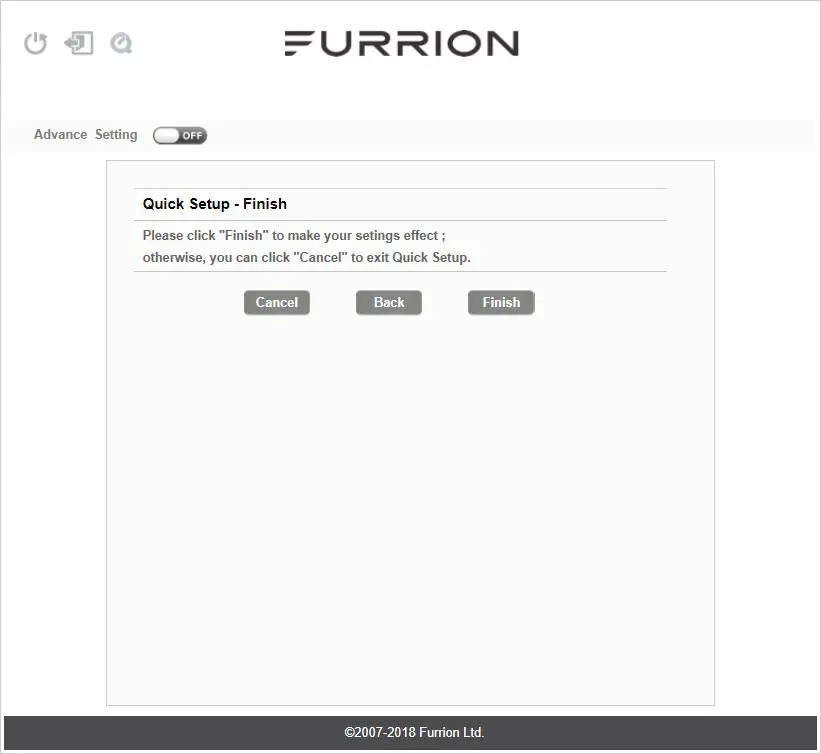
You should now be able to access the Internet after the Wi-Fi Router configuration is finished.
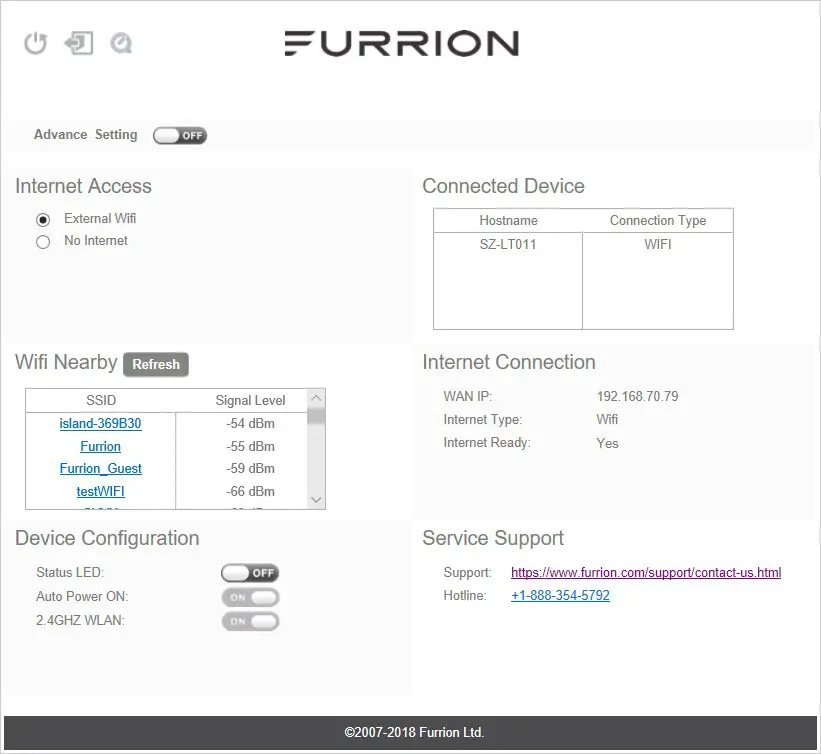
Advance Setting
Click Advanced Setting to activate the advanced setting page, where you can configure advanced settings of WAN, LAN, Wi-Fi, Firewall etc.
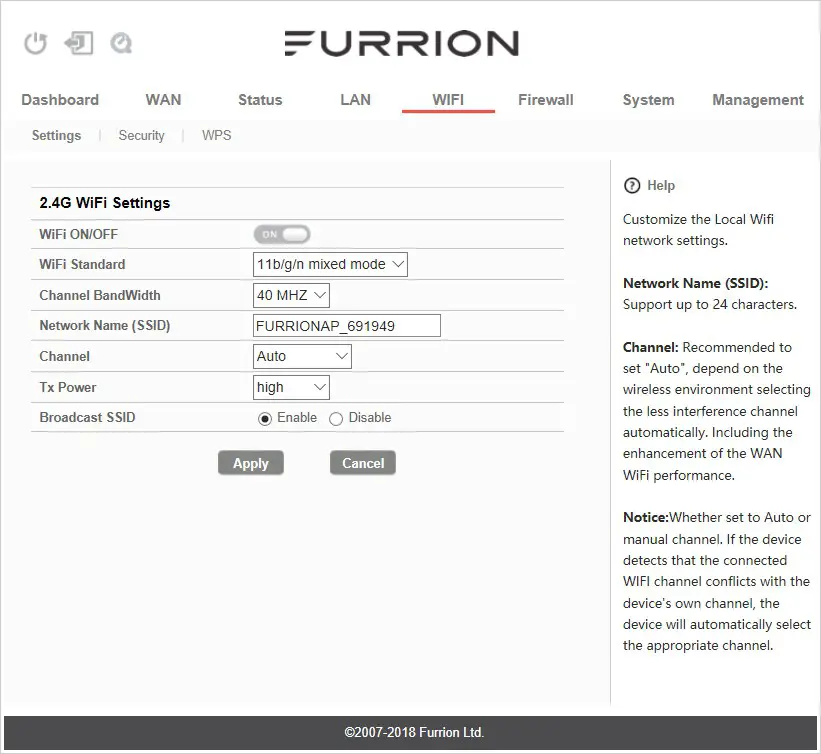
Internet Access through the Wi-Fi Router
Wireless Connection
- Scan for wireless networks on your mobile device or laptop. It may take a few minutes for the network to appear.
- Find the SSID you set for the WiFi Router, for example, My Furrion
Router.
- Confirm for connection to the Wi-Fi
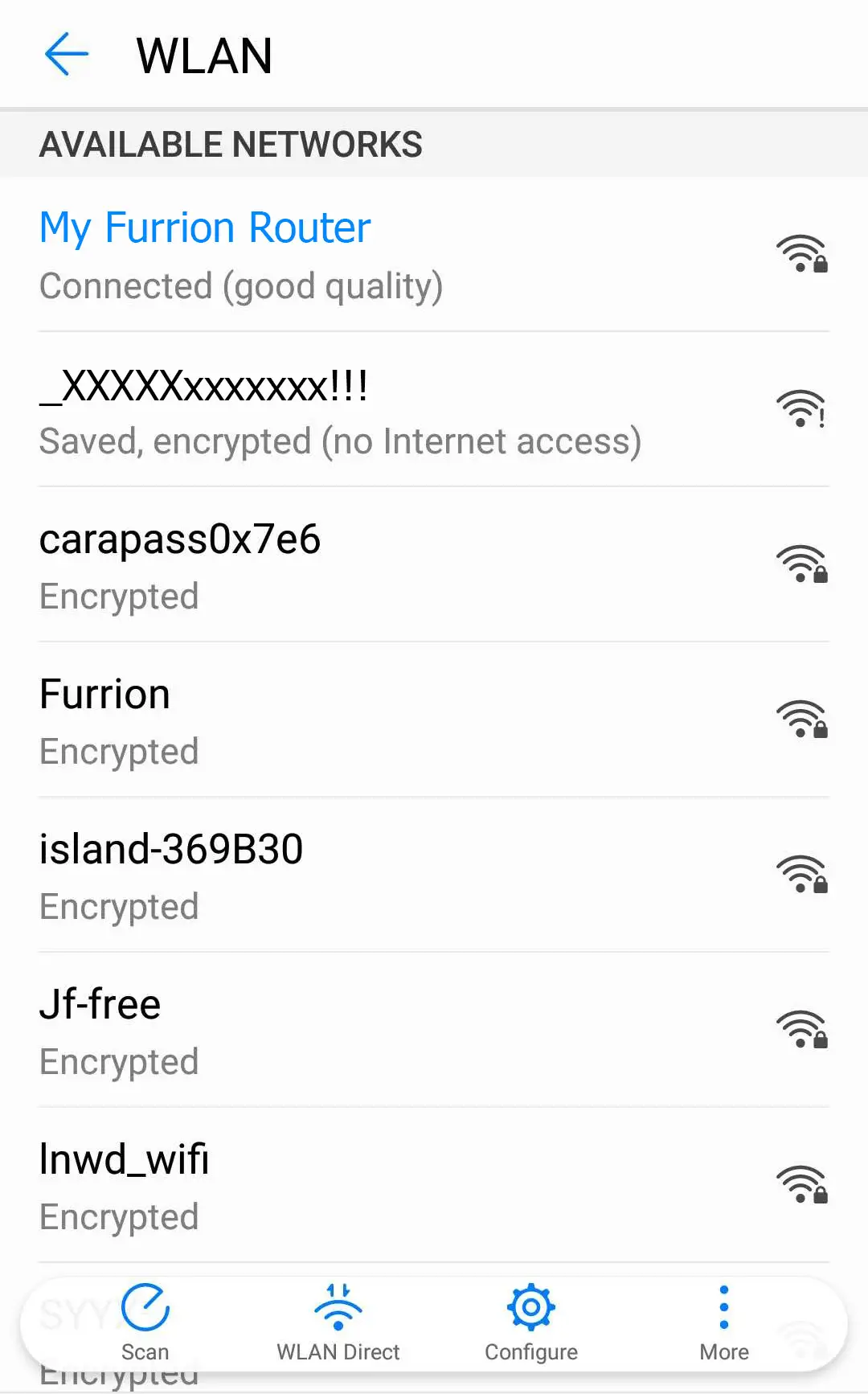
Router.
− Now you can access to the Internet through the Wi-Fi Router.
LAN Connection
For Internet access, you can also connect your device (such as a laptop or smart TV) to the LAN socket available on the Ceiling Mount Bracket.
Maintenance
Power off or Reboot Your Wi-Fi Router
Note: Be careful the Wi-Fi Router might be hot after operating for a long time.
You can power off or reboot it when necessary.
To power off:
● Press and hold the POWER button on top of the Wi-Fi Router for about 4 seconds. The Network Status LED will flash and then turn off.
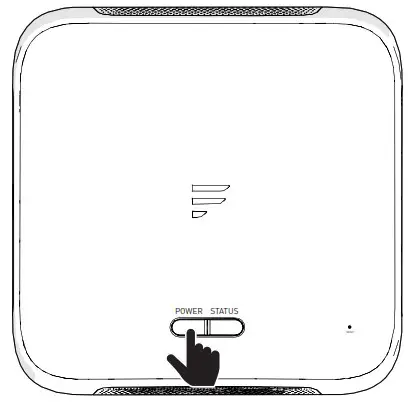
NOTE: It is recommended to wait 30 seconds before turning on the Wi-Fi Router after it is powered off.
To reboot:
● Log in to the configuration interface (see “Login” section about how to login), then click the button.
 ● Or briefly press the RESET button with a pointed object.
Reset your Wi-Fi Router
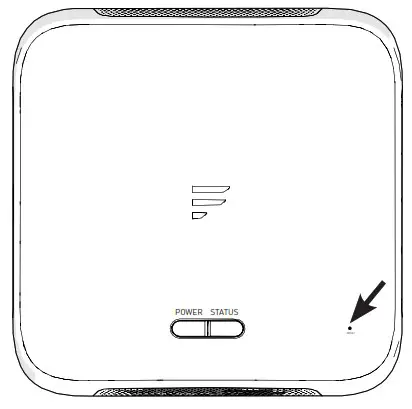
To restore the Wi-Fi Router to the factory default settings press and hold the RESET button using a pointed object for about 10 seconds then release. The LED will flash 3 times then disappear.
Specifications
Technical Specifications
| OPERATING CONDITIONS | |
| FREQUENCY RANGE (WI-FI) | 2412MHz to 2462MHz (802.11b/g/n (HT20)) 2422MHz to 2452MHz (802.11n (HT40) |
| SUPPORTED SYSTEMS | Wi-Fi (LAN): 802.11b/g/n |
| ANTENNA GAIN | |
| INTERNAL LAN WI-FI | 2dBi |
| INTERNAL GPS/GLONASS | 2dBi |
| TX POWER WI-FI (WAN / LAN) WI-FI ROUTER | 2.4G Wi-Fi: 17.78dBm (max.) |
| POWER RATING | >400ft with >10Mbps throughput |
| OPERATION TEMPERATURE | Typical: 12Vdc @ 500mA, Peak 1A |
Troubleshooting
- None of the LEDs are on when you turn on the router
Make sure you have power to the Ceiling Mount Bracket.
Check the connection between the Ceiling Mount Bracket and the Wi-Fi Router.
If the error persists, you may have a hardware problem. In this case you should contact technical support. - You have forgotten your router login and/or password
Try the default login and password, found in the “Login” section. If this fails, you can restore your router to its factory settings by pressing and holding the Reset button on top of your router with a pointed object for 10 seconds or more. You will be able to use the default login and password after the factory reset. - No access to the Internet
Check the external network access status and Wi-Fi connection.
Warranty
FURRION WARRANTS FOR A PERIOD OF 1 YEAR FROM THE DATE OF RETAIL PURCHASE BY THE ORIGINAL END-USER PURCHASER, THAT THIS RODUCT, WHEN DELIVERED TO YOU IN NEW CONDITION, IN ORIGINAL PACKAGING, FROM A FURRION AUTHORIZED RESELLER AND USED IN NORMAL CONDITIONS, IS FREE FROM ANY DEFECTS IN MANUFACTURING, MATERIALS, AND WORKMANSHIP. IN CASE OF SUCH A DEFECT, FUNCTION HALL REPLACES OR REPAIRS THE PRODUCT AT NO CHARGE TO YOU.
THIS WARRANTY DOES NOT COVER: PRODUCTS WHERE THE RIGINAL SERIAL NUMBERS HAVE BEEN REMOVED, ALTERED OR CANNOT READILY BE DETERMINED; DAMAGE OR LOSS CAUSED BY ACCIDENT, MISUSE, ABUSE, NEGLECT, PRODUCT MODIFICATION, FAILURE TO FOLLOW INSTRUCTIONS IN INSTRUCTION MANUAL, COMMERCIAL R INDUSTRIAL USE; DAMAGE OR LOSS CAUSED TO THE DECORATIVE SURFACE OF PRODUCT; TO ANY DATA, SOFTWARE OR INFORMATION; AND ORMAL WEAR AND TEAR. THIS WARRANTY ONLY PROTECTS THE ORIGINAL END-USER (“YOU”) AND IS NOT TRANSFERABLE; ANY ATTEMPT TO RANSFER THIS WARRANTY SHALL MAKE IT IMMEDIATELY VOID. THIS WARRANTY IS ONLY VALID IN THE COUNTRY OF PURCHASE. THIS ARRANTY AND REMEDIES SET FORTH ABOVE ARE EXCLUSIVE AND IN LIEU OF ALL OTHER WARRANTIES, REMEDIES,, AND CONDITIONS, WHETHER ORAL OR WRITTEN, EXPRESS OR IMPLIED. FURRION SPECIFICALLY DISCLAIMS ANY AND ALL IMPLIED WARRANTIES, INCLUDING, ITHOUT LIMITATION, WARRANTIES OF MERCHANTABILITY AND FITNESS FOR A PARTICULAR PURPOSE. IF FURRION CANNOT LAWFULLY ISCLAIM IMPLIED WARRANTIES UNDER THIS LIMITED WARRANTY, ALL SUCH WARRANTIES, INCLUDING WARRANTIES OF MERCHANTABILITY ND FITNESS FOR A PARTICULAR PURPOSE ARE LIMITED IN DURATION TO THE DURATION OF THIS WARRANTY.
No Furrion reseller, agent, or employee s authorized to make any modification, extension, or addition to this warranty.
FURRION IS NOT RESPONSIBLE FOR DIRECT, INDIRECT, SPECIAL, INCIDENTAL, OR CONSEQUENTIAL DAMAGES RESULTING FROM ANY BREACH F WARRANTY OR CONDITION, OR UNDER ANY OTHER LEGAL THEORY, INCLUDING BUT NOT LIMITED TO LOST PROFITS, DOWNTIME, GOODWILL, DAMAGE TO OR REPLACEMENT OF ANY EQUIPMENT OR PROPERTY, ANY COSTS OF RECOVERING, REPROGRAMMING, OR REPRODUCING ANY PROGRAM OR DATA STORED IN OR USED WITH FURRION PRODUCTS. FURRION’S TOTAL LIABILITY IS LIMITED TO THE REPAIR OR REPLACEMENT OF THIS PRODUCT PURSUANT TO THE TERMS OF THIS WARRANTY. SOME STATES DO NOT ALLOW THE EXCLUSION OR LIMITATION OF INCIDENTAL OR CONSEQUENTIAL DAMAGES OR EXCLUSIONS OR LIMITATIONS ON THE DURATION OF IMPLIED WARRANTIES OR CONDITIONS, SO THE ABOVE LIMITATIONS OR EXCLUSIONS MAY NOT APPLY TO YOU. THIS WARRANTY GIVES YOU SPECIFIC LEGAL RIGHTS, AND YOU MAY ALSO HAVE OTHER RIGHTS THAT VARY BY STATE OR (WHERE APPLICABLE IN THE COUNTRIES WHERE FURRION HAS NON-US/CANADIAN AUTHORIZED DEALERS) COUNTRY. NO ACTION OR CLAIM TO ENFORCE THIS WARRANTY SHALL BE COMMENCED AFTER THE EXPIRATION OF THE WARRANTY PERIOD.
Keep your receipt, delivery slip, or other appropriate payment record to establish the warranty period. Service under this warranty must be obtained by contacting Furrion at [email protected]
Product features or specifications as described or illustrated are subject to change
 Furrion - Reinventing luxury living – furrion-global
 Furrion - Reinventing luxury living – furrion-global