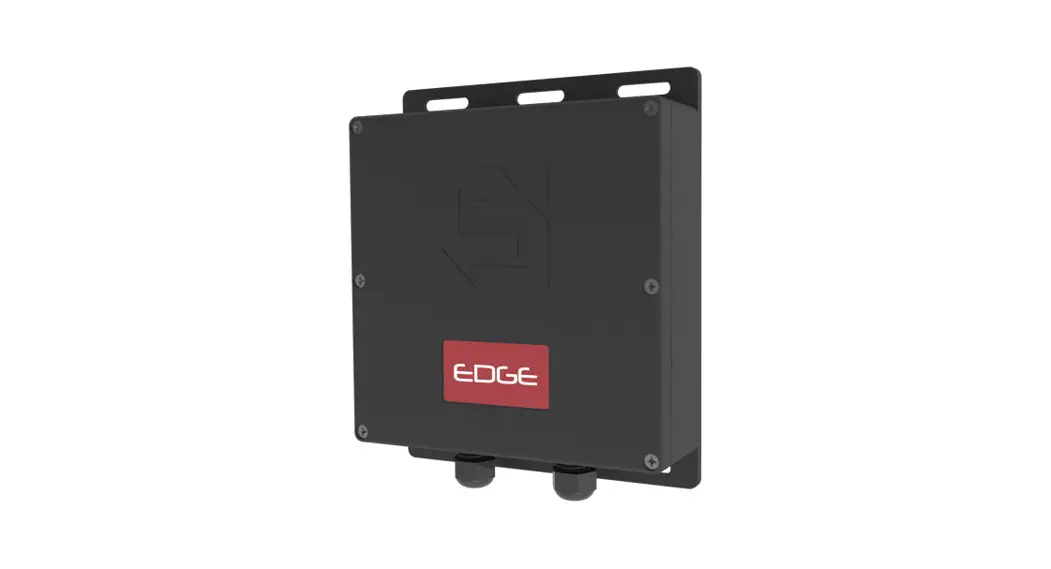


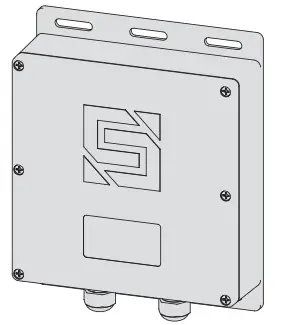
 Model/27-240
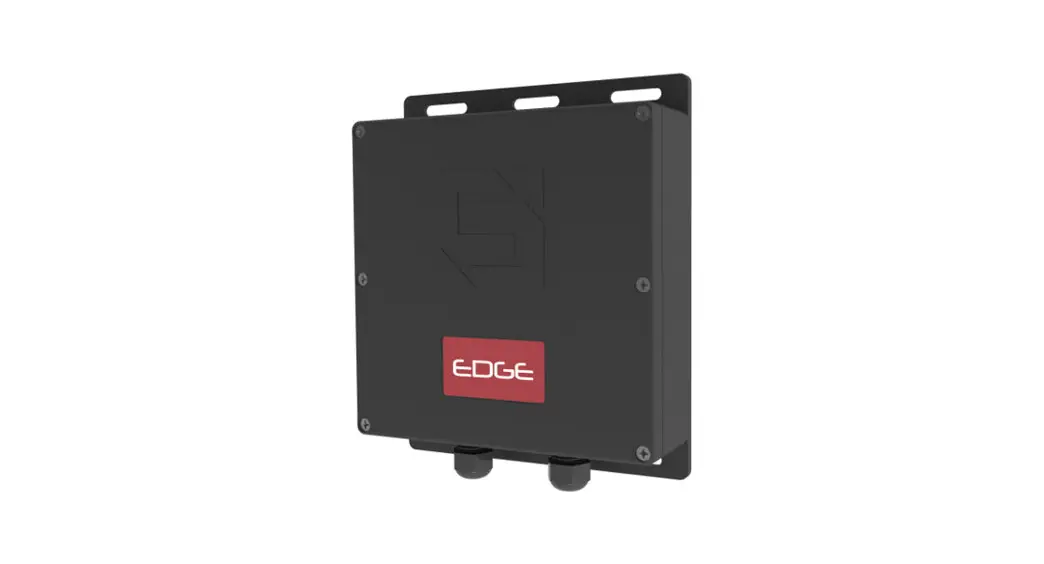
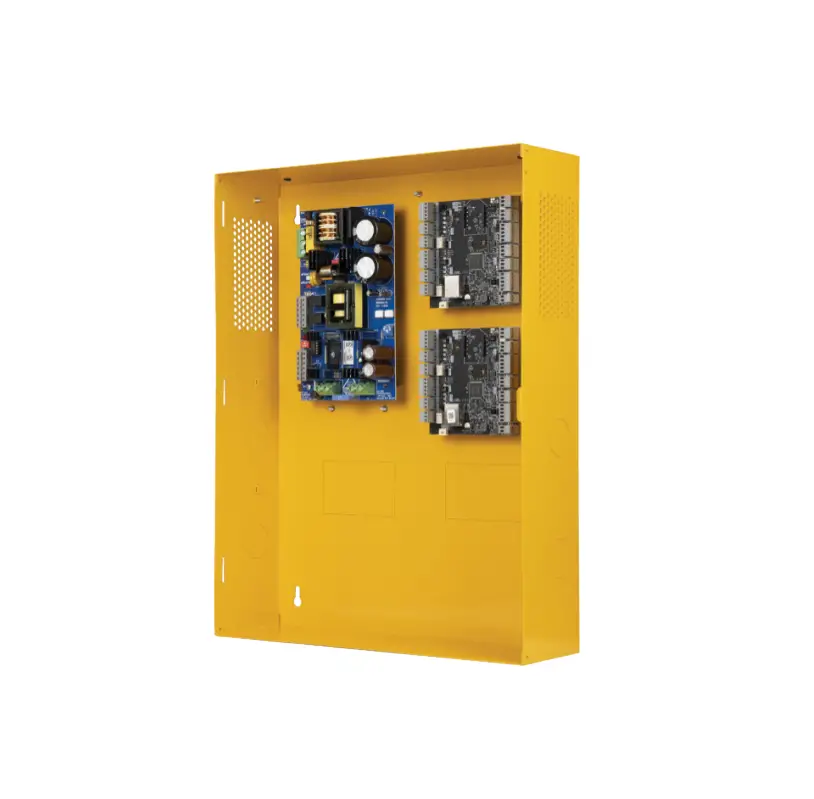
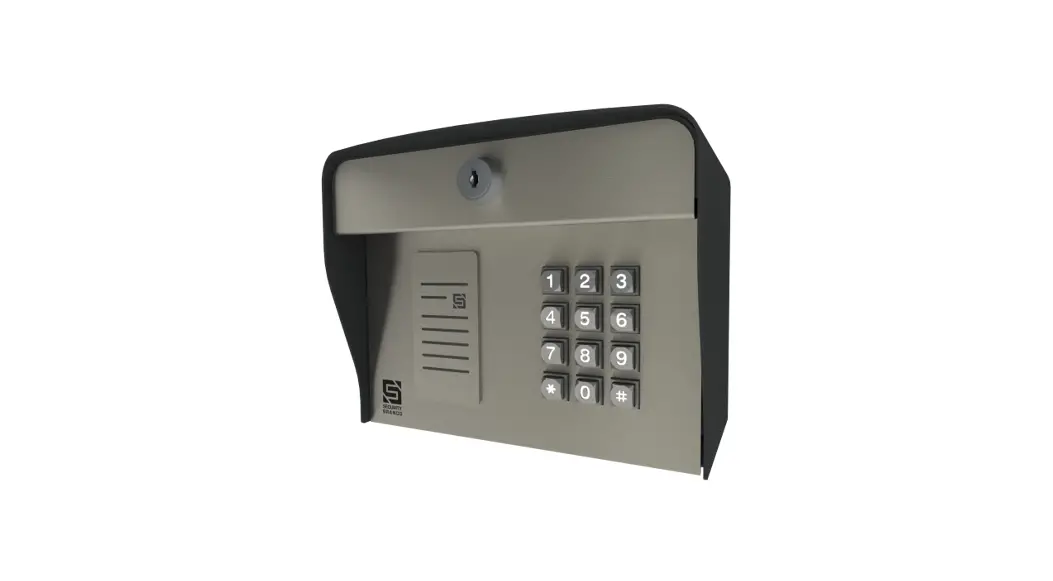
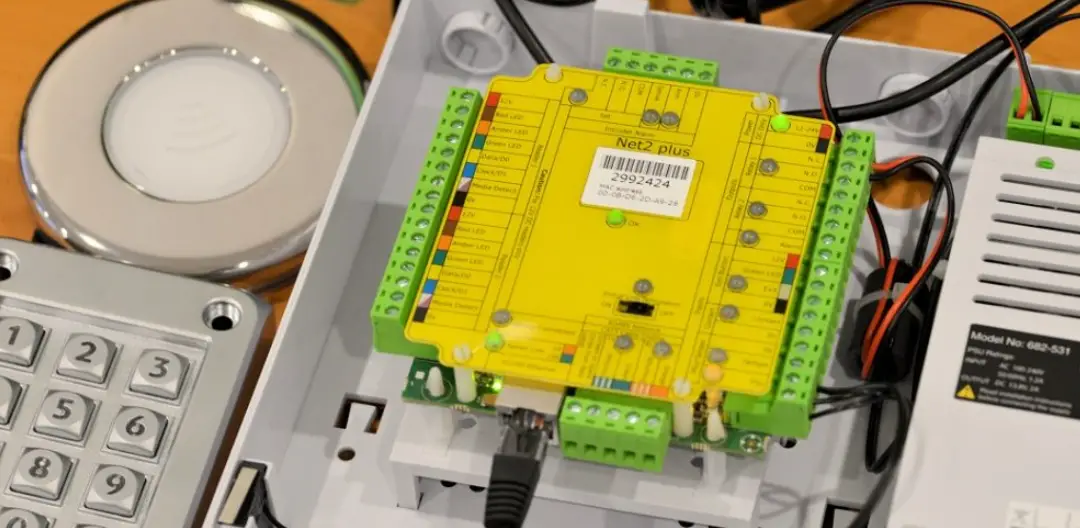
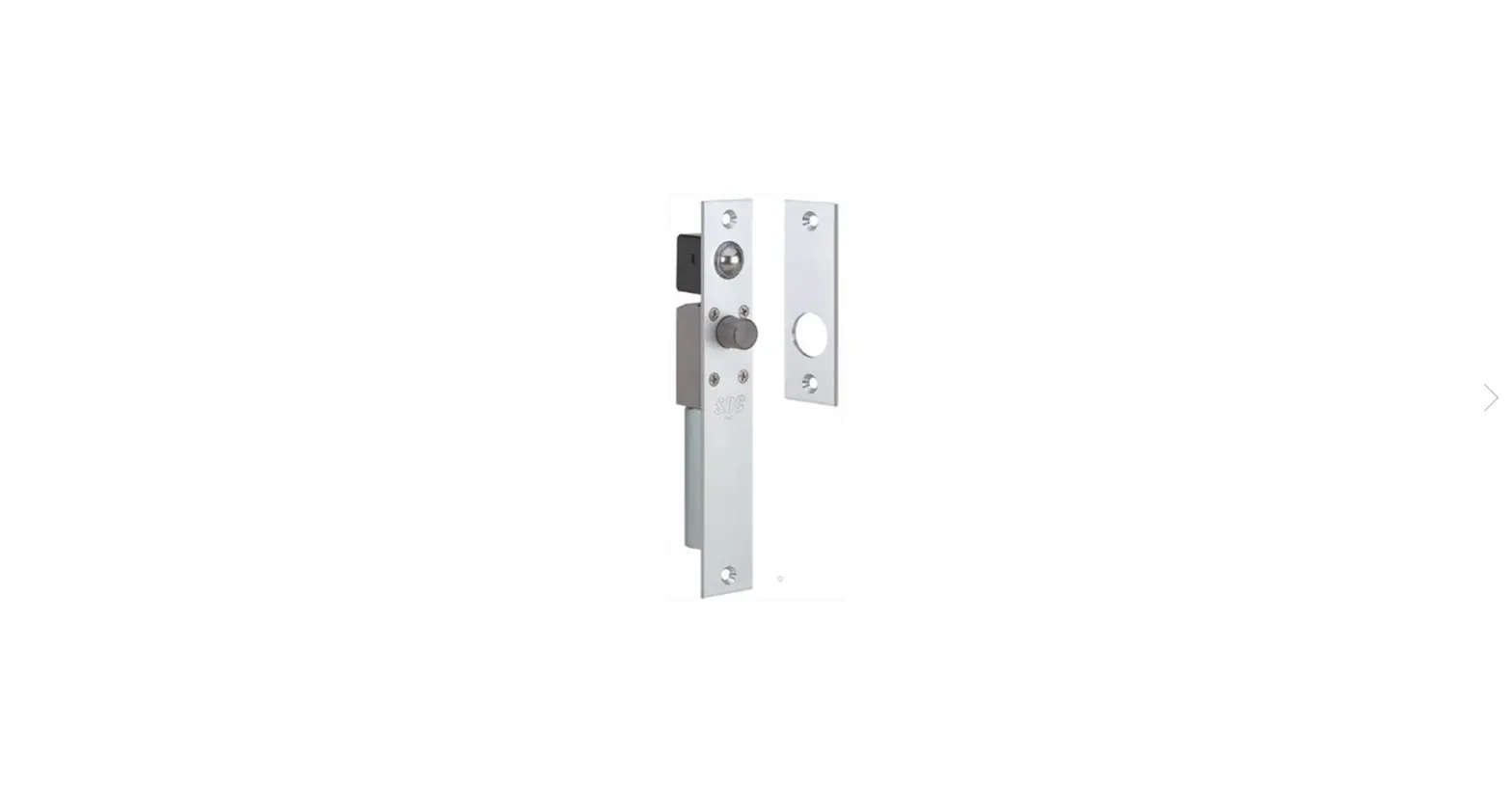
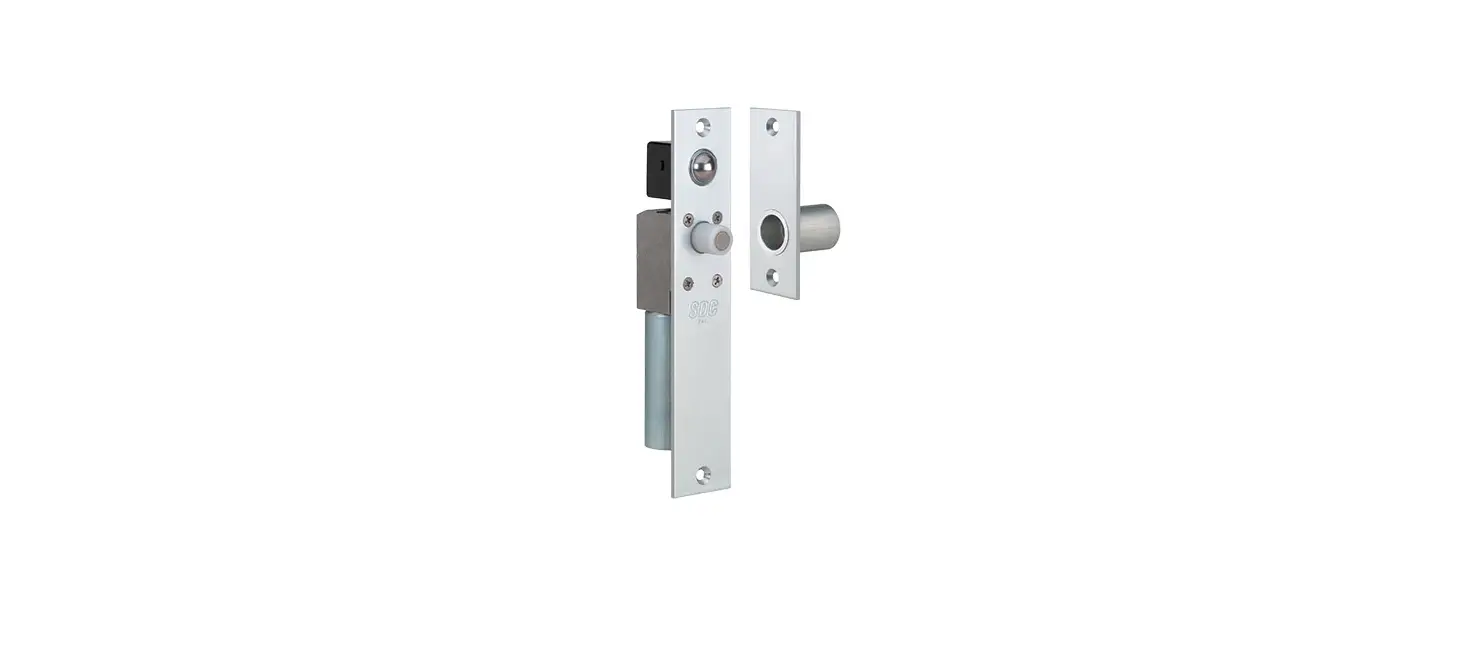
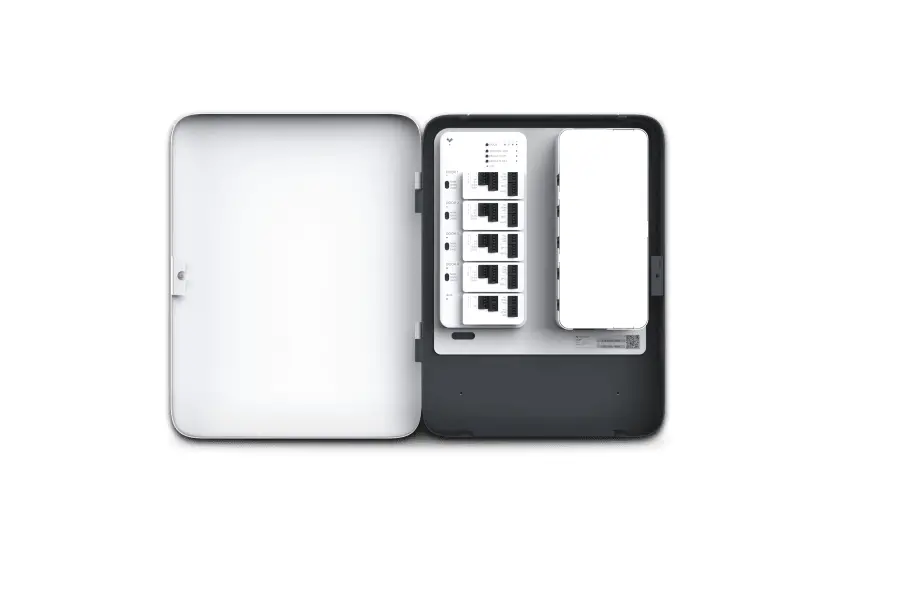
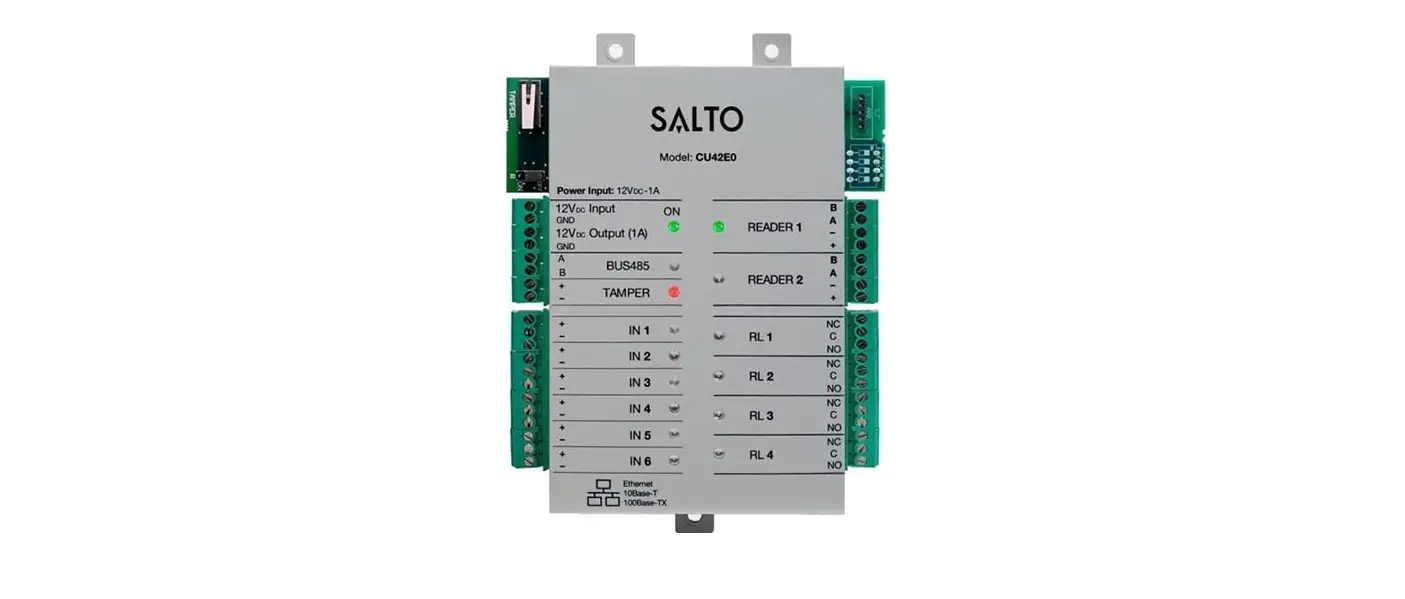
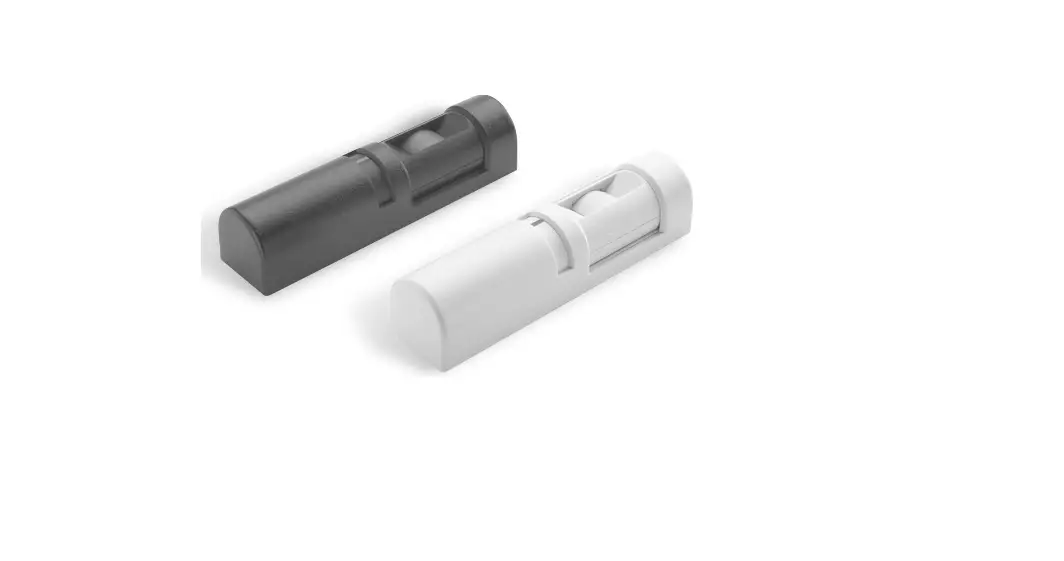
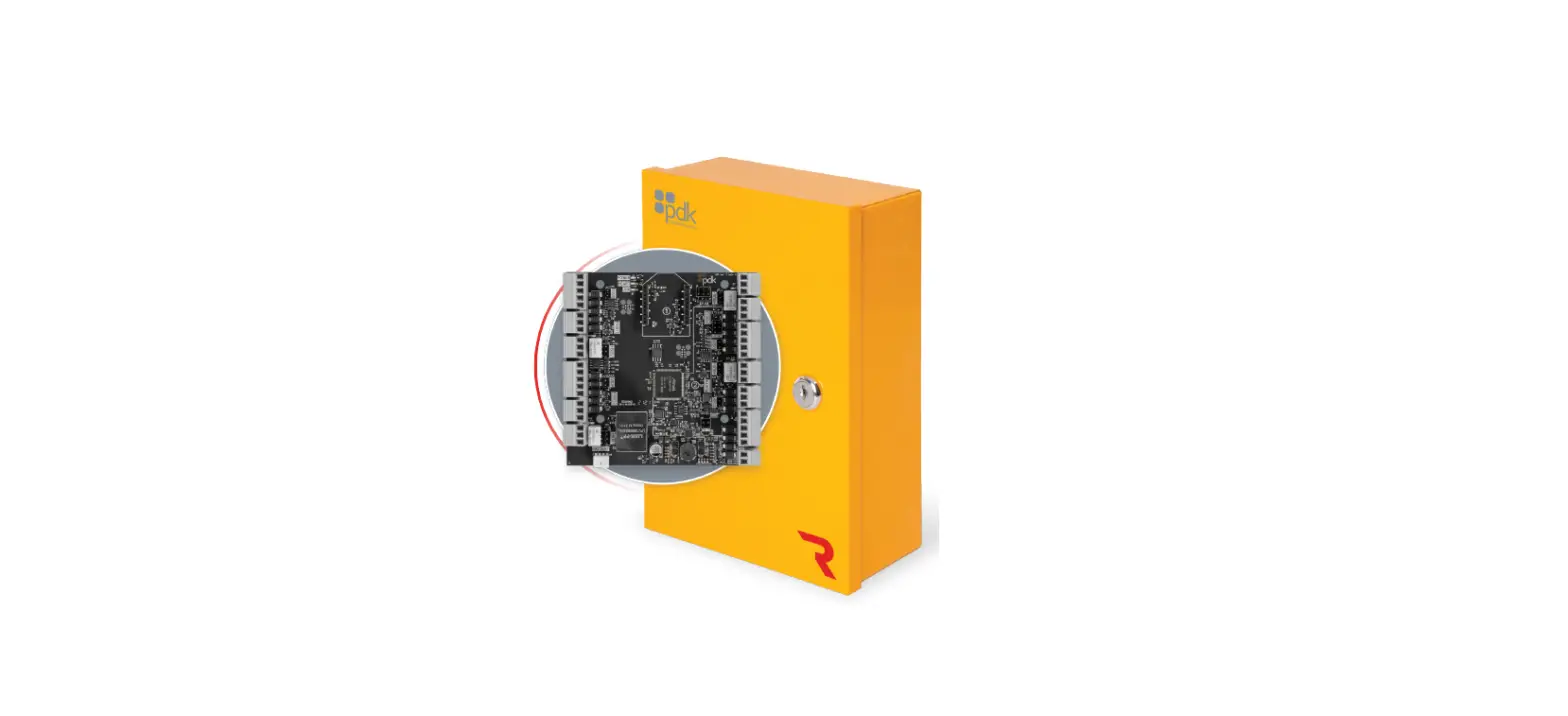
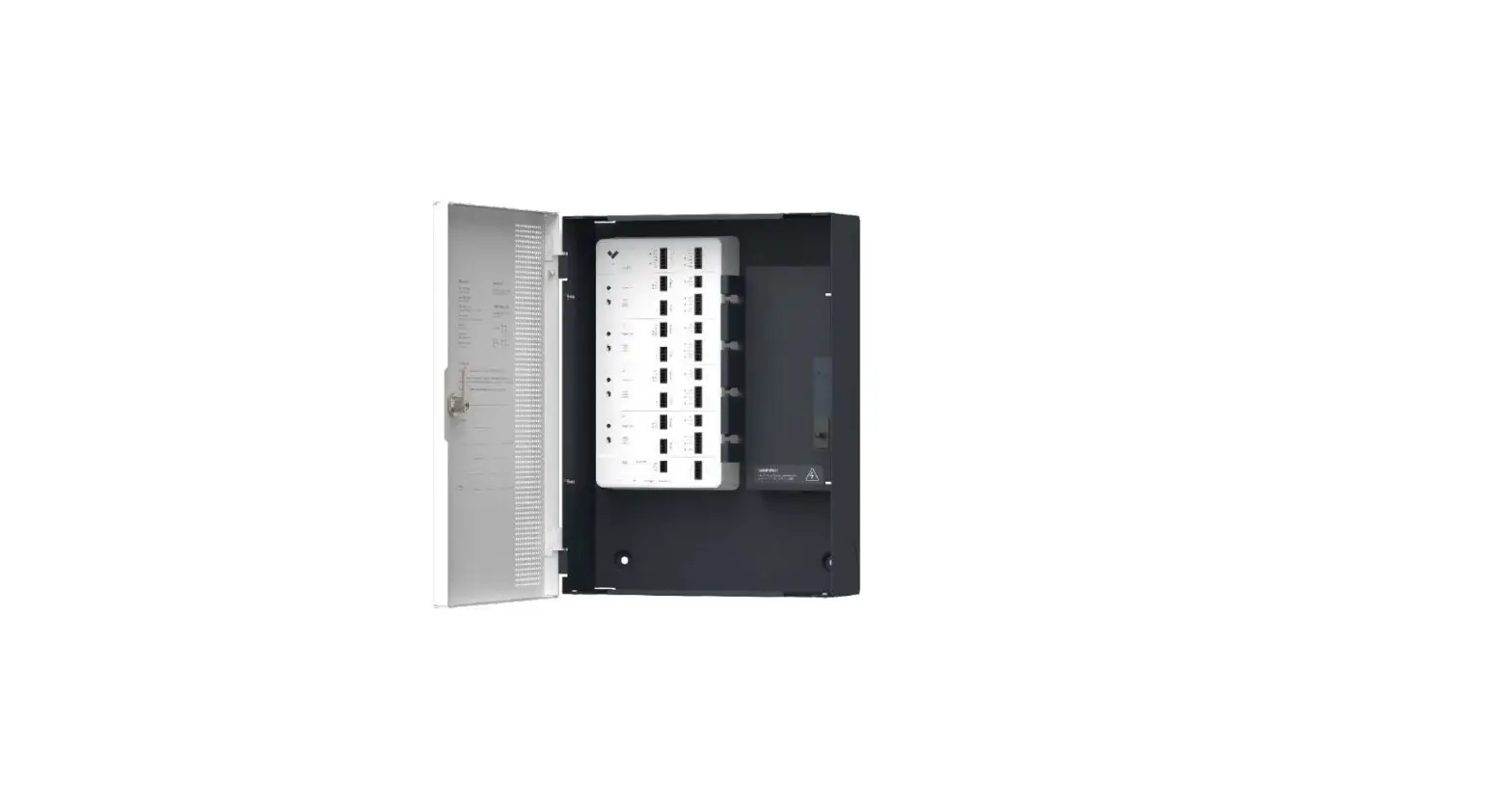
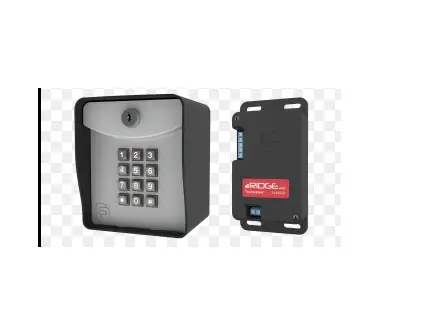
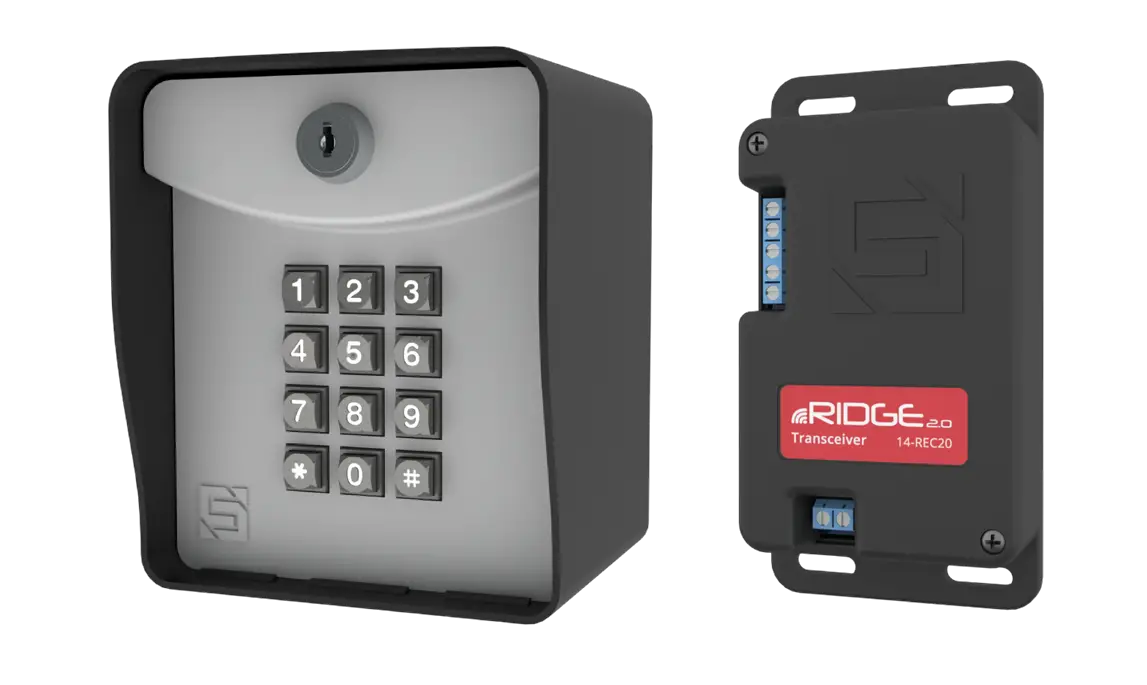
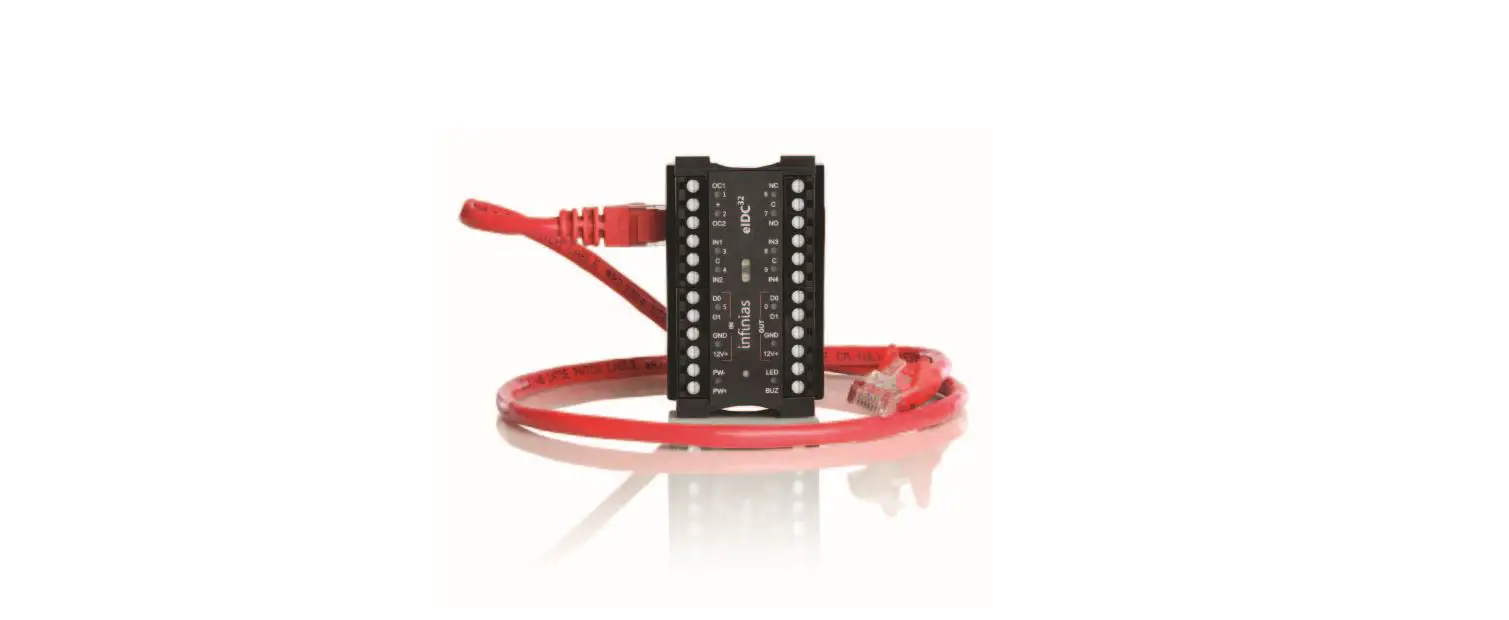
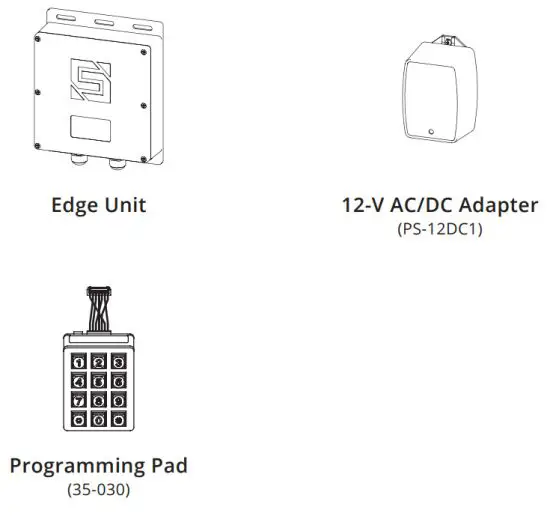
Unpack the box and make sure you have all items shown here.
(Screwdriver not shown.)
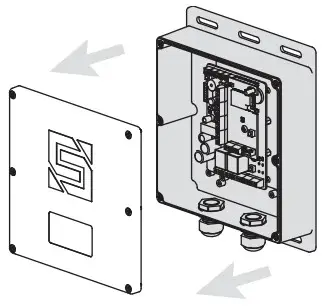
Remove screws and cover of the unit for access to internal components.
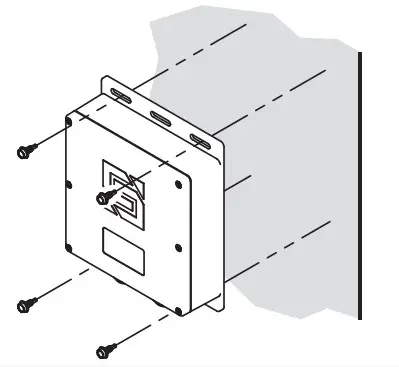
Mount unit in the desired location using Tek screws, zip ties, Velcro, etc. (This step can be completed later.)
 WARNING
AUTOMATIC GATES CAN CAUSE SERIOUS INJURY OR DEATH! ALWAYS CHECK THAT THE GATE PATH IS CLEAR BEFORE OPERATING! REVERSING OR OTHER SAFETY DEVICES SHOULD ALWAYS BE USED!
 CAUTION
Fully tighten cable glands and secure cover with all mounting screws after installing, servicing, and/or programming. For optimal Bluetooth connection, avoid mounting unit inside a metal enclosure. Failure to follow these instructions can damage the unit and/or cause it not to function correctly!
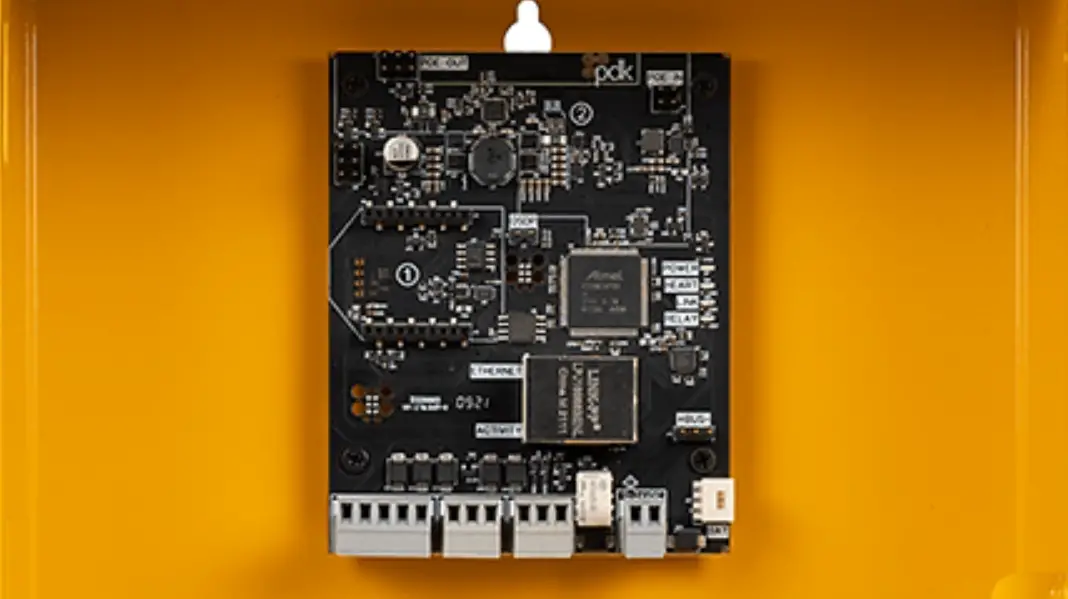
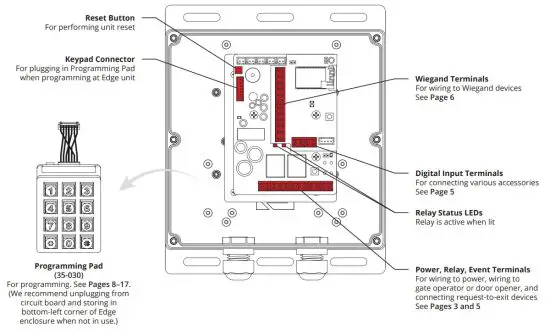
What’s what?
All important components labeled
The unit is shown with front panel open. Wiring/cabling not shown for clarity.
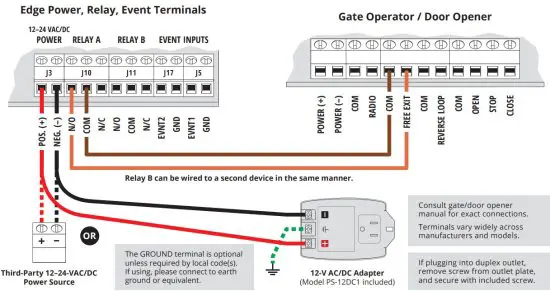
Connect wires.
Feed wires through cable gland(s) on the unit, and connect as shown using included screwdriver. Excessive force can damage the unit!
Additional wiring diagrams can be found on Pages 5 and 6.CAUTION
If the included 12-V AC/DC adapter will not be used, please go to Page 4 and follow the procedure, Using a Third-Party Power Source. Do not exceed 24 VAC/DC! Failure to choose a compatible power source can damage the unit!
Using a Third-Party Power Source (Optional)
 IMPORTANT
If you would like to use a third-party power source such as solar, verify that it conforms to the following specs:
Input 12–24 VAC/DC
no more than 10% beyond this range
Current Draw less than 111 mA @ 12 VDC
less than 60 mA @ 24 VDC
4a Connect wires to the unit as shown in Step 4.
4b Connect wires to your power source, making sure you connect positive to positive and negative to negative.
CAUTION
Double-check that you have wired from positive on the Edge unit to positive on your power source and negative on the Edge unit to negative on your power source. Reverse polarity can damage the unit!
STOP
Before going forward, double-check all wiring and make sure the unit has power! Wiring diagrams for connecting to accessory devices can be found on Pages 5 and 6. For connecting accessories not mentioned, please contact Technical Support. Make sure the gate or door path is clear before completing Step 7!
5. Grab Programming Pad, making sure it is connected to the circuit board.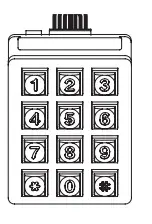 6. Add Access Code to Relay A. (To add multiple codes, enter each of them before pressing pound key.)

NOTE: The green arrow indicates a “good” tone on the Edge unit. By default, the following codes are reserved and cannot be used: 1251, 1273, 1366, 1381, 1387, 1678, 1752, and 1985.
7. Make sure the gate or door path is clear; then enter the access code on Pad, and the confirm gate or door opens.
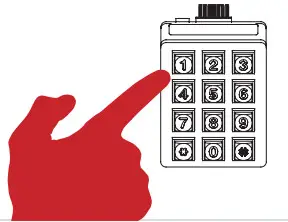
 INSTALLATION COMPLETE!
Jump to Page 7 to continue programming and download the Edge Smart Keypad app.
| Event Inputs Wiring for accessories such as a request-to-exit device | Digital Inputs Wiring to various accessories |
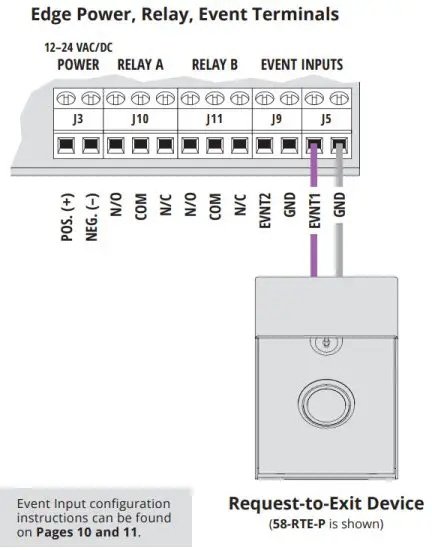 | 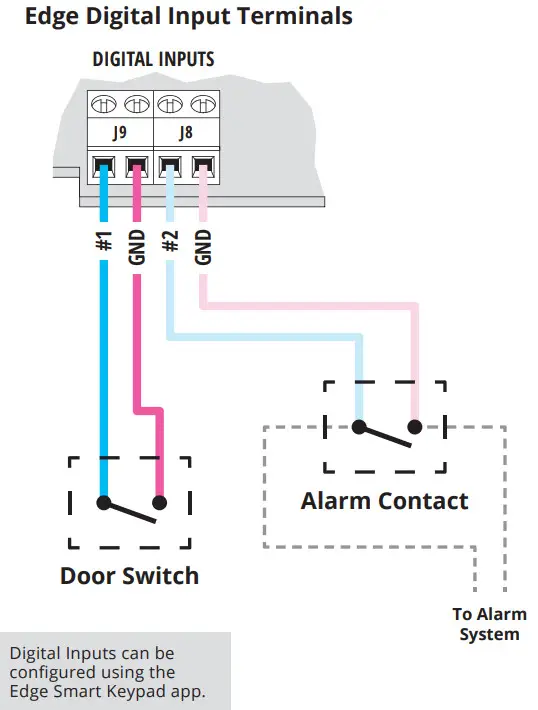 |
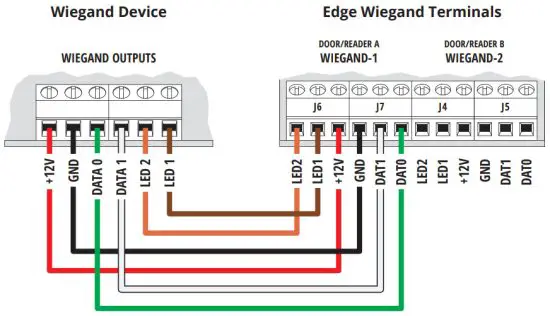
Wiegand Device
Wiring for a Wiegand device
Downloading the Edge Smart Keypad App for iOS/Android
The Edge Smart Keypad app is for ADMINISTRATOR USE ONLY and is not intended for users.
a Grab your smartphone or tablet. (These steps are optional. The unit can be fully programmed from the keypad.)
b Navigate to your app store, and search for “edge smart keypad.”
c Find the Edge Smart Keypad app by Security Brands, Inc. and download it. Edge Smart Keypad Security Brands, Inc.
?NEED HELP?
You can find plenty of useful resources online to help you get your new Edge unit up and running quickly and easily. Go to securitybrandsinc.com/edge/ If you need further assistance, please call Technical Support at (972) 474-6390.
Pairing Edge Unit
Connect your mobile device to your Edge unit for use with app. The app is available for administrators who want to use it. Nearly all programming functionality is available via the Programming Pad.IMPORTANT! Make sure your Edge unit is powered on and that Bluetooth is enabled on your mobile device or pairing will not work.
Step 1 – Grab your mobile device and open the Edge Smart Keypad app.
If you do not have the app, follow the steps on this page for downloading it.
Step 2 – Fill out your account information and tap the “Sign Up” button.
If you have already created an account, you will log in instead.
Step 3 – On the Paired Keypads screen, tap the “Add Keypad” button.
Step 4 – On the Add Keypad screen, tap the Edge unit you want to pair.
If you do not see any Edge units listed, make sure your Edge unit is powered on and is in Bluetooth range.
Step 5 – Complete the procedure shown on your mobile device.
These steps will be completed using the PIN pad on your Edge unit.
Step 6 – Enter the Master Code (default is 1251) on your mobile device.
Step 7 – Enter the code shown on your mobile device at the Edge unit.
This step must be completed within the time duration displayed.
Step 8 – Change your Master Code if you like.
This step is recommended, but optional, and can be done at a later time.
Your new Edge unit is now be paired and will appear on the Paired Keypads screen. Tapping on the Edge unit on this screen will give you access to relay control and full access control management of the Edge unit from within the app.
 For more information and guidance, please go to securitybrandsinc.com/edge/ or call Technical Support at (972) 474-6390 for assistance.
E1. Direct Programming / Unit Configuration
Change Master Code
(Highly recommended for security purposes)
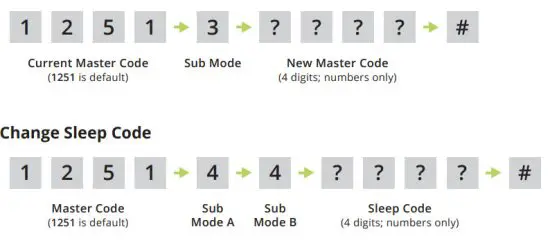
The green arrow indicates a “good” tone on the unit. Always wait for a good tone before moving on. By default, these codes are unavailable for use: 1251, 1273, 1366, 1381, 1387, 1678, 1752, 1985.FIND MORE
For all programming not shown here, as well as reset procedures and the Edge Smart Keypad app user guide, please visit our Edge start page: securitybrandsinc.com/edge/
Programming Sub Modes
| 1 Add Access Code(s) to Relay A 2 Delete Code (Non-Wiegand) 3 Change Master Code 4 – 3 Add Latch Code to Relay B 4 – 4 Change Sleep Code 4 – 5 Change Code Length (Non-Wiegand) 4 – 6 Change Relay Trigger Time | 4 – 7 Enable/Disable Timers and Schedules 4 – 8 Enable/Disable “3 Strikes, You’re Out” 4 – 9 Configure Event Input 1 5 Add Latch Code to Relay A 6 Configure Wiegand Inputs 7 Add Access Code(s) to Relay B 8 Add Limited-Use Code 0 Delete All Codes and Timers |
Things to Know
The Star Key (*)
If a mistake is made, pressing the star key deletes your entry. Two beeps will sound.
The Pound Key (#)
The pound key is good for one thing and one thing only: exiting the programming mode.
E2. Direct Programming / Unit Configuration
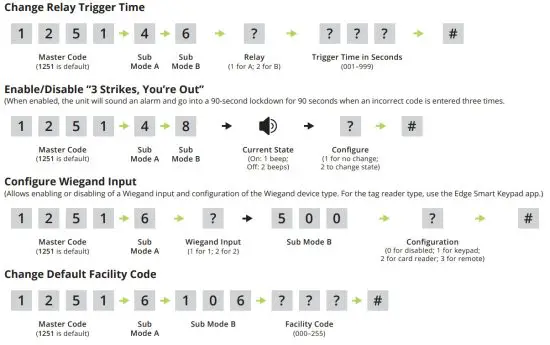
E3. Direct Programming / Unit Configuration

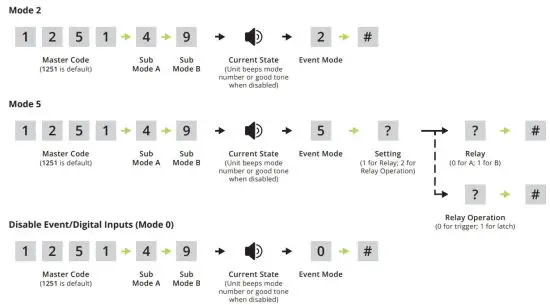
Configure Event Input 1
(Allows an external device to affect keypad operation or trigger a relay. To configure additional inputs, use the Edge Smart Keypad app.)
Mode 1 – Remote Open Mode
Triggers either Relay A or Relay B when event input state changes from normally open (N/O) to normally closed (N/C).
Mode 2 – Log Mode
Makes log entry of event input state when event input state changes from normally open (N/O) to normally closed (N/C).
Mode 3 – Remote Open and Log Mode
Combines Modes 1 and 2.
Mode 4 – Arming Circuit Mode
Enables either Relay A or Relay B when event input state changes from normally open (N/O) to normally closed (N/C). Otherwise, the selected relay is disabled.
Mode 5 – Remote Operation Mode
Triggers or latches either Relay A or Relay B when event input state changes from normally closed (N/C) to normally open (N/O).
Mode 0 – Event Input 1 Disabled
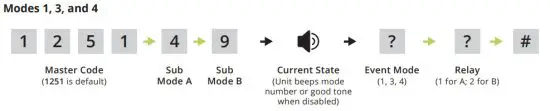
E4. Direct Programming / Unit Configuration
Configure Event Input 1 (continued)
(Allows an external device to affect keypad operation or trigger a relay. To configure additional inputs, use the Edge Smart Keypad app.)
The green arrow indicates a “good” tone on the keypad. Always wait for a good tone before moving on.
F1. Direct Programming / External Wiegand Keypad
Add Wiegand Keypad Access Code(s)
(Uses default facility code; to add multiple codes, enter each of them before pressing pound key)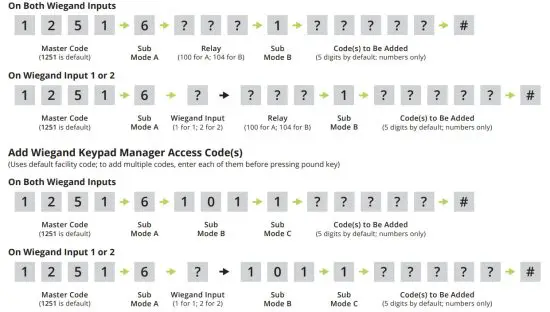
F2. Direct Programming / External Wiegand Keypad
Add Wiegand Keypad Latch Code(s)
(Uses default facility code; to add multiple codes, enter each of them before pressing pound key)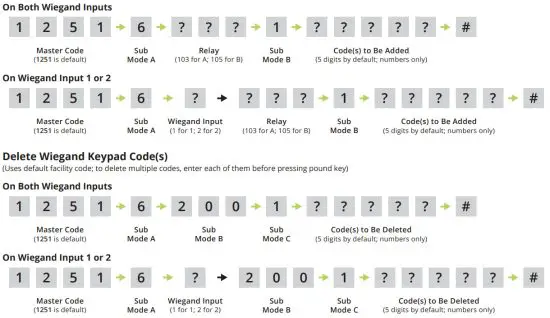 G1. Direct Programming / External Wiegand Card Reader
Add Wiegand Card/Remote/Vehicle Tag Access Code(s)
(To add multiple codes, enter each of them before pressing the pound key)
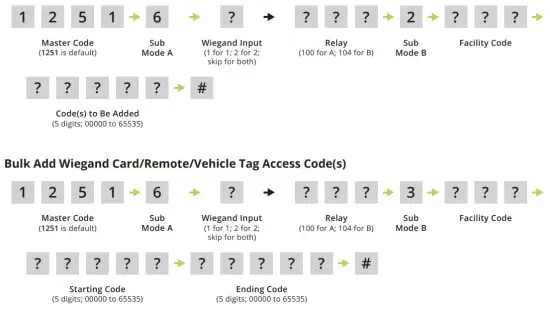
G2. Direct Programming / External Wiegand Card Reader
Add Wiegand Card/Remote/Vehicle Tag Latch Code(s)
(To add multiple codes, enter each of them before pressing the pound key)
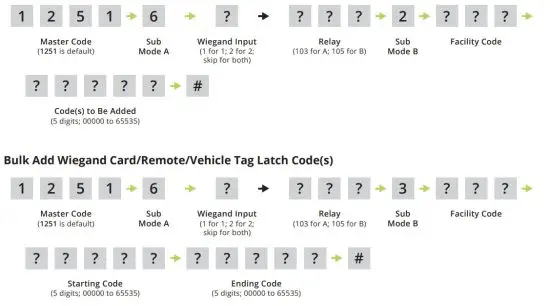
G3. Direct Programming / External Wiegand Card Reader
Add Wiegand Card/Remote/Vehicle Tag Manager Access Code(s)
(To add multiple codes, enter each of them before pressing the pound key)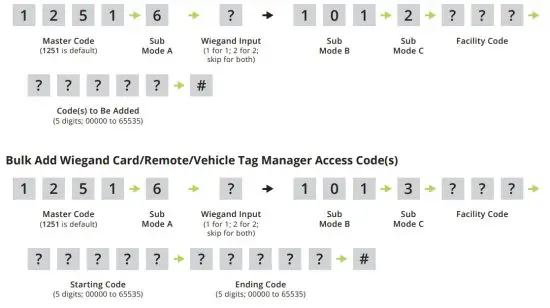 G4. Direct Programming / External Wiegand Card Reader
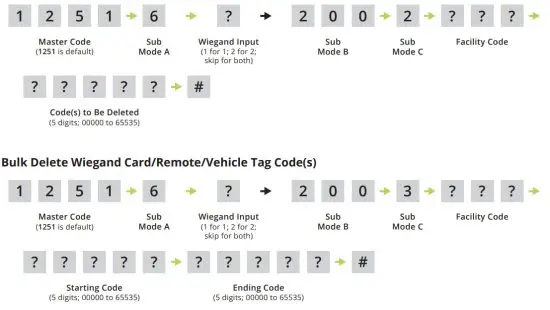
Delete Wiegand Card/Remote/Vehicle Tag Manager Code(s)
(To add multiple codes, enter each of them before pressing pound key)
NEED HELP?
Call (972) 474-6390
Email [email protected]
We are available Mon–Fri / 8 am–5 pm Central
 Edge - Security Brands, Inc.