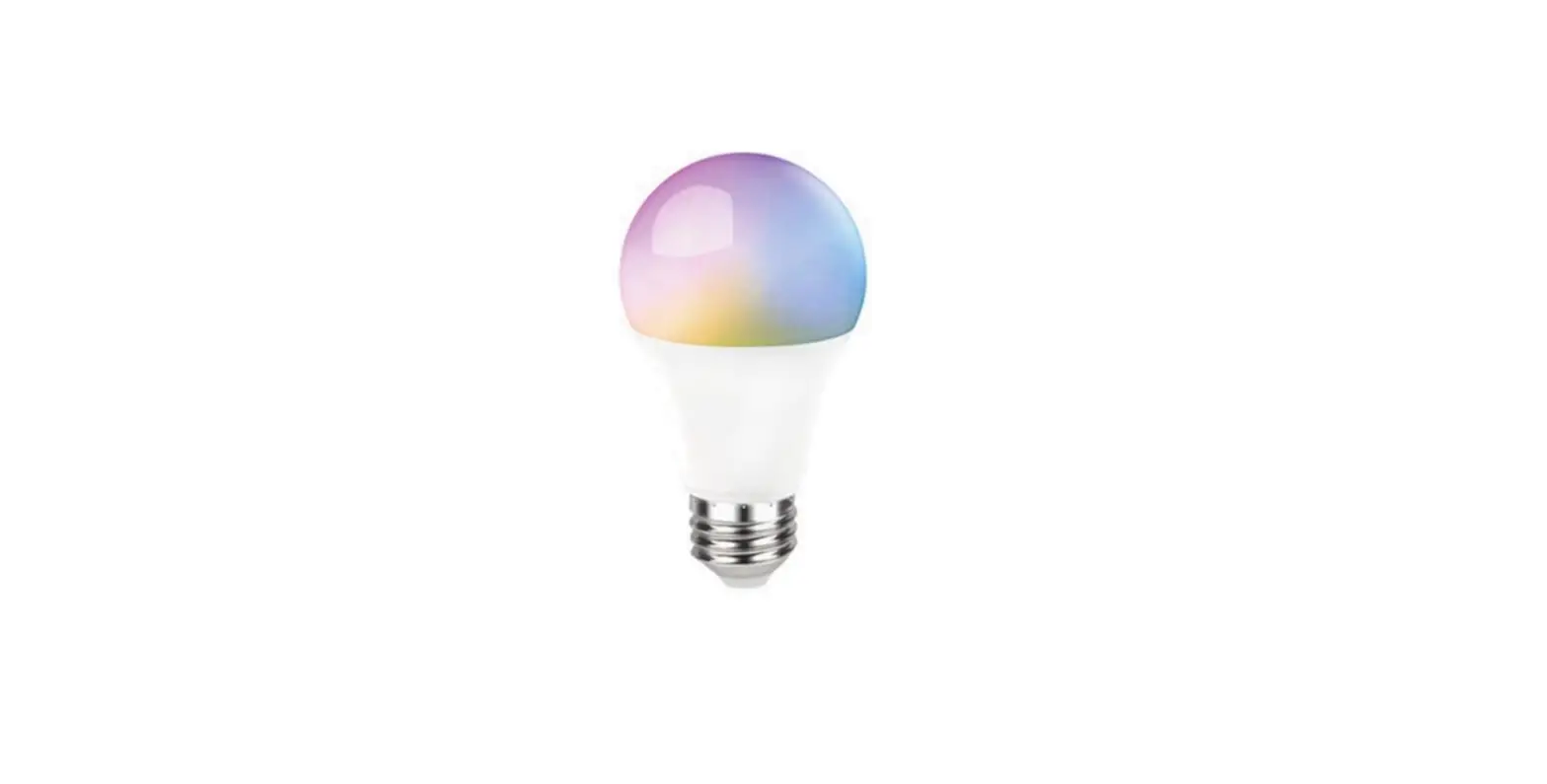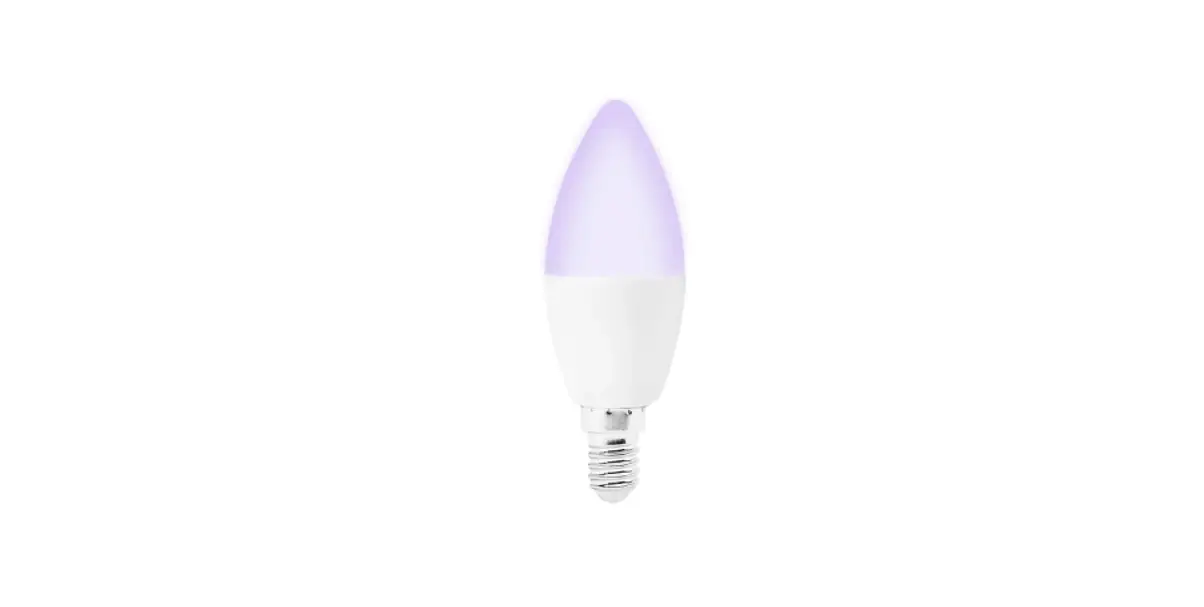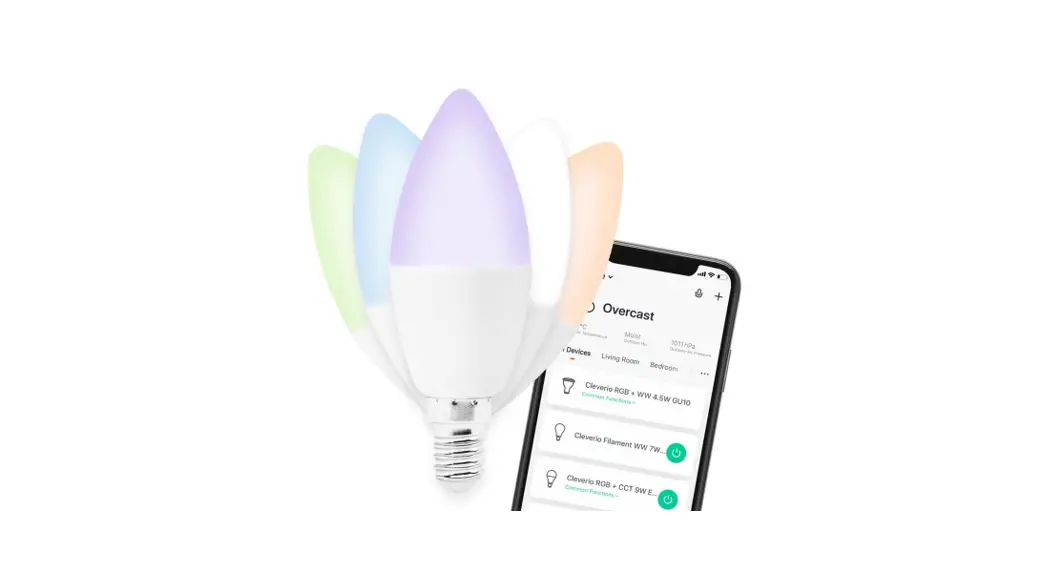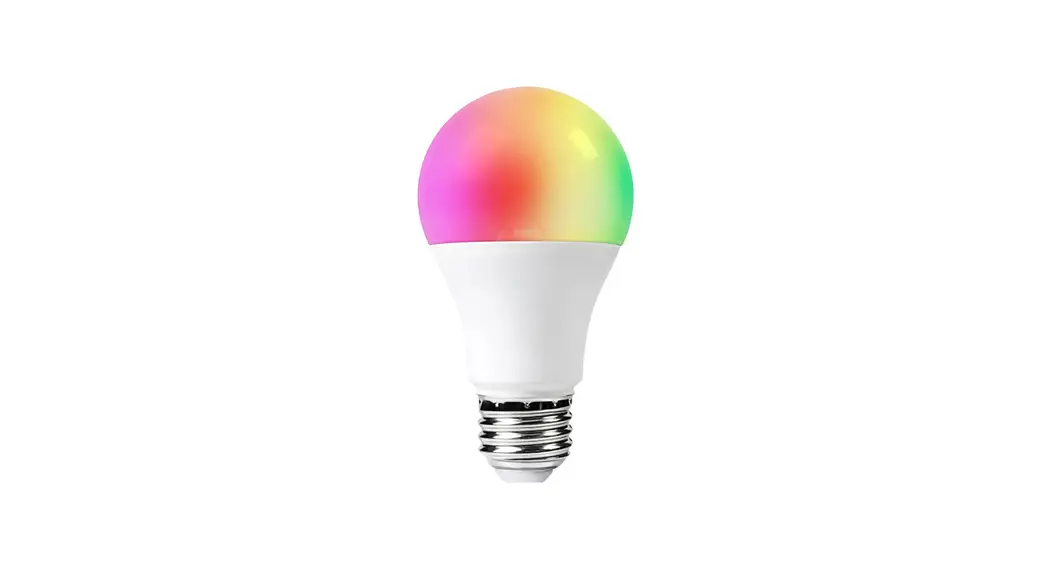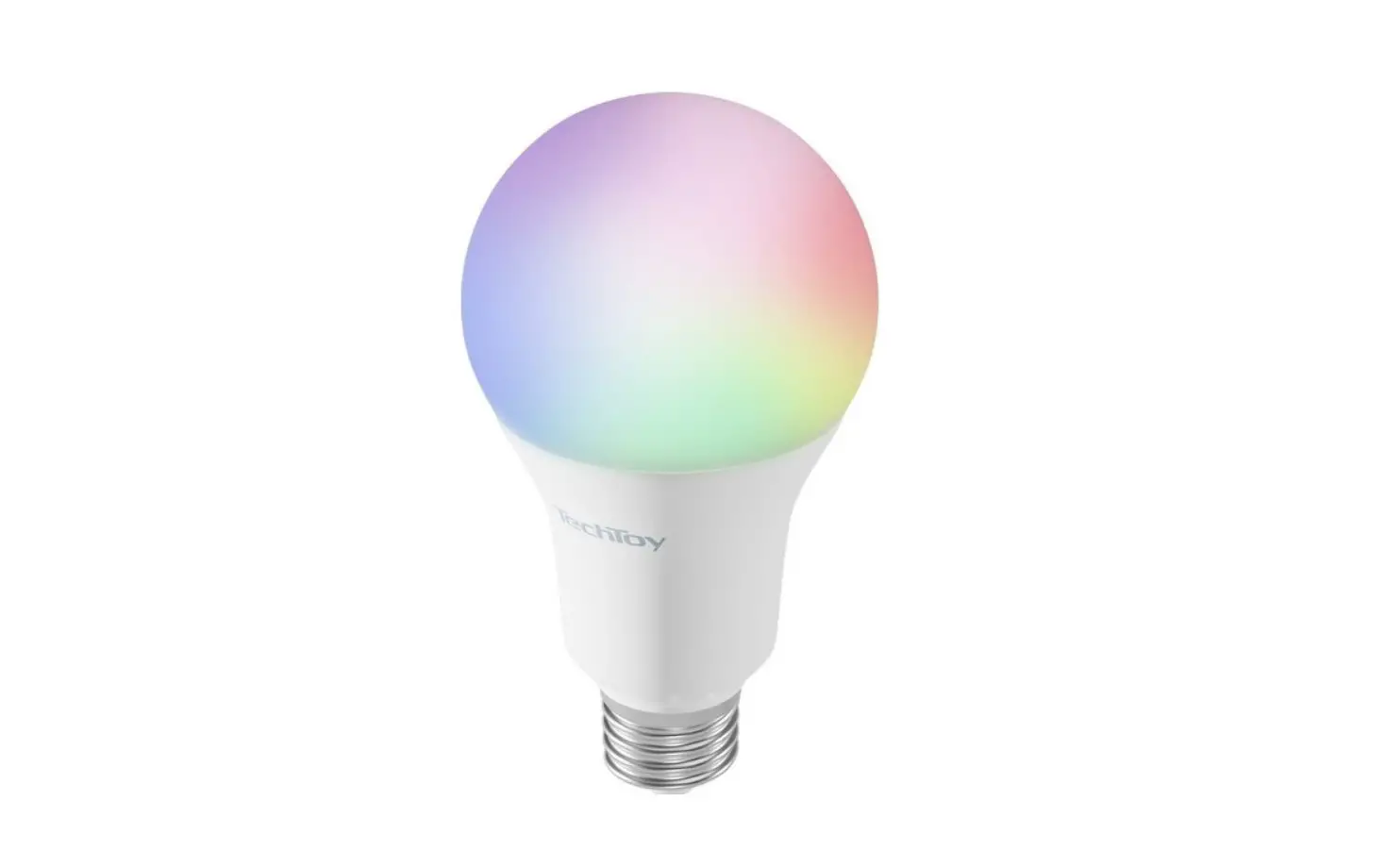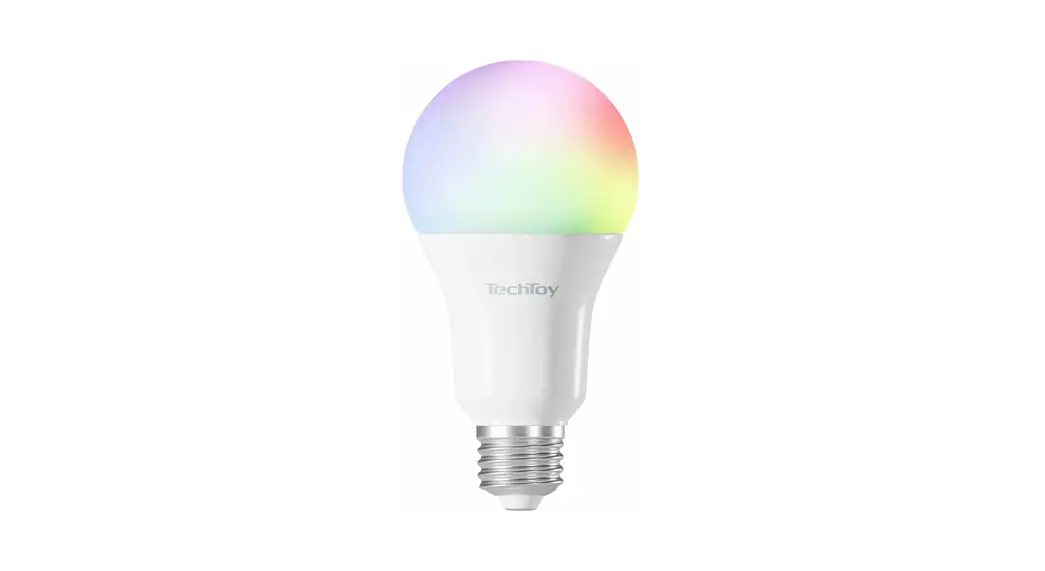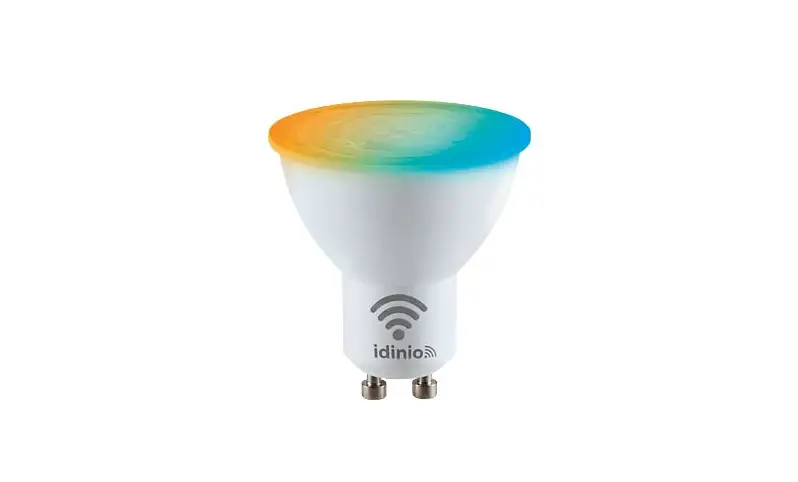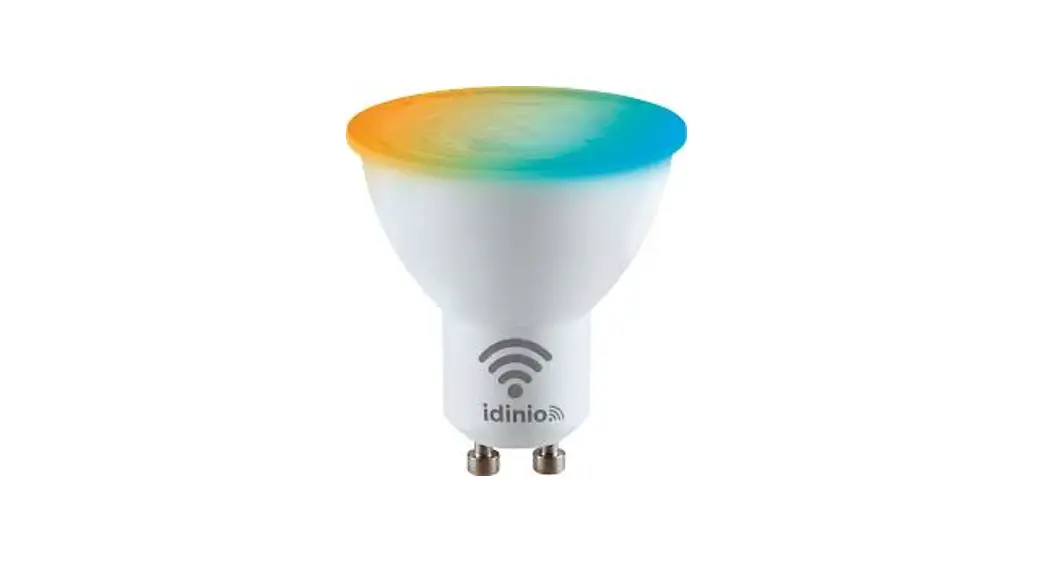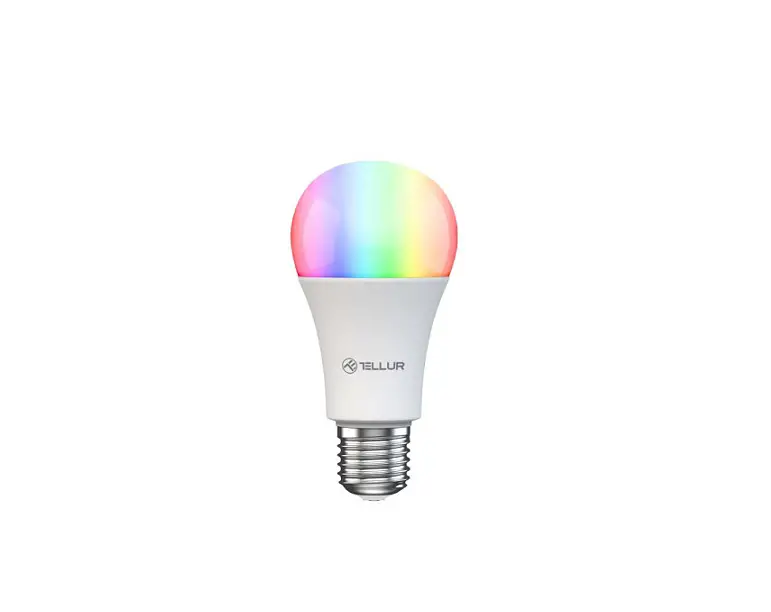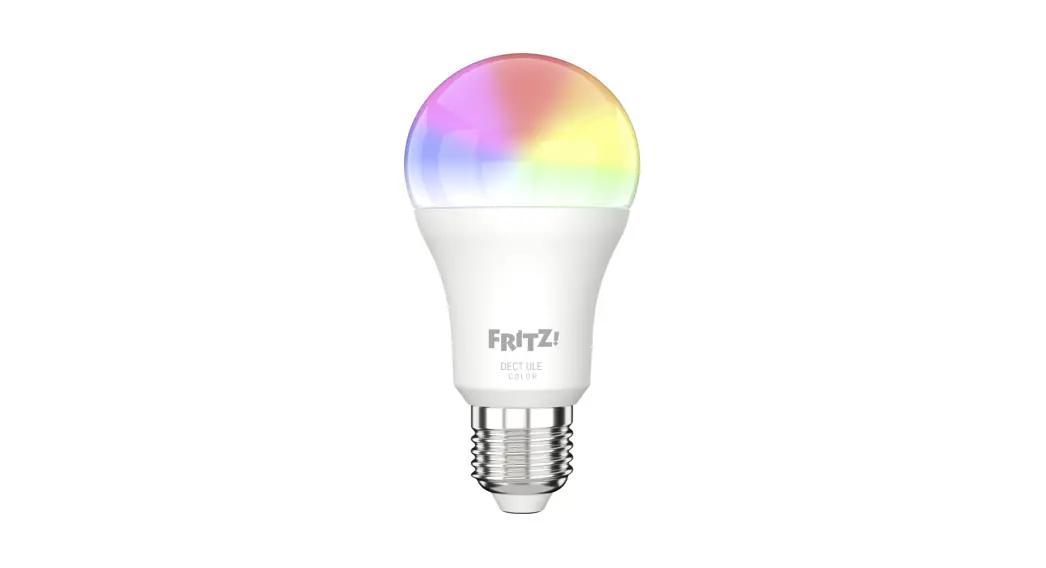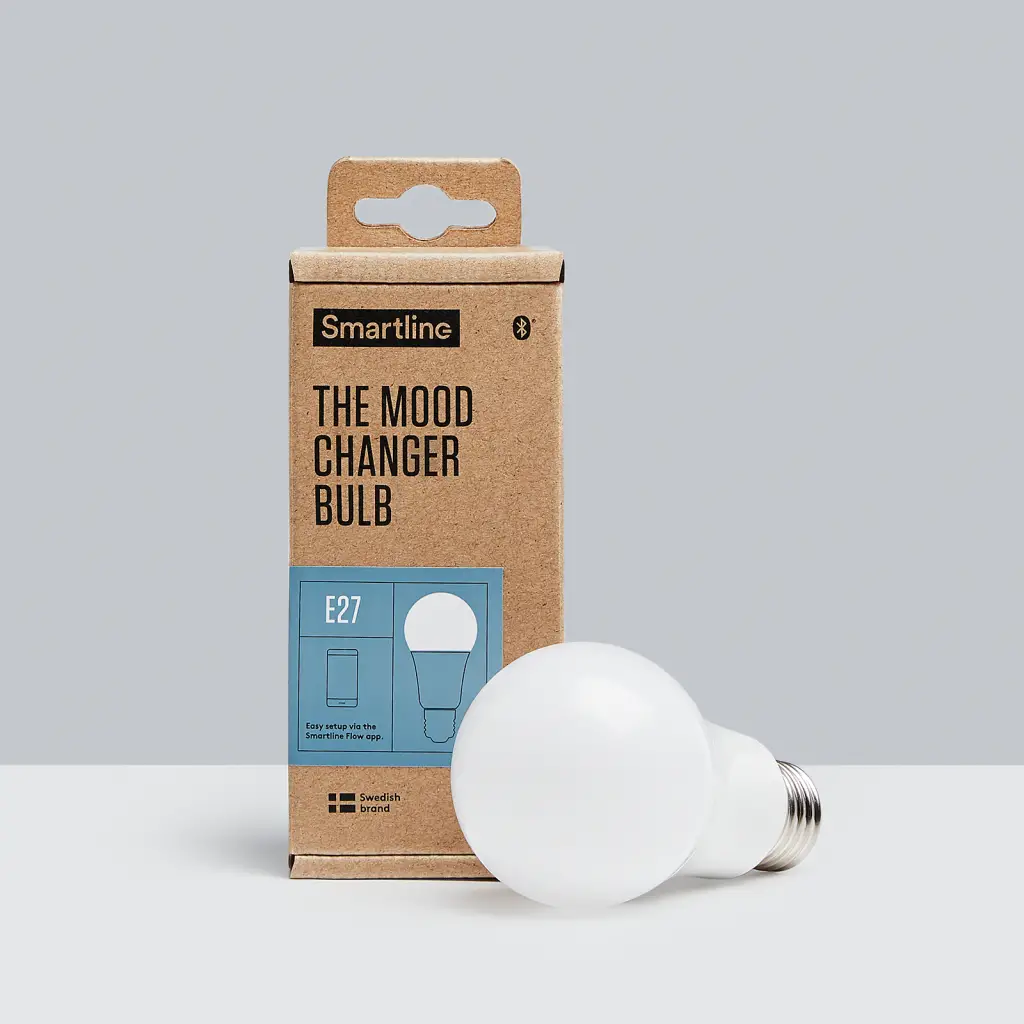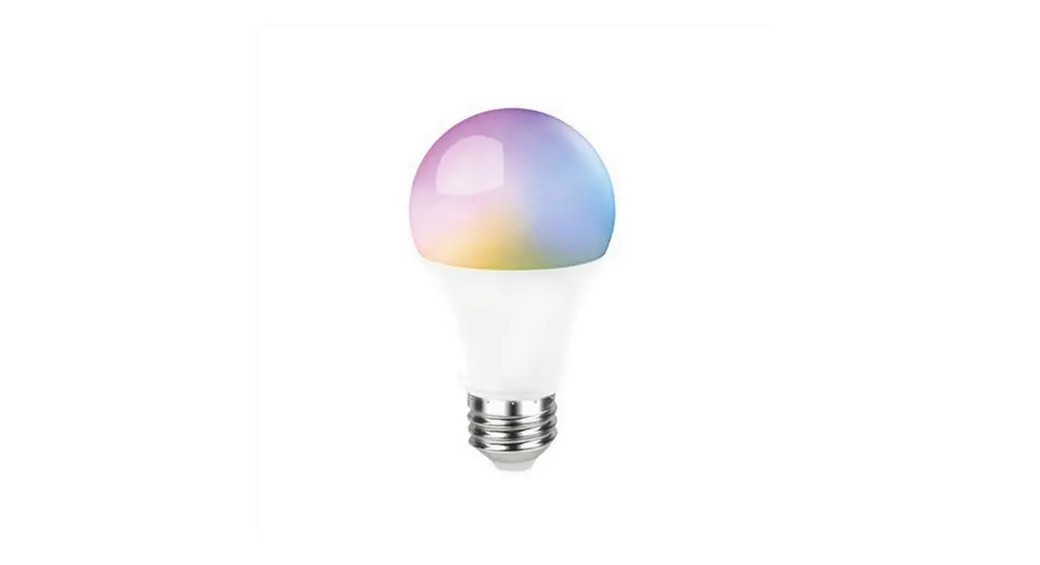
 Smart Bulb RGB CCT
User Guide
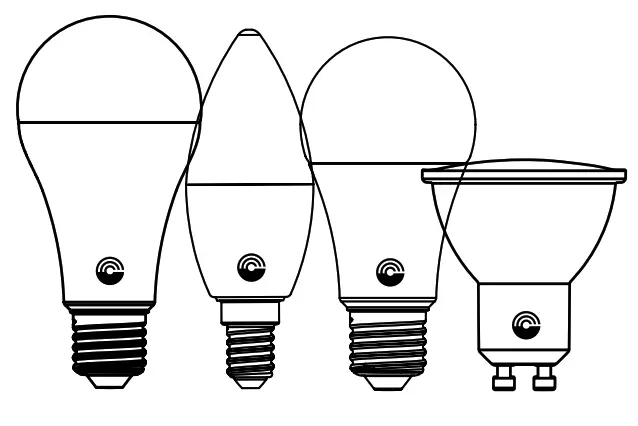
51574 Smart Bulb RGB CCT
Item: 51574, 51746, 51748, 51749
Use
Connect to app
- Find and install the app ‘Smart life- Smart living’ on App Store or Google Play.
- Register an account in the app or log in to an existing one. Activate Bluetooth and location services on your smart device. Make sure the smart device is connected to your 2.4 GHz wifi.
- Insert the bulb in a lamp socket and turn on the light. The bulb flashes.
- Open the app. The app searches for devices nearby. Choose to add the smart bulb when found in the app.
- If you are using the Smart life-Smart living account for the first time, enter your details for your 2.4 GHz wifi.
- The app confirms when the smart plug is added successfully.
Note! The pairing procedure might change due to regular app updates. If the instruction does not correspond with the app interface, please visit www.kjell.com/51574 -> “Support” for updated instructions.
Connect to the voice assistant
Press the “Me” button in the app, navigate to “More services” and choose to connect the plug to either Amazon Echo, Google Home, or other voice assistant services
Factory reset
Make sure the light bulb is connected to a socket. Turn the power off and turn it on again 3 times quickly using the light switch.
Note! The light bulb will still be connected to your device and visible in the app. Remove the product connection to your app by selecting it. Edit the device by pressing the pen symbol “  ” in the top right corner of the app. At the bottom of the page press “Remove Device”.
Troubleshooting
The light bulb cannot connect to the app.
Make sure your smartphone or tablet is connected to a 2.4 GHz wifi with a stable connection. If you have a dual-band router, your device may automatically connect to the 5 Hz wifi. In this case, your device cannot communicate with the light bulb. Disable the 5 GHz wifi in your router during the installation and try again.
The app needs access to your device’s location services. Make sure you have allowed access to location services while using the app.
The connection to the light bulb was lost.
If you recently changed to a new router or renamed your network you need to reinstall the light bulb again. Reset the light bulb by following the instructions in “Factory reset”.
Follow the “Connect to app” instructions to add the light bulb to your home network.
Safety information
Only suitable for working temperatures between 0 °C to 35 °C. Not for outdoor use. Only for use in dry areas. Do not open or modify the devices in any way, this should only be carried out by a qualified technician due to the risk of electric shocks or short circuits.
Simplified EU Declaration of Conformity
Kjell & Company hereby declares that this device is in compliance with the essential requirements and other relevant provisions of Directive 2014/53/EU. The full text of the EU declaration of conformity is available at www.kjell.com.
Specifications
| 51574 | 51746 | 51748 | 51749 | |
| Acid& name: | LB235 | LB330 | LB230 | LB130 |
| ..amp socket | 0.00E+00 | OU10 | 0.00E+00 | 0.00E+00 |
| ..amp type: | LED, ROB. CCT | LED, R38, CCT | LED, ROB, CCT | LED, ROB, CCT |
| lightness: | 14001m | 4001m | 8061m | 4701m |
| amp voltage: | 220 – 240 V. 50 Hz | 220 -240 V 50 Hz | 220 – 240 V- 50 Hz | 220 – 240 V50 Hz |
| amp power: | 14 W | 4.8 W | 9 W | 4,8 W |
| color temp. (K): | 2700 – 6500 | 2700 – 650C | 2700 – 6500 | 2700 – 6500 |
| type/Size: | A65 | 10 | A60 | C37 |
| Seam angle: | 200° | 110° | 200° | 1806 |
| length: | 137 mm | 57 mm | 118 mm | 110 mm |
| Name (max): | 65 mm | 50 mm | 60 mm | 36.5 mm |
| current nominee: | 83 mA | 40 mA | 66 mA | 40 mA |
| kpp dimmable: | Yes | Yes | Yes | Yes |
| leguency Lange (MHz): | 2412 – 2472 | 2412 – 2472 | 2412 – 2472 | 2412 – 2472 |
| Effective radiated Power | 17.9dBm | 17.9dBm | 17.9dBm | 17.9dBm |
www.cleverio
Box 50435
Sweden: 2022-06-08
 Cleverio | Kjell.com
 Kjell & Company - Kunskap och tillbehör till hemelektronik | Kjell.com