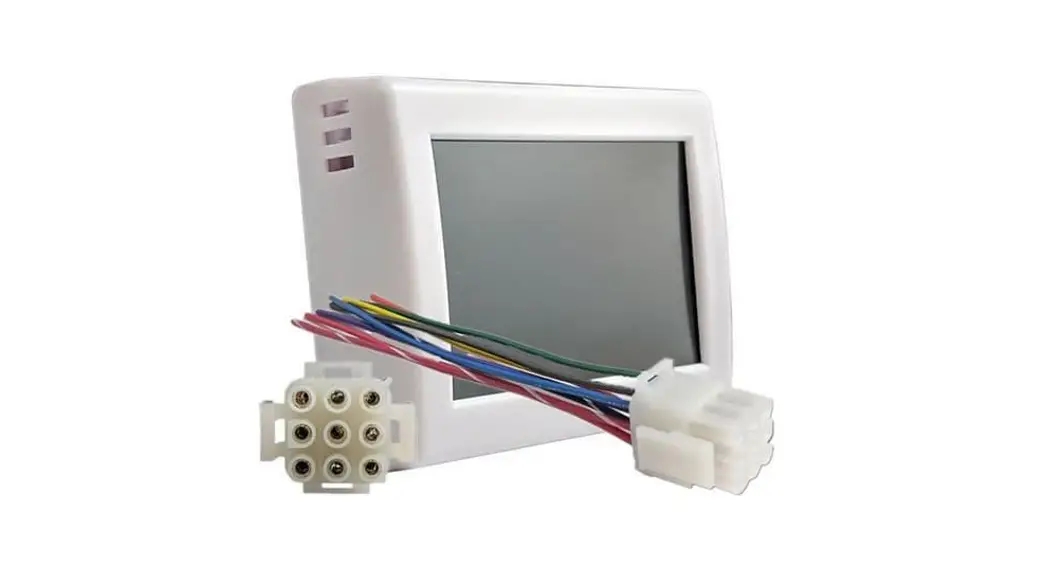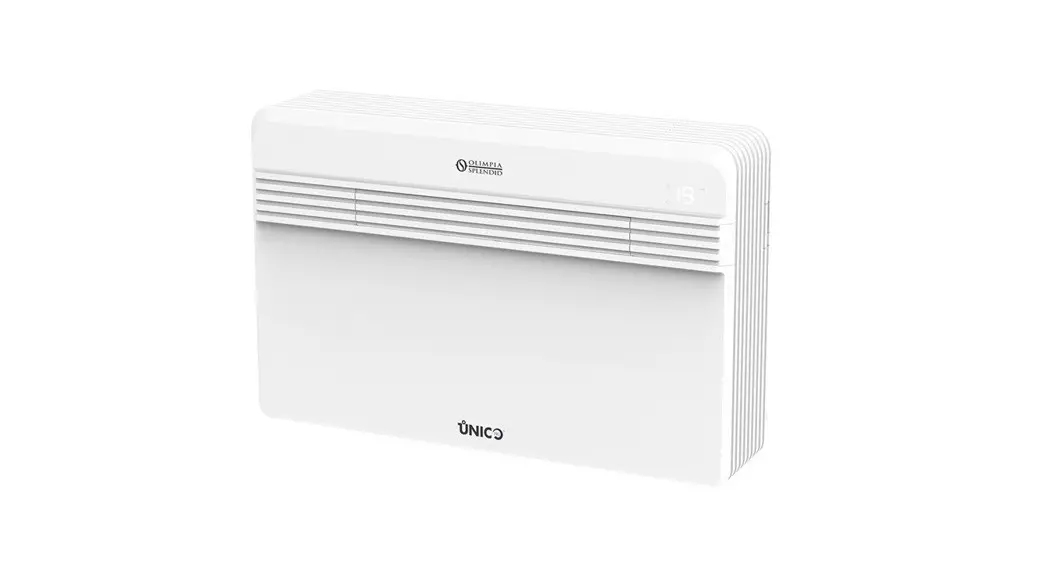
 B1015 Unico Air Inverter
User Manual
DOWNLOAD AND INSTALLATION
- The OLIMPIA SPLENDID UNICO app can be downloaded to your device directly from Google Play Store or Apple’s App Store
- See Play Store or App Store for information on which operating systems are supported
- The OLIMPIA SPLENDID UNICO app may be modified without prior notice to improve its features and performance
- When the app is first opened, the ADD A NEW AIR CONDITIONER screen appears. See the next section for more details
APP FUNCTIONS
2.1 Controls Screen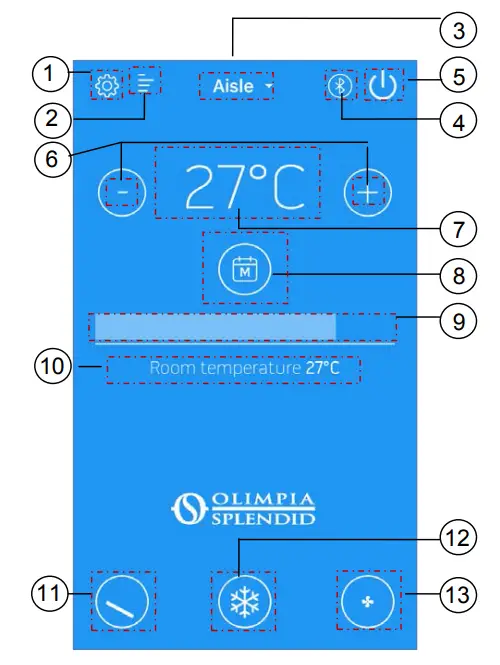
| No | Buttons | Description |
| 1 | Settings button | For accessing the app settings |
| 2 | Alarms history button | For accessing the alarms history |
| 3 | Air conditioner selection button | Indicates the air conditioner connected to the app and allows another installed air conditioner to be selected |
| 4 | Communication channel indicator | Displays the communication channel used by the app |
| 5 | On/off button | Switches the air conditioner on/off |
| 6 | Temperature control buttons | For setting the desired room temperature |
| Set temperature indicator | Displays the set room temperature | |
| 8 | Timer button | Switches the timer on/off and accesses the relative settings |
| 9 | Temperature control slide-bar | For setting the desired room temperature |
| 10 | Current room temperature indicator | Displays the room temperature detected by the air conditioner |
| 11 | Air deflector control button | For selecting the air deflector fixed or oscillating mode |
| 12 | Mode button | For selecting the desired operating mode |
| 13 | Air speed selection button | For selecting the fan operating speed |
N.B.: The desired temperature and ventilation speed cannot be set in some operating modes.
2.2 Air conditioner setting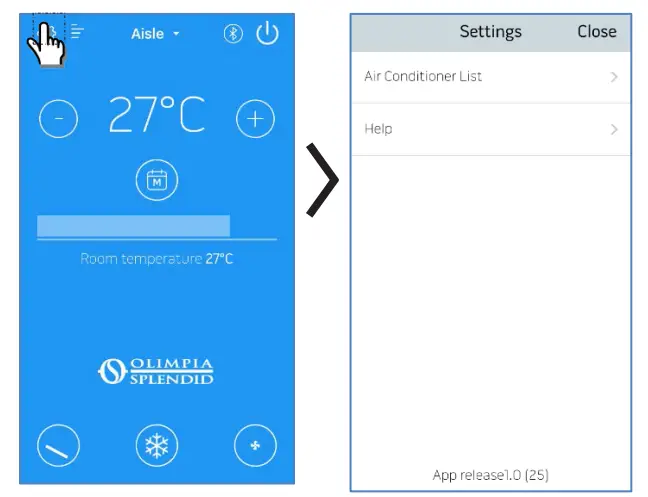
Press the SETTINGS button to access
- the AIR CONDITIONER LIST sub-menu
- an online guide to the app.
The online guide can also be viewed by clicking the following link: http://www.olimpiasplendid.it/area-download
2.2.1 ADD AND MANAGE AIR CONDITIONER
Press the AIR CONDITIONER LIST button to access the SETTINGS sub-menu
Select “ADD A NEW AIR CONDITIONER” to add new air conditioners that are not yet registered on the app.
NOTE: To carry out this operation, smartphone’s Bluetooth must be switched ON and the air conditioner being registered must be within range. 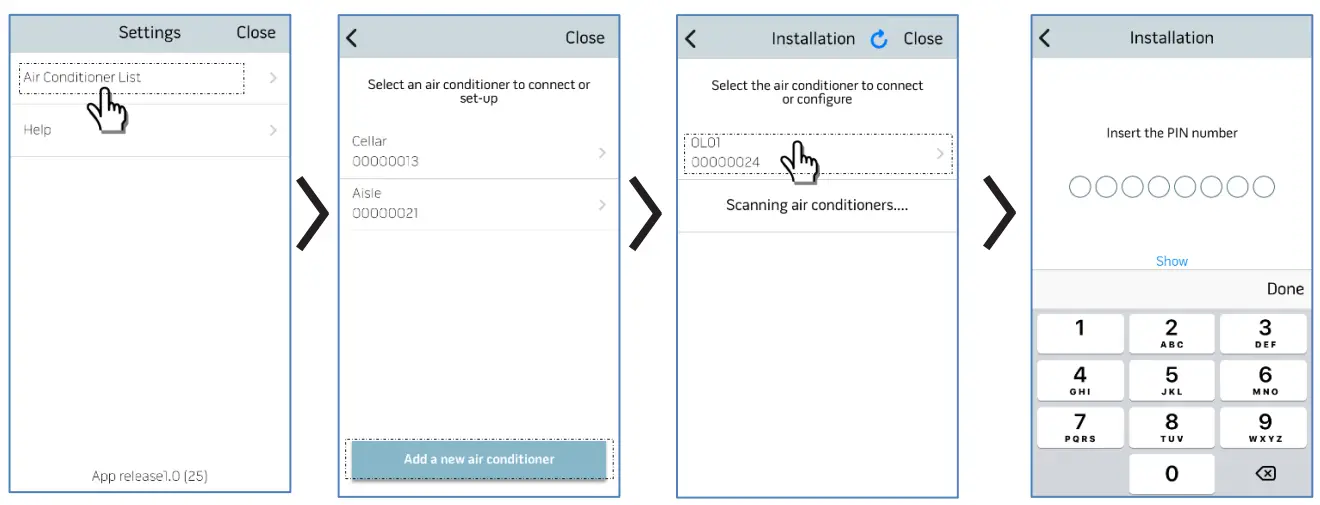
Once the air conditioner is selected and the pin provided with the B1015 kit is entered, the Wi-Fi configuration page is accessed (see specific section).
WARNING: The unique pin provided with each B1015 kit cannot be changed, so it must be stored carefully in case the air conditioner needs to be registered again on the app.
It is recommended to apply one of the supplied labels near the rating label.
Once registration is complete, the “controls screen” is displayed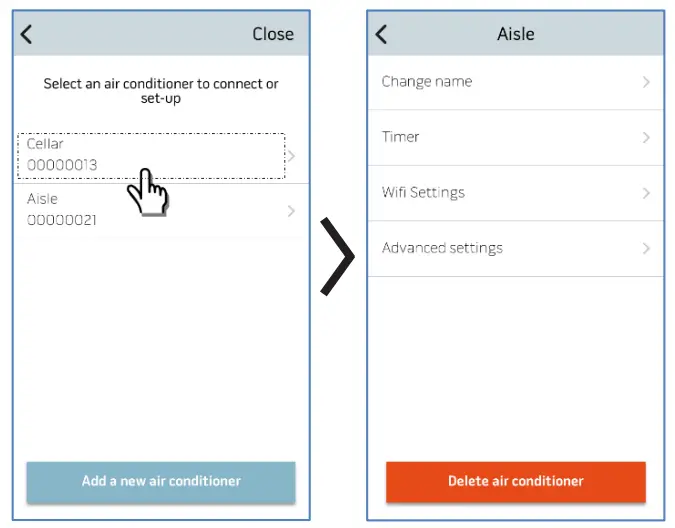
Select the individual air conditioner to access the following settings:
- Change the name of the air conditioner (the name can be up to 6 characters long)
- Timer programming (see appropriate chapter)
- Wi-Fi settings
- Advanced settings
2.2.2 WI-FI SETTINGS
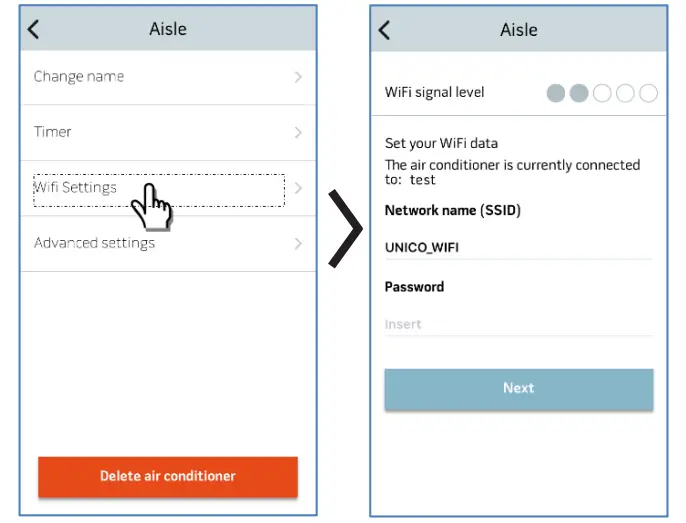
Select WI-FI SETTINGS to do the following:
- check the level of the Wi-Fi network signal detected by the B1015 kit installed in the unit
- Set the network name (SSID) and the Wi-Fi password to be associated with the board.
2.2.3 ADVANCED
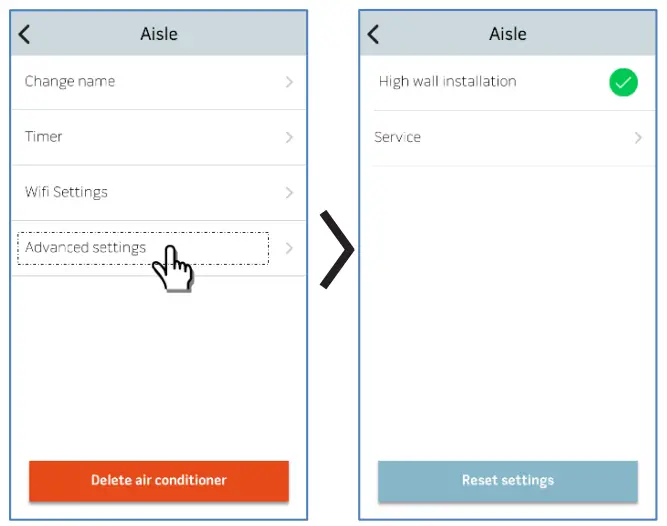
Select ADVANCED SETTINGS to do the following:
- Set the air conditioner’s installation position (further details are given in the relative chapter of the manual)
- Service page (access exclusive to Olimpia Splendid)
2.3 Timer
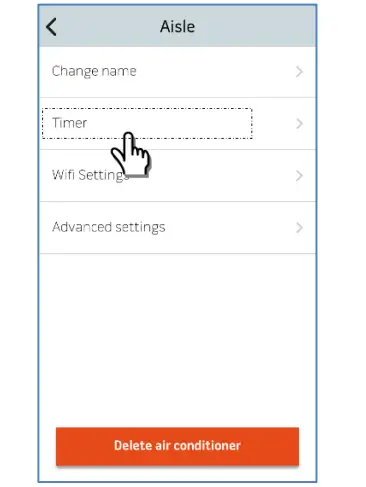
Select TIMER to access the Timer programming screen.
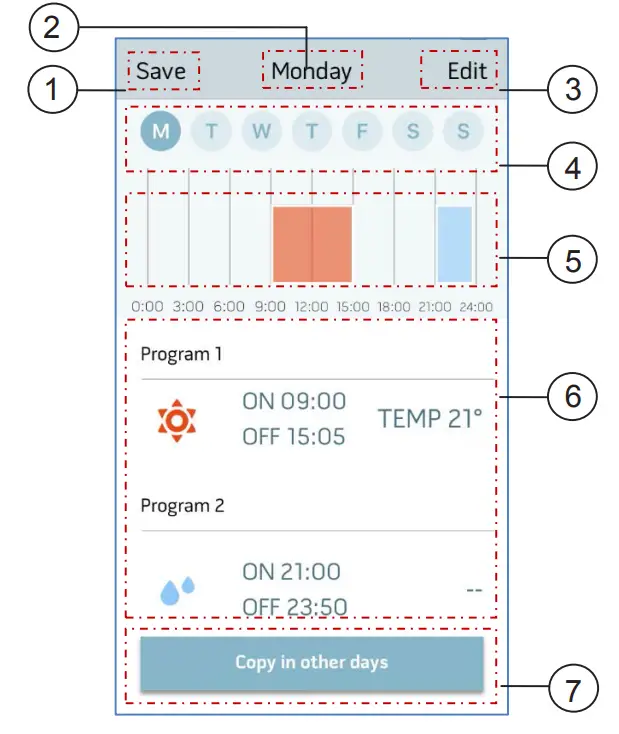
| No | Buttons/indicators | Description |
| 1 | Back/Save button | For confirming the settings and returning to the “Air conditioner list” page |
| 2 | Day indicator | Displays the selected week day |
| 3 | Edit programming button | For accessing the edit programming page for the selected day |
| 4 | Day selection button | For selecting another week day |
| 5 | Day programming graph | Graphic display of the hourly programming for the selected day |
| 6 | Programming indicator | Displays details of the time slots entered |
| 7 | Copy programming button | For copying the timer settings to other days of the week |
Get In Touch
Call: 0845 6880112
Email: [email protected]
Our Address
Puravent, Adremit Limited, Unit 5a, Commercial Yard, Settle, North Yorkshire, BD24 9RH
OLIMPIA SPLENDID spa
via Industrial 1/3
25060 Celestica (BS)
www.olimpiasplendid.it
[email protected]
 app.si - This website is for sale! - App Resources and Information.