
 TT LOCK
US E R MANUAL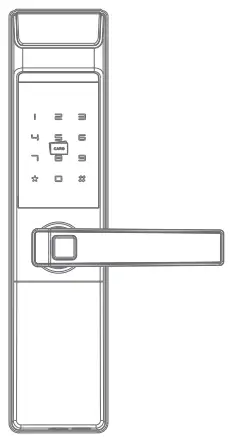 N3T/NF21T/NC21T
T1/T2
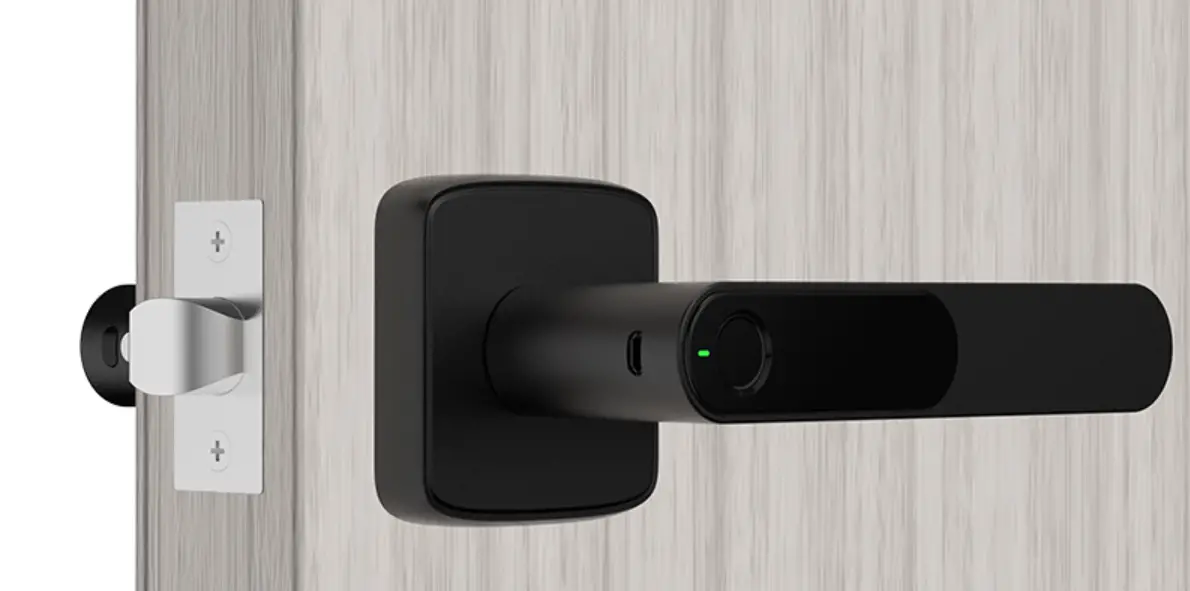
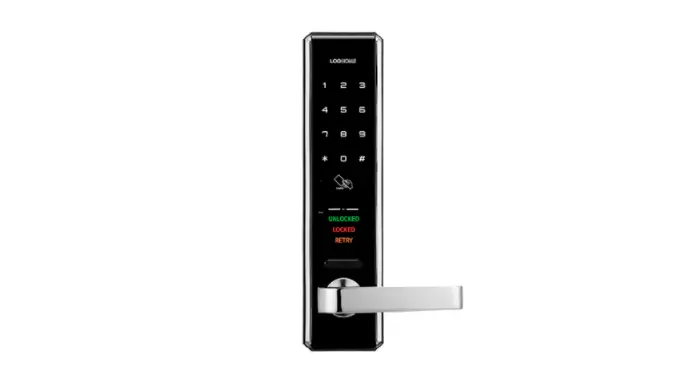
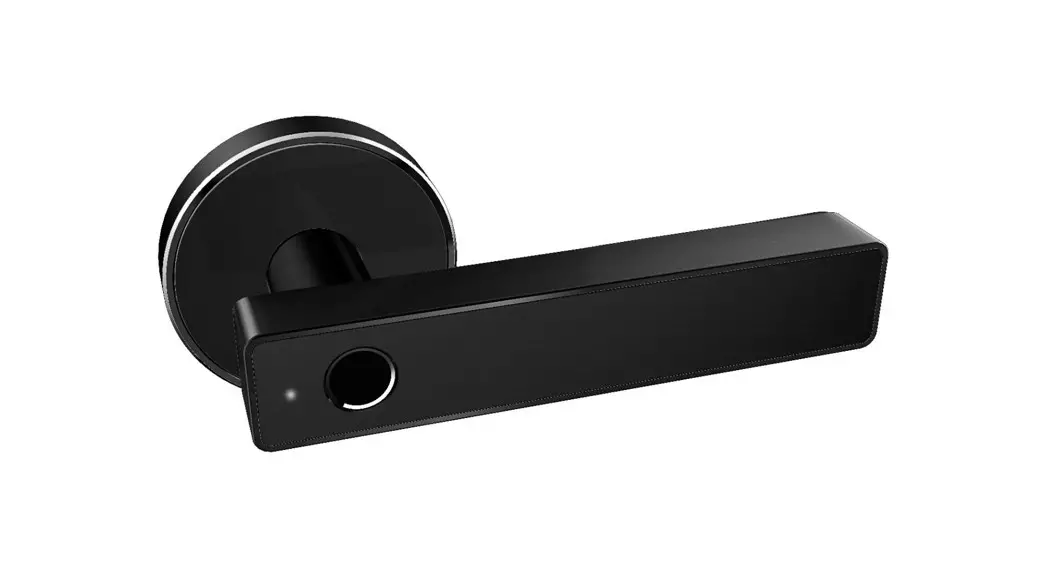
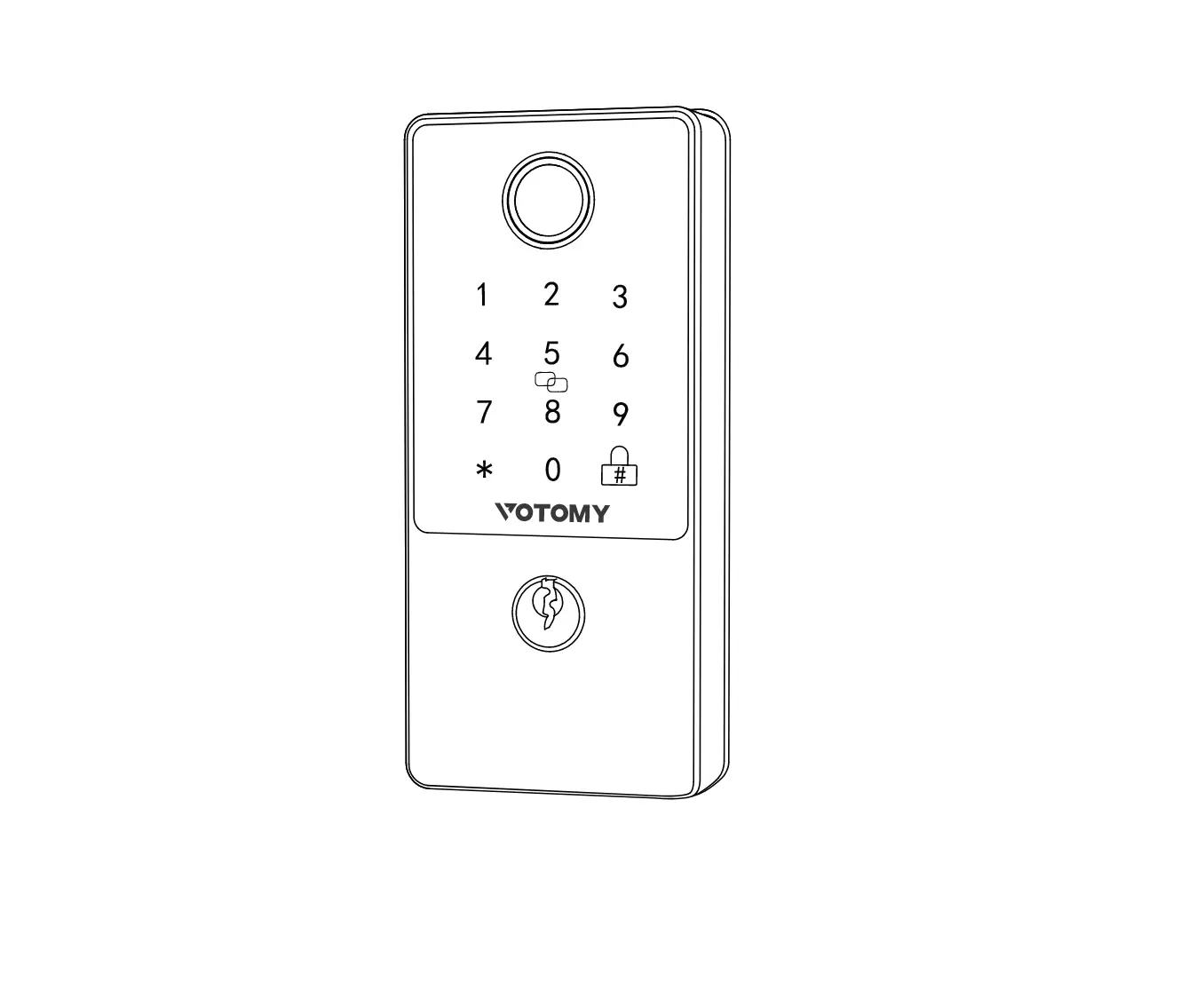
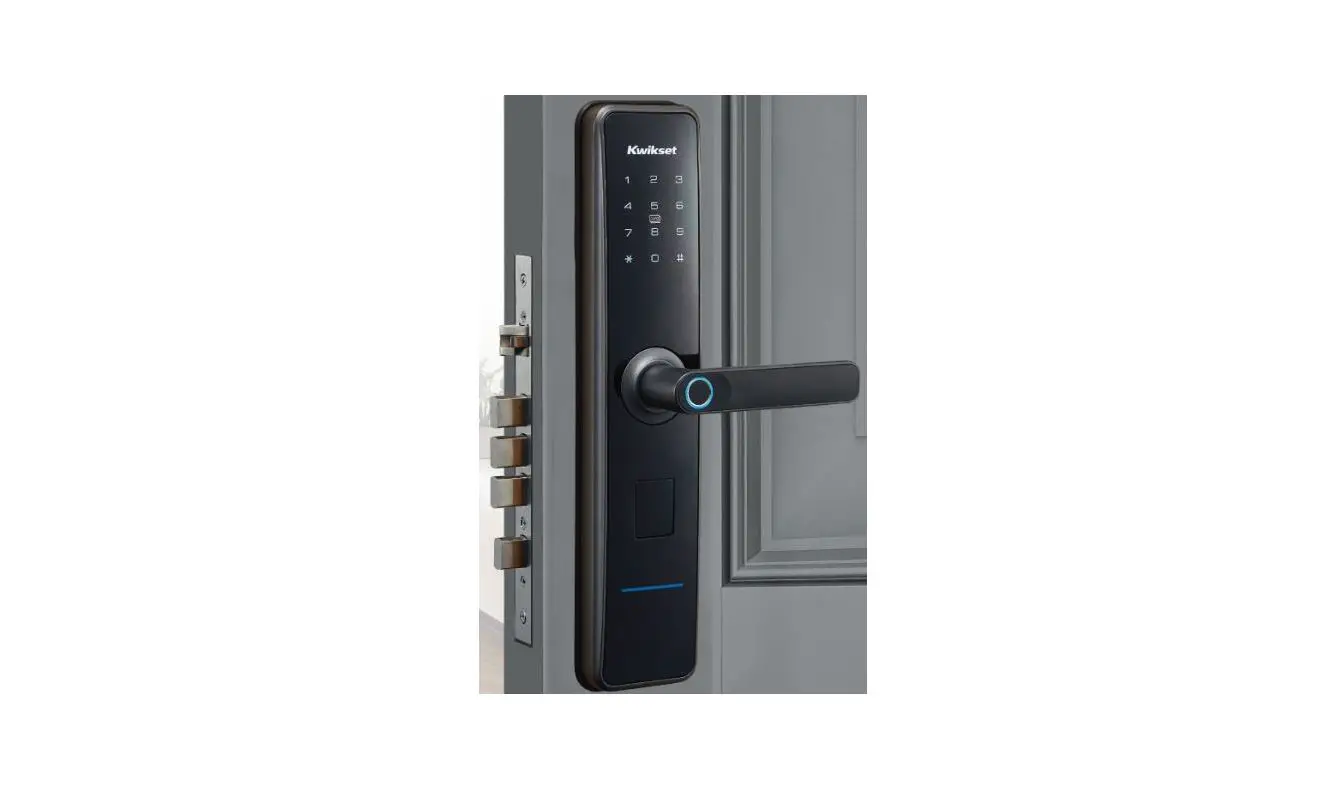
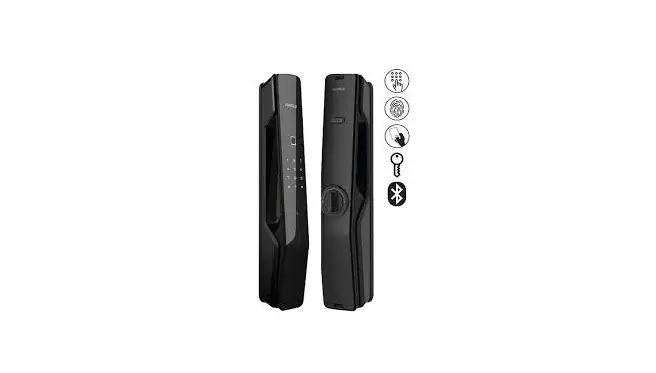
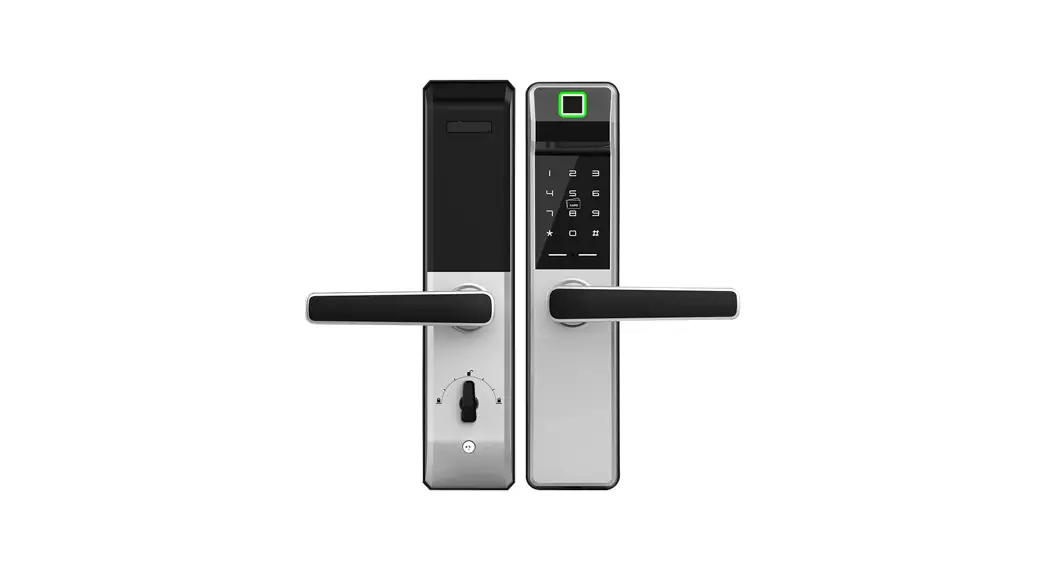
NF21T Door Lock
Fingerprint
Input fingerprint and press the handle to unlock
Password
Input the password and press the handle to unlock
Card Key
13.56Mhz Mifare card key
E-Key
Send E-Key to families unlocked by Bluetooth
Bluetooth Gateway(Optional)
Mini remote controller
Mobile App
Unlock the door remotely, set a one-time password, check access records and etc via APP
Protective Inputting
Anti-prying with extra random codes
Emergency Power
MICRO USB power interface
Mechanical Key
Open the door with the mechanical key for any situation
Specification
| Smartphone software installation | Above android 4.3/1057.0 |
| Power Supply | 4pcs M batteries |
| Lower voltage warming | 4.8V |
| Voltage range | 4.5-9V |
| Static current | 65 uA |
| Dynamic current | <200 mA |
| Lock opening time | ≈1.5s |
| Working temperature | -20°C-70°C |
| Panel Type | Capacitive touch panel |
| Password capacity | 150pcs customized and permanent passwords |
| 150pcs dynamic passwords | |
| Card type | Mifare-M1 |
| IC card capacity | 200pcs |
| Opening function | APP. Password. Fingerprint. IC card. Mechanical key |
| Motor interface output voltage | Batteries voltage reduces 0.3W |
| Maximum current: 1A | |
| Fingerprint sensor | Semiconductor fingerprint |
| Fingerprint capacity | 120pcs (Optional) |
| False accept rate(FAR) | <0.001% |
| False reject rate(FRR) | <1.0% |
Operations on TTlock app
1. Download the APP
Download TTLock App, You may scan the below:
 http://a.app.qq.com/o/simple.jsp?pkgname=com.tongtongsuo.app&fromcase=40003
2. Add admin passcode
Open Bluetooth on mobile phone -> Register and login on TTLock APP -> Add lock -> Choose door lock -> Click the lock model (the lock screen needs to be activated) according to the voice prompt -> Administrator is added successfully (an administrator password is automatically generated)

 Admin passcode inquiry (Enter the main interface, choose “settings” then enter “Basics” to get the system admin Passcode or u can change it)
3. Modify passcode
Modify the administrator passcode.
Select the lock on the APP ->Click settings -> Basics -> Click “Admin passcode”-> Enter the new administrator password.
Admin passcode modified successfully.

- It must be operated near the lock.
- The administrator password is used for the management of the lock and operation of opening the door, the lock password is used only for opening the door.
4. Send E -key
Before sending E-keys, you have to make sure the receiver has downloaded the TT lock APP. Click “send E-key” -> Select E-key type ->
Finish the information -> Send -> Receiver to get the E-key and open the lock.
Administrator

Receiver

5. G generate pas s code
Click “generate passcode” -> Select generate passcode type -> Write a name -> Generate passcode finished by APP itself, you can share this code with other family members.

6. Add pass code
Click “generate passcode” on the APP -> Select password type
 The customized password must be operated near the lock.
7. Add fingerprint
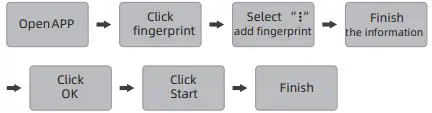
Click “fingerprint” on the APP -> “add fingerprint” in the upper right corner -> Input fingerprint name and validity period -> Click OK -> Click “start”→ Finish adding fingerprint.
- It must be operated near the lock.
- Press the finger 4 times on the fingerprint collector according to the phone screen instruction and voice prompt.
8. Add IC card
Click “IC card” on the APP ->“ Add IC card ” in the upper right corner -> Enter the name and select the validity period → Click “OK” and then swipe the card to add.
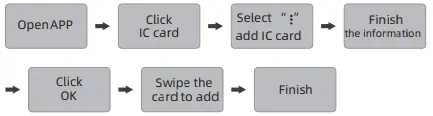
It must be operated near the lock.
9. Add Gateway
Click gateway -> Choose gateway type G2 -> Click next -> Add gateway Finish the network information -> Click OK.
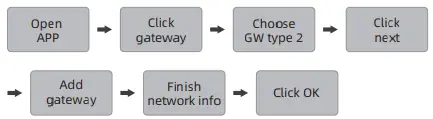
- Make sure the gateway indicator light flash between blue and red light alternately.
- Input the network of your gateway.
- It will remind you gateway is added successfully if connect successfully.
Remark
Back to the home page, click the little lock sign as ( It means that you can unlock the door anywhere). Besides opening the locks remotely, the gateway also can generate passcode/ authorized admin/ check records.
10. Delete fingerprint
Click “fingerprint” on the APP -> Click the fingerprint to be deleted, and click “delete”.

It must be operated near the lock.
11. Delete passcode
Click “password ” on the APP -> Click the password to be deleted -> click “delete”.

It must be operated near the lock.
12. Delete an IC card
Click “IC card” on the APP, click the card to be deleted, and then click delete.

It must be operated near the lock.
Operations on the door lock
1. Chines e English switch
Chinese voice: input “*39#administrator password#1# ” on the lock.
English voice: input “*39#administrator password#2# ” on the lock.
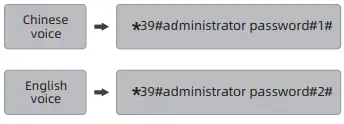
The administrator’s initial password is 123456.
2. Set the administrator password
Input *12#123456# -> Input new administrator password# -> Re-enter the same password#.

3. Add fingerprint
Input *80#on the lock -> Input administrator password# -> Press your finger four times on the fingerprint collector according to the voice prompt.

- Press your finger four times on the fingerprint collector according to the voice prompt.
- After success, you can continue to add other fingerprints / passwords / IC cards, or you can press the “*” key or wait for the timeout to exit the add mode.
Add pass word
Input *80#on the lock -> Enter administrator’s password# -> Input new password needed to be added# -> Input the same password# again.

After success, you can continue to add other fingerprints / passwords / IC cards, or you can press the* key or wait for the timeout to exit the add mode.
5. Add IC card
Input *80#on the lock -> Enter administrator password#, then swipe the IC card to add.

After success, you can continue to add other fingerprints /passwords / IC cards or you can press the key or wait for the timeout to exit the add mode.
6. Delete a fingerprint
Input *70#administrator password# on the lock, all fingerprints are deleted in this operation

7. Delete password
Enter *71# on the lock, all unlocking passwords administrator password# are deleted in this operation.

The administrator password will not be deleted.
8. Delete IC card
Enter *69# on the lock, all IC cards are deleted administrator password# in this operation.

After success, you can continue to add other fingerprints/passwords / IC cards, or you can press the key or wait for the timeout to exit the add mode.
9. Delete admin
Press the “clean” button 5 seconds, input “000#”, the admin deleted and locks recovery to factory status 10. Warming Tips
If the lock has added an administrator already, APP cannot find the lock’s signal
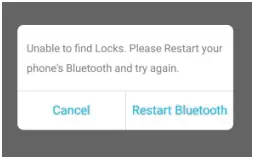 Then you should light up the lock screen first, open the Bluetooth of your phone, and input “83#administrator passcode” on the lock. APPbluetooth administrator code can be added successfully.
Dear Customer,
Thank you for choosing our products. For your best interests and further services from us, please keep this card well and contact the local distributor directly.
Certificate of Quality
Product:____________________
Model No.:_________________
Date:______________________
Inspector__________________