 User Guide
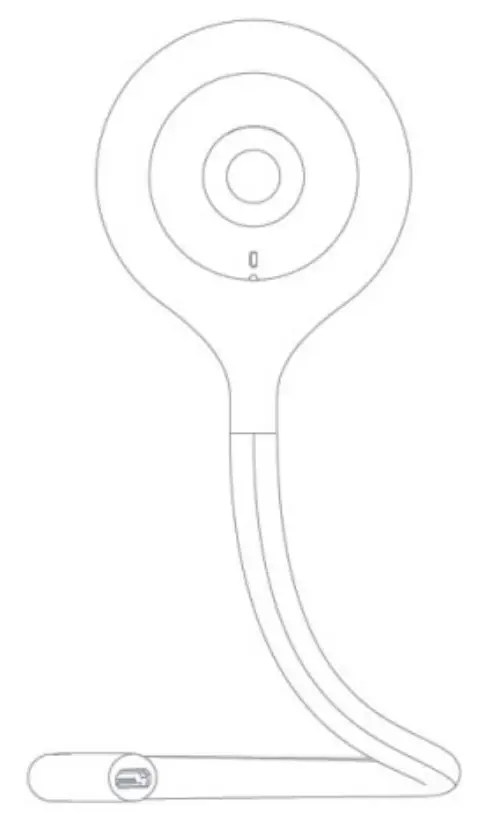 KOGAN SMARTERHOME™
SMART BABY MONITOR
CAMERA
KABABYCAMGB, KABABYCAMBB,
KABABYCAMPB, KAFHDBABYCC
COMPONENTS
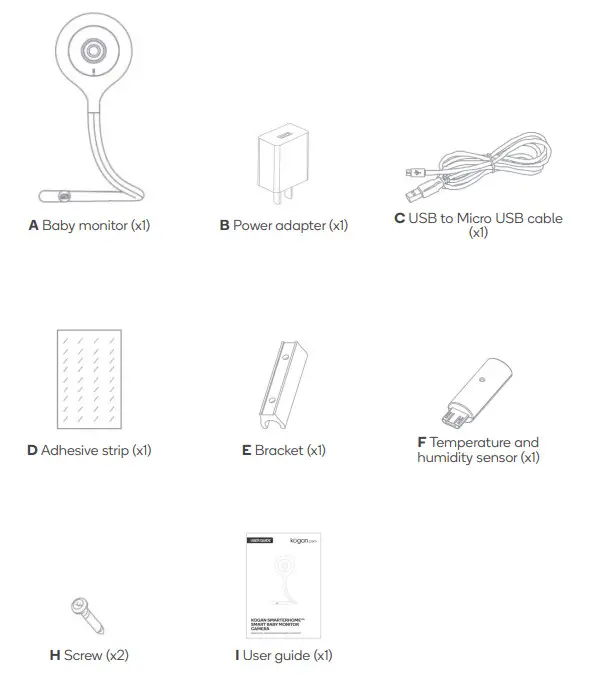
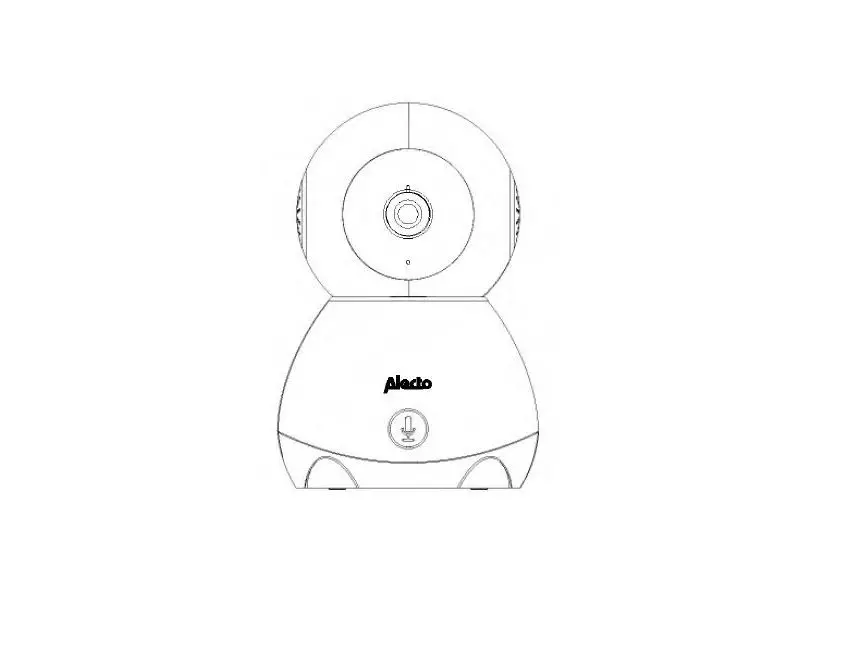
OVERVIEW
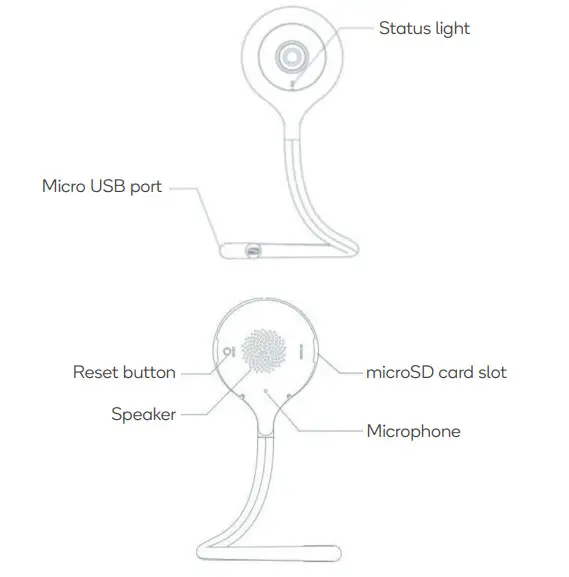
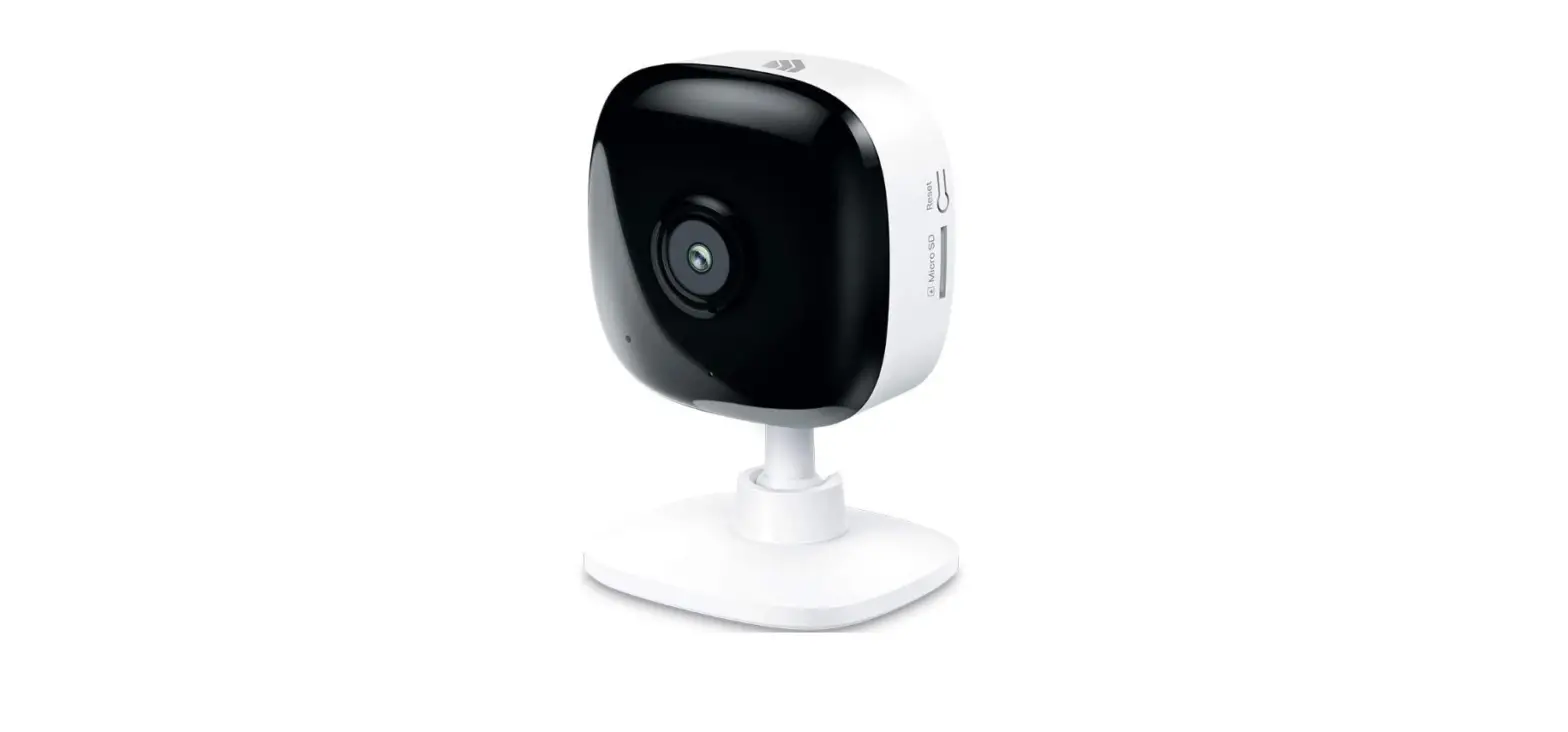
| Micro USB port | Connects to a powe supply. | |
| Status light | Light | Status |
| Solid red light | The camera is not connected to Wi-Fi. | |
| Blinking red light | Awaiting Wi-Fi connection. | |
| Blinking blue light | Ready for connection. | |
| Solid blue light | The camera is connected to Wi-Fi. | |
| Microphone | Captures audio. | |
| microSD card slot | Supports FAT32 formatted microSD cards up to 128GB. | |
| Reset | •Press and hold this button for 5 seconds to reset the device. •If you have modified the settings, they will return to factory default settings. | |
INSTALLATION
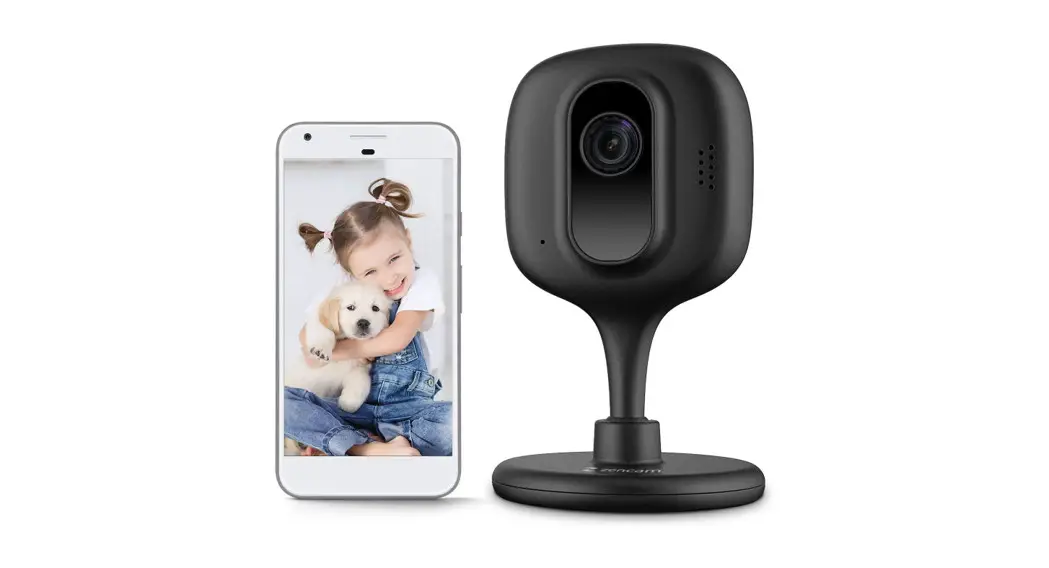
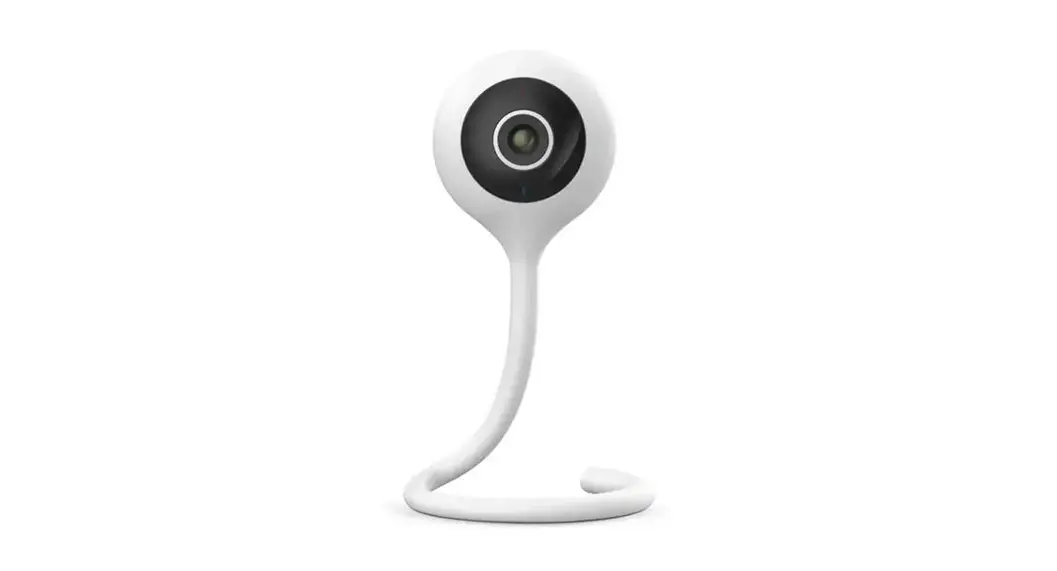
The camera can be either placed on a table or mounted to a wall.
Table
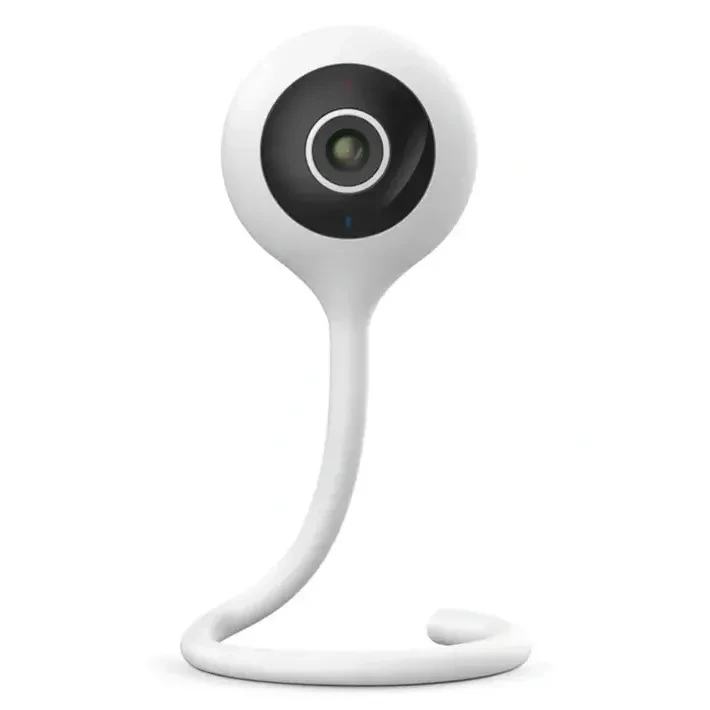
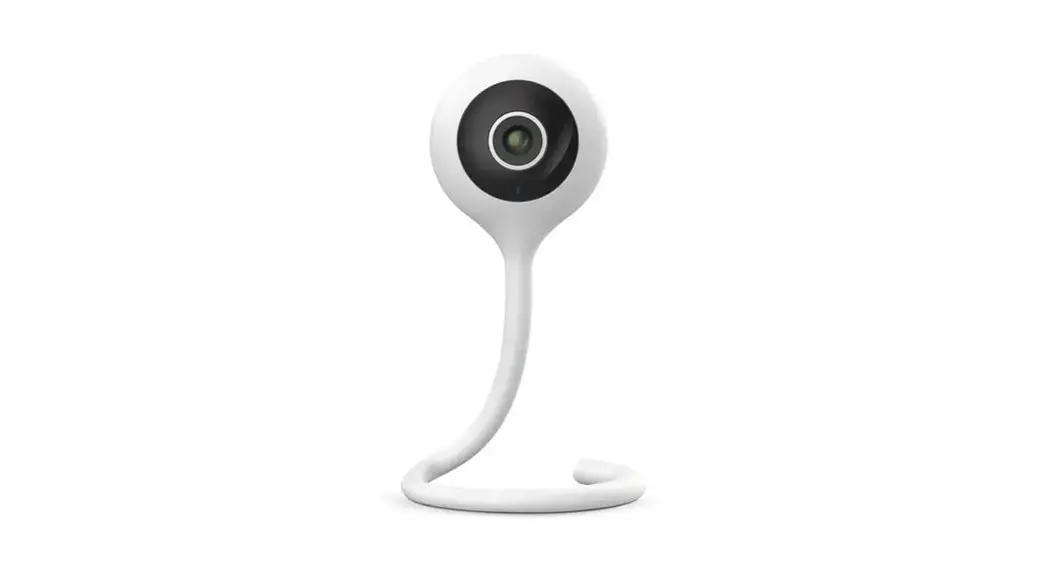
Position the camera on the table as desired. The tail may be bent as required.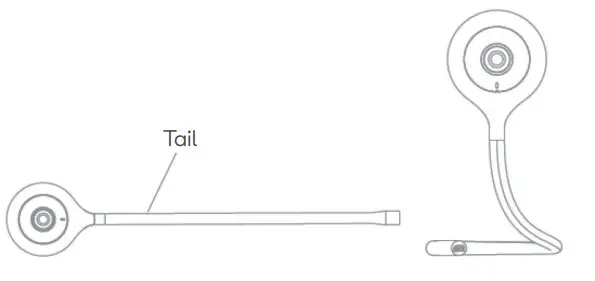 Mounting to a wall
If mounting to a wall, the camera must be fixed onto a clean surface with the bracket. The bracket can be fixed by using either the provided screws or adhesive strips.
Using screws
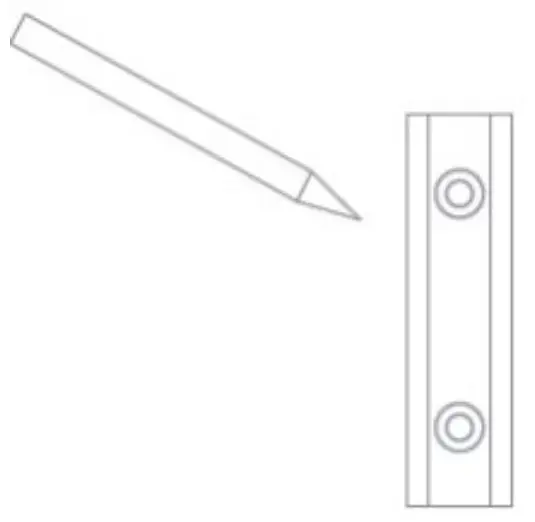
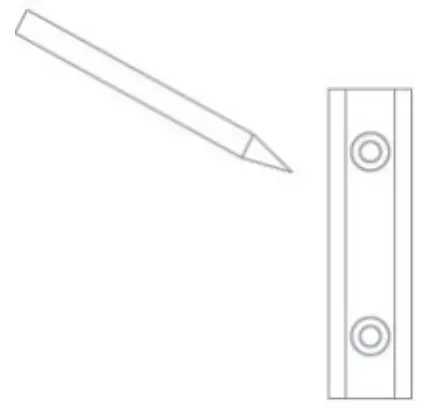
- Mark the positions of the two screw holes in the bracket on the wall where you would like to mount the camera.

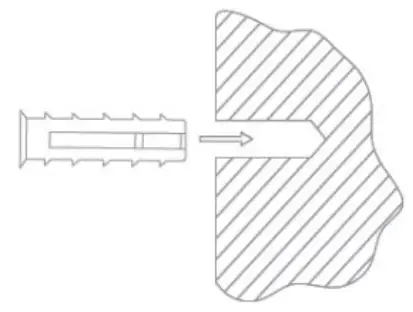
- Use a drill (not supplied) to make holes on the marked locations. Secure two wall anchors (not supplied) into the holes.

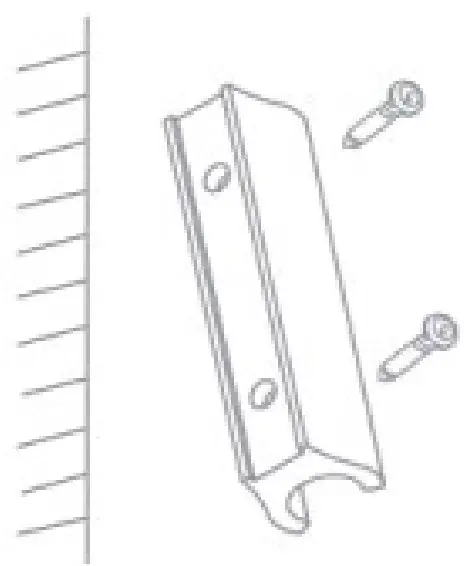
- Align the screw holes on the bracket with the holes on the wall. Using a screwdriver (not supplied), secure the provided screws through the marked positions, fixing the
bracket onto the wall.
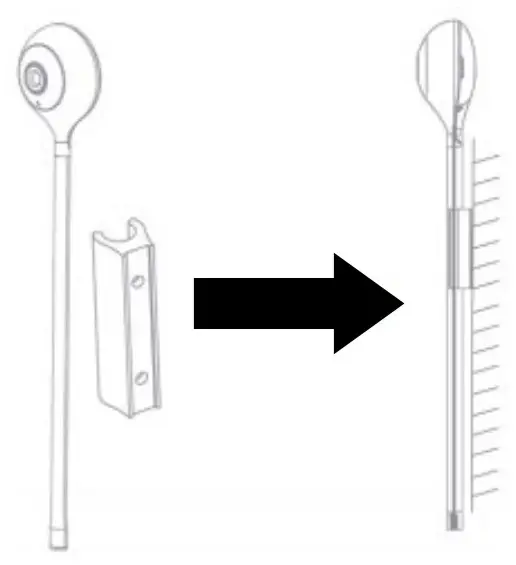
Insert the camera into the bracket from any angle.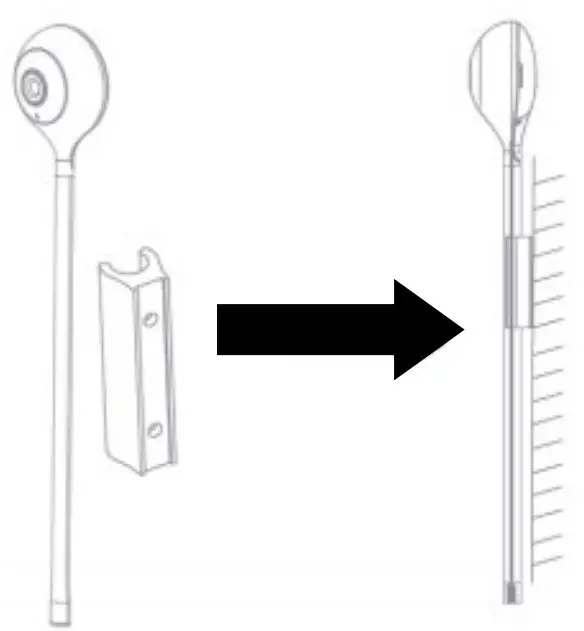
Using the adhesive strip
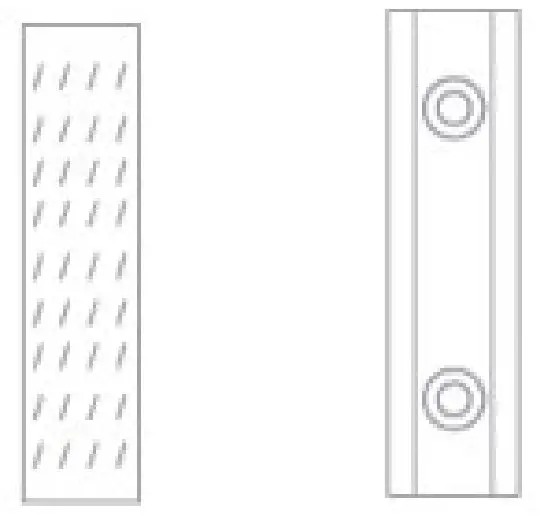
- Mark the positions of the two screw holes in the bracket on the wall where you would like to mount the camera.

- Peel one side of the backing off the adhesive strip and stick the strip onto the desired location on the wall. Peel the other side of the backing off the strip, then stick the bracket onto the strip.

- Insert the camera into the bracket from any angle.

Powering on
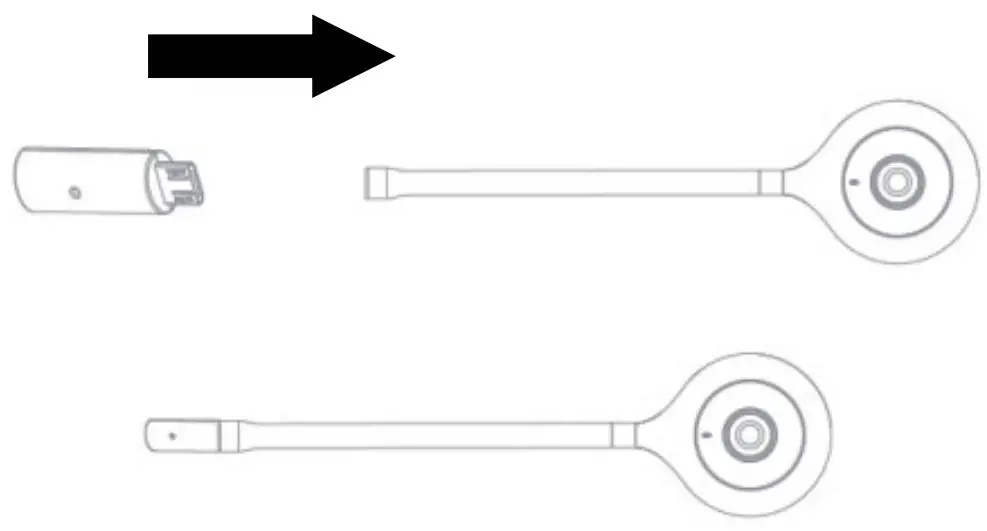
- Connect the temperature and humidity sensor to the Micro USB port of the camera.

- Connect the Micro USB end of the power cable to the temperature and humidity sensor, then connect the USB-A end into the power adapter. Plug the power adapter into a socket and switch the socket on. The baby monitor will then turn on.
CONNECT TO THE SMARTERHOME™ APP
Install App
Download the “Kogan SmarterHome” app from the Play Store (Android) or App Store (iOS).
Register
If you do not have a Kogan SmarterHome™ account, register or sign in with a verification code sent by SMS.
To register:
- Tap to enter the registration page.
- The system automatically recognises your country/area. You can also select your country code manually. Enter your email address and tap ‘Next.’
- Alternatively, you can register by mobile number and enter the verification code sent to you by SMS.
Create a profile on the next page to define your location and room.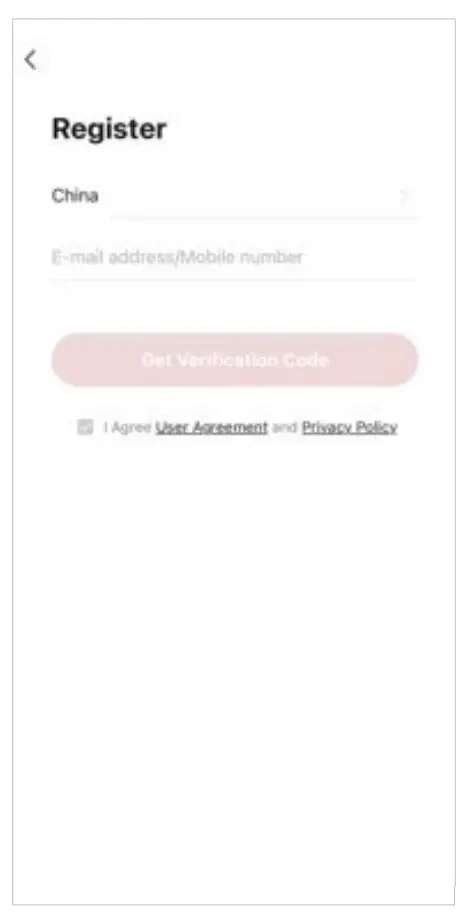 Set the device in pairing mode
When the device is first turned on, it may automatically enter pairing mode which is indicated by the blue light blinking rapidly. If not automatically in pairing mode when powered on, you can manually set the device in pairing mode by pressing and holding the reset button for 5 seconds until the blue light begins blinking rapidly.
Add device through the network
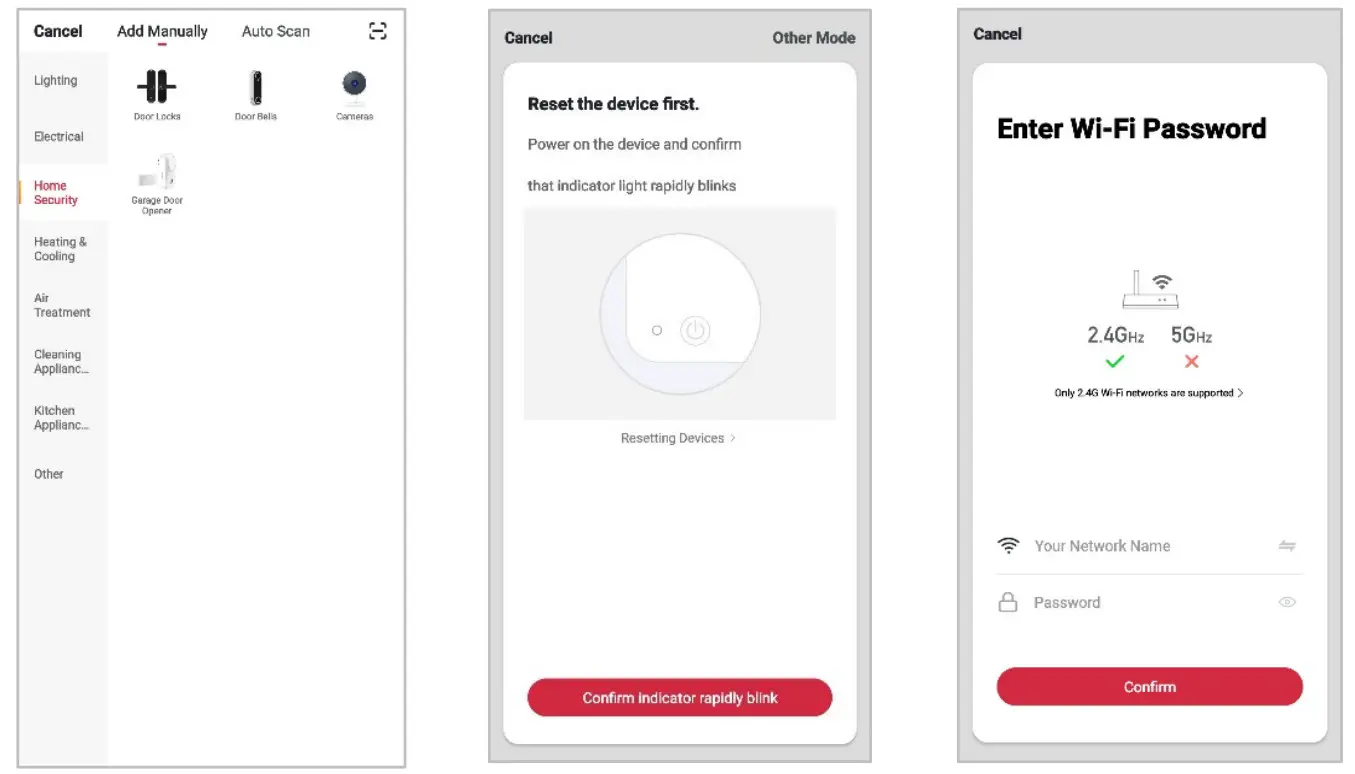
- Once registered, tap “+” in the upper right corner of the app’s home page to add a new device through the network.
- Select the product type from the list of options in the app (Home Security > Cameras).
- Ensure that the device is in pairing mode, with the blue light blinking rapidly, and tap “Confirm light is rapidly flashing”.
- Upon successfully confirming pairing mode, enter your Wi-Fi details. It is important that your SmarterHome™ device and the app are connected to the same Wi-Fi network during setup.

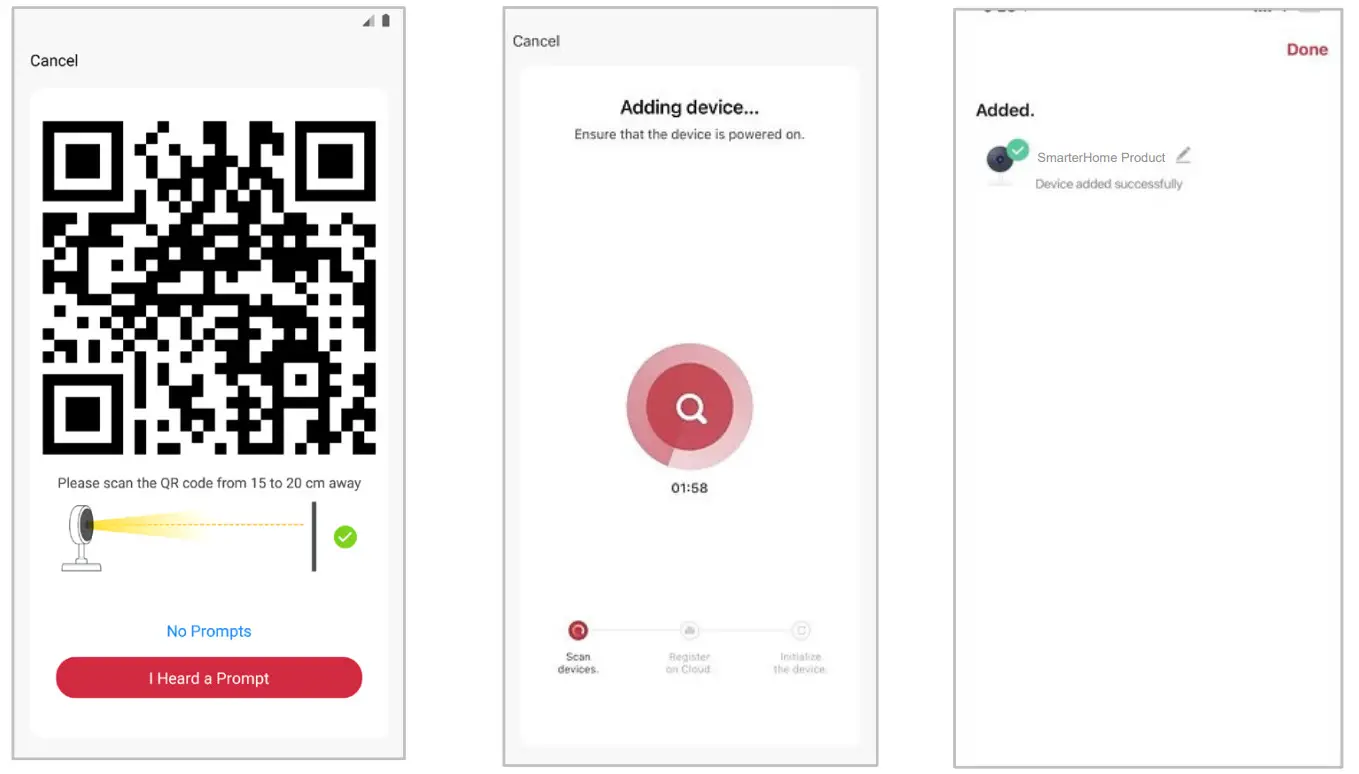
- Tap ‘Continue’. The mobile device will display a QR code. Hold the camera 15–20cm away from the mobile device to allow the camera lens to scan the QR code. Tap ‘I
Heard a Prompt’ when you hear an audio tone from the camera. - The device will commence the pairing process and connect to the app. Ensure your Wi-Fi router, mobile phone, and the SmarterHome™ device are kept close until the connection is complete.
- After successfully being added, you will have the option to rename the device and assign it to a location. It will now be listed on the app’s home page. Tap the device
listing to enter its control page. Notes:
• The device and the app have to use the same Wi-Fi network.
• The device is only compatible with 2.4Ghz networks.
 Notes:
OPERATION
Interface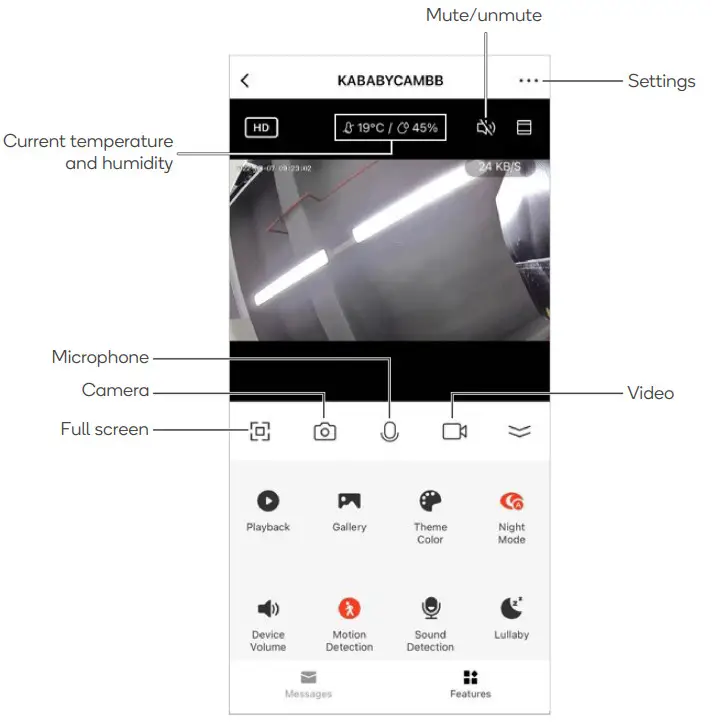
| Name | Description |
| Fullscreen | Tap to change the orientation of the screen and enter full screen. |
| Camera | •Tap to take a screenshot of the current feed. These are saved in the gallery. •To gain more storage, insert a FAT32 formatted microSD card (not included) when the camera is turned off into the microSD card slot. |
| Microphone | Tap to turn on the microphone. |
| Video | Tap to record a video of the current feed. |
| Playback | Tap to view past footage. |
| Gallery | Tap to view any screenshots taken. |
| Theme color | Tap to change the color of the interface. |
| Night mode | Tap to activate night mode. This is ideal for darker areas or when the lights are not turned on. |
| Device volume | Tap to adjust the volume of the feed. |
| Motion detection | Tap to activate the motion detection alarm. |
| Sound detection | Tap to activate the sound detection alarm. |
| Lullaby | Tap to browse and play a pre-set list of songs in the camera’s library. These songs can assist in having your child fall asleep. |
Motion and sound detection alarm notifications
When the alarm is turned on, the camera will be able to send push notifications to users
when any movement is detected in the camera’s view. This gives added security and may be useful during periods when you are not home. To turn on the notifications, follow the steps outlined below:
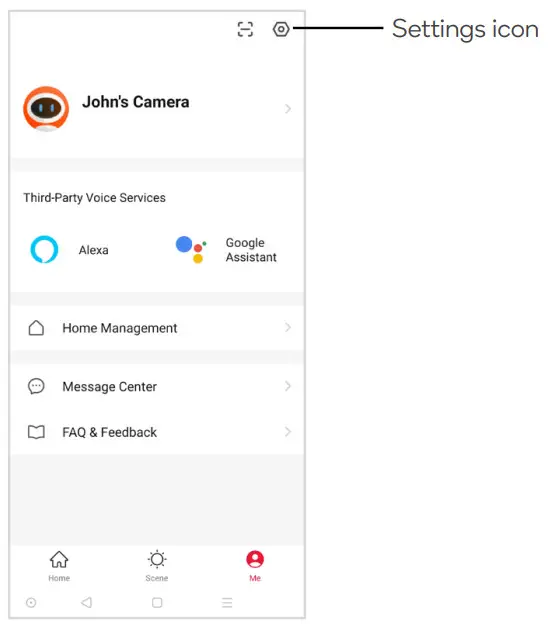
- Go to the ‘Me’ tab in the Kogan SmarterHome™ app and tap on the settings icon.

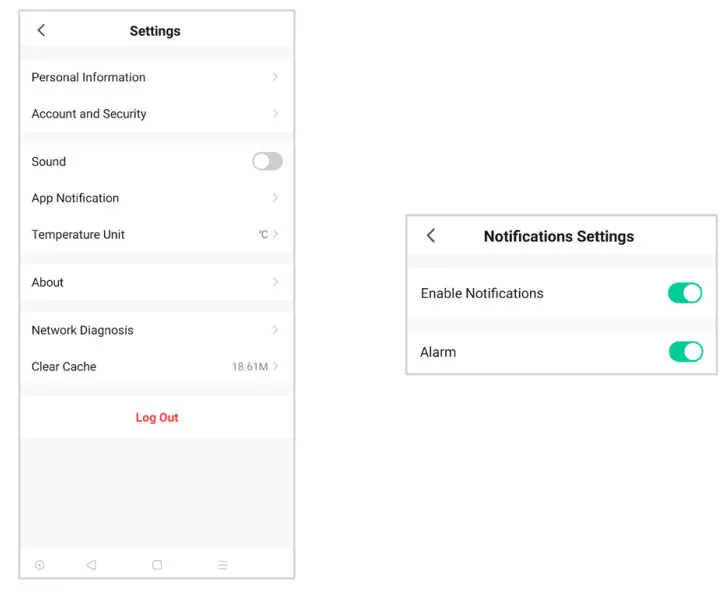
- Tap ‘App Notification’ then turn on ‘Enable Notifications’ and ‘Alarm’. The toggles will turn light green.
 Note:
Note:
Ensure notifications are turned on in your mobile device’s settings, otherwise you may not receive push notifications from the Kogan SmarterHome™ app.
 Note:
Note:GOOGLE HOME CONTROL
Note:
You will need to set up a Google Home account prior to linking your Kogan SmarterHome™ device.
Adding “SmarterHome” to the Google Home app
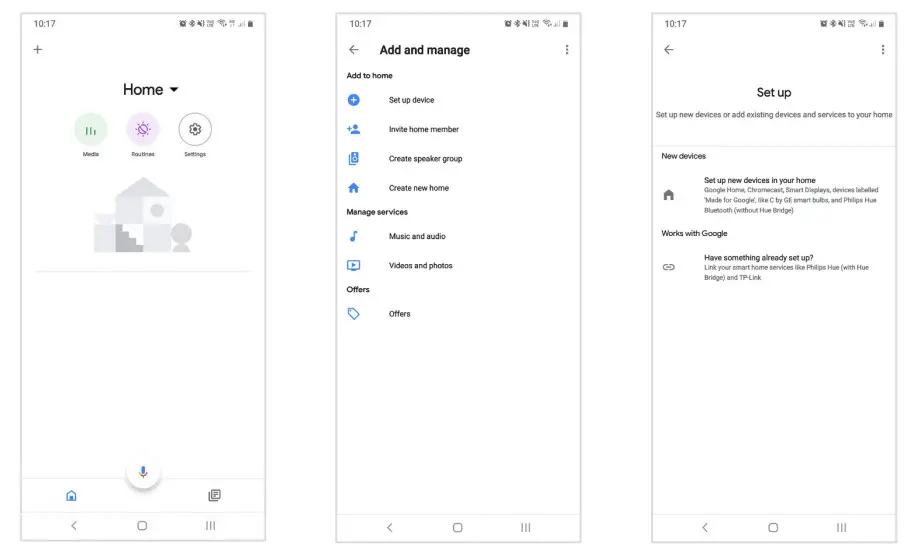
- From the home page of the Google Home app, select the “+” icon to access the ‘Add and manage’ page.
- Select ‘Set up device’, then under the Works with Google banner, select ‘Have something already set up?’
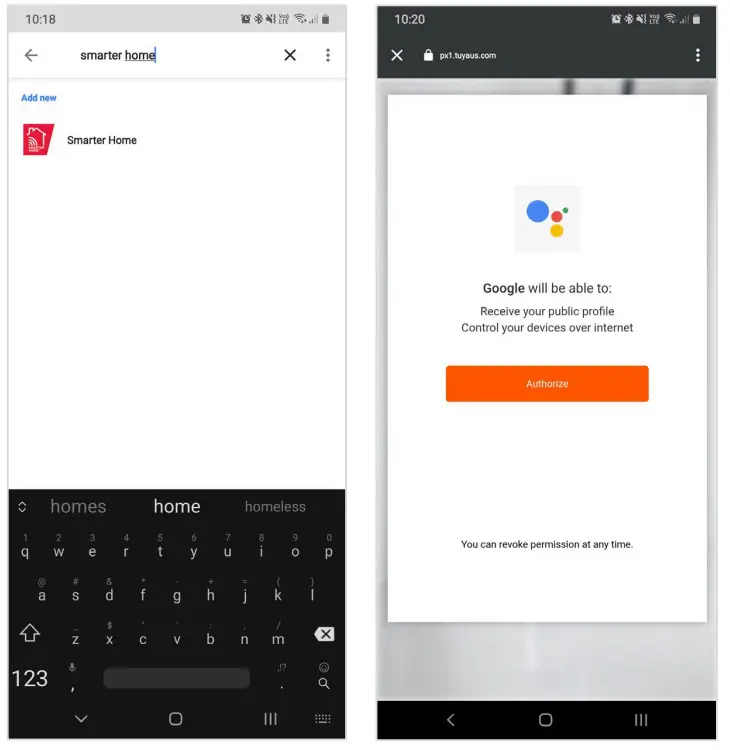
- Select the search bar and type ‘Smarter Home’ to locate the Kogan SmarterHome™ service.

- Tap ‘Authorise’ to grant Google permission to access the SmarterHome™ app and your devices.
- From here, you will be prompted to sign into your SmarterHome™ account using either your email or mobile phone number, depending on which method you used to
register your account.
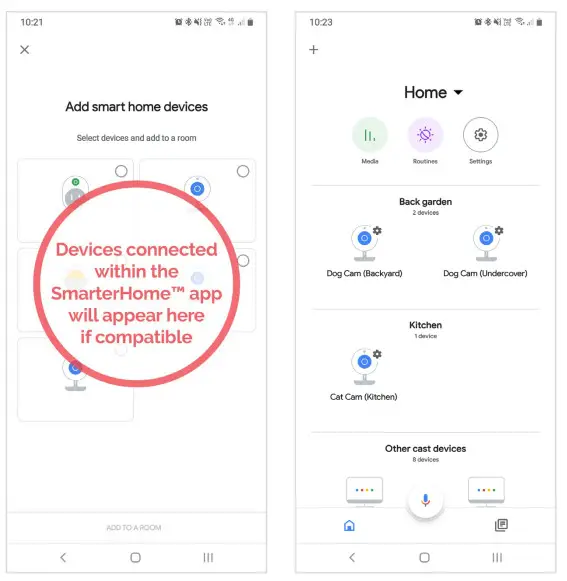
- Once connected, the app will display any compatible devices linked to your SmarterHome™ account. From here you can assign them to rooms and set up any routines.
- Tap on any of the devices to view a list of available commands.
 Note:
Note:
Please note that Google Home can only control the base/core functions of any compatible SmarterHome™ devices. To make full use of this product’s smart functionality, please use the Kogan SmarterHome™ app.
 Note:
Note:AMAZON ALEXA CONTROL
Note:
You will need to have set up an Alexa account prior to linking your Kogan SmarterHome™ device.
Adding “SmarterHome” to the Alexa app
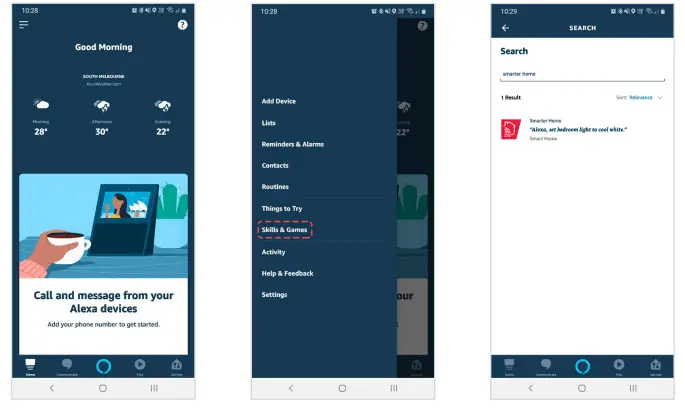
- From the home page of the Alexa app, select the “ ” icon in the top-right and select Skills & Games from the sidebar.
- Select the search bar and type ‘Smarter Home’ to locate the Kogan SmarterHome™ skill.

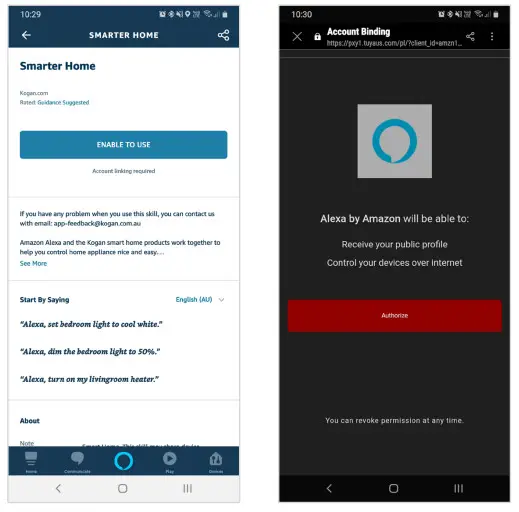
- Tap ‘Enable to Use’ to add the Kogan SmarterHome™ skill to Alexa.
- From here, you will be prompted to sign into your SmarterHome™ account using either your email or mobile phone number, depending on which method you used to
register your account. - Tap ‘Authorise’ to grant Alexa permission to access the SmarterHome™ app and your devices.

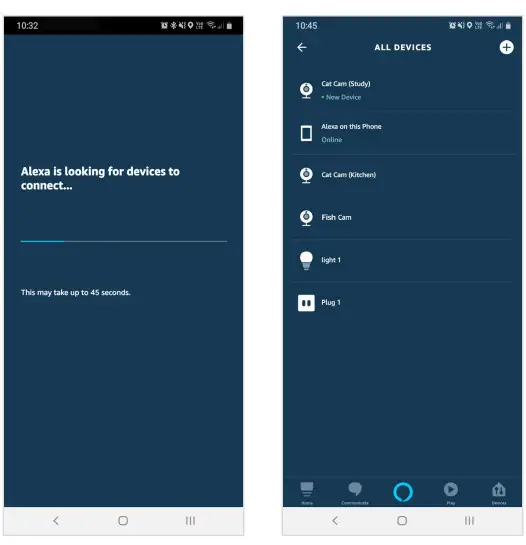
- Once connected, the app will perform a search and display the devices linked to your SmarterHome™ account.
- When your devices have successfully connected to the Alexa app, you will be able to control your Kogan SmarterHome™ devices via Alexa’s voice commands.

Note:
Please note that Alexa can only control the base/core functions of any compatible SmarterHome™ devices. To make full use of this product’s smart functionality, please
use the Kogan SmarterHome™ app.
TROUBLESHOOTING
| Problem | Possible cause/s and solution |
| The camera cannot be accessed via the Kogan SmarterHome’s app. | •Ensure the camera is within the range of both your router and connected smart device. •The camera is not connected to the Wi-Fi network. Reset the camera by pressing and holding the reset button for 5 seconds. Reconnect to the Kogan SmarterHome app. |
| This camera is shown in the list of devices in the Kogan SmarterHome app even after resetting. | Resetting the camera only resets the network configuration of the camera but does not change the configuration on the Kogan SmarterhomeTM app. You must remove the camera from the Kogan SmarterHomeTM app settings. |
| The camera is not detected after changing the router. | 1. Reset the camera by pressing and holding the reset button for 5 seconds. 2. Remove the device from the Kogan SmarterHomeTM app settings. 3. Reconnect the device to the Kogan SmorterHomeTM app. |
| The device is not identifying the microSD card. | •Ensure the camera is turned off before inserting the microSD card. •Confirm whether the microSD card is formatted to FAT32. |
| I am not receiving push notifications for motion or sound detection. | •Ensure push notifications are enabled in the app settings. •Ensure the Kogan SmarterHomeTM app is running on your smart device. •Confirm the motion detection alarm/sound detection alarm is turned on in the Kogan SmarterHomeTM app. |
SPECIFICATIONS
| Power supply | DC 5V, 1A |
| Rated voltage | DC 5V |
| Operating temperature | -20°C- 50°C |
| Dimensions | 53 x 32 x 280mm |
| Weight | 50g |
| Maximum microSD card storage | 128GB |
| Camera | |
| Image sensor | 1/2.9″2 Megapixel CMOS |
| Effective pixels | 1920 (H) x 1080 (V) |
| Shutter | 1/25-1/100,000s |
| Min Illuminance | Colour 0.01 LUX at F1.2 Black and white: 0.001 LUX at F1.2 |
| IR Distance | Night visibility up to 10m |
| DWDR | Yes |
| Lens | 3.6mm @ F2.0, 105° |
| Video and audio | |
| Compression | H.264 |
| Bit rate | 32Kbps-2Mbps |
| Audio input/output | Built-in microphone and speaker |
| Network | |
| Communication protocol | HTTP, DHCP, DNS, TCP/IP |
| Wi-Fi | 2.4G Wi-Fi, IEEE802.11b/g/n |
| OS supported | iOS 8 or later, Android 4.2 or later |
| Security | User authentication, software encryption |
Need more information?
We hope that this user guide has given you the assistance needed for a simple set-up.
For the most up-to-date guide for your product, as well as any additional assistance you may require,
head online to help.kogan.com