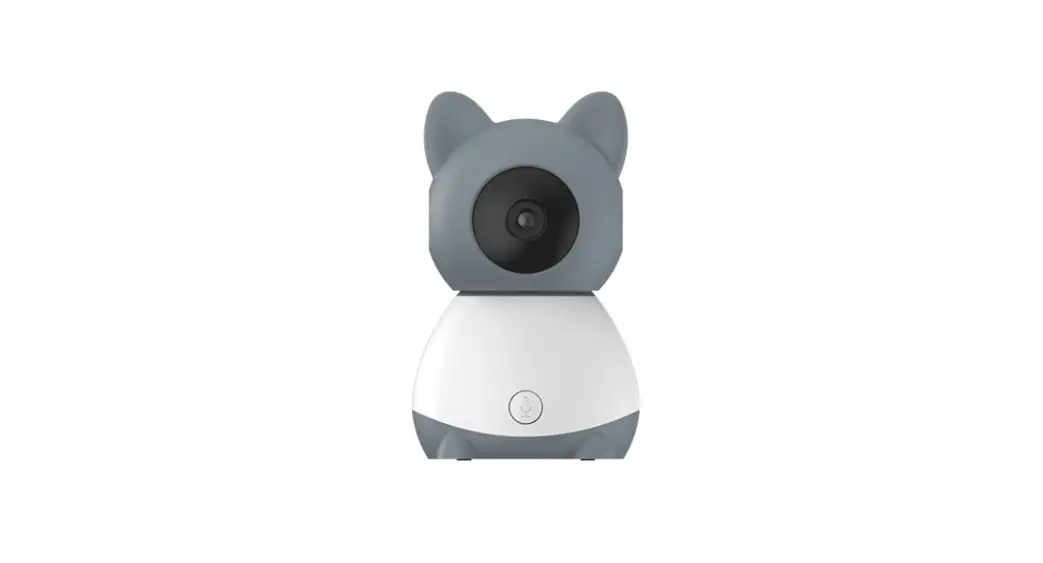
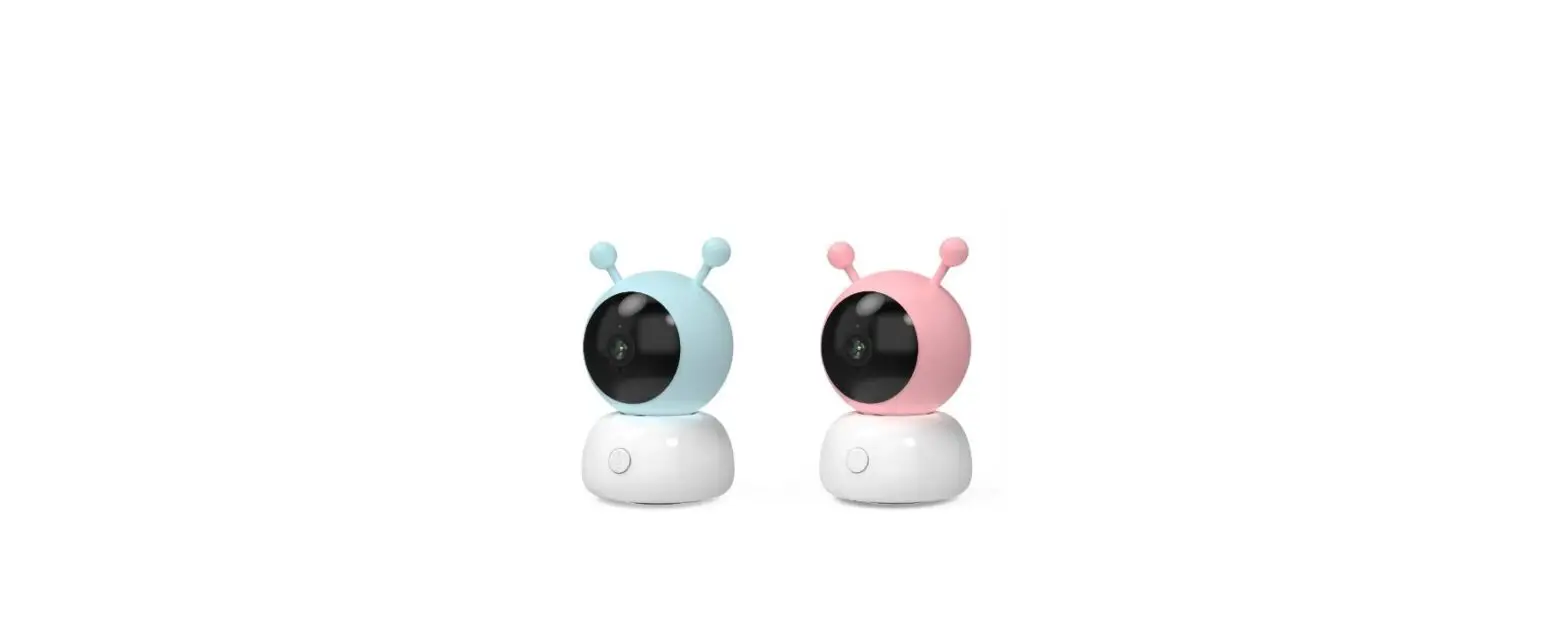
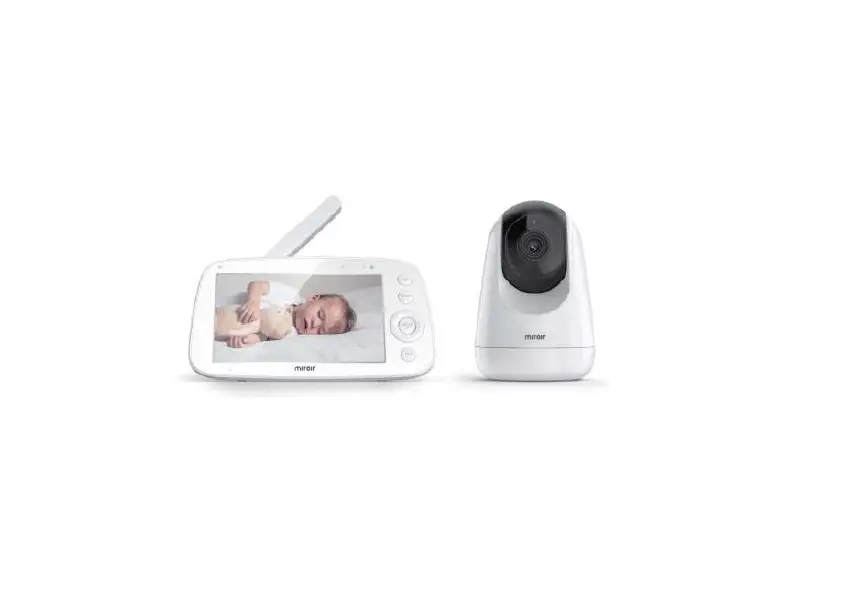
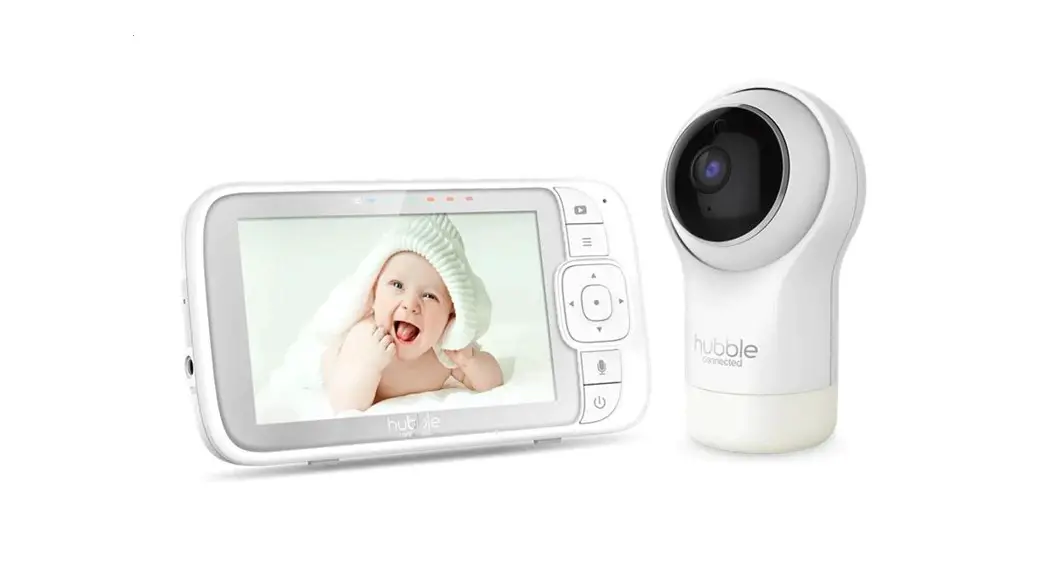
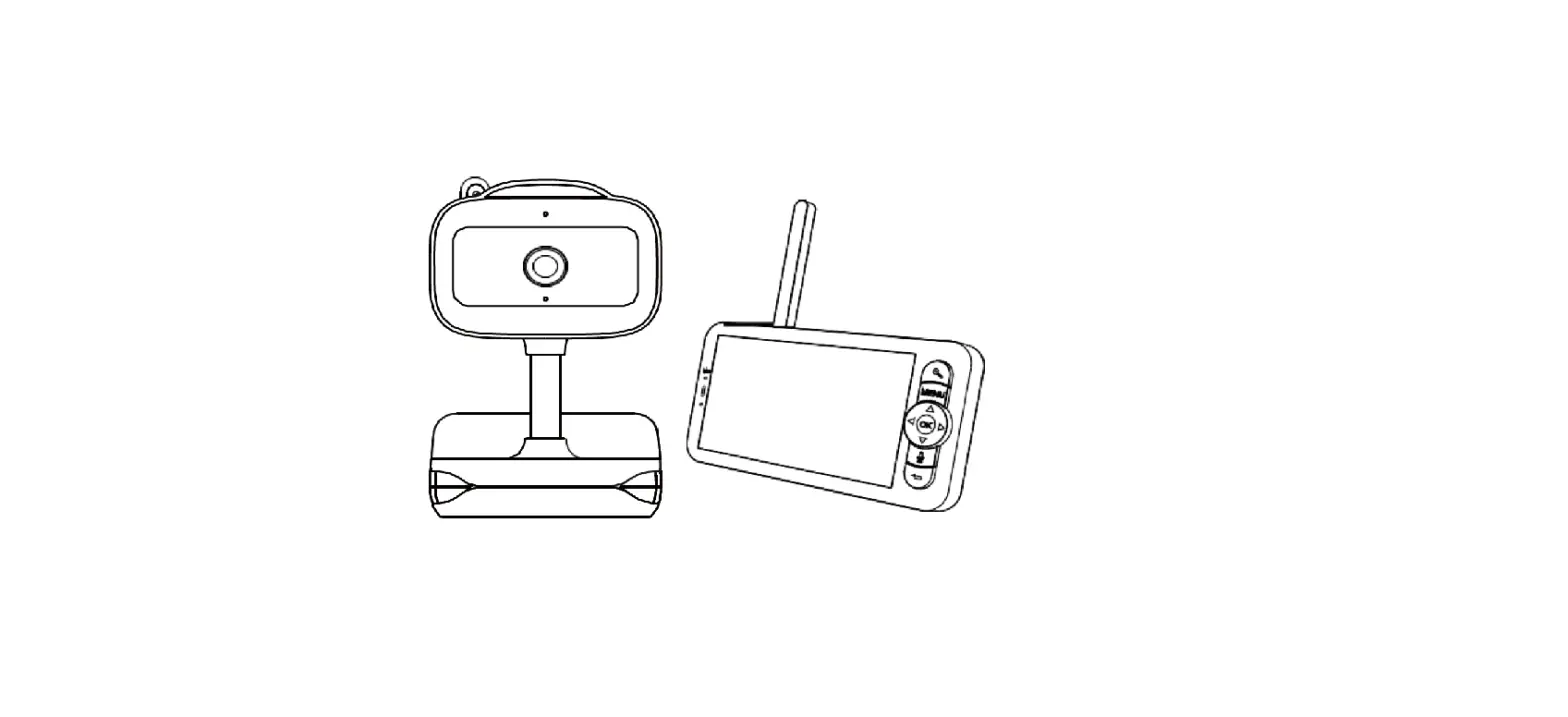
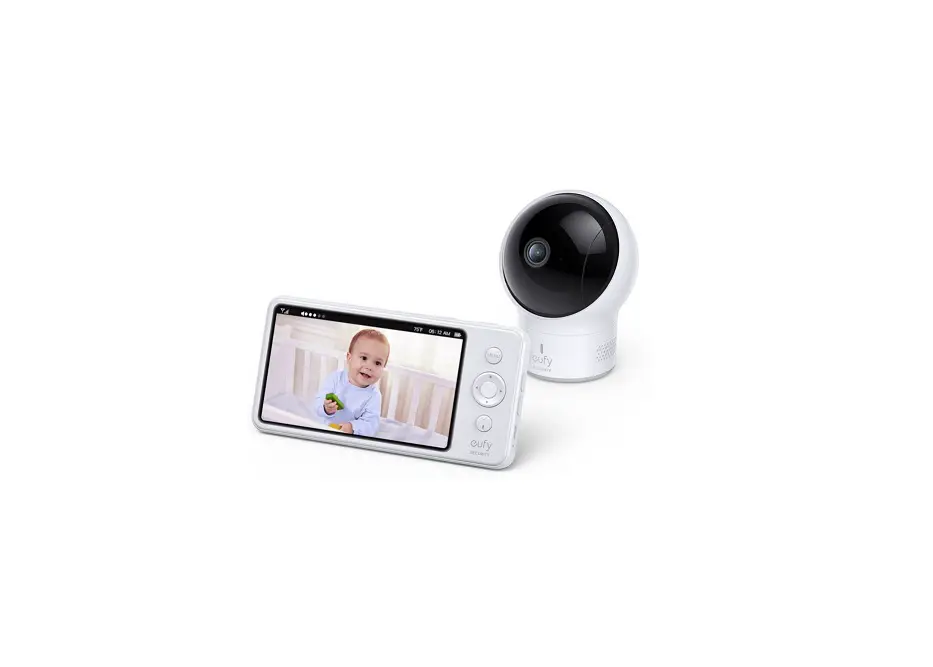
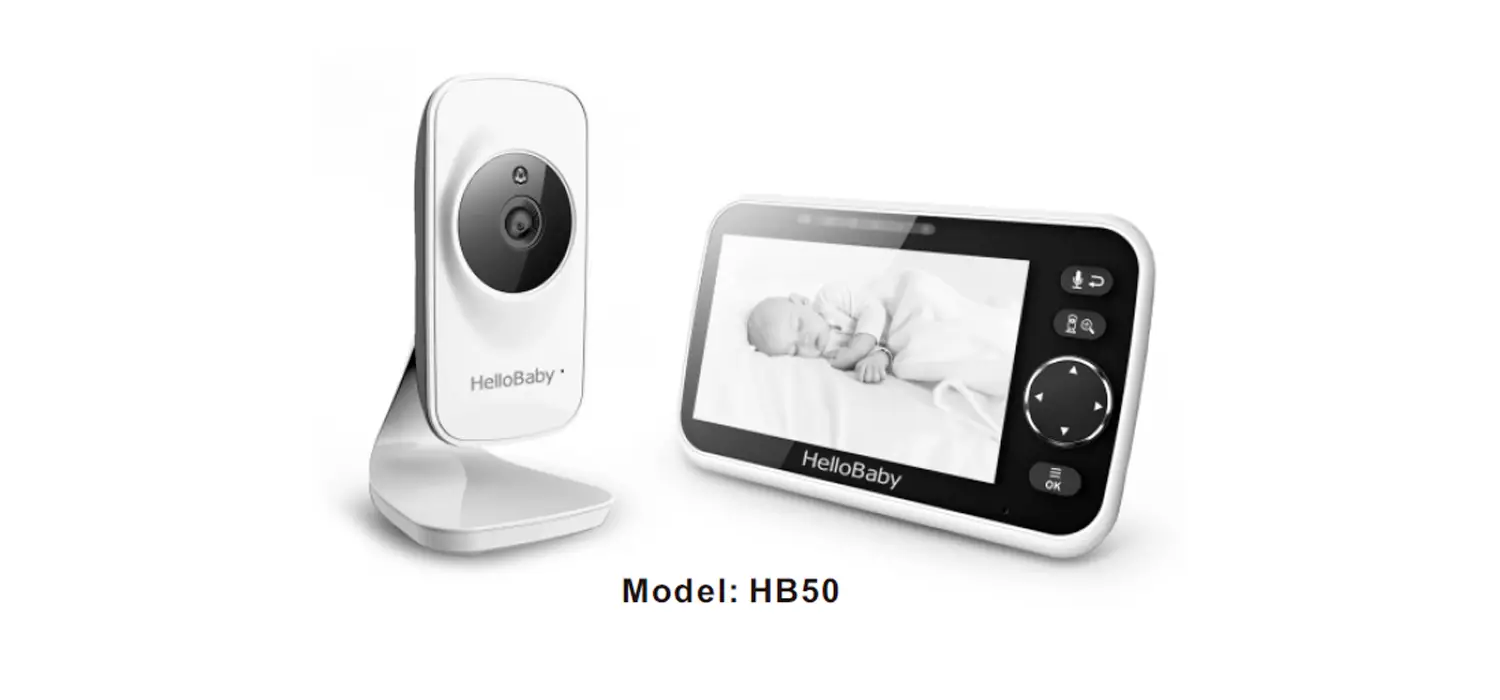
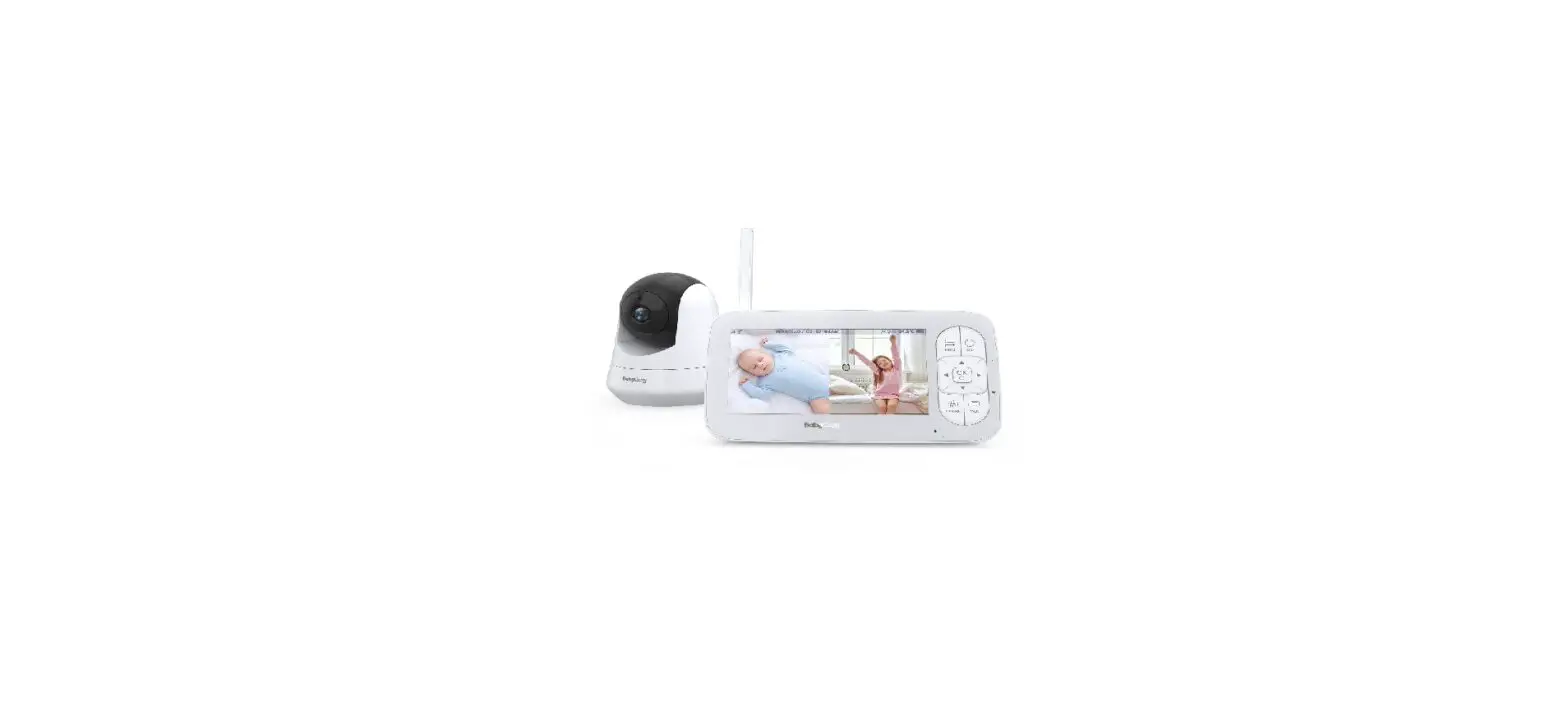
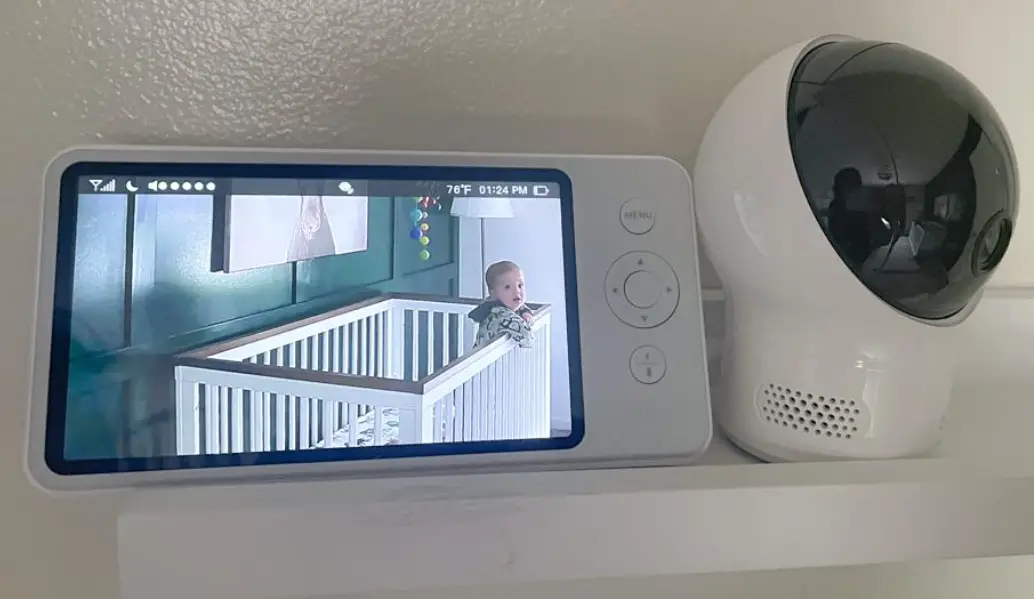
Baby 1S Baby Monitor
Baby Monitor Baby 1S
ORIGINALITY DESIGN SMART – AND BEAUTIFUL
Quick Guide
What’s in the box
Please consult this checklist for all parts:
- Camera
- Display
- USB cable x 2
- Power adapter x 2
- Screws
- Bracket
- Manual
- Reset pin 1
Description
| Camera | Display |
|---|---|
| Status light Microphone SD card slot Reset Speaker Call/Pairing Micro USB | Status light of charging Status light of using Zoom in/out Menu Direction OK Call Back Antenna ON/OFF button Speaker Screen holder SD card slot Reset Micro USB |
 |  |
Status light:
- Solid red light on: network is malfunctioning
- Blinking red light: wait for network connection (fast
blinking) - Solid blue light on: camera is working correctly
Microphone: Capture sound for your video
SD card slot: Support local SD Card storage
(Max.128G)
Call/Pairing:
- Press to make a call
- Long press to pair
Reset: Press and hold for 5 seconds with pin to
reset the camera (if you have modified settings, they will return
to factory defaults)
Status light of charging:
- Orange light: Charging
- Green light: Fully charged
Status light of using:
- Yellow light: The display is on
- No light: The display is off
Antenna: Adjust the angle to get better
signals
ON/OFF button: Long press 5 seconds to turn on
and turn off the display
Zoom in/out: Zoom the image in 1X, 2X or 4X
Menu: On homepage, press to enter the menu
interface; On homepage, long press to enter the setting
interface
Direction: Control the rotation directions;
select the menu items
OK: Confirm or make a call after pressing the
button
Back: Press to back up; On homepage, long press
to stop playing music
Installation
- Use the included mounting bracket to fix the camera to a clean
surface. - Or, install the camera on a flat surface.
Connection
Connect the camera to the display:
- Power on the camera and the display, and then the camera will
connect to the display automatically. - The connection is distance limited, so make the distance
between the camera and the display is no more than 200m.
Disconnect the camera to the display:
- Press Menu button on the display screen, and select > Camera
Management. - Long press OK button on the display screen to release the
binding.
Reconnect the camera to the display:
- Press Menu button on the display screen, and select > Camera
Management. - Long press the camera pairing button until you hear the prompt
tone. - Press OK button on the display screen to start pairing.
Connect the camera to the App:
- Make sure the Wi-Fi network is a 2.4 GHz network, as the camera
doesn’t support 5 GHz Wi-Fi. - Download the corresponding App on your phone. Register a new
account to log in or log in directly. - Reset the camera using a pin until the status light is red in
fast blinking. (You have to connect the camera to the App within 2
minutes; otherwise, you have to reset the camera again.) - Follow the step instructions on your smart phone to add the
display, and scan the QR code with your camera.
Baby Monitor Baby 1S
ORIGINALITY DESIGN SMART – AND BEAUTIFUL
QUICK GUIDE
What’s in the box
Please consult this checklist for all parts.
Camera
Display
USB cable x 2
Power adapter x 2
Screws
Bracket
Manual
Reset pin 1
Description
Status light Microphone SD card slot Reset Speaker Call/Pairing Micro USB
Micro USB Microphone SD card slot Status light
Call/Pairing Reset
DC 5V/1A Capture sound for your video Support local SD Card storage (Max.128G) Solid red light on: network is malfunctional Blinking red light: wait for network connection (fast blinking) Solid blue light on: camera is working correctly Press to make a call; long press to pair Press and hold for 5 seconds with pin to reset the camera (if you have modified settings, they will return to factory defaults)
Microphone
Status light of charging Status light of using
Zoom in/out
Menu Direction OK Call Back
2
Description
Antenna ON/OFF button
Speaker Screen holder
SD card slot Reset
Micro USB
Micro USB
DC 5V/1A
Status light of charging
Orange light: Charging Green light: Fully charged
Status light of using
Microphone
Yellow light: The display is on No light: The display is off Capture sound for your video
Antenna
Adjust the angle to get better signals
ON/OFF button Long press 5 seconds to turn on and turn off the display
Zoom in/out Zoom the image in 1X, 2X or 4X
Menu
Direction OK
On homepage, press to enter the menu interface; On homepage, long press to enter the setting interface Control the rotation directions; select the menu items Confirm
Call
Make a call after pressing the button
SD card slot Support local SD Card storage (Max.128G)
Reset
Press with pin to reset the display
Back
Press to back up;
On homepage, long press to stop playing music
3
Installation
1 Use the included mounting bracket to fix the camera to a clean surface. 2 Or, install the camera on a flat surface.
4
Connection
Connect the camera to the display Power on the camera and the display, and then the camera will connect to the display automatically. The connection is distance limited, so make the distance between the camera and the display is no more than 200m.
Disconnect the camera to the display: 1. Press Menu button on the display screen, and select > Camera
Management. 2. Long press OK button on the display screen to release the binding.
Reconnect the camera to the display: 1. Press Menu button on the display screen, and select > Camera
Management. 2. Long press the camera pairing button until you hear the prompt tone. 3. Press OK button on the display screen to start pairing.
Connect the camera to the App The camera can be connected both to the display and the App. Generally, it is connected to the display by default. Follow the steps below to connect the camera to the App: 1. Make sure the Wi-Fi network is a 2.4 GHz network, as the camera doesn’t
support 5 GHz Wi-Fi. 2. Download the corresponding App on your phone. Register a new account
to log in or log in directly. 3. Reset the camera using a pin until the status light is red in fast blinking.
(You have to connect the camera to the App within 2 minutes; otherwise, you have to reset the camera again.) 4. Follow the step instructions on your smart phone to add the display, and scan nthe QR code with your camera.
5
Connection
Download SmartLife or Tuya Smart is available for both iOS and Android OS. Search the name ‘SmartLife’,’Tuya Smart’ in App Store or Google Play, or scan the QR-Code to download the App. You can select the App according to needs.
·Support
ipad
IOS
Android
Download App(IOS&android)
Set up router
The router supports the 2.4GHz WiFi (doesn’t support the 5GHz), and is connected to the WiFi network.Please set the parameters of the router before connecting the WiFi network, and record the SSID and password of your WiFi.
Please keep network available
2.4GHz
5GHz
6
Usage
Rotate the camera You can adjust the monitoring angle for a better vision. Press Menu button on the display screen, select and press OK to enter rotation controlling interface. Press direction buttons to rotate the camera horizontally and vertically, for a better vision..
Photo & video Take a photo: You can take a photo when you want to capture an interesting scene of your baby. Press Menu button on the display screen, select and press OK to take a photo. Record a video: You can record a video when you want to capture a meaningful time of your baby. Press Menu button on the display screen, select and press OK to record a video. View the taken photos and recorded videos: 1. Press Menu button on the display screen, select and press OK to enter the interface. 2. Select the camera and date, select the photo or video you want to view, and press OK to enter preview mode. * For a video, press OK to play or pause in the preview mode. * Press backup button to quit preview or return to main menu.
7
Usage
Play music You can play music to sooth your baby when baby is crying or sleeping. There are various soft music to select. Press Menu button on the display screen, select and press OK to enter music interface. You can select different music, change the music cycle mode, or adjust the music volume.
Feeding reminder Remind you to feed your baby, when you are too busy, or when you want to give your baby a regular diet. 1. Press Menu button on the display screen, and select > Feeding
reminder. 2. Press UP and DOWN direction buttons to select between 4 time options,
and press OK to start time setting. 3. When start to set up one feeding time, press LEFT and RIGHT direction
buttons to change options between hour, minute, second and on/off; and press UP and DOWN direction buttons to change values and select on or off. 4. Press OK to save settings. 5. Select on or off to open or close feeding reminders. You can set up to 4 feeding times one day. And when the set time is up, a feeding alarm will appear on the display screen.
8
Usage
Humiture detection You can real-time monitor the temperature and humidity of your baby room. When the temperature and humidity are out of range, you can get the alarms immediately, and then take measures. 1. Press Menu button on the display screen, and select > Humiture
detection. 2. Press UP and DOWN direction buttons to select options between
temperature range, humidity range and out of range reminder, and press OK to start setting. 3. When start to set up one option, press LEFT and RIGHT direction buttons to change options, and press UP and DOWN direction buttons to change values and units. 4. Press OK to save settings. 5. In Out of range reminder option, select to turn on or off the alarm when the temperature and humidity are out of range.
9
Usage
Smart care You can turn on functions of motion detection, noise detection and cry detection, so that you can know the baby status immediately, no matter you are sleeping, working, cooking and so on. 1. Press Menu button on the display screen, and select > Smart care. 2. Press UP and DOWN direction buttons to select options between motion
detection, noise detection, cry detection and alarm volume, and press OK to start setting. 3. When start to set up one detection mode, press LEFT and RIGHT direction buttons to change options, and press UP and DOWN direction buttons to adjust sensitivity. * You can select different sensitivity according to needs. Low is low
sensitivity, and high is high sensitivity. 4. When set up the alarm volume, press LEFT and RIGHT direction
buttons to adjust. 5. Press OK to save settings. 6. There will be a alarm when the set detection is triggered, press OK to
stop alarm.
10
Usage
General setting
Set up brightness: 1. Press Menu button on the display screen, select and press OK to enter
the interface. 2. Press UP and DOWN direction buttons to adjust brightness.
Set up time: 1. Press Menu button on the display screen, and select > Time setting. 2. Press direction buttons to change date, time and time displaying mode.
Set up language: 1. Press Menu button on the display screen, and select 2. Select the language you need.
> Language.
Set up sleep mode: You can set up sleep mode to increase standby time. 1. Press Menu button on the display screen, and select > Sleep mode. 2. Select sleep mode as 1 minute, 5 minutes, 10 minutes, 30 minutes, 60
minutes or off.
Turn on and off status indicator: If you turn on the status indicator, you can get the working status of the camera. You can also turn off the status indicator, if you think it will affect your baby’s sleep.
SD card: 1. Press Menu button on the display screen, and select > SD card
management. Then you can view the total capacity and remaining capacity of your SD card. 2. (Optional) You can format the SD card as you needed, but make sure that the important data is backed up.
Upgrade: Make sure your camera is connected to a the 2.4 GHz Wi-Fi. You can upgrade your camera when the upgrade alarm appears. Or Press Menu button on the display screen, and select > Device information to check whether there is a upgrade.
Low battery alarm: When the camera is low on battery, the low battery alarm will appear on the display screen. Please charge the display as soon as possible.
11
FAQ
Q: The display cannot be previewed properly? A: Check whether the display has connected to the camera. If not, pair the
camera and the display firstly. Q: Cannot find the pairing button? A: The pairing button is the call button of the camera. Long press the button
for 3 seconds, and follow the step instructions of the display. (To enter the pairing interface of the display, press Menu button on the display screen, and select > Camera Management.) Q: What if the display screen is stuck and it doesn’t work while pressing any buttons? A: Press the reset button of your display the with pin, and then long press the power button of your display to restart it. Q: Why the camera or the display cannot identify the SD card? A: Confirm whether the SD card is normally available and the format is FAT32. Q: Why I can’t get the notifications with my cell phone App when I connect the camera to the display? A: Please confirm that the App has been running on the phone, and the relevant reminder function has been opened;Message notification and authority confirmation in the mobile phone system have been opened.
12
Functions
Pan/Tilt Rotate your camera by sliding on your smartphone, providing you with a good vision.
Video flip Flip your video stream up or down for maximum flexibility.
Motion detection The camera can detect movement, and then the camera will send you push notifications and app alerts.
Crying detection The camera can detect the crying of your baby, and the camera will send you push notifications and app alerts.
Temperature & humidity detection The camera can detect the temperature and humidity of the environment, and the camera will send you push notifications and app alerts.
Record Support 24H continuous recording with high capacity SD storage or Cloud storage.
Day & Night Never miss a moment, even in complete darkness, with powerful night-vision technology.
Daytime
13
Night
Functions
FCC Statement This equipment has been tested and found to comply with the limits for a Class B digital device, pursuant to part 15 of the FCC Rules. These limits are designed to provide reasonable protection against harmful interference in a residential installation. This equipment generates, uses and can radiate radio frequency energy and, if not installed and used in accordance with the instructions, may cause harmful interference to radio communications. However, there is no guarantee that interference will not occur in a particular installation. If this equipment does cause harmful interference to radio or television reception, which can be determined by turning the equipment off and on, the user is encouraged to try to correct the interference by one or more of the following measures:
–Reorient or relocate the receiving antenna. –Increase the separation between the equipment and receiver. –Connect the equipment into an outlet on a circuit different from that to which the
receiver is connected. –Consult the dealer or an experienced radio/TV technician for help.
FCC Radiation Exposure Statement This device complies with FCC radiation exposure limits set forth for an uncontrolled environment and it also complies with Part 15 of the FCC RF Rules. This equipment must be installed and operated in accordance with provided instructions and the antenna(s) used for this transmitter must be installed to provide a separation distance of at least 20 cm from all persons and must not be co-located or operating in conjunction with any other antenna or transmitter. End-users and installers must be provide with antenna installation instructions and consider removing the nocollocation statement.
This device complies with Part 15 of the FCC Rules. Operation is subject to the following two conditions: (1) this device may not cause harmful interference, and (2) this device must accept any interference received, including interference that may cause undesired operation.
Caution! Any changes or modifications not expressly approved by the party responsible for compliance could void the user’s authority to operate the equipment.
14