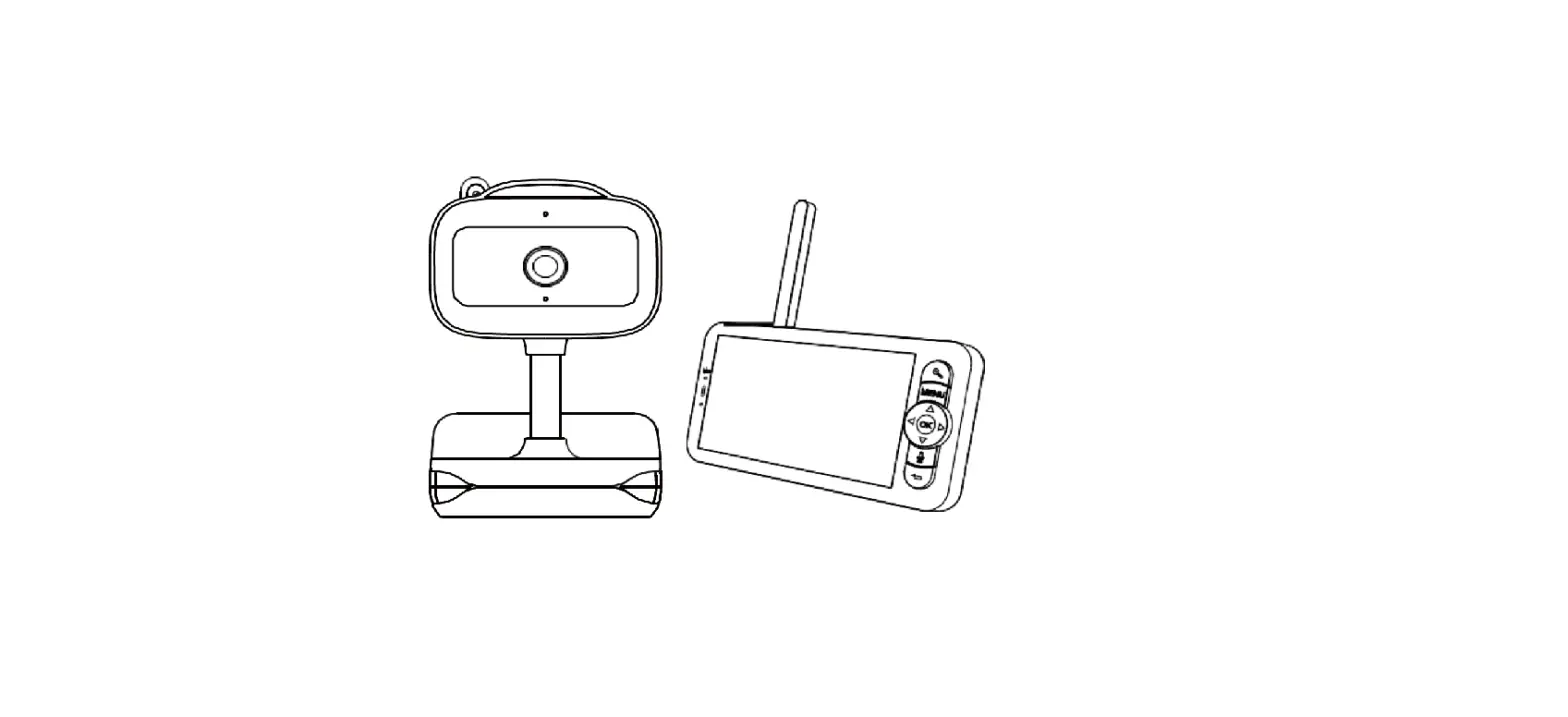
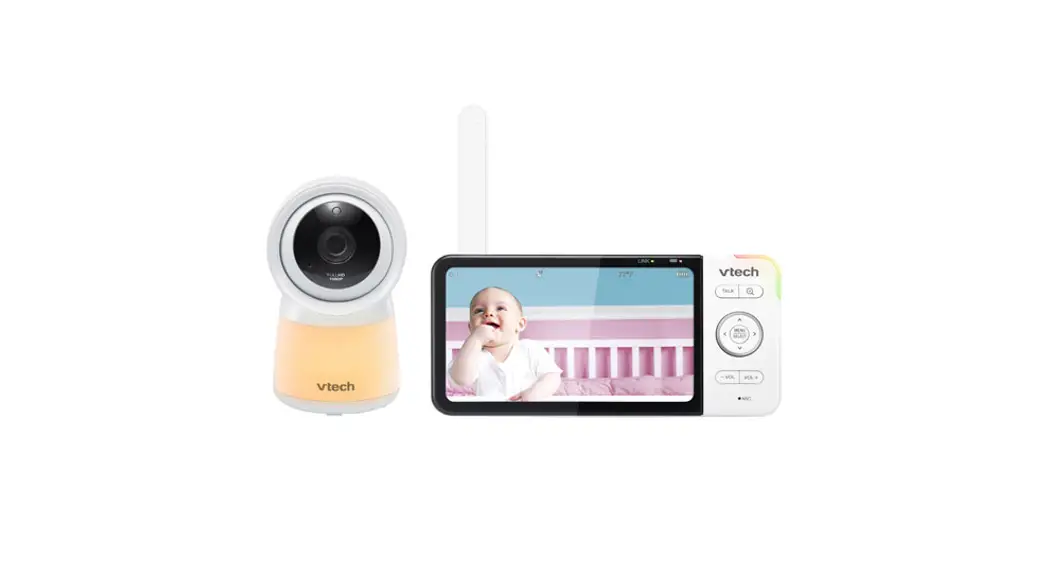
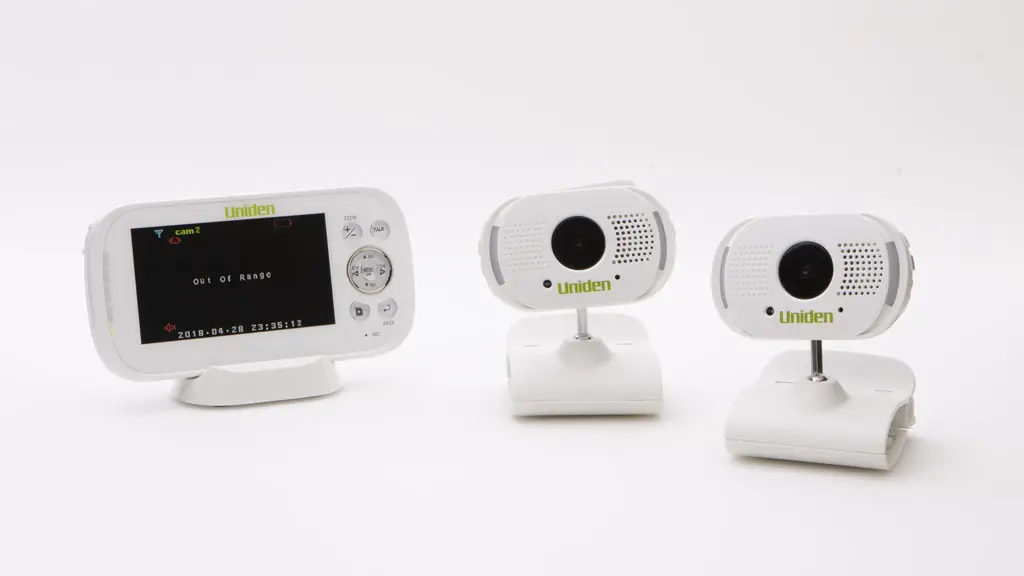
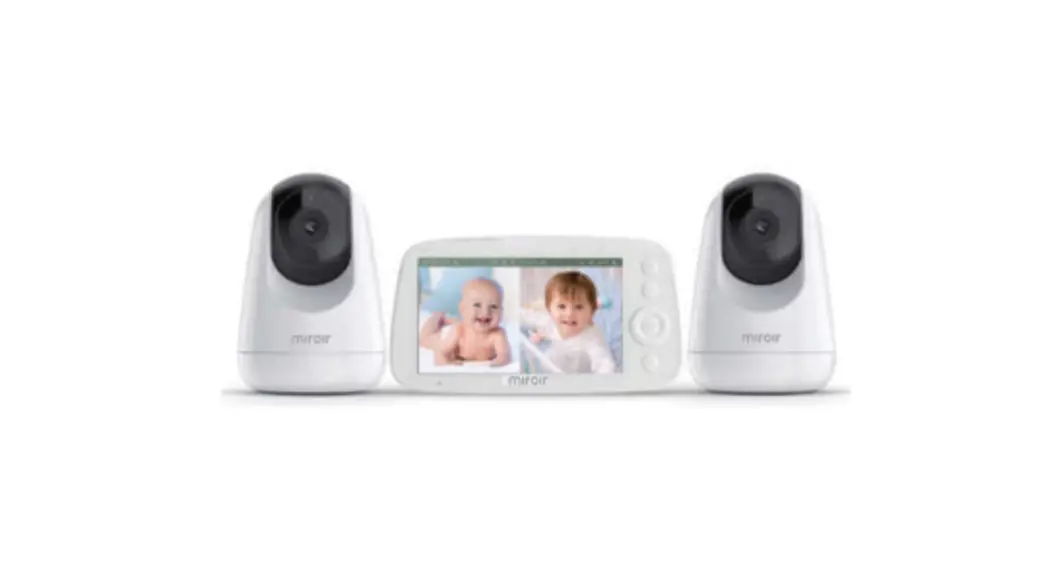
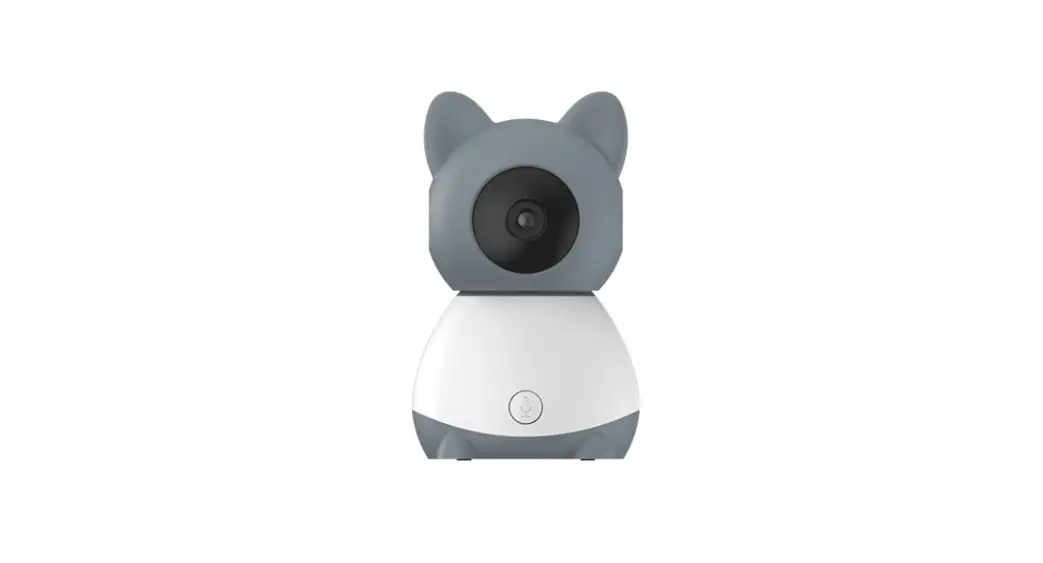
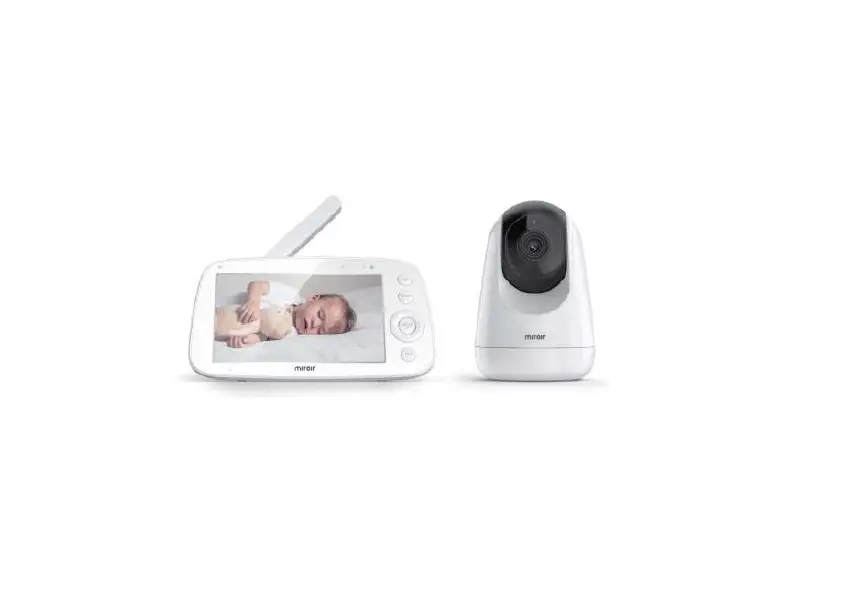
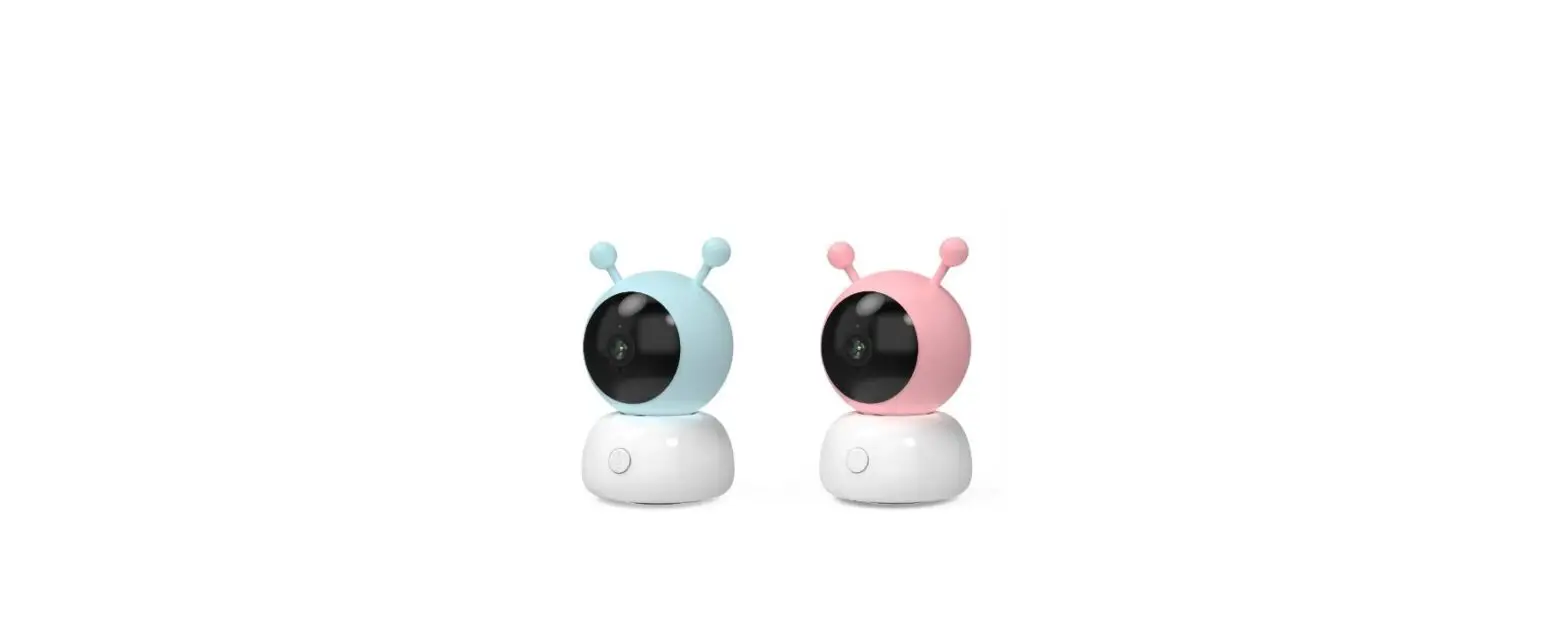
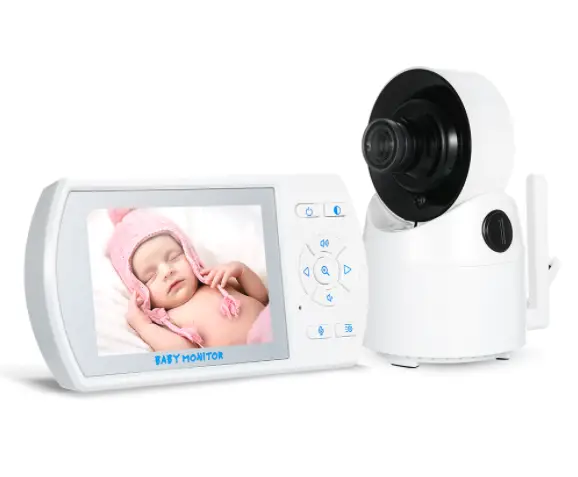
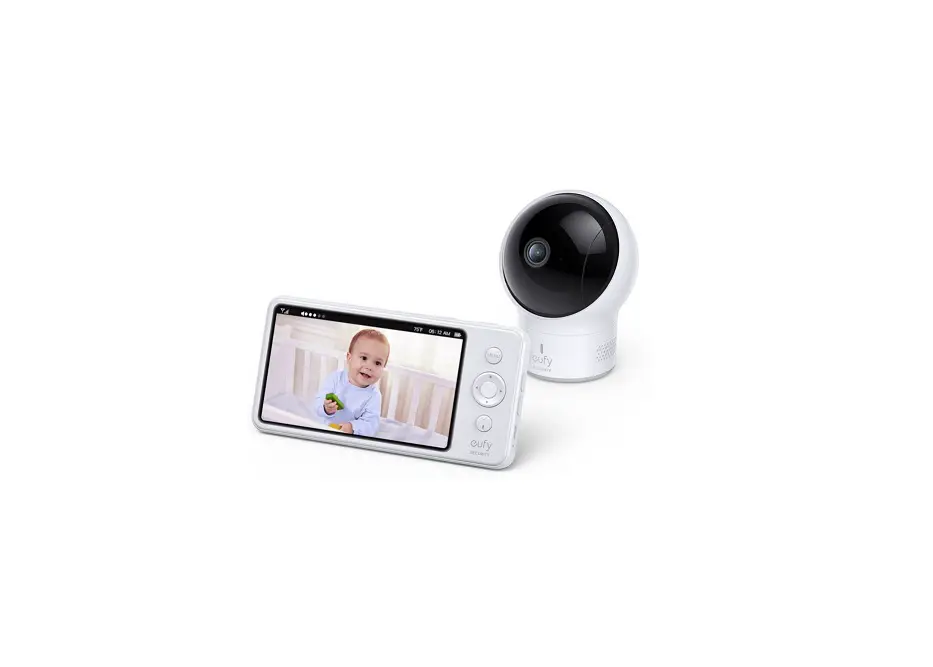
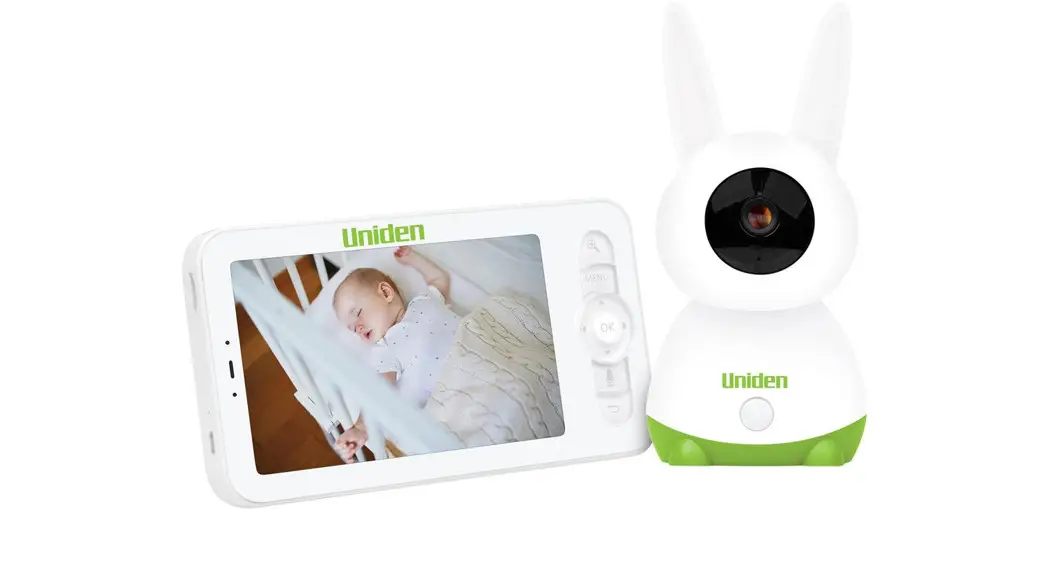
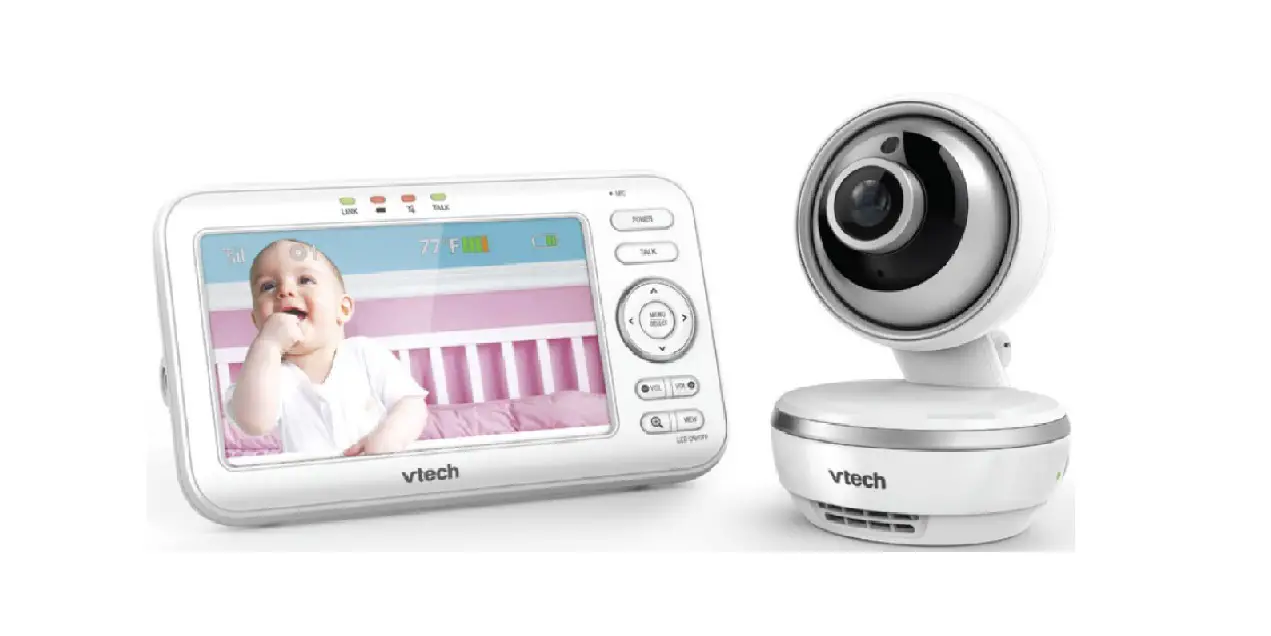
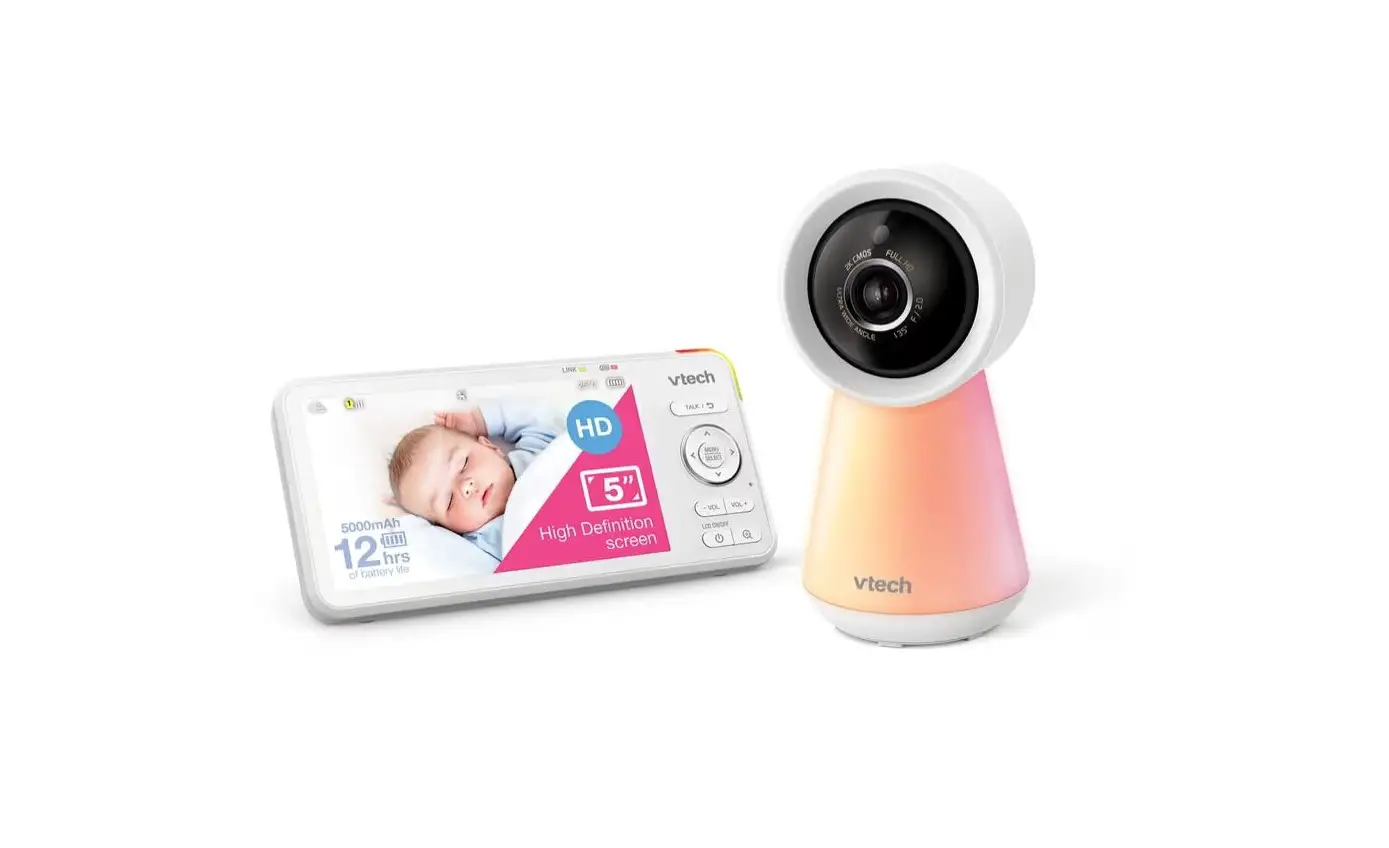
BABY5SM Baby Monitor Kit
Baby Monitor Kit
Safety Instructions and Warnings
The Baby Monitor Kit includes a camera and a monitor. Before
using the product, please read and follow the safety instructions
and warnings provided in the user manual.
1. Meet the Camera
- Camera Lens
- Status LED indicator
- Microphone
- Rubber Case (removable)
- Thermometer/Hygrometer
- Speaker
- Monitor pairing button
- Power input (Type C)
- TF-card Slot
- Reset button
To reveal the slot at the bottom, rotate the camera upwards. The
camera has a thermometer/hygrometer to measure temperature and
humidity.
2. Meet the Monitor
- Microphone
- LED charging indicator
- LED status indicator
- Zoom in/out button
- Menu button
- Directional keys
- OK button
- Intercom button
- Return button
- On/off switch
- Antenna
- TF-card slot
- Speaker
- Reset key
- Type C charging port
- Foldable stand
3. Charge Your Monitor
Charge your monitor using the Type C charging port. The charging
LED will turn orange when the battery is charging, and green when
it is fully charged. The status LED will be off when the monitor is
powered off.
4. App Download
Download the CloudEdge app from the app store or scan the QR
codes provided in the manual. Register an account and log in to add
the camera into your app account.
5. Set up Wi-Fi for the Camera
The camera can be paired with the monitor through its private AP
network, with up to 150 meters wireless intercom range. You can
also add the camera into your app account, set up Wi-Fi so as to
view & control your camera remotely through mobile devices.
- Plug in the camera and press & hold the reset button for 5
seconds until you hear the tone prompted. - Confirm that the LED indicator blinks red. You have 2 minutes
to set up your camera. - Complete the network configuration process following the
prompted in-app instructions. - Adding camera completes, and the indicator light turns to solid
blue.
The LED status can indicate different states:
- Solid red: Device is abnormal.
- Flash red (once/sec): Ready for Wi-Fi configuration.
- Flash red (twice/sec): Connecting to Wi-Fi.
- Solid blue: Device is online.
- Flash blue (twice/sec): Firmware upgrading.
6. Pair with Monitor
The camera is pre-paired with its monitor to work as a system.
The transmission range is limited by distance. Make sure the
distance between them is within 150m (500 ft).
To disconnect the camera from the monitor:
- Click `MENU’ on the monitor and select ` ‘.
- Click `OK’ and enter into camera management.
- The device is bound. Long press OK to release the binding.
- Long press OK button on the monitor to release the bond.
To reconnect the camera to the monitor:
- Click `MENU’ on the monitor and select ` ‘.
- Click `OK’ and enter into camera management.
- The device is not bound.
- Long press the camera pairing button until you hear the prompt
tone. - Tap the OK button on the display to start pairing.
- Long press PAIR button on the camera until you hear a prompt
tone. - Click the OK button on the monitor to start pairing.
7. Use Your Baby Monitor Kit
When the camera is powered on, press directional buttons on the
monitor to rotate the camera horizontally or vertically for a
better view angle. Adjust speaker volume and display brightness
using the menu button and directional buttons. Insert a Micro-SD
memory card (Max 128GB) to your monitor, and you will be able to
record photos and video clips.
Baby Monitor Kit
· Please read this instrucon manual carefully before using, and keep it for future reference.
· Funcons and features are subject to change without further noce.
Safety Instructions and Warnings
Hazard Warnings: Potenal Risk of Strangulaon Please be aware that children are at risk of strangulaon and suffocaon accidents caused by rope entanglement. Please keep power cords away from children; maintain a distance of at least 3.5 feet (1m). Do not allow children to use this product as a toy without supervision. Please do not leave the camera in the baby cot or safety fence. This baby monitor kit is a monitoring aid and cannot replace the funcons and responsibilies of an adult supervision. Do not leave your infant unaended or alone at home. Infants need the constant care and aenon of an adult. Do not use this product in an environment that could potenally leak flammable gas, or expose the product to rain or humid condions.
1. Meet the camera
Camera Lens
Status LED indicator Microphone Rubber Case (removable)
Thermometer/Hygrometer Speaker Monitor pairing buon Power input (Type C)
Rotate the camera upwards to reveal the slot at the bottom.
TF-card Slot Reset buon
Note: · The camera needs to be plugged in to a power source before it can be used. · Please use the original AC adapter and power cord (3M) to power on the camera.
2. Meet the monitor
Microphone LED charging indicator LED status indicator Zoom in/out Menu Direconal keys OK
Intercom
Return On/off witch Antenna
TF-card slot Speaker Reset key Type C charging port Foldable stand
3. Charge Your Monitor
Charnging LED Orange: baery charging Green: fully charged
Status LED Orange: monitor displaying Off: monitor is powered off
Precauons: 1. The monitor comes with a built-in baery that can last up to 6 hours of connuous use aer a full charge. When the baery is low, it will pop-up low power alert. 2. Please use the original AC adapter and power cord(1M) for baery recharge. It takes about 5 hours to fully charge the monitor. 3. Do not use this product on a sloping or unstable surface, keep it away from heat sources to avoid possible damage, and do not place it near or on any electrical appliances. 4. Do not allow children to use this product as a toy without supervision.
4. App Download
Search `CloudEdge’ in the App stores or scan below QR codes to download the App.
CloudEdge
iOS
Android
Register an user account and login in. And you will be able to add the camera into your APP account.
5. Set up Wi-Fi for the camera
The camera can be paired with the monitor through its private AP network, with up to 150 meters wireless intercom range. You can also add the camera into your APP account, seng up Wi-Fi so as to view & control your camera remotely through mobile devices.
Steps to set up camera in your App:
1. Plug in to supply power to the camera. Press & hold reset buon for 5 seconds ll you hear the tone promted.
2. Confirm the LED indicator blinks red. Now you have 2 minutes to set up your camera.
3. Complete the network config process following the prompted in-app instrucons.
4. Adding camera completes, and the indicator light turns to solid blue.
·NoPlteea:se operate the process near your Wi-Fi router. · Make sure your phone is connecng to a 2.4GHz Wi-Fi. · Make sure the camera is turned on, and its indicator LED is flashing red. If not, press and hold RESET for 5 seconds. · Ensure the Wi-Fi signal is good, and the Wi-Fi password is correct.
LED STATUS Solid red Flash red (once/sec) Flash red (twice/sec) Solid blue Flash blue (twice/sec)
INDICATION Device is abnormal. Ready for Wi-Fi configuraon. Connecng to Wi-Fi Device is online Firmware upgrading
6. Pair with Monitor
The camera is pre-paired with its monitor to work as a system. The transmission range is limited by distance. Make sure the distance between them is within 150m (500 ).
Disconnect the camera to the monitor: 1. Click `MENU’ select ` ‘ click `OK’ Click , and enter into camera management.
Camera management
The device is bound
Long press OK to release the binding.
2. Long press OK buon on the monitor to release the bond.
Reconnect the camera to the monitor: 1. Click `MENU’ select ` ‘ click `OK’ Click , and enter into camera management.
Camera management
Device is not bound
1. Long press the camera pairing button untill you hear the prompt tone.
2. Tap the OK button on the display to start pairing.
2. Long press PAIR buon on the camera ll you hear a prompt tone. 3. Click the OK buon on the monitor to start pairing.
7. Use your baby monitor kit
Rotate the camera When the camera is powered on, press direcon buons on the monitor, and you can rotate the camera horizontally or vercally, for a beer view angle.
Adjust speaker volume 1. Click `MENU’ button to display the icon dock.
2. Adjust speaker volume with up & down buon. Display brightness 1. Click `MENU’ button to display the icon dock.
2. Adjust brightness with up & down buon.
Photo & video Insert a Micro-SD memory card (Max 128GB) to your monitor, and you will be able to record photoes and video clips.
Take photo Video shot Playback Play music
Select music Play mode Volume Play music Turn on/off camera indicator 1. Click `MENU’ button to display the icon dock.
2. Switch on/off the camera indicator light with the le/right buon.
Sengs
Camera: To pair or unpair a camera. Feeding Reminder: Make feeding schedules and get reminder alarms. Temperature & humidity: Detect temperature and huminity. Smart Care: Smart funcons including Moon Detecon, Noise detecon and Cry detecon. Sleep ModeCustomize screen meout sengs. Date & TimeSet system date and me. Camera LightTo turn on/off camera indicator light. SD CardCheck the memory card status. WallpaperChange wallpaper here. You can customize your wallpaper with your photoes in the memory card. Language: Select operang language for the monitor. Reset: To restore factory defaults. Device informaon: Check camera and monitor informaon here. Safety Protecon: You can choose to cut off camera’s Wi-Fi, and block the remote view access from the APP to your camera. All remote access history will be recorded here.
FCC Warning Statement
Changes or modifications not expressly approved by the party responsible for compliance could void the user’s authority to operate the equipment. This equipment has been tested and found to comply with the limits for a Class B digital device, pursuant to Part 15 of the FCC Rules. These limits are designed to provide reasonable protection against harmful interference in a residential installation. This equipment generates uses and can radiate radio frequency energy and, if not installed and used in accordance with the instructions, may cause harmful interference to radio communications. However, there is no guarantee that interference will not occur in a particular installation. If this quipment does cause harmful interference to radio or television reception, which can be determined by turning the equipment off and on, the user is encouraged to try to correct the interference by one or more of the following measures: — Reorient or relocate the receiving antenna. — Increase the separation between the equipment and receiver. — Connect the equipment into an outlet on a circuit different from that to which the receiver is connected. — Consult the dealer or an experienced radio/TV technician for help.
This device complies with part 15 of the FCC Rules. Operation is subject to the following two conditions: (1) This device may not cause harmful interference, and (2) this device must accept any interference received, including interference that may cause undesired operation.
RF Exposure Statement(Camera)
To maintain compliance with FCC’s RF Exposure guidelines, This equipment should be installed and operated with minimum distance of 20cm the radiator your body. This device and its antenna(s) must not be co-located or operation in conjunction with any other antenna or transmitter.
SAR statement(Monitor)
This device meets the government's requirements for exposure to radio waves.This device is designed and manufactured not to exceed the emission limits for exposure to radio frequency (RF) energy set by the Federal Communications Commission of the U.S. Government.
The SAR limit set by the FCC is 1.6W/Kg. For body-worn operation, this device has been tested and meets the FCC RF exposure guidelines for use with an accessory that contains no metal and positions the device a minimum of 0mm from the body. RF exposure compliance with any body-worn accessory that contains metal was not tested and certified. and use of such body-worn accessory should be avoided. Accessory available in market and must be used to keep use distance 0mm from EUT to body-worn operation.