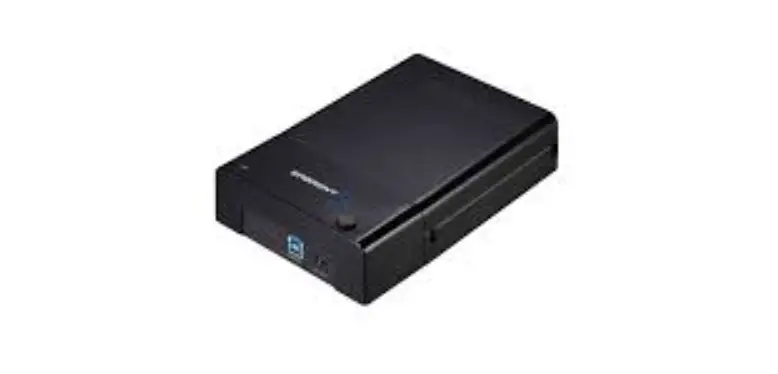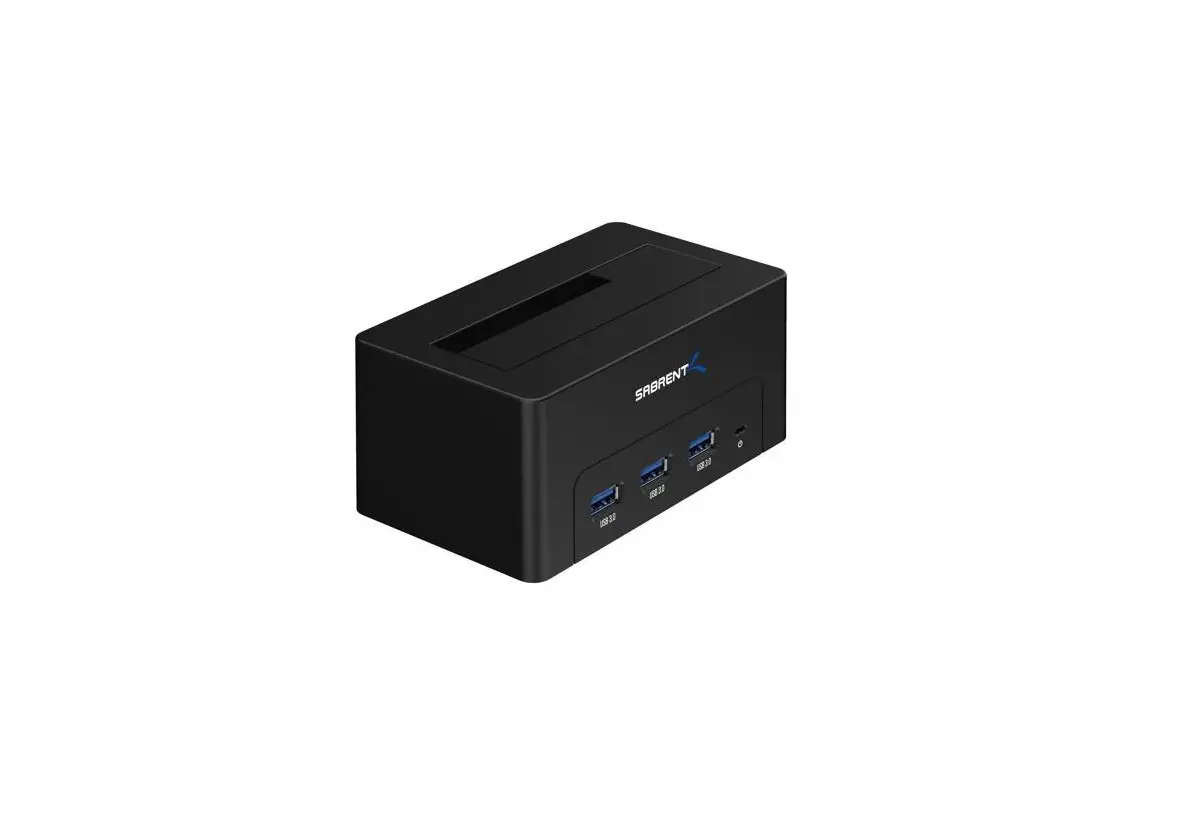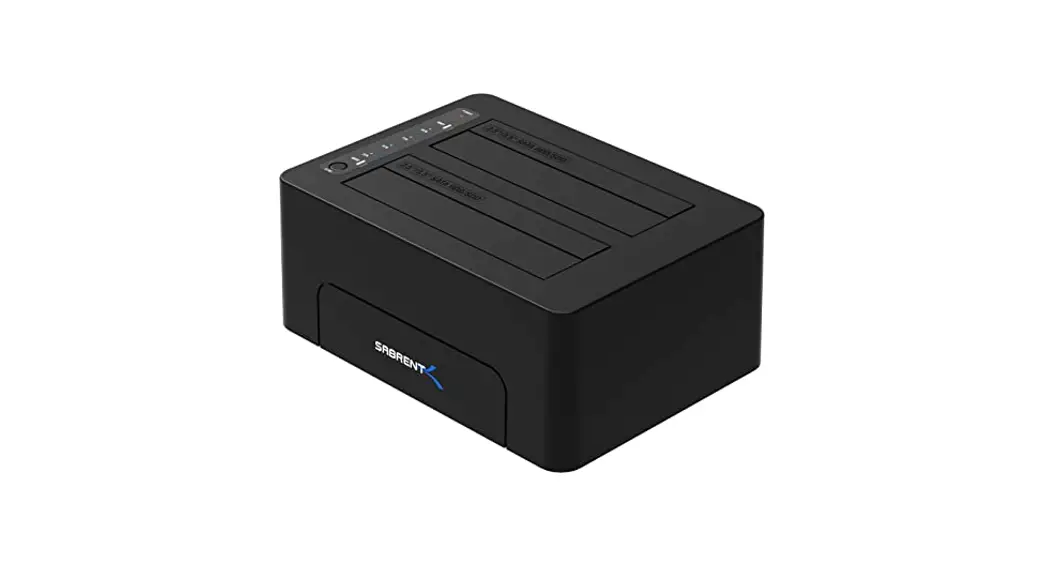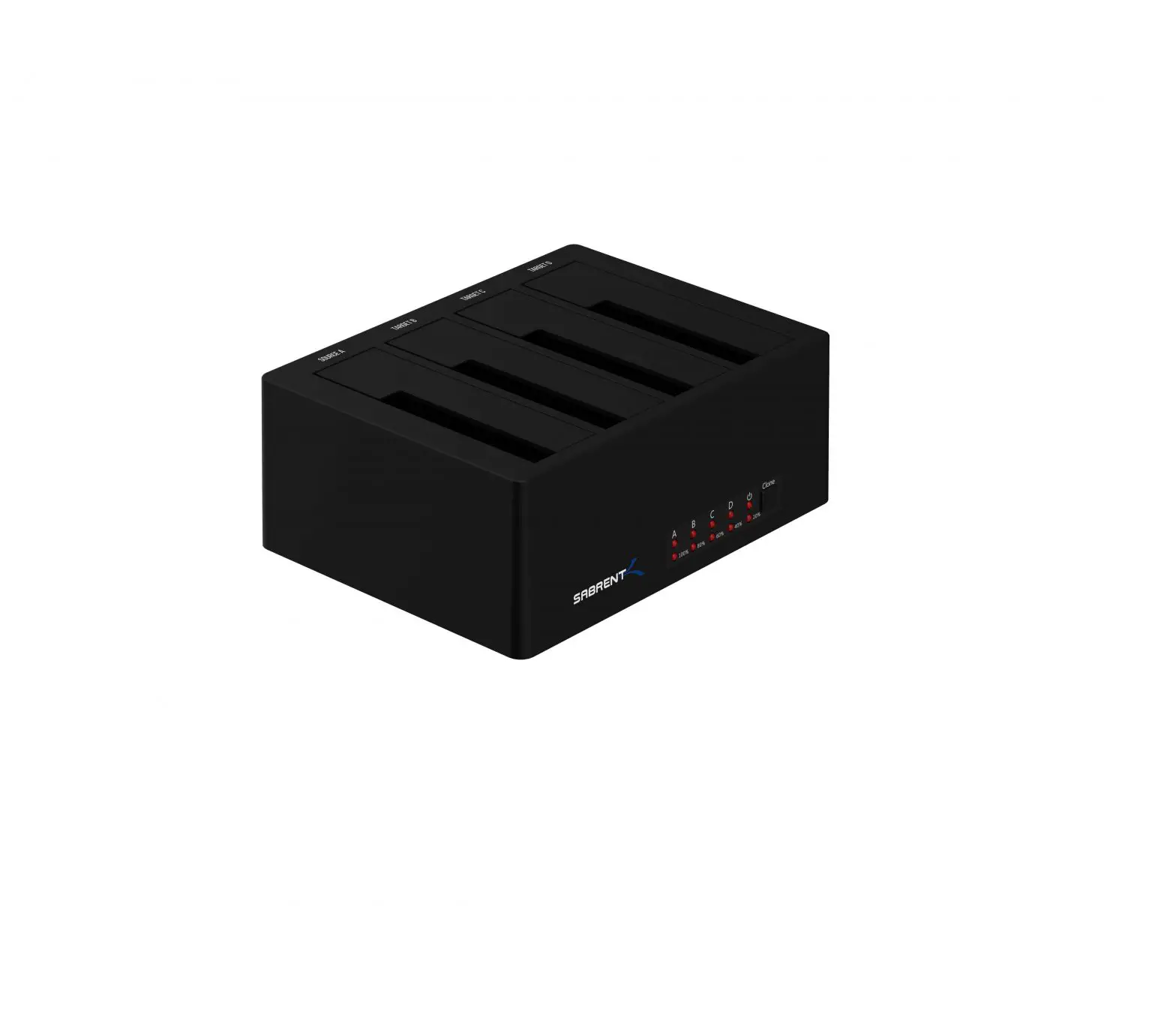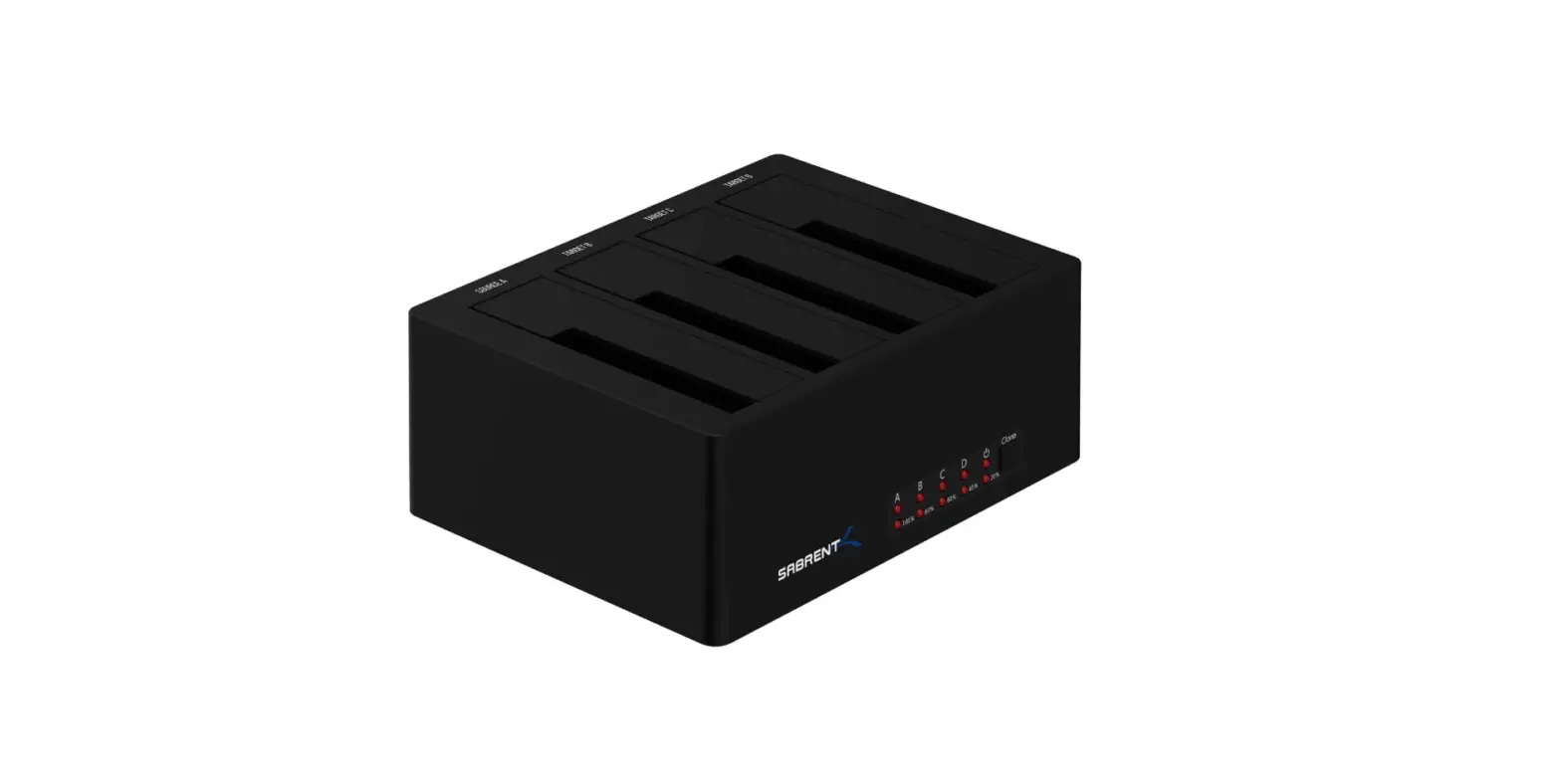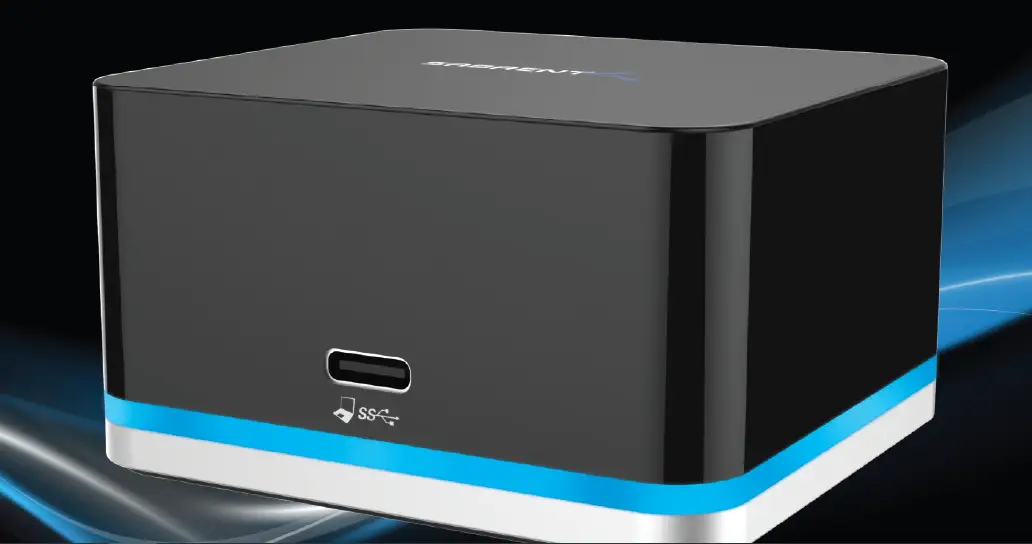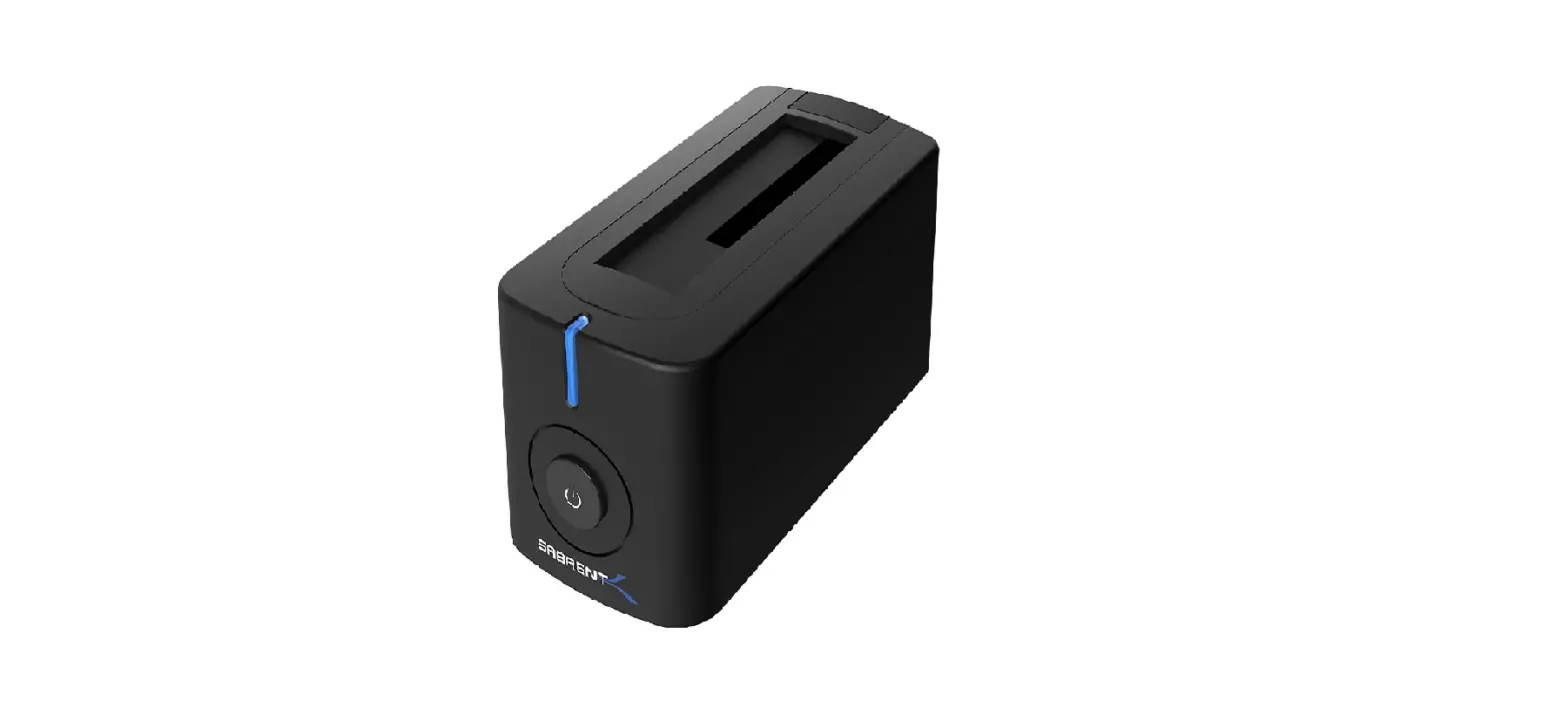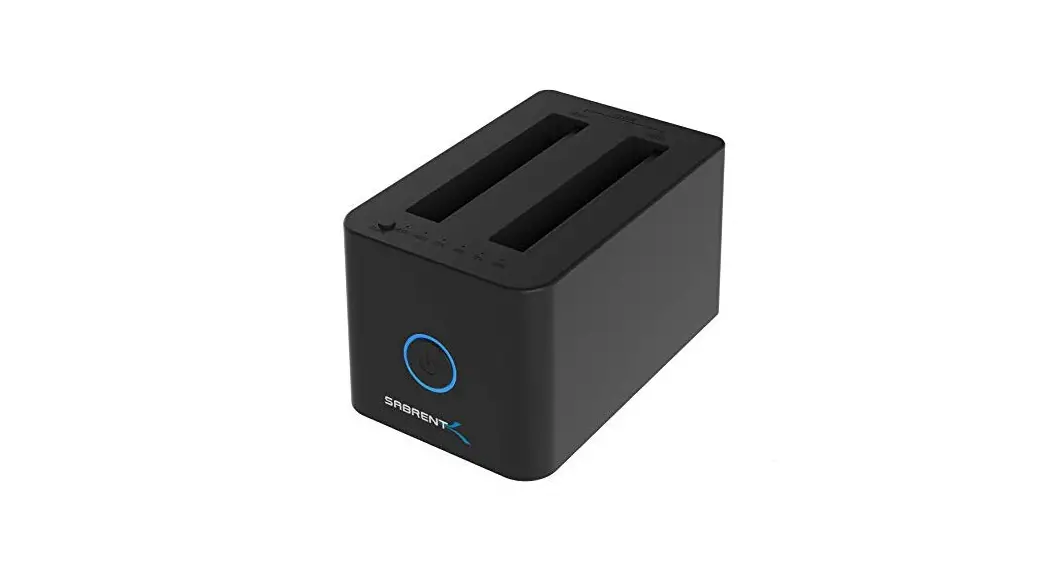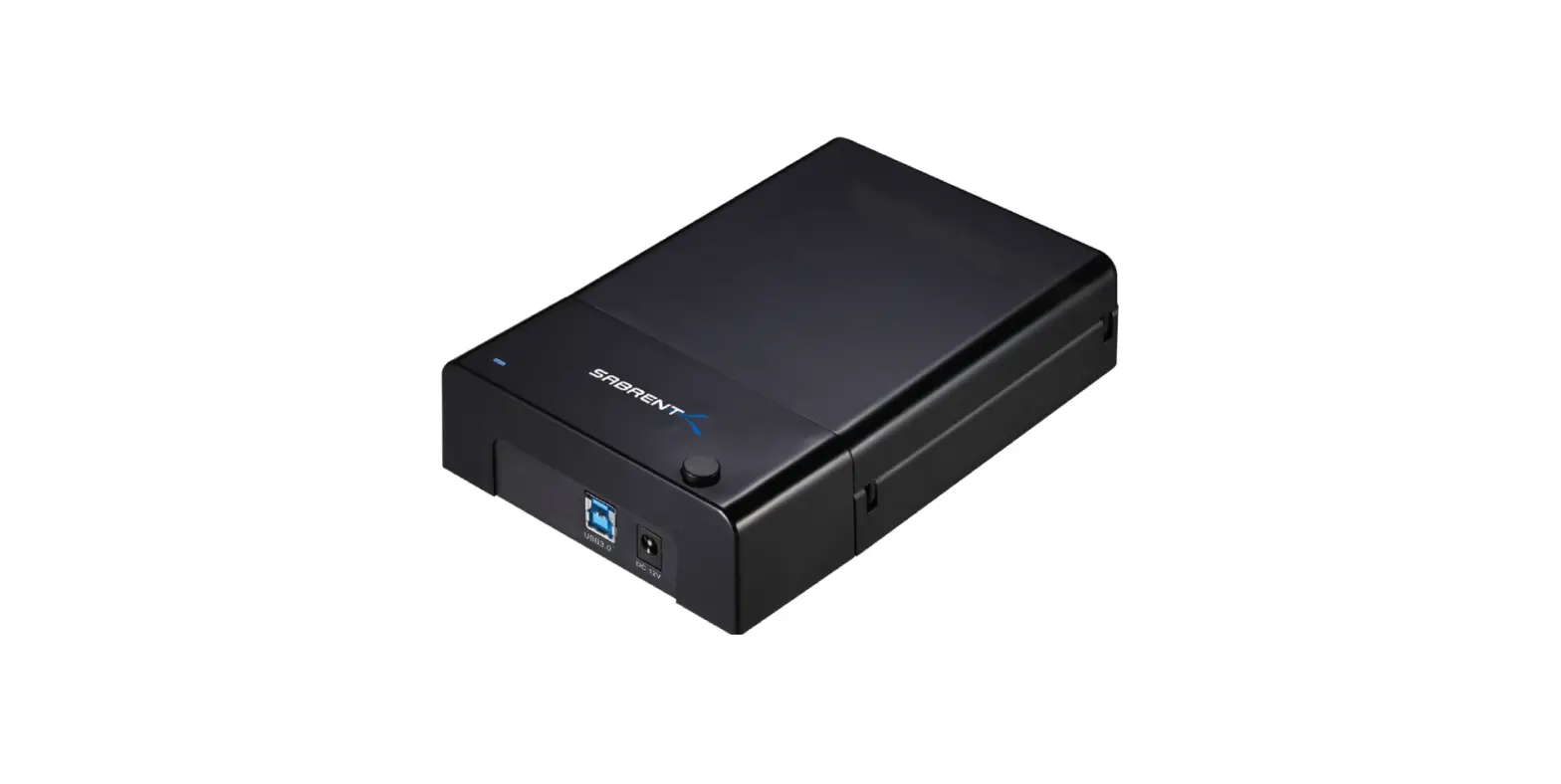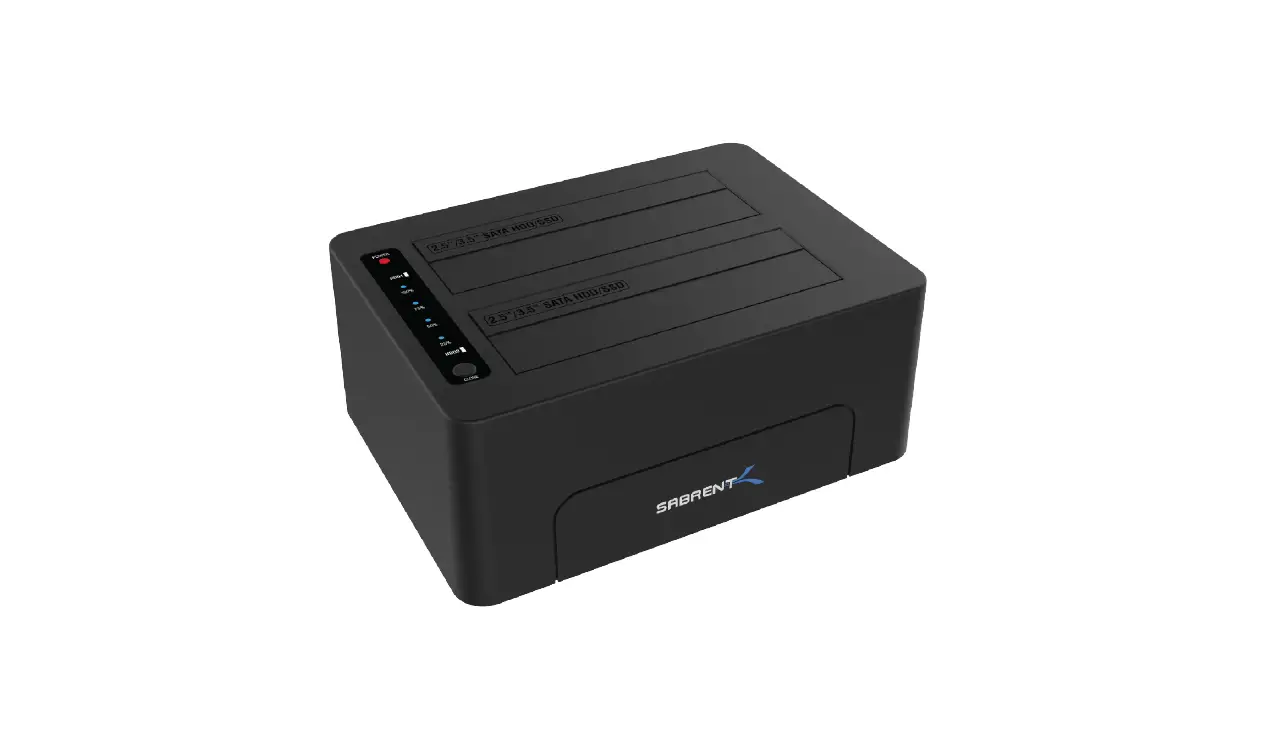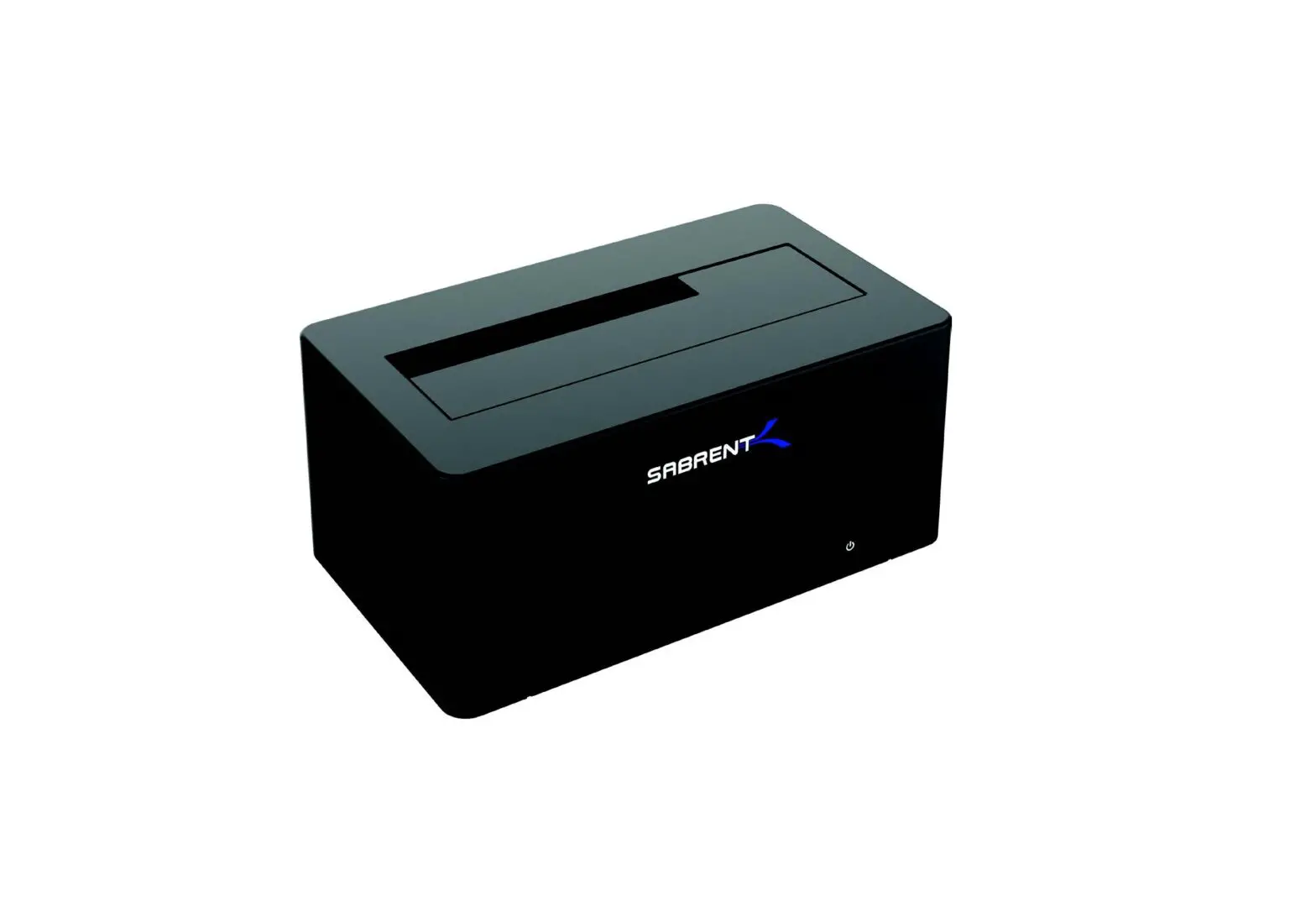

SABRENT DS-UTC1 USB 3.1 Type-C 2.5-3.5 Inch HDD Docking Station

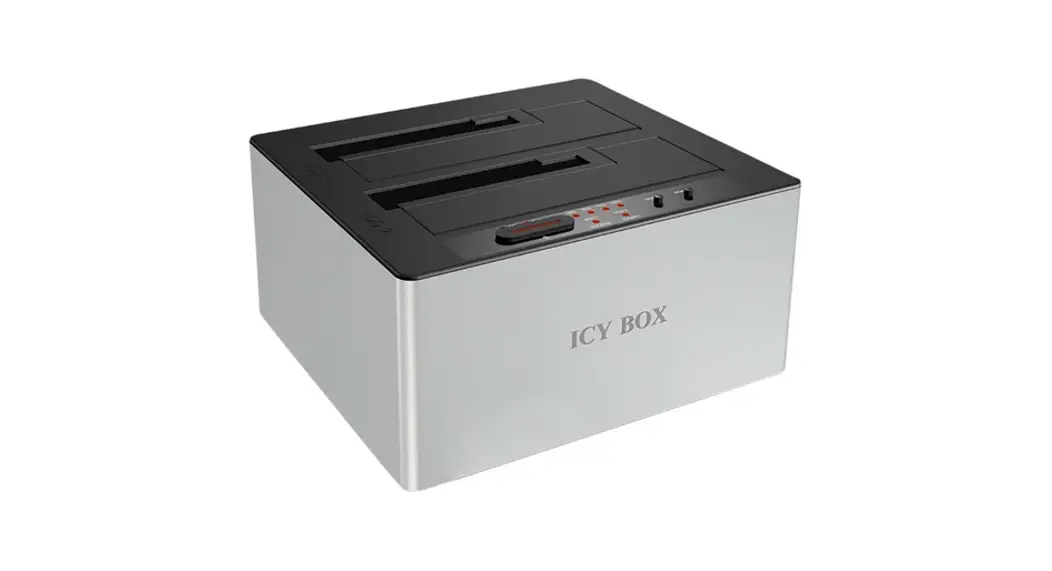
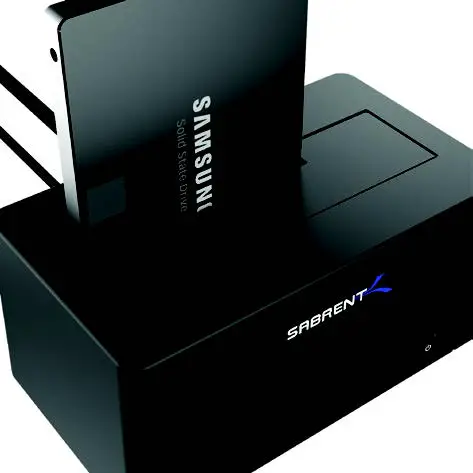
With a Sabrent USB 3.1 SATA/SSD 2.5″/3.5″ HOD Docking Station you can Hot-Swap 2.5″/3.5″ SATA Hard Drives when connected to your Desktop or Notebook. Tool-free Plug & Play installation makes for an easy setup. You can now transfer data quickly and easily through USB Type-C 3.1 at high speeds up to 10Gbps.
PRODUCT OVERVIEW
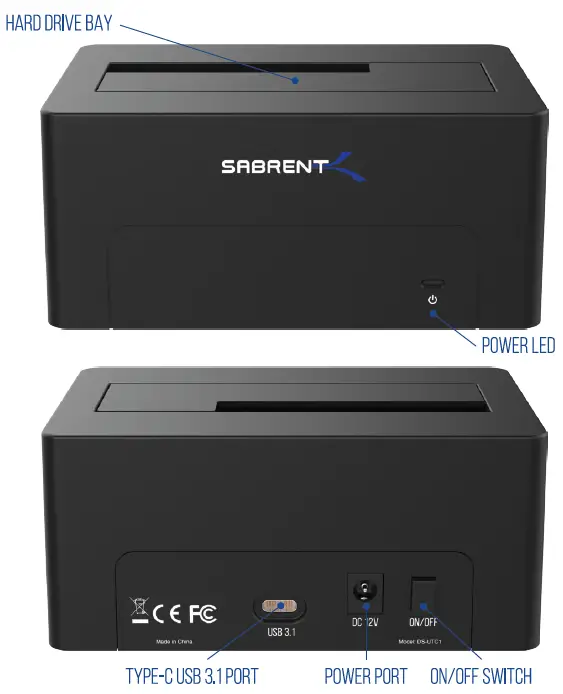
Instruction
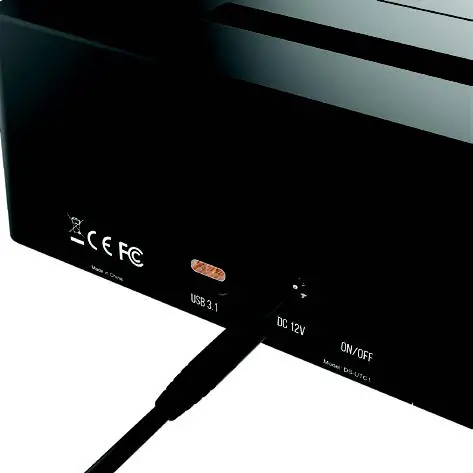
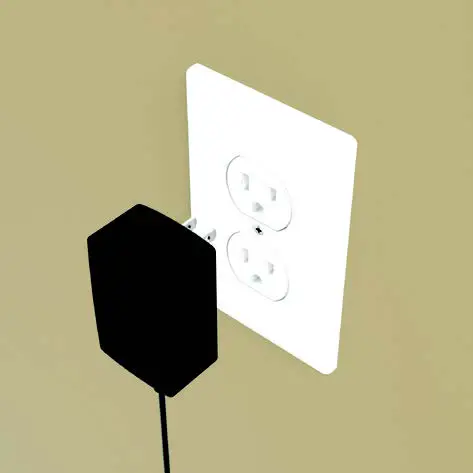
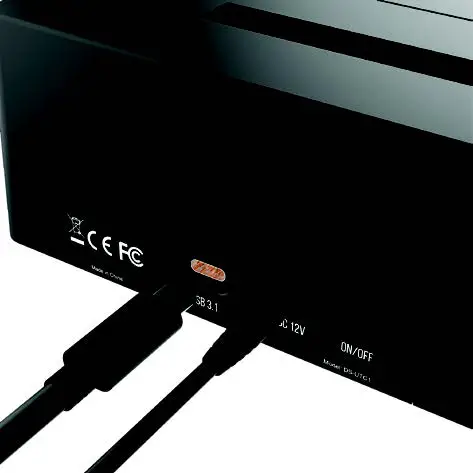
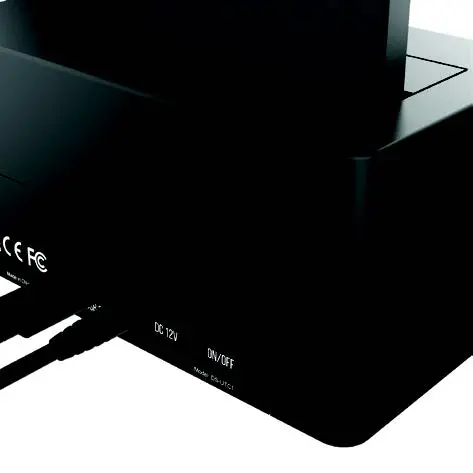
- Connect the Power Adapter to the back of the dock

- Connect the AC Power Cord to a power outlet
- Connect the use Cable to the back of the dock
- Connect the other end of the use Cable to your Computer use Port

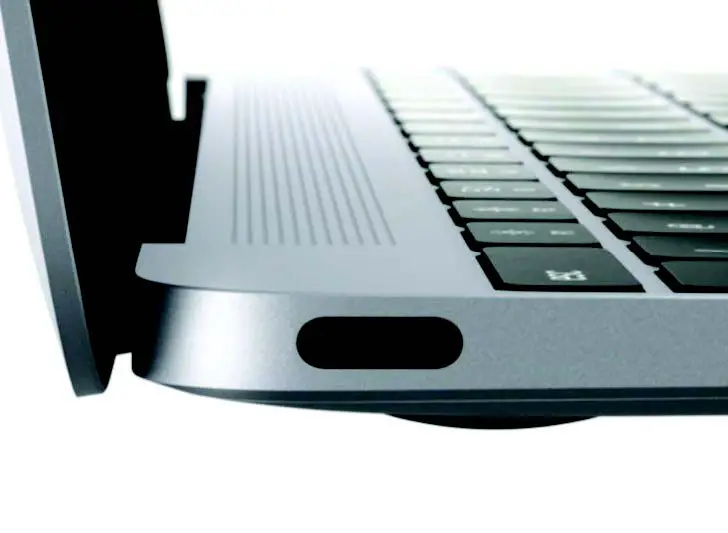
Note: If your computer has a Type-C port use the Type-C cable. If your computer has a Type-A USB port use the Type-C – Type-A cable. - Insert your hard drive into the hard drive bay
- Press the power switch to On The power LED should illuminate
WINDOWS PC HARD DRIVE WITH DATA/FILES
Click on the Start icon located on the bottom left of the screen and then click on Computer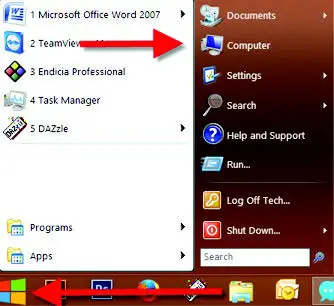
Note:
You can also click on the File Explorer Icon and then click on This PC or Computer
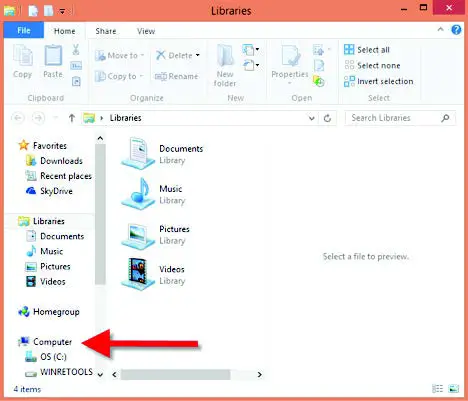
You should get a new drive letter every time you insert a hard drive with data/files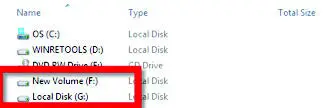
WINDOWS PC NEW HARD DRIVE SETUP CHARD DRIVE WITH NO DATA/FILES)
Click on the Start icon located on the bottom left of the screen and then RIGHT click on Computer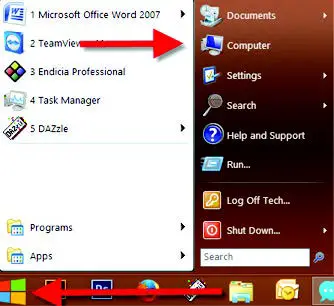
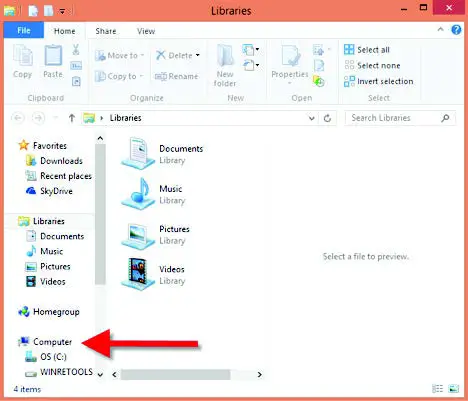
Note:
You can also click on the File Explorer icon and then click on This PC or Computer
Click on Manage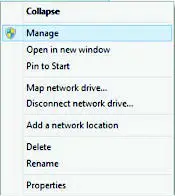
Click on Disk Management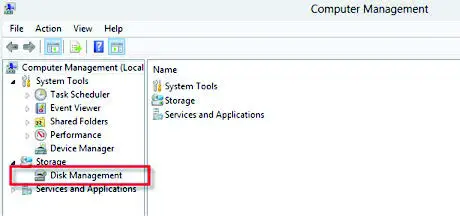
Note:
Disk D should be your internal hard drive Disk 1 should be your external hard drive but SETUPS MAY DIFFER
RIGHT click on Unallocated and click on New Simple Volume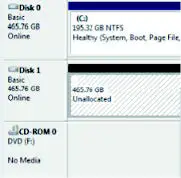
Go through the Setup Wizard to assign a drive letter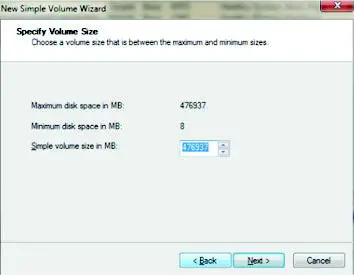
MAC OS HARO DRIVE WITH DATA/FILES
A new Icon should pop up on your main screen each time you insert a hard drive with DATA/Files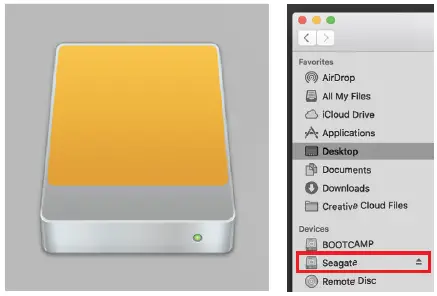
Click on the icon to view your hard drive
Note: You can also click on the Finder icon and select your hard drive under Devices
MAC OS NEW HARD DRIVE SETUP CHARD DRIVE WITH NO DATA/FILES)
Click on the Search icon on your toolbar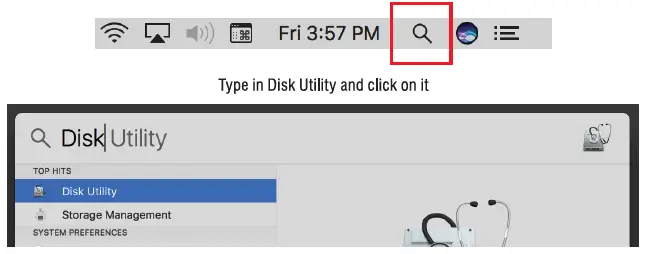
Click the icon for your external hard drive located in the sidebar on the left Click on the Erase tab at the top of the window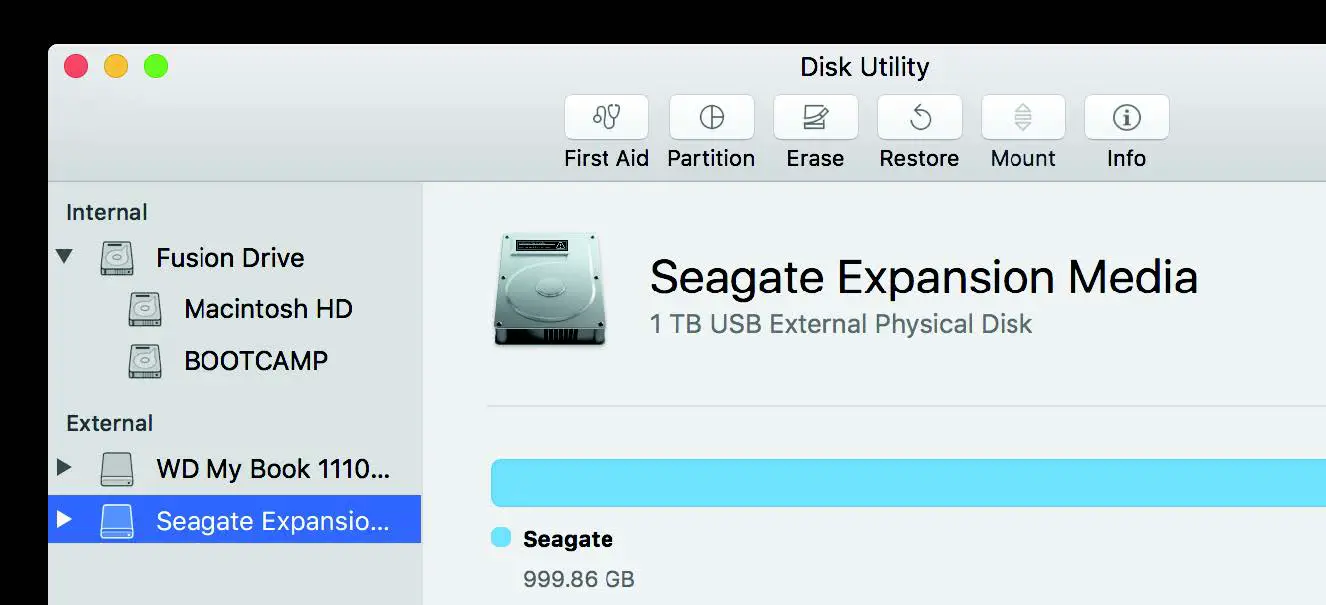
Select the volume format you want and give it a name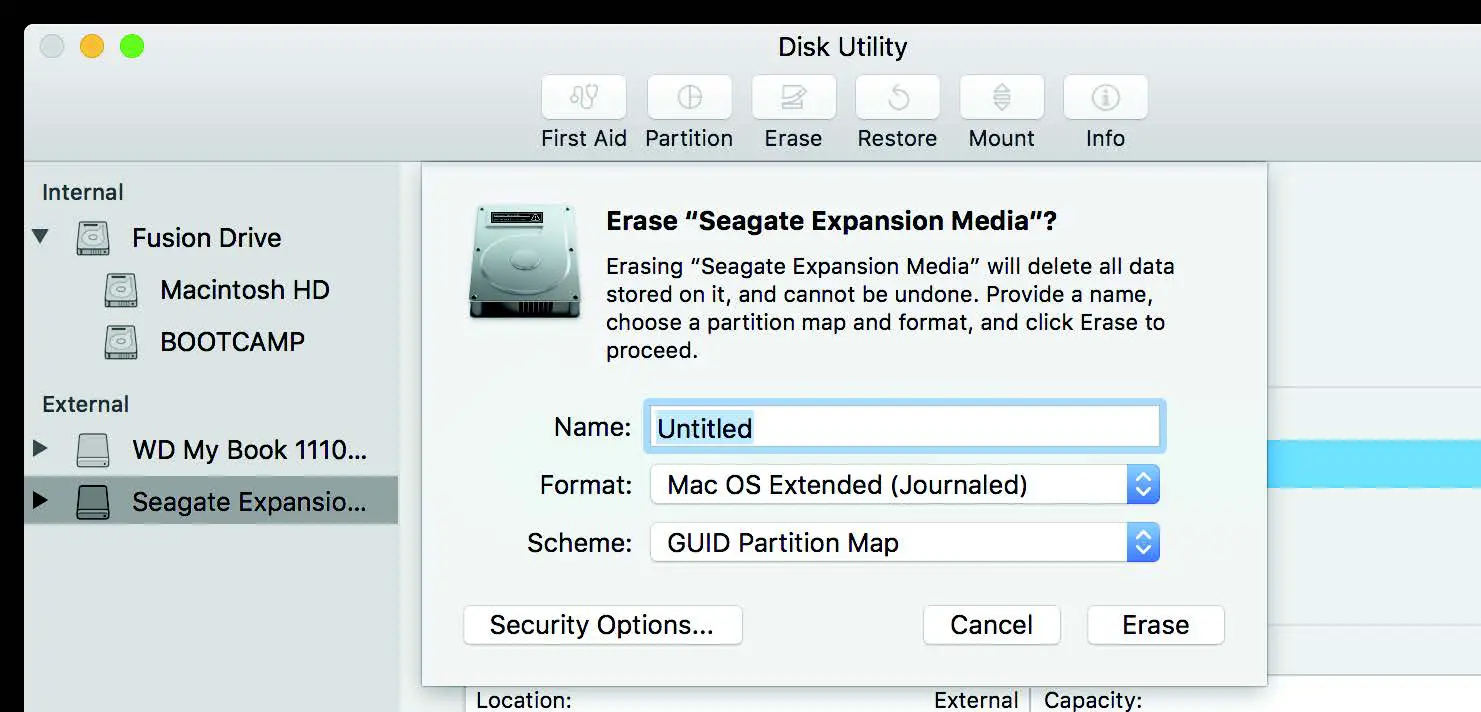
Click on erase
Notes
- This is backward compatible with USB 2.0 and 1.1 with their transfer speeds.
- Please do not remove your hard drive while the hard drive is being accessed.
TROUBLESHOOTING/SUPPORT
Power LED does not come on?
- Make sure that you have a tight connection between the power adapter and dock.
- Try it on a different power outlet.
HDD LED does not come on or turn off during offline clone?
- Re-seat the hard drive into the bay.
- Swap the hard drive out with a spare.
Computer does not recognize the hard drive?
- Make sure that you have a tight connection between the dock and the 3.0 cable.
- Try the USB cable on a different USB port on your computer.
- A new hard drive must be set up, please review the new hard drive setup for your OS.
- Swap the hard drive out with a spare.