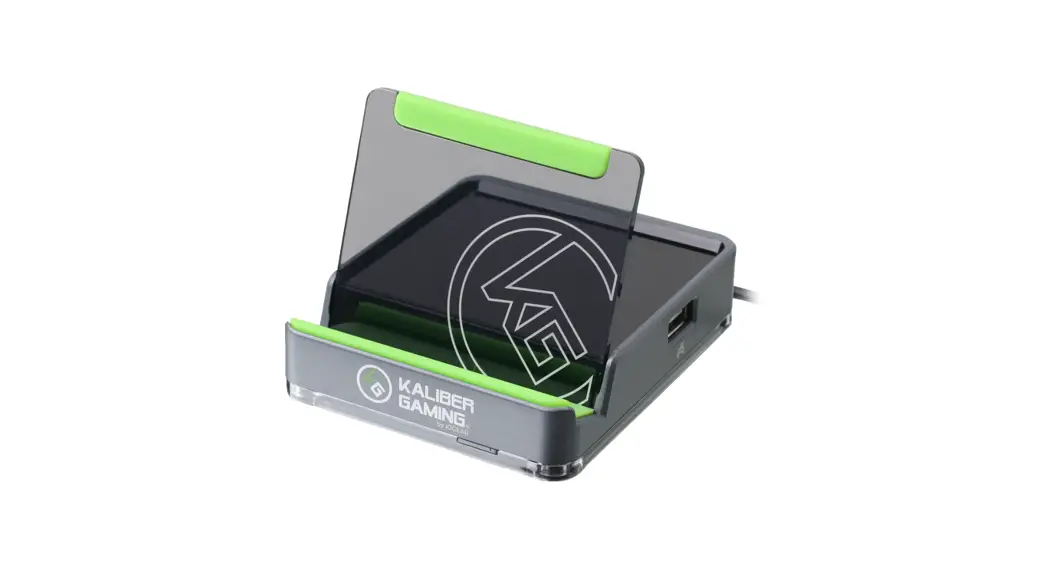
 GE1337M
KeyMander 2 Mobile Keyboard and Mouse
Adapter for Mobile Devices
Quick Start Guide
Package Contents
1 GE1337M KeyMander 2 Mobile Keyboard and Mouse Adapter for Mobile Devices
1 Micro USB cable
1 user instructions
A Hardware Overview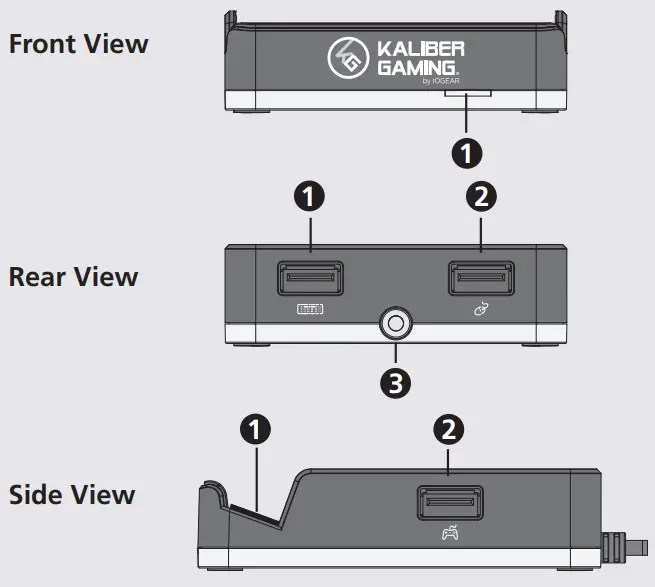 Download K2 Mobile App
 |  https://play.google.com/store/apps/details?id=com.iogear.ge1337m https://play.google.com/store/apps/details?id=com.iogear.ge1337m |
Hotkeys
| Hotkey | Action |
| Alt+F1 | Switch between Gaming Mode and Office Mode. |
| Alt+F2 | Broadcasts Bluetooth connection for K2 Mobile app. |
| Alt+F3 | Broadcasts Bluetooth connection for a game controller. |
| Alt+F4 (press and hold for 3 seconds) | Disconnects Bluetooth connection on your devices. |
| Alt+F5 | Enters or leaves the Hotkey Edit Mode. |
| Alt+F6 | Enters iOS Mode for iOS devices. |
| Alt+F7 | Enters Android Mode for Android devices. |
| Alt+F11 | Enters factory Firmware Upgrade Mode. |
| Alt+F12 | Performs a factory reset. |
| F10 | Toggles Turbo Mode on and off. The default setting is off. |
| F11 | Toggles Macro Mode on and off. The default setting is off. |
Hotkey Edit Mode Table (Alt+F5)
The Hotkey Edit Mode allows you to conveniently switch between General Mode or ADS Mode for Gaming Mode mouse sensitivity.
| Hotkey | Function | |
|
General Mode | [↑] | Increases (+5) the X and Y value for mouse sensitivity. |
| [↓] | Decreases (-5) the X and Y value for mouse sensitivity. | |
| [X] + [↑] | Increases (+5) the X value for mouse sensitivity. | |
| [X] + [↓] | Decreases (-5) the X value for mouse sensitivity. | |
| [Y] + [↑] | Increases (+5) the Y value for mouse sensitivity. | |
| [Y] + [↓] | Decreases (-5) the Y value for mouse sensitivity. | |
|
ADS Mode | [→] | Increases (+5) the X and Y value for mouse sensitivity. |
| [←] | Decreases (-5) the X and Y value for mouse sensitivity. | |
| [X] + [→] | Increases (+5) the X value for mouse sensitivity. | |
| [X] + [←] | Decreases (-5) the X value for mouse sensitivity. | |
| [Y] + [→] | Increases (+5) the Y value for mouse sensitivity. | |
| [Y] + [←] | Decreases (-5) the Y value for mouse sensitivity. |
LED Behavior
| Indication / Color | Status |
| Flashes from Light Green to Dark Green | iOS Gaming Mode. |
| Flashes from Orange to Brown | Android Gaming Mode. |
| Flashes from White to Dark Grey | Office Mode. |
| Flashes Green | Broadcasting Bluetooth for iOS Gaming Mode. |
| Flashes Orange | Broadcasting Bluetooth for Android Gaming Mode. |
| Flashes White | Broadcasting Bluetooth for Office Mode. |
| Flashes Red | No controller is detected under Gaming Mode. |
| Flashes Blue | Broadcasting Bluetooth for K2 Mobile app. |
| Lights Purple | Hotkey Edit Mode. |
| Lights White | Performing a device reset or firmware upgrades. |
- For a better gaming experience, it is recommended to disconnect the connection between the device and the K2 Mobile app.
Requirements
Hardware
- PS DUALSHOCK® 4 wireless controller
- Xbox wireless controller with Bluetooth (Model 1708)
- iOS 13 / iPadOS 13 / tvOS 13 or later
- Android 10 or later
- USB keyboard and USB mouse
Note: Required branded game controllers are not included.
Software (K2 Mobile App)
The K2 Mobile app may be used on a secondary device for confi guration of the GE1337M while actively using it with a primary device such as an iPad or AppleTV.
| Software Platform | Version |
| Android | 7 or later |
| iOS | 10 or later |
Note: The mobile device requires Bluetooth 4.0 and Bluetooth Low Energy (BLE) support.
A Hardware Overview
Front View
- LED indicator
Rear View
- keyboard port
- mouse port
- power connector
Side View
- mobile device stand
- gamepad port
Installation
Gaming Mode
The Gaming Mode allows you to play FPS games on your mobile device using a keyboard and mouse.
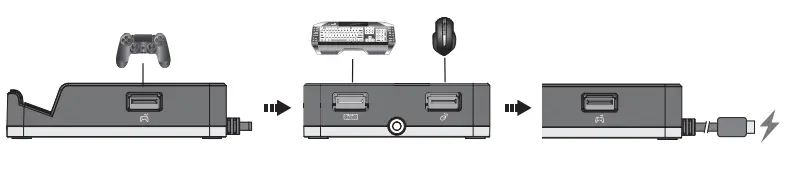
- Connect your wired controller to the gamepad port.
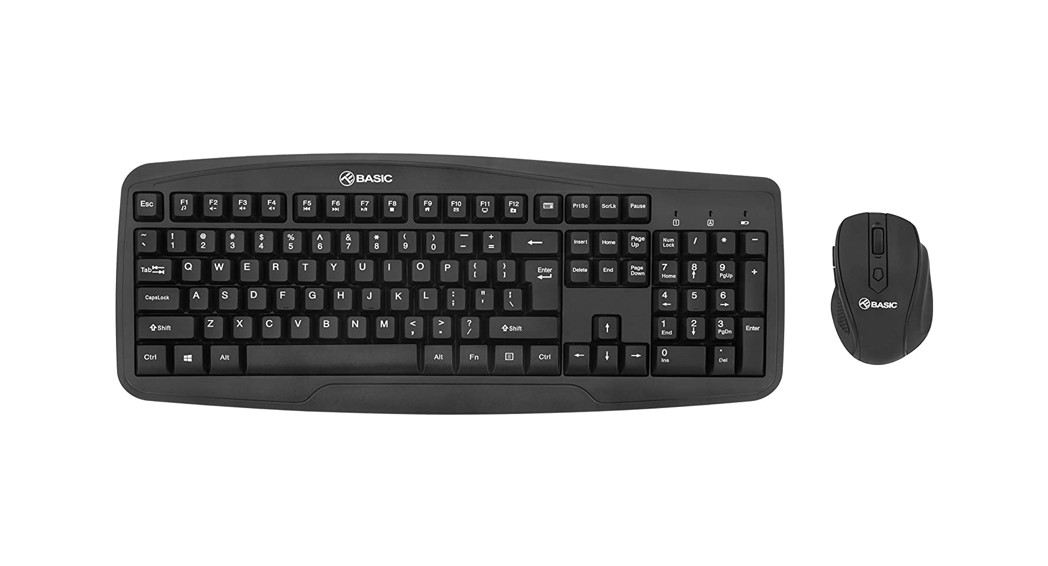
- Connect your USB keyboard and mouse to the keyboard and mouse port. If you are using a wireless keyboard/mouse set, plug the receiver into the keyboard port.
- Connect the power connector to a 5V2A DC power supply.

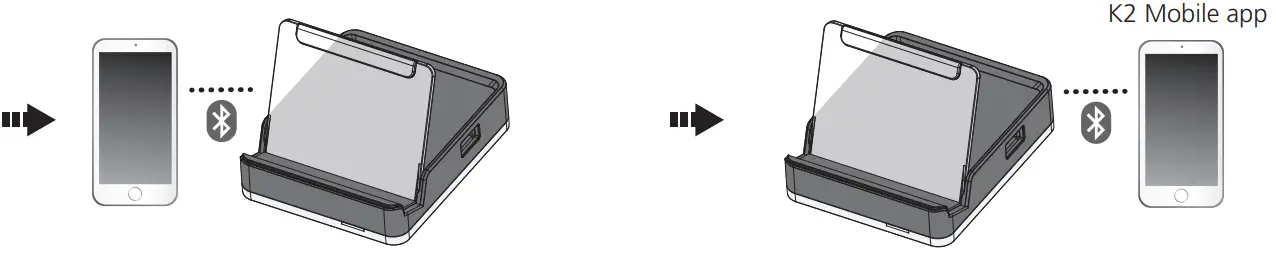
- Pair up the GE1337M with your mobile device.
a) Enable Bluetooth on your mobile device.
b) Find the name of your wired controller under Other Devices.Game Console Gamepad Xbox Xbox Wireless Controller PS4 PS DUALSHOCK®4 Wireless Controller c) Tap the name to connect the wired controller with your mobile device.
- Download and install the
 app for a confi duration. Press
 Alt+F2to pair up the GE1337M with your K2 Mobile app installed mobile device.
 app for a confi duration. Press
 Note:
- For Android phone/tablet users, press
Alt+F7and make sure to enable the GPS function before you begin to use the K2 Mobile app. - For iPhone / iPad (iOS 13 or later) users, press
Alt+F6and make sure to enable the Bluetooth Permission for the K2 Mobile app.
Office Mode
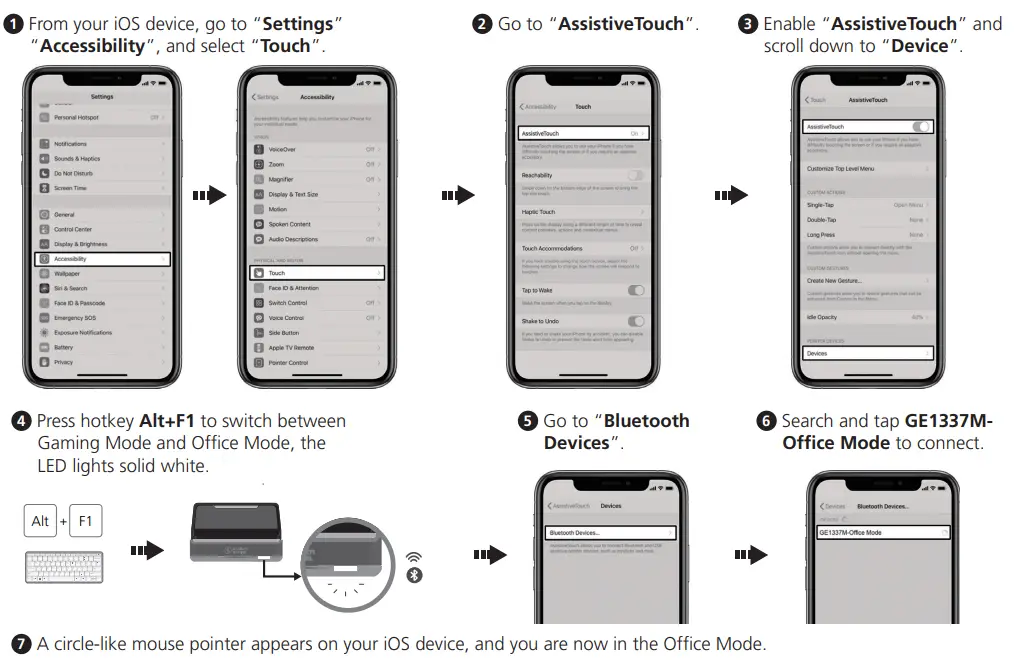
The Office Mode allows you to control or key-in messages using keyboard and mouse. Follow steps 1 to step 5 from the Installation section to complete the installation before you attempt to use Office Mode. For Android mobile devices, make sure you are under Android Mode (Alt+F7), and simply press hotkey Alt+F1 to switch between Gaming Mode and Office Mode. For iOS mobile devices, make sure you are under iOS Mode (Alt+F6), and follow the steps below.
Consideration
If your wireless controller was previously paired with the GE1337M, and you are having trouble pairing your wireless controller again. Please refer to the GE1337M user manual for more information.
Part No. PAPE-1223-U60G Released: 6/2021
GE1337M KeyMander 2 Mobile Keyboard and Mouse Adapter for Mobile Devices
www.aten.com