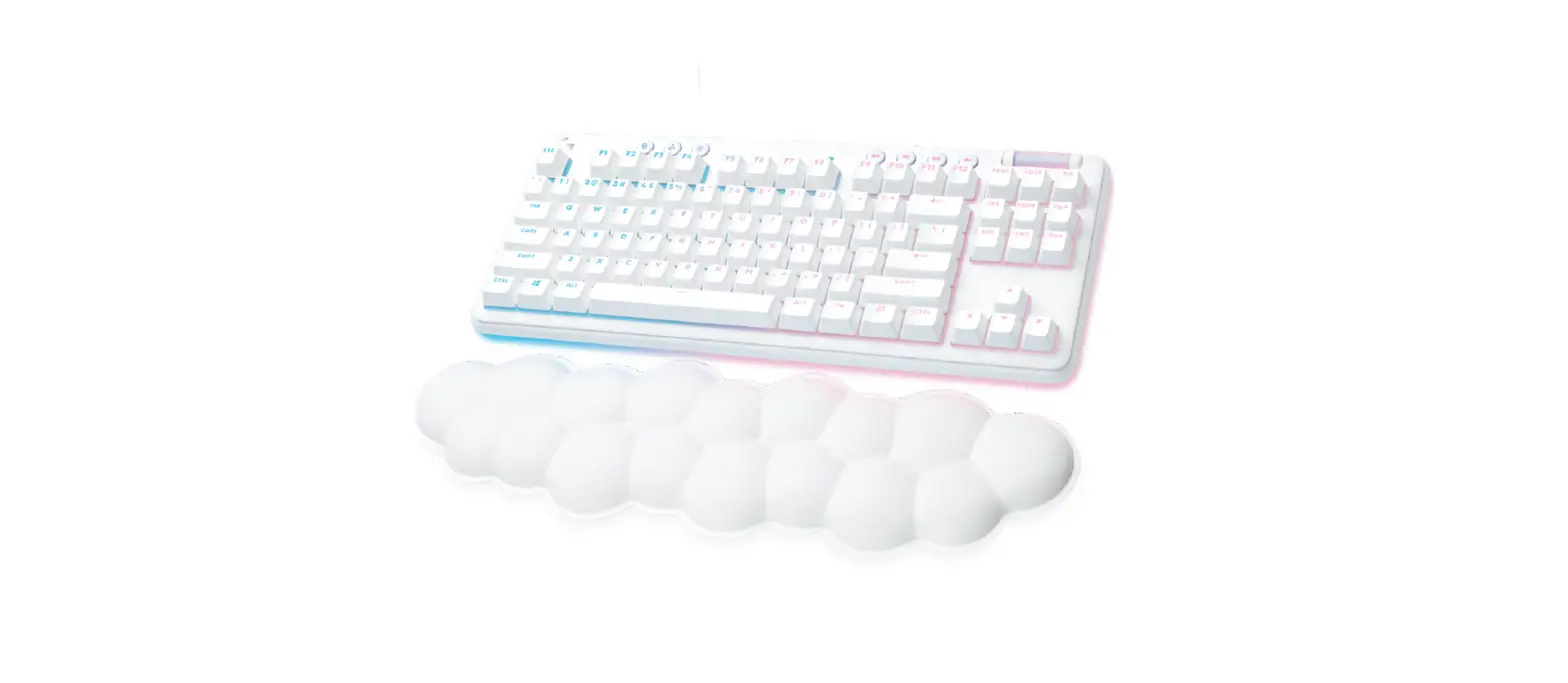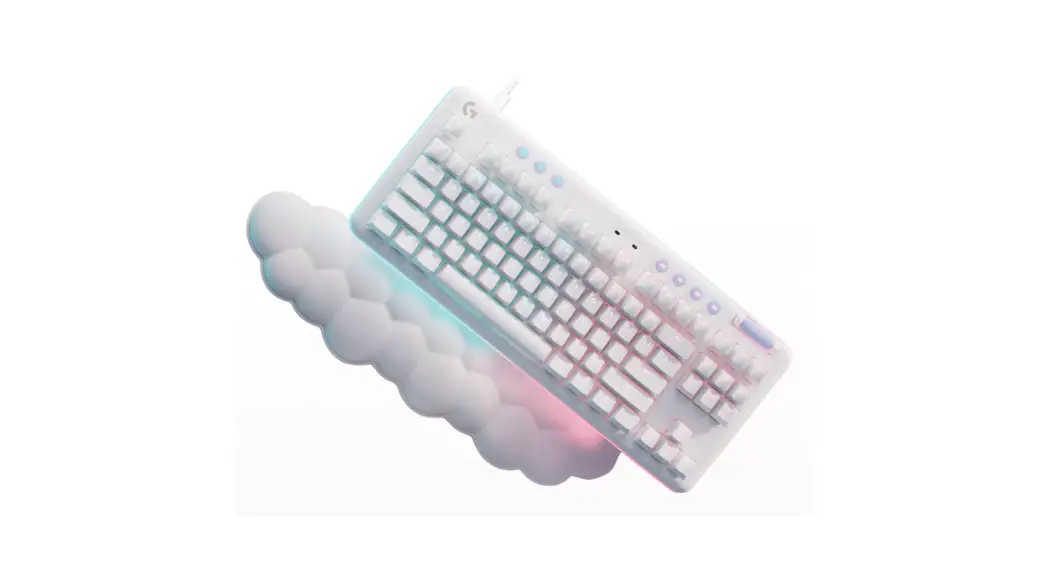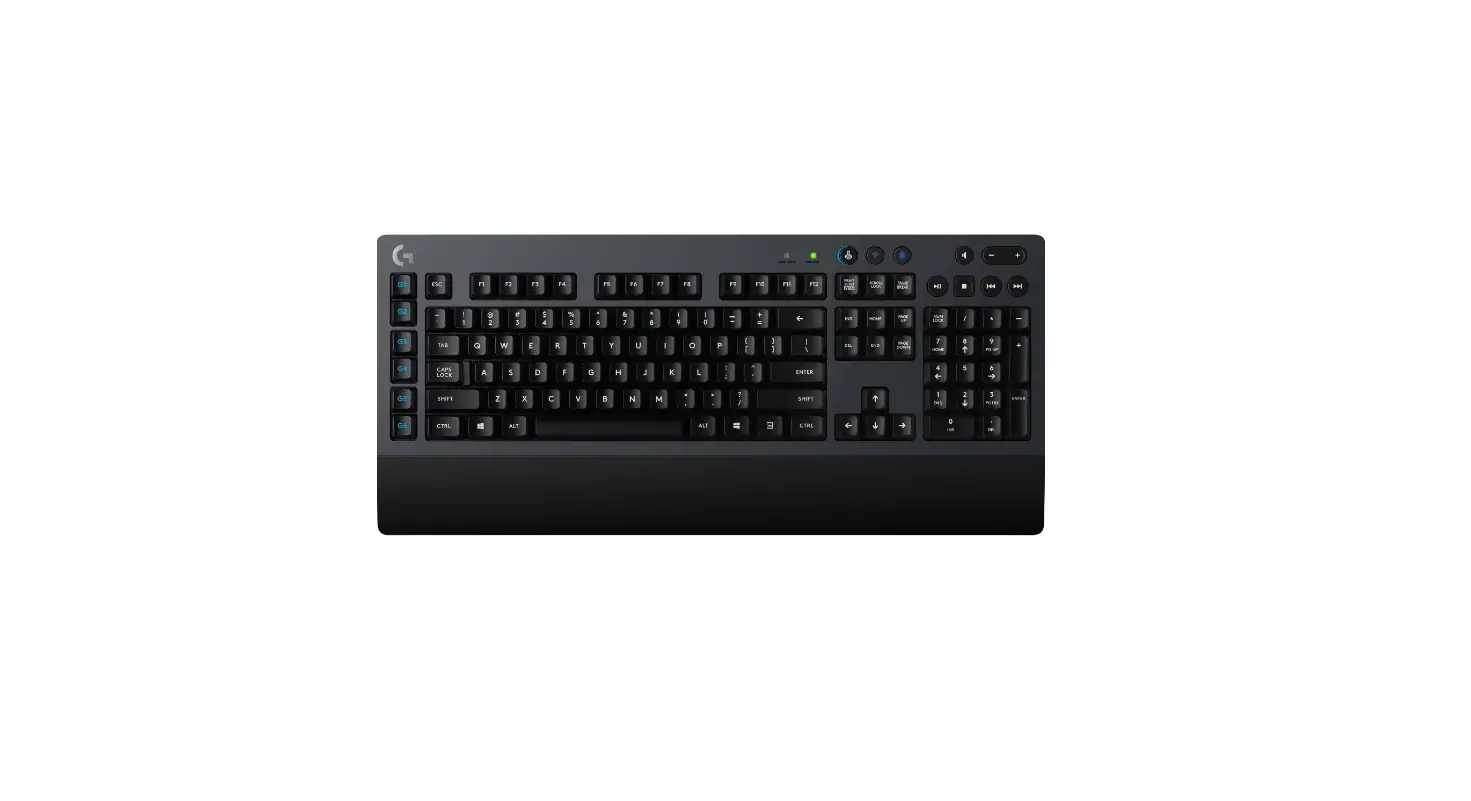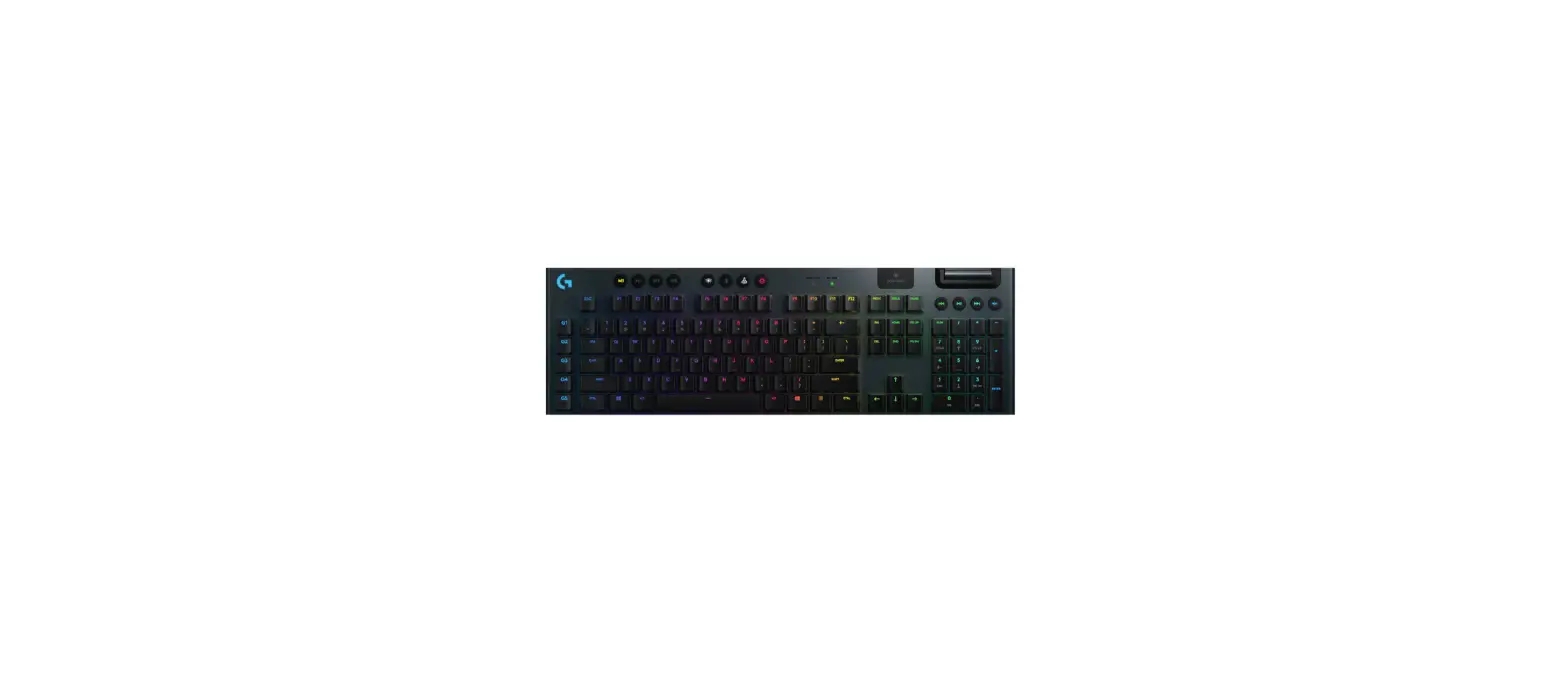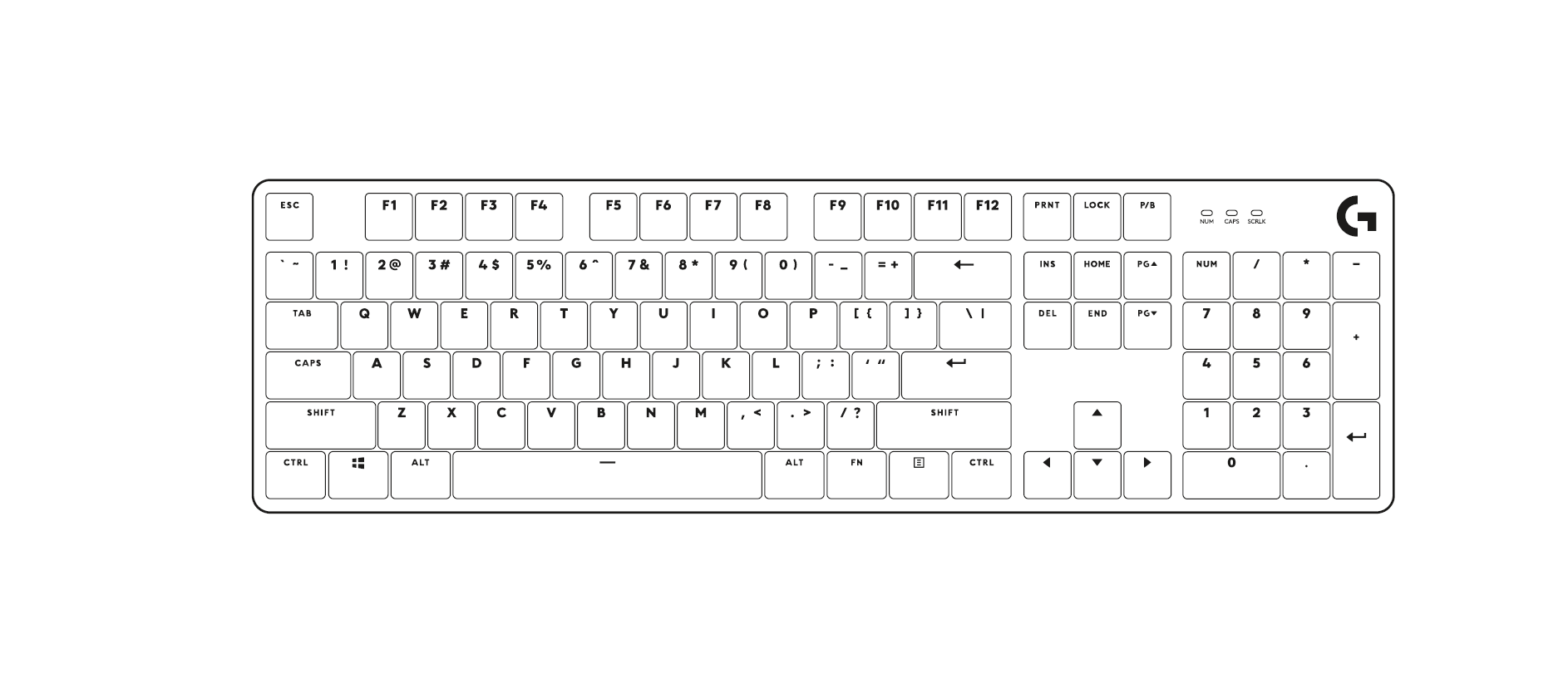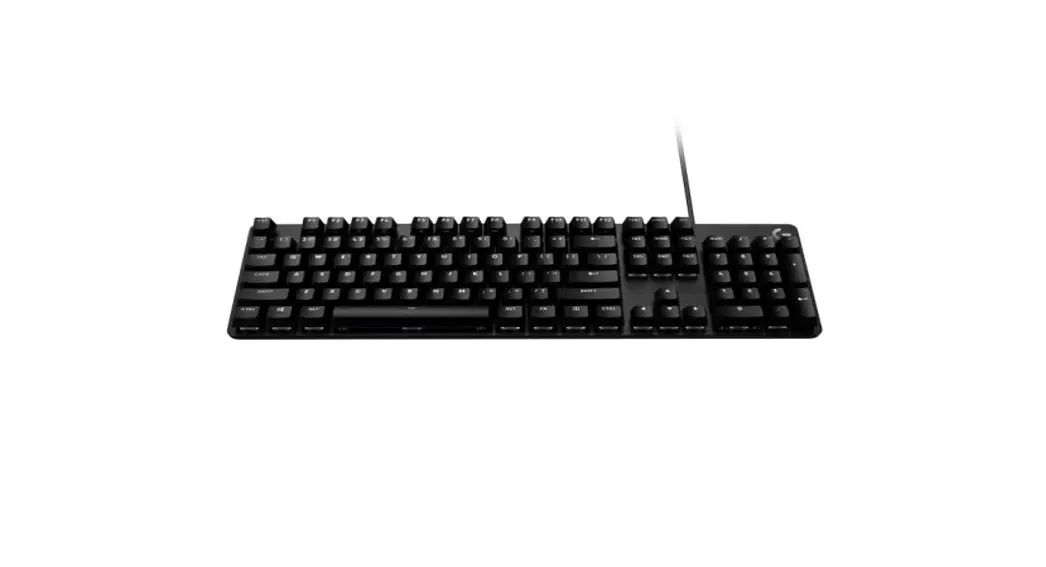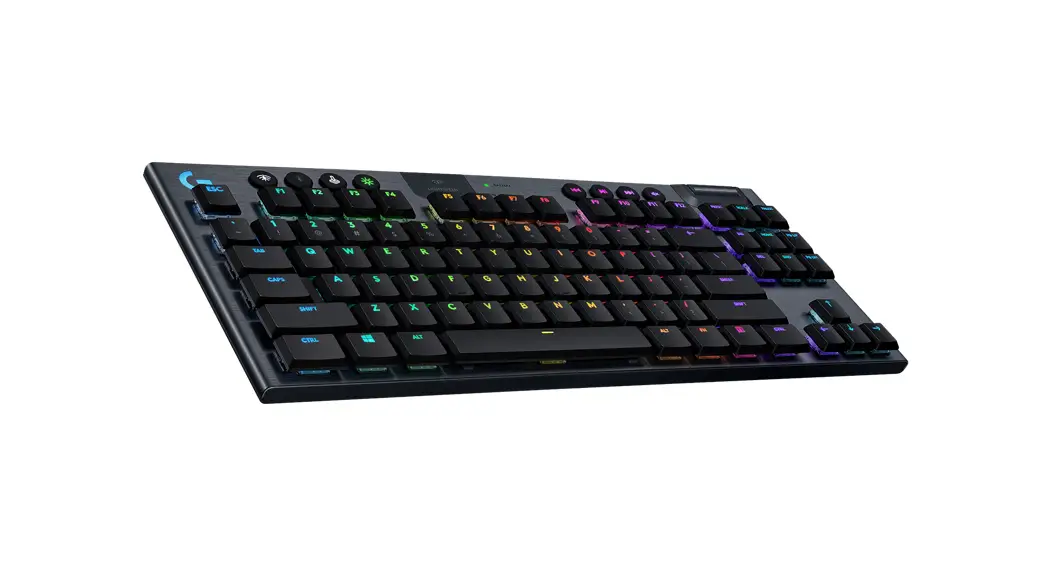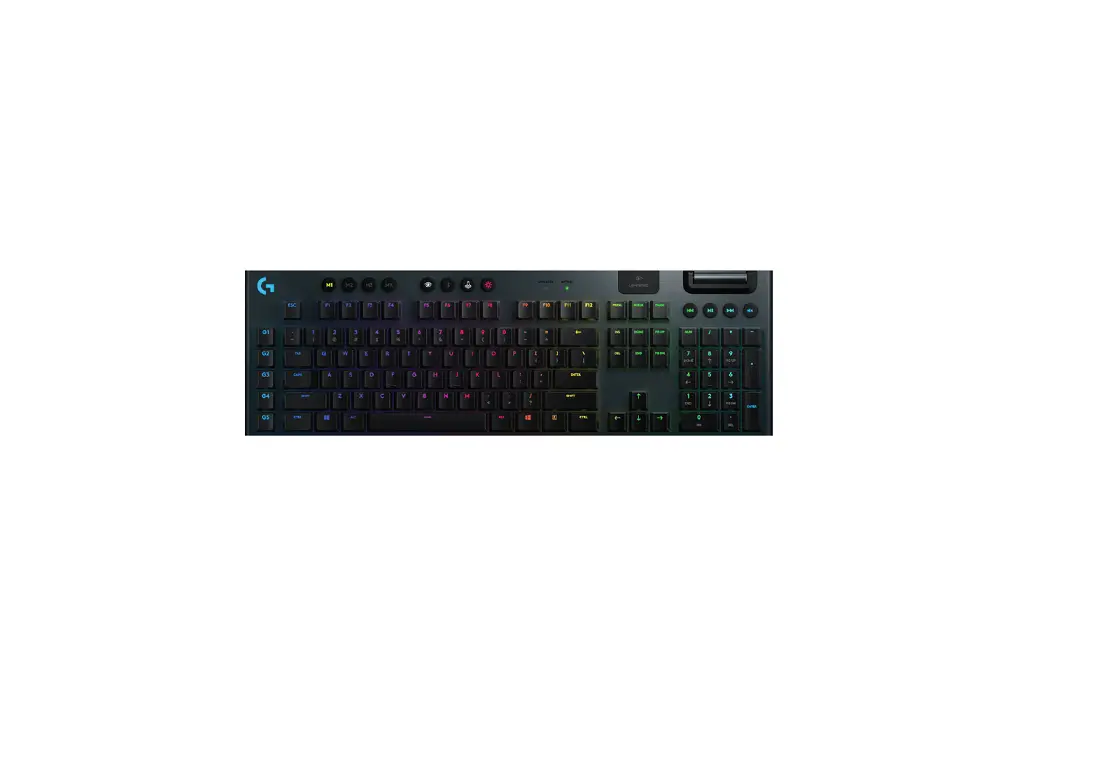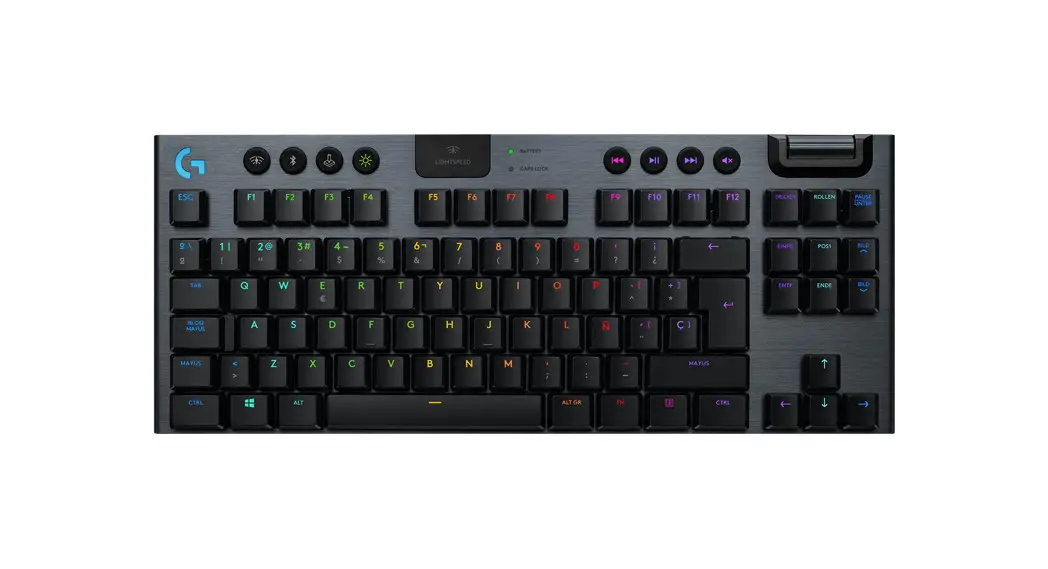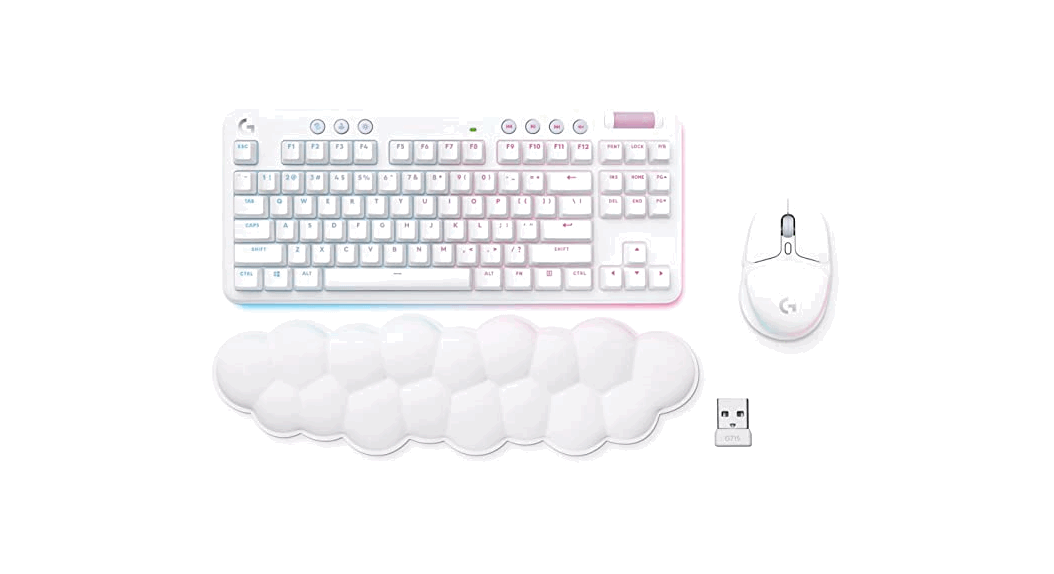
 G715 KEYBOARD
Wireless Gaming Keyboard
SETUP GUIDE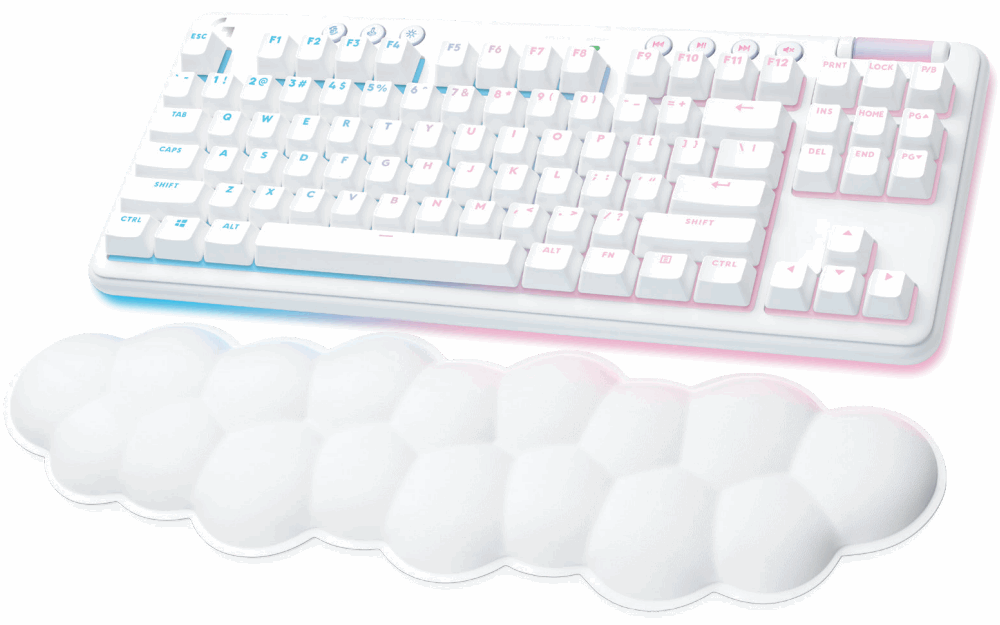
SETUP INSTRUCTIONS
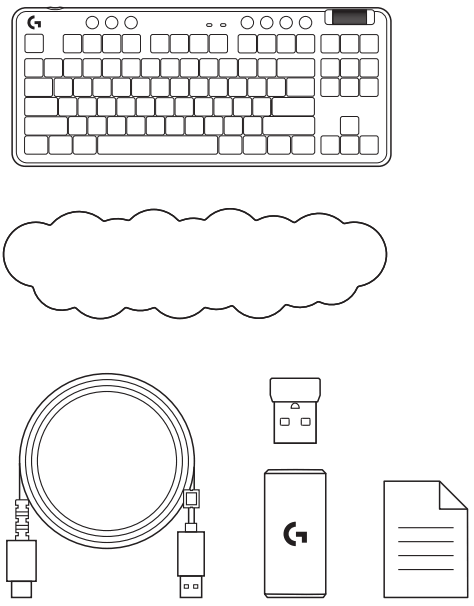
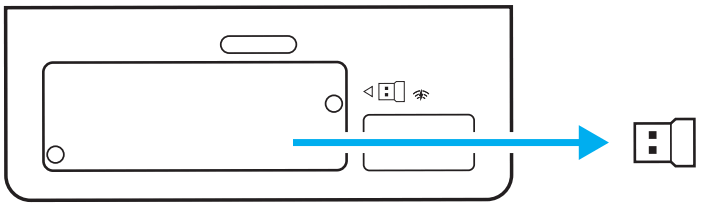
- Remove the LIGHTSPEED receiver from the storage slot.

- Insert the LIGHTSPEED receiver, with the extender and cable into the PC USB port. The receiver can be used without the extender and cable by inserting it directly into a USB port if desired.

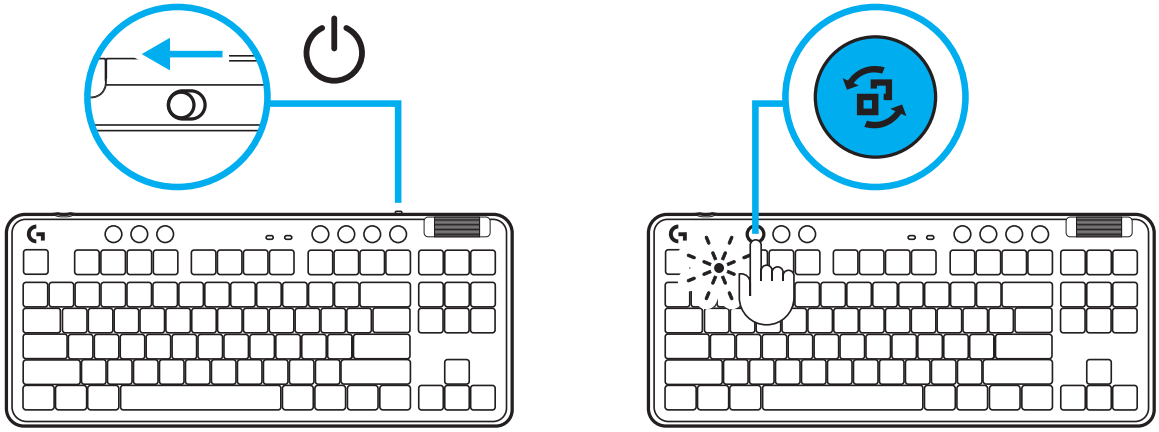
- Turn on the keyboard by sliding the power button. The Connection button will light up to a cyan color.

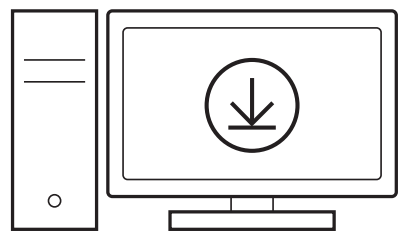
- Download and install G HUB software to your PC/MAC for the best gaming experience (G HUB has an onboarding story for features). Go to www.logitechG.com/ghub

BLUETOOTH® CONNECTIVITY
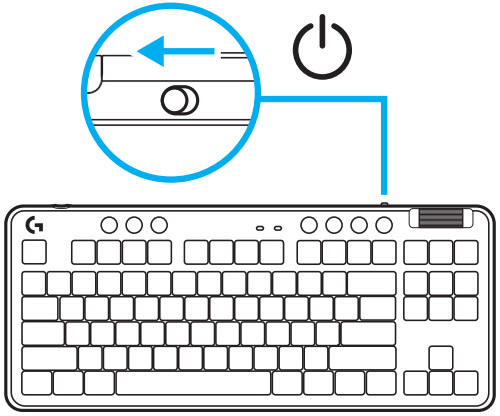
- Turn on the keyboard by sliding the button.

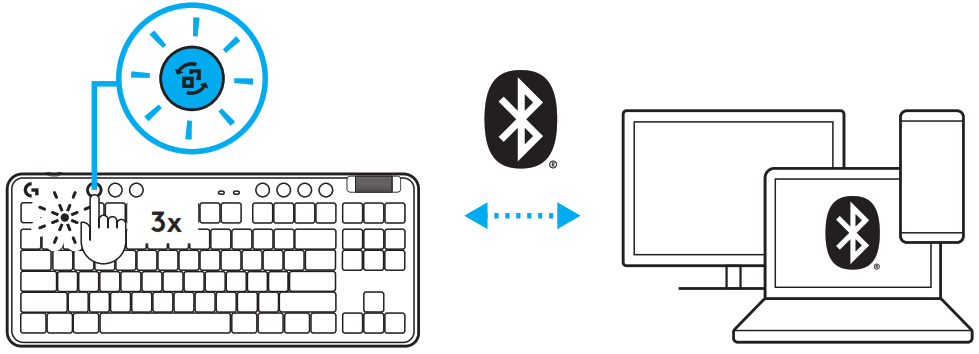
- Press the Connection button to cycle to Bluetooth®. Light will turn to light blue and flash quickly – waiting to pair.
Follow Bluetooth® connection for your device to pair with the keyboard.
CHARGING YOUR KEYBOARD
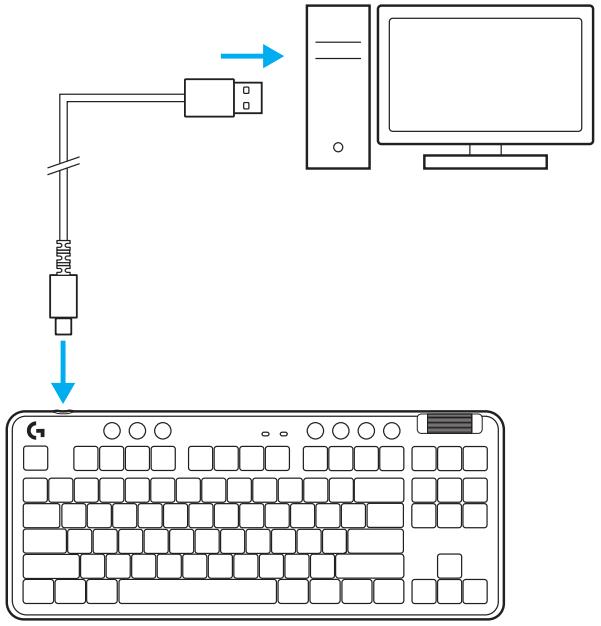
- Insert the USB-C cable into the port at the front of the keyboard.
- Connect the cable to your PC.
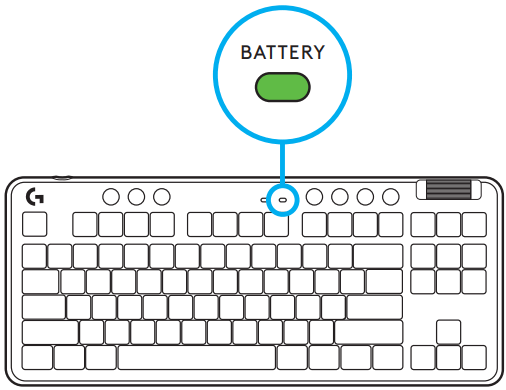
The battery indicator light will pulse green while charging and be solid green when fully charged.
Media Controls
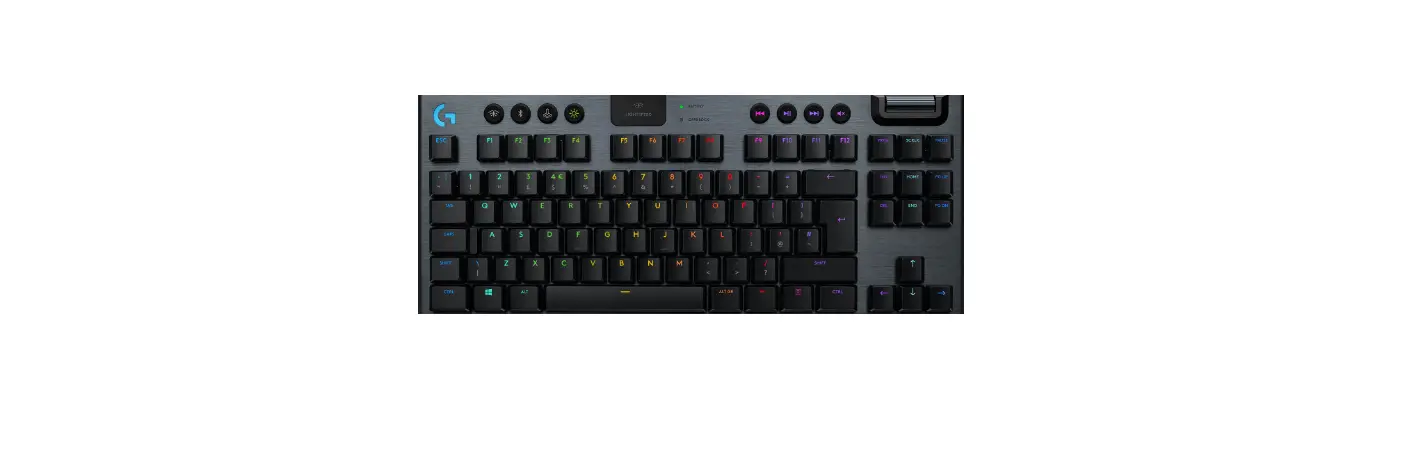
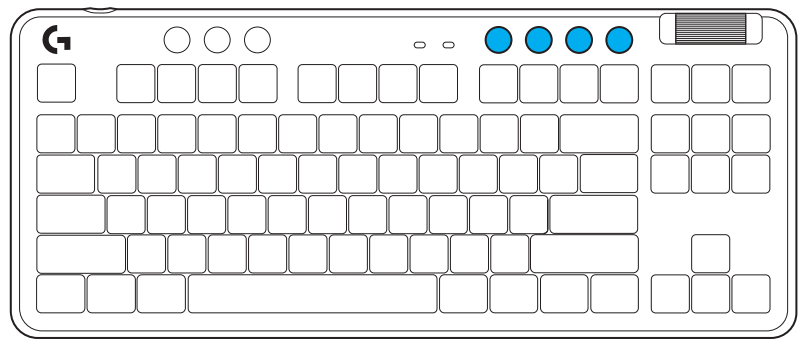
G715 includes media controls. Skip back, play/pause, skip forward, and mute the key, with a volume roller that controls your device volume.
Game Mode
Pressing the Game mode button blocks the Windows and Menu keys when pressed. additional keys can be blocked using G HUB software.
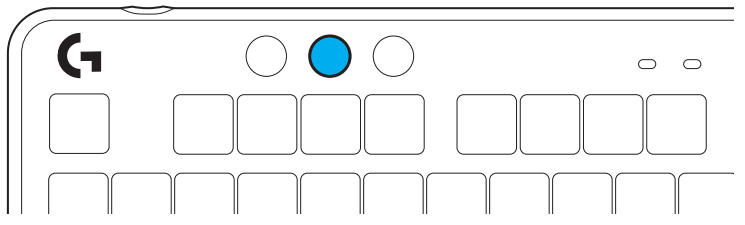
Brightness
Adjust lighting brightness by pressing the brightness button.
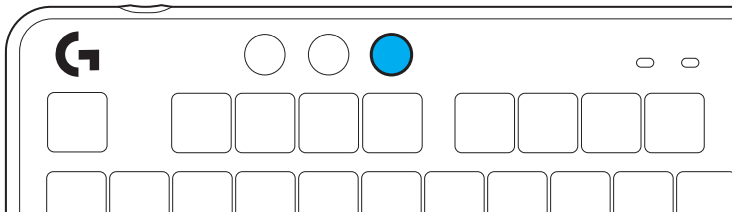
ONBOARD LIGHTING EFFECTS
The keyboard has 8 different lighting effects stored in its onboard memory. You can select and modify these by pressing the Brightness button and these keys:
Brightness + 1 = Rainbow > right
Brightness + 2 = Rainbow > left
Brightness + 3 = Rainbow center out
Brightness + 4 = Rainbow ^ up
Brightness + 5 = Color cycle
Brightness + 6 = Keystroke ripple
Brightness + 7 = Breathing cyan
Brightness + 8 = Custom lighting effect
Brightness + 9 = Custom lighting effect
Brightness + 0 = Solid cyan
Brightness + – = Animation slower
Brightness + = = Animation faster
G HUB lighting controls will override these settings.
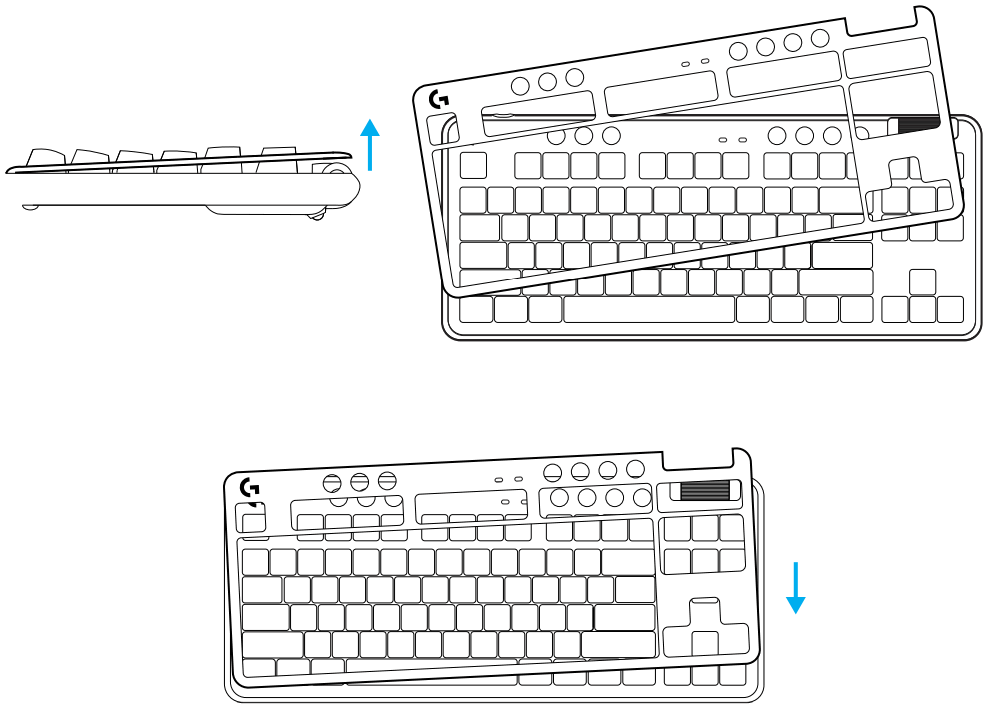
CHANGING THE TOP PLATE
The top plate can be removed and replaced with optional accessory top plates.
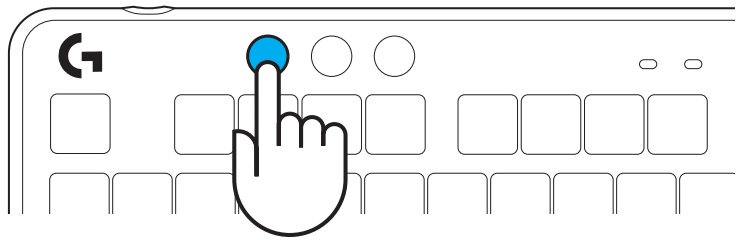
SWITCH BETWEEN LIGHTSPEED WIRELESS AND BLUETOOTH® DEVICES
Once connected, press the connect button to toggle the connection. It will be a light cyan color for LIGHTSPEED, and a blue color for Bluetooth®
 © 2022 Logitech. Logitech, Logitech G, Logi, and their respective logos are trademarks or registered trademarks of Logitech Europe S.A. and/or its affiliates in the U.S. and other countries. All other trademarks are the property of their respective owners. Logitech assumes no responsibility for any errors that may appear in this manual. Information contained herein is subject to change without notice. The Bluetooth® word mark and logos are registered trademarks owned by Bluetooth SIG, Inc. and any use of such marks by Logitech is under license.
WEB-621-001990 002
 Logitech G HUB Advanced Gaming Software, RGB & Game Profiles