Set up Port Forwarding in the Razer Sila
Port forwarding allows a client device on your home network accessible to computers on the internet, even though the device(s) are behind a router and its firewall. It is important to set up a static IP address in the device that you are forwarding a port to. This ensures that your ports will remain open even after your device reboots.
Now that the device has a static IP address, we can open the ports to the internet.
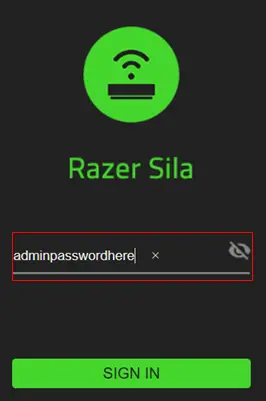
- Point a web browser to the admin menu at “sila.razer.com” or “192.168.8.1”. Enter your admin credentials and click “Sign In”. We recommend using sila.razer.com as it offers better security.

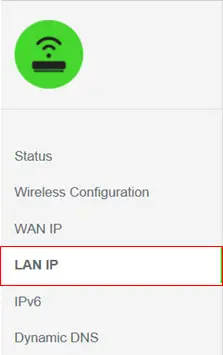
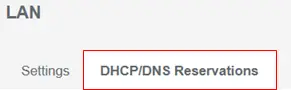
- Select LAN IP > DHCP/DNS Reservations.


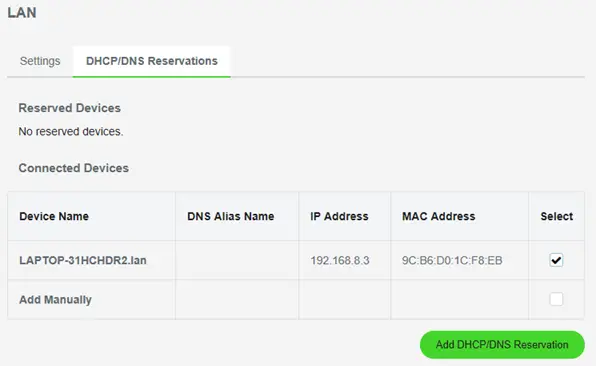
- Under “Connected Devices” find the device that you wish to open ports to and check “Select”.

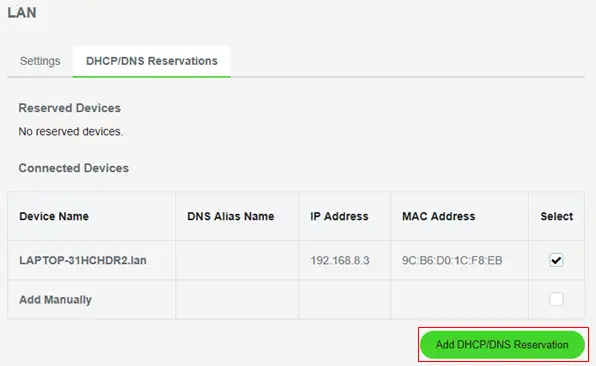
- Click on “Add DHCP/DNS Reservations”.
- Open your Razer Sila App.
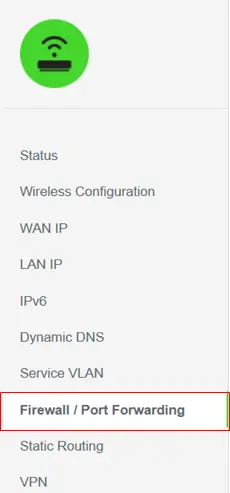
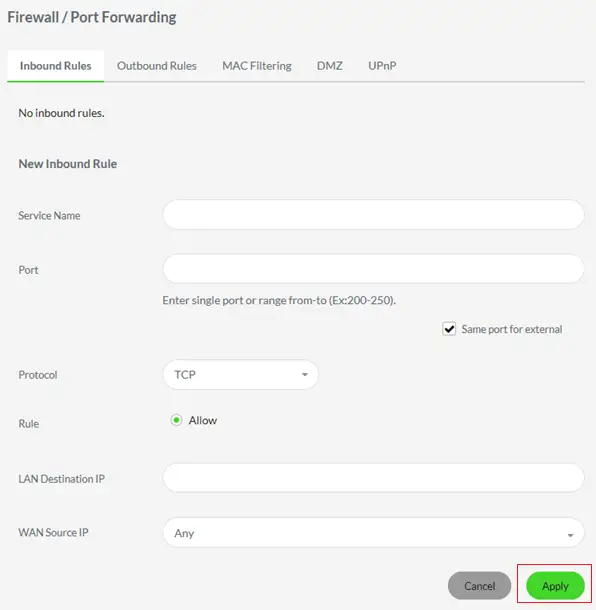
- On the Status page, you should see a list of options running down the left sidebar. Choose the option labeled “Firewall / Port Forwarding”.

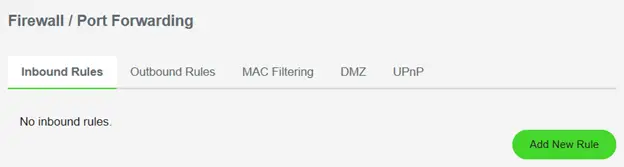
- Select “Inbound Rules” and click on “Add New Rule”.

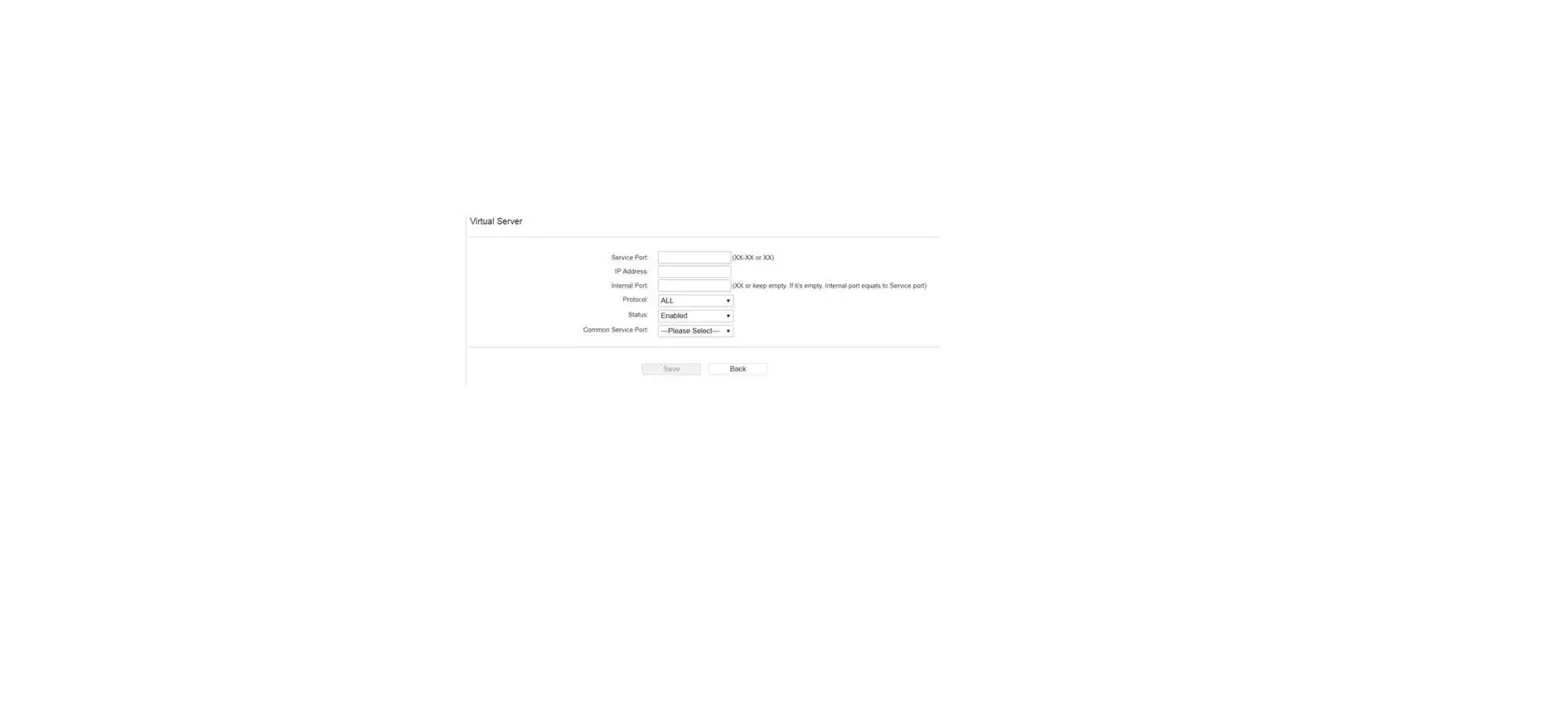
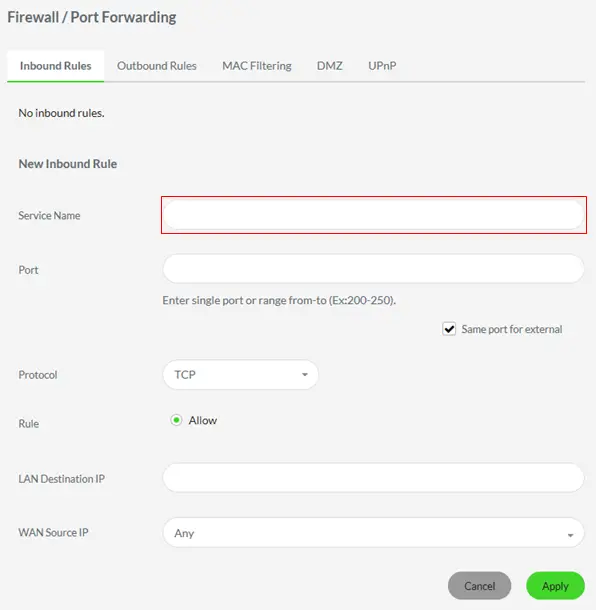
- Create a name for this forward and put it in the “Service Name” box. The name is only used as a reminder and has no effect on the port forward.

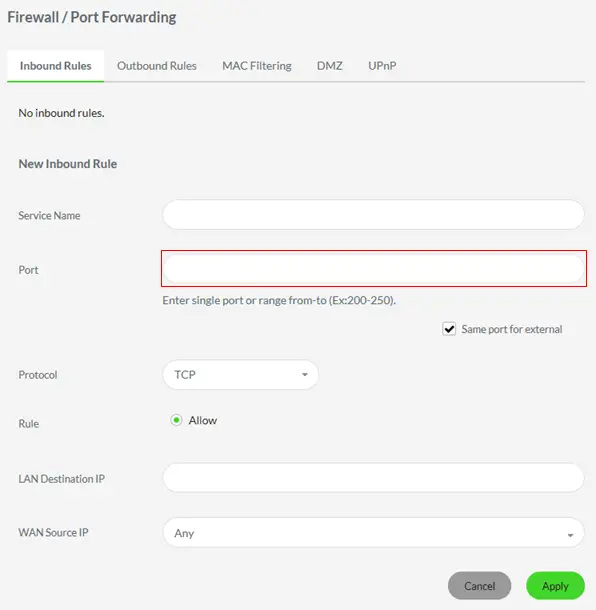
- In the Port box type the port number/s to forward.
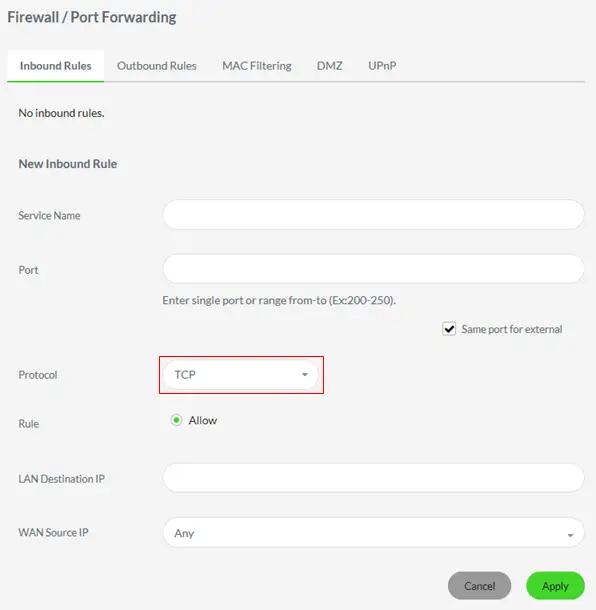
- From the “Protocol” box, select the protocol for the port/s that you want to forward.
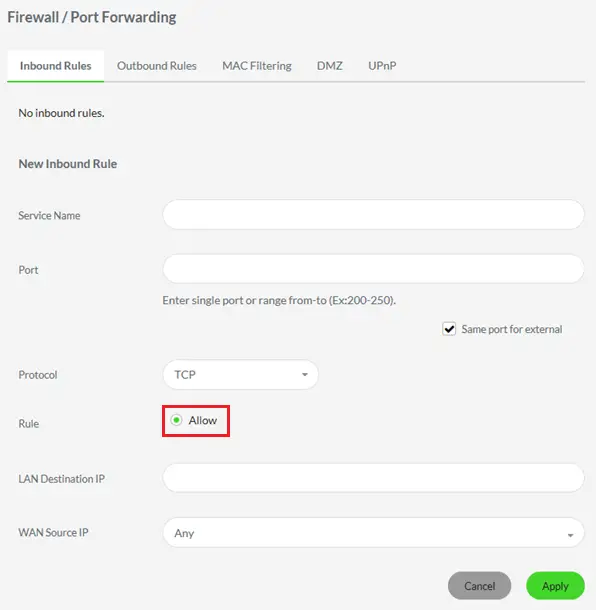
- Pick the “Allow”radio button.
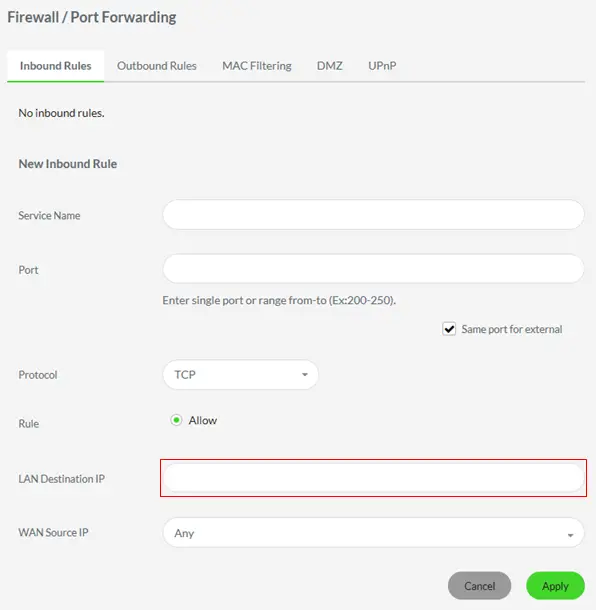
- Enter the IP address that you are forwarding ports to in the “LAN Destination IP” box. This is either the IP address of a computer or of another device on your network.
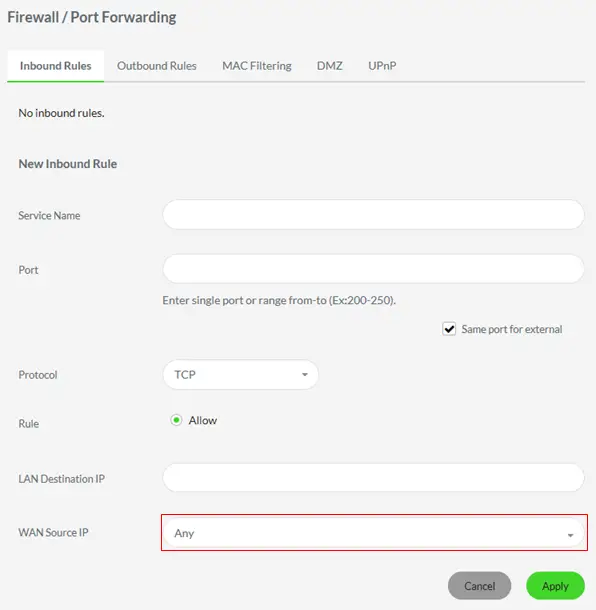
- Leave the “WAN Source IP” box blank.
- Click the “Apply” button to save settings.
Outbound traffic is allowed by default unless it matches a rule that prohibits the traffic. To block outbound network traffic on a specified TCP or UDP port number, create a rule using the Outbound Rule tab.
You may wish to test to see that the ports are open by using a free port checker tool such as https://portforward.com/help/portcheck.htm