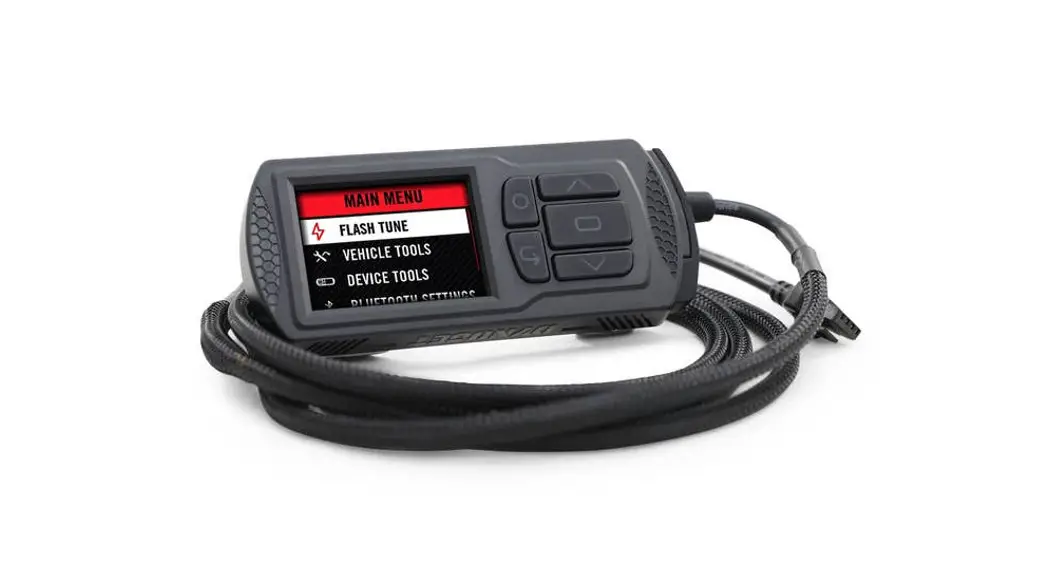
PV3-22-01 Power Vision
Product Information:
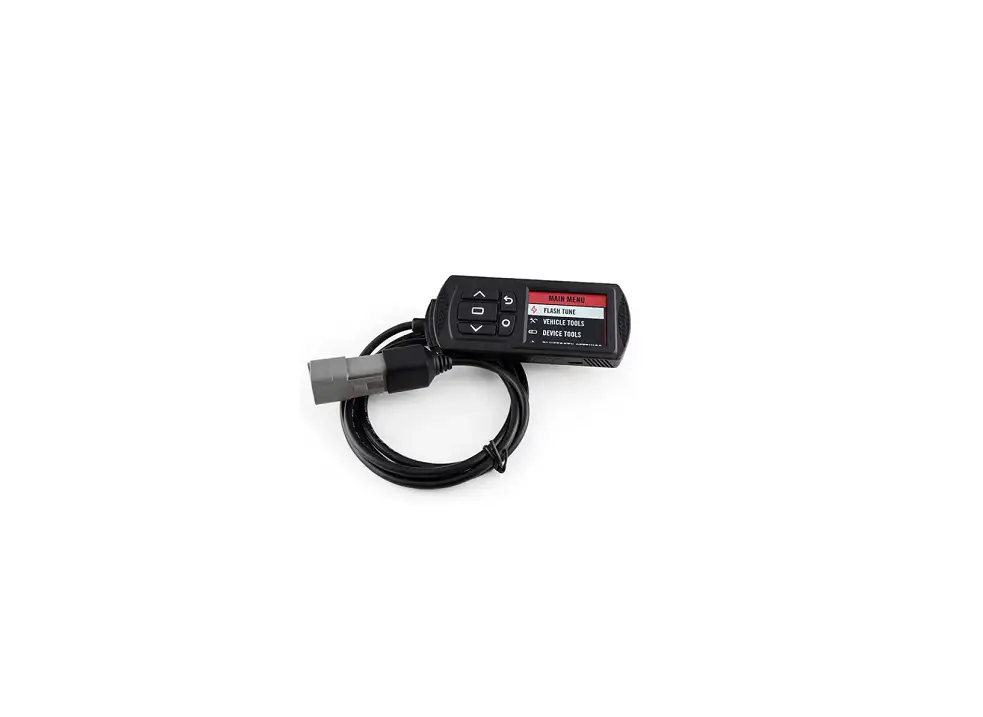
The Power Vision is a device designed for installation on Yamaha
motorcycles. It is compatible with various models including FZ-07,
MT-07, XSR700, Tracer 700, Tenere 700, FZ-09, MT-09, FJ-09, Tracer
900, XSR900, FZ-10, MT-10, YZF-R1, YZF-R6, TMax 530, XTZ1200, and
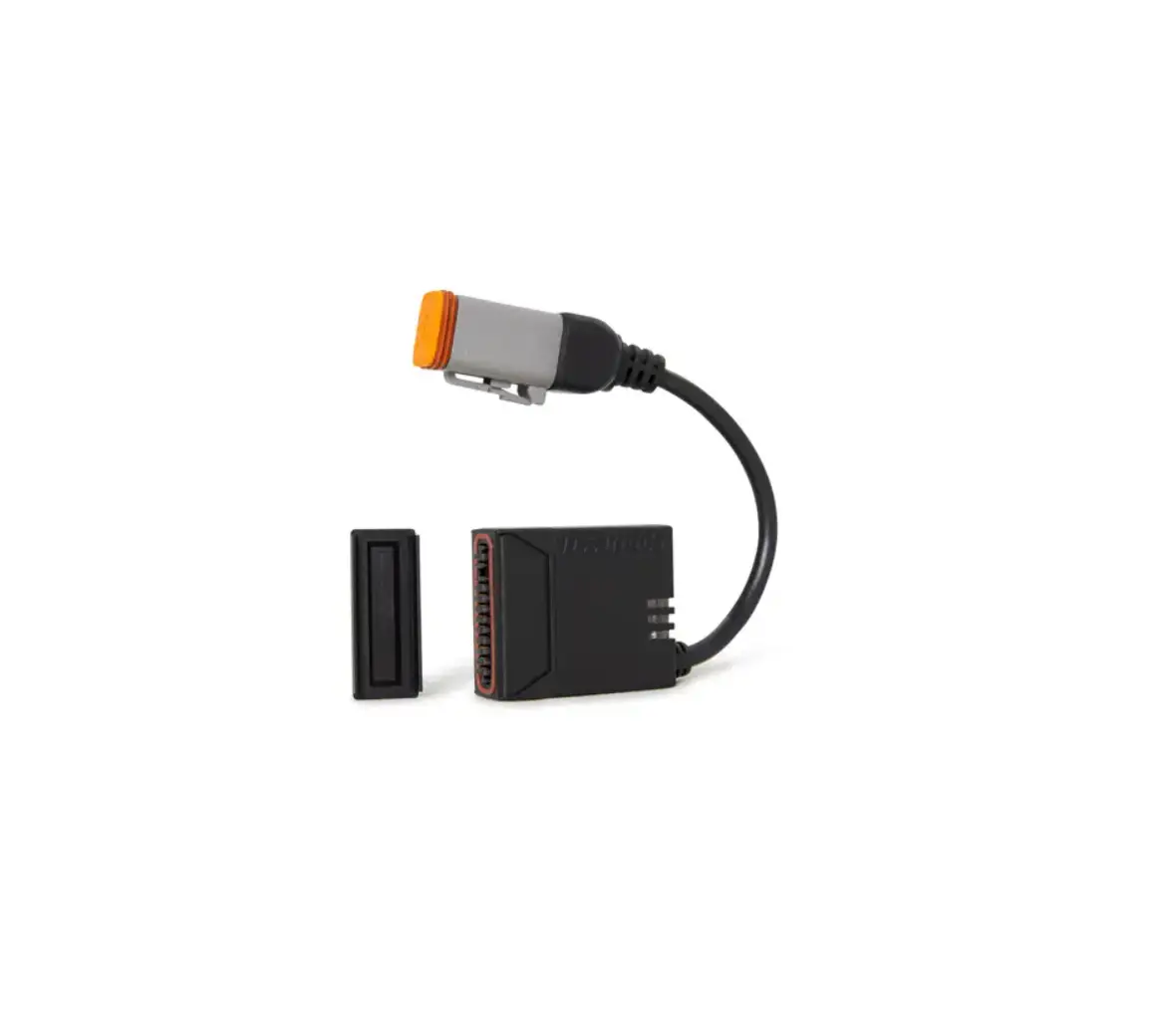
R7. The device comes with a Power Vision unit, a reflash harness, a
USB cable, two Velcro strips, and two Dynojet decals.
Product Usage Instructions:
- Securely attach the Power Vision to your vehicle using the
supplied Velcro. Make sure it does not interfere with the vehicle’s
operation and steering. Alternatively, you can mount it on your
dashboard or handlebars for easy access to customizable full-color
gauge screens and troubleshooting features. Visit www.dynojet.com
for mounting solutions. - Connect the diagnostic cable to the diagnostic port on the
Power Vision and to the diagnostic port on your Yamaha motorcycle.
The diagnostic port is located under the seat and can be either a
4-pin white connector or a 6-pin red connector. - After riding, remember to unplug the Power Vision to prevent
battery drain. - To prepare your Power Vision for flashing your vehicle’s ECU,
use the Tune File Wizard:- Connect the Power Vision to your vehicle.
- Turn the key on. The Power Vision will scan for files.
- There are three possible file states:
- File State 1: No compatible tune or stock files. Go to
tunes.dynojet.com to download stock and tune files. - File State 2: No compatible tune files. Go to tunes.dynojet.com
to download tune files. - File State 3: All required files found. The Power Vision is
ready to flash a tune to the connected vehicle.
- File State 1: No compatible tune or stock files. Go to
- Gauges will be displayed on the Power Vision.
- To flash your vehicle’s ECU, follow these steps:
- From the Main Menu, select Flash Tune.
- Select the desired tune file (.djt) and press Enter to view the
Tune Info. - The Power Vision must be paired with the connected vehicle’s
ECU for proper functionality. Note that once paired, the Power
Vision cannot be used on another vehicle without purchasing a new
tune license.
POWER VISION
Installation Guide for: PV3-22-01 / PV3-22-02 / PV3-22-03 / PV3-22-04 / PV3-22-05 PV3-22-06 / PV3-22-07 / PV3-22-08 / PV3-22-10 / PV3-22-13 PV3-22-15 / PV3-22-16 / PV3-22-18 / PV3-22-19
Model Coverage: 2014-2022 Yamaha FZ-07 / MT-07 2016-2020 Yamaha XSR700 2017-2019 Yamaha Tracer 700 2020-2021 Yamaha Tenere 700 2014-2020 Yamaha FZ-09 / MT-09 2015-2020 Yamaha FJ-09 / Tracer 900 2016-2020 Yamaha XSR900 2016-2020 Yamaha FZ-10 / MT-10 2015-2019 Yamaha YZF-R1 2017-2020 Yamaha YZF-R6 2017-2019 Yamaha TMax 530 2014-2021 Yamaha XTZ1200 2022 Yamaha R7
PARTS LIST
1 POWER VISION 1 REFLASH HARNESS 1 USB CABLE
2 VELCRO 2 DYNOJET DECAL
PLEASE READ ALL DIRECTIONS BEFORE STARTING INSTALLATION
98200110.13
DISCLAIMER
The Power Vision is designed to function properly on stock ECUs that contain the original OEM calibration. If your ECU has been flashed with an aftermarket tuning product, the Power Vision will not function as intended.
INTRODUCTION
RETURN SCROLL
ENTER HOME/LOG
SCROLL
POWER VISION OVERVIEW–FRONT VIEW
USB CABLE PORT CONNECT TO COMPUTER
DIAGNOSTIC CABLE PORT CONNECT TO VEHICLE
POWER VISION OVERVIEW–SIDE VIEW
Thank you for purchasing the Power Vision from Dynojet Research. At Dynojet, our mission is to make every ride the ultimate ride. The Power Vision allows you to tune your stock ECU to achieve optimal performance from your vehicle. The Power Vision is the device to interface between your computer and the vehicle ECU. Use the buttons to navigate the device menus, make selections, cycle through the four full-color available gauge screens, and log data. Connect to the diagnostic port to flash a tune; use the USB connection to interface between the Power Vision and your computer. Make your Power Vision device yours; display the channels you want to see with four user-customizable full-color gauge screens. Make the Power Vision your window into your vehicle; secure the Power Vision to your dashboard or handlebars to monitor any desired set of gauges such as Throttle Position, Engine Speed, and more. Wideband Air:Fuel Ratio can be added as a channel to the PV3’s monitors by adding the accessory available at www.dynojet.com. For state of the art technical support, please visit www.dynojet.zendesk.com.
2 YAMAHA INSTALLATION GUIDE
98200110
INSTALLING THE POWER VISION
DIAGNOSTIC PORT DIAGNOSTIC PORT
1 Secure the Power Vision to the vehicle using the supplied
Velcro. Make sure the Power Vision will not interfere with the operation and steering of the vehicle. Visit www.dynojet.com for an array of mounting solutions for your Power Vision. Note: The Power Vision does not need to be mounted to the vehicle, however, the Power Vision provides a window into your vehicle. Mount the Power Vision to your dashboard or handlebars and gain access to customizable full-color gauge screens, along with data logging and troubleshooting screens.
2 Attach the diagnostic cable to the diagnostic port on the
Power Vision and to the diagnostic port on the vehicle. The diagnostic port is located under the seat. Note: Yamaha uses a 4-pin white connector or a 6-pin red connector.
3 When done riding, be sure to unplug the Power
Vision to avoid draining the battery.
GETTING STARTED
Use the Tune File Wizard to prepare your Power Vision device with the stock (stk) and tune (djt) files needed to flash your vehicle.
1 Connect the Power Vision to the vehicle. 2 Turn the key on. The Power Vision will scan for files.
There are three possible file states: File State 1: No compatible tune or stock files. File State 2: No compatible tune files. File State 3: All required files found.
3 Gauges are displayed.
Connect the Power Vision to the vehicle diagnostic port to collect ECU information. Turn the key on.
File State 1: Go to tunes.dynojet.com/ to download stock and tune files.
File State 2: Go to tunes.dynojet.com/ to download tune files.
File State 3: All required files found. The Power Vision is ready to flash a tune to the connected vehicle.
3
FLASHING YOUR VEHICLE
The Power Vision must be paired to the connected vehicle ECU to function properly.
Note: Once paired to the vehicle ECU, the Power Vision will not work on another vehicle without purchasing a tune license.
1 From the Main Menu, select Flash Tune. 2 Select the tune file (.djt) and press Enter to view the Tune Info.
The Tune Info screen contains the technical notes showing what was changed in the tune. Note: The PV3 filters out files which are not compatible with the connected vehicle based on year/trim delivered direct from the factory and result in varied tune Compat and CheckSum within the ECU. Additional files may be visible on the device when connected via USB or on the website; however, the PV3 will only display files which directly fit your vehicle. Note: The Dynojet tune file (.djt) is a tune file which is different (better than stock performance or the necessary file when bolting on an exhaust, for example); the stock file (.stk) is the direct duplicate of what the OEM shipped.
3 Press Enter to accept the tune, or restore the ECU to original
stock (.stk) file, and pair the Power Vision to the vehicle. Note: Pair to vehicle will only happen on the first flash.
4 Press Enter to pair and lock the Power Vision to the ECU and to
begin the flash. Do not turn off the key switch or disconnect the Power Vision during the flash.
5 After the flash is complete, turn the key off and wait 45 seconds
before turning the key back on to start.
VIEWING THE VEHICLE INFORMATION
This menu allows you to view the device status (paired/not paired), VIN #, Model ID, ECU serial number, tune compat, and checksum compat. Select Vehicle Tools>Vehicle Information.
VEHICLE TOOLS
VEHICLE INFORMATION DIAGNOSTICS DELETE DATA LOGS
VIEWING THE DIAGNOSTIC CODES
This menu allows you to read and clear diagnostic trouble
codes.
1 To read codes, select Vehicle Tools>Diagnostics>Active
Codes.
2 To clear codes, select Vehicle Tools>Diagnostics>Clear
Codes.
VEHICLE TOOLS
VEHICLE INFORMATION DIAGNOSTICS DELETE DATA LOGS
4 YAMAHA INSTALLATION GUIDE
98200110
RESTORING THE ECU
This menu allows you to restore the ECU. Use Restore ECU if the device does not complete the flash or if your vehicle will not start. Select Vehicle Tools>Restore ECU.
CONFIGURING GAUGES
Make your Power Vision device yours; display the channels
you want to see with four user-customizable full-color gauge
screens. Each gauge screen has one, two, or four configurable
channels. Monitor channels such as Wideband, AFR, and Boost.
Sample gauges shown here; for a complete list of monitors
available, open the tune file in Power Core or scroll through the
gauges on the device when configuring or selecting channels for
the list of options.
1 From the Main Menu, select Device Tools>Configure Gauges. 2 Select a gauge screen and press Enter. 3 Select a channel and press Enter. 4 Select a channel from the list and press Enter. 5 Select the precision or units for that channel and press Enter. 6 Continue setting up the remaining channels as desired. 7 Continue configuring the remaining gauge screens as desired.
Engine Speed
6550
LOGGING DATA
The Power Vision is a powerful logging tool to diagnose running issues. Use the Power Vision to log all vehicle operating data and review the data in the Power Core software. Troubleshoot an issue such as knock, speed/RPM limitation, throttle blade closure and more by keeping the Power Vision mounted to view and record channels.
1 Press the Log button to begin logging. The Power Vision
screen will illuminate a bright red banner across the top when logging.
2 Press the Log button again to stop logging. 3 Use the Power Core software to view log files.
Snapshot Log: Press and hold the Log button for two seconds to record the previous two minutes of operating time.
VEHICLE TOOLS
DIAGNOSTICS DELETE DATA LOGS RESTORE ECU
Engine Speed
6550
LTFT
-1.82
DELETING DATA LOGS
This menu allows you to delete data logs.
1 Select Vehicle Tools>Delete Data Logs. 2 Select a specific log to delete or select *Delete All Logs*.
VEHICLE TOOLS
DIAGNOSTICS DELETE DATA LOGS RESTORE ECU
5
VIEWING THE DEVICE INFORMATION
This menu allows you to view the device firmware version, serial number, and stock code. Select Device Tools>Device Information.
DEVICE INFORMATION
DYNOJET POWER VISION FW VERSION: 6.13.8297.42280 SERIAL NUMBER: PV00072455 STOCK CODE: 76125081
REFORMATTING THE DISK
This menu allows you to reformat the disk and erase all data. Select Device Tools>Reformat Disk.
CHANGING THE SETTINGS
This menu allows you to rotate the screen allowing you to change the orientation of the Power Vision device along with adjusting the screen brightness. Turn the brightness up and make your screen pop! Select Device Tools>Settings>Rotate Screen to flip the screen. Select Device Tools>Settings>Brightness to change the screen brightness.
UPDATING THE DEVICE
This menu allows you to update the device with the latest firmware.
1 Go to www.dynojet.com. 2 From the top navigation menu, select Support>Downloads. 3 Click Power Vision 3. 4 Click the Firmware drop-down and download the Power Vision
3 Firmware for Yamaha.
5 Save the file to your device. 6 Select Device Tools>Update Device.
DIAGNOSTIC ENABLE
This menu allows you to create a file containing device diagnostic information used by Dynojet Tech Support.
1 From the Main Menu, select Device Tools>Diagnostic Enable.
This will turn on diagnostic logging. Logging will continue until the device is restarted.
2 If requested by Dynojet Tech Support, connect your Power
Vision to a computer and email the diagnostic file to [email protected]. Diagnostic log files are placed in the log files directory.
6 YAMAHA INSTALLATION GUIDE
UPDATE DEVICE
PV3_6.13.8297.42280.dfu
DEVICE TOOLS
SETTINGS UPDATE DEVICE DIAGNOSTIC ENABLE
98200110
USB MODE
This menu allows you to connect your Power Vision to your
computer and enables sending and receiving files.
1 Connect the Power Vision to your computer using the included
USB cable. The Power Vision will automatically enter USB Mode. OR From the Main Menu, select USB Mode.
2 Transfer the desired files to your computer or to the Power
Vision.
MAIN MENU
DEVICE TOOLS HELP USB MODE
USB MODE
USB FILE TRANSFER ENABLED
PRESS TO EXIT
USING THE POWER VISION UPDATE CLIENT
This stand alone application will launch the Update Client
allowing you to update your Power Vision with the latest
firmware, retrieve additional tunes, or restore the Power Vision to
the original Dynojet factory settings.
1 Connect the Power Vision to your computer using the included
USB cable.
2 Navigate to the POWERVISION drive attached to your computer Help and run the Update.exe file.
3 Click Update to load the current firmware. If the Update button is
grayed out, your Power Vision already has the latest firmware.
4 Click Restore to reload all original Dynojet tune and stock files. 5 Click Get Tunes to open the Dynojet Tune Finder. Follow the
instructions to Upload your PV_Info.txt file and retrieve new tunes.
6 Click Manual Firmware Update to navigate to and load a version
of firmware already saved on your computer.
Restore Get Tunes
Manual Firmware Update
Firmware Version: 6.13.8297.42280 S/N: PV00072455
1.0.3.0
INSTALLING THE POWER CORE SOFTWARE
Download the Power Core software and take tuning to a
whole new level.
Note: Downloading the Power Core software is optional
and not necessary to use the Power Vision.
1 Go to www.dynojet.com. 2 From the top navigation menu, select Support>Downloads. 3 Click Power Vision 3. 4 Click the Software drop-down and download the Dynojet
Power Core software.
5 Double-click the saved file to begin installation. Follow
the on-screen prompts. Refer to the Power Core Help for more information.
7
 Customer Login | Dynojet
 Powersports Vehicle Parts | Performance Ignition & Fuel Parts | Dynojet