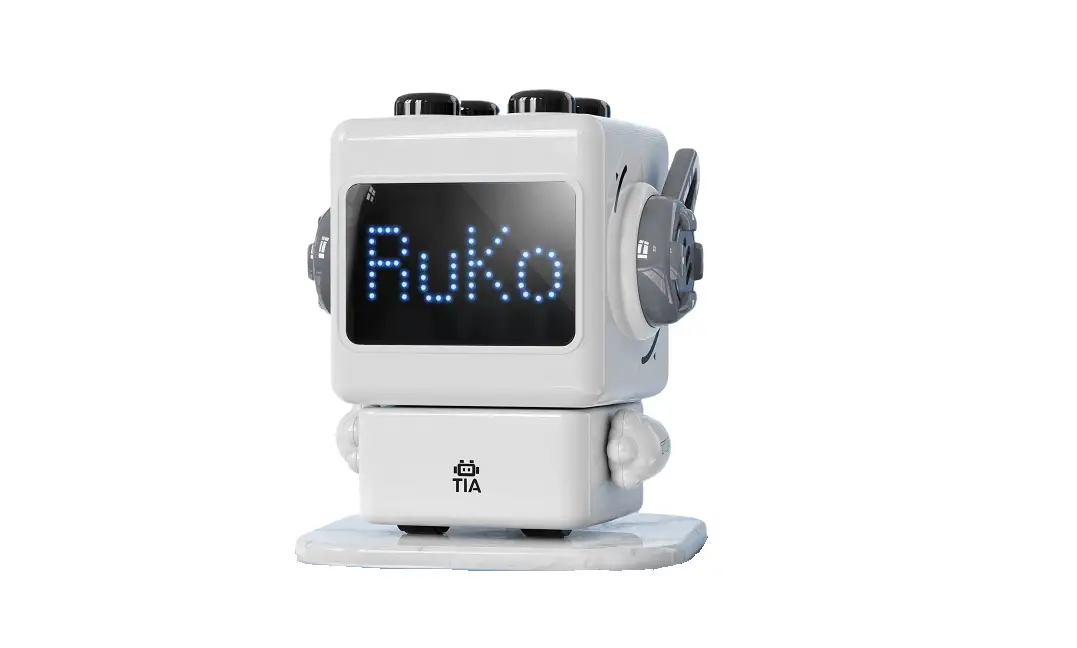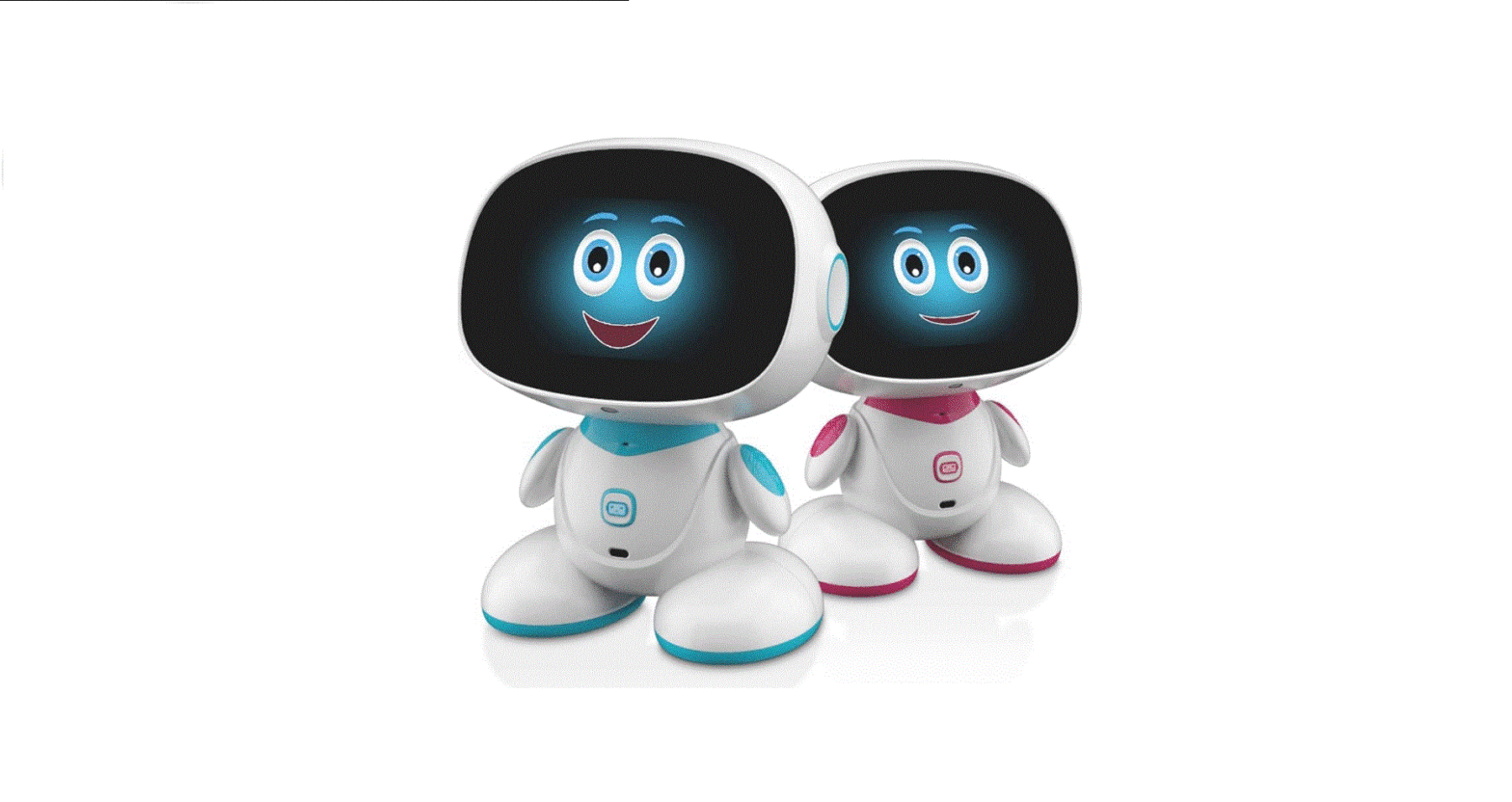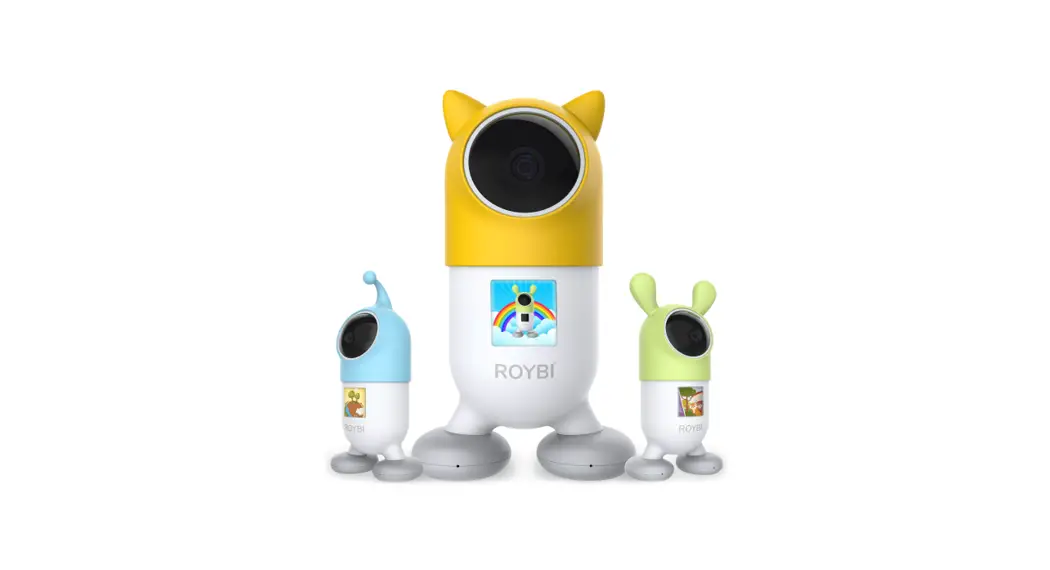
 R1 Robot Smart Kids Educational Companion Toy
User Manual
R1 Robot Smart Kids Educational Companion Toy
Welcome to the Wonderful World of ROYBI®
To get started, go to the AppStore or Google Play & download the ROYBI® app. Step 1
Turn Roybi Robot On
Take Roybi Robot and the charging plate out of the box. Connect the plate to the power adapter. Now, press the small button under its right shoe, once.
Note: remove the serial number sticker first.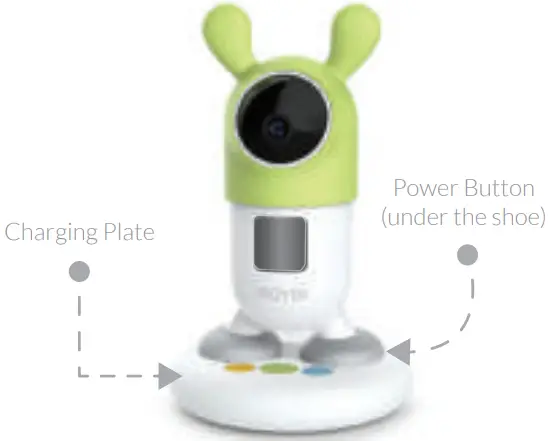
Step 2
Create an Account
Create your new ROYBI® account using your email and fill out the information. Step 3
Wi-Fi and Installation
Connect your mobile device to Wi-Fi and tap ‘Install ROYBI.’ Place ROYBI’s camera in front of your phone to scan the QR code.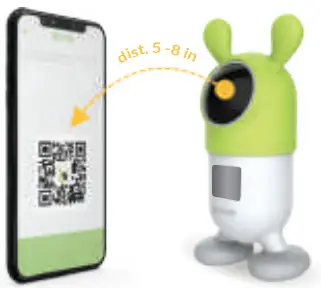 Note: You may need to change the angle and distance of your phone, if it does not scan on the first try.
Step 4
Continue on the ROYBI app
Now, it is time to learn how to work with your Roybi Robot. Follow the on-screen instructions on the app.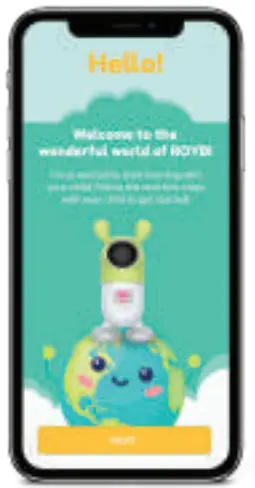 Step 5
Smile! You look great
Using your mobile device, take a photo of your child, and upload it. This picture will help Roybi Robot recognize your child.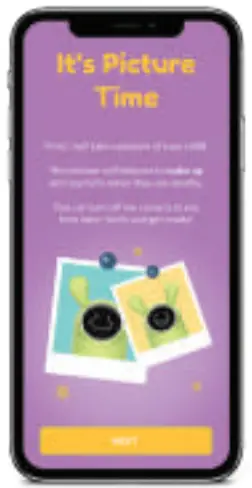 Ready!
Talking to Your New Family Member
To talk to Roybi Robot and play lessons, press the small button under its green hat once. Press firmly! 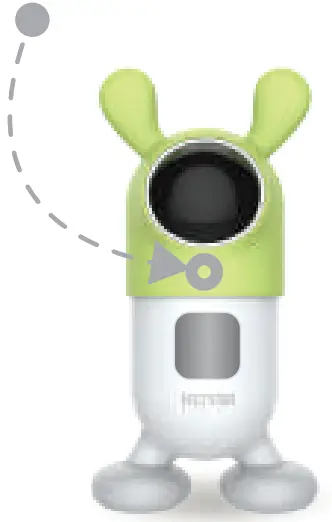
Display
Understand Roybi Robot’s Display
After Roybi Robot speaks, wait until you see the “lips” on the screen to respond. 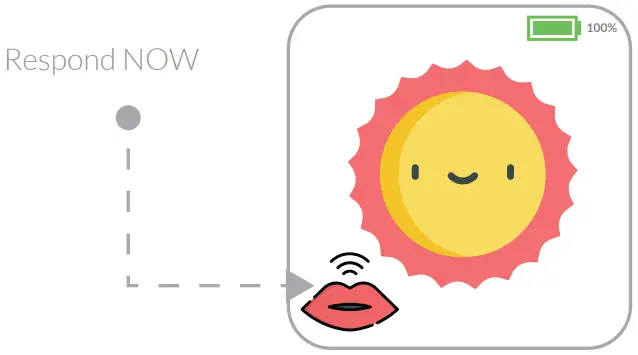 Seat
Seat
Charging Plate … “Seat”
Roybi Robot has a little seat for charging and playing games. Use the colorful buttons to interact with Roybi Robot during lessons or to play your child’s favorite songs.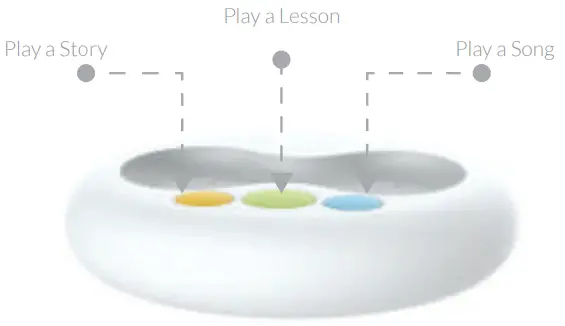 Question?
Resetting / New Wi-Fi
To reset Roybi Robot or to install on a new WiFi, press and hold the power button for 8 seconds until you see this icon  on the display.
Having Trouble Getting Started?
If you are having trouble with installation or using your Roybi Robot, please visit https://roybirobot.com/gettingstarted
You may email us with any issues:
[email protected]