
dynavox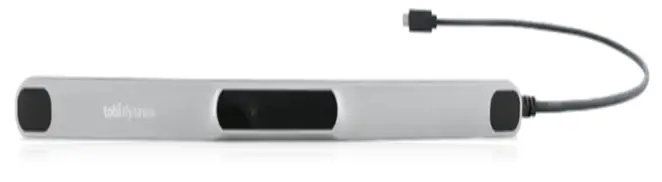
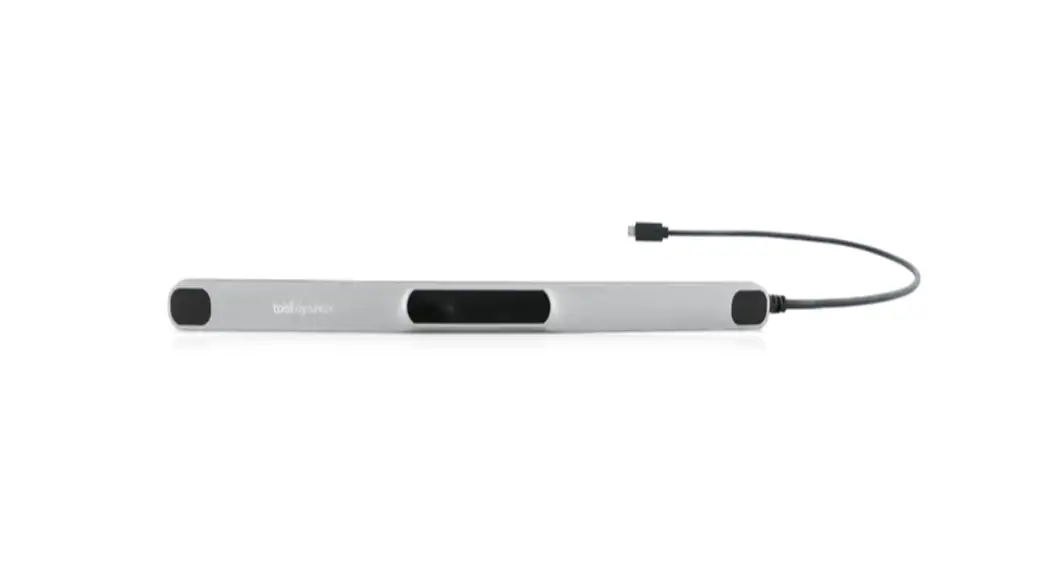
PCEye 5
Getting Started Guide
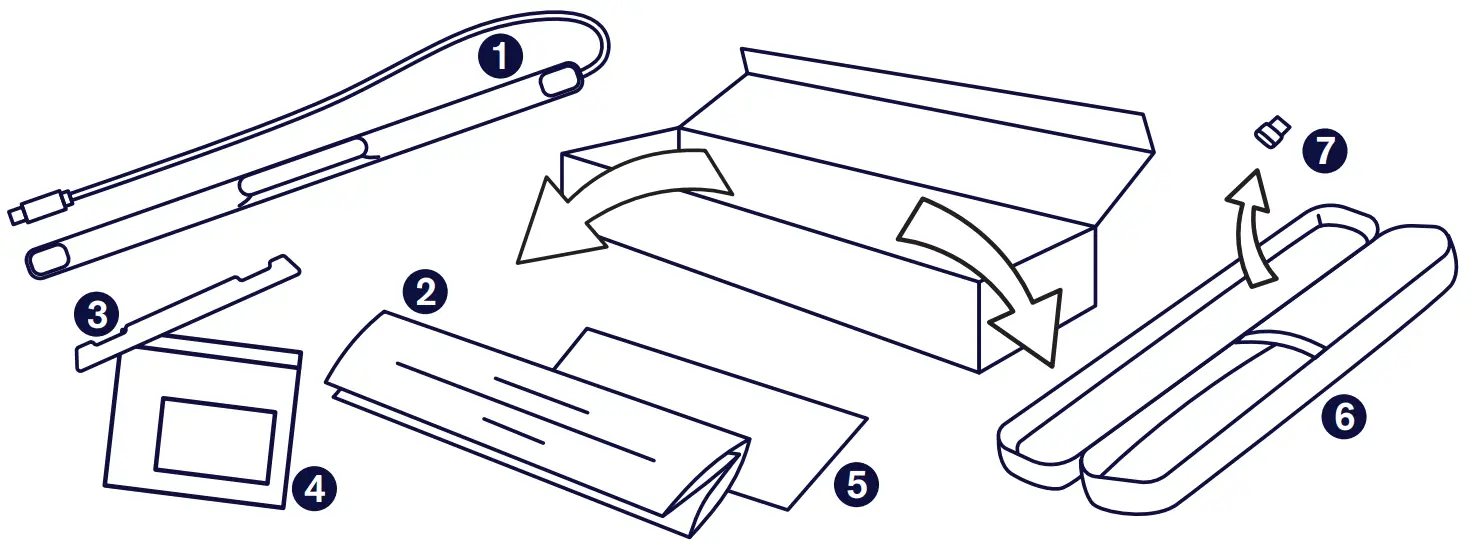
What’s in the box?
- PCEye 5
- Getting Started Guide
- Mount Plate
- Mount Plate Prep Kit
- Safety and Compliance Document
- Carry Case
- USB-C to USB-A Adapter
Software
PCEye 5 includes the TD Control Software. If you purchased the Magic EyeFx bundle, please see the license card for more information.
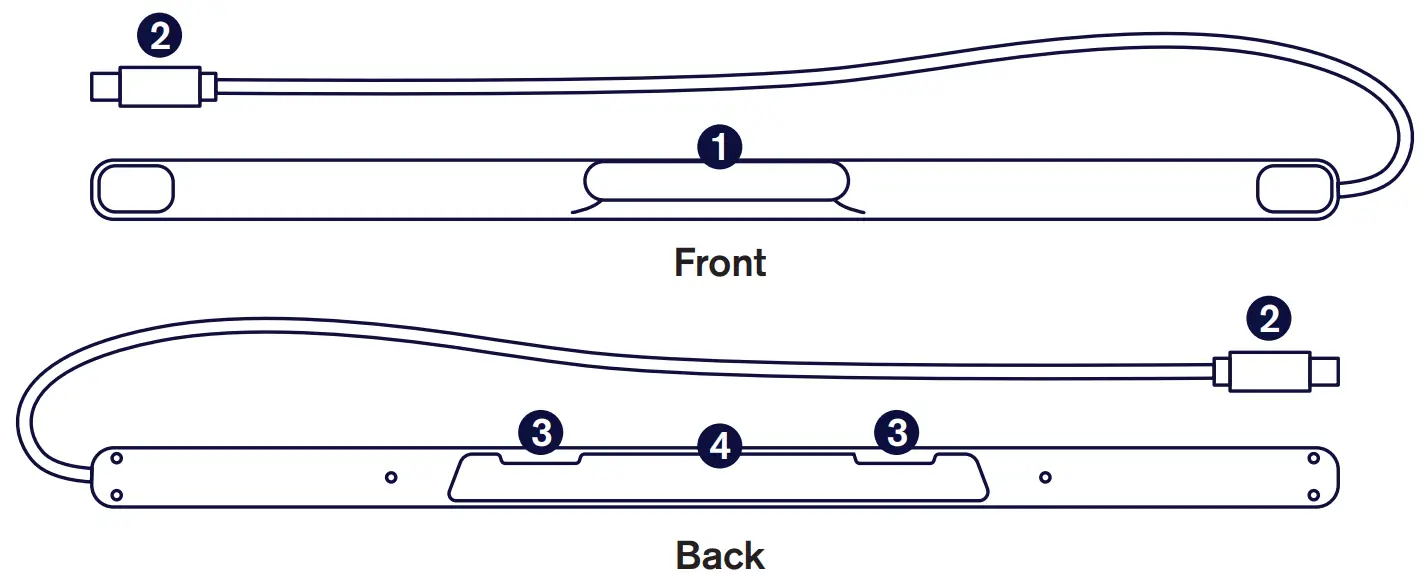
Getting to Know Your Device
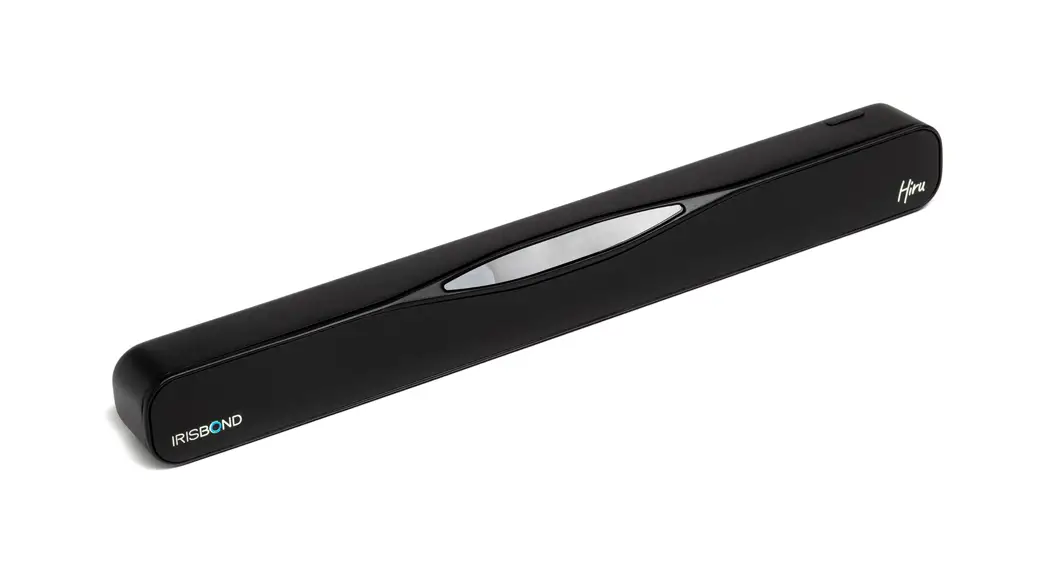
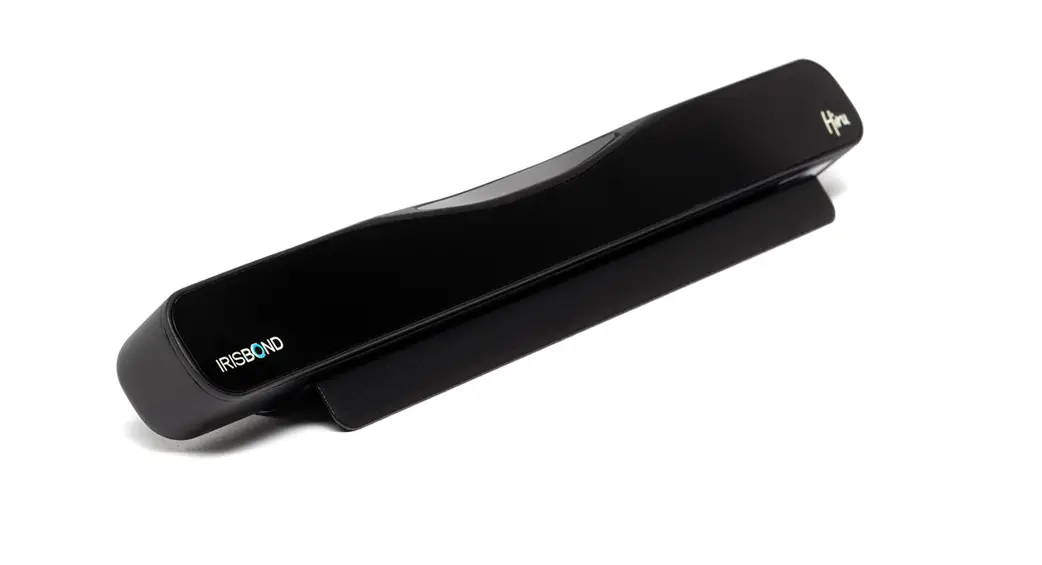
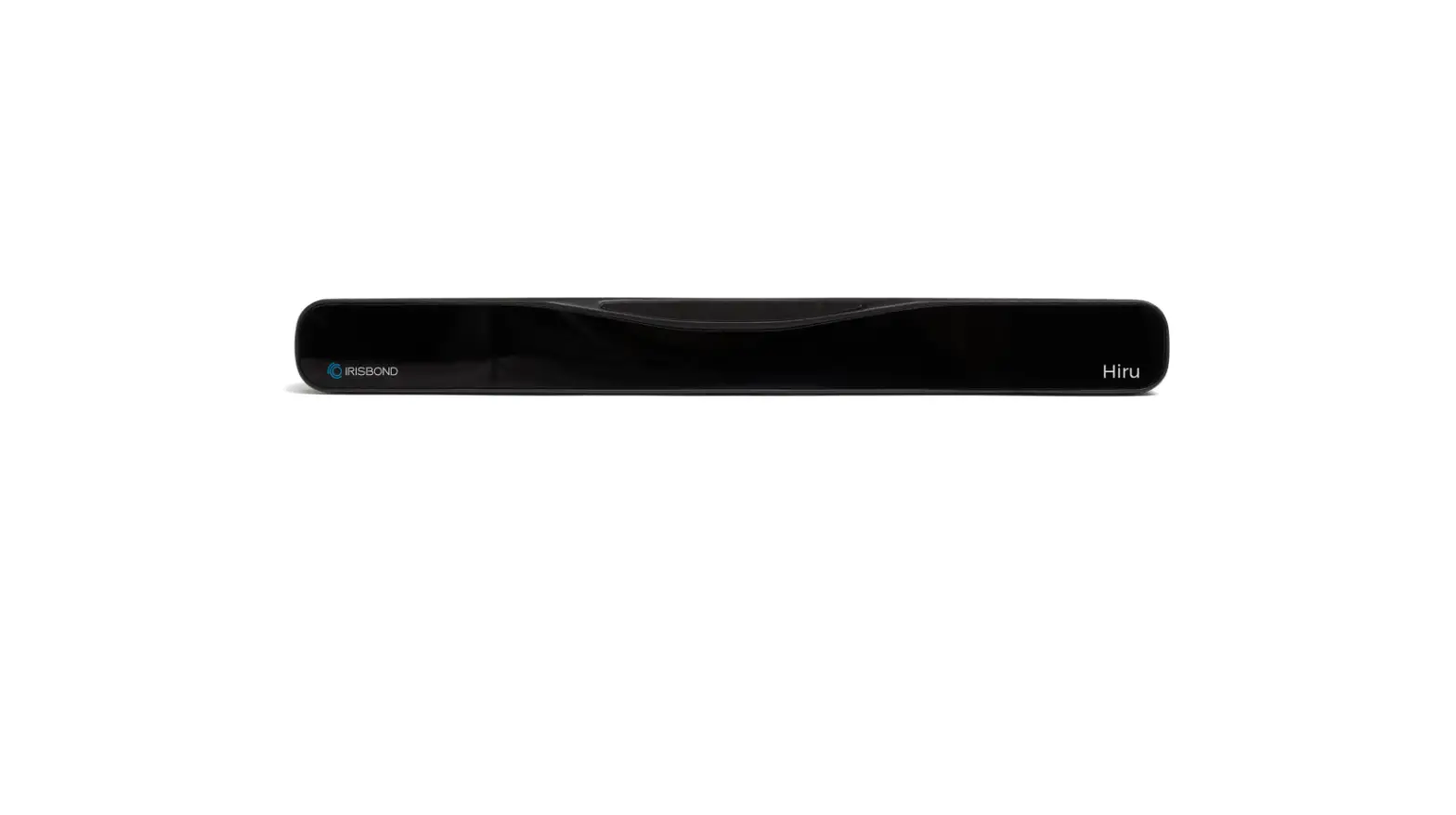
- Eye Tracker
- USB Connector
- Installation Markings
- Mounting Magnets
Getting Setup
Complete the three steps in this guide to download the required software and mount the PCEye 5 device to your computer. Downloading the software FIRST will provide onscreen instructions and walk you through the steps for setup and use.
You can use the PCEye 5 on a laptop or desktop computer.
Getting Started with TD Control Software
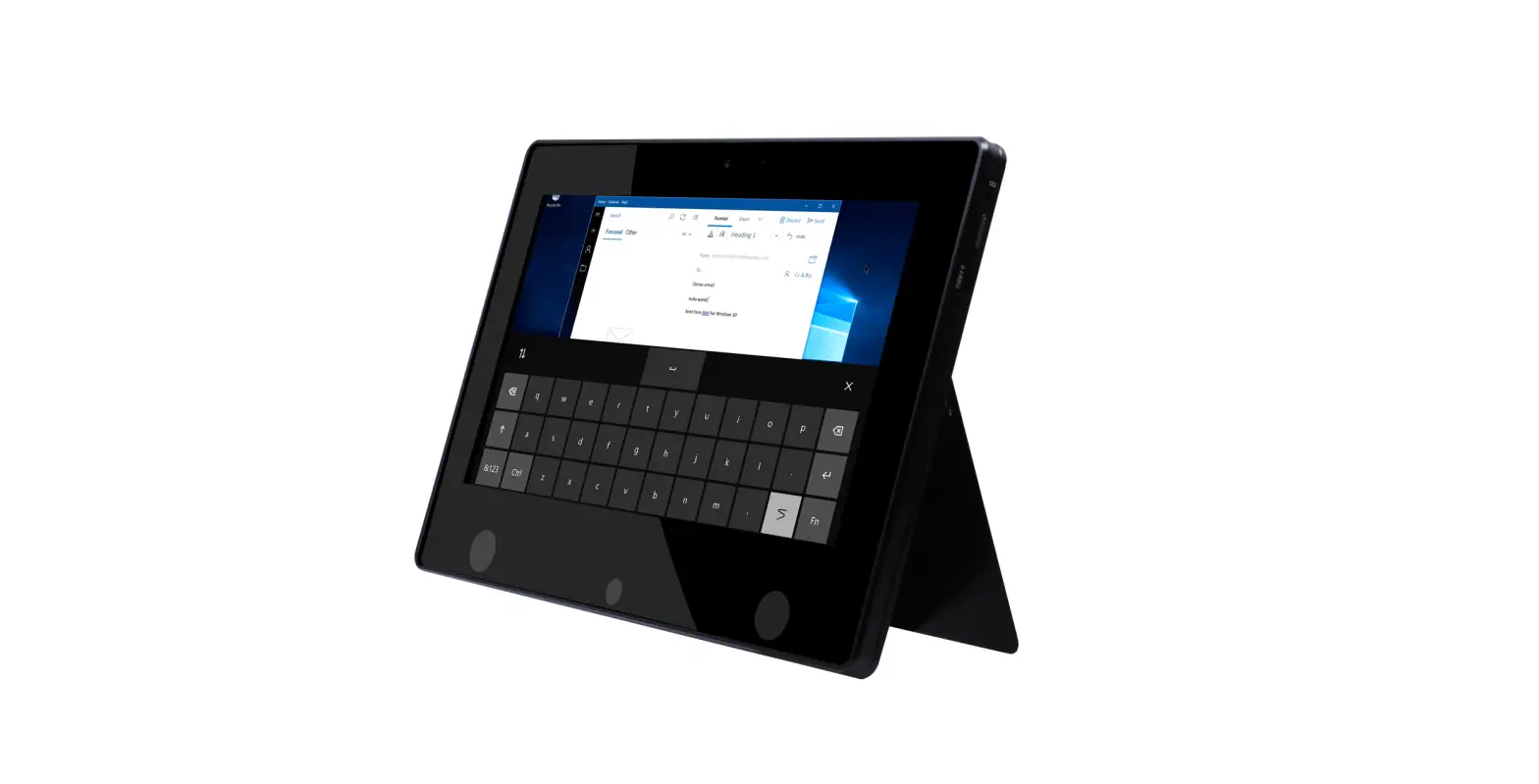
Paired with the PCEye 5, TD Control will give you access to mouse and keyboard
functions. When TD Control is opened for the first time, the Quick Start Guide will
provide an overview of the different actions. You can return to the Quick Start Guide by selecting the Information
 button.
Select Hide Guide to exit.
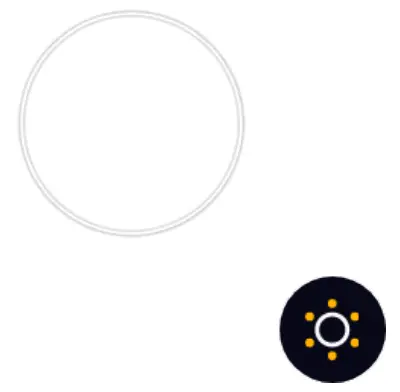
Explore the Trace
The Trace will give you feedback about where you are looking on the screen. When you fixate on an item, the Activator button will appear. Fixating on the Activator button will open the Interactions Menu.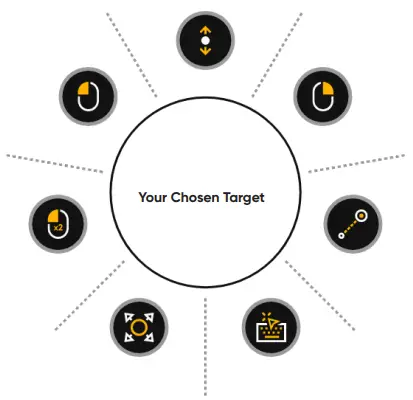 Explore Interactions Menu
The Interactions Menu provides access to the keyboard and primary mouse functions. For a detailed description of each function, please see the User Manual.
Explore the Off-Screen Menu
The Off-Screen Menu gives you access to additional features, such as Continuous Click, Settings, Pause, etc. To recalibrate, access the Off-Screen Menu, select More, then select Quick Calibrate.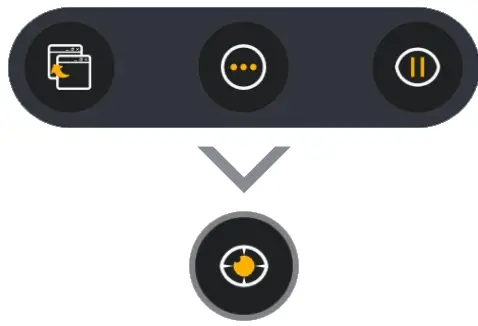
As you explore TD Control, it is OK to recalibrate if your accuracy is not optimal.
Step 1: Download PCEye 5 Software
Go to https://qrco.de/PCEyeCC and download PCEye 5 Software.
Step 2: Mount PCEye 5 & Calibrate If using the PCEye 5 with the optional PCEye 5 Bracket, skip this step and see included instructions for detailed information.
Follow the onscreen prompts. Return to the guide for more information about the software.
Step 3: Launch Software
If you purchased a software bundle or received additional license cards, follow the download and installation instructions on each card (see left).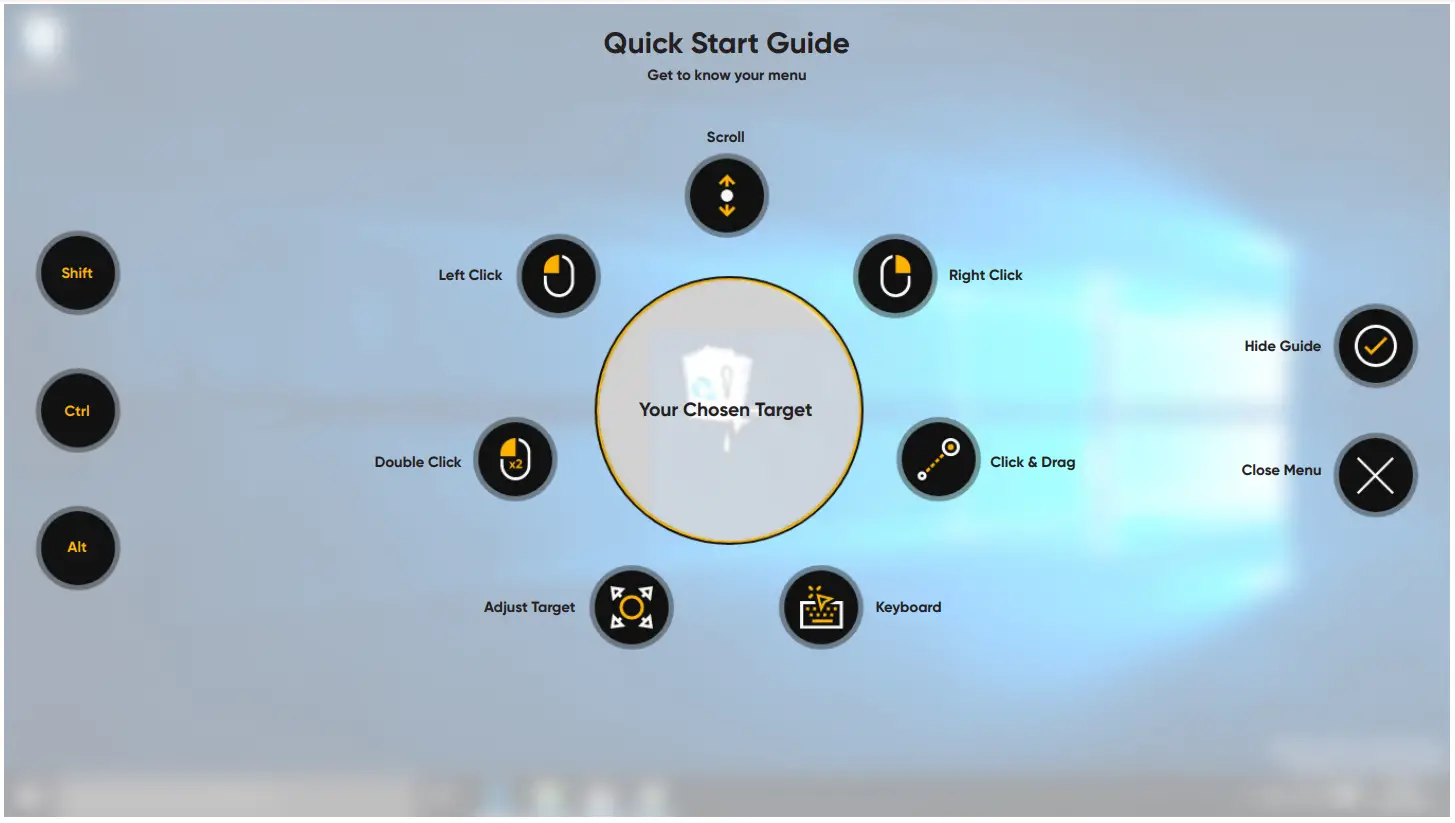
Helpful Tips for Using TD Control
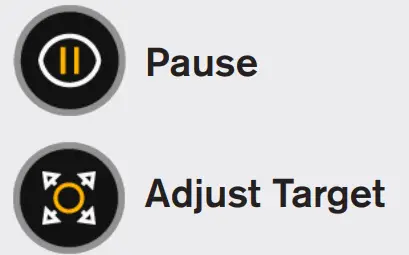
- Use Pause when you need to rest your eyes.
- The desired item doesn’t need to be perfectly placed in the center of the Trace.

- To increase accuracy, use Adjust Target.
- When using Scrolling, the farther away from the scroll icon your eyes are looking, the faster the scroll will go. Scroll works up and down and side to side.
- For typing into text fields, place the Trace in the text field, then select Keyboard. No left click is required.
We Are Here to Help
Learning Hub
Tobii Dynavox Learning Hub:
learn.tobiidynavox.com
Additional Support
Community: http://qrco.de/TDFB
North America Technical Support:
1-800-344-1778 ext. 1
Training Materials
User Manual: http://qrco.de/PCEyeManual
TD Control Manual: https://qrco.de/TDCmanual
Communicator 5 Training Cards: https://qrco.de/C5Cards
TD Snap Core First Training Cards: https://qrco.de/TDSnapCards
TD Snap Text Training Cards: https://qrco.de/TextCards
Additional PCEye 5 resources are
available here: qrco.de/PCEyeHelp https://qrco.de/PCEyeHelp
 tobiidynavox
 PCEye Product Support - Tobii Dynavox US