
Amazon Carriers Vendors Sellers
ABOUT TRANSPORTATION CENTRAL (CARP)
In an effort to continuously improve supply chain efficiencies, we have launched Transportation Central (Carrier Appointment Request Portal) for sellers, carriers and vendors who have been engaged directly with Amazon to move freight to Amazon Fulfillment Centers. This portal is expected to provide a standard process and reduce the time taken to schedule appointments at any Amazon Fulfilment Centres (FC). It is mandatory for every FBA seller, carrier or vendor to have an account on Transportation Central.
REQUESTING A NEW CARP ACCOUNT
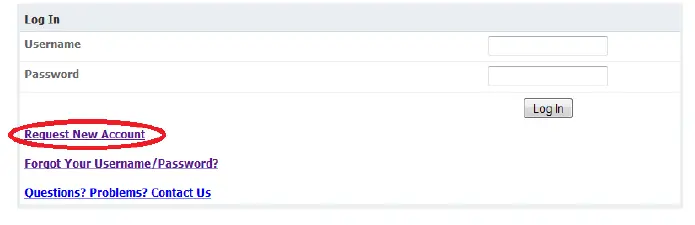
- Go to the link https://transportation.amazon.in/
- Click on “Request New Account”

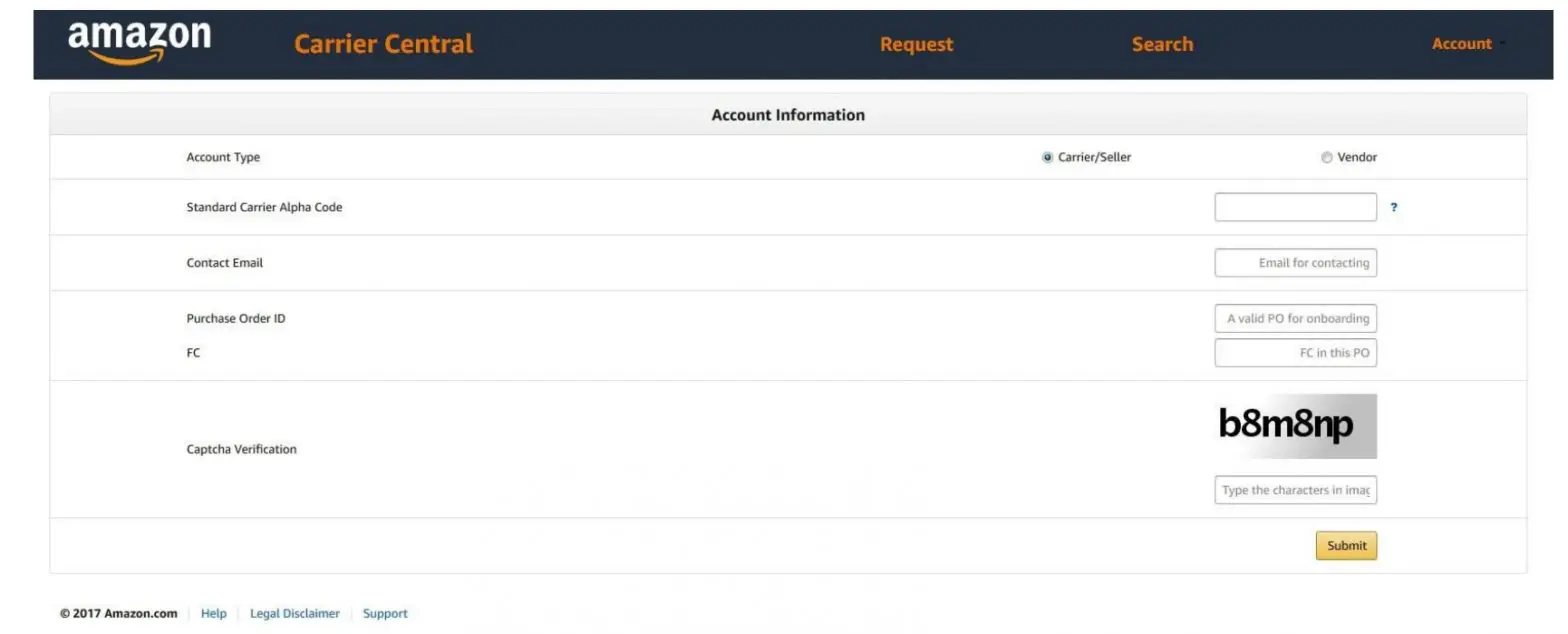
- Click on “Carrier/Seller” and fill in the following details:

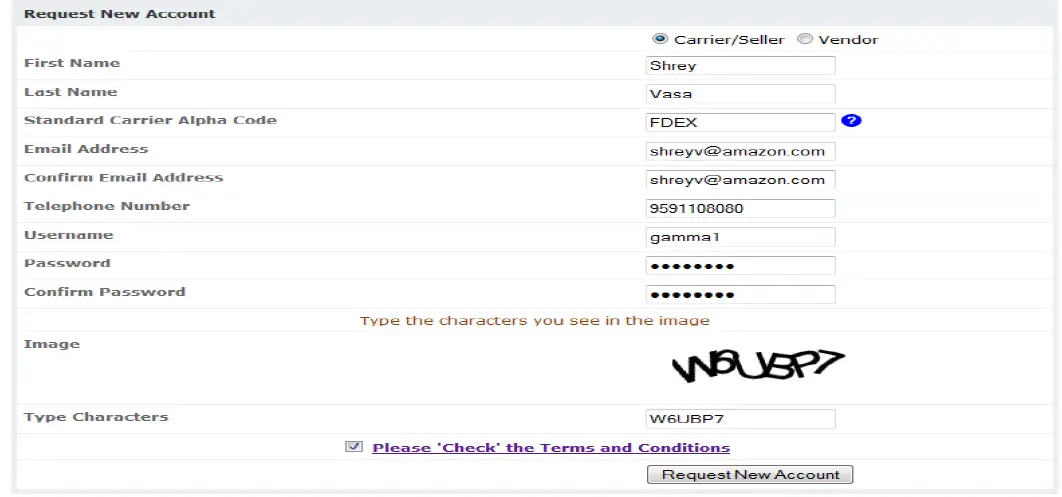
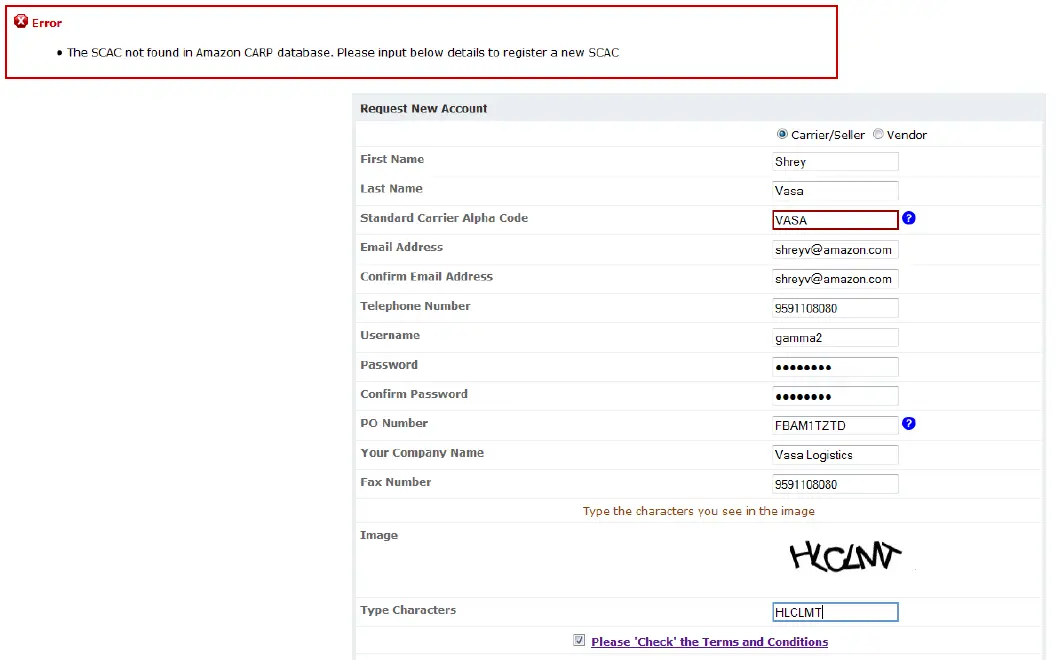
| Field | Details |
| First Name | Enter your first name |
| Last Name | Enter your last name |
|
Standard Carrier Alpha Code (SCAC) | SCAC is a unique four-letter code that is utilized by Amazon systems for the submission of delivery requests to the Fulfillment Center. New SCAC: If you are a new user, mention any alphabetical four-letter code as your SCAC. A SCAC should always be simple and easy to remember, eg. FDEX (Fedex), GLMQ (Gati Limited) Existing SCAC: If you have a CARP account already and are aware of your SCAC code, please utilise the same SCAC code while requesting multiple CARP accounts. |
| Email Address | Enter your email address. This email id would be utilised for all CARP-related communication. In case you want multiple CARP accounts, please ensure to utilise the same email domain. |
| Telephone Number | Enter your contact number. This number will be utilised for all CARP-related communications. |
| Username | Enter a Username. |
| Password | Enter a Password. |
|
PO Number | Enter a shipment ID which is in the ‘Ready to ship’ state. The system would throw an error if any ‘Work in Progress’ shipment id is entered. |
| Your Company Name | Enter your Company Name |
| Fax Number | Enter your Fax Number. In case you do not have a fax number, please enter your mobile or landline number. |
- Please ‘Check’ the Terms and Conditions.
Click home to proceed for login. Click submit to proceed, Back to make Changes
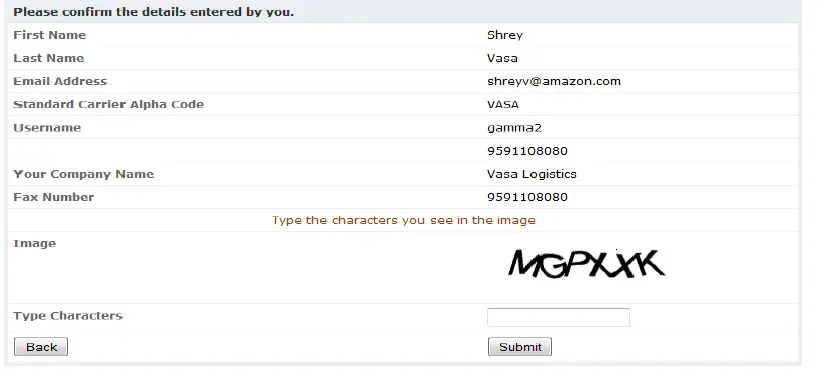
- Confirm the details and click ‘Submit’ to proceed.
- You will receive an email notification on account creation along with login credentials and account activation link. Please click on that link to activate your account.
- You can now click on https://transportation.amazon.in/ and use your login credentials to request an appointment. As the system takes some time to create and reflect a new SCAC, please ensure there is a time gap of 15-20 minutes between CARP account creation and the first appointment request.
SUBMIT A CARP APPOINTMENT
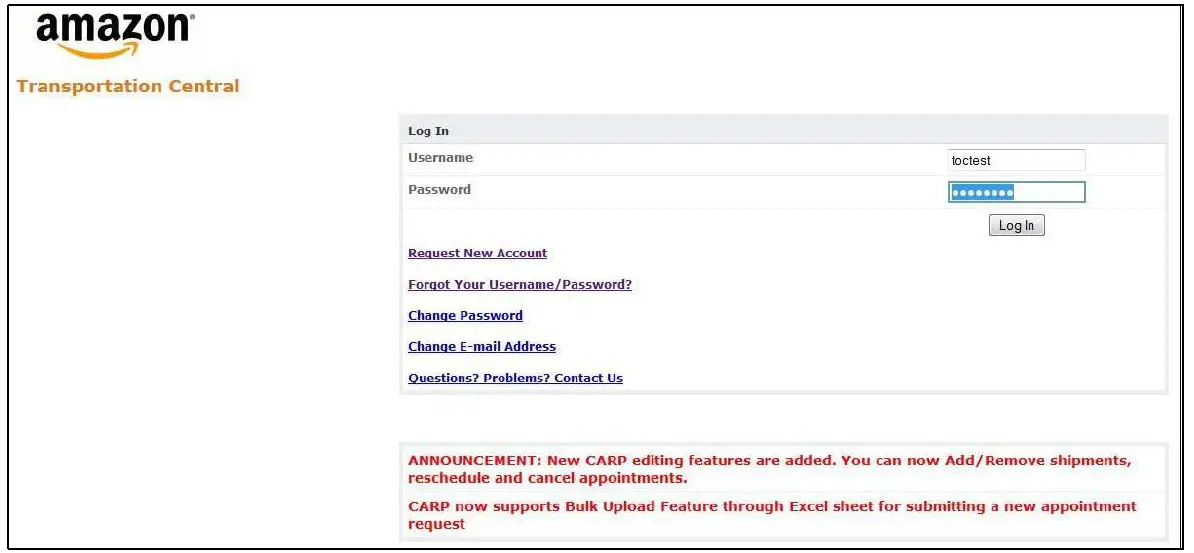
- Go to the link https://transportation.amazon.in/
- Enter user name and password.
- Click the “Login” button to access your account.

- After logging in, you will be directed to the Home page, with several links.
- For a new appointment, click on “Submit Request” link.
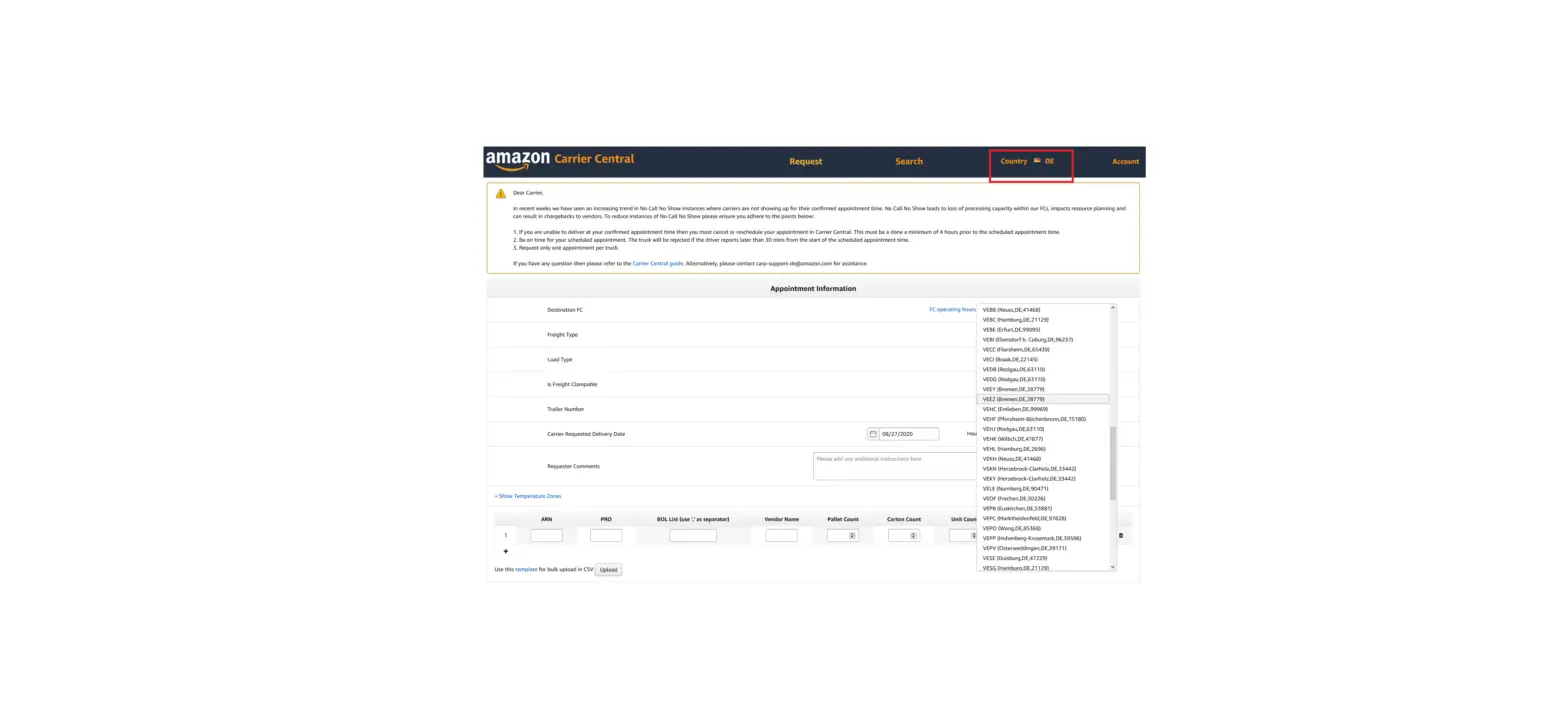
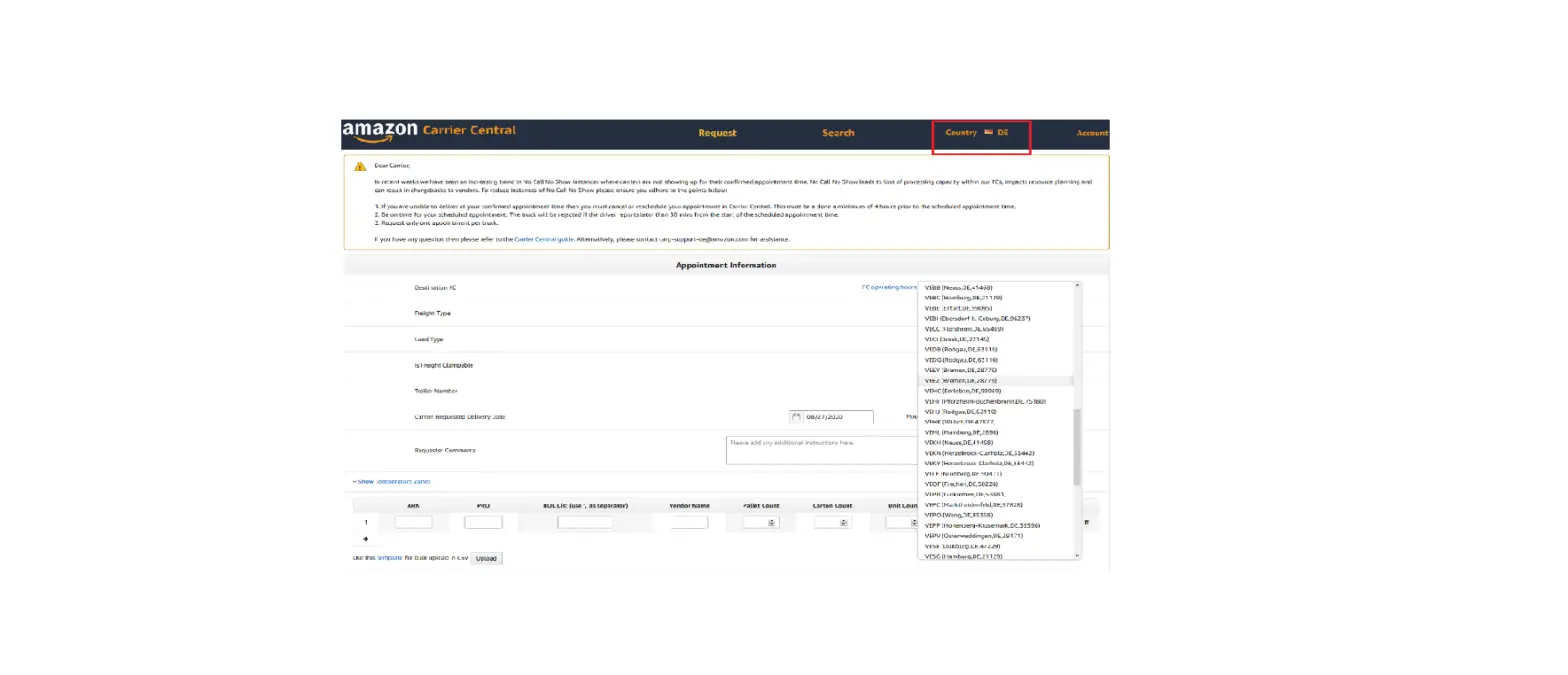
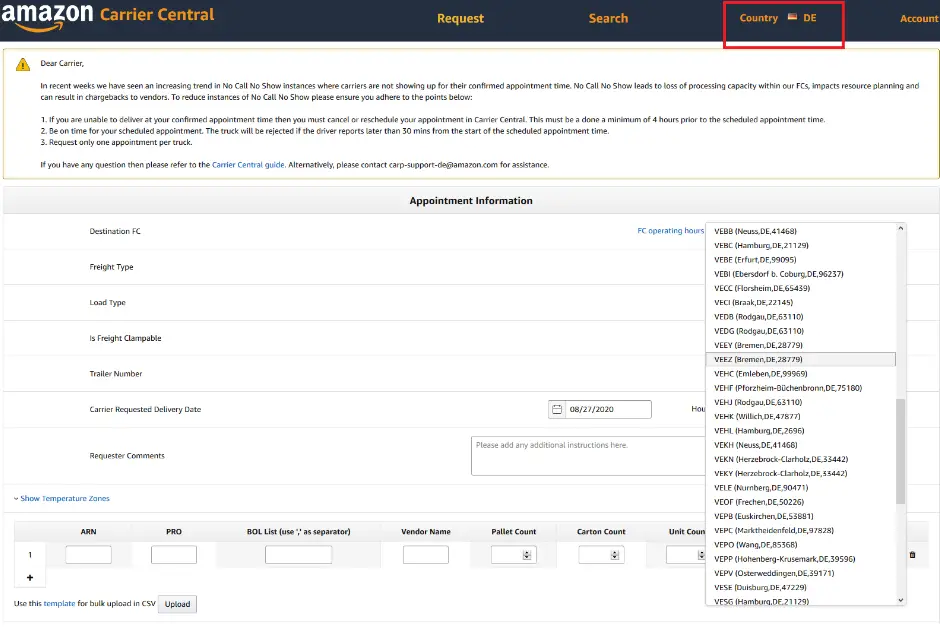
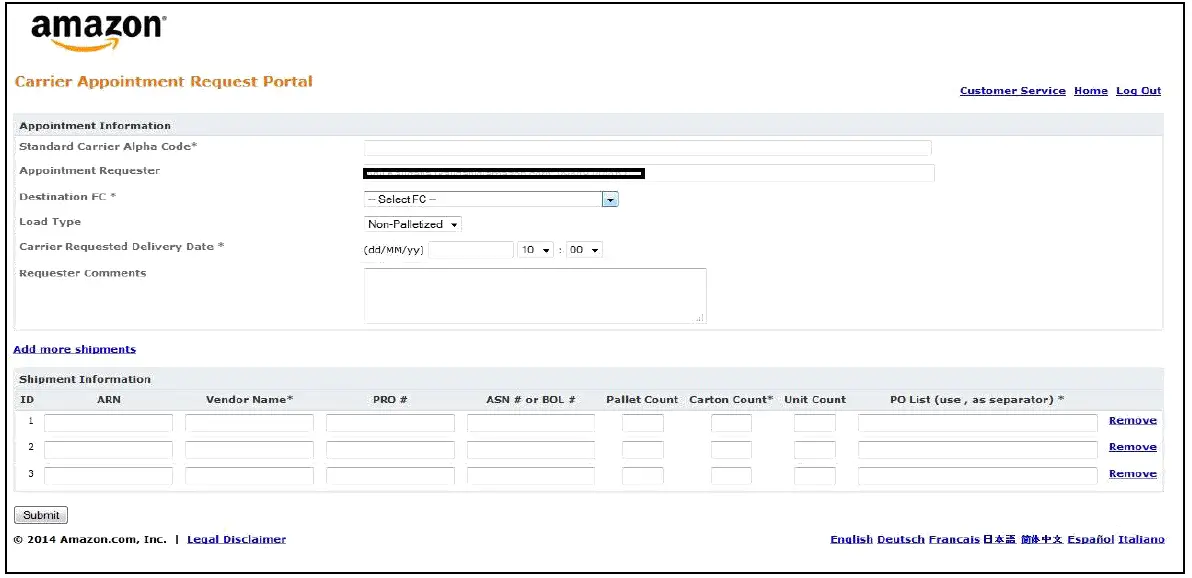
- You will be taken to the Appointment request form as shown below.

- You will be taken to the Appointment request form as shown below.
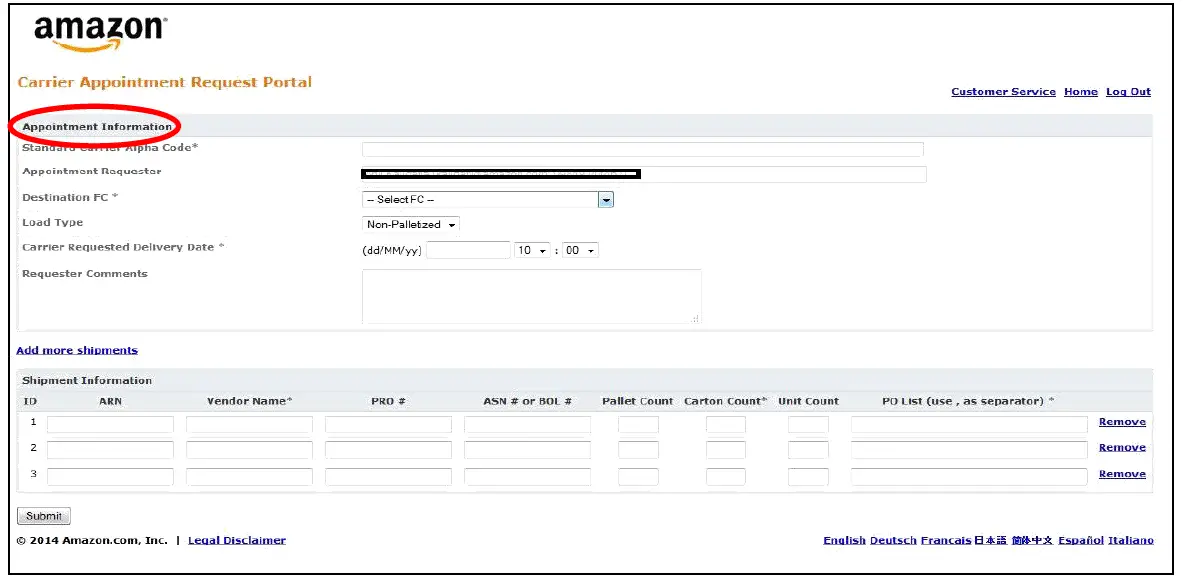
- Fill the data as per the below table in the “Appointment Information” section.

| Field | Details |
| Standard Carrier Alpha Code * | Enter OWNIN for own transport vehicle. For other known carriers please refer the list in Appendix 1. |
| Destination FC * | Amazon FC to which the shipment(s) are to be delivered. |
| Load Type | Palletized or Non-Palletized. |
| Carrier Requested Delivery Date * | Delivery Date and Time. You cannot choose a date from the past. |
| Requester Comments | Any information that Amazon team needs at later stage. Please enter carton and unit count here. |
- Mandatory fields
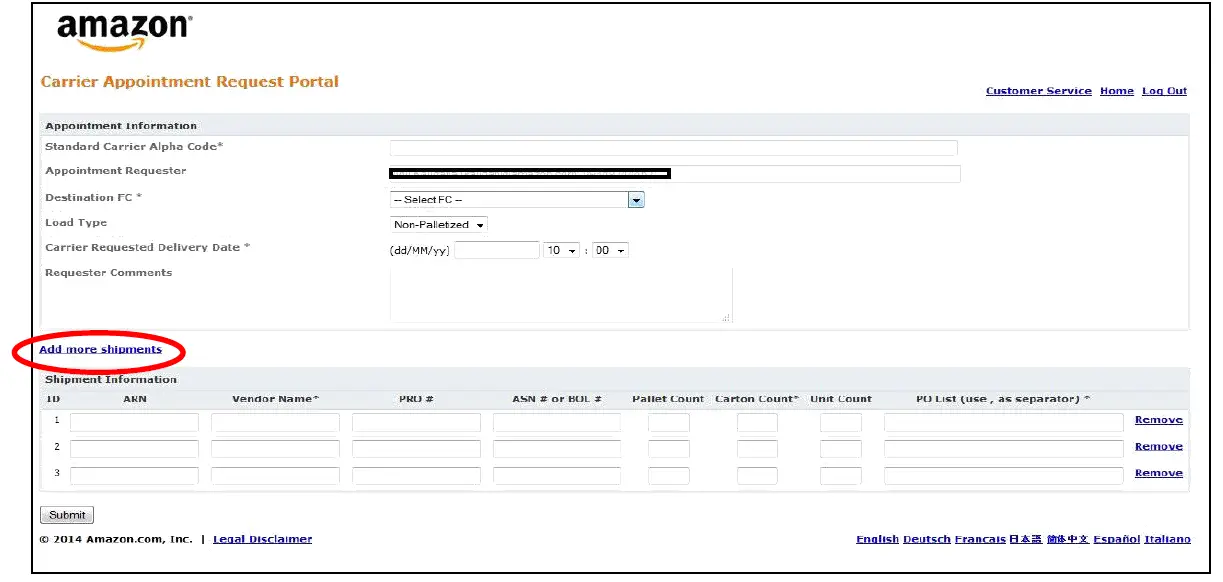
- Fill the data as per below table for “Add more shipments”.
| Field | Details |
| ARN | This field is optional for Amazon Reference Number. Please leave this column blank. |
| Vendor Name* | Name of the Vendor / Seller. |
| PRO # | This is an optional field to enter carrier tracking ID/Air Way Bill Number / Docket Number. Please leave this column blank. |
| ASN# or BOL#* | This is a required field. You need to enter any one FBA Shipment ID from the consignment as BOL#. |
| Pallet Count | Number of pallets to be delivered (optional). |
| Carton Count* | Number of cartons to be delivered. |
| Unit Count * | Number of units to be delivered. |
| PO List (use, as separator) * | FBA Shipment IDs to be delivered in the consignment. Please enter all POs one after the other with comma “,” between them. |
Important: Please make sure that POs entered are in ‘ready to ship’ state before requesting an appointment. CARP will throw an error if you try to book an appointment for Work in Progress shipments.
- Click on “Submit”.
Please check if the data shown in the confirmation screen is correct. If there are problems, then you will be prompted with error message with suggested action to trouble shoot the issue.
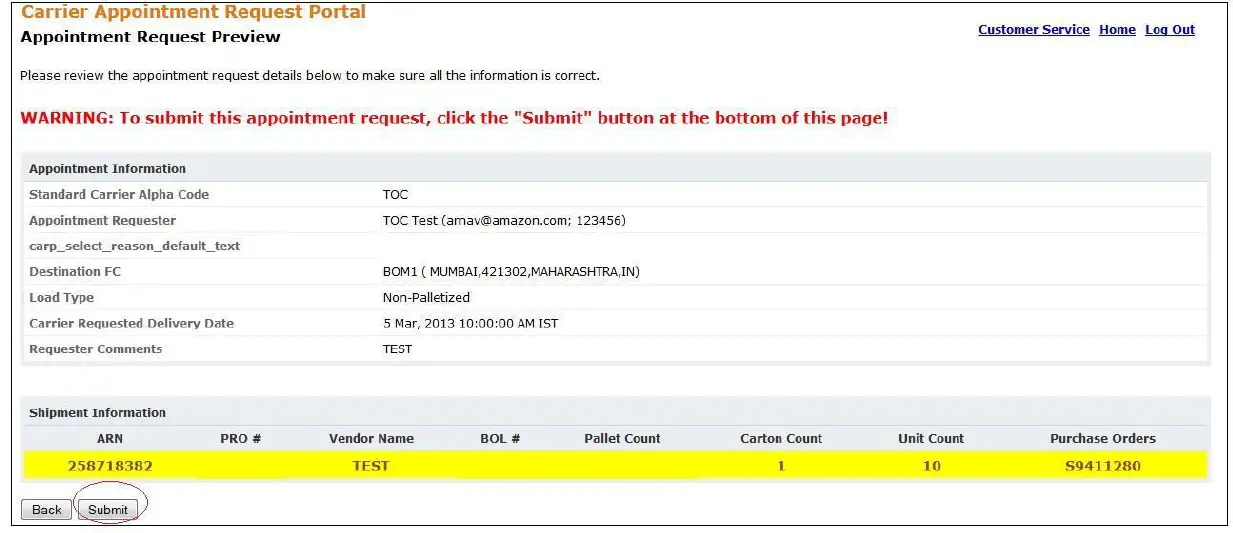
- After reviewing, click “Submit”.
- You will be directed to the Submission Confirmation page.
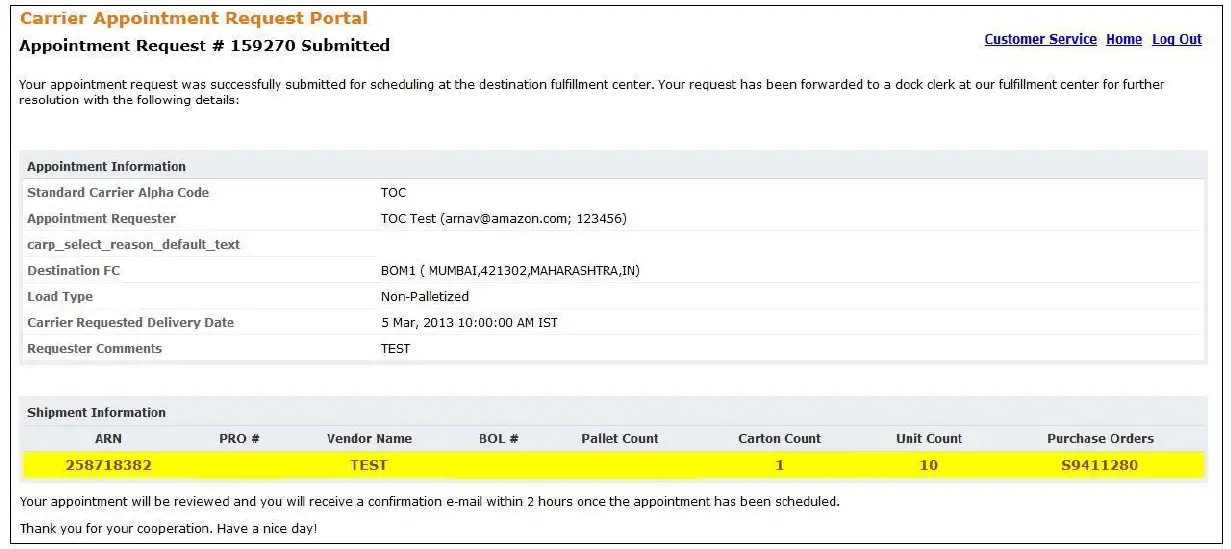
- Once your appointment request is submitted, the Amazon team reviews the request and sends a confirmation email to your registered email address with the final confirmed Appointment schedule.
- Shipments need to be delivered as per the final scheduled appointment time to Amazon Fulfilment Centres.
Important
- All appointments should be requested at least 24 hours prior to the Carrier Requested Delivery Date.
- Submitting an appointment does not grant the permission for delivery of goods unless the appointment is confirmed by Amazon. Please check your registered email for the confirmed time slot / modified details of an appointment.
- You are responsible to check the status of the requested appointment for the final confirmed schedule as granted by Amazon team and adhere to scheduled appointment c time.
BULK REQUEST FEATURE
- This feature is if you want to request for multiple appointments.
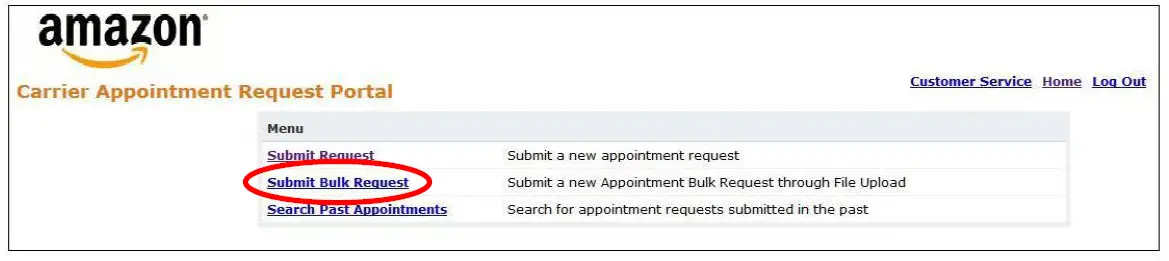
- To use this feature click on “Submit Bulk Request”.

- Enter information as per below table.
| Field | Details |
| Destination FC | Amazon FC to which the load needs to be delivered. |
| Load Type | Palletized or Non-Palletized. |
| Carrier Requested Delivery Date | Delivery Date and Time. |
| Requester Comments | Any information that Amazon team needs at later stage. |
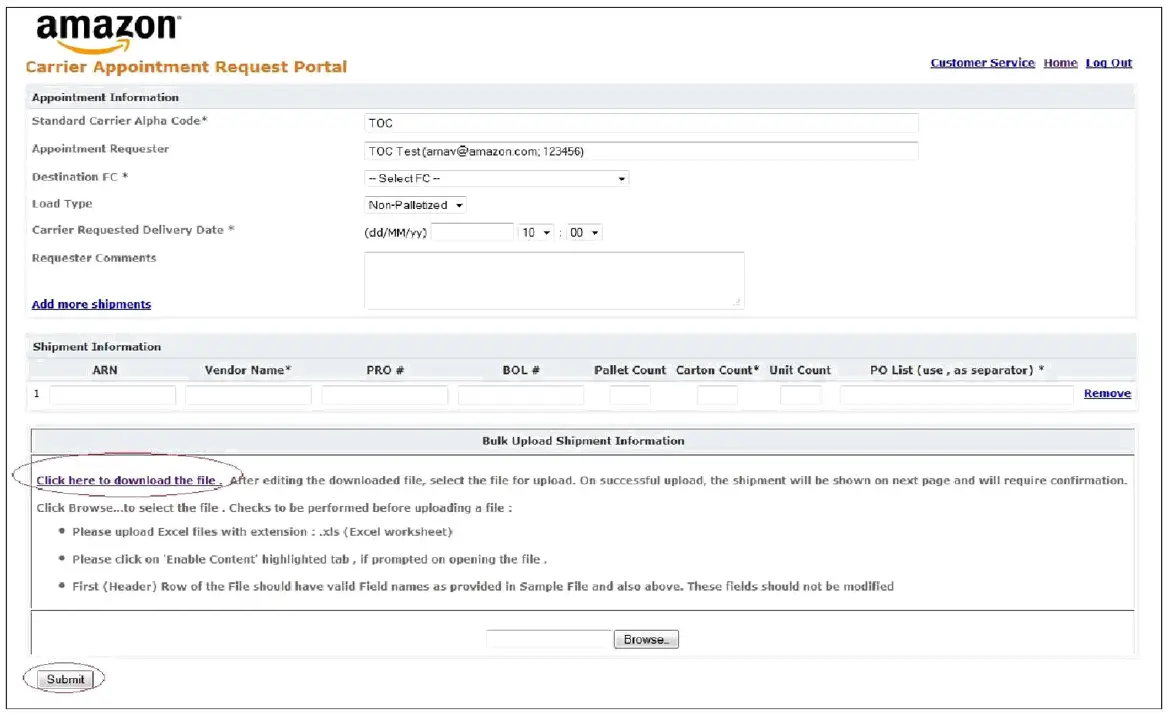
- To enter PO information, click on “Click here to download file” under “Bulk Upload Shipment Information”.
 Once the file is downloaded, enter the following details and save the file on the computer.
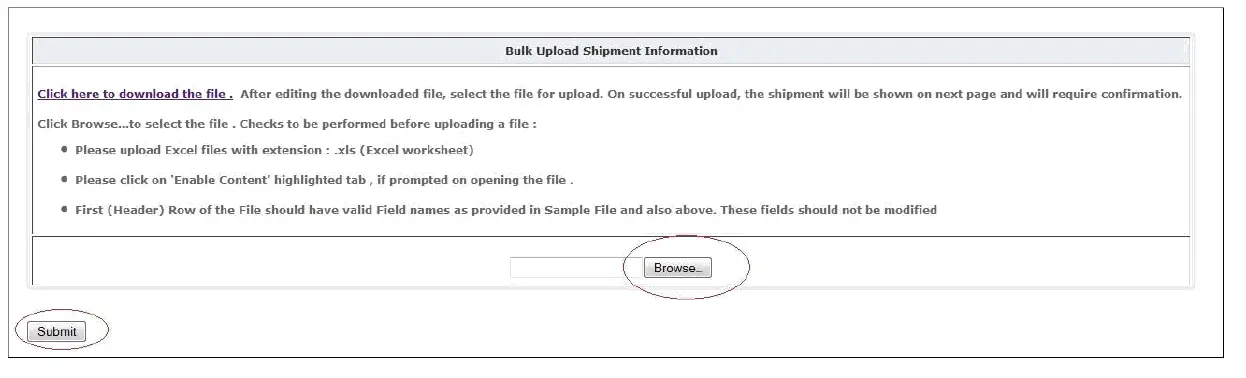 Once the file is downloaded, enter the following details and save the file on the computer.
| Field | Details |
| ARN | This field is optional for Amazon Reference Number. |
| Vendor Name* | Name of the Vendor / Seller. |
| PRO # | This is an optional field to enter carrier tracking ID/Air Way Bill number/Docket Number. Please leave this column blank. |
| ASN# or BOL#* | This is a required field. You need to enter any one FBA Shipment IDs from the consignment as BOL#. |
| Pallet Count | A number of pallets to be delivered (optional). |
| Carton Count | A number of cartons to be delivered. |
| Unit Count | Number of Units to be delivered. |
| PO List (use, as separator) | FBA Shipment IDs to be delivered in the consignment. Please enter all POs one after the other with a comma “,” between them. |
- Click on “Browse” and upload the file.

- Click “Submit”.
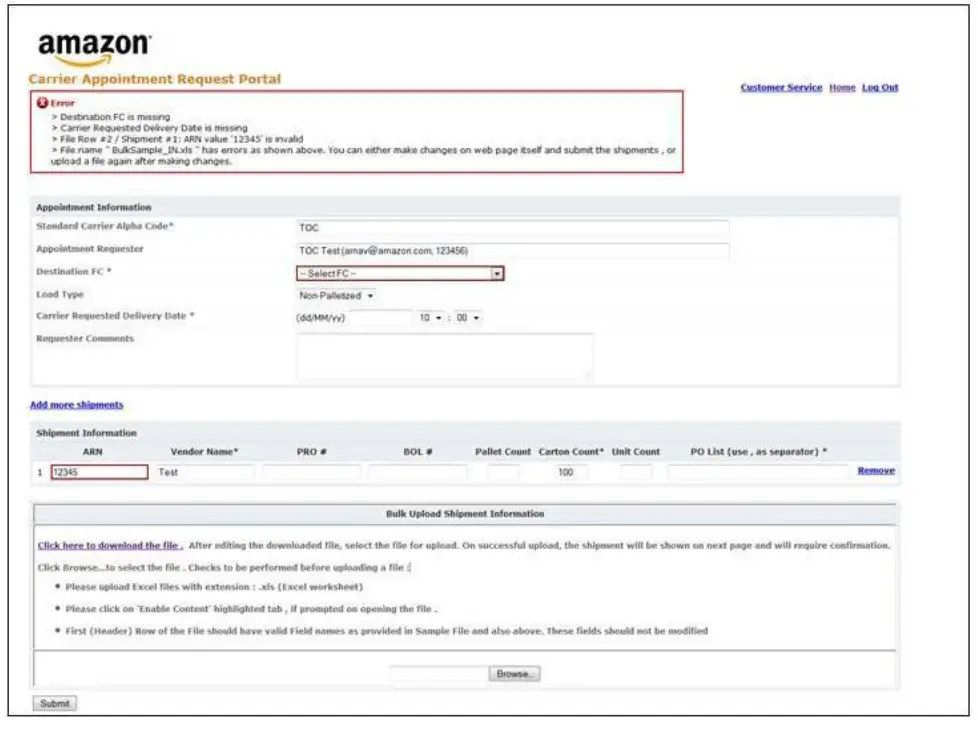
To avoid errors while uploading, please follow the instructions on the screen while entering data on the sheet
- Please upload Excel files with extension: .xls (Excel worksheet).
- Please click on ‘Enable Content’ highlighted tab, if prompted on opening the file.
- First (Header) Row of the File should have valid Field names as provided in Sample File and also above. These fields should not be modified.
An error is displayed if
- the details entered are incorrect or
- the format of the file is not .xls
In such cases, please validate the data once again, and then
- Upload the corrected file if needed.
- If still issue is not resolved, user needs to contact Amazon by reaching out to Seller Support.
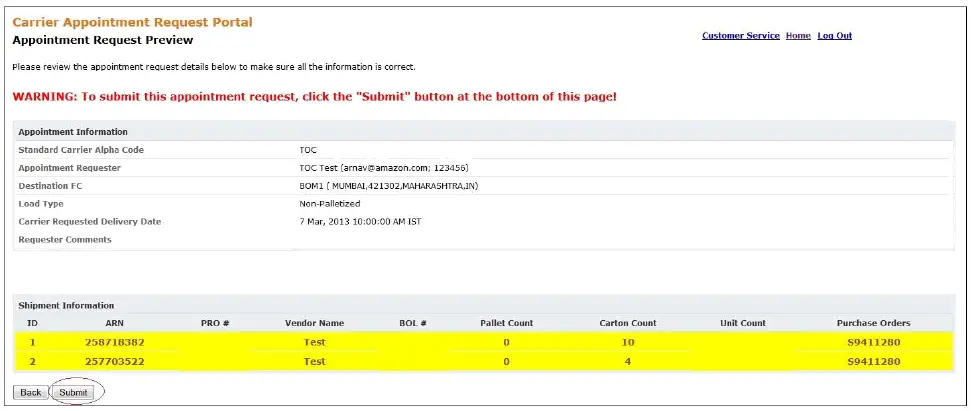
- A confirmation screen is displayed if the details entered are correct.
- Click on “Submit”.
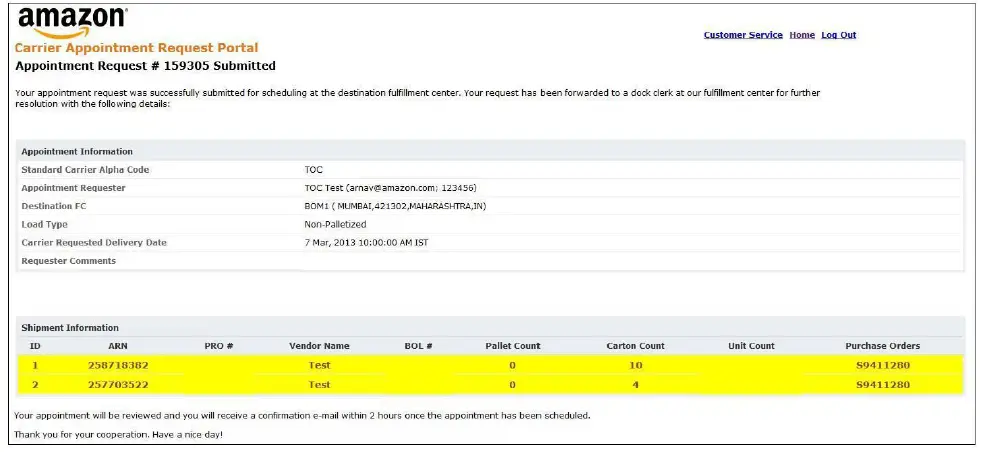
- Once appointment request is submitted, Amazon team reviews the request and sends a confirmation email to your registered address with the final confirmed Appointment schedule.
- Shipments need to be delivered as per the final scheduled appointment time to Amazon Fulfilment Centre.
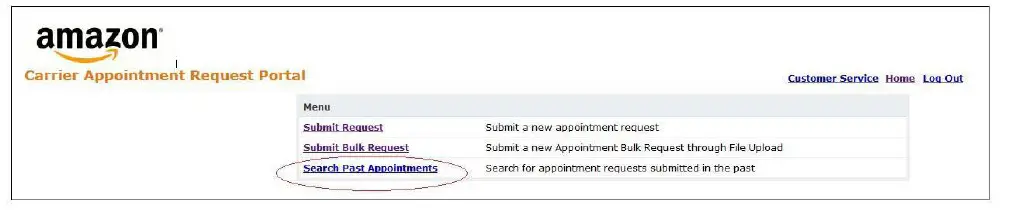
VIEWING APPOINTMENT STATUS
- To search for past appointment request status click on “Search Past Appointment”.

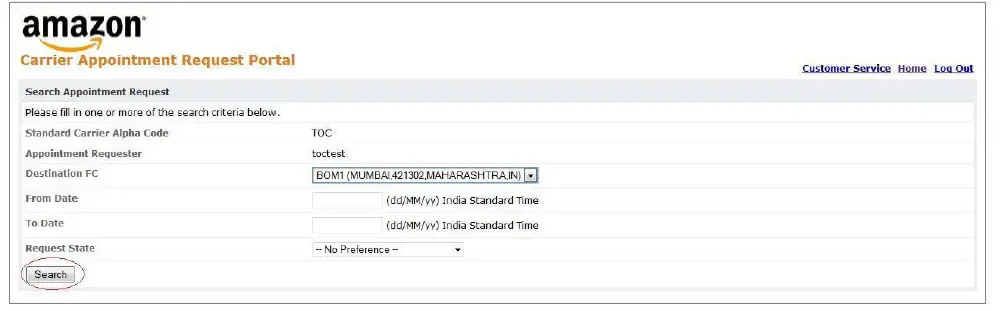
- You can use the available filters such as Destination FC, appointment requested date range and click on the “Search” button.

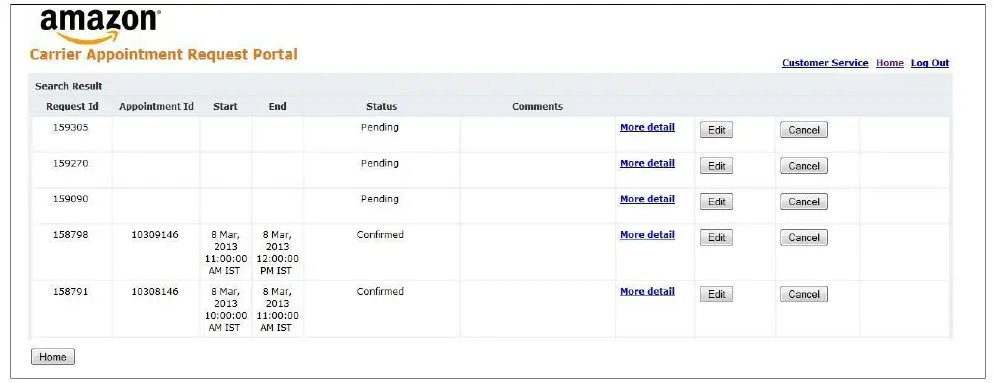
- On the search result page, you can see all your requests and their current status.
- You can click on “More detail” to get the complete appointment information.
- You can either cancel or edit your appointment requests.
- Note: these are optional tasks.
EDITING A CARP APPOINTMENT
- Login to your account and click on “Search Past Appointment”.
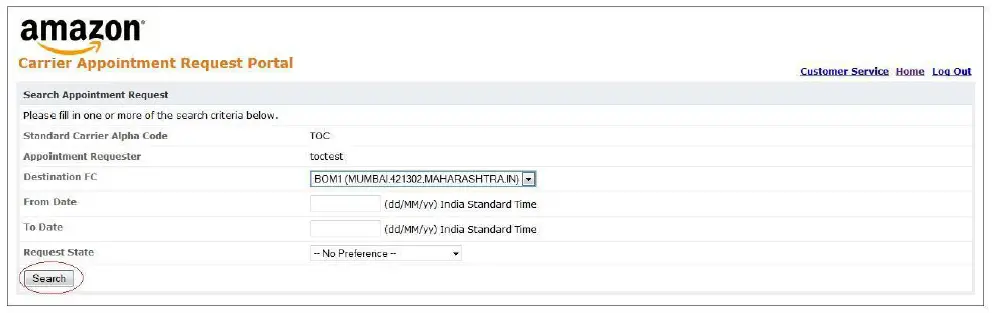
- You can use the available filters such as Destination FC, appointment requested date range and click on “Search” button.

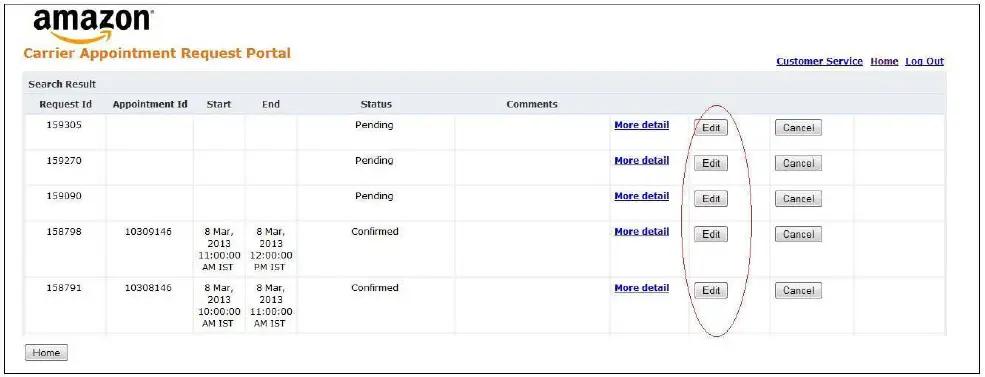
- In the Search results page, you can edit/cancel you future shipments by clicking on appropriate buttons provided against respective appointment requests as shown below.

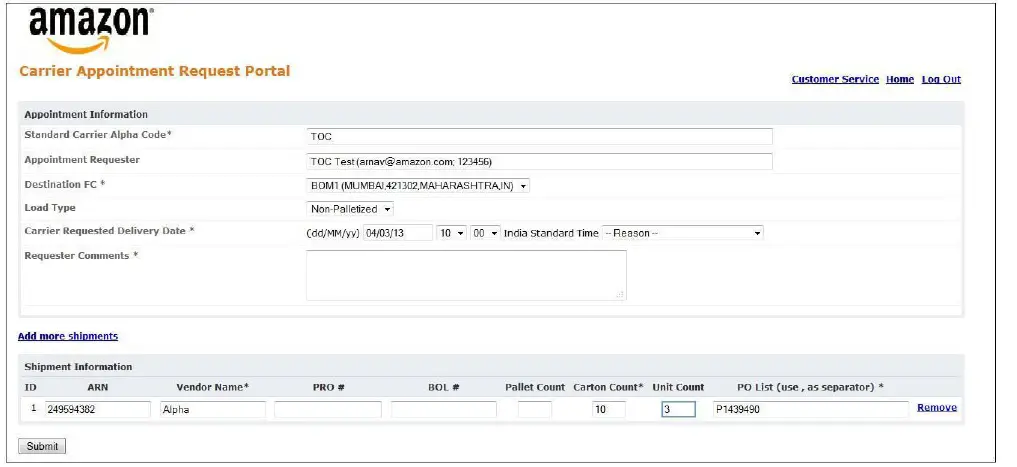
- You can click on the “Edit” button to make the appropriate changes as below.

- You can make changes like
- Changing the Carrier Requested Delivery Date or
- Update carton count or
- Add or remove POs from your list.
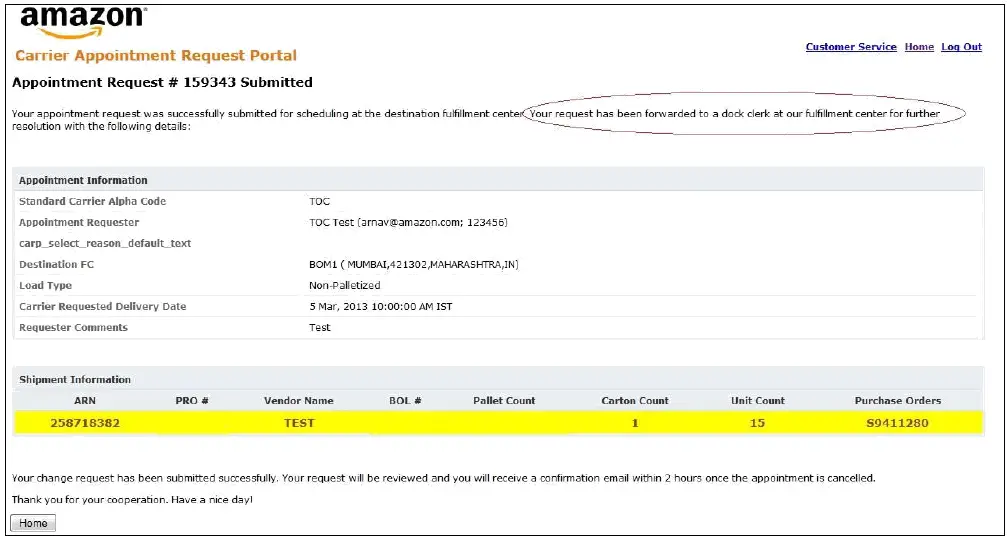
- To confirm the changes, click “Submit”.
- Once you confirm the changes, Amazon team reviews the request and sends a confirmation email to your registered address with the final confirmed Appointment schedule.
- Shipments need to be delivered as per the final scheduled appointment time to Amazon Fulfilment Centre.
PROBLEMS / CONTACT US FEATURES
- Forgot Your Username/Password: If you forget username or password, you can click on “Forgot Your Username/Password” option located on the homepage and retrieve the username/password.
- Change Password: You can click on the “Change Password” option located on the homepage to change your password as per your convenience.
- Change Email Address: You can click on the “Change Email Address” option located on the home page to change your email address as per your convenience.
- If you have any questions related to your account/appointment/upload shipments or any other questions or problems related to CARP, please contact Seller Support.
- Update: Please include your respective account manager’s email ID for all issues.
Account Support
- For all account creation requests, please approach Seller Support with this information.
| FIRST_NA ME | LAST_NA ME | EMAIL_I D | FBA Shipment ID | USER_NA ME | PHONE_NUMB ER | PASSWORD | Seller register ed name | ACCOUNT TYPE
|
- default value is VENDOR
APPENDIX 1: LIST OF COMMON SCAC CODES FOR MAIN CARRIERS
| Carrier Name | SCAC |
| Blue Dart | BDTIN |
| FedEx | FEDEX |
| Gati Limited | GLMQ |
| Safe Express Private Ltd. | SFXIN |
| India Post | IPSIN |
| Own vehicle / Self transportation | OWNIN |
Glossary
- SCAC: (Standard Carrier Alpha Code)
- It is an Amazon defined unique carrier identification code to identify carriers transporting freight to and from Amazon FCs. SCAC given as part of carrier onboarding to be used for all communication purposes with Amazon. For the Indian market, most sellers use their own carriers, and hence use OWNIN.
- BOL: (Bill of Lading)
- A document issued by an entity providing transportation services that serves three purposes:
- Serves as receipt for the goods delivered to the carrier for shipment.
- Defines the contract of carriage of the goods from the point of origin to the point of destination according to the responsibilities of the service provider listed on the bill of lading.
- Under certain conditions, provides evidence of title for the goods.