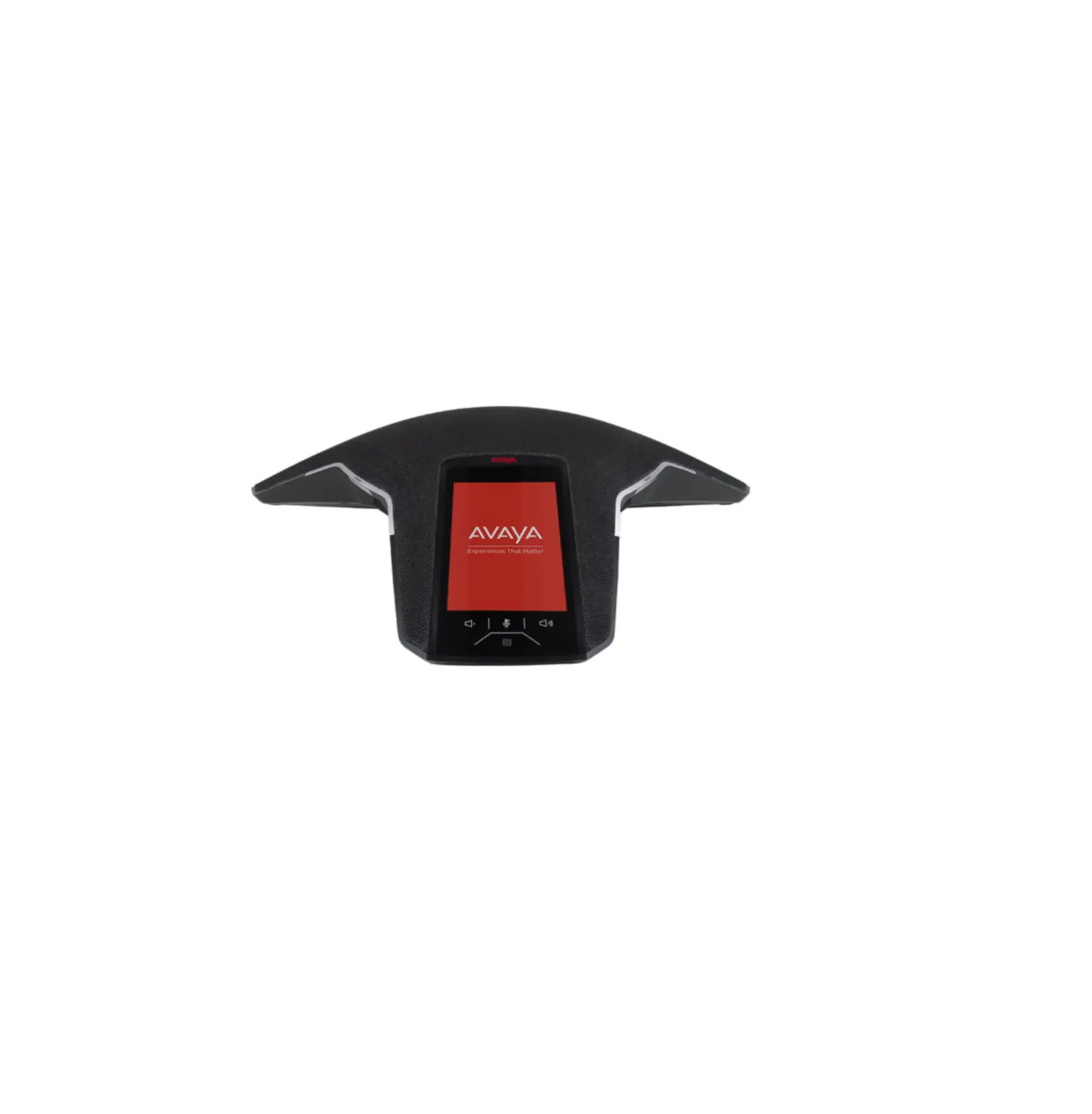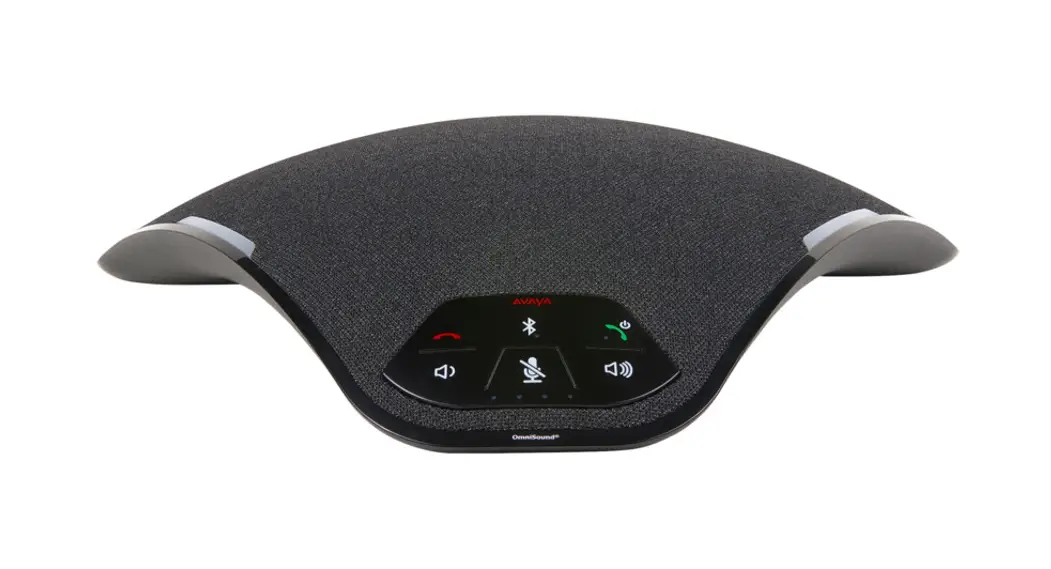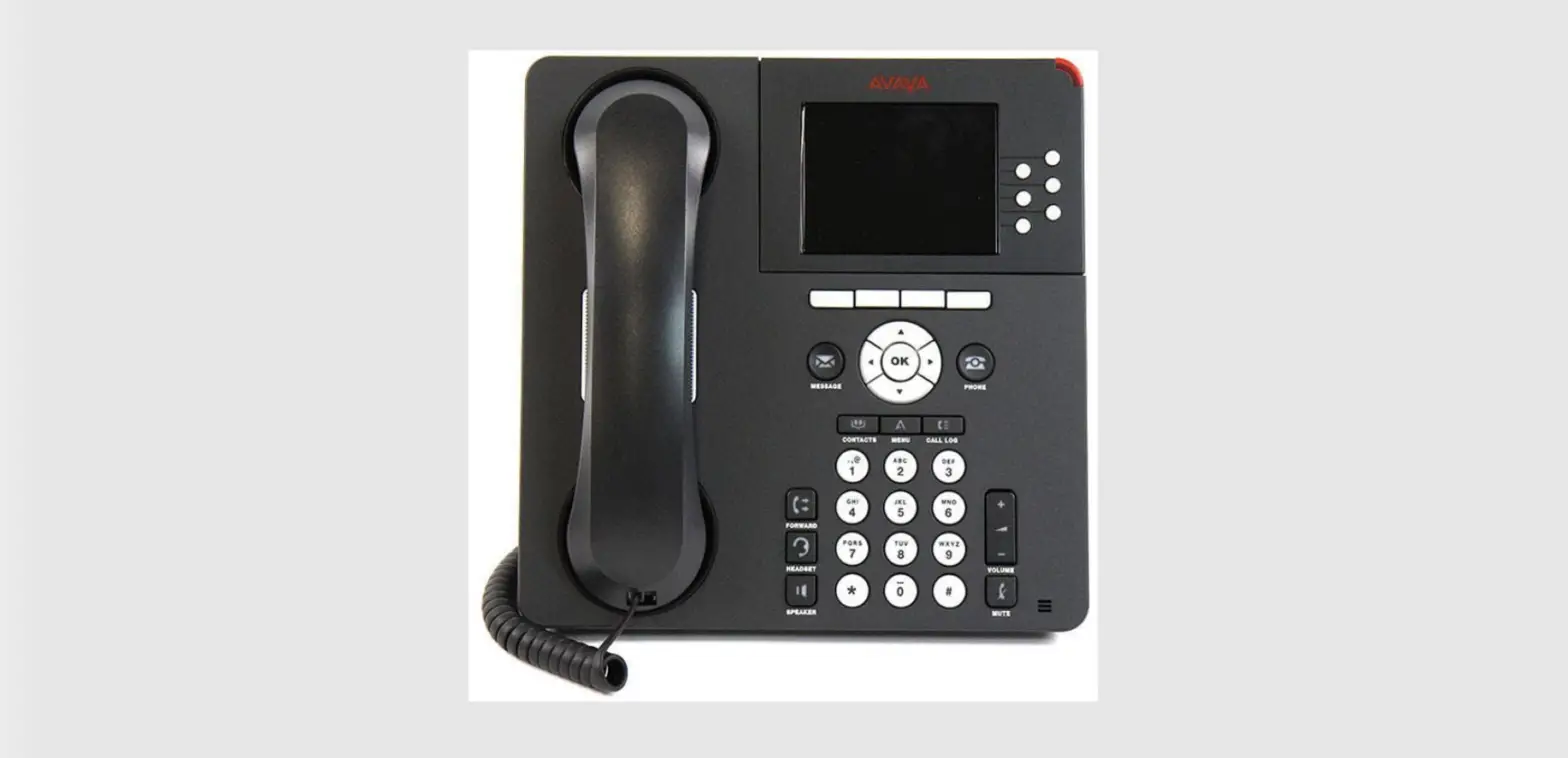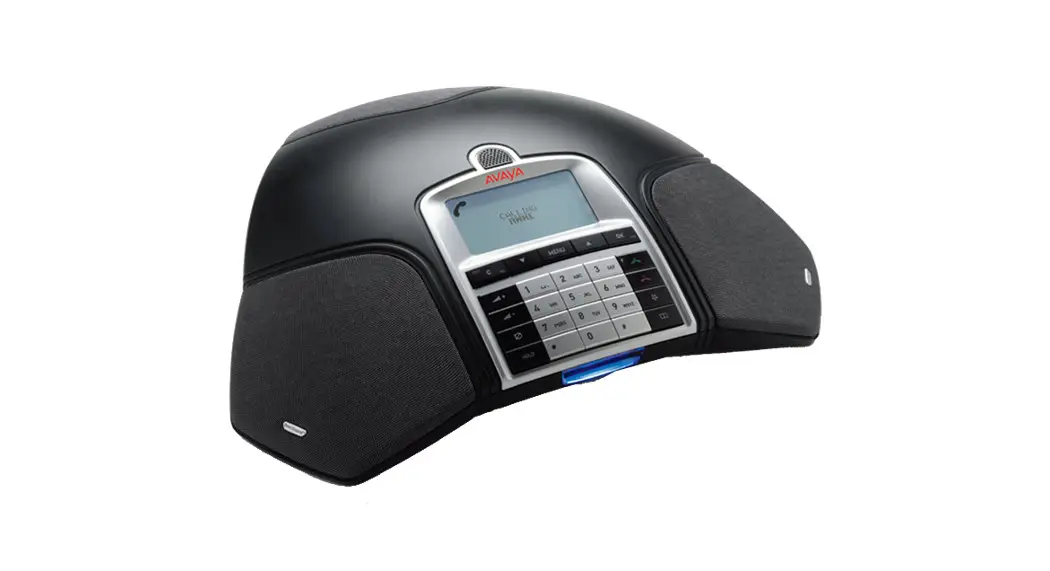
 Avaya B149 Conference Phone
QUICK REFERENCE GUIDE
B149 Conference Phone
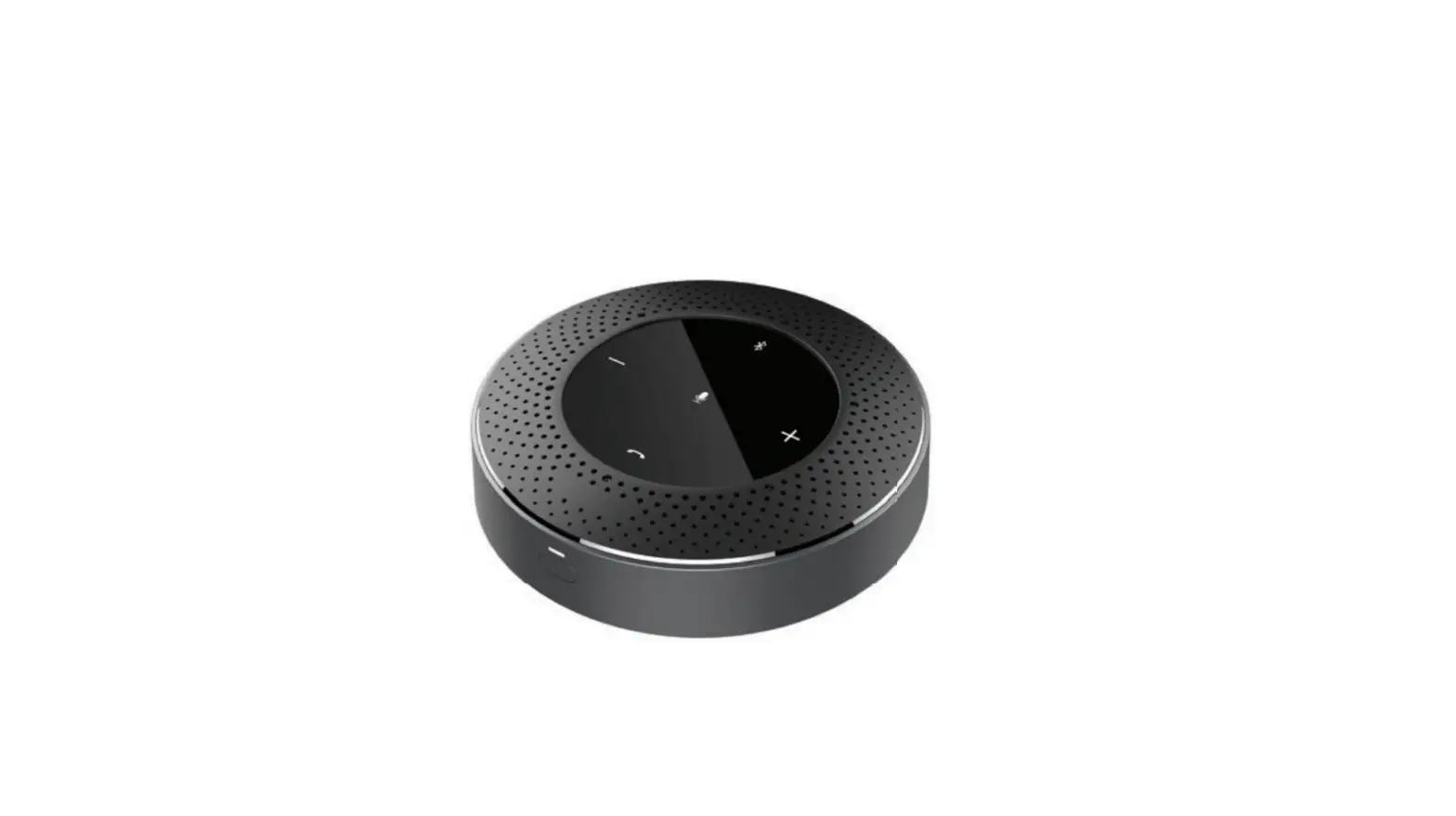
The Avaya B149 is a conference phone that can be connected to analog telephone sockets. A user guide with detailed instructions about connectivity options and features is available on our website: support.avaya.com.
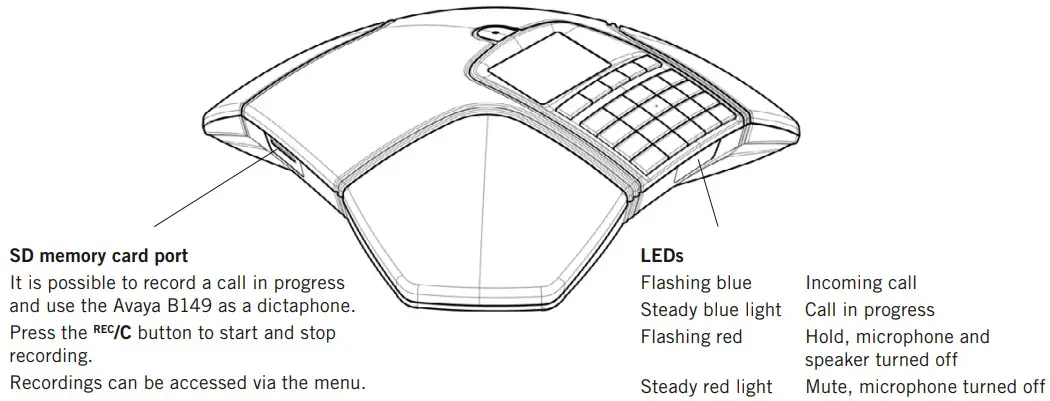
DESCRITION
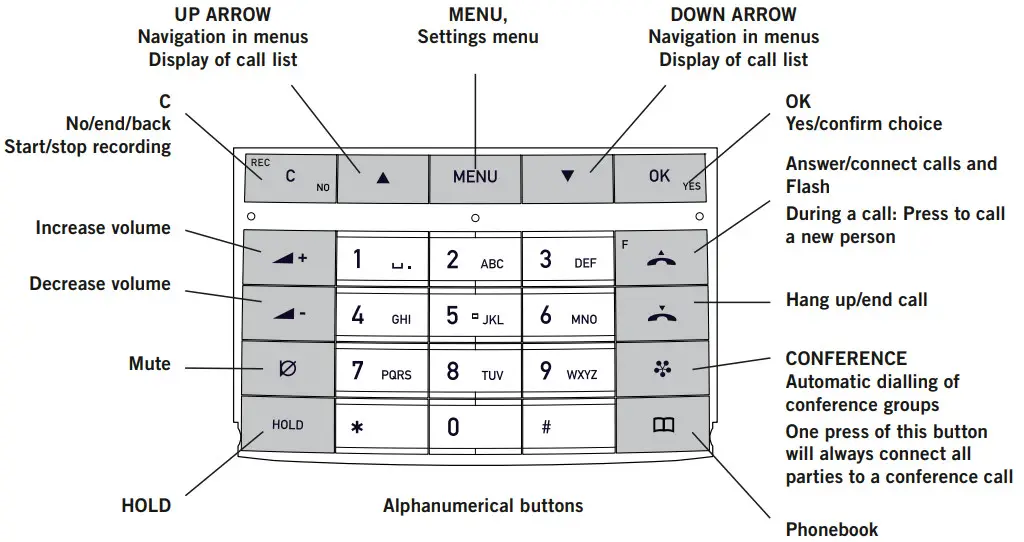
NAVIGATE IN MENUS AND MAKE SETTING
The Avaya B149 menu contains the following options:
PHONE BOOK SETTINGS CONF GUIDE RECORDING STATUS
 Press MENU. Select the option you want from the menu using the arrow keys.
Press ok to confirm. Cancel the setting or go back one level in the menu by pressing C. Quit the menu by pressing MENU again. Note that after you have made changes to a setting, you must press ok to activate the setting.
GETTING STARTED
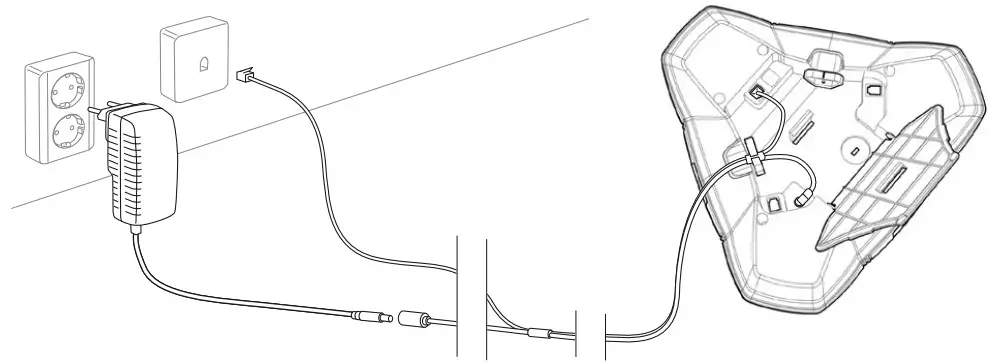
CONNECTING AND INSTALLING THE UNIT Connect the Avaya B149 to an analog line as illustrated. Plug into the mains using the power adapter as illustrated. Place the conference phone in the middle of the table.
SELECT REGION AND LANGUAGE
The first time the Avaya B149 is started, you will be required to select the region in which you are located. The Avaya B149 then automatically configures to the telecom network for that region. Select the region in which you are loca-Select the region in which you are located.
Click ok to confirm your selection. You can use the arrow buttons to press an alphanumeric button to jump to the first region that starts with that letter in the list. Select the language you want. Click ok to confirm your selection. Select MANU > SETTINGS if you want to set the date and time or make other adjustments.
CALLS
ANSWERING AND MAKING CALLS Press  to answer an incoming call. Dial the number and press to make a call. Press an arrow key to open a call list containing previously dialled numbers. Call using . Press
  or hold an alphanumeric button for two seconds to call a contact in the phonebook.
DURING A CALL Adjust the speaker volume using the keys  and
and  . Press
  (mute) to turn off the microphone. Press HoLD to put the call on hold.
Both the microphone and the speaker are turned off and the call is on hold. Press the same button again to recon-nect the call.
MULTI-PARTY CALLS
Note that different PBXs may require different signals. If you experience problems making multi-party calls:
Please refer to the manual for information about how to make necessary settings and to your tele phone administrator or service provider for specific settings.
ADDING A PARTY TO A CALL Press the (F) button during the call.
Calls in progress are put on hold and a second dialling tone is heard. Dial the second participant’s number, press and wait for an answer. Press the (F) button and then 3 to connect all the meeting participants or (F) to return to the previous call.
THE CONFERENCE GUIDE
You can create groups of up to six people via
MENU > CONF. GUIDE > ADD GROUP. Press the  (Conference) button and choose a conference group. Press OK if you want to see who is in the group and to make the call. Follow the instructions in the guide and answer with ok or C.
Calls in progress are put on hold when the next participant calls. Press the (Conference) button to con- button to con-nect all the meeting participants.
 support.avaya.com