 Quick Installation Guide
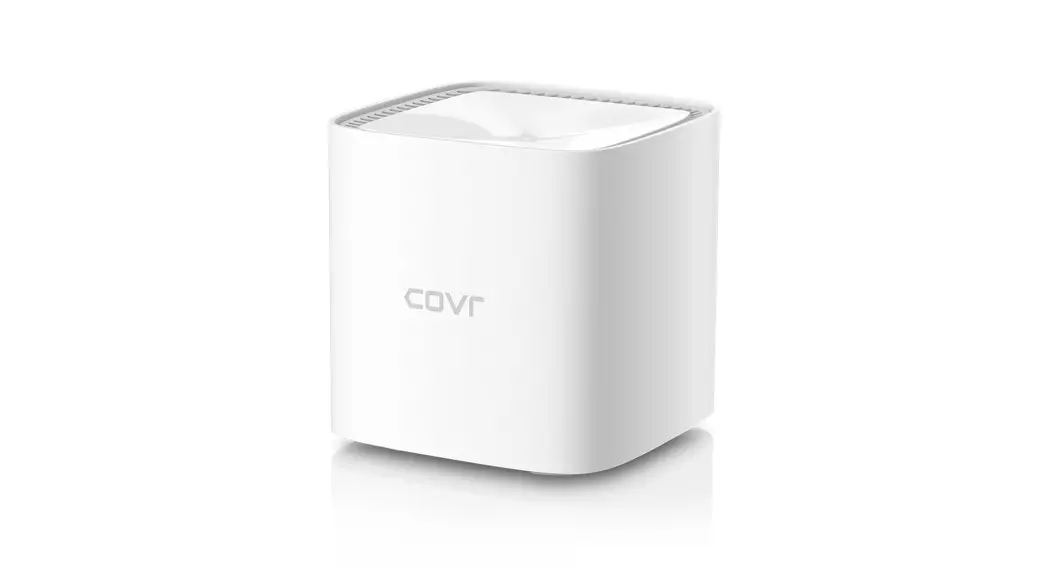
COVR-1103
AC1200 Dual-Band Whole HomeMesh Wi-Fi System
 PACKAGE CONTENTS
 PACKAGE CONTENTS
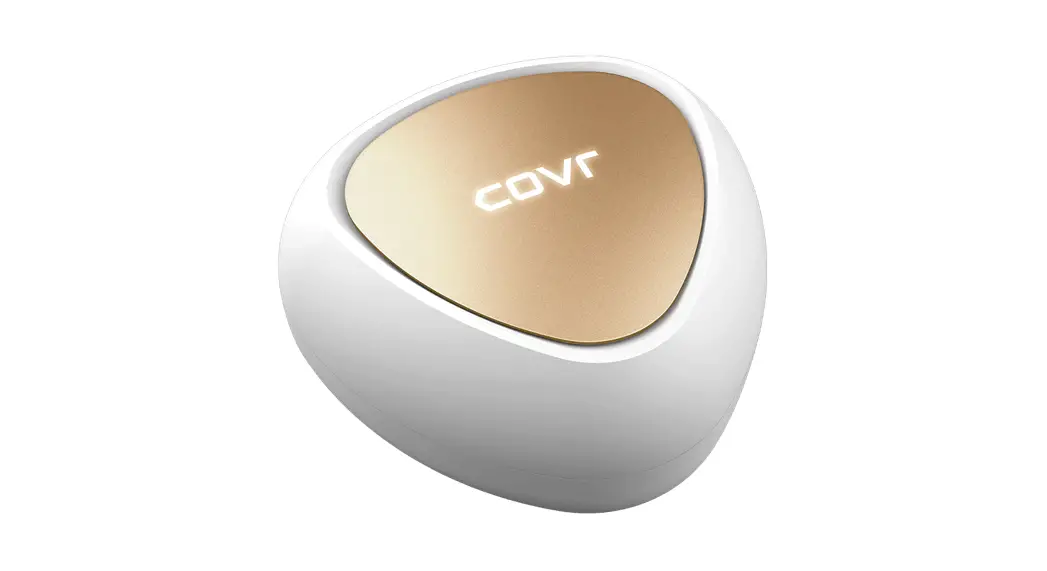
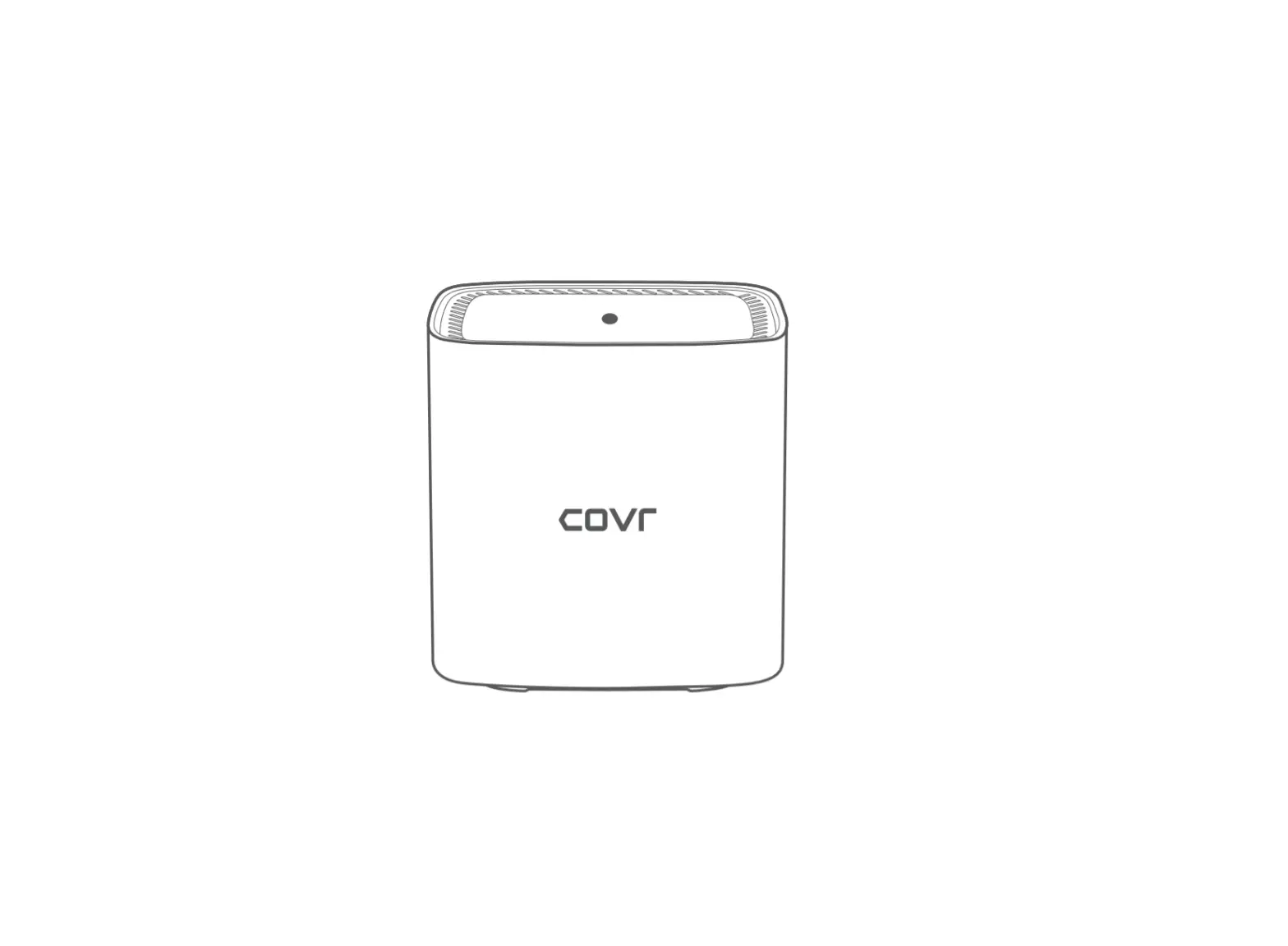
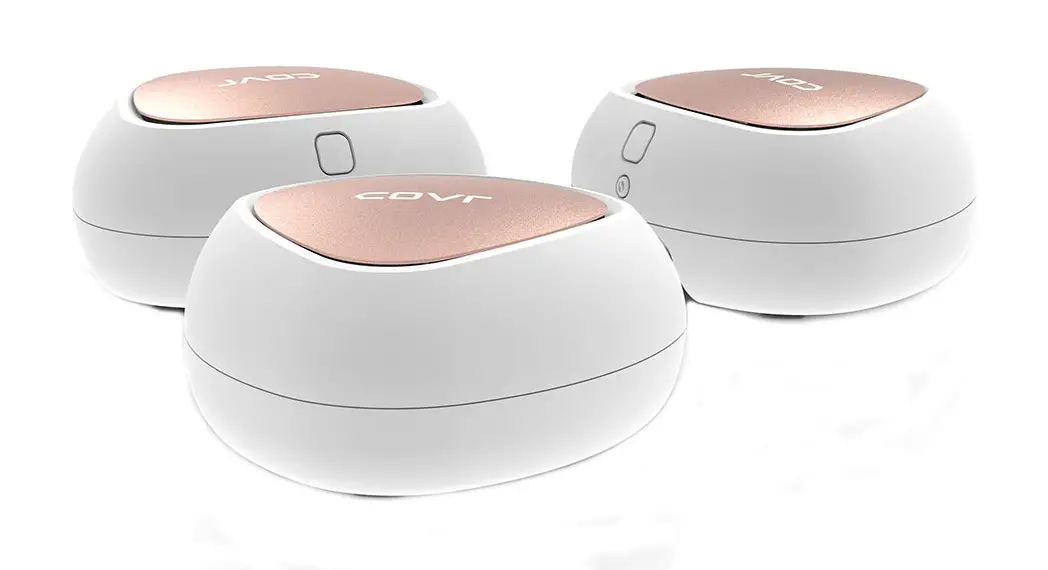
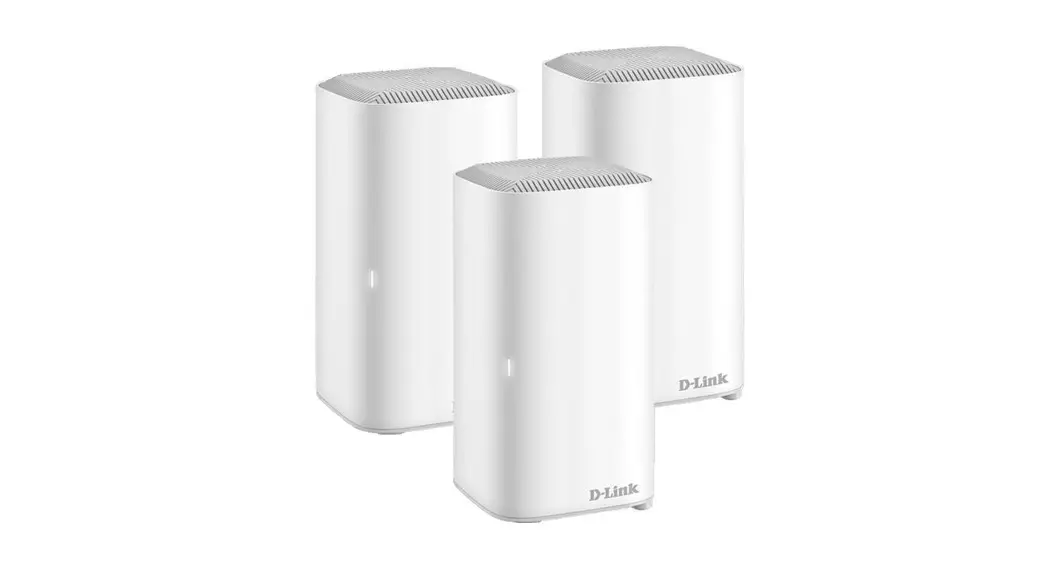
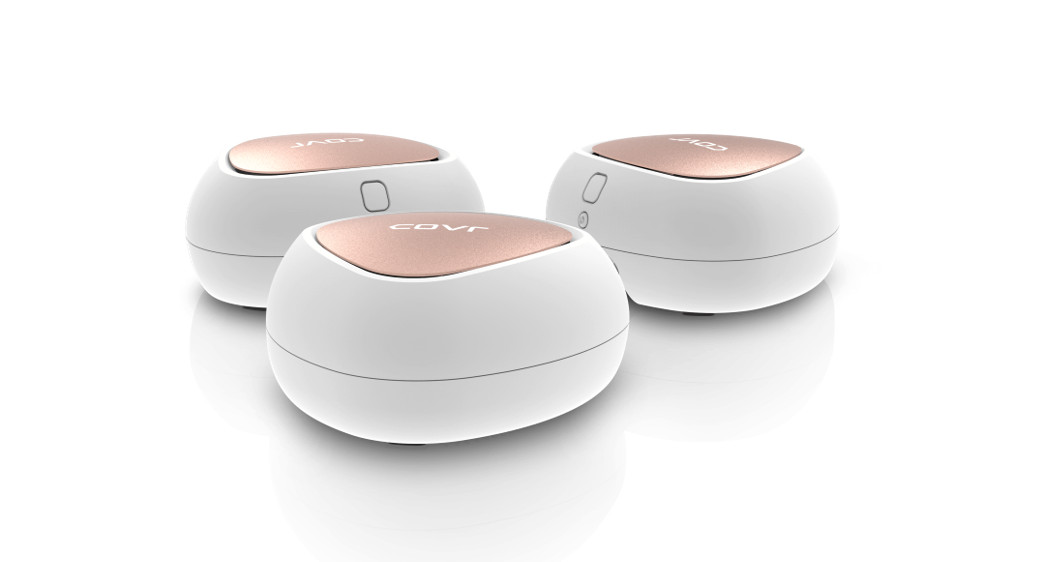
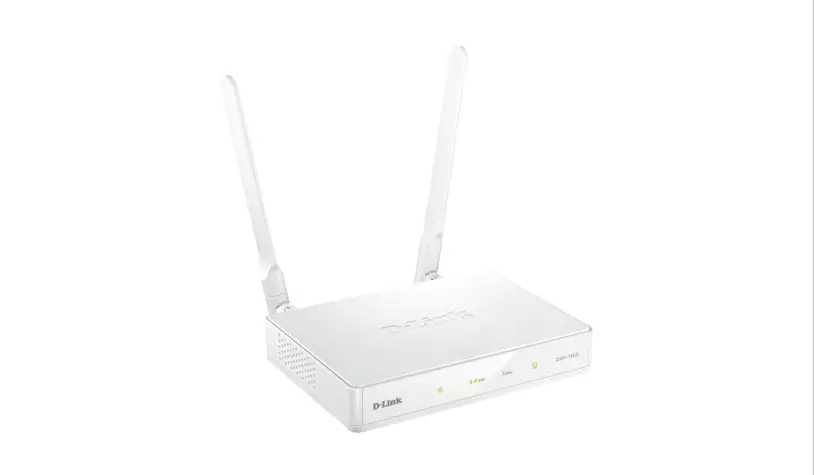
- COVR-1103 || AC1200 Dual-Band Whole Home Mesh Wi-Fi System
- Power Adapter
- Ethernet Cable
- Quick Installation Guide
- Quick Installation Card
 INSTALLATION
 INSTALLATION
OPTION 1
D-LINK WI-FI APP SETUP
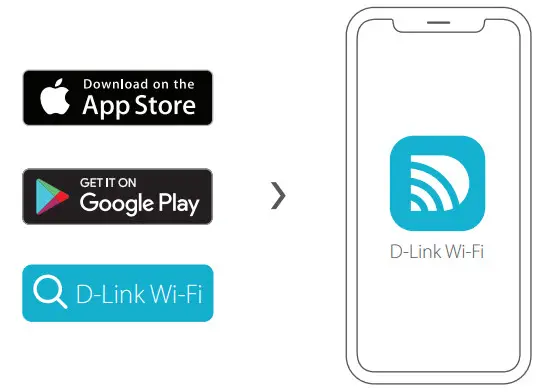
- Download the D-Link Wi-Fi app and launch it.
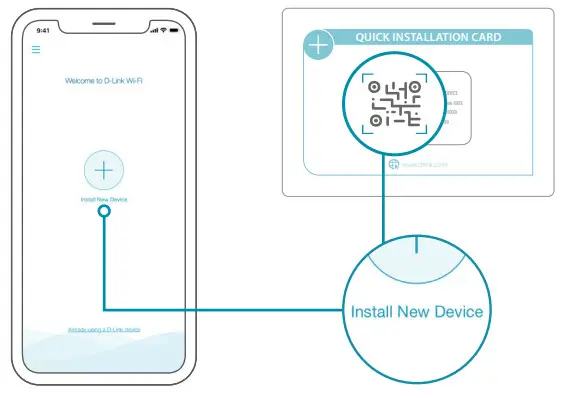
- Tap Install New Device. Scan the QR code on the Quick Installation Card. Follow the on-screen instructions to complete the setup.

OPTION 2
WEB BROWSER SETUP
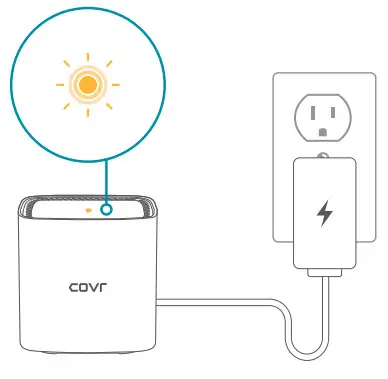
- Plug the router into a power source. Make sure that the power button is on. Wait for the wireless LED’s to be lit solid.

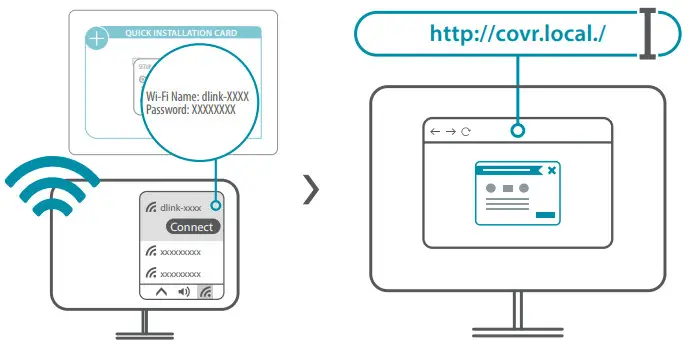
- Connect your computer to the Wi-Fi details printed on the Quick Installation Card. Type http://covr.local./ into a web browser. Follow the on-screen instructions to complete the setup.

You’re all good to go! Connect devices to your network using the username (SSID) and password that you created during the setup process. Enjoy the Internet!
 FREQUENTLY ASKED QUESTIONS
 FREQUENTLY ASKED QUESTIONS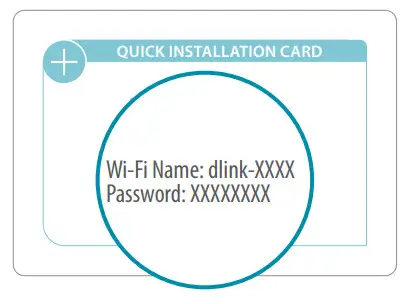
Why can’t I access the web-based configuration utility?
Verifying that http://covr.local./ has been correctly entered into the browser makes sure that you are connected to the correct Wi-Fi Name/SSID and password printed on the Quick Installation Card.
Why can’t I access the Internet?
Verify that your router is working by rebooting the router. If you still can not connect to the Internet, contact your Internet service provider.
What do I do if I forgot my device password / my wireless network password?
If you forgot your password, you must reset your router. This process will change all your settings back to the factory defaults.
How do I restore the router to its factory default settings?
Locate the reset button on the rear panel of the unit. With the router powered on, use a paper clip to hold the button down for 10 seconds. Release the button and the router will go through its reboot process.
 GPL CODE STATEMENT
 GPL CODE STATEMENT
This D-Link product includes software code developed by third parties, including software code subject to the GNU General Public License (“GPL”)or GNU Lesser General Public License(“LGPL”). As applicable, the terms of the GPL and LGPL, and information on obtaining access to the GPL code and LGPL Code used in this product, are available to view the full GPL CodeStatement at: https://tsd.dlink.com.tw/GPL
The GPL Code and LGPL Code used in this product are distributed WITHOUT ANY ARRANTY and are subject to the copyrights of one or more authors. For details, see the GPL code and the LGPL code for this product and the terms of the GPL and LGPL.
Written Offer for GPL and LGPL Source Code
Where such specific license terms entitle you to the source code of such software, D-Link will provide upon written request via email and/or traditional paper mail the applicable GPL and LGPL source code files via CD-ROM for a nominal cost to cover shipping and media charges as allowed under the GPL and LGPL.
Please direct all inquiries to:
Email: [email protected]
Snail Mail:
Attn: GPLSOURCE REQUEST
D-Link Systems, Inc.
17595 Mt. Herrmann Street
Fountain Valley, CA 92708
 VOICE ASSISTANTS
 VOICE ASSISTANTS
 Amazon Alexa Setup for D-Link Wi-Fi
https://www.dlink.com/en/alexa
 The Google Assistant Setup for D-Link Wi-Fi
https://www.dlink.com/en/google-assistant
 TECHNICAL SUPPORT
 TECHNICAL SUPPORT
Have trouble installing your new product? D-Link’s website contains the latest user documentation and software updates for D-Link products. Customers can contact D-Link Technical support through our website by choosing the relevant region.
 Contact Us
www.dlink.com/en/contact-us
https://www.dlink.com/en/contact-us
2020/02/12 v1.00(DI)_90x130 10044360
 Contact Us | D-Link
 D-Link | Technical Support | GPL Source Code Support