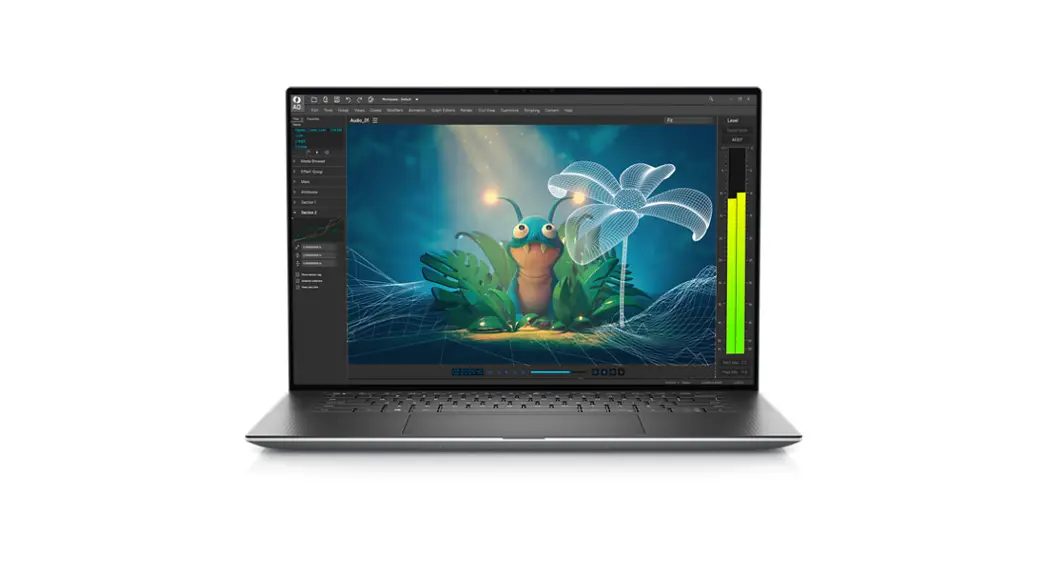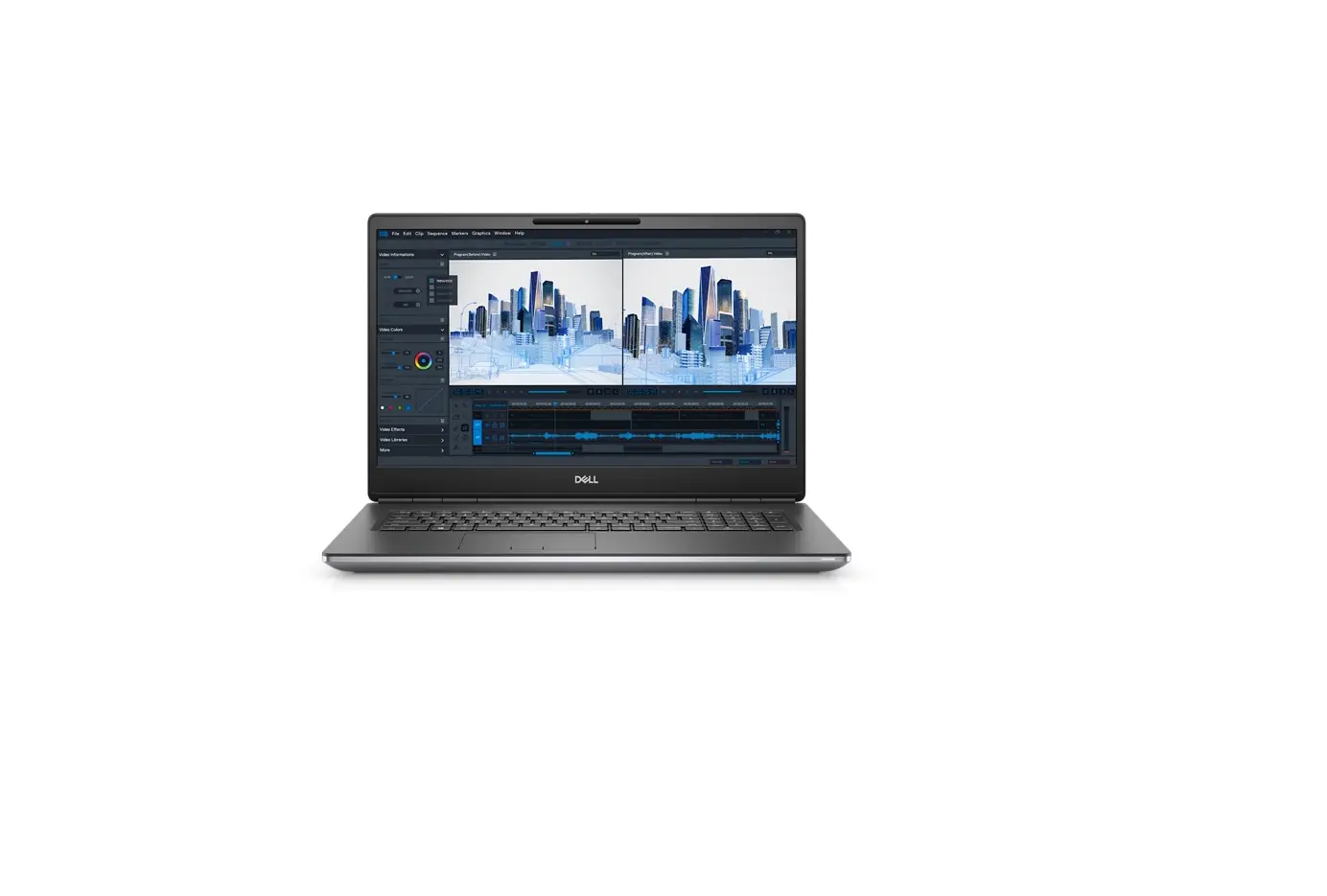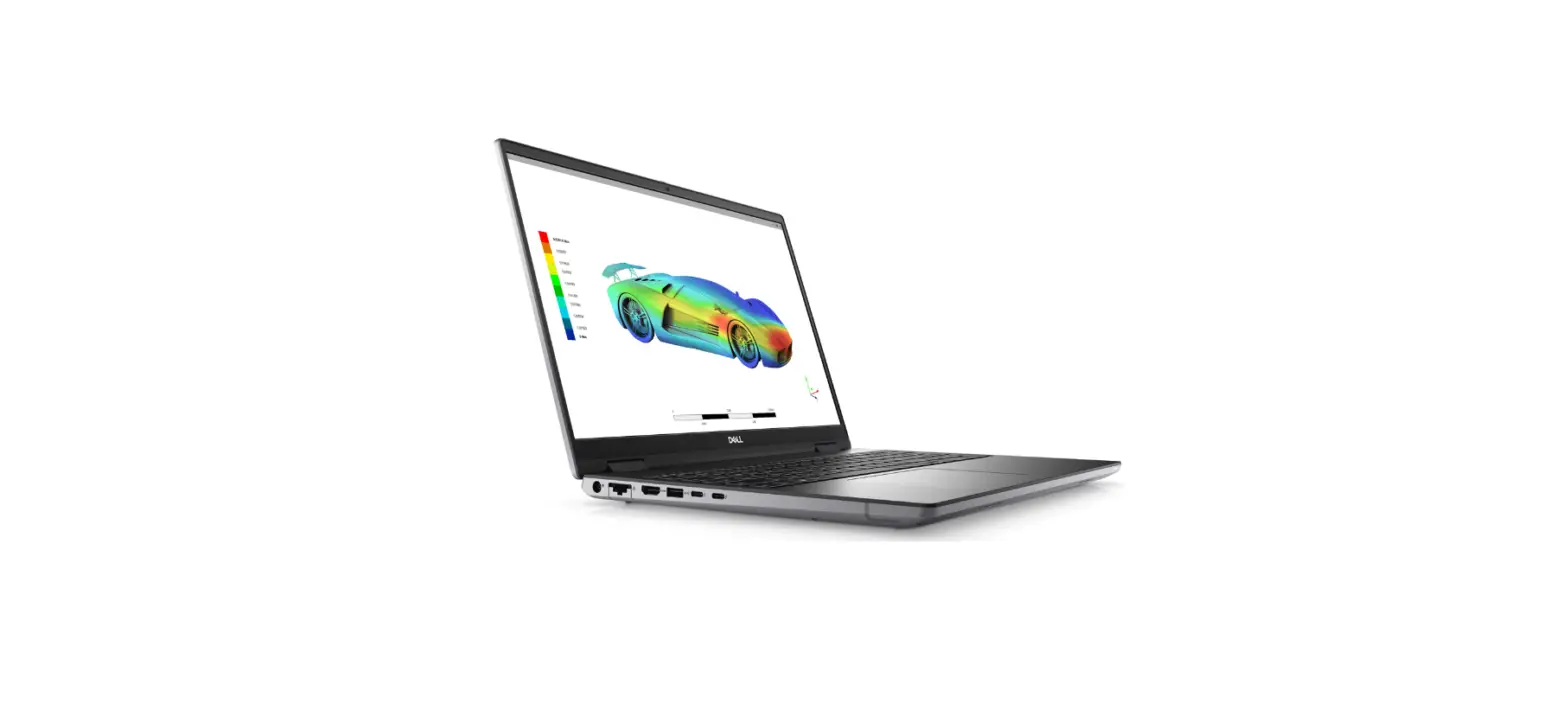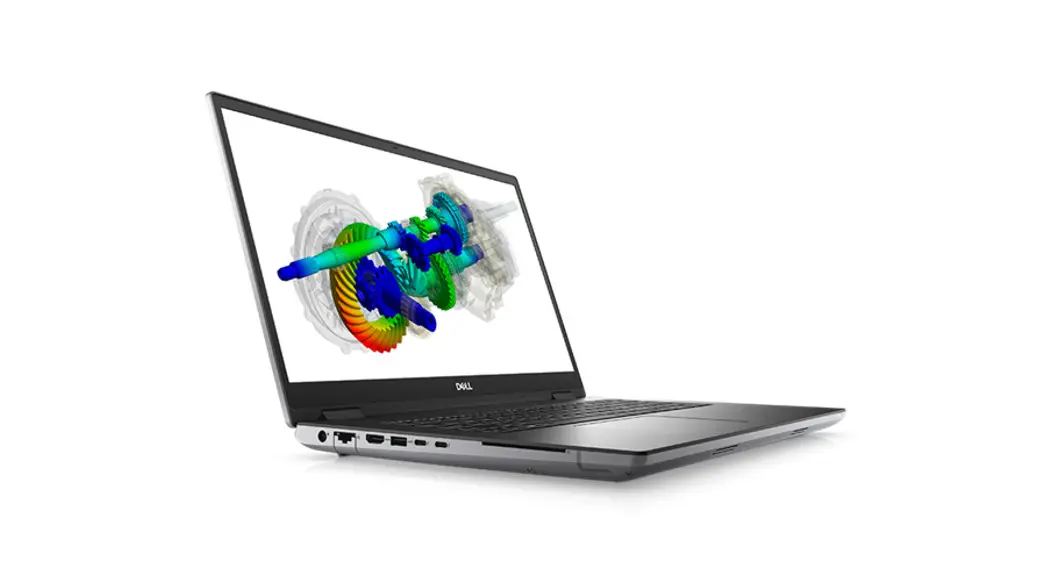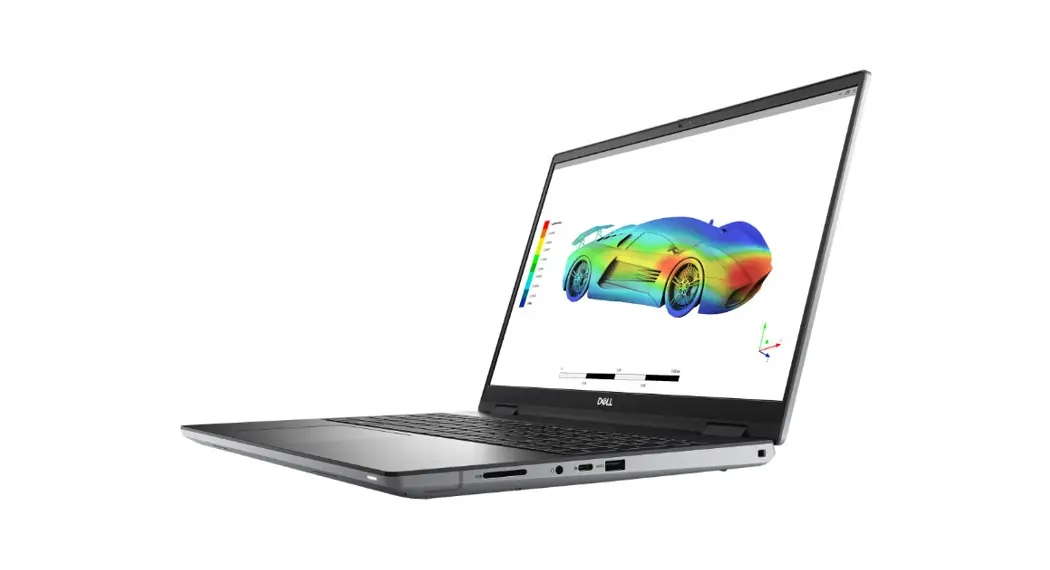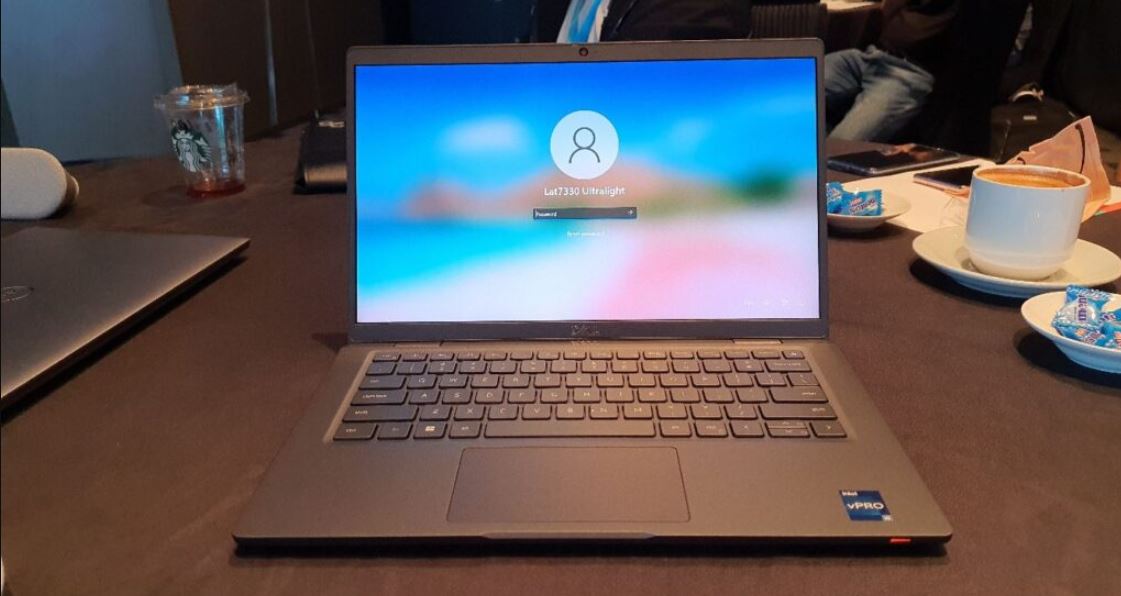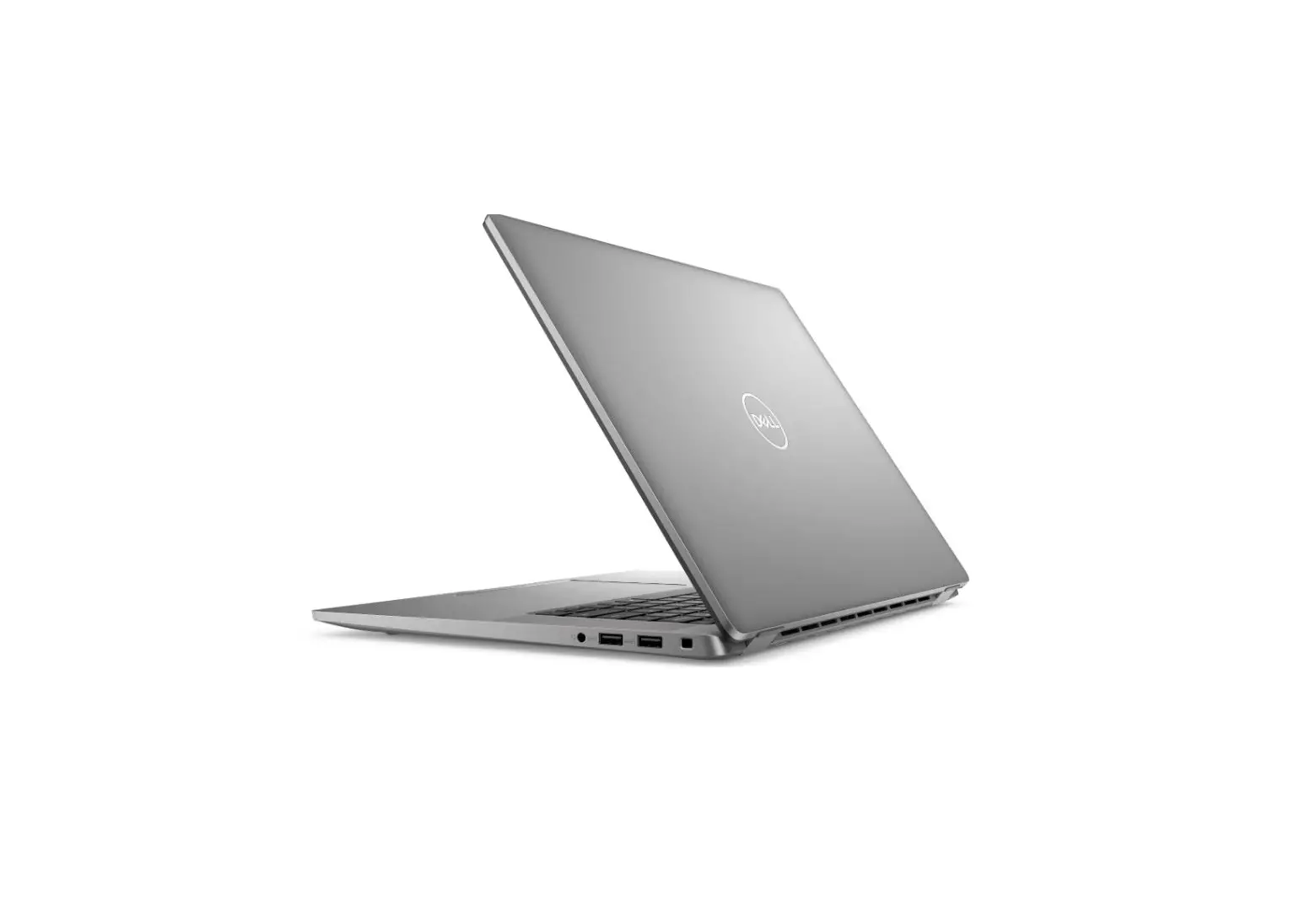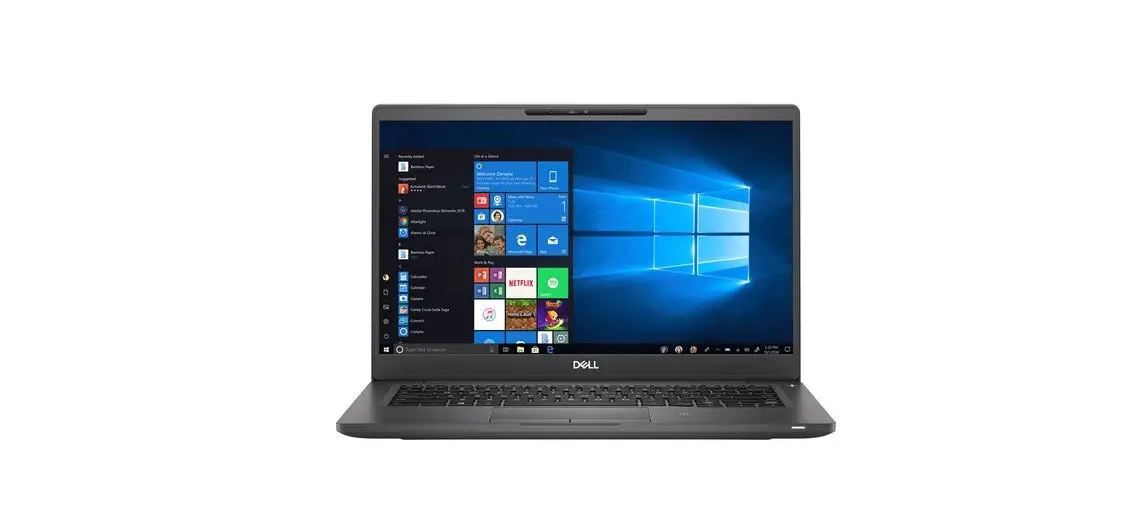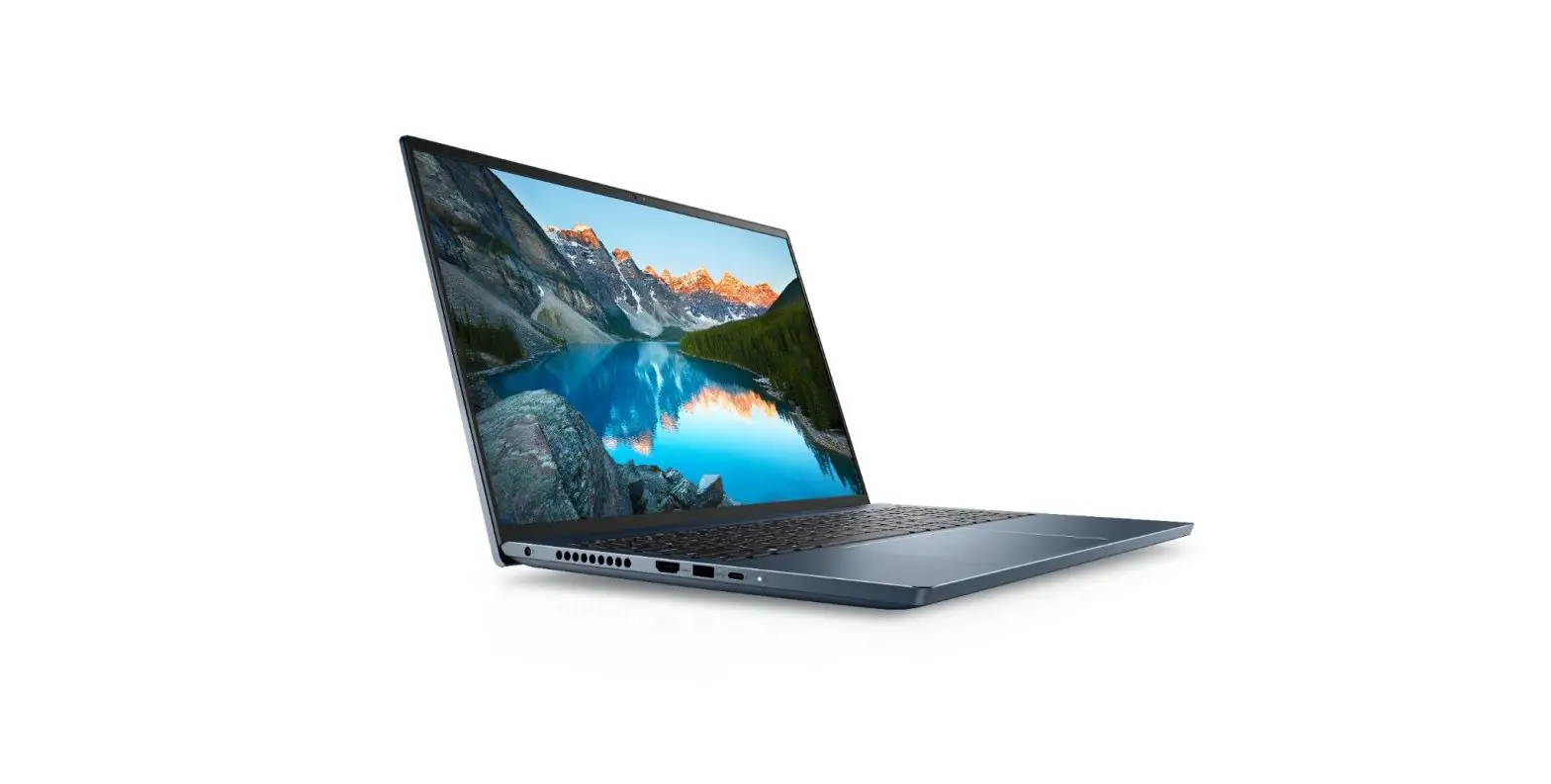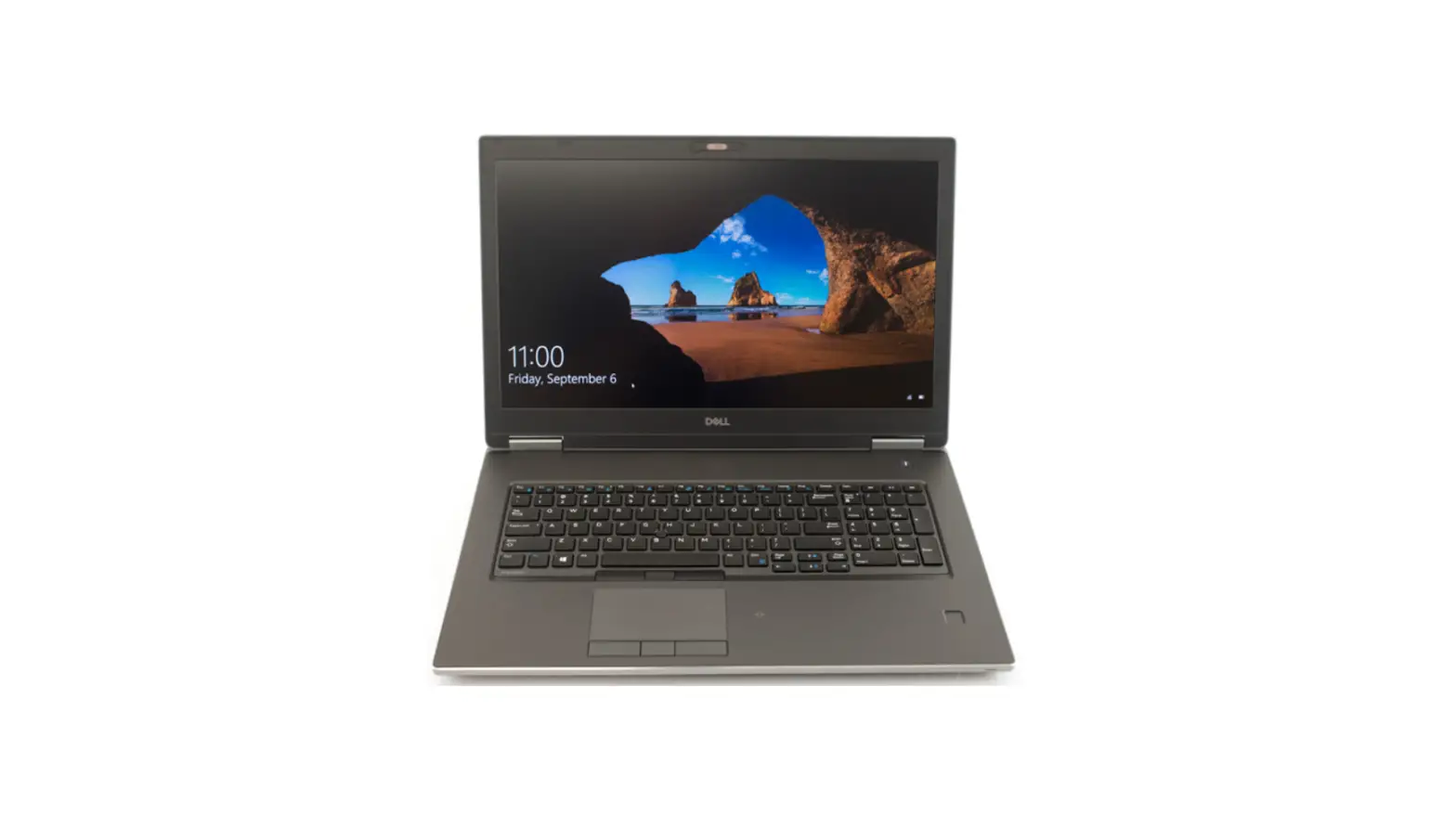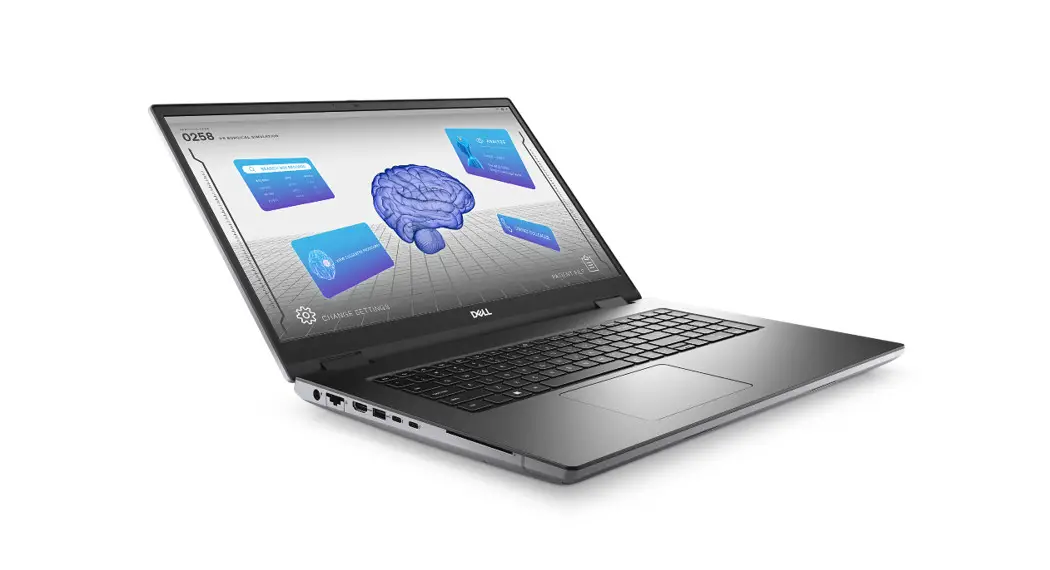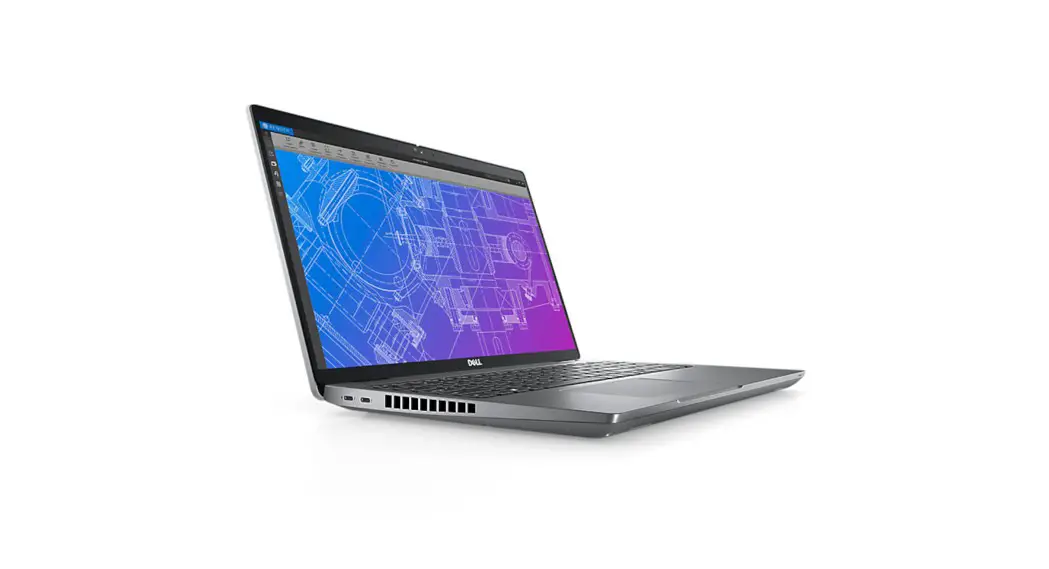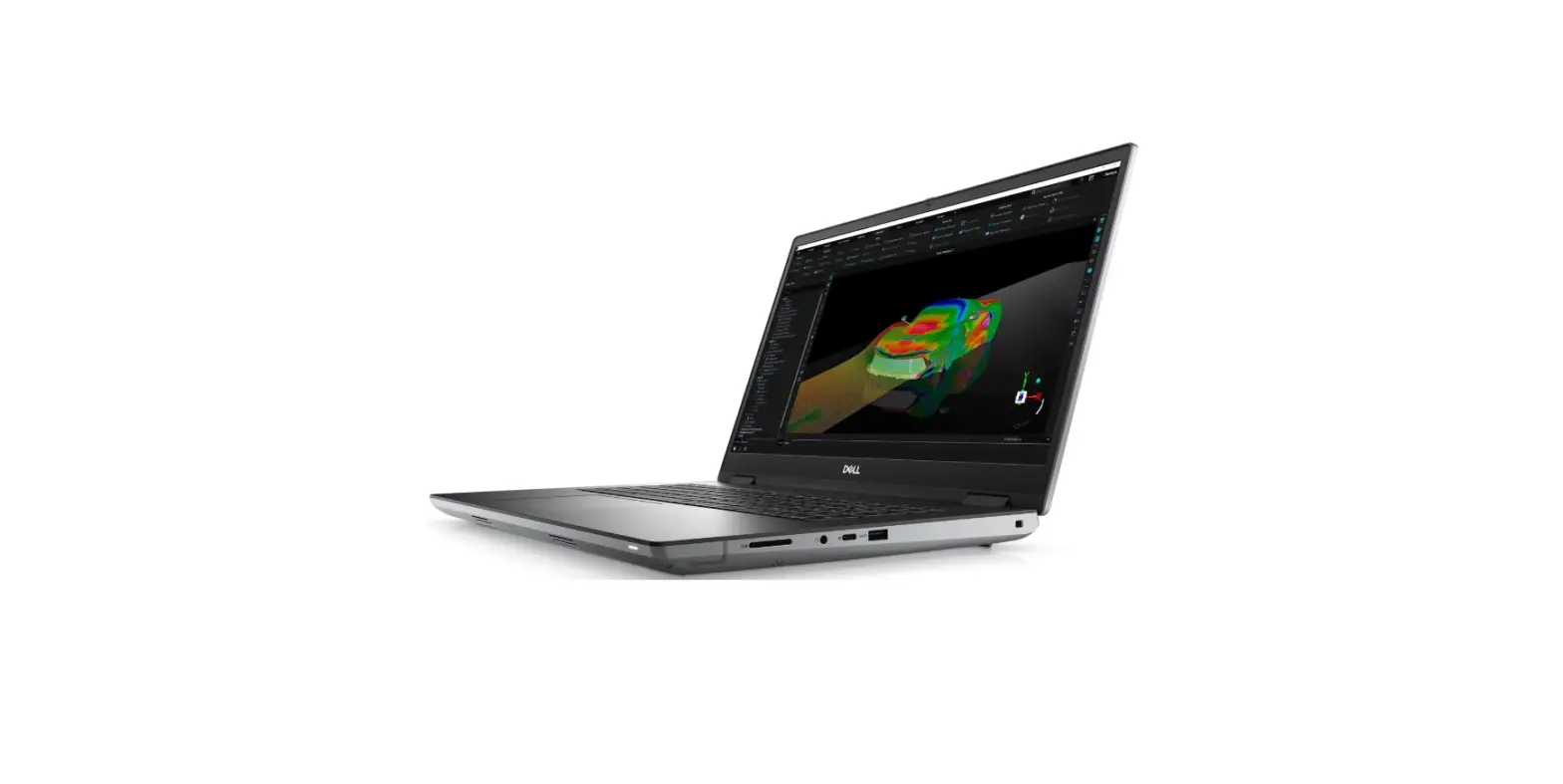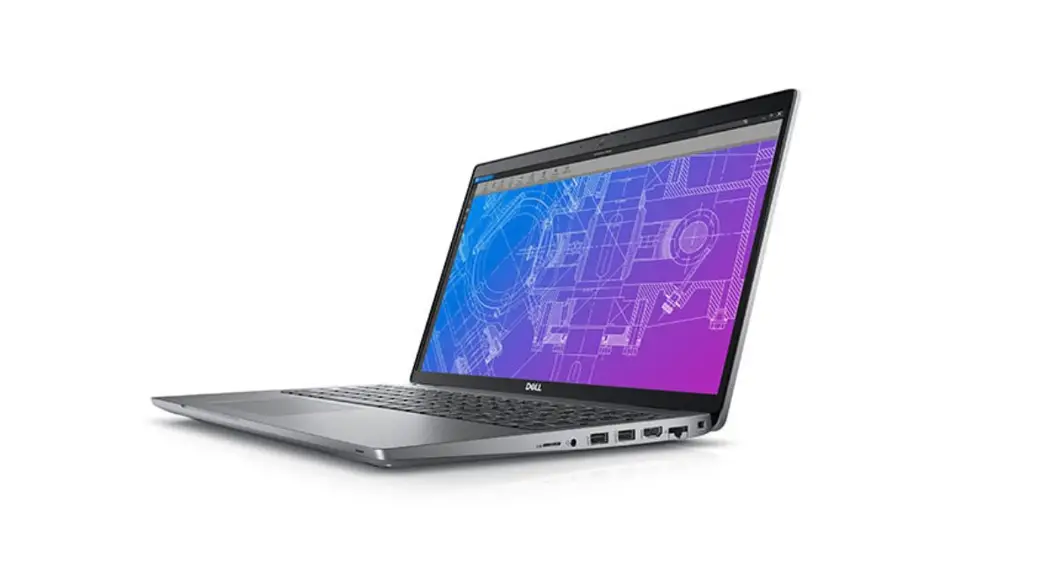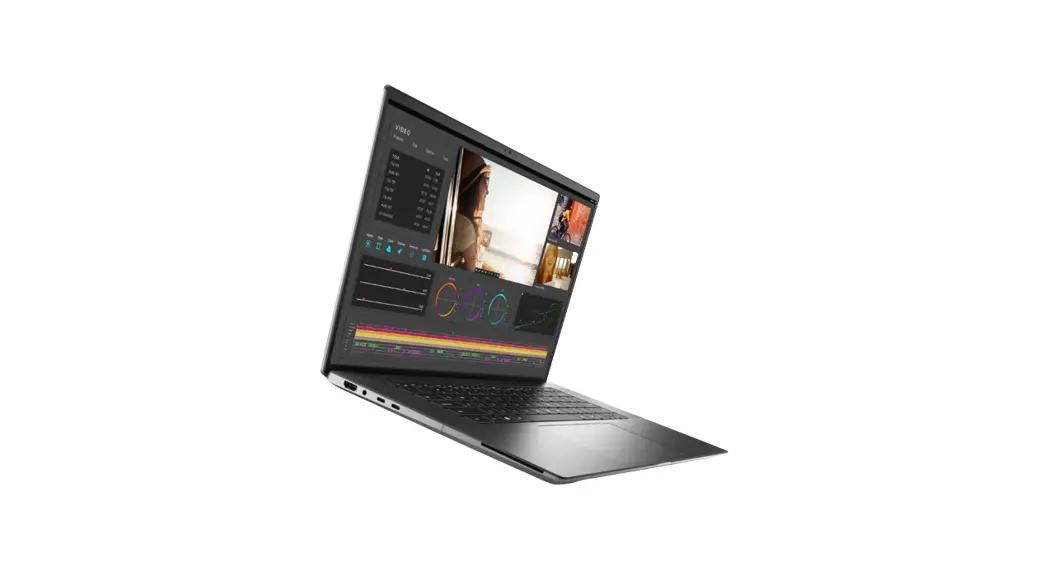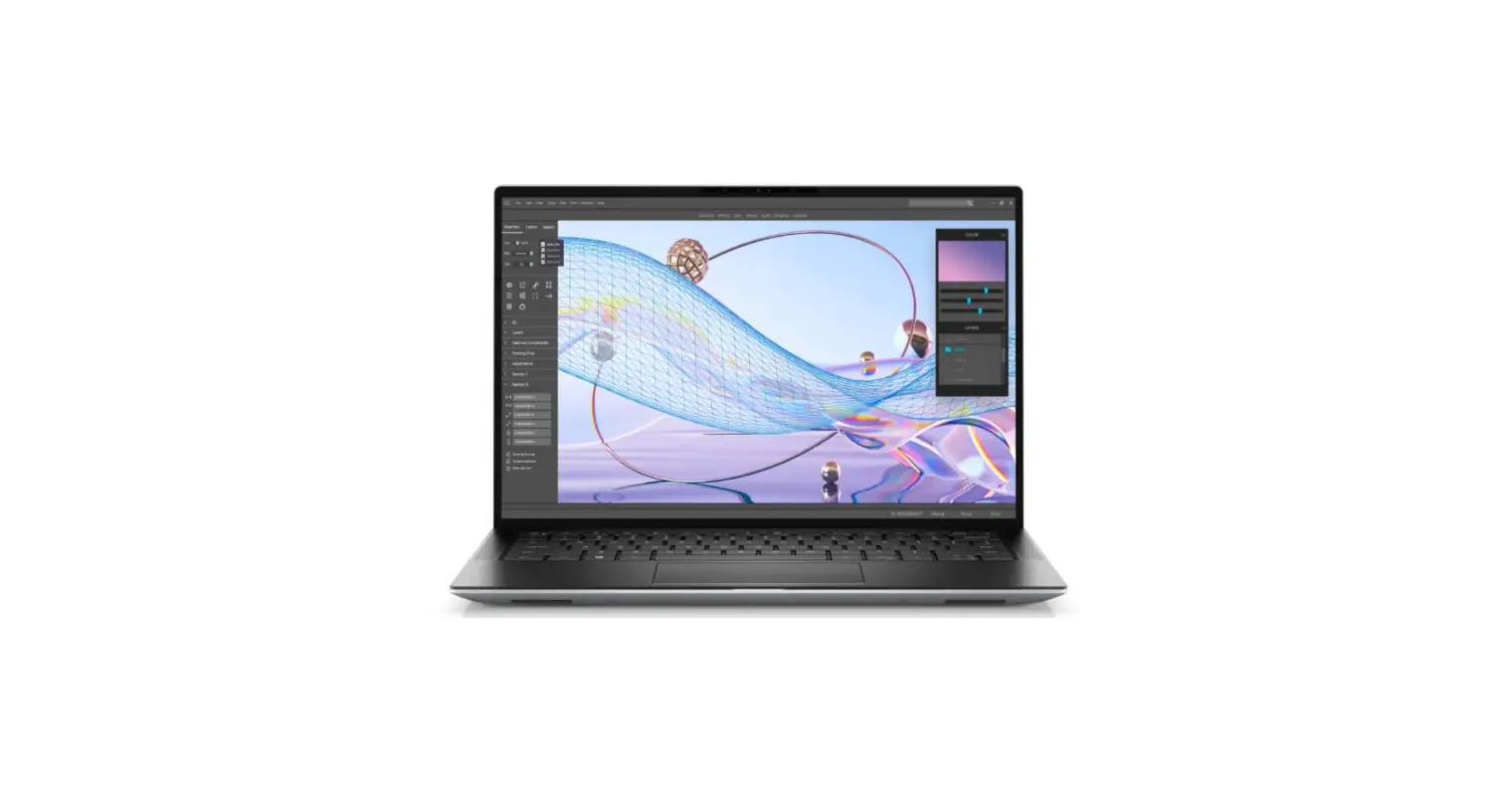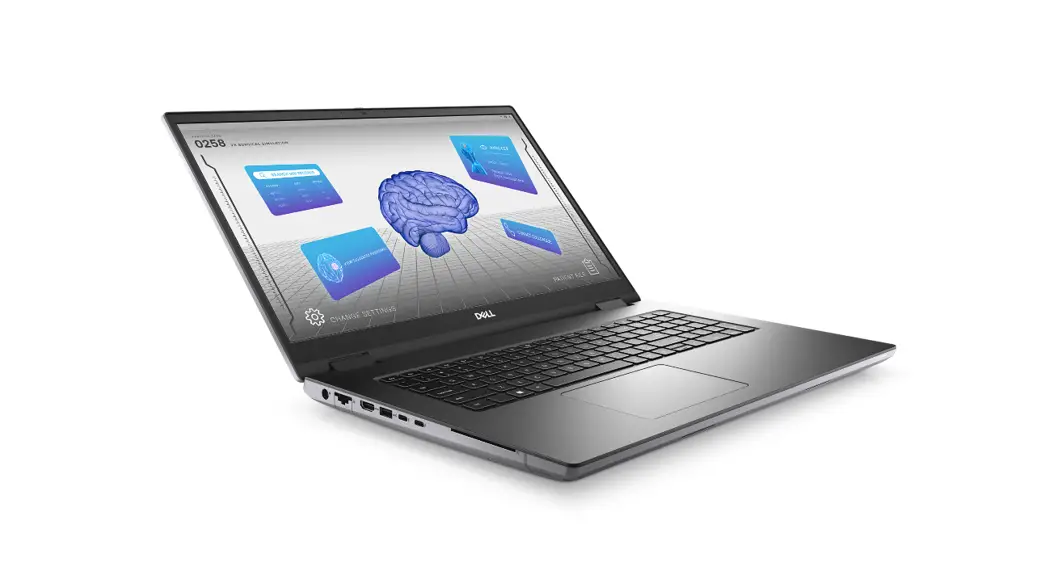
 Precision 7670
External Display Connection Guide
Precision 7670 Core i7 12th Gen Laptop
Notes, cautions, and warnings NOTE: A NOTE indicates important information that helps you make better use of your product.
 CAUTION: A CAUTION indicates either potential damage to hardware or loss of data and tells you how to avoid the problem.
 WARNING: A WARNING indicates a potential for property damage, personal injury, or death.
Before you begin
You can connect up to two 4K external displays or one 8K and above display using the two Thunderbolt 4 on your Precision 7670.
Total number of displays supported:
- Two 4K external displays: 2 ports (Thunderbolt 4)
- One 8K
Before you begin, ensure that you:
- Check the graphics options on your computer
- Check the ports available on your external displays and decide the Mode of connection.
Check the graphics options on your computer
The number of external displays supported depends on the type of graphics card available on your computer:
- The integrated graphics card can support a maximum of 4 displays
- The discrete graphics card can support a maximum of 4 displays
NOTE:
- Dell Docking Station—WD19DCS display behavior follows the host the Thunderbolt 4 (USB Type-C) port
- The HDMI 2.1 port and MFDC (MFDP) Type-C port on the WD19DCS docking station cannot support dual monitors simultaneously
For more information on the graphics card available on your computer, run Dell SupportAssist on your computer, or scan your hardware at www.dell.com/support.
The following are the graphic options that may be installed in your computer:
- Intel UHD Graphics (Integrated graphics)
- NVIDIA RTX A1000 (Discrete graphics)
- NVIDIA RTA A2000 (Discrete graphics)
- NVIDIA RTA A3000 (Discrete graphics)
- NVIDIA RTA A4500 (Discrete graphics)
- NVIDIA RTA A5500 (Discrete graphics)
- NVIDIA GeForce RTX 3080Ti (Discrete graphics)
External display connection mode
External display connection mode selected in the BIOS defines the number of displays supported by the computer.
External display connection modes are:
- UMA Graphics mode
- Hybrid Graphics mode
- Hybrid Graphics mode with Direct Output
- Discrete Graphics mode
UMA Graphics mode
Table 1. UMA Graphics mode
| Graphic card type | Supported ports |
| Integrated GPU | ● HDMI ● USB-C (non-Thunderbolt 4) ● Two Thunderbolt 4 ● Laptop display |
Hybrid Graphics mode
To enable Hybrid Graphics mode in the computer’s BIOS:
- Restart the system and immediately press <F2> to enter the BIOS.
- On the BIOS screen, select Video.
- Select Switchable Graphics.
- Select Enable Switchable Graphics.
- Save changes and exit the computer’s BIOS.
For more information about accessing and configuring the BIOS, see the computer’s Service Manual at www.dell.com/support.
Table 2. Hybrid Graphics mode
| Graphic card type | Supported ports |
| Discrete GPU | ● HDMI ● USB-C (non-Thunderbolt 4) ● Two Thunderbolt 4 |
| Integrated GPU | Laptop display, Two Thunderbolt 4 |
Hybrid Graphics mode with Direct Output
To enable Hybrid Graphics mode with Direct Output in the computer’s BIOS:
- Restart the system and immediately press <F2> to enter the BIOS.
- On the BIOS screen, select Video.
- Select Switchable Graphics.
- Select Enable Switchable Graphics.
- Select Discrete Graphics Controller Direct Output Mode.
- Save changes and exit the computer’s BIOS
For more information about accessing and configuring the BIOS, see the computer’s Service Manual at www.dell.com/support.
Table 3. Hybrid Graphics mode with Direct Output
| Graphic card type | Supported ports |
| Discrete GPU | ● HDMI ● USB-C (non-Thunderbolt 4) ● Two Thunderbolt 4 |
| Integrated GPU | Laptop display |
Discrete Graphics Mode
To enable Discrete Mode in the computer’s BIOS:
- Restart the system and immediately press <F2> to enter the BIOS.
- On the BIOS screen, select Video.
- Select Switchable Graphics.
- Uncheck Enable Switchable Graphics.
- Save changes and exit the computer’s BIOS
For more information about accessing and configuring the BIOS, see the computer’s Service Manual at www.dell.com/support.
Table 4. Discrete Graphics mode
| Graphic card type | Supported ports |
| Discrete GPU | ● Laptop display ● HDMI ● USB-C (non-Thunderbolt 4) ● Two Thunderbolt 4 |
Turn off the internal display
There may be instances where you may want to turn off the computer’s internal display to connect more external displays.
You can turn off the LCD display of your computer by using the Intel HD Graphics Command Center.
To turn off the display:
- In the Windows search bar, type Intel Graphics Command Center and press <Enter>.
- Accept the Intel Graphics Command Center software licence agreement.
- On the Intel Graphics Command Center window, click Display. The list of active displays is listed under the Connected Displays section.
- Click the ellipsis (…) in the top-right corner of your primary display, then click Extend > Display 2.
- Click the ellipsis (…) in the top-right corner of display 2, then click Make Display Primary.
- Click the ellipsis (…) in the top-right corner of your computer’s display, then click Disable.
Connect displays
Depending on the connectors available on your external display, you can connect the displays to the Thunderbolt 4 (USB Type-C) ports, HDMI port, Mini DisplayPort on your computer using:
- Thunderbolt 4 cables, adapters or docking stations
- USB Type-C cables. adapters or docking stations
- HDMI cables or adapters
NOTE: To experience the full resolution supported by your external displays, use appropriate cables. For examples, use DisplayPort or HDMI cables for 4K and above resolution.
Supported Display
Table 5. Supported display via host displayport under different modes
| Graphics card mode | Connect to External Displays | |||
| One External Display | Two External Displays | Three External Displays | Four External Displays (Internal Display Off) | |
| UMA | ● HDMI: 3840 x 2160 @ 60 Hz | ● HDMI: 3840 x 2160 @ 60 Hz ● Type-C: 7680 x 4320 @ 60 Hz | ● HDMI: 3840 x 2160 @ 60 Hz ● Type-C: 7680 x 4320 @ 60 Hz ● Type-C: 7680 x 4320 @ 60 Hz | ● HDMI: 3840 x 2160 @ 60 Hz ● Type-C: 7680 x 4320 @ 60 Hz ● Type-C: 7680 x 4320 @ 60 Hz ● Type-C: 7680 x 4320 @ 60 Hz |
| Hybrid mode | HDMI/Type-C: 7680 x 4320 @ 60 Hz | ● HDMI: 7680 x 4320 @ 60 Hz ● Type-C: 7680 x 4320 @ 60 Hz | ● HDMI: 7680 x 4320 @ 60 Hz ● Type-C: 7680 x 4320 @ 60 Hz ● Type-C: 7680 x 4320 @ 60 Hz | ● HDMI: 7680 x 4320 @ 60 Hz ● Type-C: 7680 x 4320 @ 60 Hz ● Type-C: 7680 x 4320 @ 60 Hz ● Type-C: 7680 x 4320 @ 60 Hz |
| Hybrid mode with Direct Output | HDMI/Type-C: 7680 x 4320 @ 60 Hz | ● HDMI: 7680 x 4320 @ 60 Hz ● Type-C: 7680 x 4320 @ 60 Hz | ● HDMI: 7680 x 4320 @ 60 Hz ● Type-C: 3840 x 2160 @ 60 Hz ● Type-C: 3840 x 2160 @ 60 Hz | ● HDMI: 3840 x 2160 @ 60 Hz ● Type-C: 3840 x 2160 @ 60 Hz ● Type-C: 3840 x 2160 @ 60 Hz ● Type-C: 3840 x 2160 @ 60 Hz |
| Discrete Mode | HDMI/Type-C: 7680 x 4320 @ 60 Hz | ● HDMI: 7680 x 4320 @ 60 Hz ● Type-C: 7680 x 4320 @ 60 Hz | Internal Display Off ● HDMI: 7680 x 4320 @ 60 Hz ● Type-C: 3840 x 2160 @ 60 Hz ● Type-C: 3840 x 2160 @ 60 Hz | ● HDMI: 3840 x 2160 @ 60 Hz ● Type-C: 3840 x 2160 @ 60 Hz ● Type-C: 3840 x 2160 @ 60 Hz ● Type-C: 3840 x 2160 @ 60 Hz |
*When connecting via docking station, additional external displays can be connected under Hybrid mode (with Internal Display Off). NOTE: Discrete mode and UMA modes are disabled when additional external displays are connected via docking station.
Table 6. Supported display via docking station under Hybrid mode
| Hybrid mode | ||
| TBT Dock | Type-C TBT + DP + DP + HDMI/MFDP: *4k@60 Hz + 2k@60 Hz*3 | ● Up to 3 if internal display on ● Up to 4 if internal display off ● Connect either HDMI or MFDP only, do not connect both of them |
| Single Cable Dock | ● DP + DP + HDMI : FHD@60 Hz*3 ● DP + DP + MFDP : FHD@60 Hz*3 | |
| Dual Cable Dock | ● DP + DP + HDMI: 2k@60 Hz*3 ● DP + DP + MFDP: 2k@60 Hz*3 | |
Table 7. Supported display via docking station under Discrete mode
| Discrete mode | ||
| TBT Dock | ● DP + DP: 8K@60 Hz*1 ● DP + HDMI: 4K@60 Hz*2 ● MFDP/HDMI+DP1+DP2: 4K@60 Hz*3 ● TBT + DP1+DP2+HDMI: 4K@60 Hz*4 | ● Up to 3 if internal display on ● Up to 4 if internal display off ● Connect either HDMI or MFDP only, do not connect both of them |
| Single Cable Dock | ● DP + DP: 4K@60 Hz *2 ● DP + HDMI: 4K@60 Hz*2 ● DP + MFDP: 4K@60 Hz*2 | |
| Dual Cable Dock | ● DP + DP: 8K@60 Hz*1 ● DP+DP+HDMI/MFDP: 4K@60 Hz*3 | |
Troubleshooting
Question
When I connect an 8K display using the USB Type-C to DisplayPort adapter, the monitor resolution is 4k.
Cause
This may be because of incorrect settings in the BIOS.
Workaround
Ensure BIOS setting is special graphics mode or discrete graphics mode.
For more information about accessing and configuring the BIOS, see the computer’s Service Manual at www.dell.com/support.
Question
When I connect an 8K display using the USB Type-C to DisplayPort adapter, the display resolution can reach to 8K, but refresh rate cannot reach to 60Hz.
Workaround
Connect the 8K display with the dual USB Type-C to DisplayPort adapter or one USB Type-C to DisplayPort adapter + one Mini
DisplayPort.
Connect the 8K display with dual cable WD19DCS dock dual DisplayPort or Host dual USB Type-C to DisplayPort adapter or Host DisplayPort adapter + one Mini DisplayPort.
Getting help and contacting Dell
Self-help resources
You can get information and help on Dell products and services using these self-help resources:
Table 8. Self-help resources
| Self-help resources | Resource location |
| Information about Dell products and services | www.dell.com |
| My Dell app |  |
| Tips |  |
| Contact Support | In Windows search, type Contact Support, and press Enter. |
| Online help for operating system | www.dell.com/support/windows |
| Access top solutions, diagnostics, drivers and downloads, and learn more about your computer through videos, manuals and documents. | Your Dell computer is uniquely identified by a Service Tag or Express Service Code. To view relevant support resources for your Dell computer, enter the Service Tag or Express Service Code at www.dell.com/support. For more information on how to find the Service Tag for your computer, see Locate your Service Tag or Serial Number | Dell US. |
| Dell knowledge base articles for a variety of computer concerns | 1. Go to www.dell.com/support. 2. On the menu bar at the top of the Support page, select Support > Knowledge Base. 3. In the Search field on the Knowledge Base page, type the keyword, topic, or model number, and then click or tap the search icon to view the related articles. |
Contacting Dell
To contact Dell for sales, technical support, or customer service issues, see www.dell.com/contactdell. NOTE: Availability varies by country/region and product, and some services may not be available in your country/region. NOTE: If you do not have an active Internet connection, you can find contact information about your purchase invoice, packing slip, bill, or Dell product catalog.
Regulatory Model: P114F
Regulatory Type: P114F001
July 2022
Rev. A00