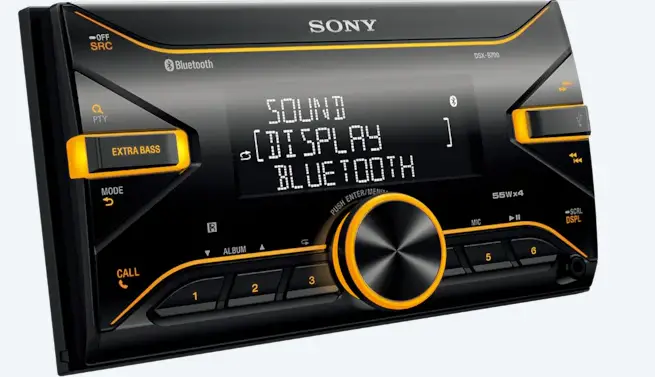
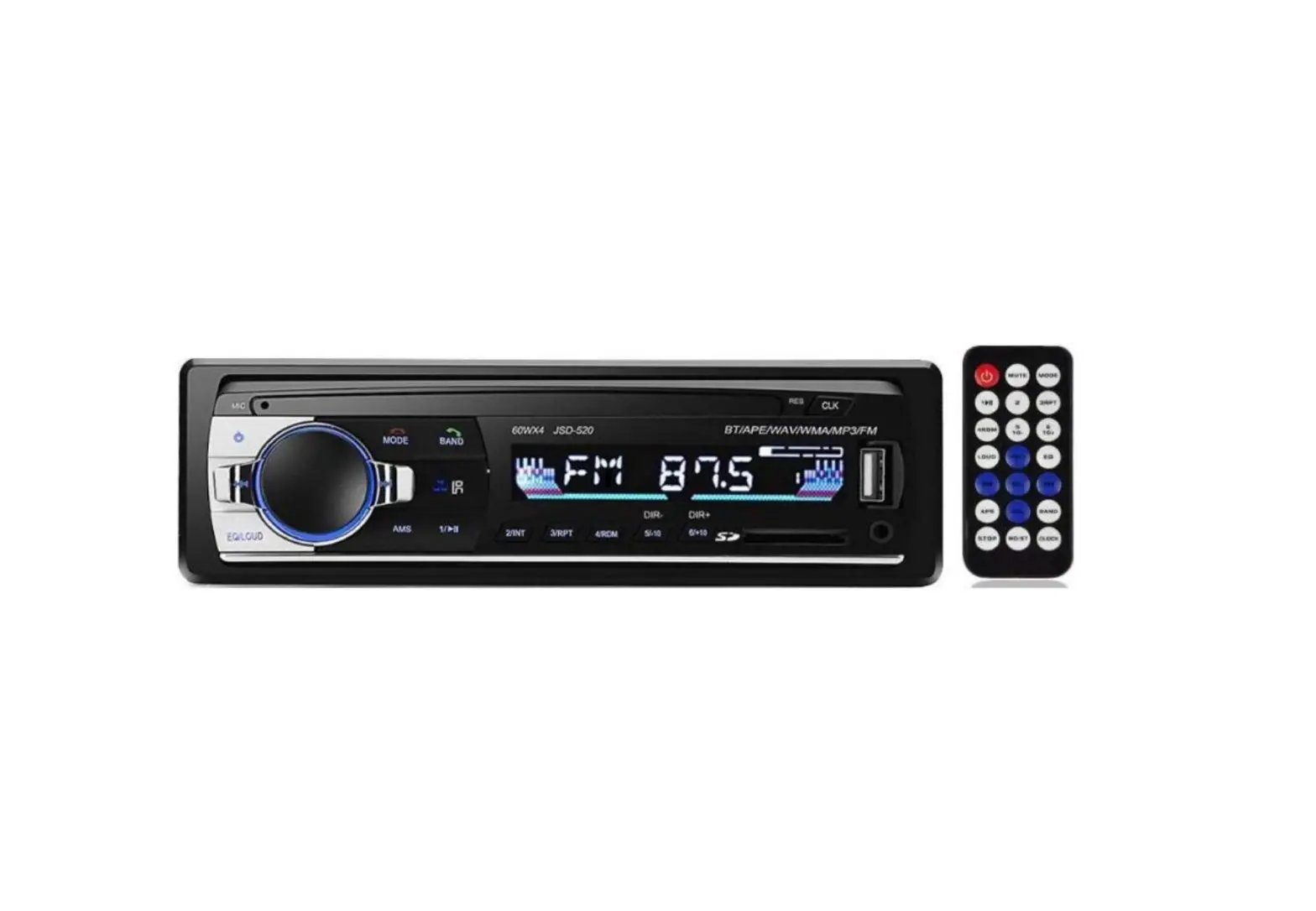
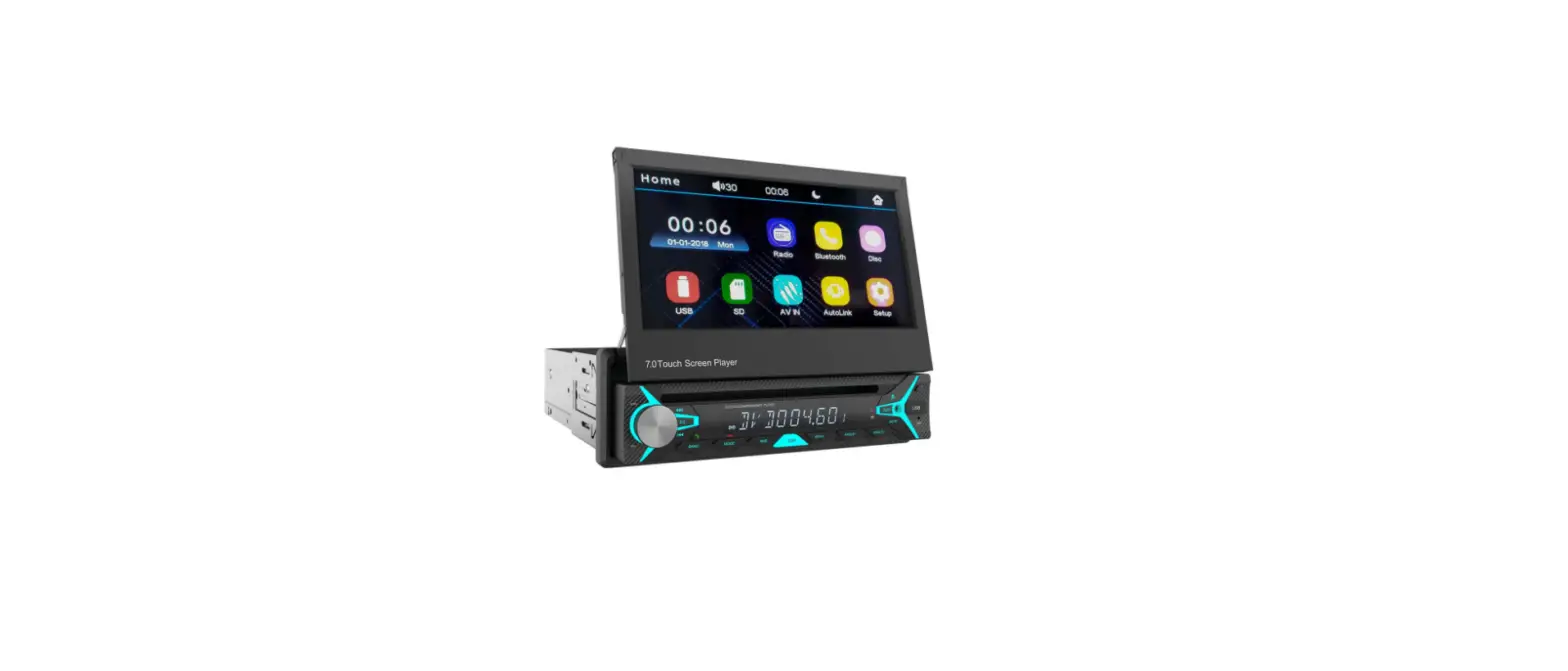
W2DIN Car Audio with Bluetooth Radio
Product Information
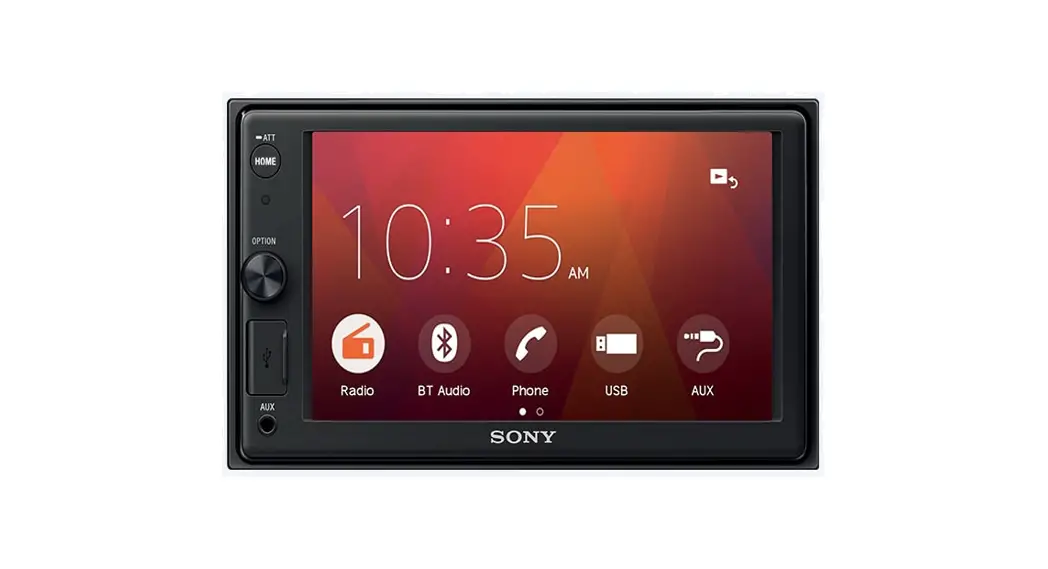
The product is a 2DIN Fascia Wide 2din with a switch control and
touch panel function. It has a power button to turn the audio
ON/OFF, a button to change the illumination for day or night,
brightness adjustment with TUNESCROLL, and push buttons to seek
FM/AM, USB, iPod, and Bluetooth audio. It also has an audio button
and a menu button to display the home menu screen with options for
AM/FM/USB/Bluetooth Audio/AUX/Phone/Connections/Settings. The phone
button displays the Bluetooth_HF_Phone_Menu screen with options for
quick dial, phonebook, call history, dial number, text message,
connections, and volume. The volume can be adjusted by rotating the
volume up/down button. The touch panel function supports single
touch, short tap, and flick up, down, left, and right (4
directions) touch operations.
Product Usage Instructions
- To turn the audio ON/OFF, push the PWR button.
- To change the illumination for day or night, push the D/N
button. - Adjust the brightness level using TUNESCROLL.
- To seek FM/AM, USB, iPod, or Bluetooth audio tracks, push the
corresponding button. - Push the audio button to access the AM/FM/USB/Bluetooth
Audio/AUX/Phone/Connections/Settings options on the home menu
screen. - Push the phone button to access the Bluetooth_HF_Phone_Menu
screen with options for quick dial, phonebook, call history, dial
number, text message, connections, and volume. - Rotate the volume up/down button to adjust the volume
level. - Use single touch, short tap, or flick up, down, left, and right
(4 directions) touch operations on the touch panel function. - To connect to Bluetooth, touch the Connections or
Settings-Connectins option on the home menu screen, then touch Add
New. - Look for the DEVICE My Car and select it to pair with the
device. - Push MENU to complete the BT connection.
1Features and Functions <1> Audio FunctionRadio(AM/FM)/USB-Audio/iPod/AUX-Audio/BT Audio <2> M-CAN device compatible Meter with STSW <3> Rear view camera (Alert/Graphics of vehicle width fixed line/Tailgate Open warning message) <4> Clock System <5> Setting System ( Adjustment of audio, image quality and language) <6> Front display 7inch WVGA display(800×480 pixel) <7> Operation-input function ( Key matrix, Rotary encoder, Touch panel ) <8> Steering Switch <9> Bluetooth Hands Free <10> VoiceAssistant ( VASiri ) mode <11> Illumination control Panel SW lighting ON/OFF, Panel SW illumination brightness adjustment, Display brightness switching
2OPERATIONAL SPECIFICATION 2-1.Switch Control
6.95″ W2DIN Fascia Wide 2din
7
6
4
5
8
3
11
SW No. Function(Button Name) Remaraks
PWR
Push Audio Power ON/OFF
D/N
Push Change Illumination for Day or Night.
Brightness/Brightness: Change Level with TUNESCROLL.
SEEKTRACK|<<
Push FM/AM Seek Down
USB
Track Down
iPod
Track Down
BT-Audio Track Down
SEEKTRACK>>|
Push FM/AM Seek Up
USB
Track Up
iPod
Track Up
BT-Audio Track Up
AUDIO
Push
MENU
Push Display Home_Menu screen.
AM/FM/USB/Bluetooth Audio/AUX/Phone/Connections/Settings
PHONE
Push Display Bluetooth_HF_Phone_Menu screen.
Quick Dial/Phonebook/Call History/Dial Number/Text Message/Connections/Volume
VOL
Rotate Volume Up/Down
page 1
2-2.Touch Panel function
Touch operations supported by the touch panel function are shown below.
Support
Touch Operation
Operation image
detection number
Single Touch
Short Tap
(Short Click)
Flick Up, down, left and right (4 directions) 2-3.Display Menu MENU DISPLAY : Without USB
MENU DISPLAY : With USB
AM Select
FM Select
USBSelect
Bluetooth Audio Select
page 2
AUX Select
Phone Select (Bluetooth not connected)
Phone Select (Bluetooth connected)
Connections Select
Settings Select
Sound Adjust
Volume & Beeps Adjust
Clock Adjust
page 3
2-4.Bluetooth Connect 2-4-1 Touch “Connections” or “Settings-Connectins”.
2-4-2 Touch “Add New”.
page 4
2-4-3 Looking for the DEVICE My Car.
2-4-4 Detect device and Select “My Car” and Select “Pairing” of the DEVICE.
2-4-5 BT Connection Complete
2-4-6 Push MENU