
FORTRESS Power Guardian IoT Gateway
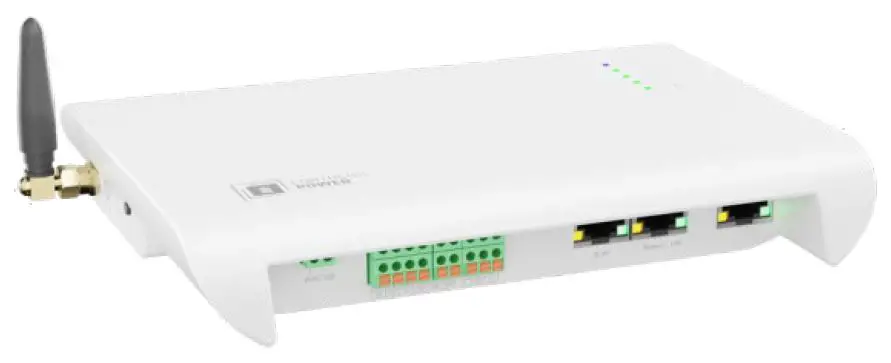
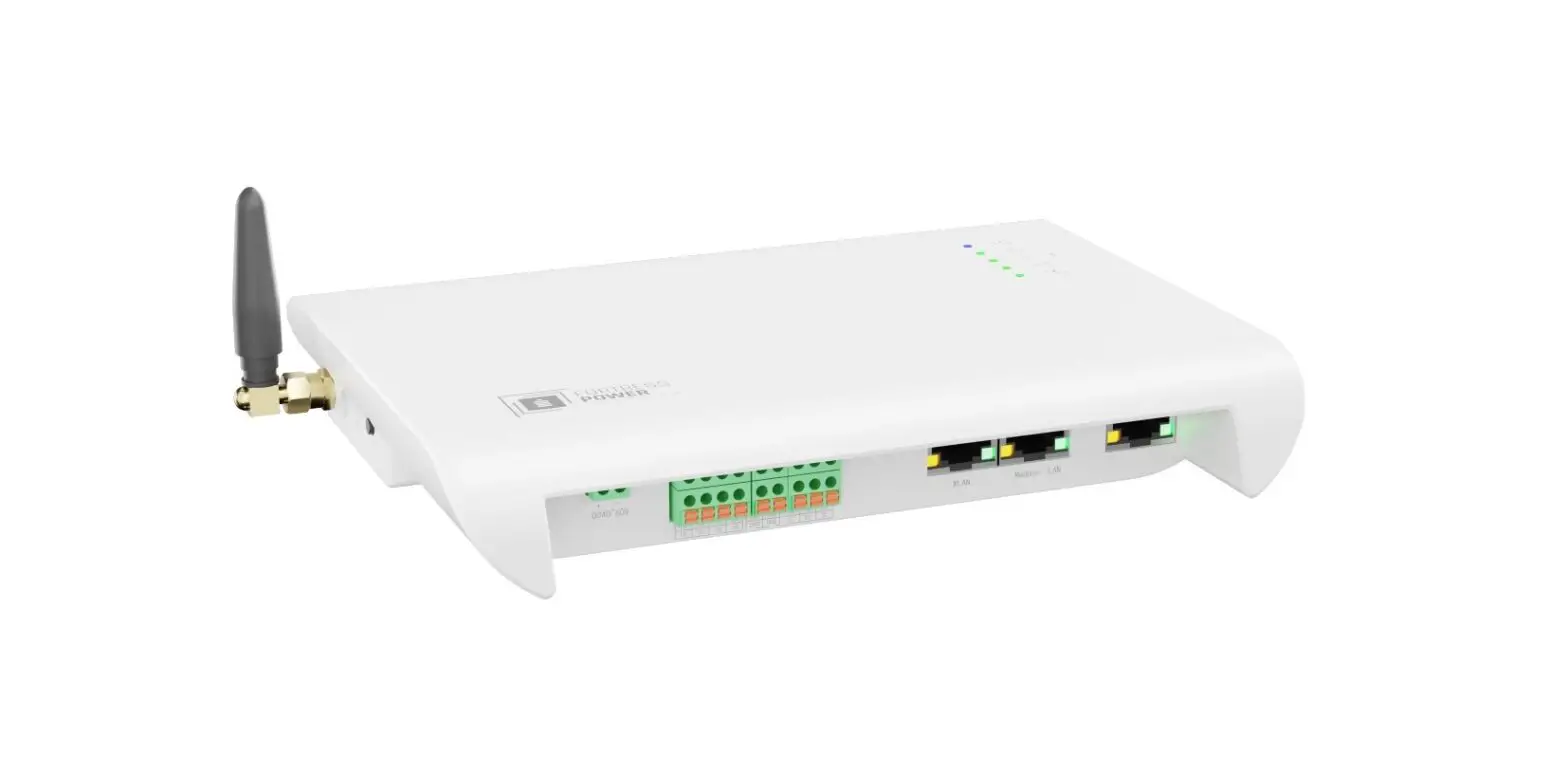
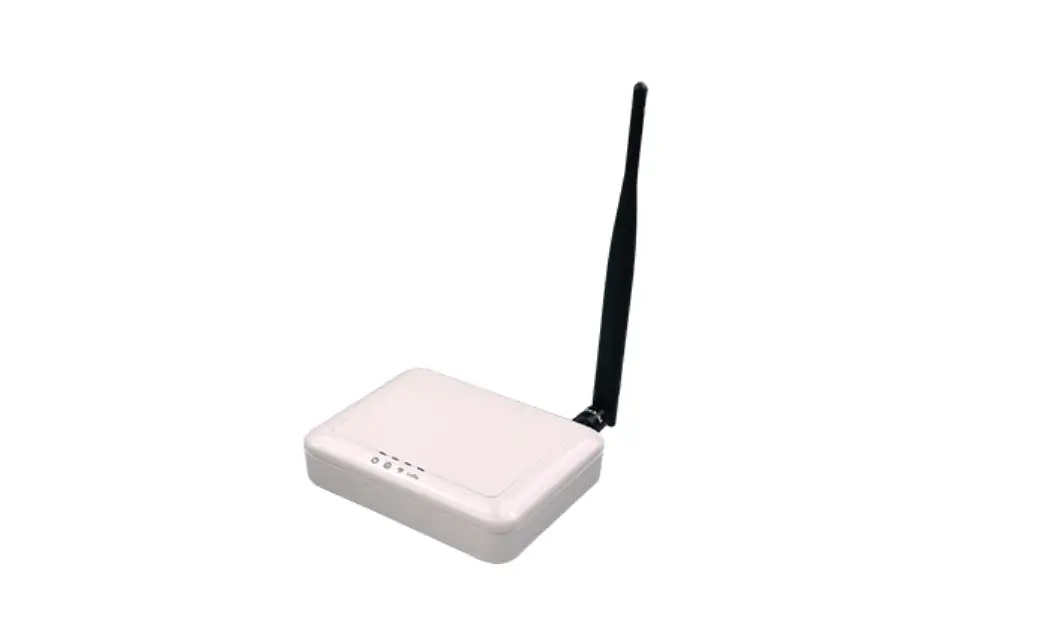
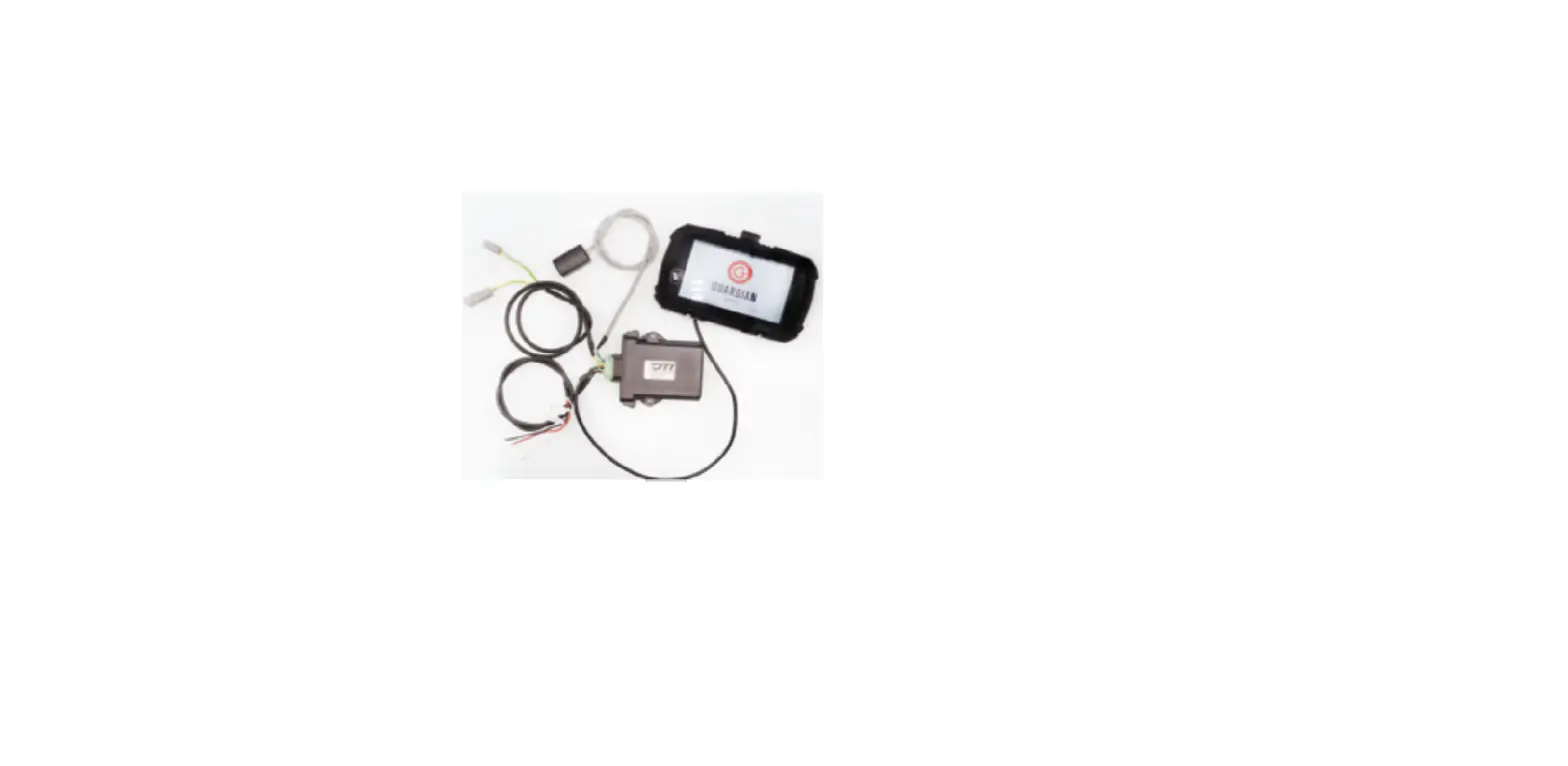
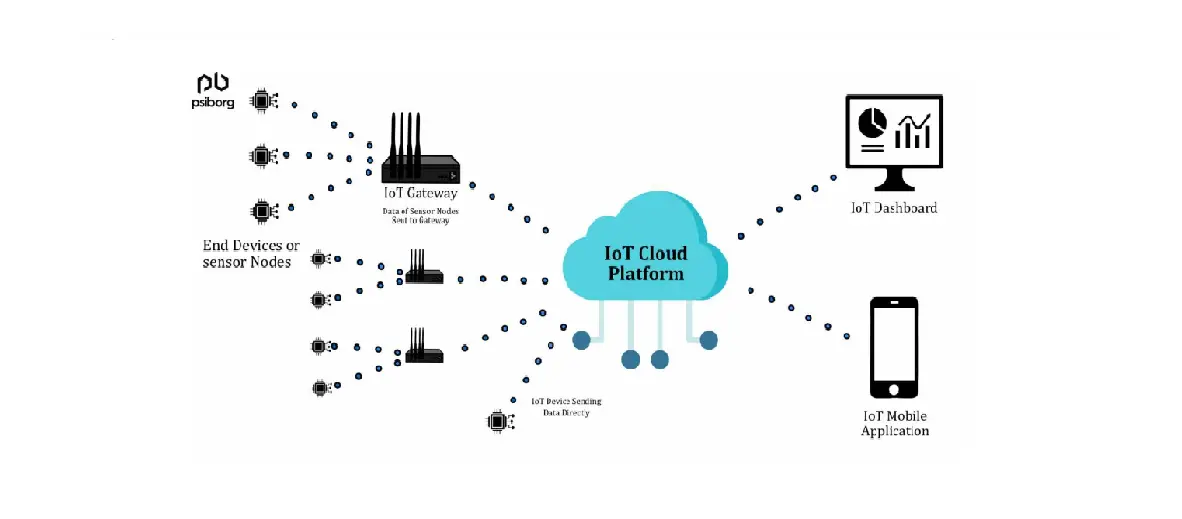
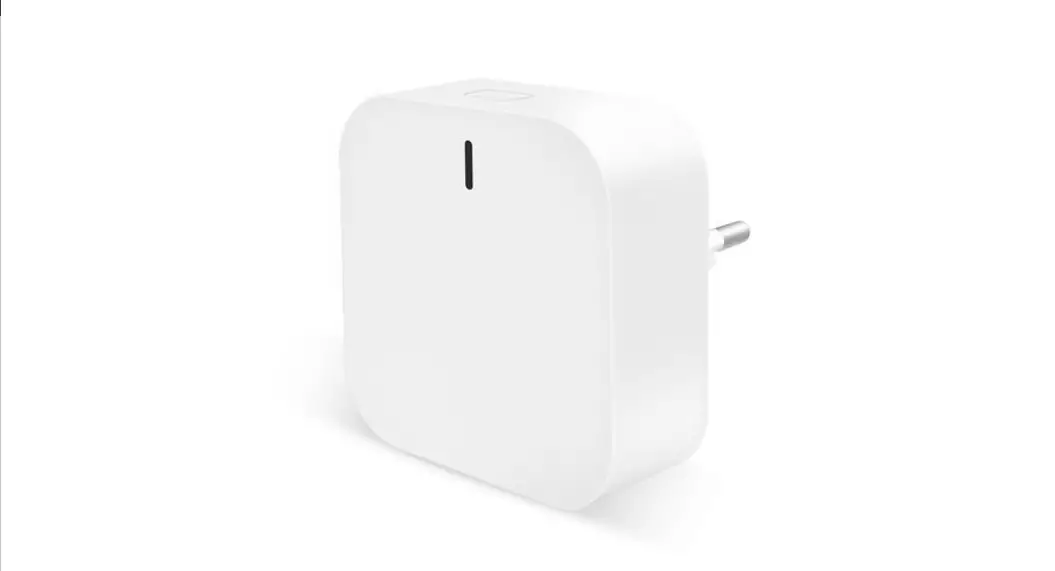
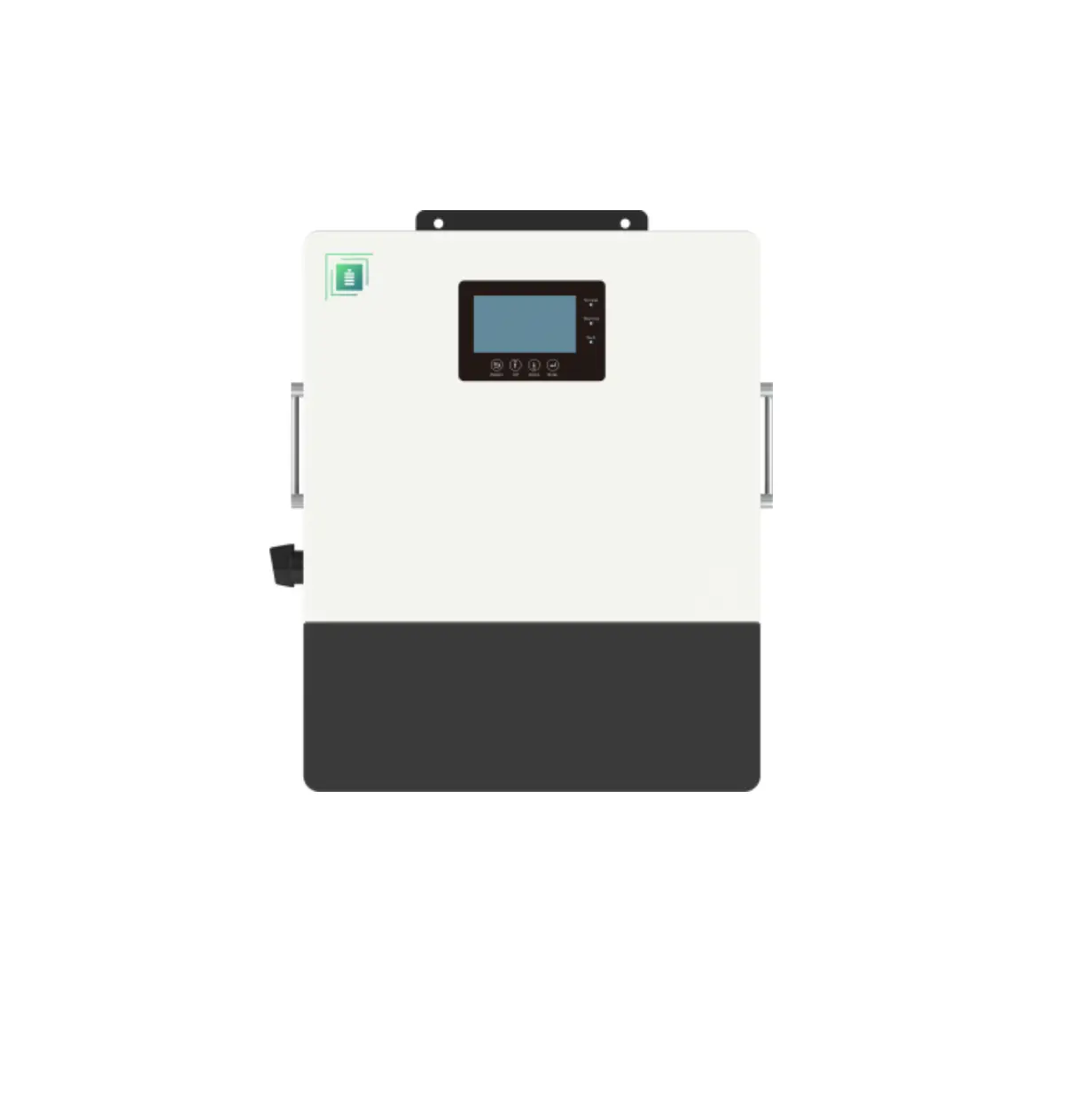
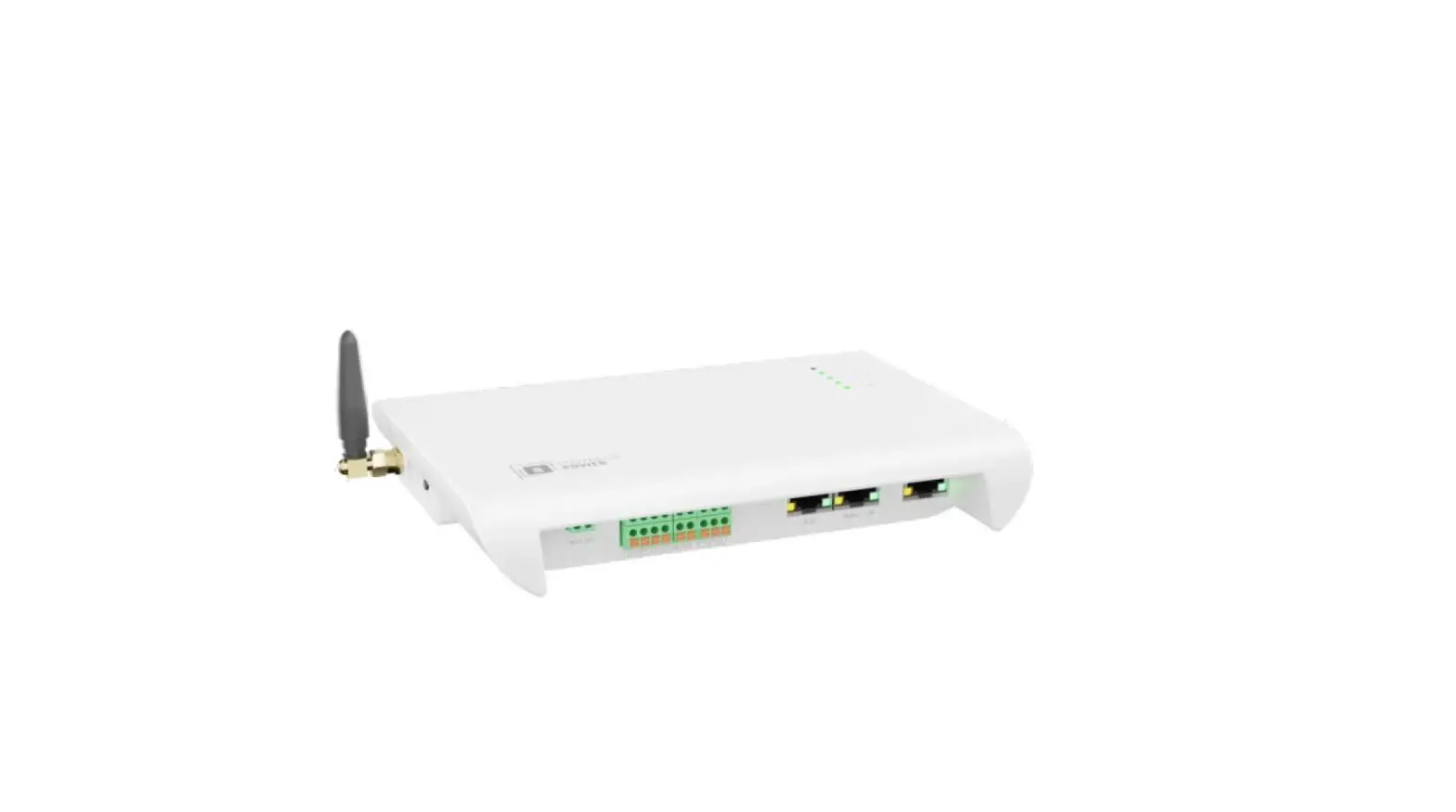
The Guardian hub is a monitoring and controls device for your Fortress eFlex and eVault MAX battery products. It uploads your Fortress batteries’ data to the cloud over Wi-Fi so that you can view key information on your battery system in the Guardian companion app such as charged percentage, time till full charge, voltage, current, and more. The companion app allows for a smoother tech support experience by featuring a chat widget where you can contact support directly. Additionally, the app automatically tracks your Fortress battery warranties once they are connected to the Guardian hub.
All information in this document is subject to copyright and other intellectual property rights of Fortress Power, LLC. and its licensors. This material may not be modified, reproduced or copied, in whole or in part, without the prior written permission of Fortress Power, LLC. and its licensors. Additional information is available upon request. All other trademarks contained in this document are the property of their respective owners and their use herein does not imply sponsorship or endorsement of their products or services. The unauthorized use of any trademark displayed in this document is strictly prohibited.
©2022 Fortress Power LLC. All rights reserved
Required Tools + Materials
- Fortress Power eFlex or eVault MAX battery
- An Android or Apple Phone
- Stable Wi-Fi connection
Material List
120V AC Power supply
120V AC -> DC 24V / 2A adapter (outer diameter 5.5 / inner diameter 2.5 )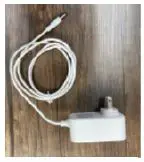
48V DC power cable (from battery)
(included power cable is pre-crimped with ring terminals for battery)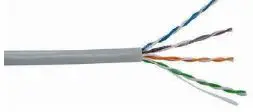
Battery-Guardian Communication Cable
pre-wired for connection to both eFlex and eVault battery units (same cable for both models).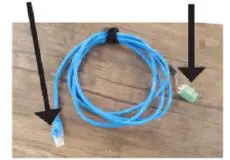
Physical Features
- IP23 Rated
- Two power supply sources
- 120V AC/DC wall socket adapter
- 48V DC input for use with FlexTower or DuraRack racking system
- Connects to home internet via Wifi or hardwired ethernet cable
- CANbus communication to Fortress batteries
- SD card input
- Reset Button
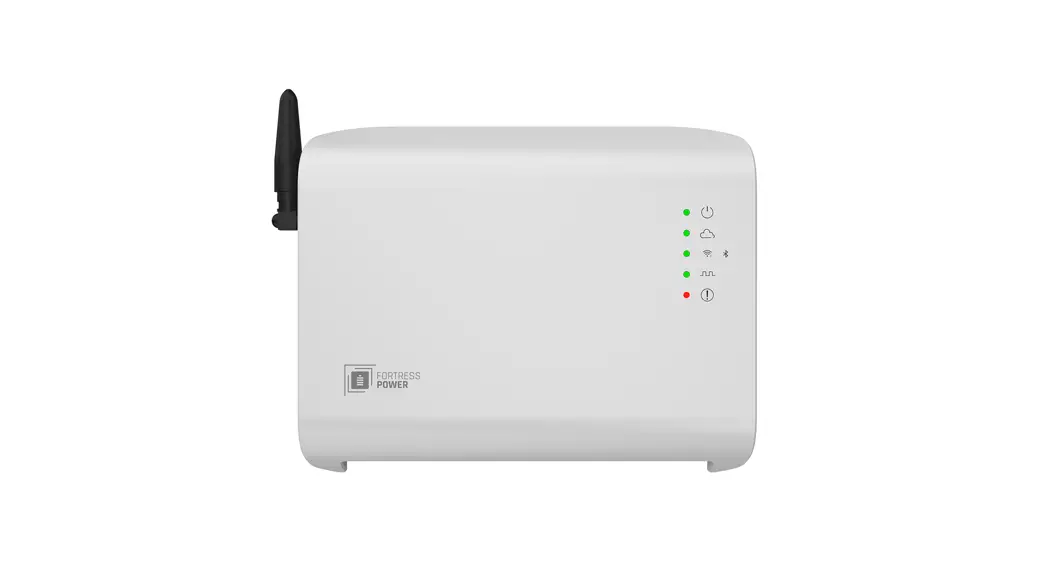
- Status Lights
- Tools and Materials
Download the App
Commission the Fortress Guardian hub using the Fortress Power Guardian App.
Apple:
https://apps.apple.com/us/app/fortress-power-guardian/id1632364415
Google Playstore:
https://play.google.com/store/apps/details?id=com.app.fortresspower
Specifications
Electrical Specifications
| Power Consumption | 5W – 24V@1A power supply. |
| AC/DC Adapter | 120V / 5A 24V DC 5.5mm |
| Supported Communication Types | 1x MODBUS/TCP, 2x MOBUS/RTU, 2xCAN 2.0 |
| Operation Frequency | 2.4Ghz |
| Antennae | SMA standard connector |
| Environment | Indoor or inside a box |
| Local Communication | not yet available / 2023 eta |
Physical Specifications
| Weight (device only) | 0.8 lbs. – 0.4kg |
| Dimensions (device only) (W x H x D) | 7.25 ‘’ x 6 ’’ x 1.25 ‘’ |
| Shipping package dimensions | Not known at this time |
| Shipping package weight | Not known at this time |
| Housing/ | IP23 / |
| Mounting system | Din Rail Mount |
| Status Display LEDs | From top to bottom: power, cloud connection, Bluetooth or Wi-Fi connection, serial communication with battery, error signal |
Resetting the Guardian Hub
The Guardian has a reset button that can be pressed for 5 seconds to restore the Guardian to factory settings. Only use this function if directed by technical support. You can use the included pin to press the button.
Installing the Guardian
The Guardian monitoring hub should be installed near the battery bank. When building a custom communication cable, stay within 50’ of the battery units. If the installation is outdoors, you must install the Guardian inside a plastic junction box. Alternately, the Guardian can be installed inside the Fortress FlexTower or DuraRack racking system. The Guardian is din-rail mountable and includes a din rail which can be mounted to an electrical box or wall.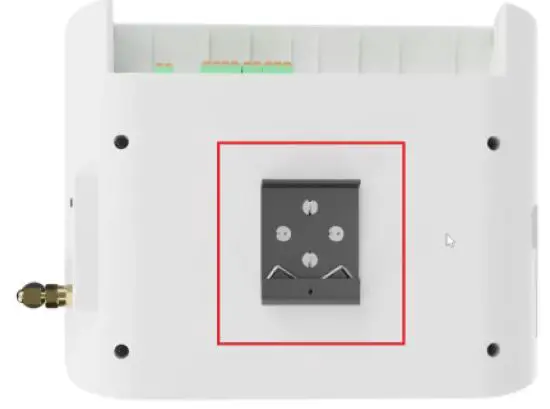
Wiring the hub
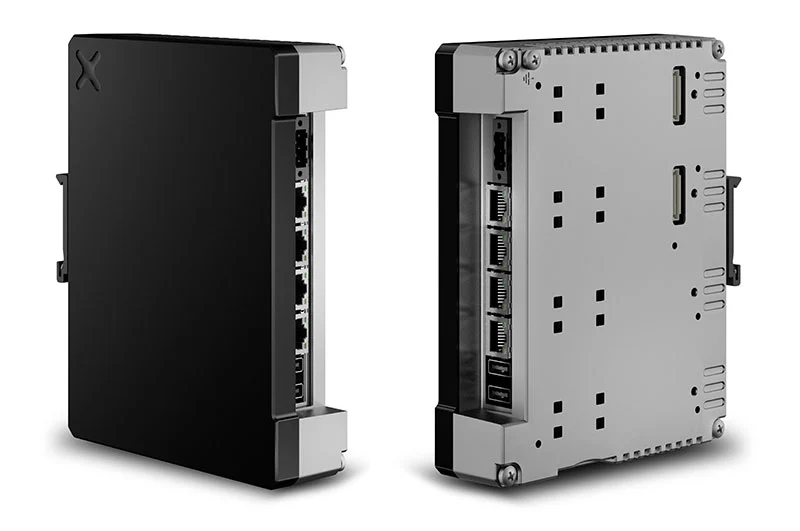
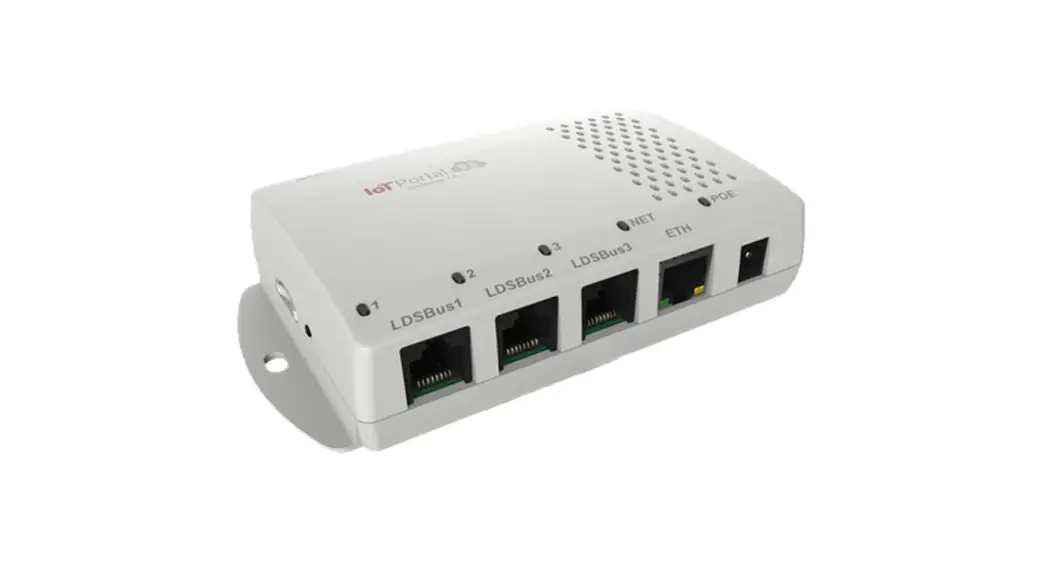
The Guardian contains multiple digital connector points.
| A – 48V DC battery power | Optional. Positive, Negative (Fortress 48V batteries only) |
| B – modbus communication | Not used. 1A, 1G, 2A, 3A (upper) / 2A, 2G, 2B, 3B (lower) |
| C – not used | Not used. 1DI, 2DI (upper) / 1G, 2G (lower) |
| D – battery canbus communication | 2L, 2G, 1L (upper) / 2H, 1G, 1H (lower) grounds not used |
| E – hardwired ethernet | Optional. 100Mb, 1Gb |
| F– Not used. | Reserved for future use |
The Guardian includes a pre-wired communication cable to communicate with both eVault MAX and eFlex battery units.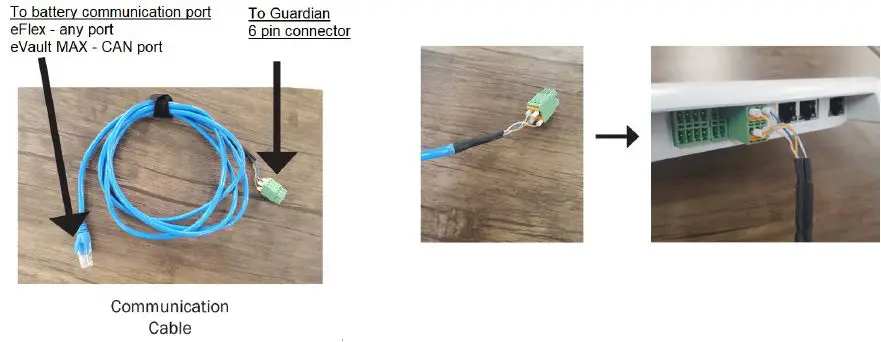
Powering the Guardian
The Guardian includes options for 120V AC power, 48V DC power, or both simultaneously. Using both power supplies simultaneously allows for cell phone – Guardian communication even when the AC or DC power is unavailable. Please note the AC power adapter converts to 24V – Do not connect battery power to the port intended for the AC wall wart. Use the 48V DC power port connector instead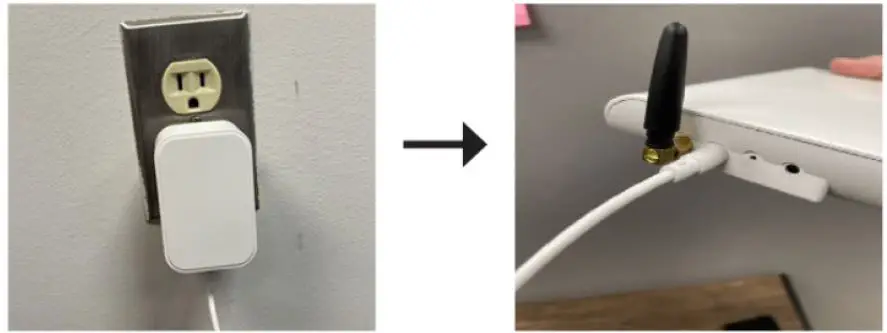
eFlex Specific Instructions
The Guardian connects to the last remaining communication port on the communication circuit. It does not matter which communication port is used. Remove the canbus resistor an install the Guardian communication cable directly onto this port.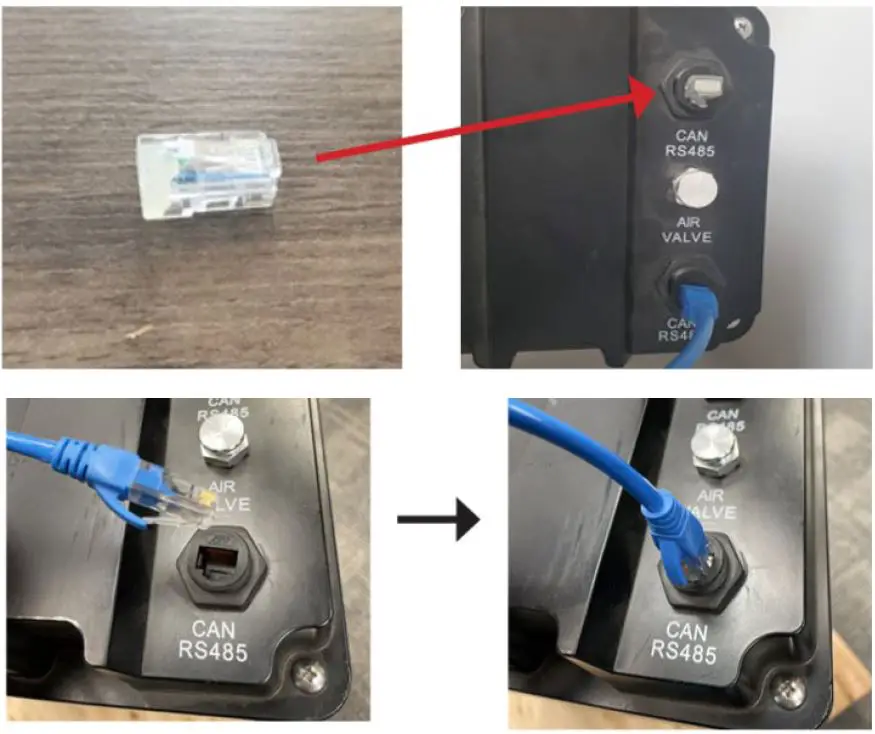
For outdoor installations, you may need to install a female-female ethernet connector to transition to the weatherproof communication cabling, in order to maintain the weatherproof rating of the eFlex battery. This custom cabling is not required for indoor eFlex installations or installations inside the DuraRack or FlexTower.
eVault Specific Instructions
The Guardian connects to the last remaining communication port on the battery-battery communication circuit. It does NOT connect to the eVault canbus port.
Move the canbus resistor toggle switch to the OFF position (the canbus resistor is included inside the Guardian unit). If more than one eVault MAX are installed, only the primary battery unit should have the canbus resistor in the ON position.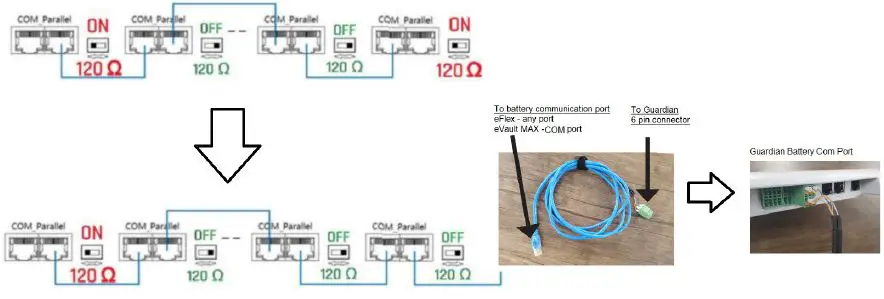
For outdoor installations, you may need to install a female-female ethernet connector to transition to the weatherproof communication cabling, in order to maintain the weatherproof rating of the eFlex battery. This custom cabling is not required for indoor eFlex installations or installations inside the DuraRack or FlexTower.
Commissioning
A cell phone app is used (with Bluetooth) to set up Wi-fi access. Hardwired ethernet may also be used. Please visit the Google Play store or Apple App store and search for the Fortress Guardian App.
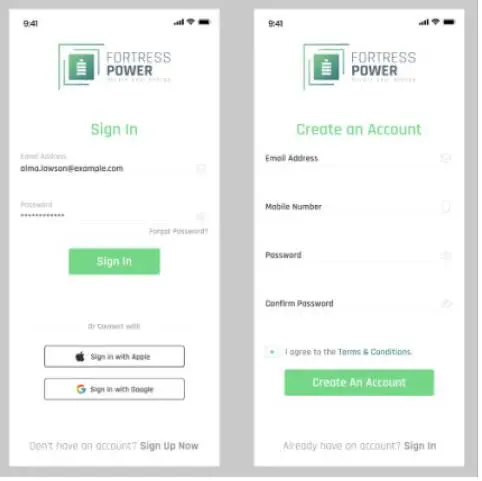
- Login or Signup for the Guardian App by entering new account credentials or authenticating with a provider such as google or apple, and accept terms and conditions:

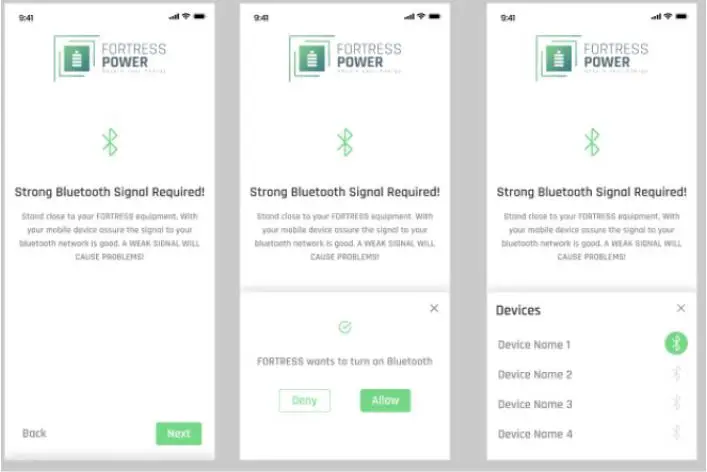
- Connect your phone to the Guardian hub over Bluetooth connection:

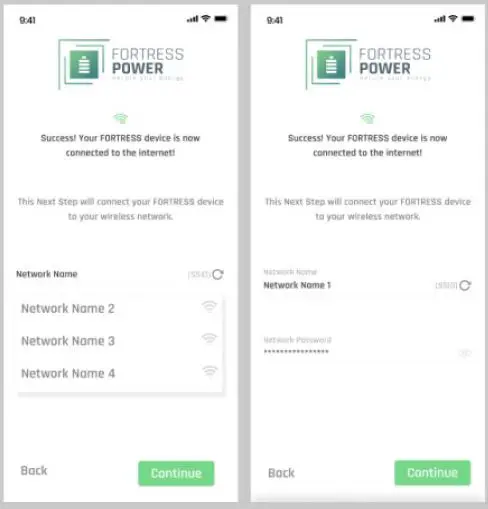
- Connect your Guardian hub to the internet over your home WI-FI:

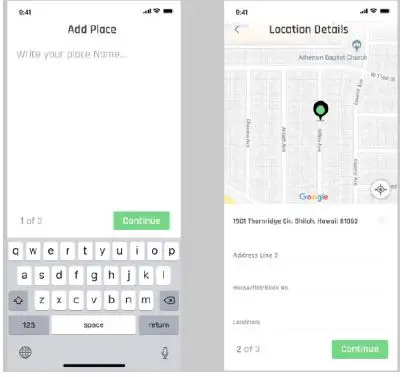
- Name your Fortress system and provide your address

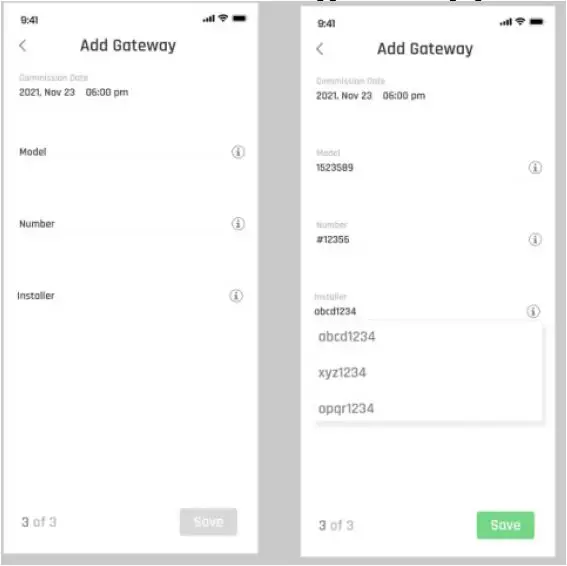
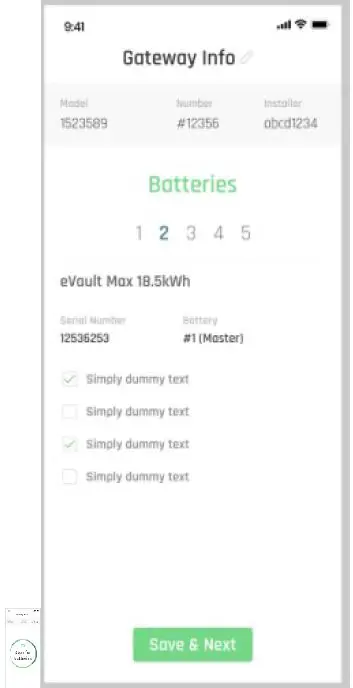
- Configure your Guardian Hub’s information in the app. It should populate automatically:

- Scan for batteries allowing the app to view information on your Fortress battery system’s health from the Guardian hub:

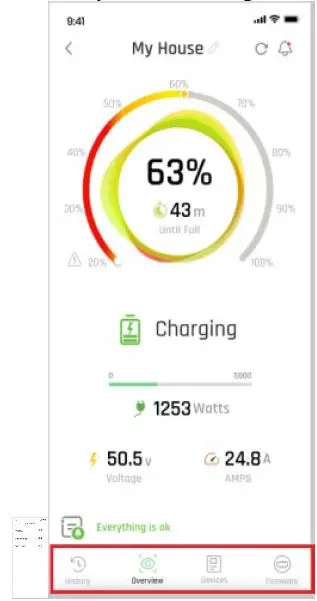
- After submitting your battery information, you should now be able to see your newly created place. If you press on it, you will see a general overview of your battery system

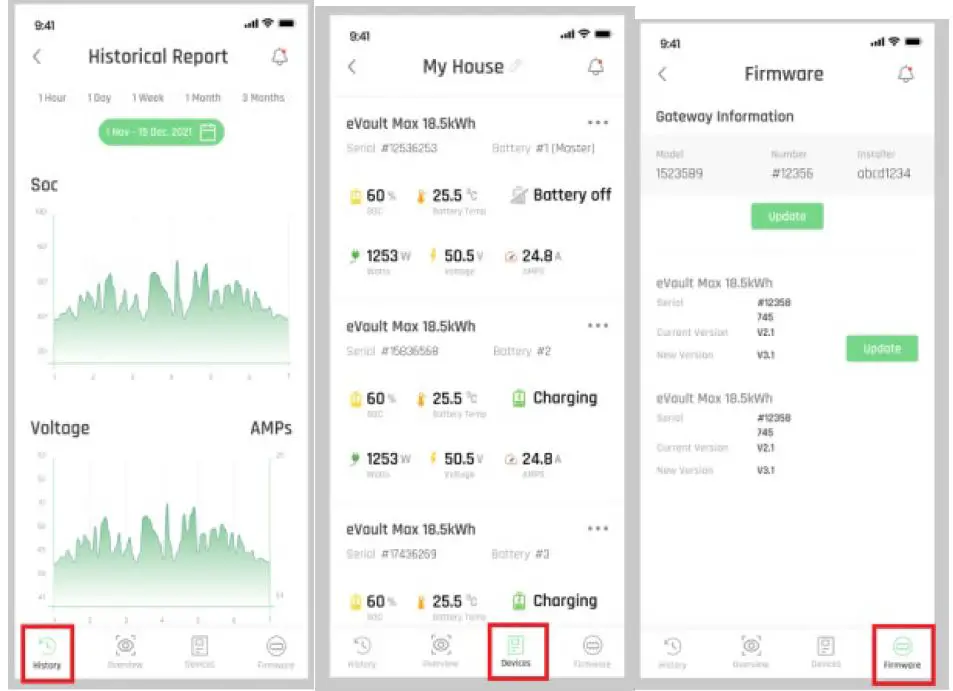
- Press any of the tabs highlighted in red above to get more information on your Fortress battery system:

Changing Guardian Settings
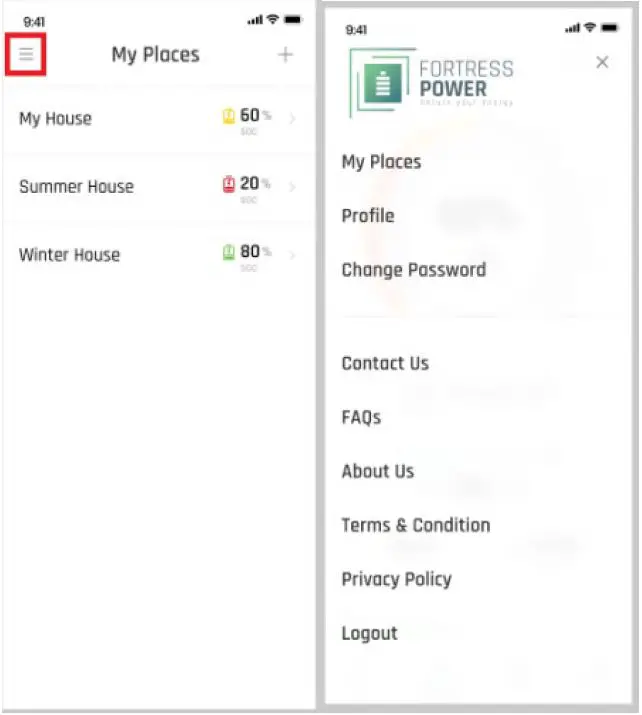
- In the My Place section click on the dashboard icon in the top left to view the companion app dashboard:

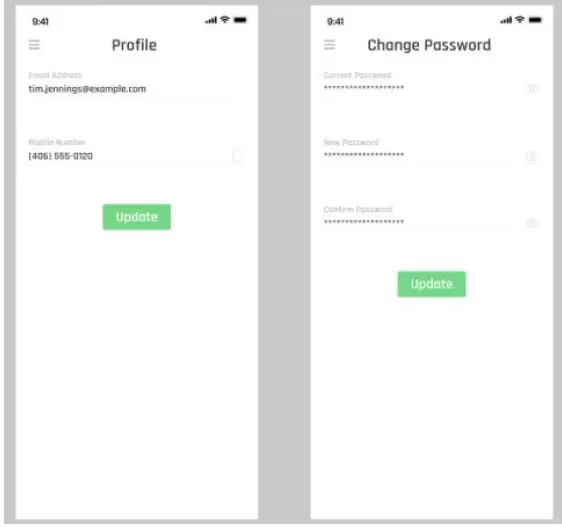
- Press on profile to update email and phone number information and on change password to update account password:

Firmware
Firmware Revision
The initial firmware version of the Guardian is 1.0. Please check https://fortresspower.com/firmware for release information. The Guardian is new hardware, so be prepared to update Guardian firmware at each site visit until ~2024.
Upgrading Firmware
Select the place where you want to update firmware then select firmware option from the icons below. Update the firmware of the Guardian hub by pressing the above update button or of the batteries that need it by pressing the update buttons below: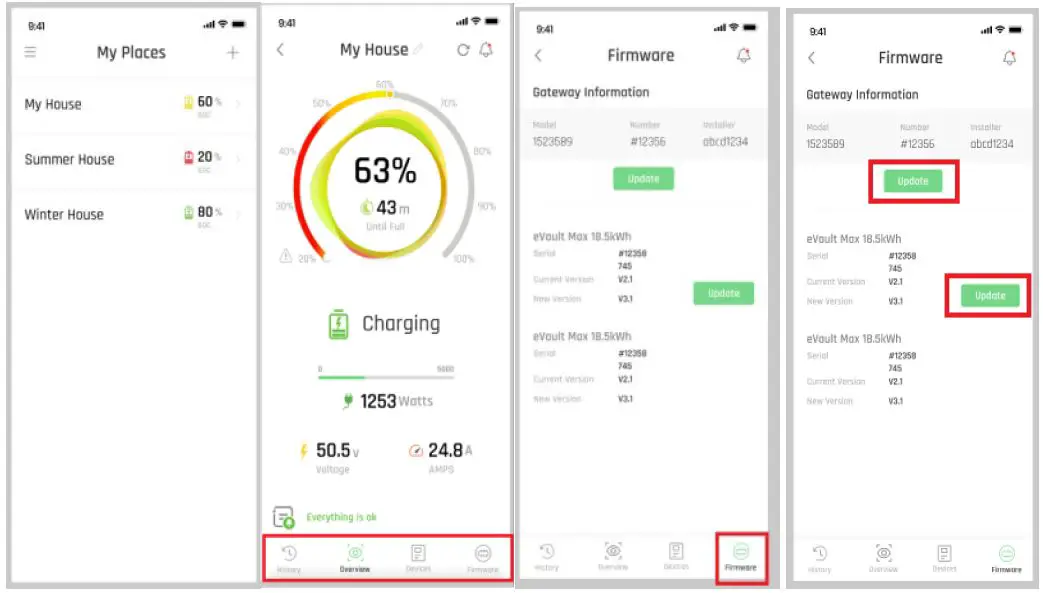
Troubleshooting
Please fill out a support requests at https://support.fortresspower.com
Error Codes and Events
| DISCONNECTED | 1 |
| INITIALIZING | 2 |
| CONNECTED | 3 |
| STANDBY | 4 |
| SOC PROTECTION | 5 |
| SUSPENDING | 6 |
| FAULT | 99 |
ChaSt (charge state)
| OFF | 1 |
| EMPTY | 2 |
| DISCHARGING | 3 |
| CHARGING | 4 |
| FULL | 5 |
| HOLDING | 6 |
| TESTING | 7 |
Evt1 (faults)
| COMMUNICATION_ERROR | 0 |
| OVER_TEMP_ALARM | 1 |
| OVER_TEMP_WARNING | 2 |
| UNDER_TEMP_ALARM | 3 |
| UNDER_TEMP_WARNING | 4 |
| OVER_CHARGE_CURRENT_ALARM | 5 |
| OVER_CHARGE_CURRENT_WARNING | 6 |
| OVER_DISCHARGE_CURRENT_ALARM | 7 |
| OVER_DISCHARGE_CURRENT_WARNING | 8 |
| OVER_VOLT_ALARM | 9 |
| OVER_VOLT_WARNING | 10 |
| UNDER_VOLT_ALARM | 11 |
| UNDER_VOLT_WARNING | 12 |
| UNDER_SOC_MIN_ALARM | 13 |
| UNDER_SOC_MIN_WARNING | 14 |
| OVER_SOC_MAX_ALARM | 15 |
| OVER_SOC_MAX_WARNING | 16 |
| VOLTAGE_IMBALANCE_WARNING | 17 |
| TEMPERATURE_IMBALANCE_ALARM | 18 |
| TEMPERATURE_IMBALANCE_WARNING | 19 |
| CONTACTOR_ERROR | 20 |
| FAN_ERROR | 21 |
| GROUND_FAULT | 22 |
| OPEN_DOOR_ERROR | 23 |
| CURRENT_IMBALANCE_WARNING | 24 |
| OTHER_ALARM | 25 |
| OTHER_WARNING | 26 |
| RESERVED_1 | 27 |
| CONFIGURATION_ALARM | 28 |
| CONFIGURATION_WARNING | 29 |
Alerts

 Firmware - Fortress Power
 support.fortresspower.com