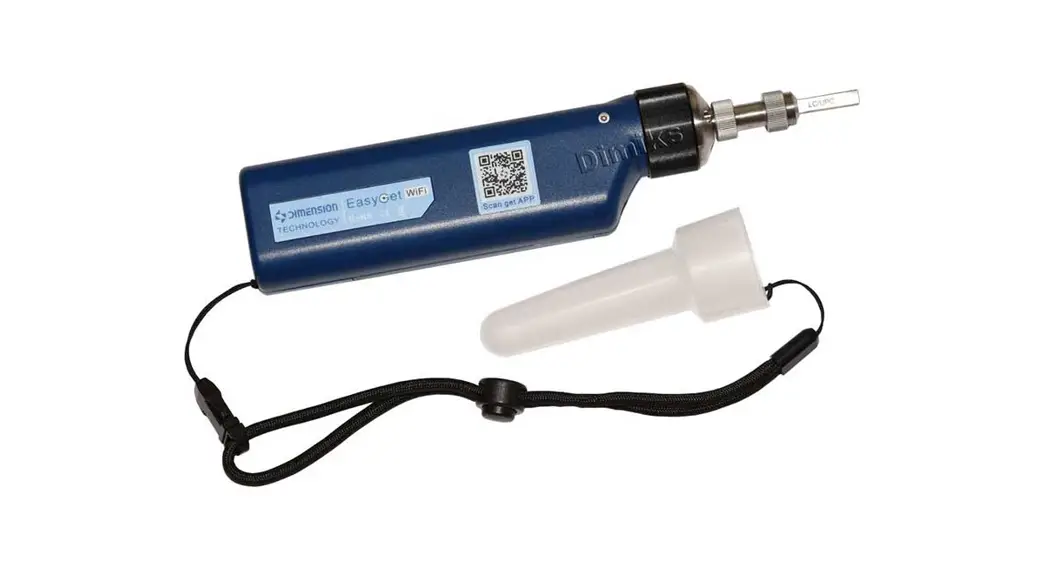
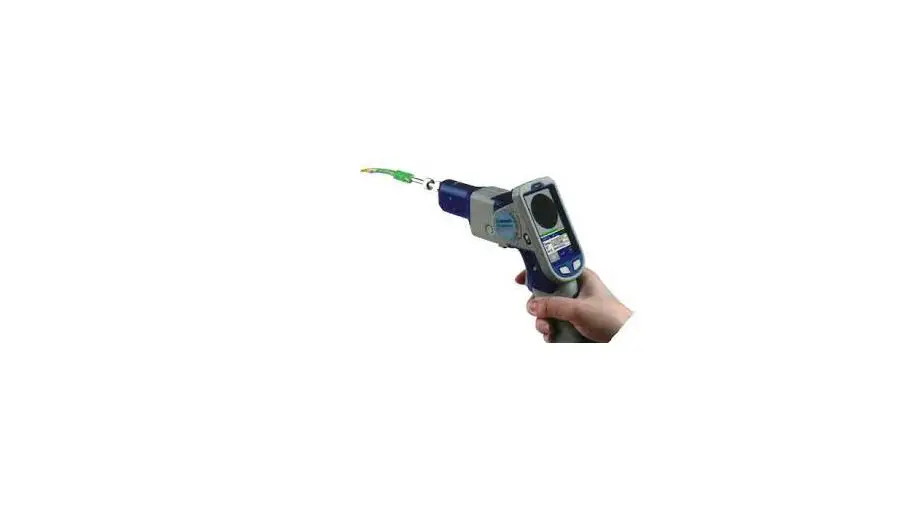
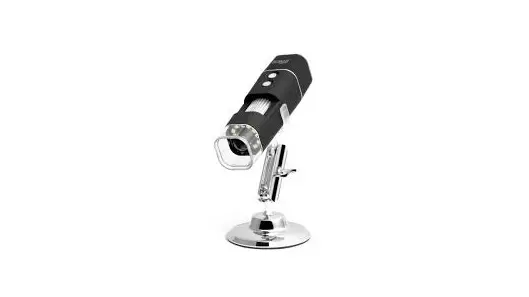
EasyGet WiFi Wireless Fiber Endface Inspection Kit
EASYGETWIFI Handheld Wireless Fiber End Face Inspector
TZXUJ[IZOUT
Thank you for choosing the EASYGETWIFI product. This handheld
wireless fiber end face inspector has high quality and excellent
performance. To make full use of this product, please read this
manual carefully before using. If you have any questions, please
contact us for support.
Symbols
The following symbols are used for important information in this
manual:
- Prompt: Notice and restrictions in the
process. - Attention: Any change of this manual will not
do any notice. Please kindly understand. As far as possible, the
content of this manual is to maintain accuracy. However, if it is
found that there is no clear, erroneous or ambiguous content,
please contact us.
Considerations about the product
Please keep the face clean video microscope free of fat and
pollution. Keep the handheld display clean to prevent the TFT LCD
screen from sharp cuts or being crushed by weight. Put it in a suit
box if not in use for a long time. Please check the device before
use. If you only have a flashing lamp that lights up, please charge
before use.
Warranty Term
We warrant that for a period of one (1) year from the shipping
date, the product purchased by the customer shall be free of
defects in material and workmanship under normal authorized use
consistent with the product instructions.
Warranty Content
In the event that we receive notice during the warranty period
that any part does not conform to its warranty, our sole and
exclusive liability shall be, at its sole option, to either repair
or replace the non-conforming part in accordance with this limited
warranty.
Warranty Exception
No warranty will apply if:
- Device damage caused by wrong operation.
- Unconventional repair or modification.
- The causes of failure outside of the instrument.
- Used in high temperature and humidity, corrosive gas, harsh
conditions such as vibration. - Fires, earthquakes, and other natural disasters as well as
pollution caused by radioactive substances and harmful substances,
and other force majeure such as war, riot, crime. - Consumables and consumable parts.
Profile
This chapter describes the name and function of each part.
Hardware
This chapter describes performance characteristics and the basic
operation of the equipment.
Software
This chapter introduces software installation, features,
interface, and basic operation instructions.
Contact Us
This chapter mainly lists the contact information.
Product Usage Instructions
- Before using the product, read the manual carefully.
- Clean the face clean video microscope and handheld display
before and after use to prevent damage. - If the device has a flashing lamp that lights up, charge it
before use. - Use the product according to the instructions provided to avoid
damage or malfunction. - If any part of the product does not conform to its warranty,
contact us for support within one year from the shipping date.
EASYGETWIFI Handheld Wireless Fiber End Face Inspector
/TZXUJ[IZOUT
Dear customer Thank you for choosing EASYGETWIFI product. This product has high quality and excellent performance. To make full use of this product, please read this manual carefully before using. Whenever you have any questions, please contact us and we are happy to support.
Symbols
The following symbols are used for the important information in this manual.
prompt The notice and restrictions in the process.
Attention
1. Any change of this manual will not do any notice. Please kindly understand. 2. As far as possible, the content of this manual is to maintain accurate. However , If it is found that there is no clear, erroneous or ambiguous content, please contact us.
Considerations about the product
1. Keep the face clean video microscope, no fat, no pollution. 2. Keep the handheld display clean, prevent TFT LCD screen by the sharp cut, or crushed by the weight. 3. Put it in suit box if longtime no use.
4. Please check the device before use, if you only have a lamp flashing that lights please charge before use.
1
EASYGETWIFI Handheld Wireless Fiber End Face Inspector
6XUJ[IZ=GXXGTZ_
Warranty Term
We warrants that for a period of one (1) year from the Shipping Date, the product purchased by customer shall be free of defects in material and workmanship under normal authorized use consistent with the product instructions.
Warranty Content
In the event that we receives notice during the warranty period that any part does not conform to its warranty, our sole and exclusive liability shall be, at its sole option, to either repair or replace the non-conforming part in accordance with this limited warranty.
Warranty Exception
No warranty will apply if 1) Device damage caused by wrong operation; 2) Unconventional repair or modification; 3) The causes of failure outside of the instrument; 4) Used in high temperature and humidity, corrosive gas, harsh conditions such as vibration 5) Fires, earthquakes and other natural disasters as well as the pollution caused by radioactive substances and harmful substances, and when the other force majeure such as war, riot, crime. 6) Consumables and consumable parts.
2
EASYGETWIFI Handheld Wireless Fiber End Face Inspector
9ZX[IZ[XK5L:NOY3GT[GR
1
Profile
This chapter describes the name and function of each part.
Hardware
This chapter describes performance characteristics and the
2
basic
basic operation of the equipment.
operation
Software
This chapter introduces software installation, features,
3
basic
interface and basic operation instructions.
operation
4
Contact us
This chapter mainly list the contact information.
3
EASYGETWIFI Handheld Wireless Fiber End Face Inspector
)54:+4:9
685,/2+ …………………………………………………………………………………………………6
1.1 CHECK THE PACKAGING ………………………………………………………………………….6 1.2 PRODUCT DESCRIPTION …………………………………………………………………………..6
.’8*=’8+(‘9/)56+8’:/54 ………………………………………………………….8
2.1 FEATURES ……………………………………………………………………………………………….8 2.2 PERFORMANCE………………………………………………………………………………………..8
2.3 HARDWARE OPERATION …………………………………………………………………………..9 2.3.1 LED light………………………………………………………………………………………..9 2.3.2 Focusing method …………………………………………………………………………..10 2.3.3 WIFI use method …………………………………………………………………………..10 2.3.4 Measure………………………………………………………………………………………11 2.3.5 Floodlight…………………………………………………………………………………….11 2.3.6 Battery install……………………………………………………………………………….12 2.3.7 Replace the adapter ………………………………………………………………………13
3 SOFTWARE BASIC FUNCTIONS…………………………………………………………..14 3.1 SOFTWARE INSTALLATION AND UPDATE …………………………………………………….14 3.2 SOFTWARE FEATURES ……………………………………………………………………………14 3.3 MOBILE TERMINAL INTERFACE ……………………………………………………………….14 3.3.1 Main interface………………………………………………………………………………14 3.3.2 View images…………………………………………………………………………………16 3.3.3 View data…………………………………………………………………………………….16 3.3.4 View report ………………………………………………………………………………….17 3.3.5 Brightness Settings ………………………………………………………………………..18
4
EASYGETWIFI Handheld Wireless Fiber End Face Inspector
3.3.6 Reset Brightness……………………………………………………………………………18 3.3.6 General settings ……………………………………………………………………………19 3.3.7 About us………………………………………………………………………………………19 3.4.1 WIFI connection ……………………………………………………………………………20 3.4.2 WIFI disconnect…………………………………………………………………………….21 3.4.3 Measure………………………………………………………………………………………21 3.4.4 View zoom …………………………………………………………………………………..22 3.4.5 Screenshot sound ………………………………………………………………………….22 3.4.6 Delete data, report file …………………………………………………………………..22 3.4.7 Share data, report file…………………………………………………………………….23
5
EASYGETWIFI Handheld Wireless Fiber End Face Inspector
6XULORK
1.1 Check the packaging
Check whether include the following parts. We very carefully delivered of each package, such as found missing, Please contact our after-sales staff. According to the packing list of the products, please check whether all items contained, if there are any missing items, please according to provide the way to contact us.
1.2 Product description
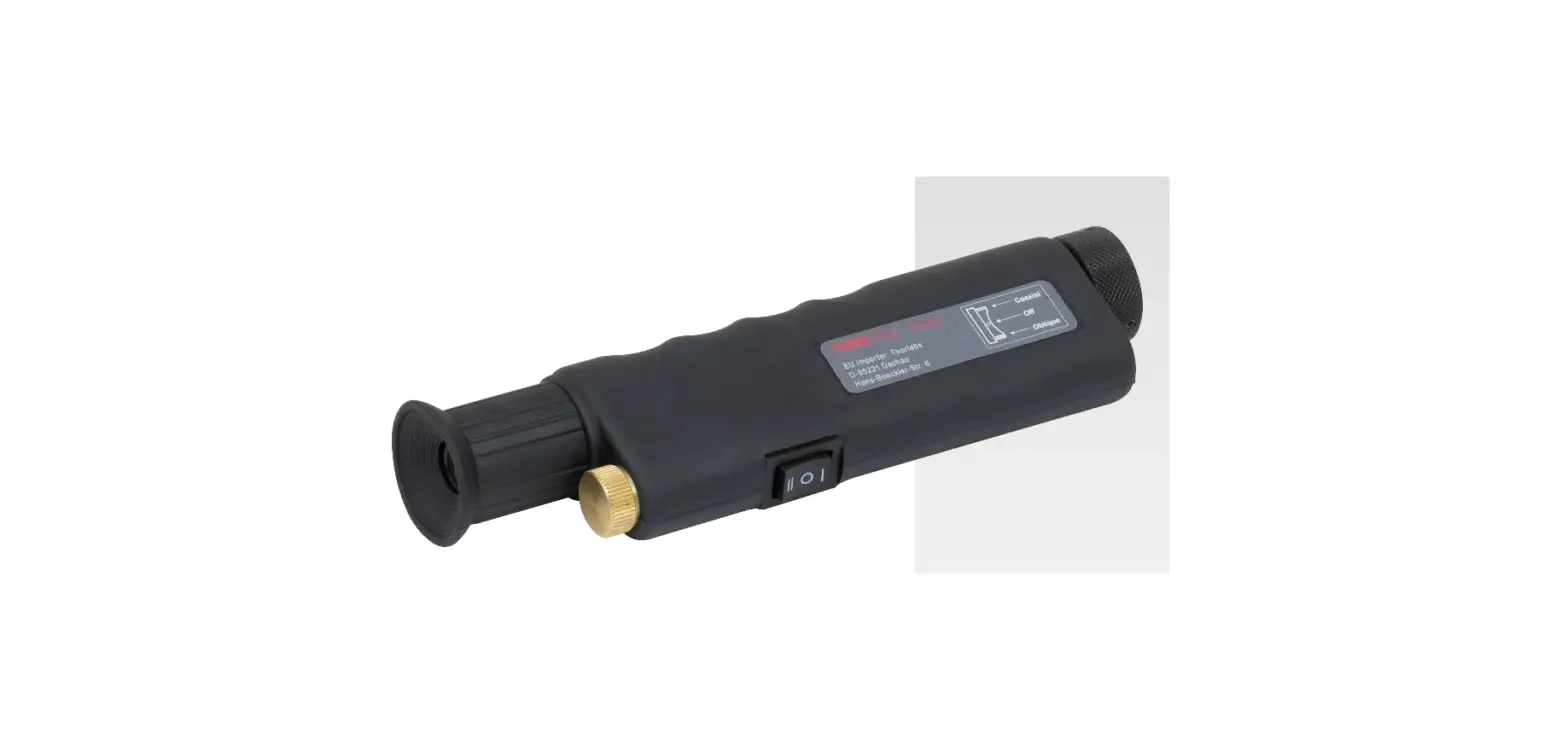
Figure 1- 1 Product description
Adapter interface: connect different connector. Focus Ring: Regulating equipment focus clarity.
6
EASYGETWIFI Handheld Wireless Fiber End Face Inspector Floodlight LED: Conducive to the operation of various environments. QR code: Scan get app. Label: Indicates important information about the product. Screenshot button: Trigger camera function in WIFI mode. Battery cover: Used to replace the battery. S/N: The number corresponds to the device. Light switch: Used for control lighting. WiFi LED light: Displays the WiFi state. Battery LED light: Displays the battery power and the storage status during the charging process. Power: Control device power switch. Power LED light: Displays the electrical state of the device. USB interfaceThe battery can be charged using the supplied USB cable and the adapter. WIFI switchEnable or close the WIFI module. Label
7
EASYGETWIFI Handheld Wireless Fiber End Face Inspector
.GXJ]GXKHGYOIUVKXGZOUT
2.1 Features
1. Varies of adapters meet different requirements on inspect male fiber connector female fiber connector, such as FC SC ST E2000 LCMU and TOSA ROSA fiber end-face.
2. EasyGetWiFi has high quality optical component and high resolution CCD sensor. 3. Support wireless WiFi and USB two connections. 4. Equipped with a dedicated rechargeable battery, a charge can work continuously for 5 hours. 5. User-friendly design, the use of lighting in the dark when the use of more convenient light; the use of protective cover in the use of transport process, the equipment interface to protect and prevent dust fall. 6. The fuselage is equipped with a quick screenshot button function, you can always record the situation of the fiber end-face by the image and stored in your smart device.
2.2 Performance
parameter
Optical magnification Video signal format
Visual range Focus Mode Power consumption working temperature Storage Temperature Communication interface Software compatible power supply mode Power Adapter Charging time Usage time
Weight
performance
10X MJPEG 512UM*384 Manual 2.0W -10~+50 -20~+50 WiFi802.11 / USB2.0 Android 4.2 and above, iOS 9.3 and above lithium battery DC 5V/2A
2.5h 5h 188g
8
EASYGETWIFI Handheld Wireless Fiber End Face Inspector
2.3 Hardware operation
2.3.1 LED light
Figure 2- 1 LED light
Battery LED light 3 lights flashing
3 lights are always bright Low one light flashing
3 lights off 3 lights at the same time flash
status USB connection, charging USB connection, fully charged Power on, suggesting that the battery is low, need to
charge Power off, needs to be activated by connecting the USB
Battery connection is abnormal
WiFi LED light Green light off Green light flashes Green light is always on
status Switch off Is opening Open to complete, intelligent devices can be properly connected
Power LED light Blue light off Blue light on
status Power off Power on
9
EASYGETWIFI Handheld Wireless Fiber End Face Inspector 2.3.2 Focusing method As shown in the direction of the EasyGetWiFi device, rotate the focus ring clockwise and the connector is away from the fuselage direction; Turn the focal ring counterclockwise and the connector moves in the direction of the fuselage.
Figure 2- 2
2.3.3 WIFI use method As shown in figure, the WiFi switch is moved to the device WiFi icon indicating direction and the WiFi module is opened. When the WiFi indicates that the green light is always on, the WiFi name of the device can be connected with the mobile terminal device, which shows that the connection is successful and the software can be used normally. Note: WiFi name is 12345678.
Figure 2- 3
10
EASYGETWIFI Handheld Wireless Fiber End Face Inspector
2.3.4 Measure The device measuring button will only be used when the device is enabled for WiFi and connected to the mobile device. In USB transmission mode, the measuring button is invalid. When the WiFi module is enabled, the mobile terminal device connects to the WiFi name of the device, enters the software, and press the device measuring button, The software will measure and analyze the current end face. This feature is consistent with the mobile terminal software interface measuring button.
2.3.5 Floodlight
Figure 2- 4
Figure 2- 5
Turn on the light switch as shown in the picture, for lighting when the light is dark.
11
EASYGETWIFI Handheld Wireless Fiber End Face Inspector 2.3.6 Battery install
Figure 2- 6
Installation method: 1. On the battery cover, use a special screwdriver to loosen the screw to remove the battery cover. 2. In the direction of the figure 2-6 shown, insert the battery connector into the internal connector. 3. The battery tilted a certain angle into the battery slot, not directly into the horizontal level. 4. As figure 2-7, install the battery cover, lock the screws. Install complete:
Figure 2- 7
12
EASYGETWIFI Handheld Wireless Fiber End Face Inspector
NOTE: 1. After removing the battery for the first time, please activate the device. 2. Use a power supply to charge during the shutdown state of the device, and it will take about 2.5 hours to charge. 3. When the low light of the power indicator is flashing, the equipment needs to be charged, otherwise, the equipment will be automatically cut off after a certain time. In order not to affect the performance of the equipment and normal use, please charge in time. 4. In the charging process, the power indicator will be in sequence: the three indicators will blink in sequence. The low post is bright, the middle and the high are flashing. The low and middle post is bright, the high are flashing. The three lights are always bright and the battery is full.
2.3.7 Replace the adapter
Figure 2- 8
Replace the adapter: 1. Loosen the lock nut of the adapter. 2. Remove the adapter. 3. Insert a new adapter. 4. Groove alignment. 5. Re-tighten the lock nut
13
EASYGETWIFI Handheld Wireless Fiber End Face Inspector
3 Software basic functions
3.1 Software installation and update
Mobile device software installation, by scanning the QR code, directly in the application platform to download and follow the prompts to install.
3.2 Software features
1. Software supports Windows, android, IOS 2. The software supports transmitting the video image from the WiFi wireless connection. 3. Software can adapt to various resolutions and adjust layout size. 4. Equipment automatic search connection: need to insert the USB interface of EasyGetWiFi to computer can automatically find the corresponding detector. 5. Software supports various application platform online download updates. 6. The software supports image zooming down, horizontal and vertical display mode switching.
3.3 Mobile terminal interface
3.3.1 Main interface
Click on the mobile terminal device desktop software shortcut software main interface.
, Enter the
14
Set menu button ID
EASYGETWIFI Handheld Wireless Fiber End Face Inspector
Test Task ID increase Scan code
Video images
Figure 3- 1 Main interface
Measuring button
When using the device measuring button or the software measuring button to take the result, the main interface shows the zoom diagram, as shown in the figure below.
Figure 3- 2
15
EASYGETWIFI Handheld Wireless Fiber End Face Inspector 3.3.2 View images As shown in the figure, click “view picture” to enter the list of images, and the list shows the image information including: picture name, time of shooting, picture size. Pictures can be deleted and shared.
Figure 3- 3
3.3.3 View data As shown in the figure, click aredw picture” to enter the list of images, and the list shows the image inforce. The low post is bright, the mioff after a certain time. In Open the data file and share the function in the upper right corner of the file to share the data file.
16
EASYGETWIFI Handheld Wireless Fiber End Face Inspector
Figure 3- 4
3.3.4 View report As shown in the figure, click “View report” to enter the report file list, click the file name to swipe left to delete the file, and click the file name to open the data file. Open the report file and share the function in the upper right corner of the file to share the report file.
Figure 3- 5
17
EASYGETWIFI Handheld Wireless Fiber End Face Inspector 3.3.5 Brightness Settings As shown in figure, click “Brightness Settings”, the video interface display progress bar of brightness.
Figure 3- 6
3.3.6 Reset Brightness As shown in figure, click “Brightness Settings”, the video interface display the default brightness.
Figure 3- 7
18
EASYGETWIFI Handheld Wireless Fiber End Face Inspector 3.3.6 General settings
Figure 3- 8
As shown in the figure, click “General Settings” to enter the normal Settings interface. The interface includes the setting: Sound of captureclose by default; File name, default File, customizable; Save data, default on; Save report, default on; Company, default Dimension, will be saved in the report; The operator, the default Operator, will be saved in the report. 3.3.7 About us Click “About us” to enter into our interface, the interface includes: the company LOGO, software name (EasyGetWifi), software version name, the company’s website and other information.
19
EASYGETWIFI Handheld Wireless Fiber End Face Inspector
Figure 3- 9
3.4 Mobile terminal software operation instructions
3.4.1 WIFI connection
Figure 3- 10
The name of the WIFI connection is the device EasyGet_S/N, and the default password is 12345678. The mobile terminal can connect to the EasyGetWiFi device normally when the WIFI switch is switched on and the WIFI indicator is green. When the WIFI connection of the mobile terminal is successful, the software can be used and operated on other auxiliary
20
functions.
EASYGETWIFI Handheld Wireless Fiber End Face Inspector
3.4.2 WIFI disconnect
When the WIFI connection is disconnected, enter the software, and the main interface indicates “Wi-Fi connect failed!”, and the software main interface has WIFI convenient setting button “Wi-Fi setting “.
WIFI disconnects, the software can view the relevant information, software related settings cannot operation, set up at this time for the operation, such as clicking the “Taking pictures button”, the software will prompt “The device is not connected. Please check the connection status” as shown in figure.
Figure 3- 11
3.4.3 Measure
The software interface measurement button and the body measurement button can trigger the measurement. The comparison before and after measurement is as follows:
Figure 3- 12
21
EASYGETWIFI Handheld Wireless Fiber End Face Inspector 3.4.4 View zoom View supports two-touch mode, the image zoom display. Enlarge and Shrink down as shown below:
Figure 3- 13
3.4.5 Screenshot sound Slide the left side of the screen, enter the side of the slide, click “General Settings”, open the “Sound of capture”, there is a voice prompt when take pictures screenshots.
Figure 3- 14
3.4.6 Delete data, report file Long press the data, report file to the left to delete.
22
EASYGETWIFI Handheld Wireless Fiber End Face Inspector
Figure 3- 15
3.4.7 Share data, report file Share the data in the top right of the report file for sharing.
Figure 3- 16
23
EASYGETWIFI Handheld Wireless Fiber End Face Inspector
)UTZGIZ[Y
Machine troubleshooting, maintenance, equipment consulting, troubleshooting, please contact Dimension Technology Co., Ltd. Tel: +86-755-26480850 / 26471436 / 26471446 Fax: +86-755-26480895-0 E-mail: [email protected] URL: www.weidujs.com Address: 3F,Minlida industrial park , Honghualing industrial zone,Liuxian Blvd, Xili town,Nanshan district,Shenzhen,China.
East China Office
Telephone: +86 21-36532952 Fax: +86 21-36532952 E-mail: [email protected] Address:Room 1809, Taopu Road No. 306, Putuo District, Shanghai City.
South West China Office
Tel: +86 28-83198070 Fax: +86-755-26480895-0 E-mail:[email protected] Add: 4F, Derun science and Technology Park,No.2 Xingsheng West Road, Jinniu Distrist, Chengdu, china.
24
 深圳市维度科技股份有限公司