
Intelligent Visual
WIFI Industrial Endoscope
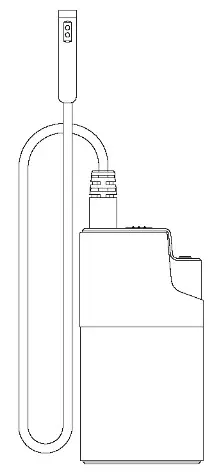
W500
Product Description
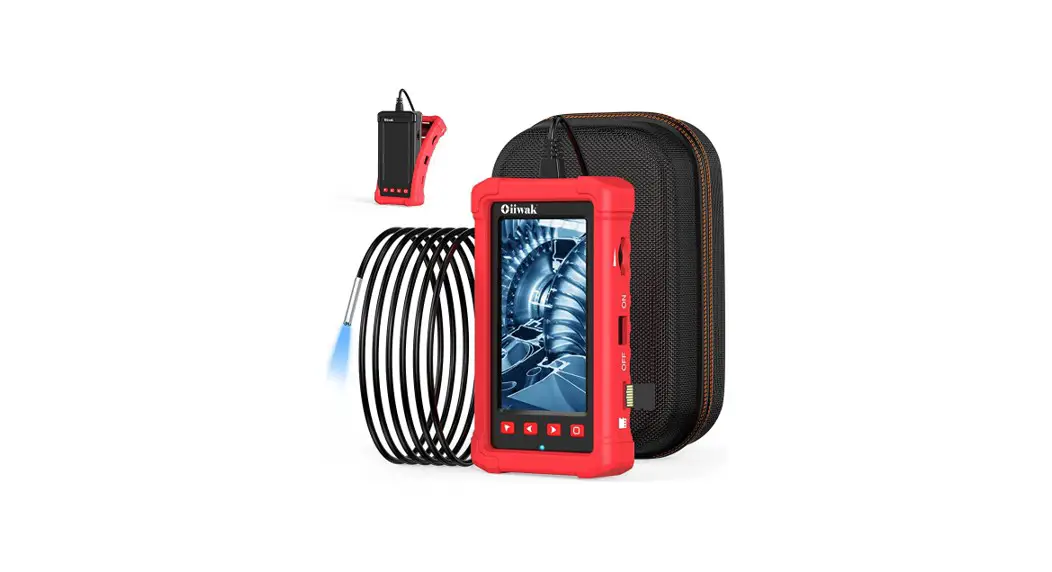
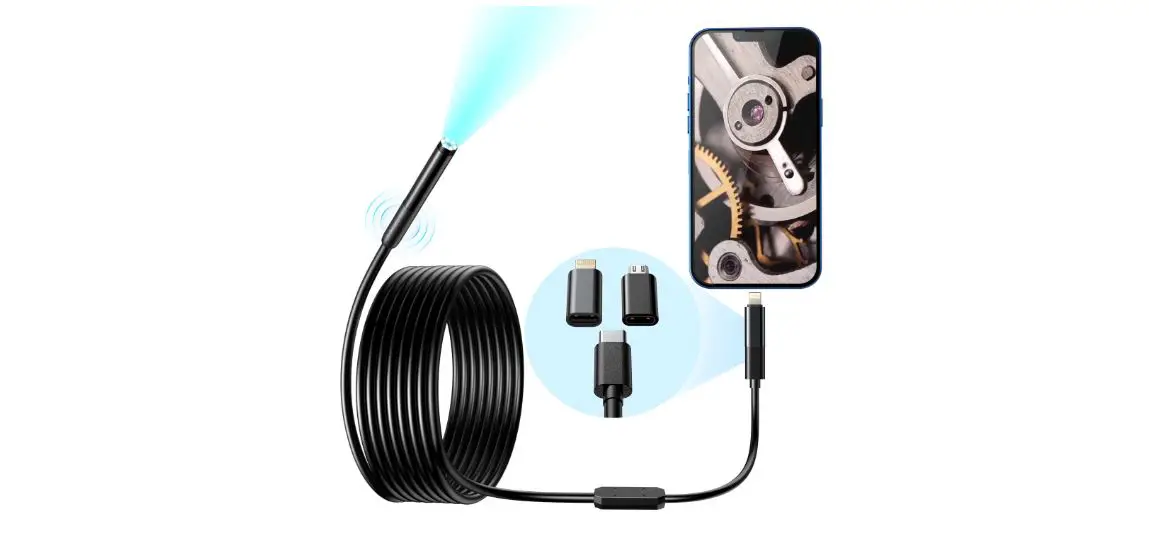
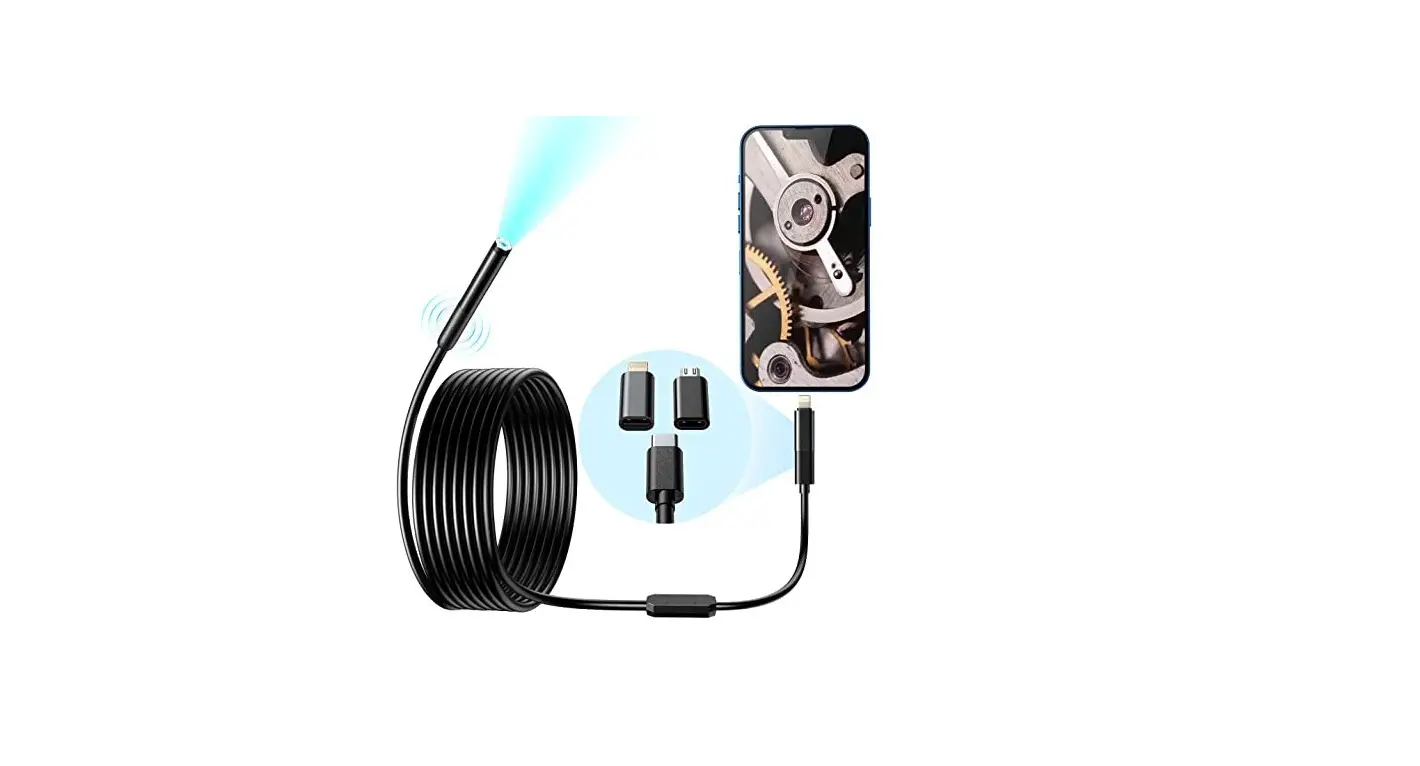
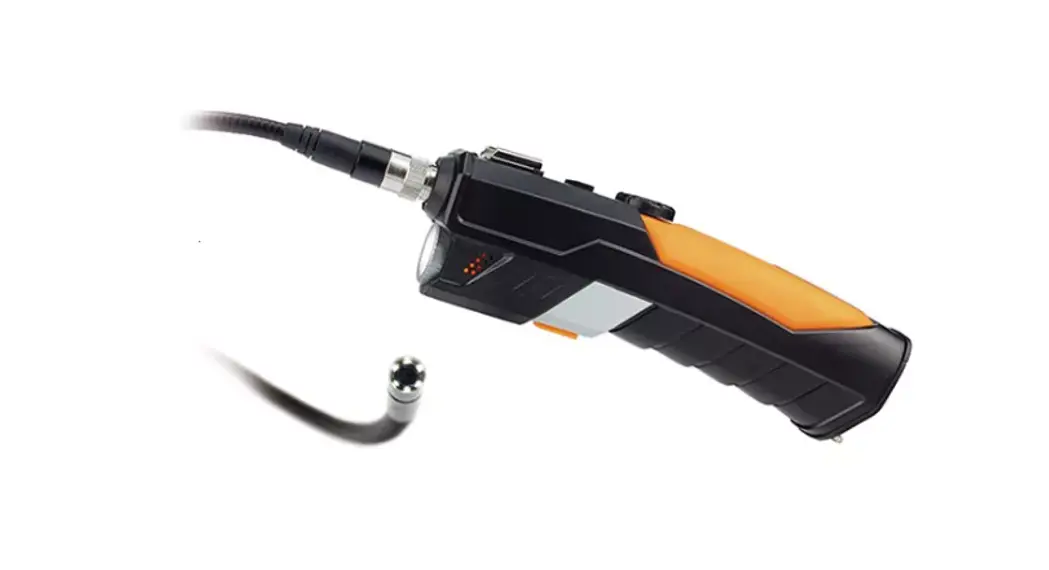
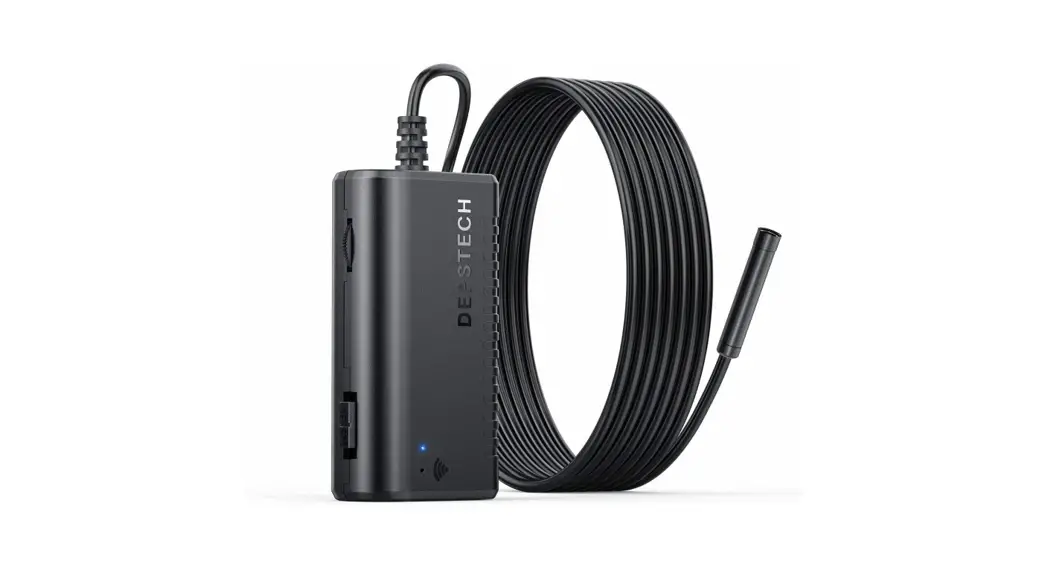
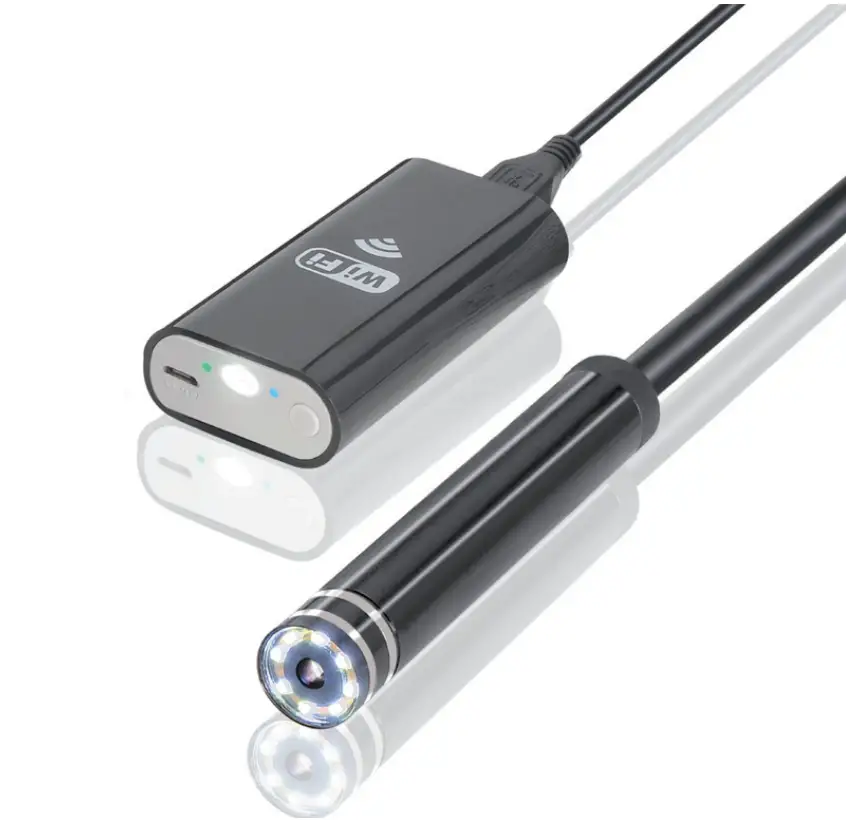
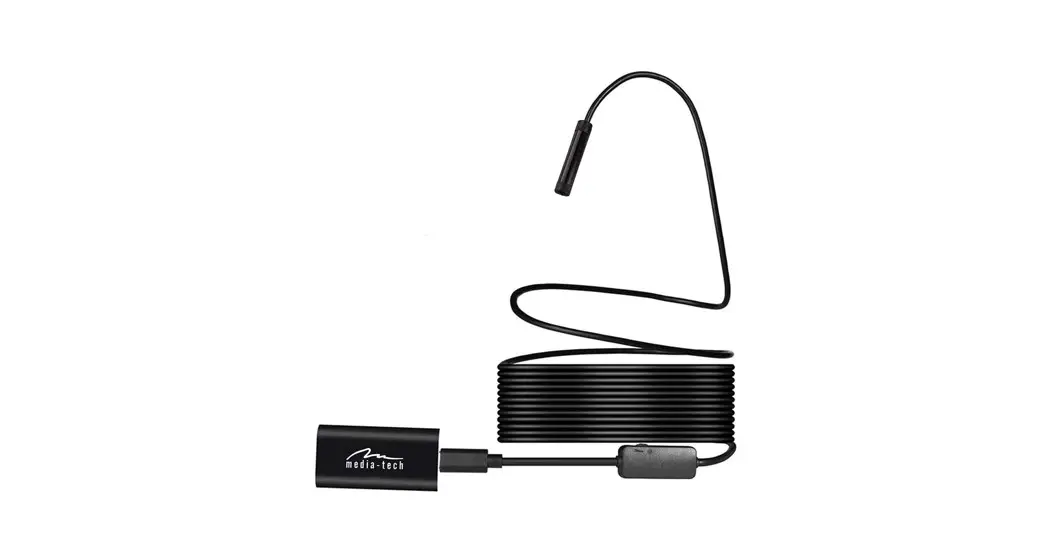
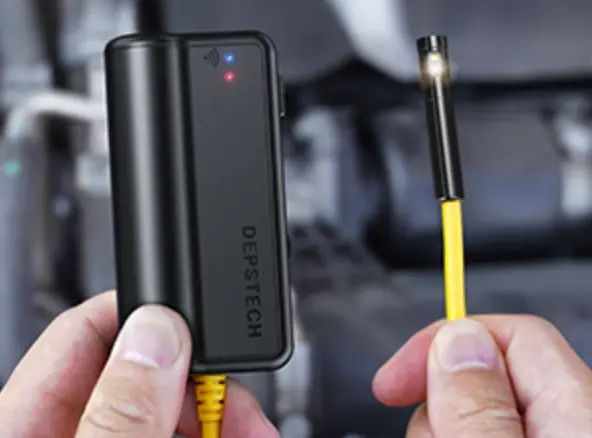
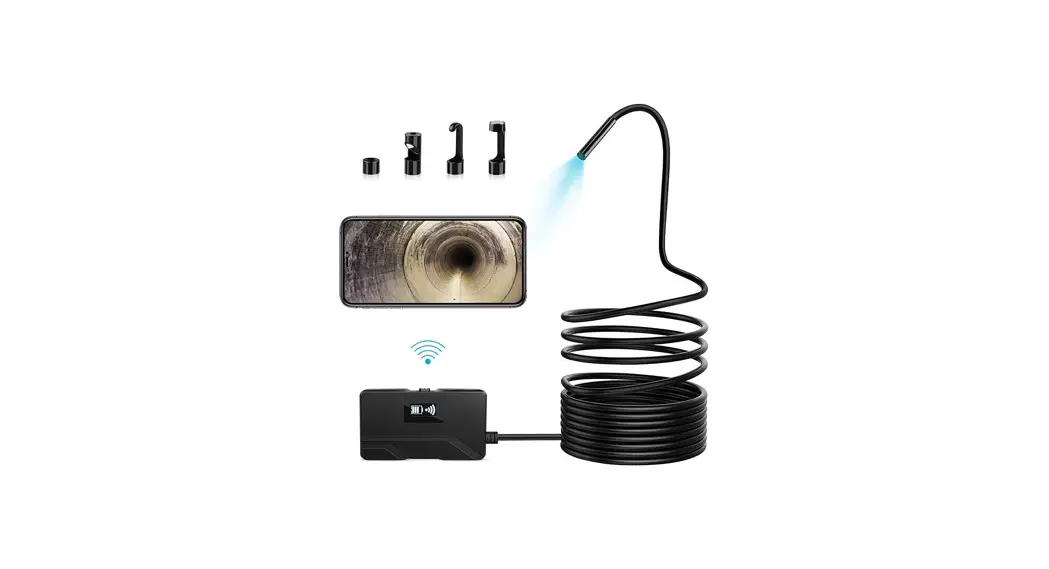
W500 is an wifi industrial endoscope camera with HD camera. The product transmits WiFi signal, the mobile phone connects to the product WiFi, and the picture is displayed on the APP. This product is equipped with a small diameter HD camera with LED auxiliary lighting. The camera adopts a high-sensitivity chip, which can beused normally even in a dark working environment.
Safety and Maintenance
- Do not hit the camera violently and do not pull the cable.
- When used in an environment with sharp bumps, please use it carefully to prevent the walerproof protective layer of the probe from being scratched.
- The camera probe is not made of heat resistant and high temperature materials.
- When checking the automobile engine, please ensure that the temperature in the engine drops to the normal temperature.
- When not in use, please ensure that the lens and the main unit are clean and dry, and avoid contact with oil, etc. or other corrosive and dangerous substances.
- This product is not suitable for people with limited physical, sensory or mental abilities.
- Do not allow children to touch and operate this equipment.
- If the equipment is damaged, do not disassemble it by yourself. Please contact suppliers or agent for maintenance services.
- The product is an industrial endoscopy camera and is not intended for medical use or human examination.
Battery instructions
- Please use a 5V household charger that meets the safety regulations to charge the equipment. Fast charging is not supported.
- This device supports charging while using.
- If the device is not used for a long time, please ensure that it is charged at least once every 3 months to prevent irreparable damage caused by excessive discharge of the battery.
Function introduction
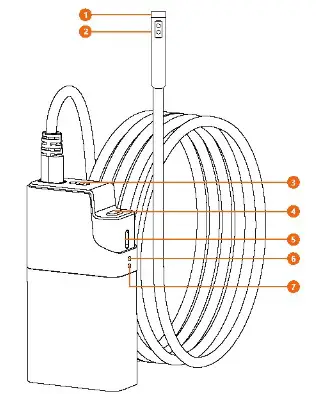
- Camera LED light
- camera
- The lens port lock switch
- Power on/off:
- Press and hold for 3 seconds to turn on/off
- Turn on device, then short press to take photos
- Typce-C charging port
- Indicator A:
- Red LED light keeps blinking: low battery
- Red LED light stays on: charging status
- Red LED light off while charging: battery fully charged
- Indicator B:
- The blue LED light keeps blinking: WiFi not connected
- The blue LED light stays on: WiFi connection successful
Instructions
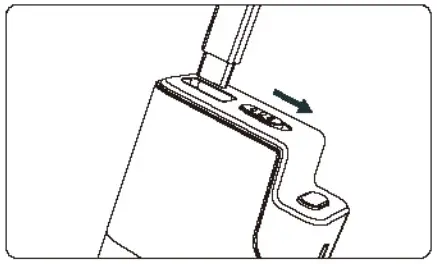 | 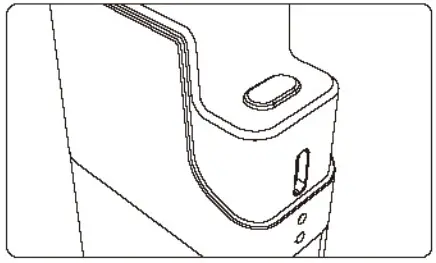 |
| Right slide lens port lock the button, insert the camera port | Press and hold for 3 seconds to turn on/off |
Install APP
Method 1: Scan the QR code, choose to download the APP. System support (Android4.4t, iOS9.04 and above)

Method 2: For iOS users, please search “ANESOK” in App store, download and install it. System support (10S9+and above)
For Android users, please search “ANESOK” in Google Play Store, download and install it. System support (Android4.4+and above)
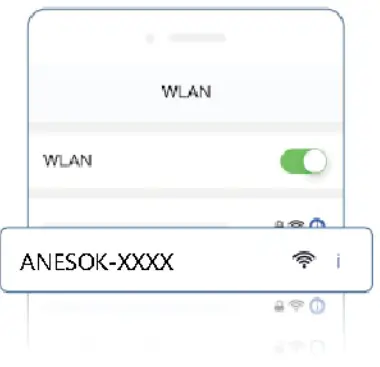
Enter the setting interface, turn on the WLAN switch, link the WiFi hotspot “ANESOK XXXX”“ return to the desktop and open the “ANESOK” app
APP Introduction
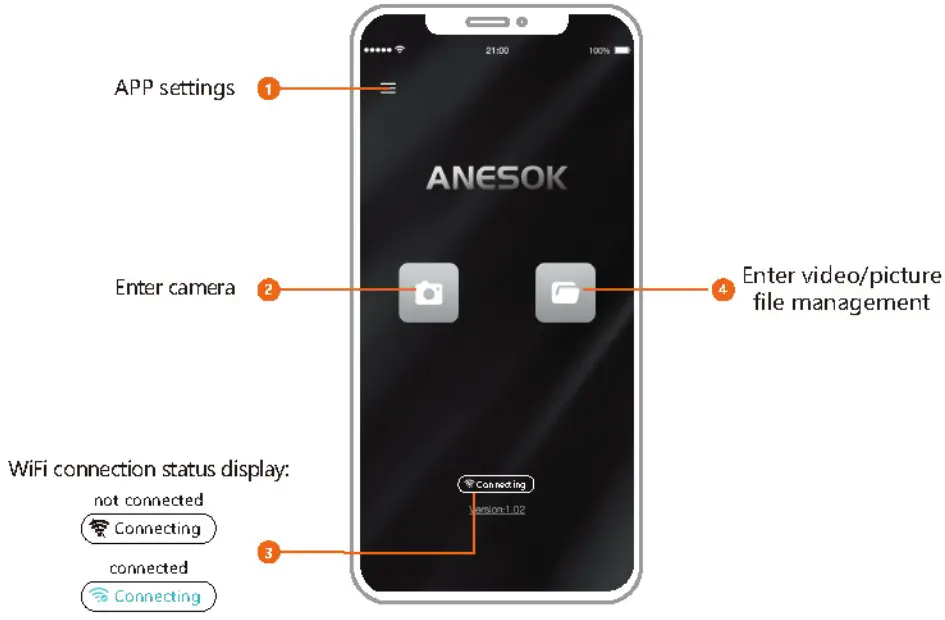
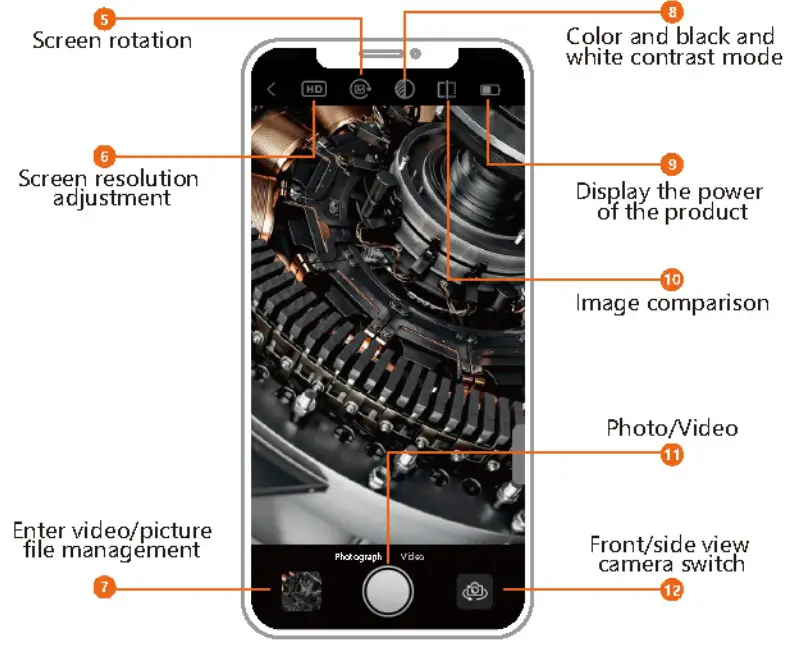
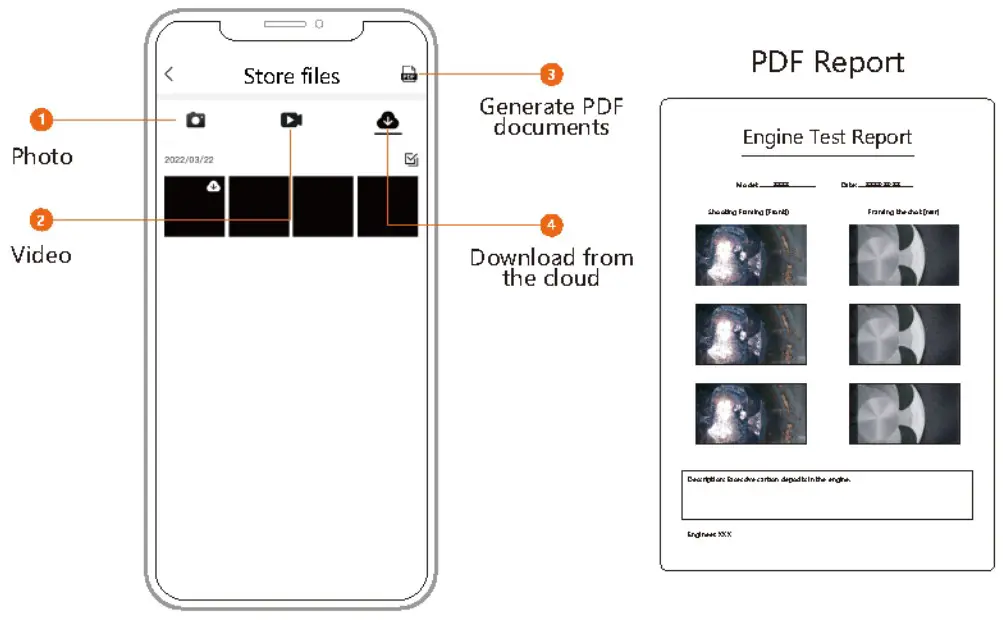
FAQ
1. Whether the phone is connected to the WIFI hotspot of the device
2. Check if the camera light is on, or because the interface is not in good contact, please re-plug and unplug.
Step 1: Keep the distance between the WiFi Industrial Endoscope and the phone/tablet within 3M
Step 2: Please check whether the product is fully charged, or restart the device, or reassemble the camera connector.
– The best imaging focal length of the product is: 2cm 10cm, please calibrate the distance to the object, or clean the front of the camera with a clean alcohol cloth.
Please use DC 5V 1A or 5V2A adapter to charge the device. The product does not support fast charging.
Step 1: Enter the cell phone connection menu on the Home page, press OKbutton to turn on WiFi
Step 2: Download APP
Step 3: Enter the WiFi interface in the phone settings, find the device WiFi, “ANESOK-XXXX” , click it and connect.
– It is normal for the camera to heat up, especially when the camera LED light is on at the highest brightness. But it does not affect normal use or service life.
Charging Guide
- Connect the device to the TYPE-C USB adapter for charging. The product does not support fast charging.
- During charging, the red LED indicator will remain on for a long time.
- When the device is fully charged, Red LED light is off.
Accessories installation Guide
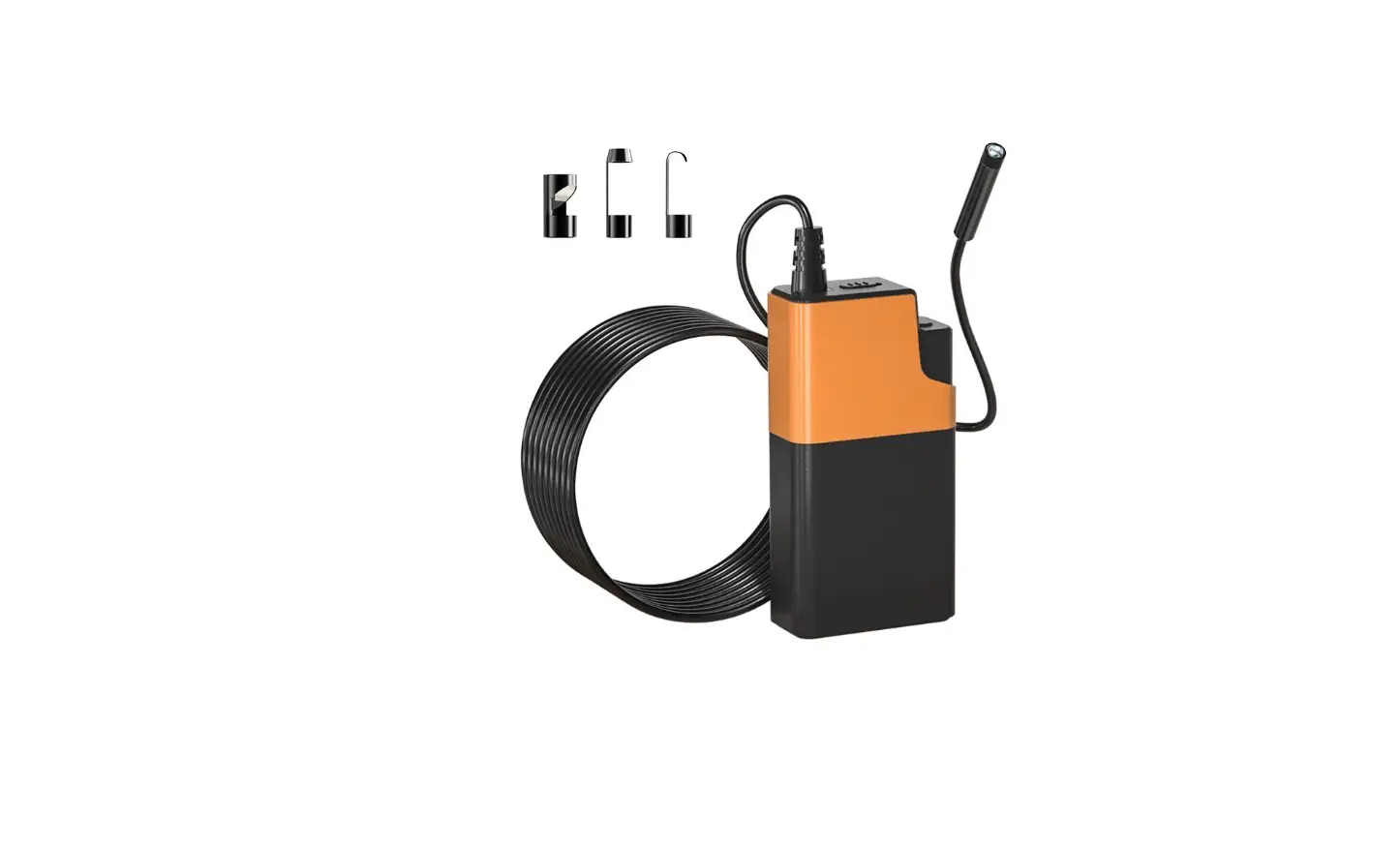
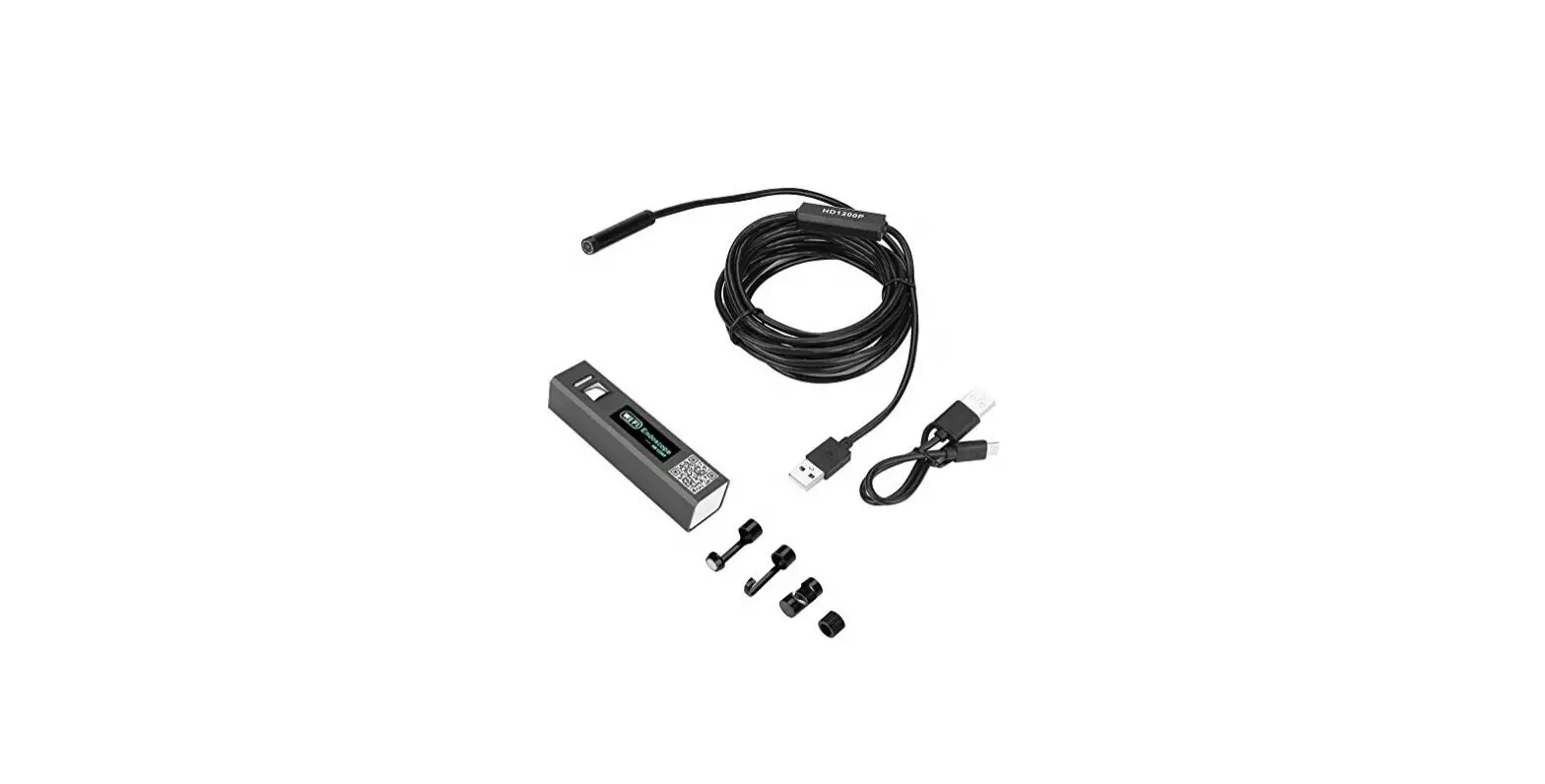
Accessories: Protective ring*1, magnet *1, hook*1
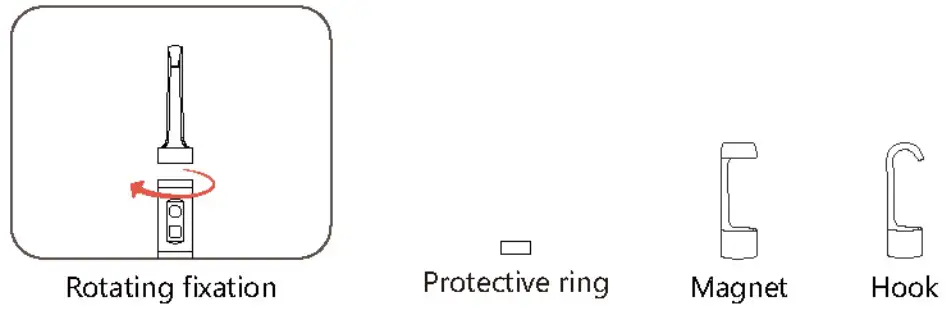
Camera
| Dual lens | Single lens | |||
| Camera diameter | 7.9mm | 5.5mm | 7.9mm | 5.5mm |
| Camera resolution Viewing angle | 2K | |||
| 78° | 70° | |||
| Focusing range | A Camera | 20-100mm | 20-100mm | |
| B Camera | 20-50mm |
Specifications
| Photo resolution: 2560×1440 | Video resolution: 1920×1080 |
| Camera temperature: 14°F-176°F (-10°C-80°C) | Port: TYPE-C charge cable |
| Operating temperature: 32°F- 113°F (0°C-45°C) | Battery 1000mAh |
| Battery life: 4 hours | Battery charging time: 1.5 hours |
| List: endoscope, manual, storage tube, magnet ,hook, TYPE-C charge cable, instructions, Protective ring, Lens cable |