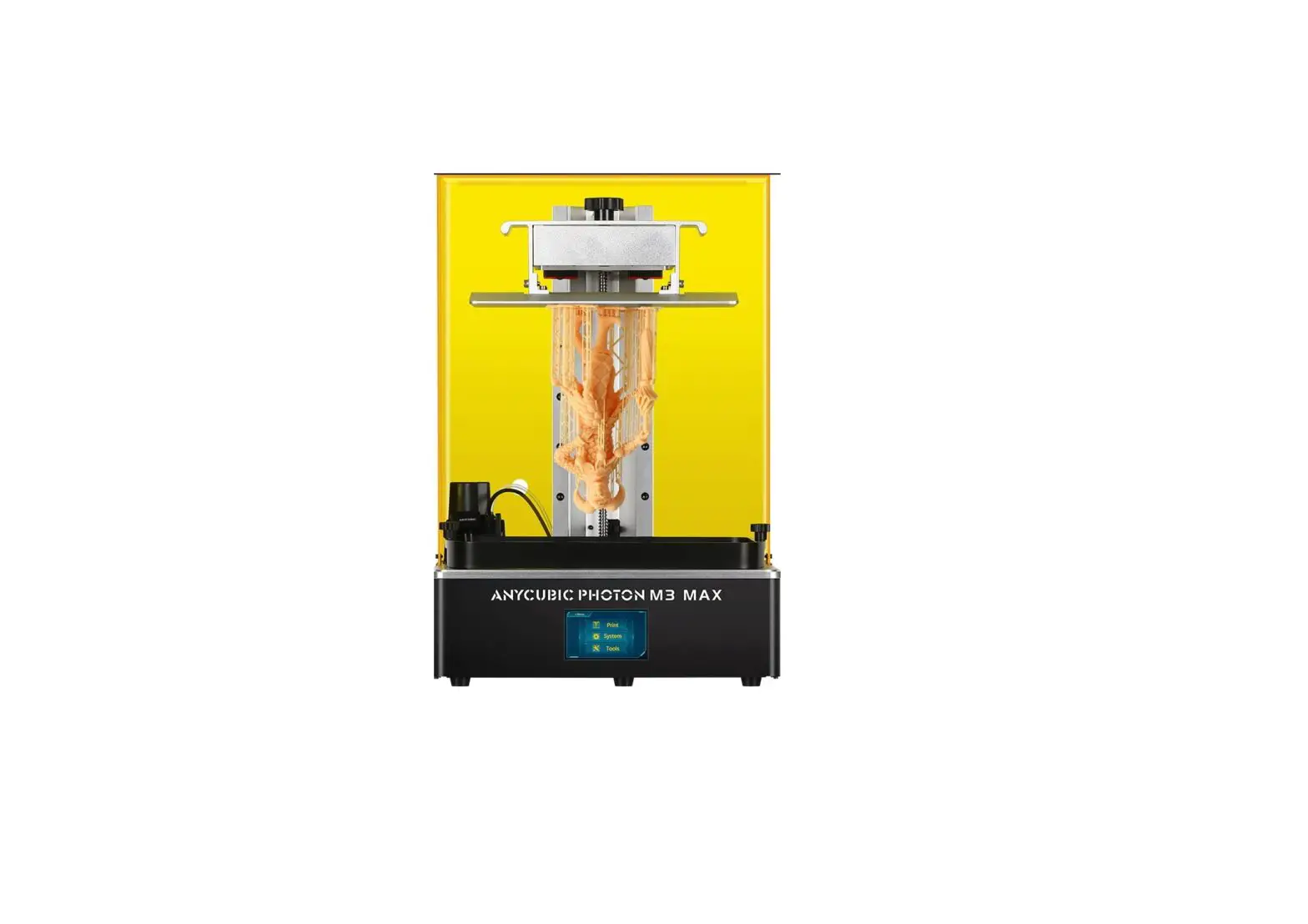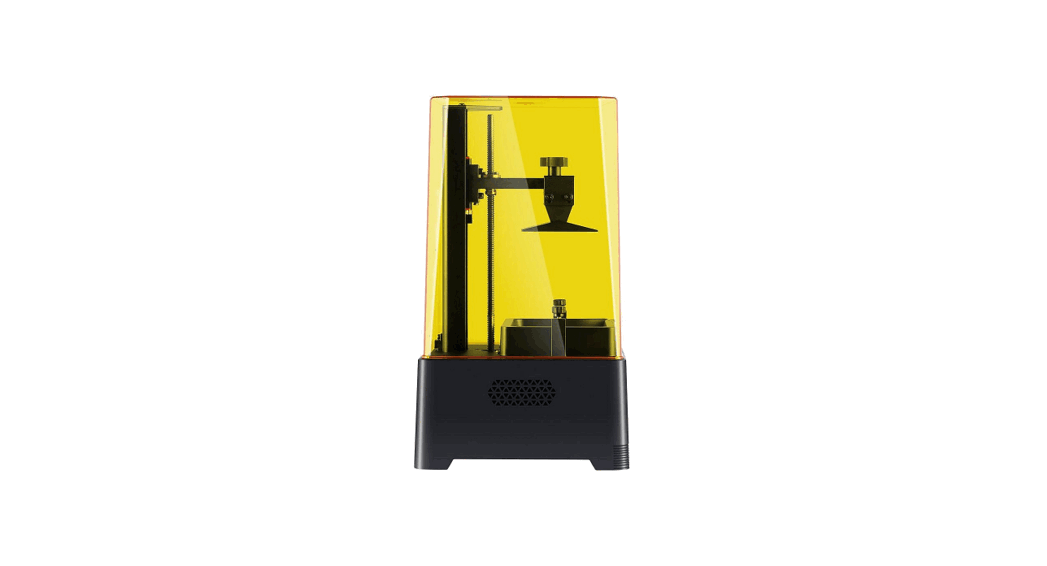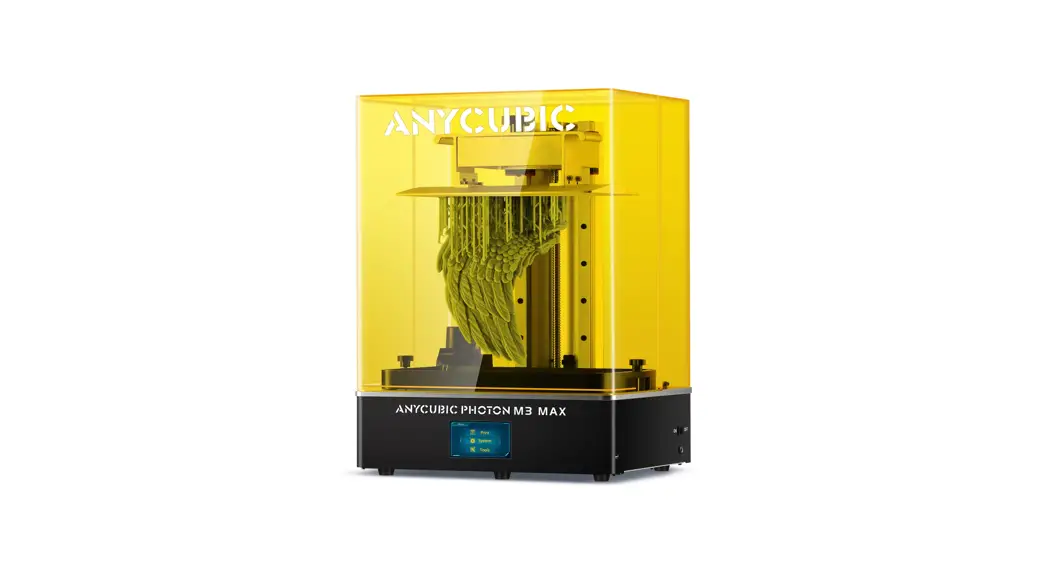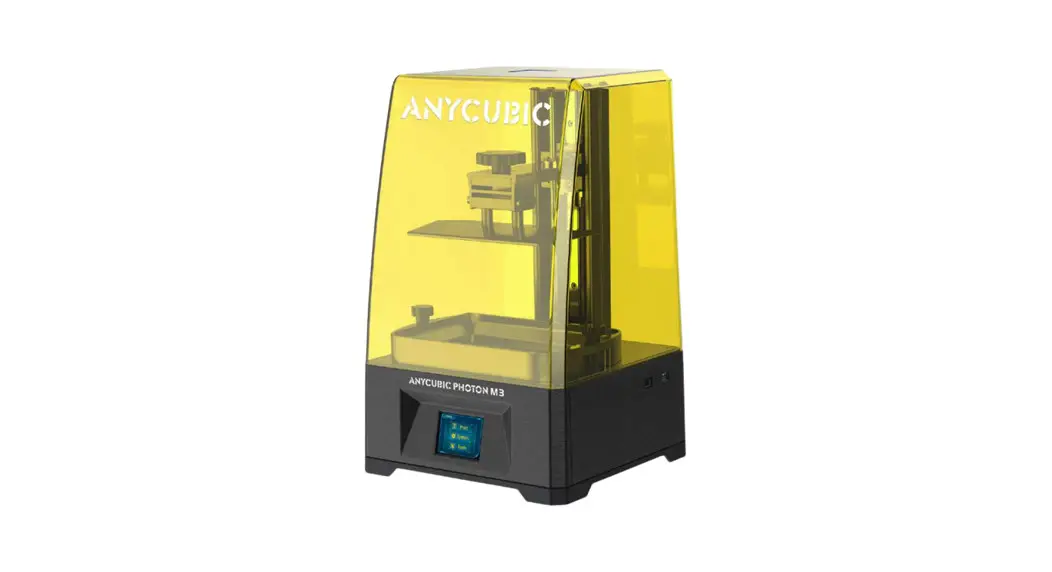
 3D Printer
User Manual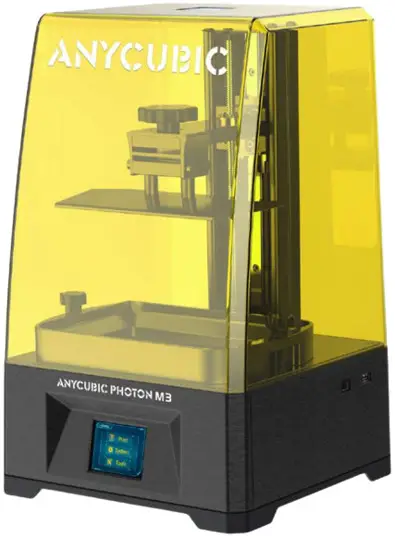
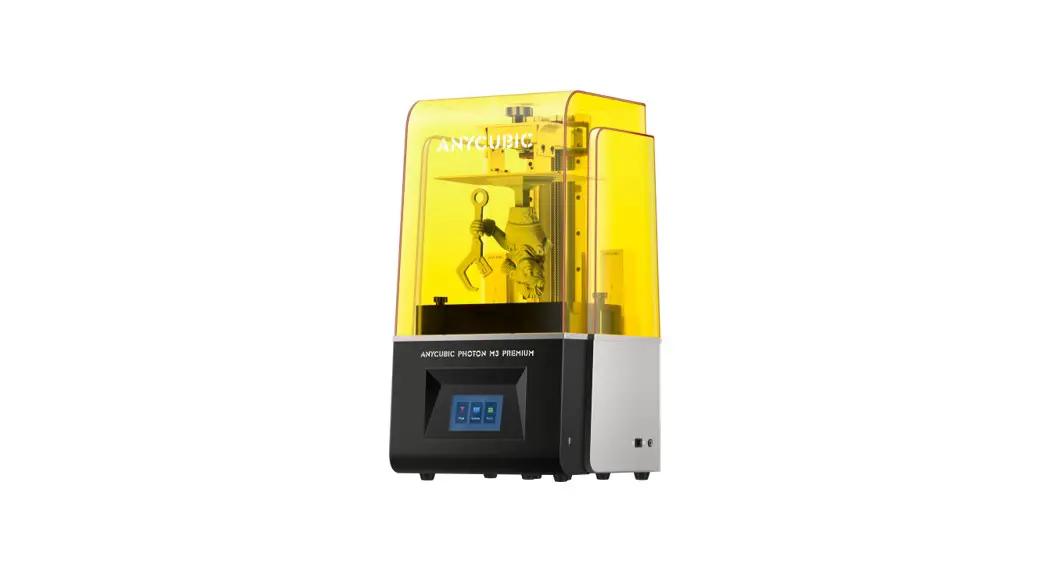
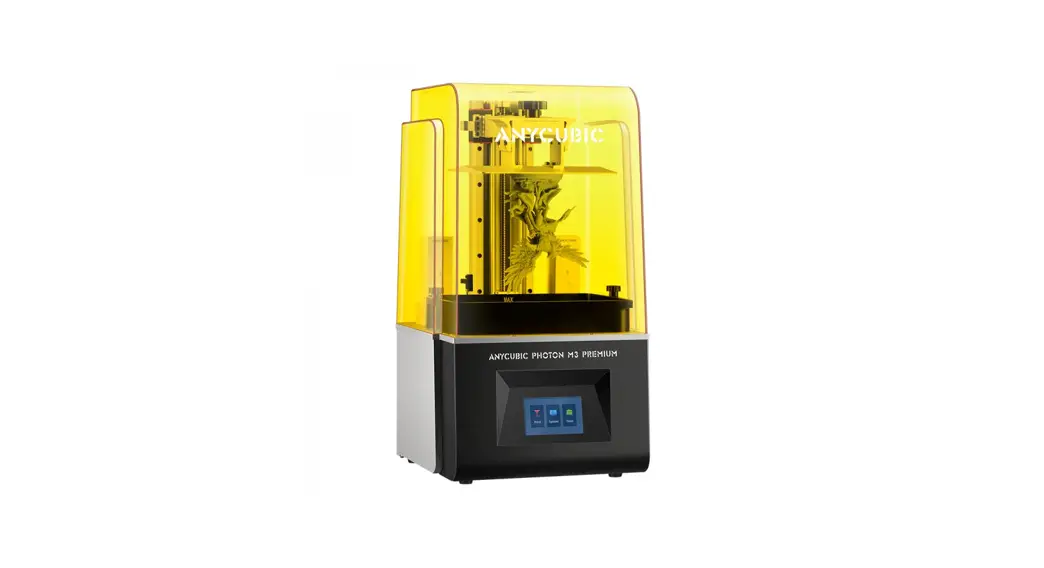
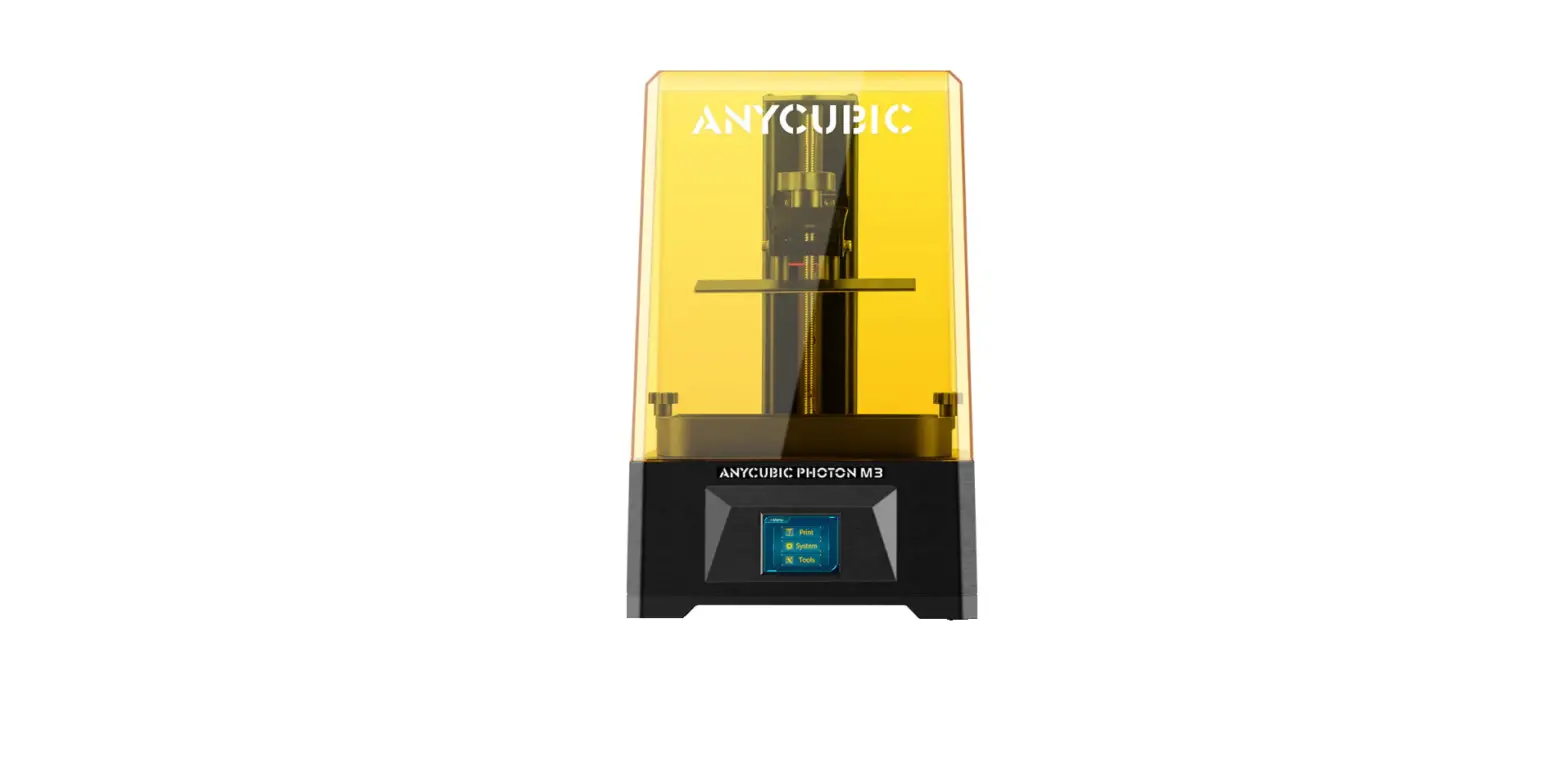
Photon M3 3D Printer
Dear customer,
Thank you for choosing  products.
Maybe you are familiar with 3D printing technology or have purchased printers before, we still highly recommend that you read this manual carefully. The installation techniques and precautions in this manual can help you avoid any unnecessary damage or frustration.
Please visit https://www.anycubic.com/pages/contact-us to contact us if you have any question. You can also gain more information such as software, videos, models from the website.
 support center
https://www.anycubic.com/pages/contact-us
Team
Copyrighted by “Shenzhen Anycubic Technology Co., Ltd ”, all rights reserved.
Safety Instructions
Always follow the safety instructions during assembly and usage, to avoid unnecessary damage to the 3D printer or individual injury Please contact our customer service first if you have any issue after receving the products.
 Be cautious when using the scraper. Never direct the scraper towards your hands.
 In case of emergency, please immediately cut off the power of 3D printer and contact the technical support.
 3Dprinter includes moving parts that can cause injury.
 It is recommended to use protection glasses when sanding the printed models to avoid eye contact with small particles.
 Keep the 3D printer and its accessories out of the reach of children.
 Vapors or fumes may be irritating at operating temperature.
Always use the 3D printer in an open and well ventilated area. 3D printer must not be exposed to water or rain.
 Operate 3D printer with a temperature of 8°C-35°C and a humidity of 20%-50%. For optimal performance, do not exceed this range. Also, avoid direct sunlight exposure.
 Do not disassemble 3D printer, please contact technical support if you have any question.
Technical Specification
Printing
| System | Anycubic Photon M3 |
| Operation | 2.8-inch Color TFT Screen |
| Software | Anycubic Photon Workshop |
| Connectivity | USB memory stick |
Specifications
| Technique | LCD Shadow Masking |
| Light source | UV-LED (wavelength 405nm) |
| XY Resolution | 4096*2560 (4K) |
| Z axis Accuracy | 0.01 mm |
| Suggested Layer Thickness | 0.01-0.15 mm |
| Print Speed | Max 50 mm/h |
| Rated power | 55 W |
Physical Dimensions
| Dimension | 269 mm (L)* 256 mm (W)* 425 mm (H) |
| Build volume | 163 mm (L)* 102 mm (W)* 180 mm (H) |
| Materials | 405nm UV-resin |
| Net weight | ~7 kg |
Recommended Printing Parameters
| Layer Thickness | 0.05mm |
| UV power | 100% |
| Normal Exposure Time | 2 s (for the transparent color resin, it is 1.5~2 s; for others, such as grey, black, white and skin color resin, itis 2~3s) |
| Off Time | 0.5s |
| Bottom Exposure Time | 23s |
| Bottom Layers | 4 |
| Z Lift Distance | 6 mm |
| Z Lift Speed | 3mm/s |
| Z Retract Speed | 4mm/s |
| Anti-alias | 1 |
Note:
- The recommended printing parameters above is for reference only, which is more suitable for Anycubic resin.
- The UV power of the machine is high. If there are solid residue in the resin vat or on the printing platform frequently, please decrease the UV power and increase the normal exposure time.
- Please add off time (reference range: 0.5~3s) if you use the resin with poor flow ability or print model with complex structure.

Packing List
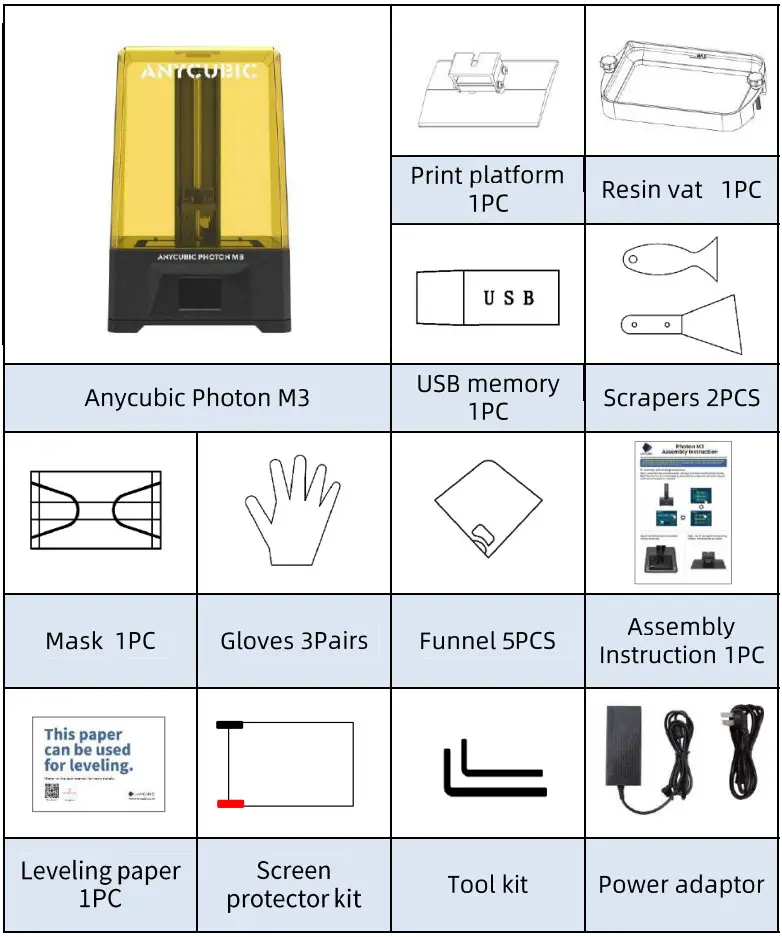
Product Overview
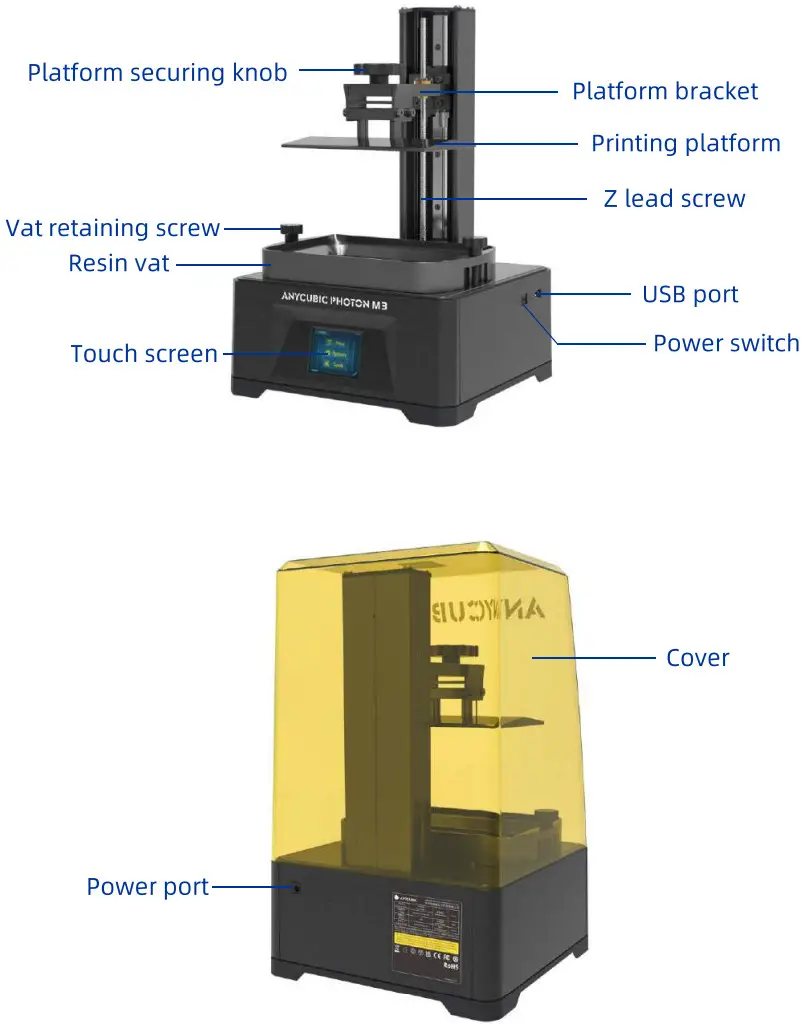
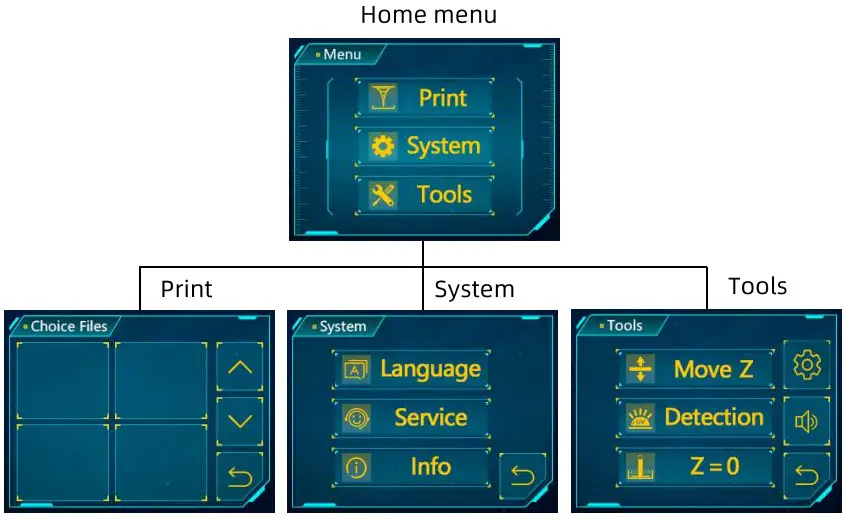 Home menu
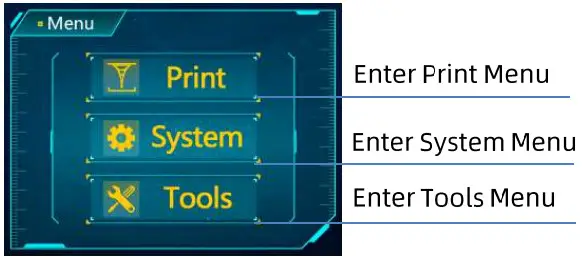 Print
Print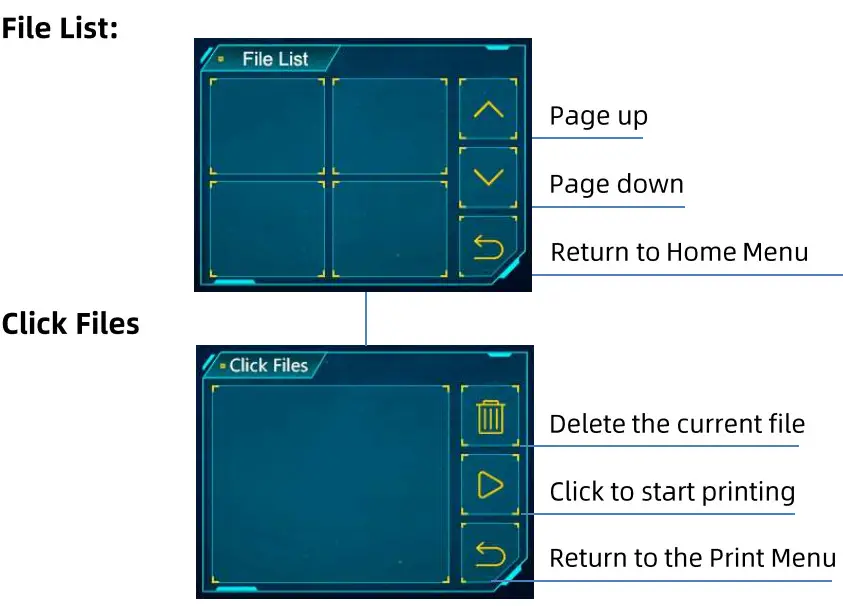 System
Language: Change language(English/Chinese)
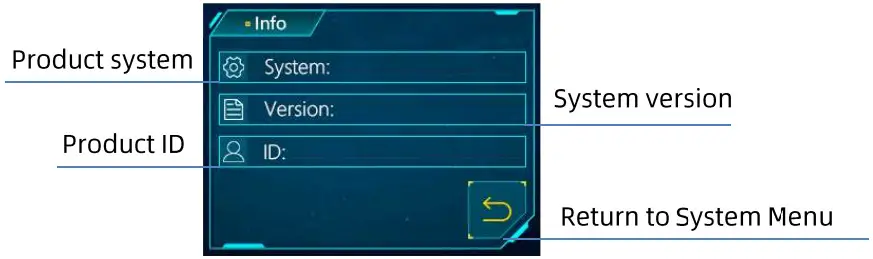
Service: 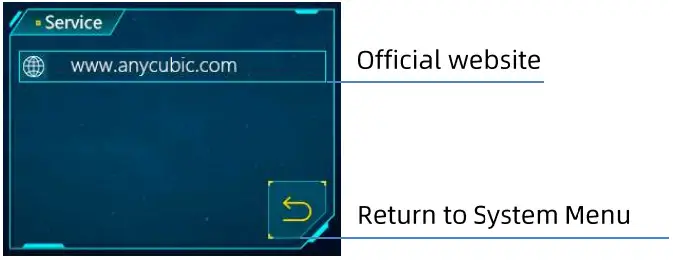 Information:
  Tools
Tools
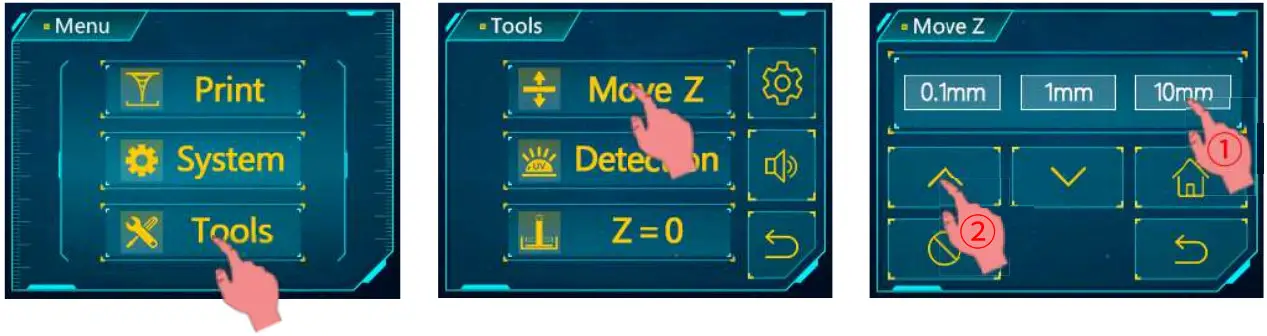
Move Z: 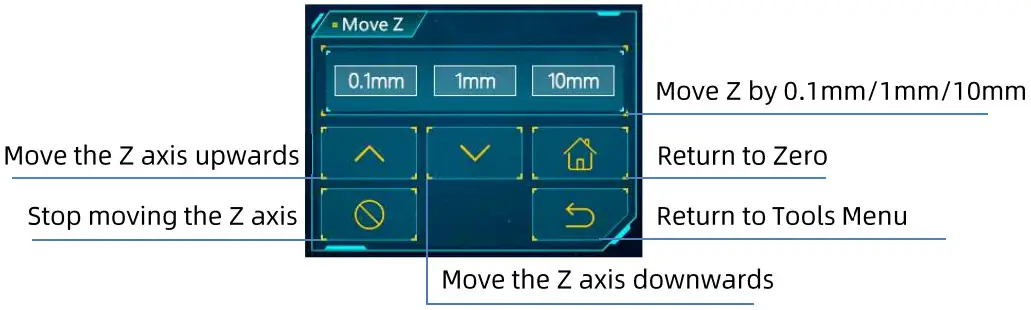 Detection:
  Gear icon:
  Z=0: Reset the zero point
Horn icon: Turn on/off the screen sound
Assembly and Leveling Instructions
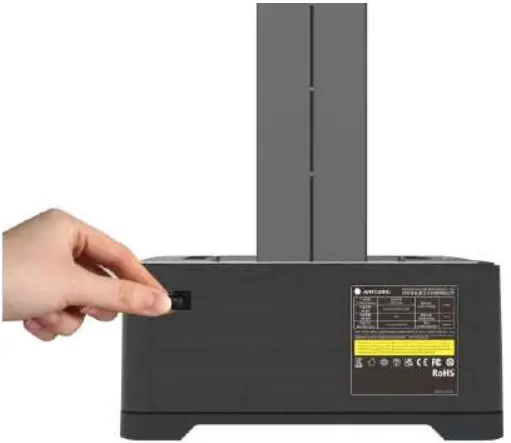
- Unpack the machine and take out the accessories. Then plug in the power cord and turn on the printer.

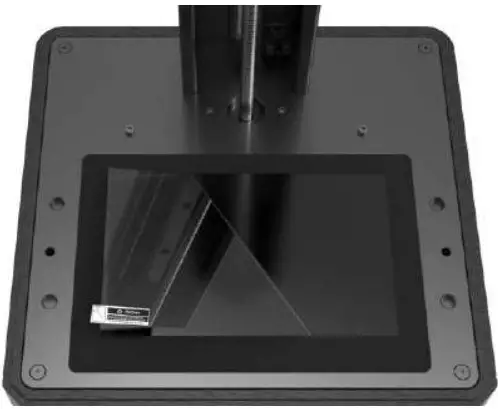
- Rise the Z axis to a certain height to ensure that the curing screen will not be scratched when printing platform is installed.

- Tear off the protective film before leveling and printing.

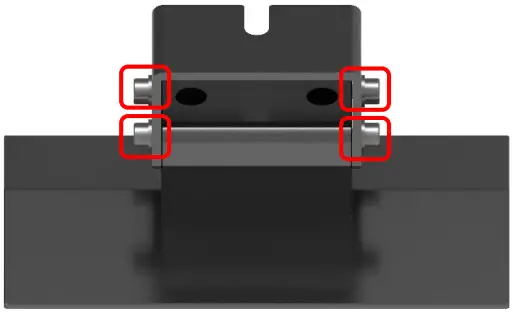
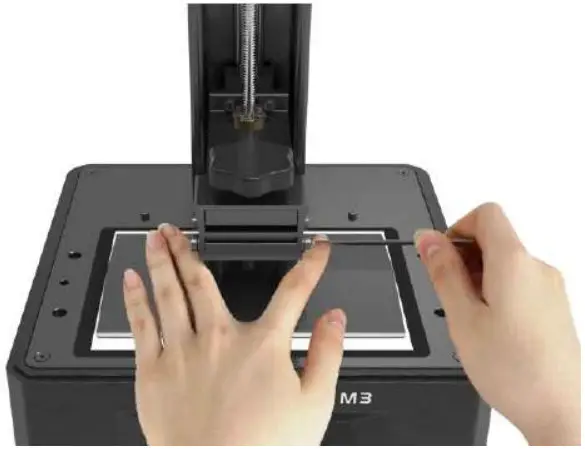
- Loosen the four screws on the printing platform.

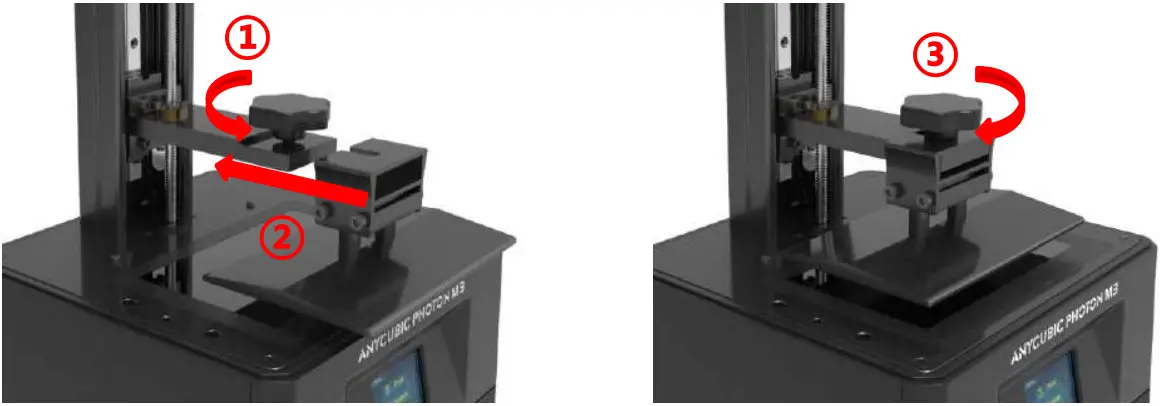
- Install the printing platform.

- Place a leveling paper on the curing screen. Then click “
 “onthe touch screen. Wait for the Z axis to descend and stop automatically.
- Use your fingers to press the platform gently, to let it fit evenly on the curing screen. Then tighten the four screws on the platform.

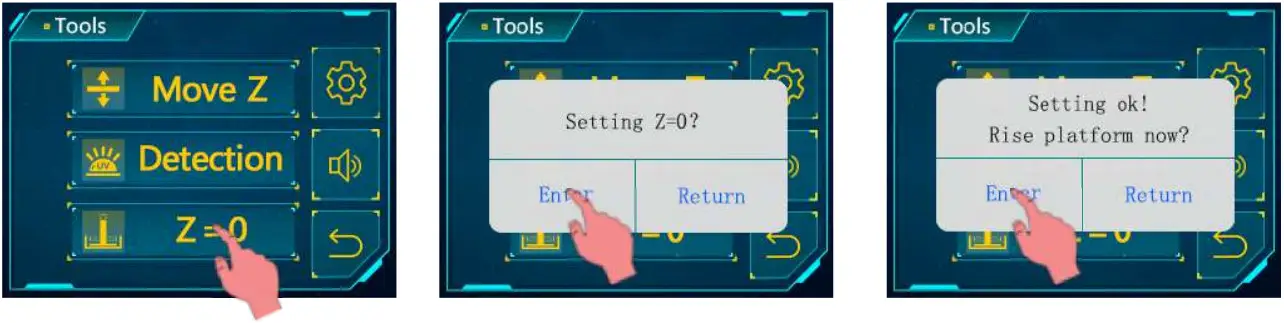
- Click “Tools”” → “Z=0″ on the touch screen, and then click “Enter” on the pop-up window. Till now, the leveling process is finished. Click “Enter” again on the pop-up window and pull out the paper.

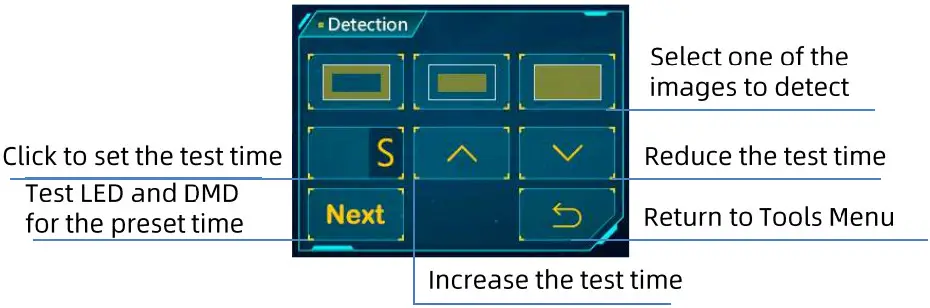
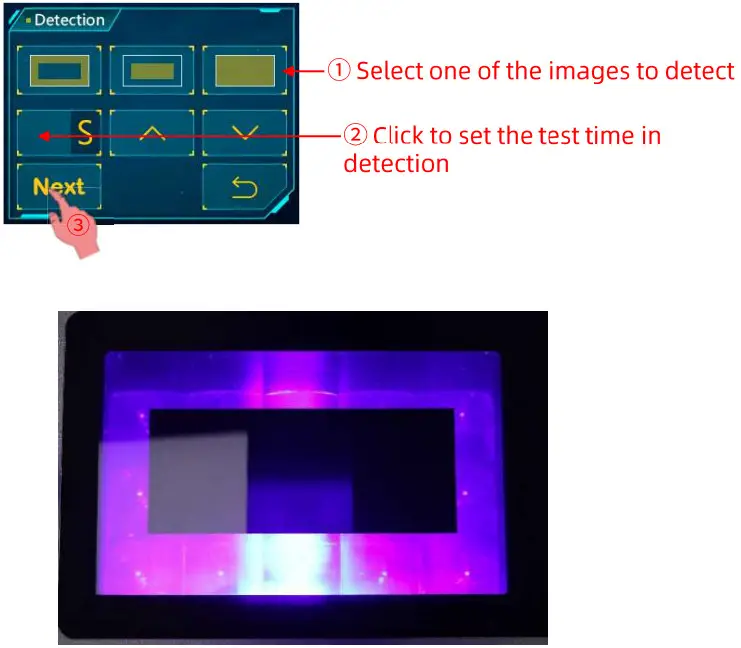
- Testing UV light: Raise printing platform until the curing screen can be observed completely. Click “Tools””— “Detection”, select a image, set the test time and then click “Next”. It should display a complete image as what you select.
 the result of firstimage
 - Install the resin vat.

 “onthe touch screen. Wait for the Z axis to descend and stop automatically.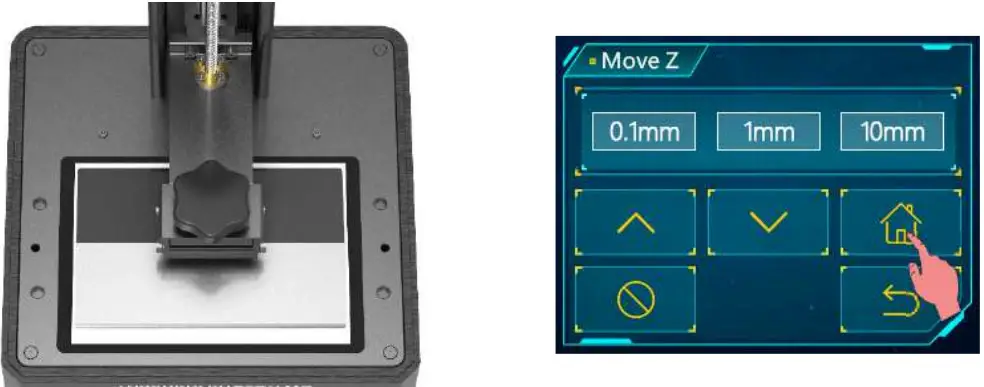
 the result of firstimage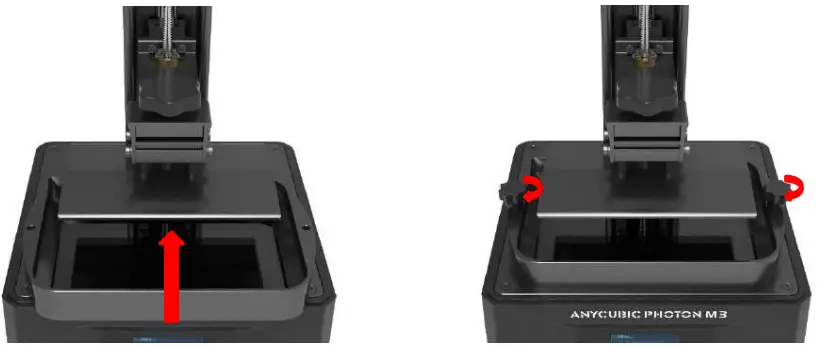
First Print Instructions
- Print
*Please check FEP film carefully before and after every printing. If the FEP film is broken, replace it immediately to avoid further damage to machine.
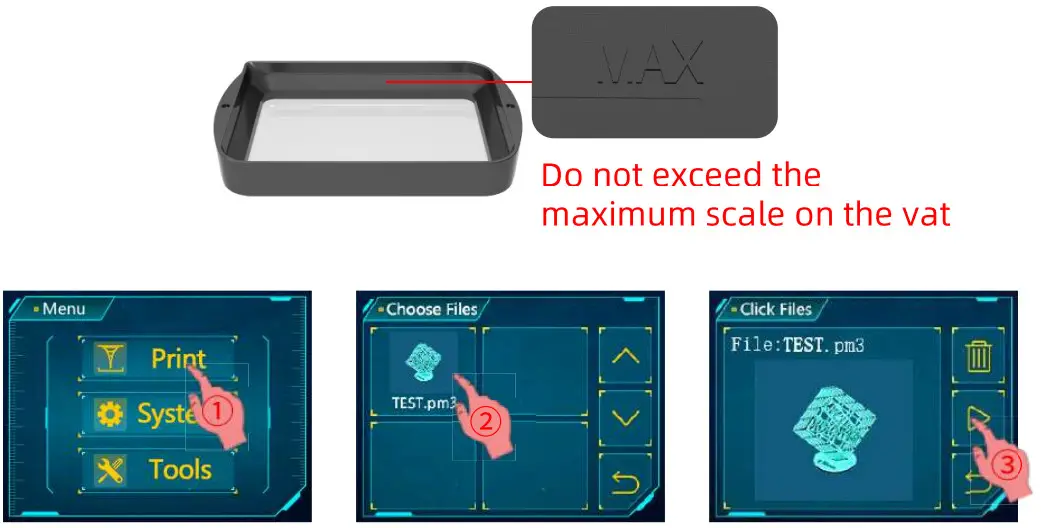
Insert the USB memory (the test file”TEST.pm3″” has been saved in it) into the USB port. Then wear masks and gloves (to avoid direct skin contact with resin), slowly pour the resin into the vat and the resin cannot exceed the vat’s maximum scale.
After that, put on the cover. Take off the gloves, select the “TEST.pm3” test file and start printing. (The printing time on the screen is for reference only, we make no guarantee that it is the actual printing time.) If you think the resin is insufficient to finish an ongoing print (or you want to change the resin), you can click “Pause”, the platform will rise, and you can slowly add (or change) the resin. After that, click “Start” to resume.
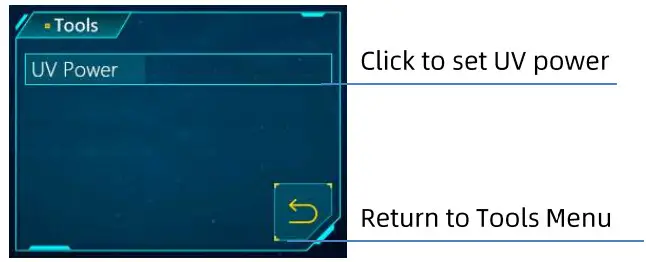
- Set UV power
There are two ways to set UV power.
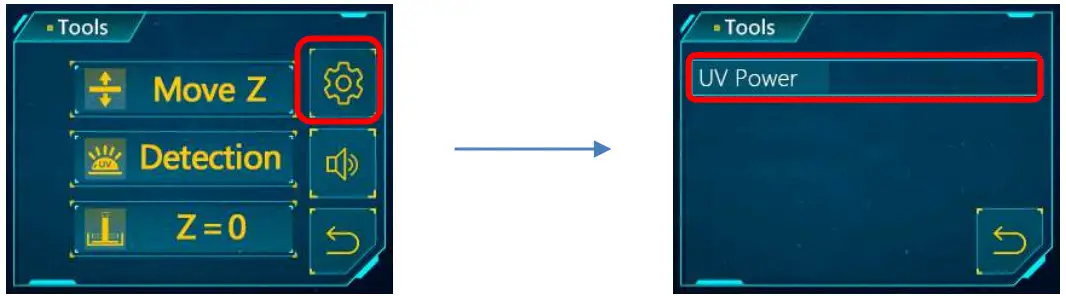
Before printing, click “Tools”→” . ”. Then click “UV power” in the setup interface to set UV power.
 Besides, in the process of printing, click ” ” in Print interface, page down to find “UV power”. Then click it to set UV power.
- Handling models and residues
After printing, unscrew and remove the platform when resin stop dropping from the platform. The model can be removed by scrapper carefully. The removed model should be washed with ethanol 95vol% concentration. The printed object may need post curing to achieve better hardness by direct sunlight or UV-curing box.
 If you think the resin is insufficient to finish an ongoing print (or you want to change the resin), you can click “Pause”, the platform will rise, and you can slowly add (or change) the resin. After that, click “Start” to resume.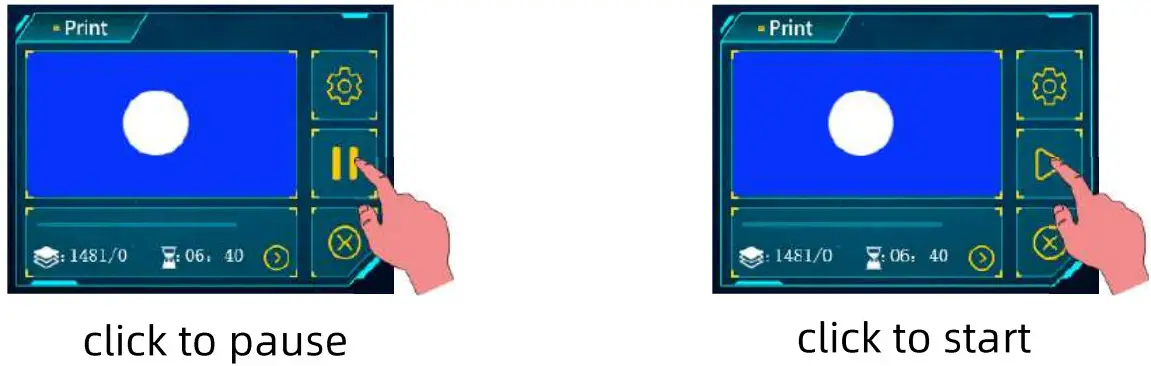
 ”. Then click “UV power” in the setup interface to set UV power.
 Besides, in the process of printing, click ”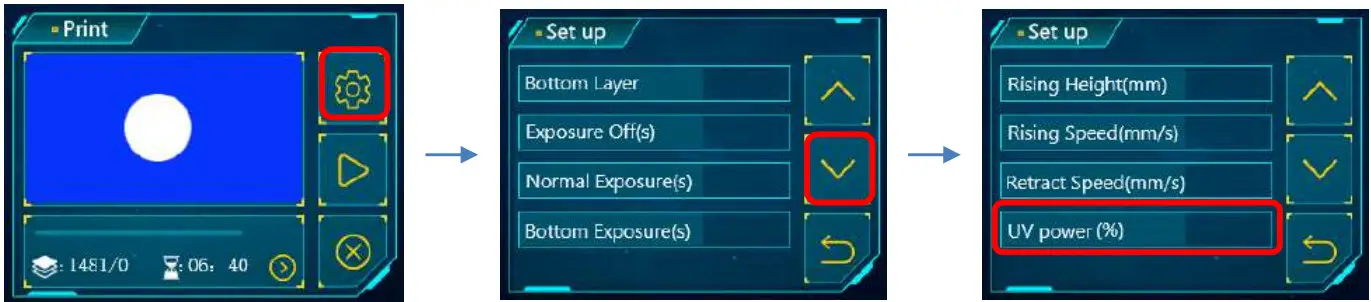
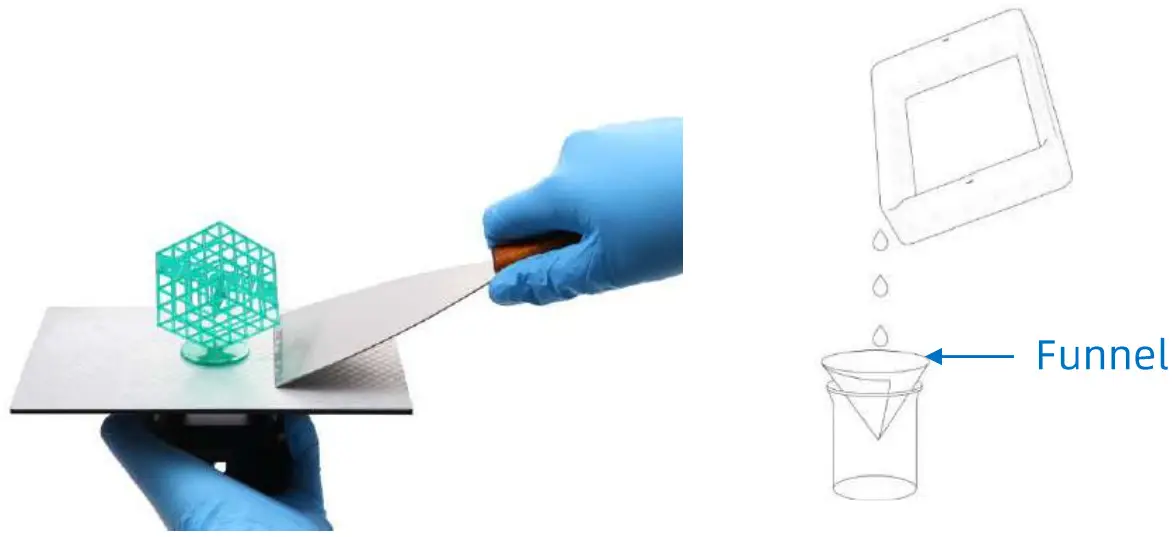
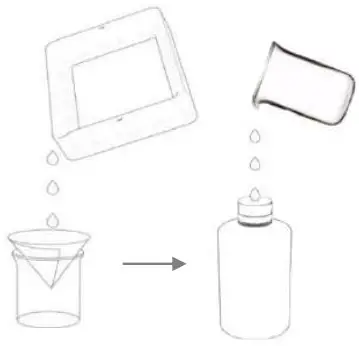
[IMPORTANT] Inevitably, in case of incomplete curing or failed prints, there might be some cured resin left in the vat. It is suggested to filter the resin by a funnel and then store the liquid in a sealed container. The residues left on the platform or in the vat can be wiped off with paper towel.
Before each prints, please ensure there is no solid residues in the vat or on the platform, otherwise the FEP film may be crushed and broken during printing.
Slicing Software Overview
3D printer reads sliced file and prints models. It is necessary to convert 3D files (stl./obj.) into sliced files for machine to recognize. Software that realize the process is called slicing software, for example, Anycubic Photon Workshop.
Anycubic Photon Workshop can be used to export sliced file. You should select Anycubic Photon M3 as machine type first, then manipulate the model and set the parameters. Lastly, export the sliced file (.pm3).
The instruction of Anycubic Photon Workshop has been saved in the USB memory, it is recommended that read it carefully if it is the first time for you to use Anycubic Photon Workshop.
FAQ and Machine Maintenance
- FAQ
(1) Model do not stick to platform
- Bottom exposure time is insufficient, increase the exposure time.
- Contact area between the model and platform is small, please add raft.
- Bad leveling.(2) Layer separation or splitting
- The machine is not stable during printing.
- FEP film in the vat is not tight enough or it eed change for new one.
- The printing platform or resin vat is not tightened.
- Add normal exposure time appropriately.
- Add off time appropriately.
- The lift speed is too fast.
- The printing object is hollowed without punching.(3) Layer shift
- Add supports.
- Reduce the lift speed.(4) Floccules left in resin vat
- The exposure time is too long. Reduce the normal exposure time and bottom exposure time. - Machine maintenance
 (1) If Z axis make noisy sound, please apply lubricant to Z lead screw.
 (2) Clean off the residues cured on FEP film when the printing fail: Set full-screen exposure for 20s and then remove the cured resin sheet to protect the film. Do not use sharp objects to scrape off the residues on FEP film.
 (3) Be careful when remove the platform, do not let it fall to damage the machine.
 (4) Do not left resin in resin vat for over two days when it is unused. Please filter and store the resin properly.
(5) After printing, please clean up the platform (wipe with paper towels or wash with alcohol), and ensure no residue left (filter the residue with funnel).
(6) If the body of printer is stained with resin, use alcohol to clean.
(7) Please clean the resin vat first before you change resin.
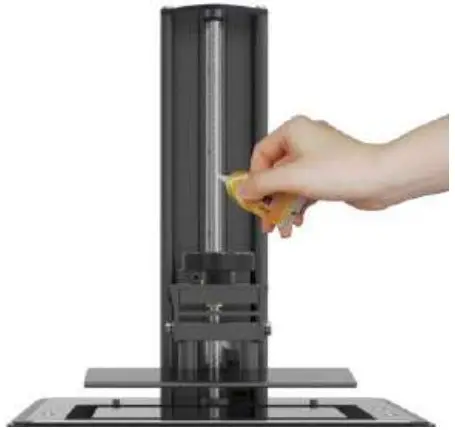 (1) If Z axis make noisy sound, please apply lubricant to Z lead screw.
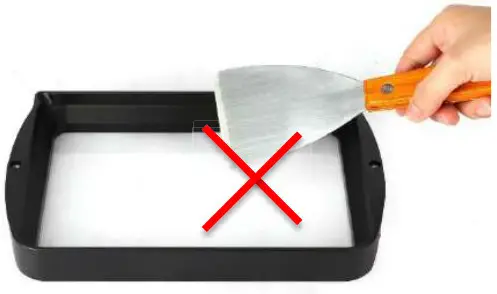 (2) Clean off the residues cured on FEP film when the printing fail: Set full-screen exposure for 20s and then remove the cured resin sheet to protect the film. Do not use sharp objects to scrape off the residues on FEP film.
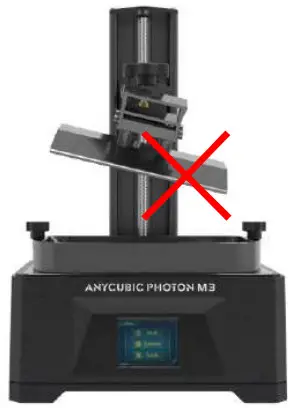 (3) Be careful when remove the platform, do not let it fall to damage the machine.
 (4) Do not left resin in resin vat for over two days when it is unused. Please filter and store the resin properly.
Thank you for purchasing products! Under normal usage and service, the products have a warranty period up to one year.
Please visit support center (suppart.anycubic.com/en) to report any issue with products. Our professional after-sale service team would respond within 24 hours and solve the issues.
 After-sales service
 Contact Us | ANYCUBIC 3D Printing – ANYCUBIC-US