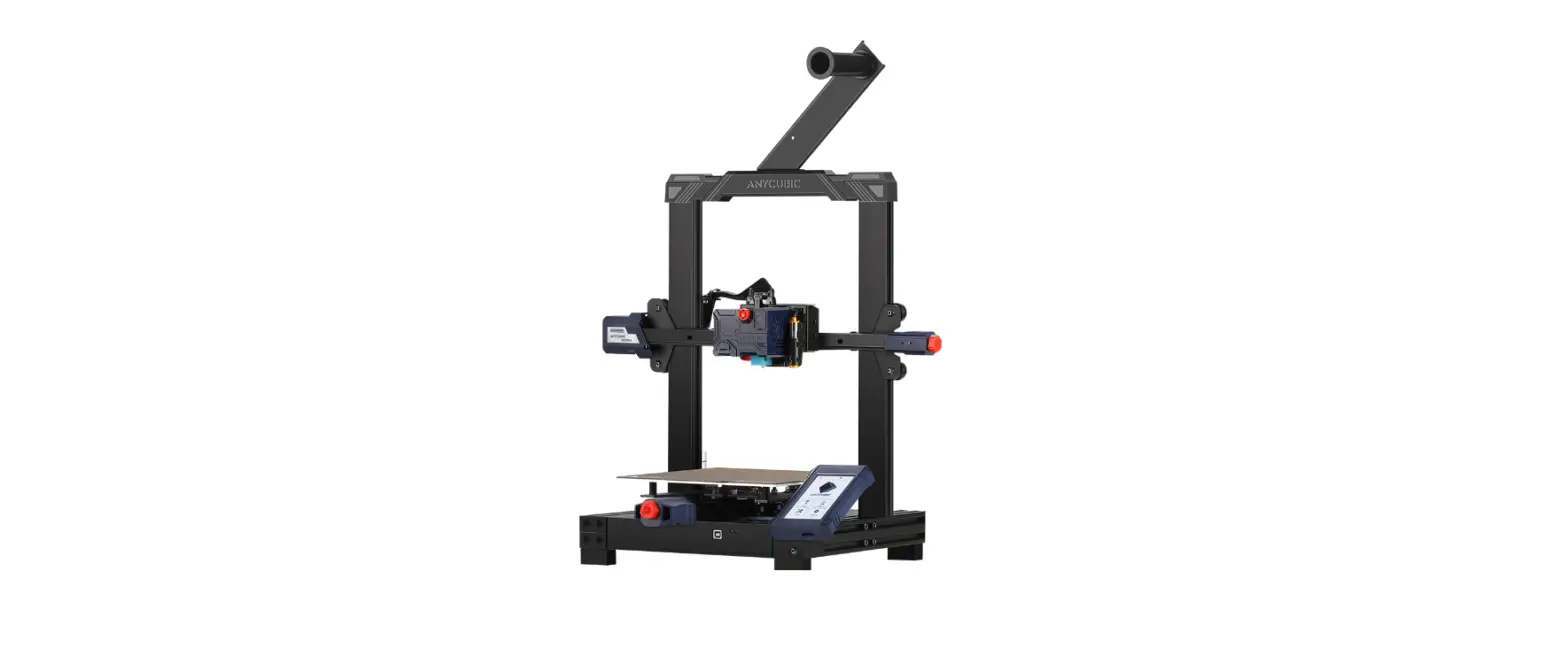
 Anycubic 3D User Manual
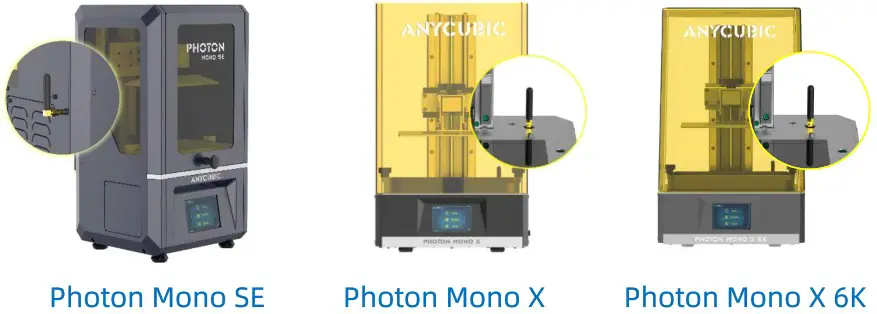
Install WIFI antenna
Install the antenna to ensure the following operation.
WIFI connection
Enter the WIFI account and WIFI password into WIFI.txt. The WIFI must be the same to which your smart phone connects to. Also, please connect to 2.4Ghz band.
Pay attention to the following tips when you connect WIFI:
- The name and format of the file “WIFI.txt” cannot be changed.
- The account and password must be English character (letter, number, punctuation) and less than 20 characters.
- Enter the account and password without space to punctuation marks. Those punctuation marks must not be deleted.
- If the WIFI doesn’t have password, enter NONE in “WIFI Password” and 0 in “Settings”; otherwise, enter 1 in “Settings”.
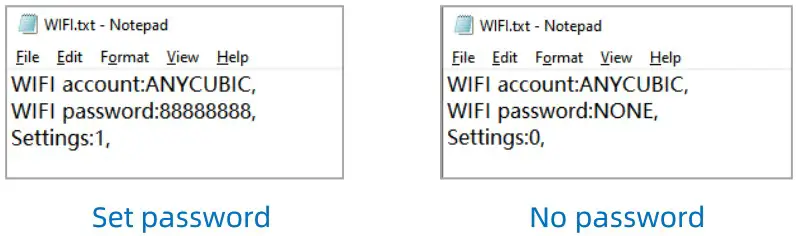
Save WIFI.txt to your USB memory stick and print it on your printer.
The printer will connect WIFI automatically.
Connect 3D printer to smart phone (with a same WIFI)
- Download Anycubic 3D App
Android users can visit our website cn.anycubic.com/list/224 to download. IOS user can search “ANYCUBIC 3D” in App Store to download it. - Add 3D printer
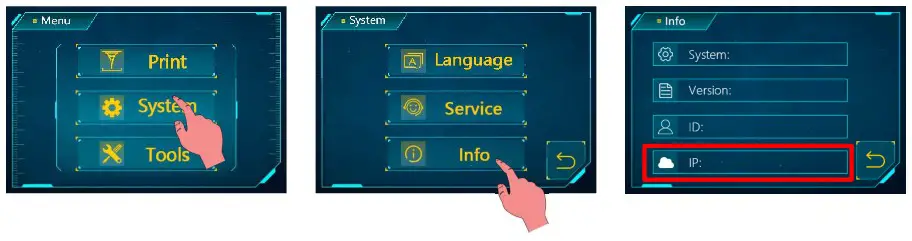
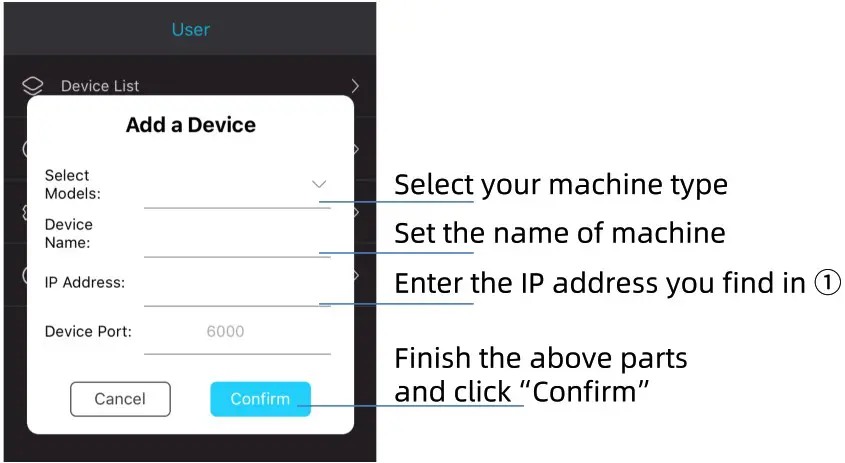
1. Click “System” — “Info” to find IP address of the printer. 2. Open Anycubic 3D, click “User” → “Device List” to add the printer.
 3. Click “Disconnected”, it will show “Connection” when the printer is connected to a smart phone.
 2. Open Anycubic 3D, click “User” → “Device List” to add the printer.
 3. Click “Disconnected”, it will show “Connection” when the printer is connected to a smart phone.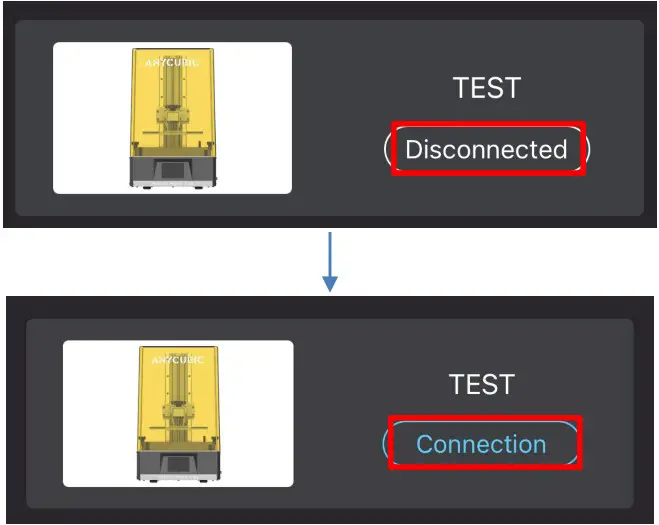
Note: Multiple 3D printers can be added to device list, but only one can be connected at a time.
Remote control
(1) File list
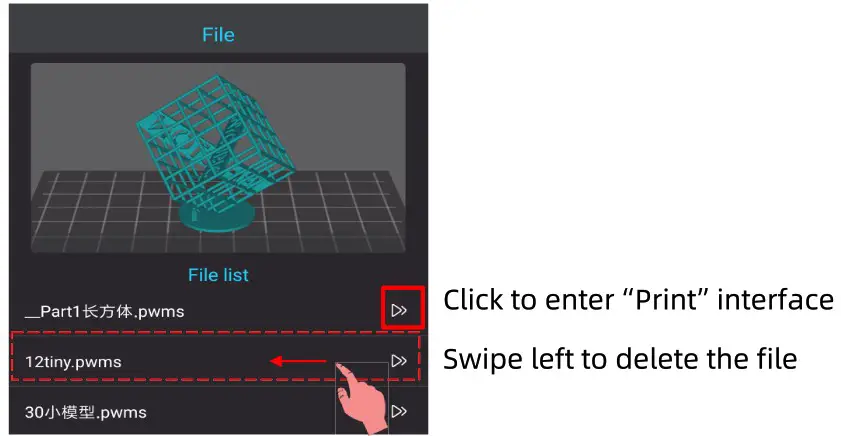
Click “File” on the menu bar, check and preview the sliced file in the USB memory stick which is connected to 3D printer. Swipe left to delete the file; long press to select several files to delete. Click to select a model and then click “  “icon to enter “Print” interface.
Control printing and set print parameter
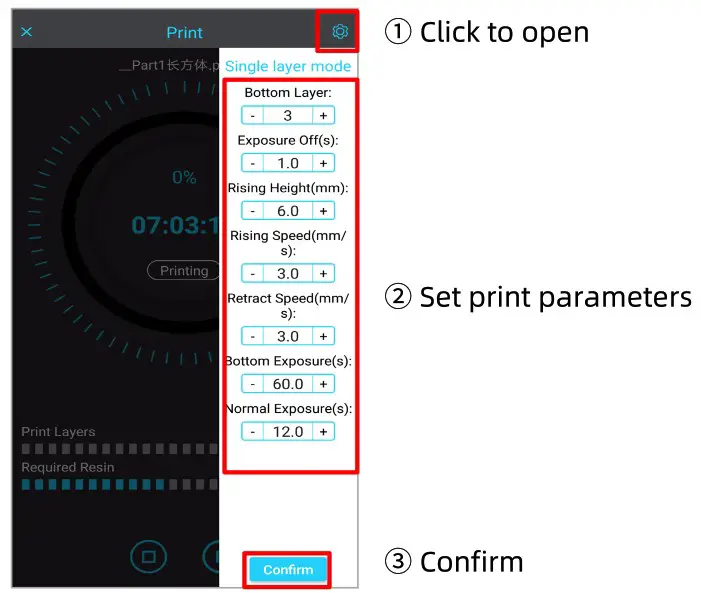
Enter “Print” interface to control the printing process.
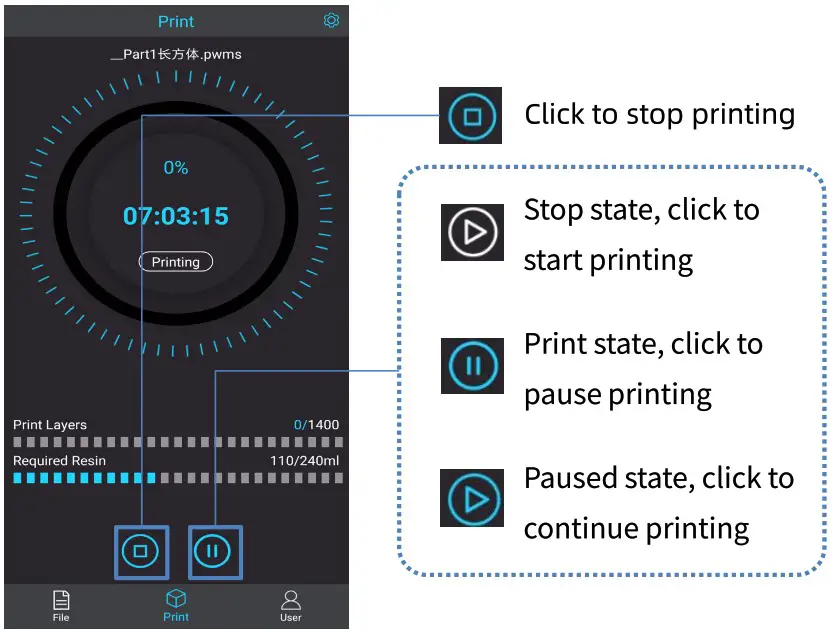
Click the “ ” icon on the top right corner to set print parameters.