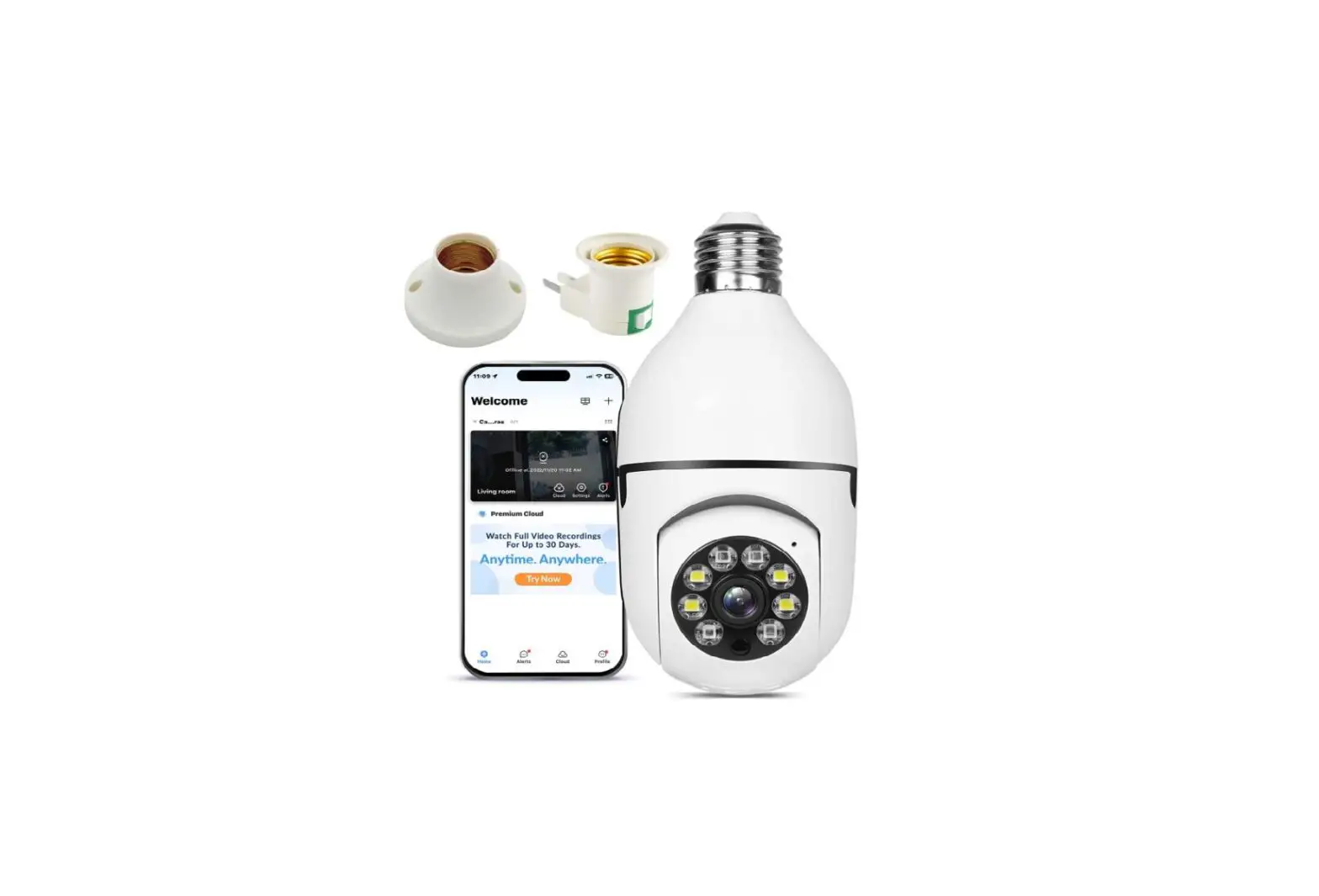
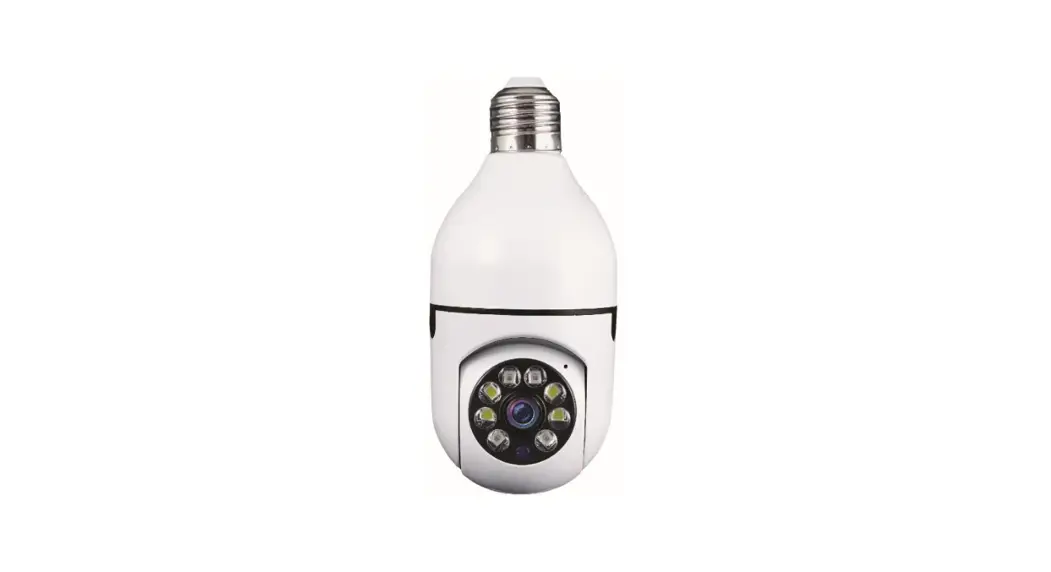
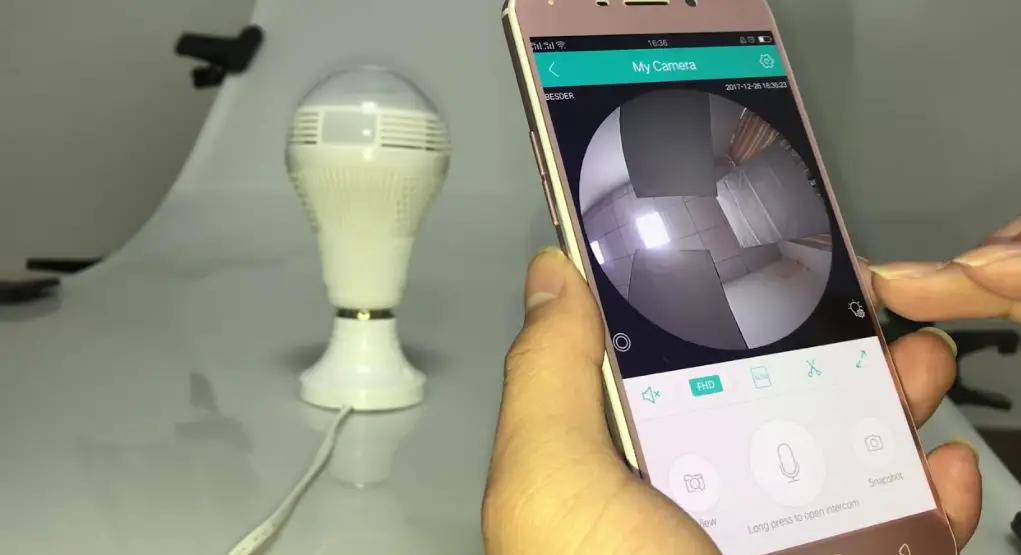
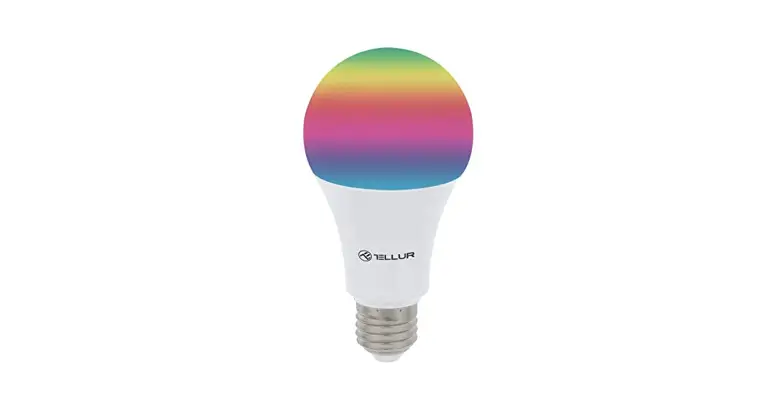
JXLCAM WiFi Smart Home Bulb Camera
Product Information
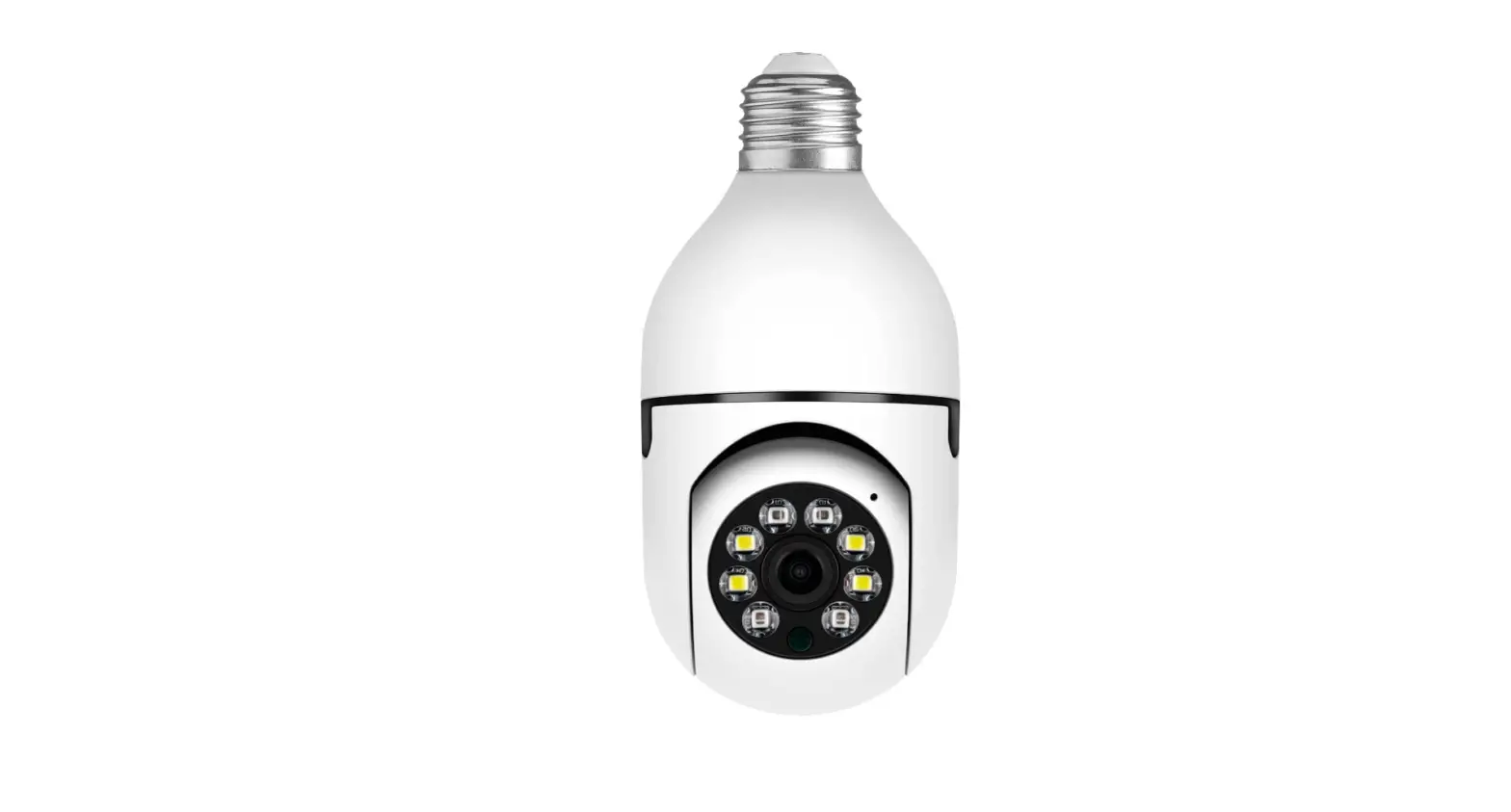
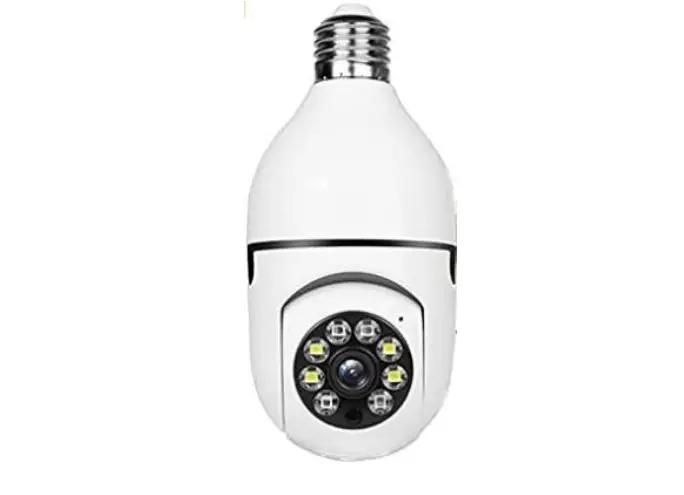
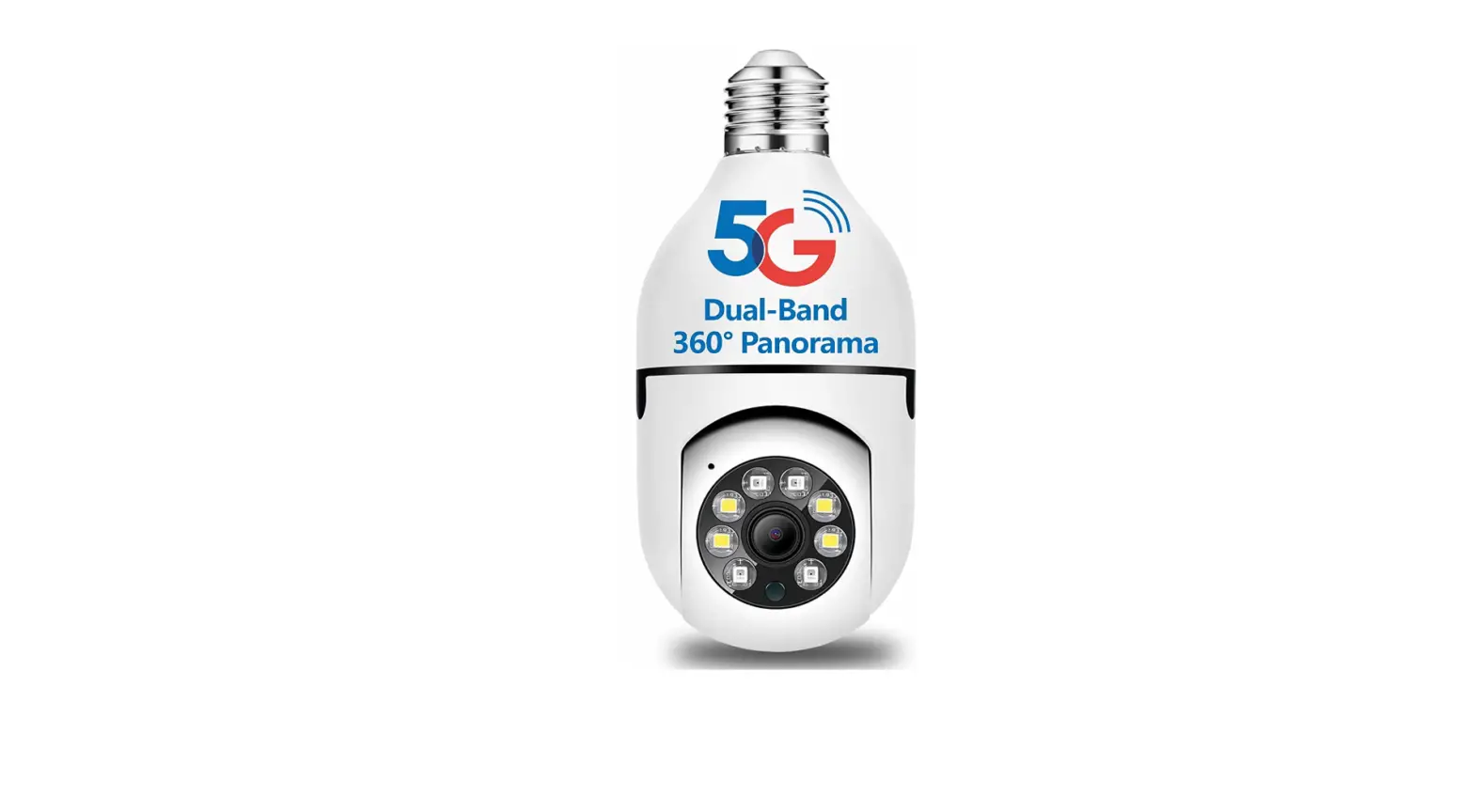
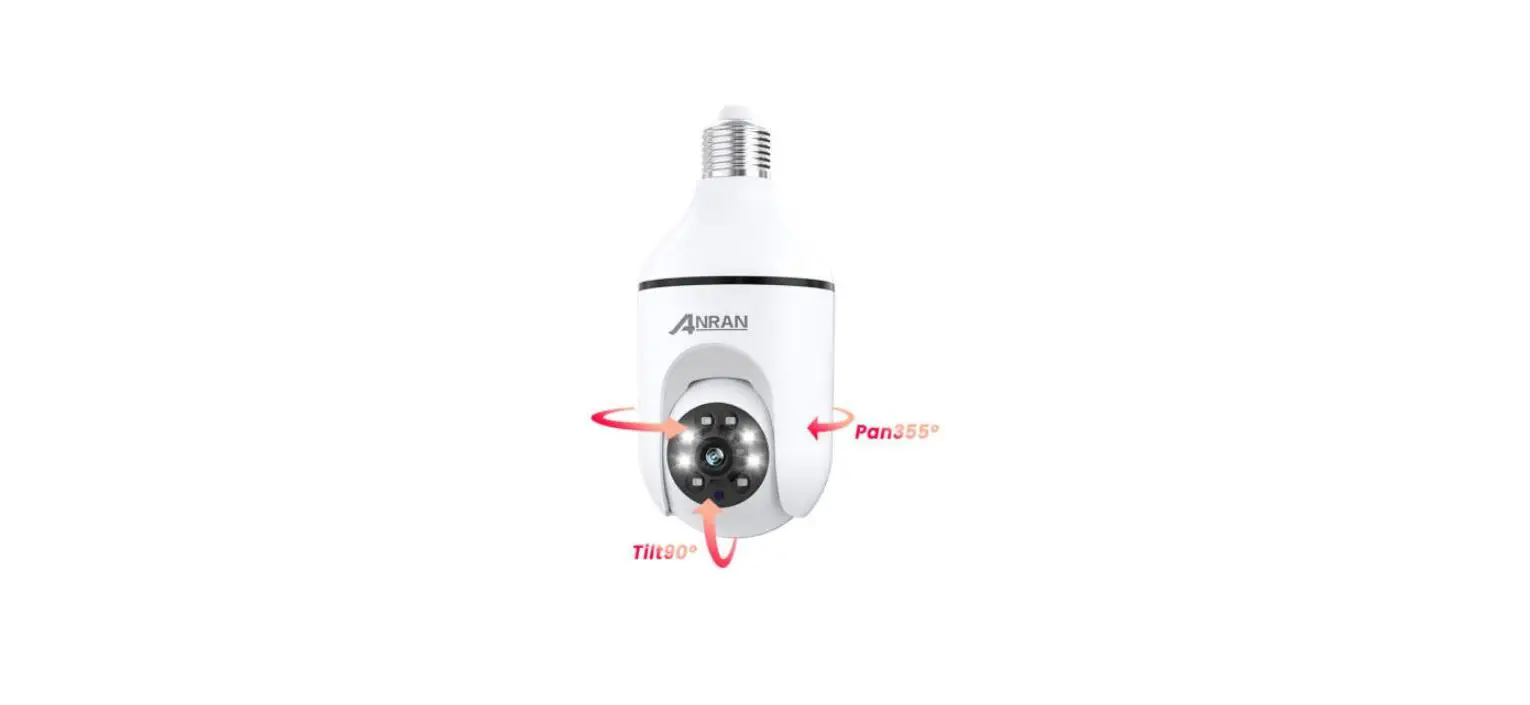
The JXLCAM is a camera device that supports 2.4Ghz Wi-Fi and is
designed to be used with an E27 bulb socket. It allows for local
and remote monitoring and viewing.
Note:
- When setting up the camera for the first time, press and hold
the reset button until you hear a sound. - If your router’s Wi-Fi is dual-band (2.4Ghz/5Ghz), make sure to
set it to 2.4Ghz and connect the camera to the 2.4Ghz Wi-Fi. - The camera only supports E27 bulb sockets.
Product Usage Instructions
Install APP
To install the JXLCAM app on your mobile phone, follow these
steps:
- Scan the QR code provided in the user manual using your mobile
phone. - Select the appropriate version (IOS or Android) based on your
mobile phone system. - Download and install the JXLCAM app.
Turn on the device
Follow these steps to turn on the camera:
- Connect the camera to a 110V-220V power supply using the e27
bulb holder plug. - The red indicator light will be always on, indicating that the
device is in the waiting state. - If the red light flashes once, it means that the device has
successfully connected to the network. - If the red light is always on and you cannot connect, press and
hold the reset button to reset the device.
Option 1: Local mode
In environments without Wi-Fi, you can use the local mode for
monitoring and viewing within a distance of 10m. Follow these
instructions:
- Each device has a unique Wi-Fi name (device ID) in this
mode. - In the local mode, remote control lens rotation operation is
not supported. - If you need to shoot and store videos, install an SD card.
Option 2: Remote mode
To use the complete functions of the camera and enable remote
monitoring, follow these steps:
- Ensure that there is an available Wi-Fi signal near the
camera. - Power on the camera, and the red indicator light will flash,
indicating the device is in standby state. (Note: Only supports
Wi-Fi signal of 2.4G frequency band) - Connect your mobile phone to the Wi-Fi in your
environment. - Open the JXLCAM app on your mobile phone.
- Click on the “+” button.
- Select “AP add”.
- Select and connect to the camera site Wi-Fi.
- Enter the Wi-Fi password for the camera and proceed to the next
step. - Customize the name for the camera.
- You can now view the camera preview page on the homepage of the
app. - Click on the preview page to enter the monitoring
interface.
In the monitoring interface, you can perform various actions
such as taking photos, listening, talking, recording, switching
landscape, checking network status, and more.
Storage card
If you need to store video content, you need to install an SD
card in the camera.
Additional Notes:
Refer to the user manual for instructions on SD card playback
and manually recording files.
JXLCAM
USER MANUAL
Note
1. Please press and hold the reset button on the camera for the first time until you hear the sound. 2.This product only supports 2.4Ghz Wi-Fi, if the router’s Wi-Fi is 2.4Ghz/5Ghz dual-band, it will fail to connect, please set the router Wi-Fi to 2.4Ghz and 5Ghz two different Wi-fi, and connect 2.4Ghz Wi-Fi. 3. This product only supports E27 bulb socket.
Install APP
Use your mobile phone to scan the following two-dimen sional code, select the IOS or Android version according to the mobile phone system to install the APP, APP name: JXLCAM
Turn on the device
Connect using the e27 bulb holder plug Equipment to110V- 220V power supply, red indicator is Always on, the device enters the waiting state Connected, network configuration succeeded, and The red light flashes once. NoteIf the red light is always on er you cannot connect, you can press and hold the reset button to reset.
Option 1: Local mode
When there is no WiFi in the environment, you can use the AP mode to connect, the effective distance of this mode does not exceed 10m, Localized monitoring and viewing can be realized. note: 1) Each device has a unique WiFi name (device ID), and the format is unified as “ACCQ/BCCQ…….”; 2) In the local mode, the remote control lens rotation operation is not supported. If you need to shoot and store videos, please install an SD card.
Option 2: Remote mode
If you want to use the complete functions of the device and realize remote monitoring, you need to configure the remote mode. 1. First confim that there is an available WiFi signal near the device, power on the monitoring device, the red indicator light flashes, and the device enters the standby state. (Note: Only supports WiFi signal of 2.4G frequency band) 2.Connect the mobile phone to the WiFi in yourenvironment, apen the software JXLCAM, and follow the steps below:
Click “+
Select “AP add”
Select and connect to Connect to camera the site WiFi, enter the WiFi, add camera password, the next step
Customizable name
You can view the camera preview page on the homepage
CLICK ON THE PREVIEW PAGE TO ENTER THE MONITORING INTERFACE
Local mode Number of device Device nickname
Photo Listen
Talk
Recording
Landscape switching
Network status
Waiting for the camera Distribution network
to be networked
is successful
Storage card
If you need to store video content, you need to install an SD card .
Add device refresh page
SD card playback file Manually record files
NOTE:
1.When the device fails to configure the network, please check whether the router and WiFi password are configured correctly (the device does not support 5GWiFi). After confirming that it is correct, you can press and hold the reset button until the device indicator flashes quickly, restore the factory settings, and reconfigure network. 2. When the software homepage shows that the device is offline, you can check whether the clevice is normally powered on, and click the refresh icon in the upper right corner to refresh.