AGFA PRIJEVOD ENGLESKI – HRVATSKI
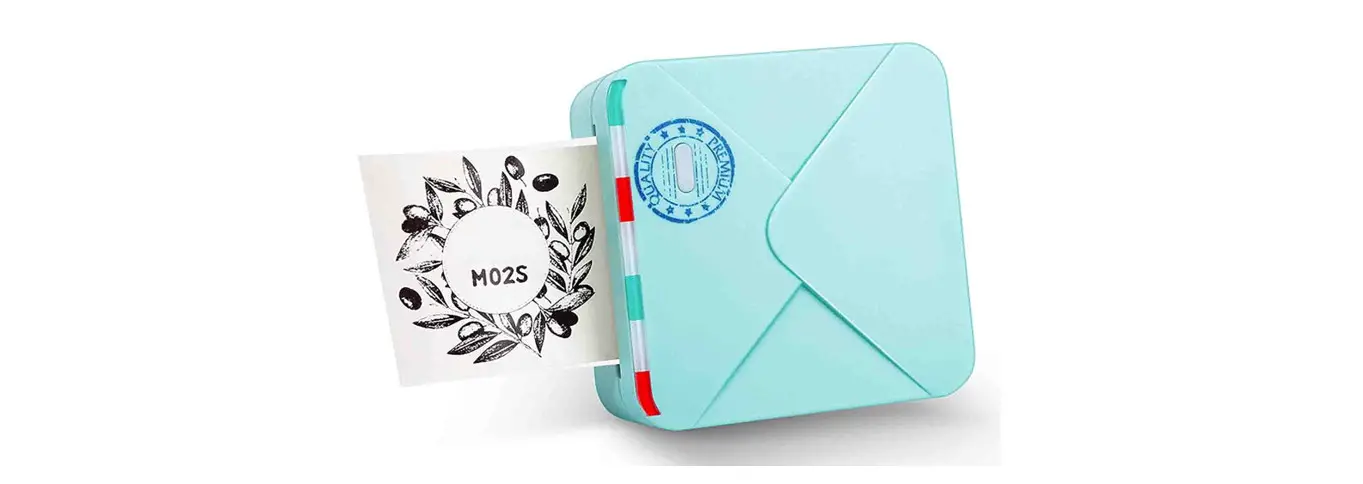
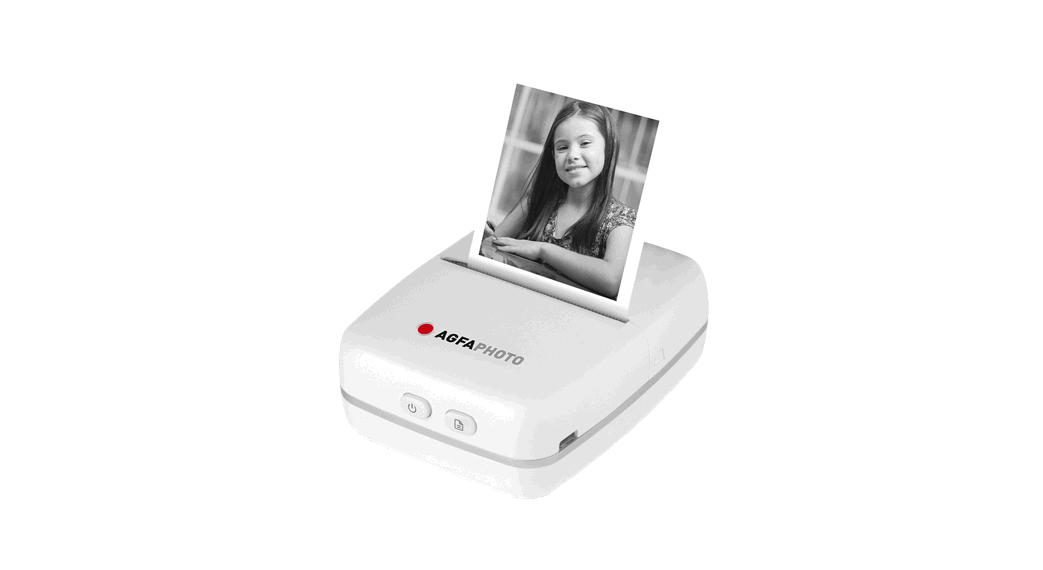
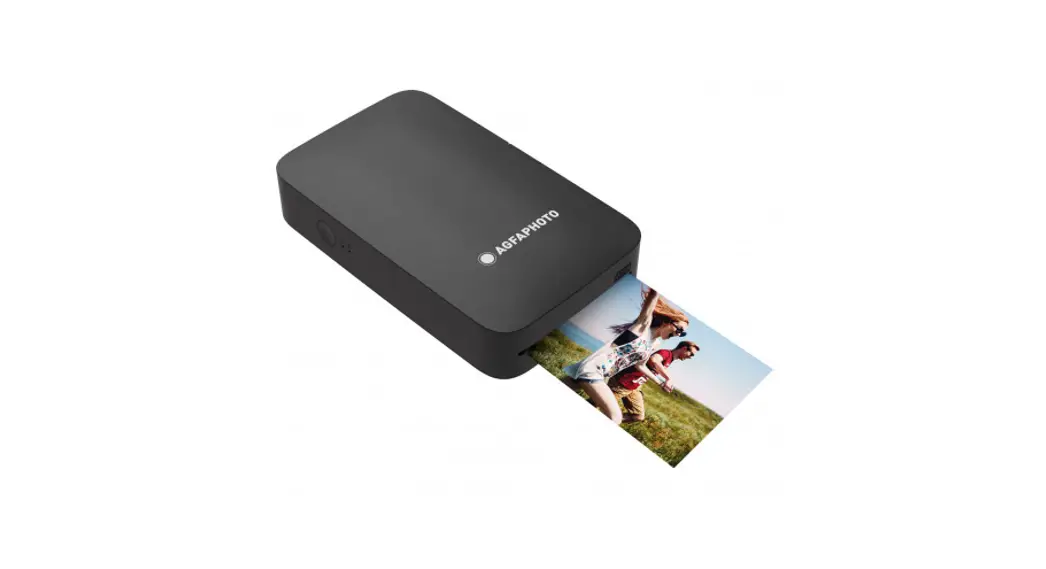
Agfa Mini Printer 2*3 Black
https://drive.google.com/drive/folders/1VNHuzsMmHZylQGw2ZESaAKhNYvJVm8JR
https://drive.google.com/drive/folders/1qz56pdoF9Sntr9v3js5Jv_H29i7DKo0O
AGFAPHOTO
USER GUIDE
REALPIX MINI P
Smartphone App Installation
- ANDROID
1) Go to GOOGLE Play Store in your smartphone.
2) Search “Agfaphoto Realipix”.
3) Install “Agfaphoto Realipix” into your smartphone. - APPLE Device
1) Go to APP STORE in your IPHONE, IPOD TOUCH or IPAD.
2) Search “Agfaphoto Realipix”.
3) Install “Agfaphoto Realipix” application into your device.
BLUETOOTH Connection
- Turn on BLUETOOTH in your smartphone.
- Turn on printer.
- Go to BLUETOOTH setting in your smartphone and you can find “Agfaphoto – XXX“ (“XXXX“ are 4 digits combination of numbers and letters.)
- Select it for connection. Searching → Connecting → Printer Found
Before Start
- This Printer has built-in battery. Charge the printer before using it.
- How to Change Cartridge.
IN/OUT
Pull out or Push the cartrige with this handle.
IN/OUT
Follow the arrow to insert the cartrige.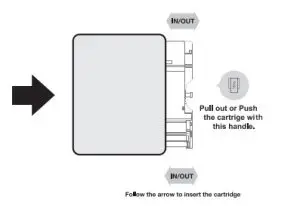
Printing in the App
- “Agfaphoto Realipix“ app launch → 2. “Gallery“ to load your device’s photos. →3. Choose Photo → 4. Select Print Number → 5. Select Printer Icon
*Select SNS if you want to print the photo from it.
Note
- Photo Paper will go in and out 4 times (YMCO, Yellow, Magenta, Cyan, Overcoating). Do not touch the paper during printing process for best image quality.
- Do not pull paper out by force during printing.
- Do not place an object in front of the paper exit slot.
- Use the latest application for best print quality. Check the latest app version from GOOGLE Play Store and APPLE APP STORE.
- Printer has built-in battery. Charge the printer before using.
- Handle with care during charging to prevent electric shock.
- Do not disassemble or deform.
- Avoid too high or low temperature or humidity.
- The higher resolution the image has, the higher quality the printed photo has. Recommended image size is 1280*2448 pixel.
- Operating Temperature: 0-40°C.
Troubleshooting
| Symptom | Cause / Solution |
| Paper Jam | Power off and Power On again. Paper will be automatically ejected. If not, please contact customer service. |
| Image quality is not good. | Print quality could be less if your photo source has low resolution. |
| Over 1280 x 2448 pixel is recommended for best image quality. | |
| Printer is not responding. | Press Reset button with sharp tool like pin. |
Power and Active Status
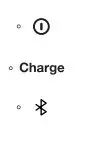 Power ON: White / Power OFF (2 Sec): Off / Printing: White Flickering F.W Upgrade: Pink Flickering / No Cartrige, Error: Red Flickering
Waiting, Cooling: White
Charging: Red / Charging Complete: Green
Connecting: Green Blink / Bluetooth Complete: Green
FCC (Federal Communications Commission) // CE
This device complies with part 15 of the FCC Rules. Operation is subject to the following two conditions:
- This device may not cause harmful interference, and
- This device must accept interference received, including interference that may cause undesired operation.
Notice of compliance for the European Union Products bearing the CE mark comply with the applicable European directives and
associated harmonised European standards.
Caution: Any changes or modifications to the equipment not expressly approved by the party responsible for compliance could void user’s authority to operate the equipment. This appliance and its antenna must not be co-located or operation in conjunction with any other antenna or transmitter.
A minimum separation distance of 20 cm must be maintained between the antenna and the person for this appliance to satisfy the RF exposure requirements.
WARRANTY – 1-year limited warranty
Compatible cartridge
AGFAPHOTO
After-sales service
Email: [email protected]
Phone: 0033 1 85 49 10 26
Made in Korea
@ Prinics Co., LTD.