
Spectrum Internet, WiFi & Voice
Connect to What Matters Most
In five easy steps, you’ll be connected and enjoying your new services! If you prefer to watch a video, visit spectrum.net/setup2 for an instructional video and other helpful installation tips.
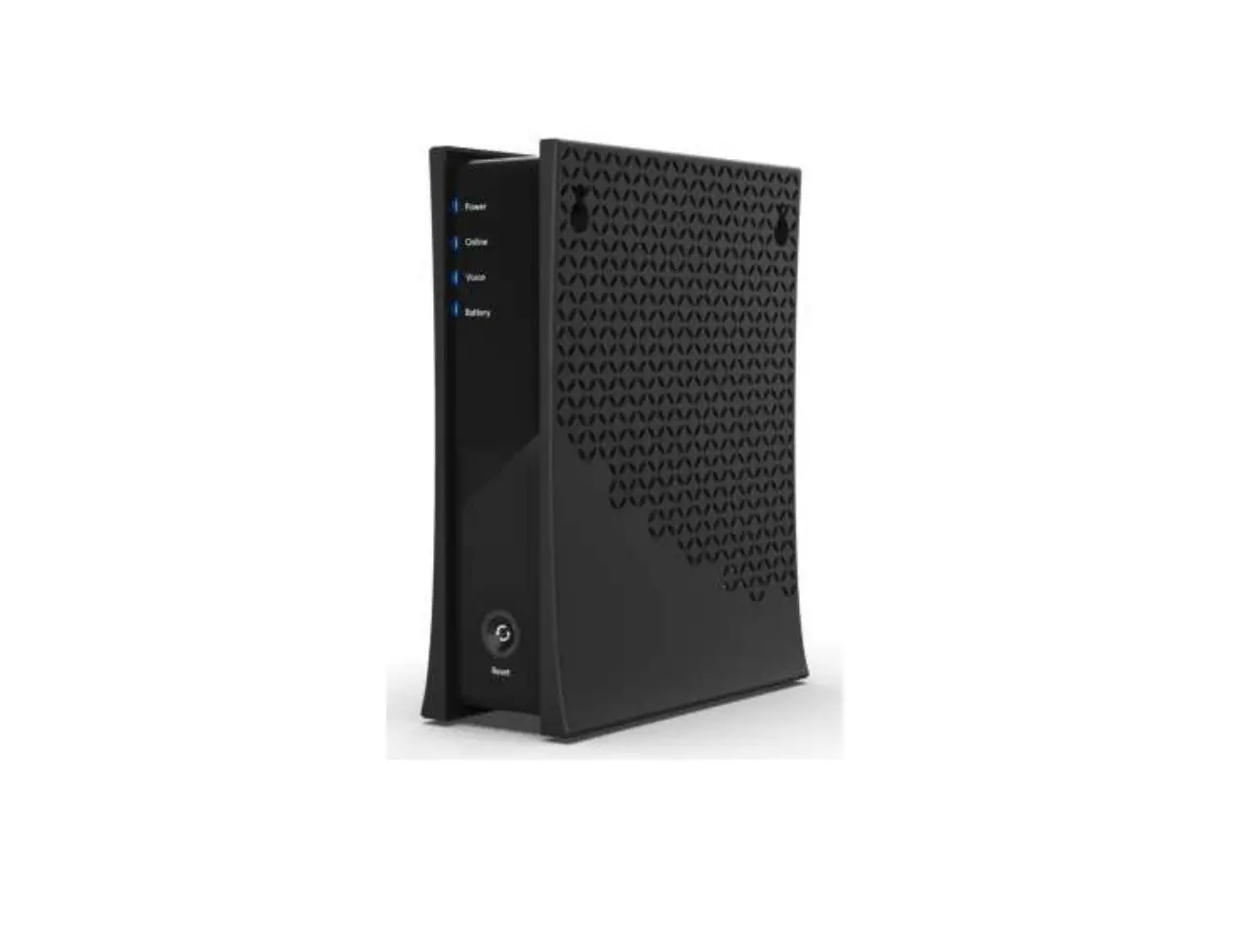
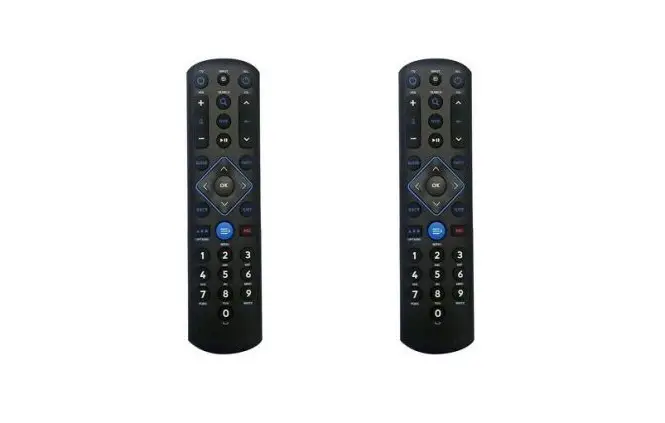
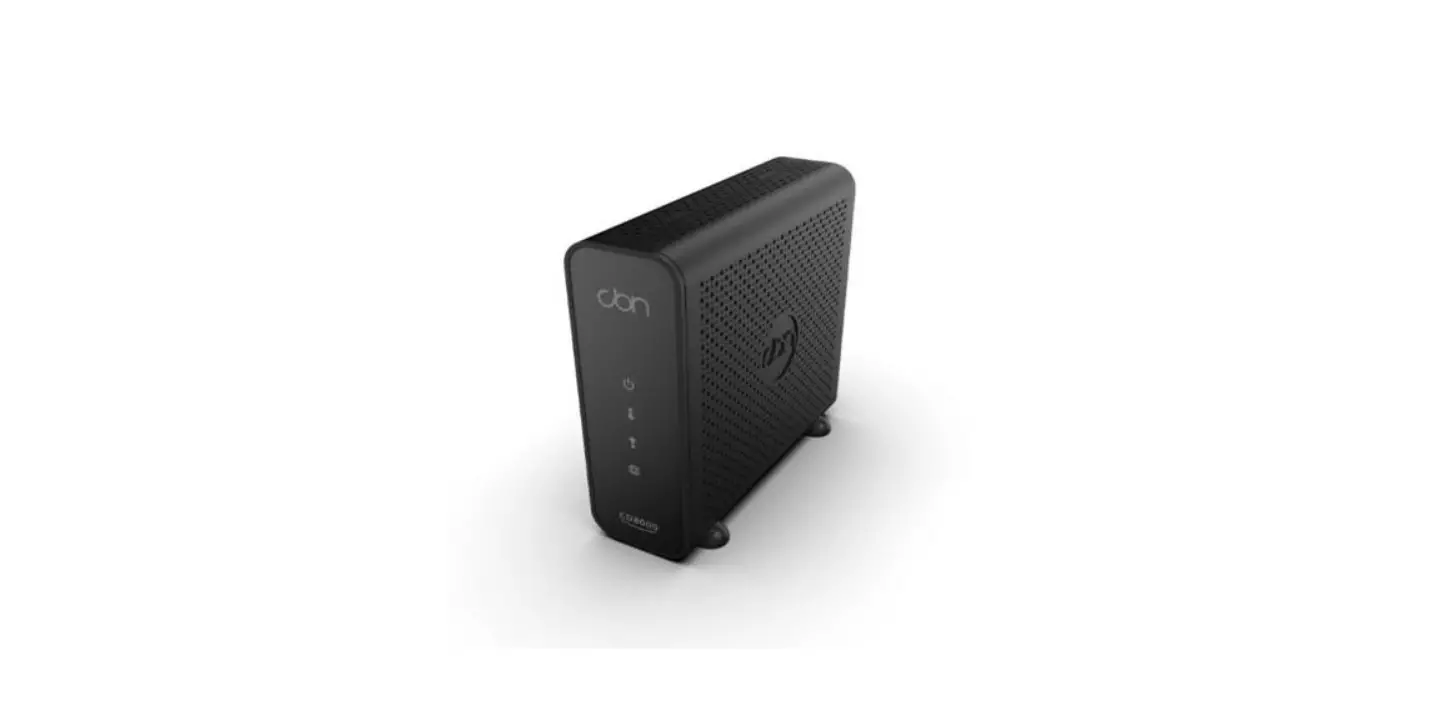
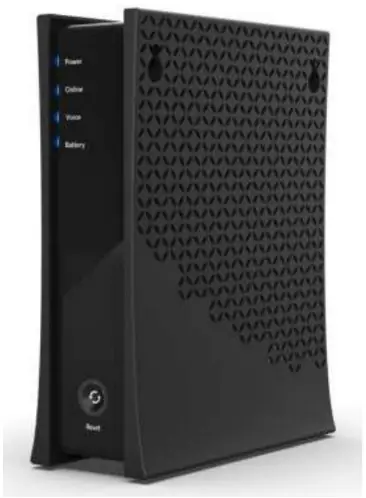
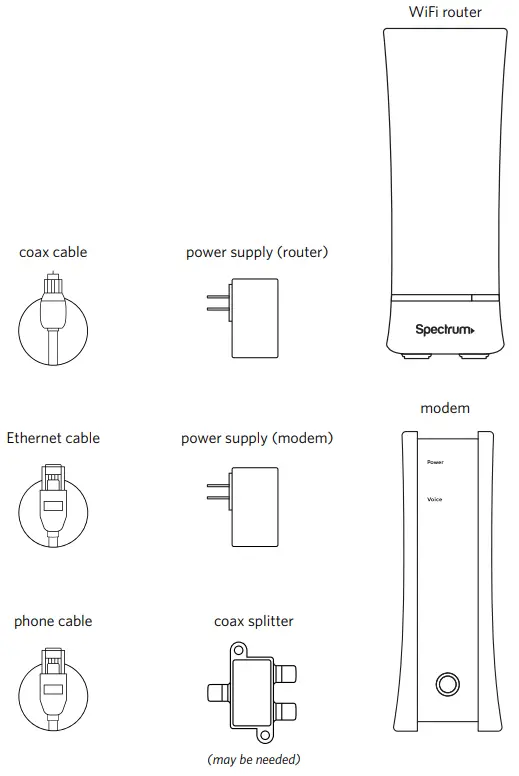
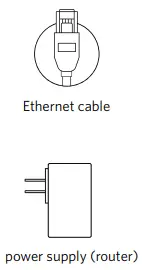
Here’s What’s Included
 Connect Modem
 Connect Modem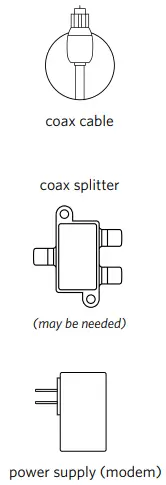
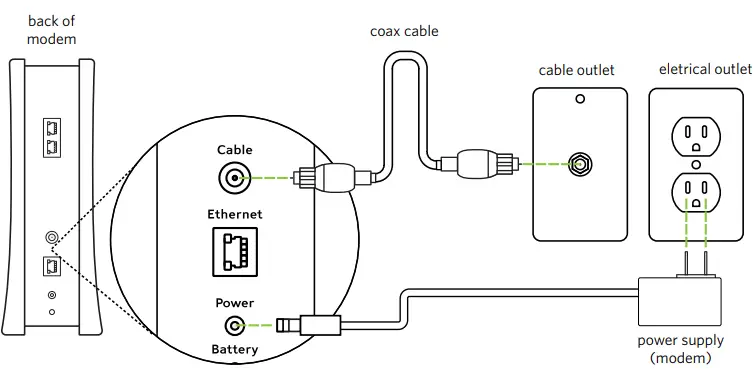
Important: If you’re replacing a Spectrum modem, disconnect it from the power and coax cable outlets before connecting the new modem. To return this equipment, follow the instructions on the last page.
- Connect one end of the coax cable to a cable outlet, and then connect the other ends to the modem.
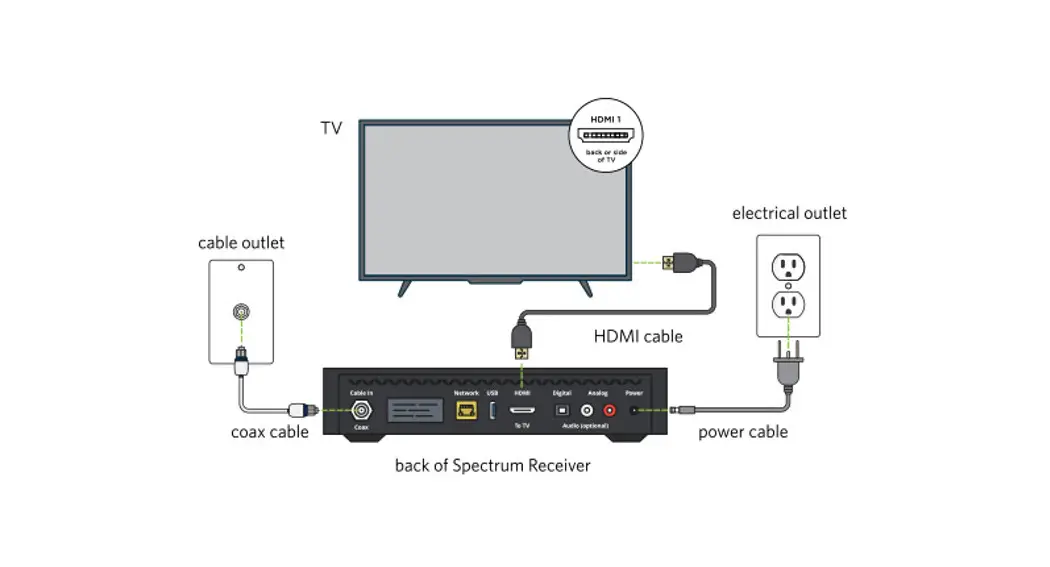
Note: A coax splitter should be used if this cable outlet will be shared with a Spectrum Receiver for TV service. Visit spectrum.net/splitter for more info. - Connect the power cable to the modem, and then plug the other end into an electrical outlet.
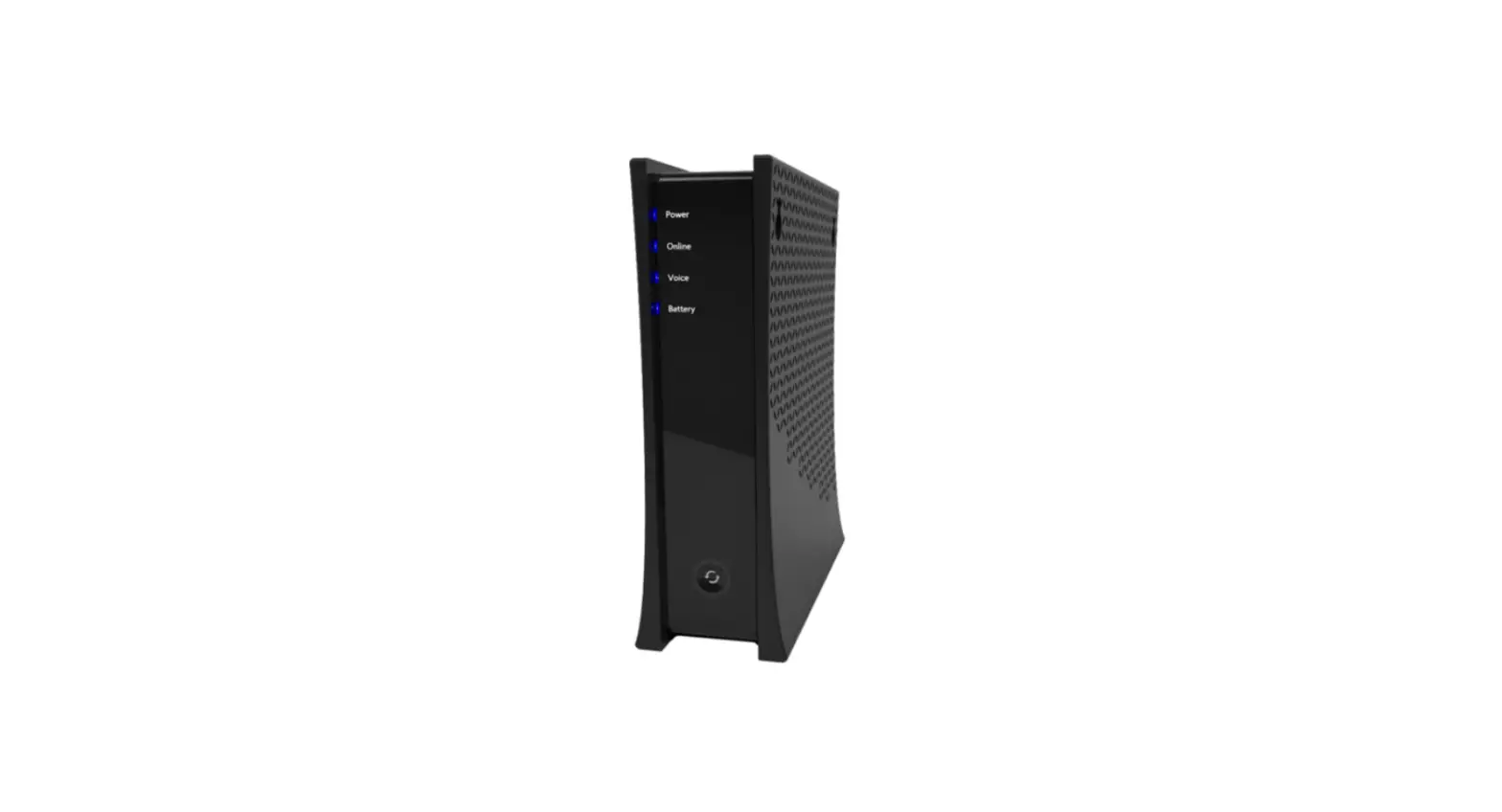
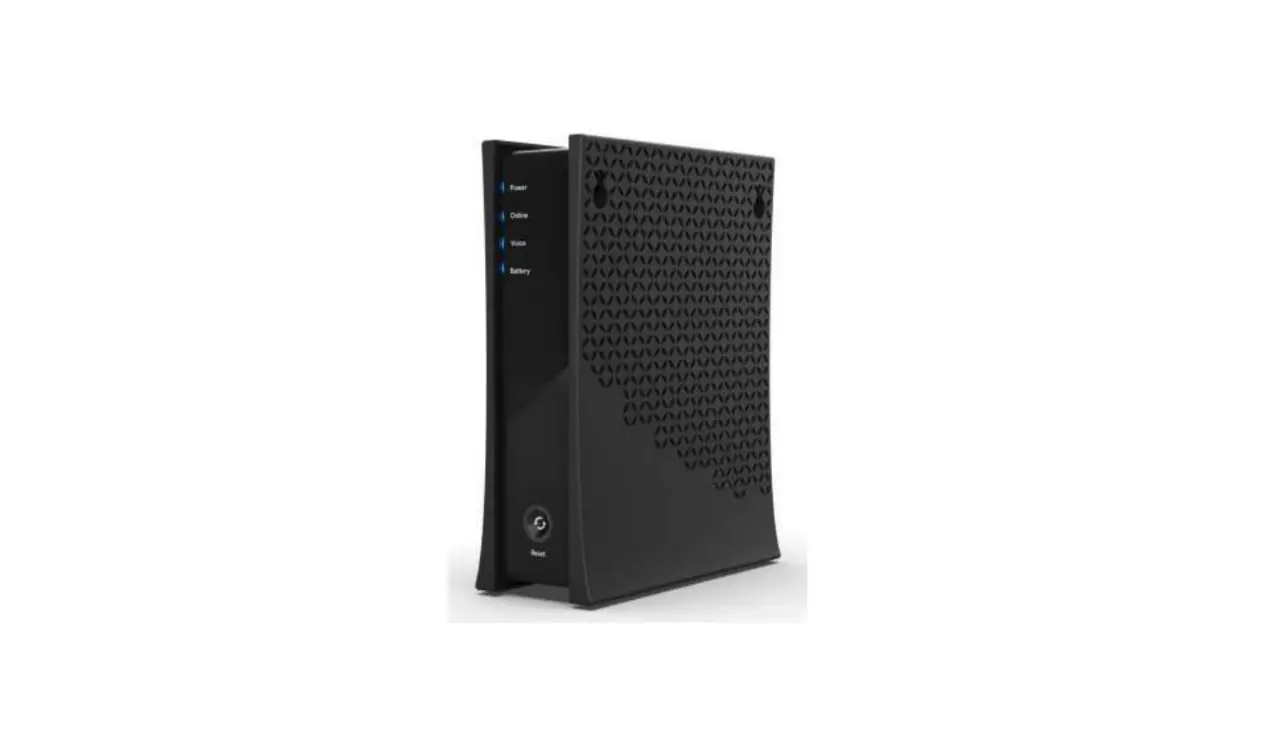
- Wait for the modem to connect to the network (about two to five minutes). You’ll know it’s connected when the Online status light on the front of the modem is solid.
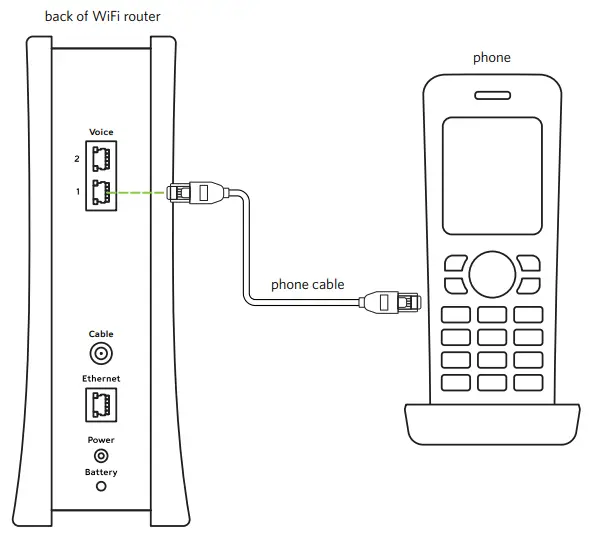
Connect Phone to Modem
- If you haven’t already, plug your phone into an electrical outlet.
- Connect one end of the phone cable to your phone, and then connect the other end to the Voice 1 port on the modem.
Note: Only connect your phone to an electrical outlet and the modem, not a telephone outlet. - To set up your voicemail and learn more about your service, visit spectrum.net/support
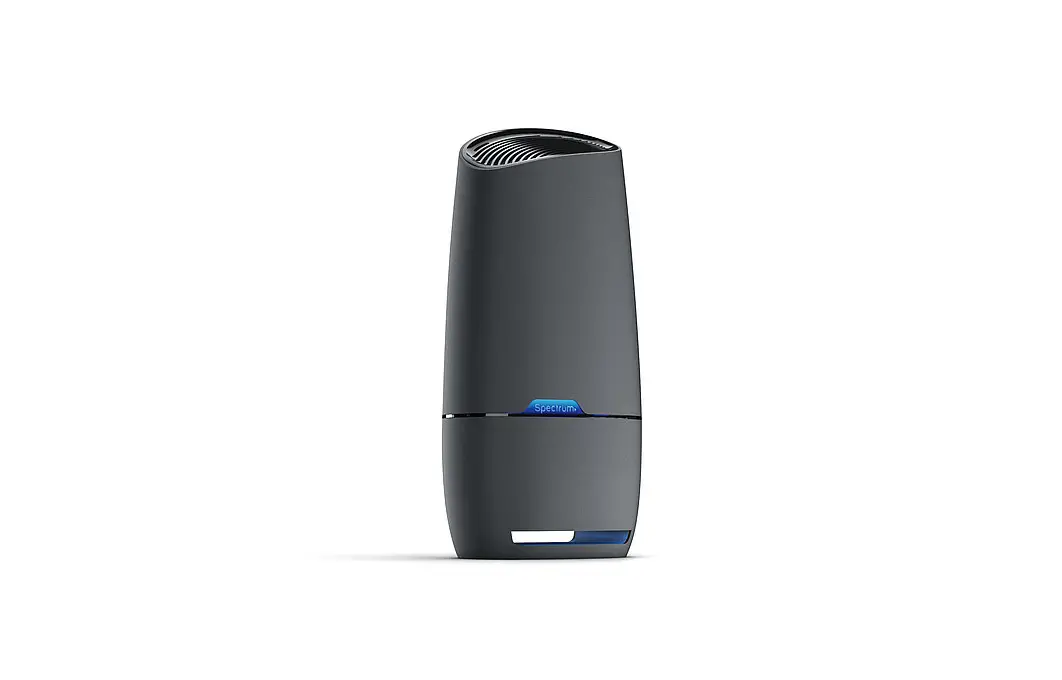
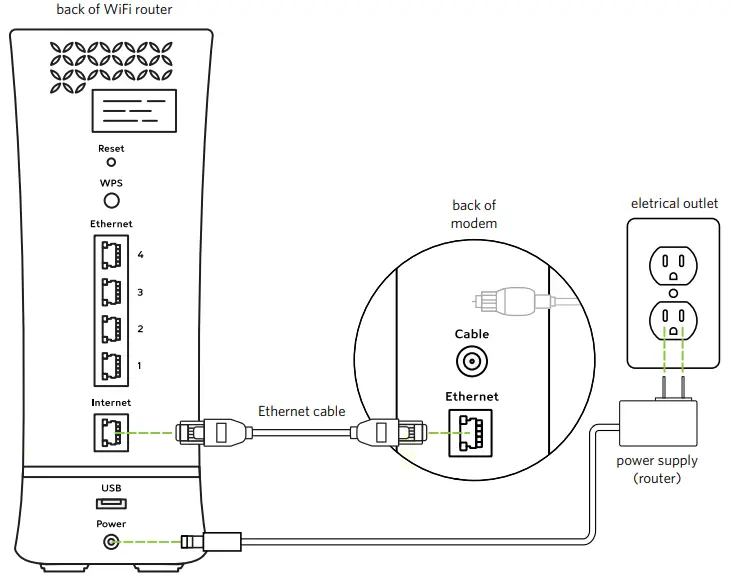
Connect Modem to WiFi Router
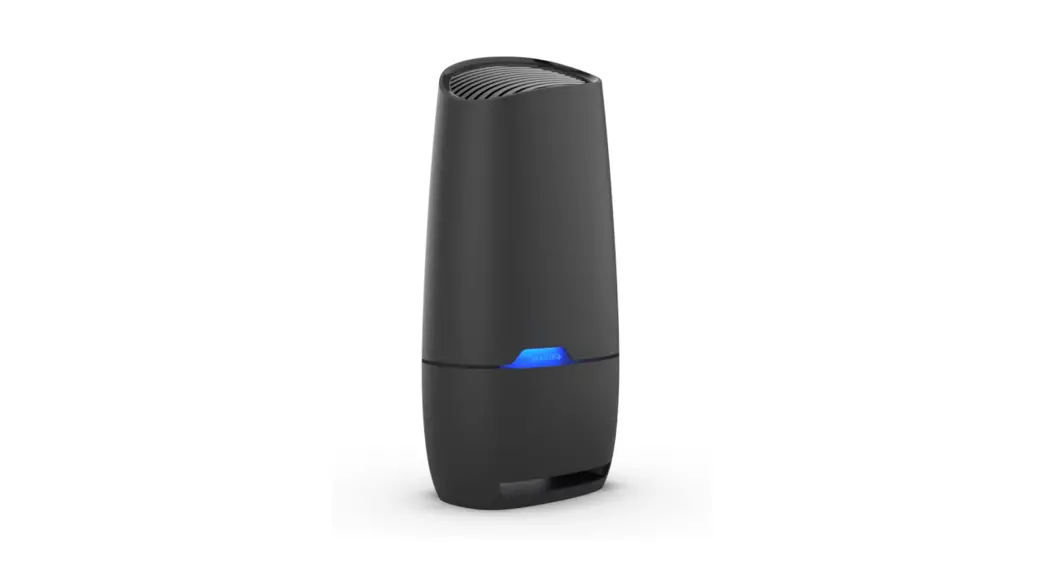
- A Connect the Ethernet cable to the modem, and then connect the other end to the internet port on the back of the WiFi router.
- B Connect the power cable to the WiFi router, and then plug the other end into an electrical outlet.
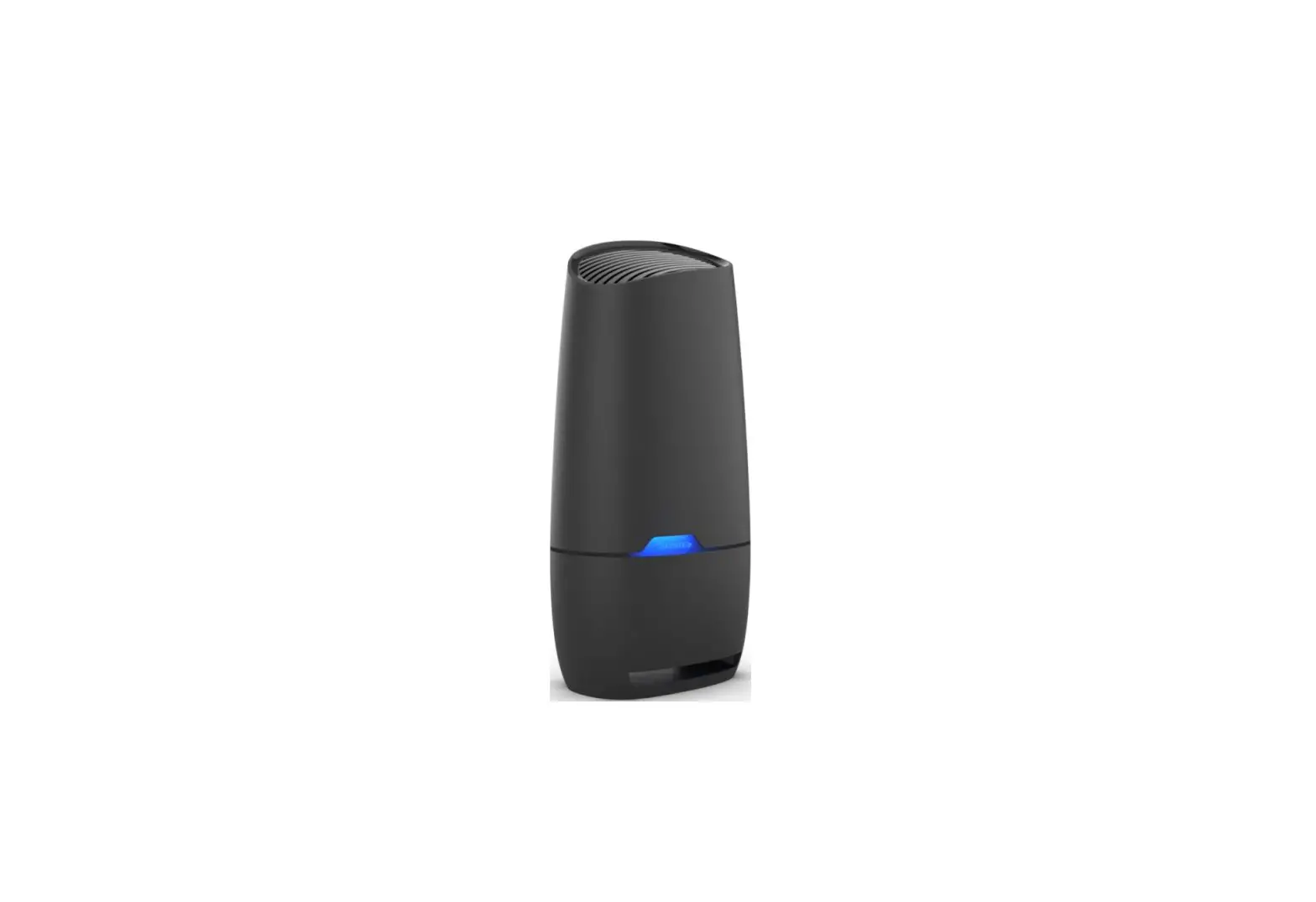
- C Wait for the status light on the bottom front of the router to turn solid blue. This may take up to 10 minutes.
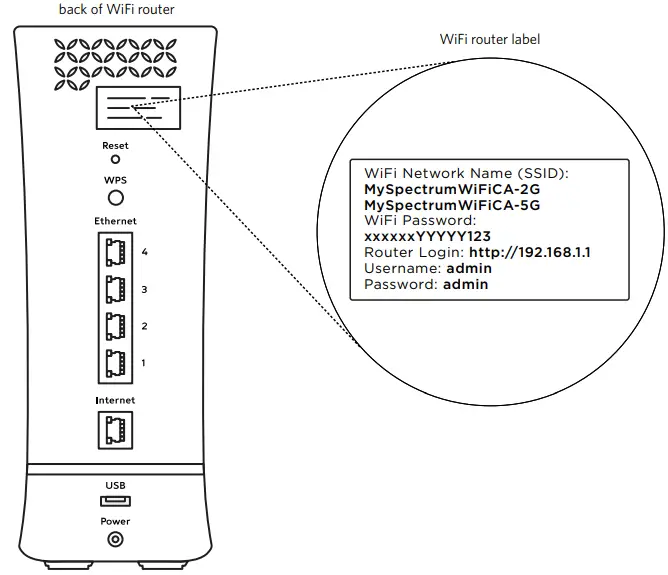
Connect Device to WiFi Router
- Open your device’s WiFi settings.
- Select your unique WiFi network name (SSID), which you can find on the back of the router and on the enclosed labels.
Note: This WiFi router supports 2.4 GHz (broad coverage) and 5 GHz networks (faster speeds for newer devices within a closer range). - Enter the password printed on the WiFi router. This password is also printed on the labels included with the router.
Activate Modem Online
- Make sure you have your account number available. You can find it on your included letter.
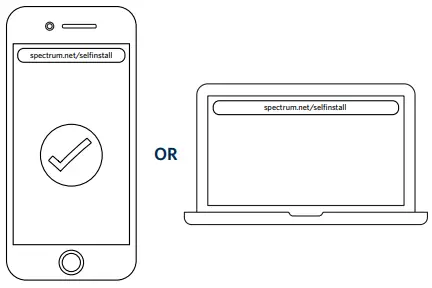
- Visit spectrum.net/selfinstall from your smartphone or computer. Select Get Started and follow the instructions.
- After activation is complete, create a username on Spectrum.net to manage your account and equipment.
It’s easy to customize your WiFi network name and password. To connect all your devices in one step, visit spectrum.net/easywifi
Have Questions
- We’re here to help. To learn more about your services, visit spectrum.net/support
- Didn’t find what you’re looking for? Call us at (855) 632-7020.
RETURNING EQUIPMENT?
To avoid additional charges, refer to the included return label or visit spectrum.net/equipment-return for instructions.