206930 ActionTec High Speed Internet
Product Information:
The product being referred to in these setup instructions is a
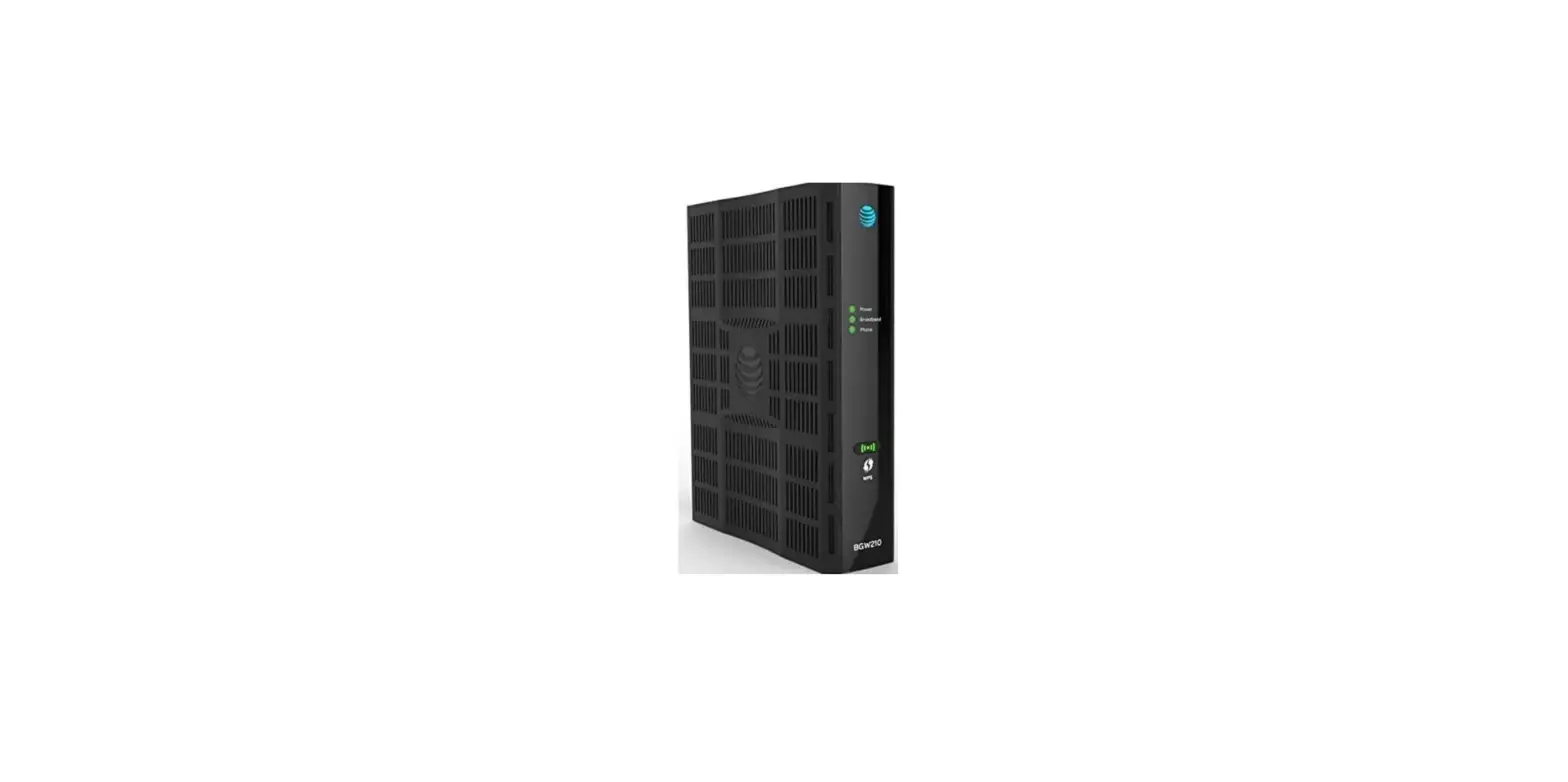
high-speed internet DSL modem provided by Actiontec. The package
includes the following items:
- DSL cable
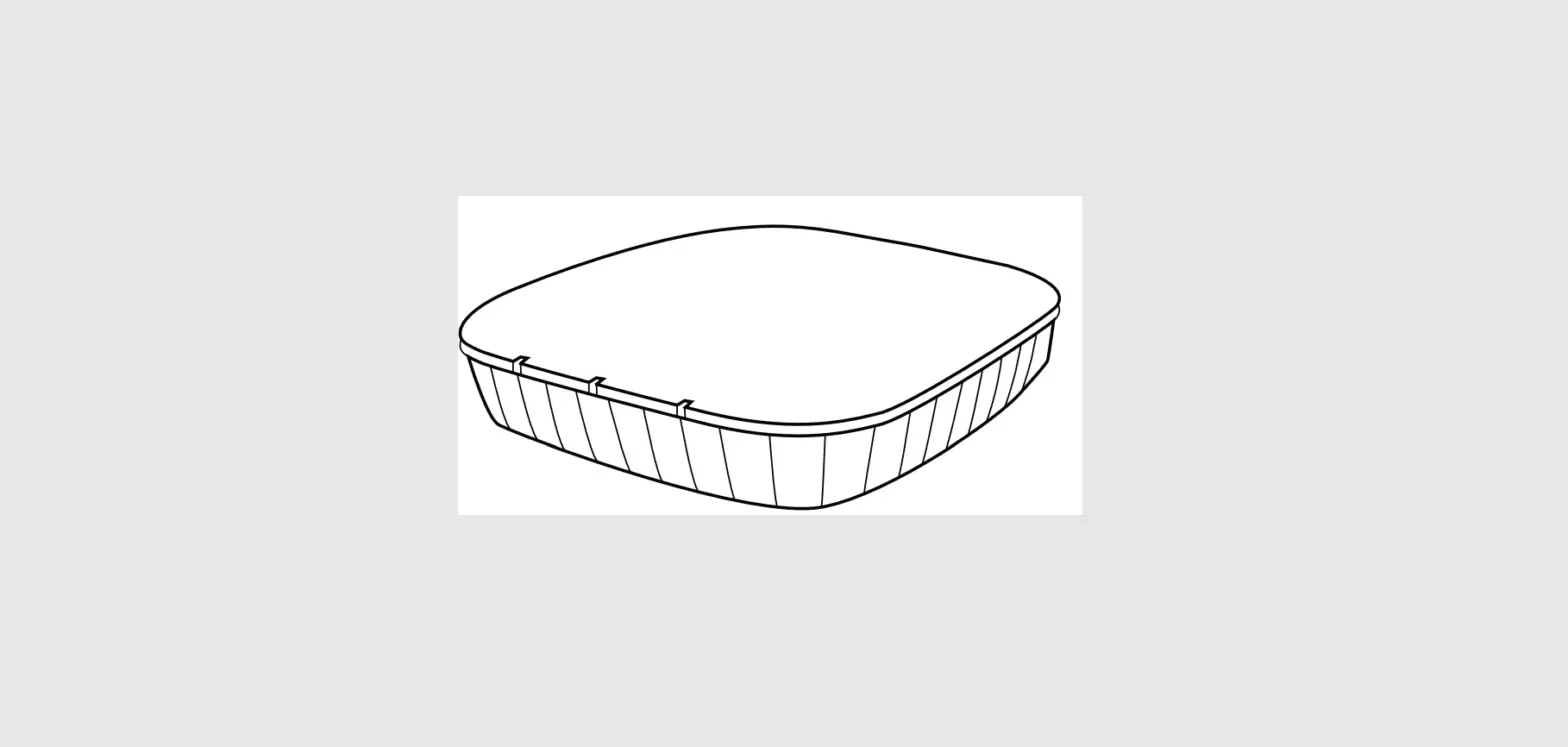
- Actiontec modem
- Ethernet cable
- Power cord
Product Usage Instructions:
- Your DSL internet service is delivered through a connection
from a telephone wall jack to your modem. Locate the telephone wall
jack in your office, living room, or den, as it is likely the best
jack for DSL. - Plug one end of the DSL cable into your phone jack and the
other end into the green DSL port on the back of your modem.
- Connect the power cord to the modem and plug the other end into
a power outlet. On the front of your modem, wait for the Internet
light to glow solid green. The Wi-Fi light will flicker gently,
which may take up to five minutes.
- While waiting for the lights to indicate a successful
connection, you can set up your wireless network. Find your Wi-Fi
network name and password on the sticker located on the back of
your modem.Wi-Fi Network Name Wi-Fi Network Password [Wi-Fi Network Name] [Wi-Fi Network Password] - Using your phone, tablet, or laptop, navigate to the list of
available Wi-Fi networks and select your network. Enter the
password when prompted. - If you want to connect a desktop computer, game console, or any
other device directly to your modem, use the provided Ethernet
cable to establish the connection. - Your high-speed internet service should now be up and running
smoothly. - If the lights on the front of your modem are not glowing as
described in Step 3, check all connections to ensure that the
cables are properly plugged in. Verify that your power outlet is
functioning correctly. If you are using a power strip, try plugging
the modem directly into an outlet.
For additional assistance or troubleshooting tips, you can visit
tdstelecom.com/DSLsetup or
call 1-833-440-3058.
If you prefer to watch a video tutorial, you can visit tdstelecom.com/DSLsetup or
use your smartphone camera to scan the provided QR code.
HIGH-SPEED INTERNET
SETUP INSTRUCTIONS
WHAT’S INCLUDED:
DSL CABLE
ACTIONTEC MODEM
ETHERNET CABLE POWER CORD
Follow the instructions to set up your TDS® high-speed Internet service.
1 Your DSL internet service is delivered through a connection from a telephone wall jack to your modem. The best jack for DSL is likely located in an office, living room or den.
2 Plug one end of the DSL cable into your phone jack and the other end into the green DSL port on the back of your modem.
ACTIONTEC (BACK)
PHONE JACK
3 Plug the power cord into the modem and the other end into a power outlet. Looking at the front of your modem, the light labeled Internet will eventually glow solid green. The light labeled Wi-Fi will flicker gently. This could take up to five minutes.
ACTIONTEC (FRONT)
4 While you wait for that, you can set up your wireless network. First, locate your Wi-Fi network name and password, printed on the sticker on the back of your modem.
Wi-Fi Network Name Wi-Fi Network Password
5 Using your phone, tablet, or laptop, navigate to the list of available Wi-Fi networks and select yours. Enter the password.
6 If you wish to connect a desktop computer, game console or other device directly to your modem, connect them via the ethernet cable provided in your setup kit.
7 Your high speed internet service should be up and running smoothly.
If the lights on the front of your modem are not glowing as described in Step 3, check all connections to make sure the cables click into place. Check to be sure your power outlet is working. If connecting via a power strip, try plugging directly into an outlet instead.
· If you still have trouble, it could mean the phone jack you chose is set up for phone service only. You can either try again with another jack, or call our repair team for advice at 1-833-440-3058.
For additional assistance or troubleshooting tips, visit tdstelecom.com/DSLsetup or call 1-833-440-3058
PREFER TO WATCH A VIDEO?
Visit tdstelecom.com/DSLsetup or scan this QR code using your smartphone camera.
PREFER TO WATCH A VIDEO?
Visit tdstelecom.com/DSLsetup or scan this QR code using your smartphone camera.
Services and offer(s) not available in all areas. Price may vary by serving area. Offers, products, packages, and pricing are subject to change without notice. After promotional period, normal rates apply. If any part of the bundle is terminated, discounts are void. Some services require equipment and normal fees may apply. TDS equipment must be returned upon disconnection or unreturned equipment charges may apply. Equipment handling fees may apply. Services subject to TDS Terms of Service at tdstelecom.com/ tos, TDS Privacy Policy at tdstelecom.com/privacy, and TDS Acceptable Use Policy at tdstelecom.com/ use. TDS Telecom®, TDS TV®, and TDS® are registered trademarks of Telephone and Data Systems, Inc. Copyright © 2022, TDS Telecommunications LLC, All Rights Reserved. 206930_ActionTec/4-22/12595
 TDS High-Speed Internet, TV and Home Phone Service | TDS