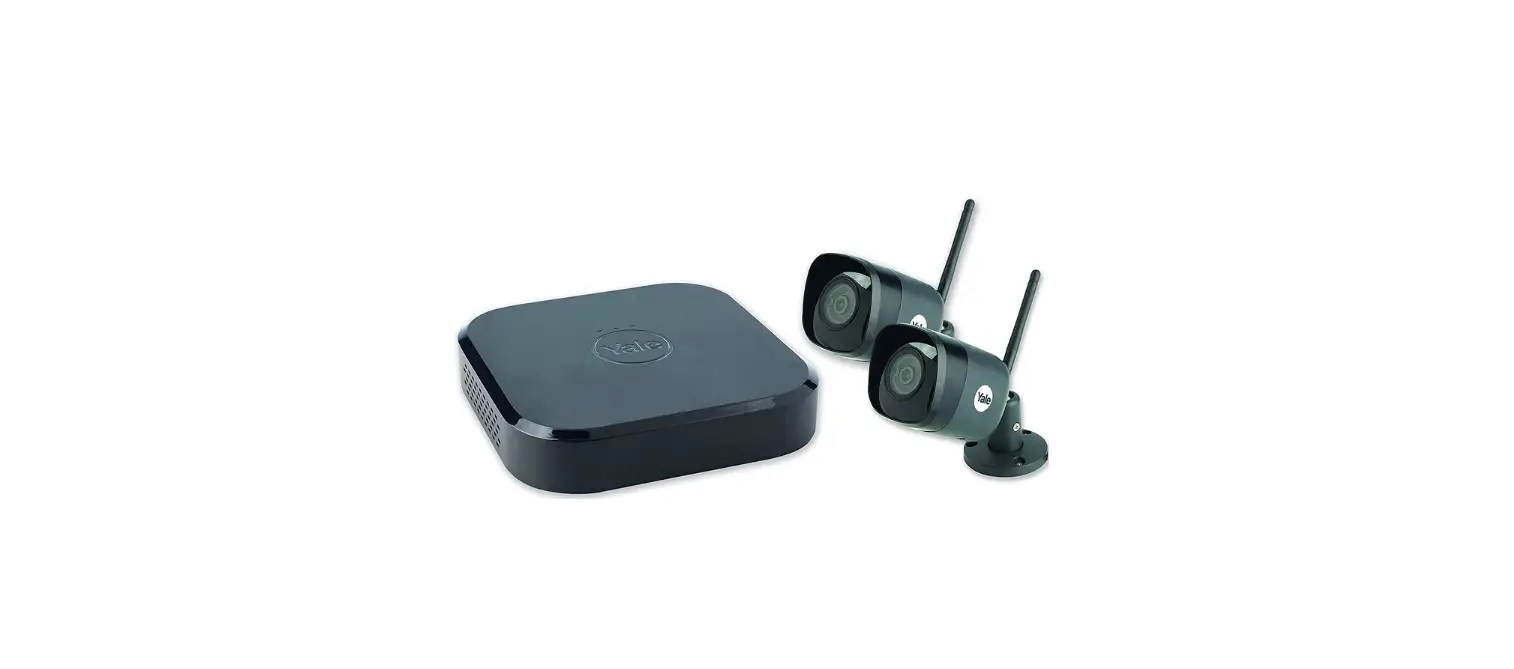
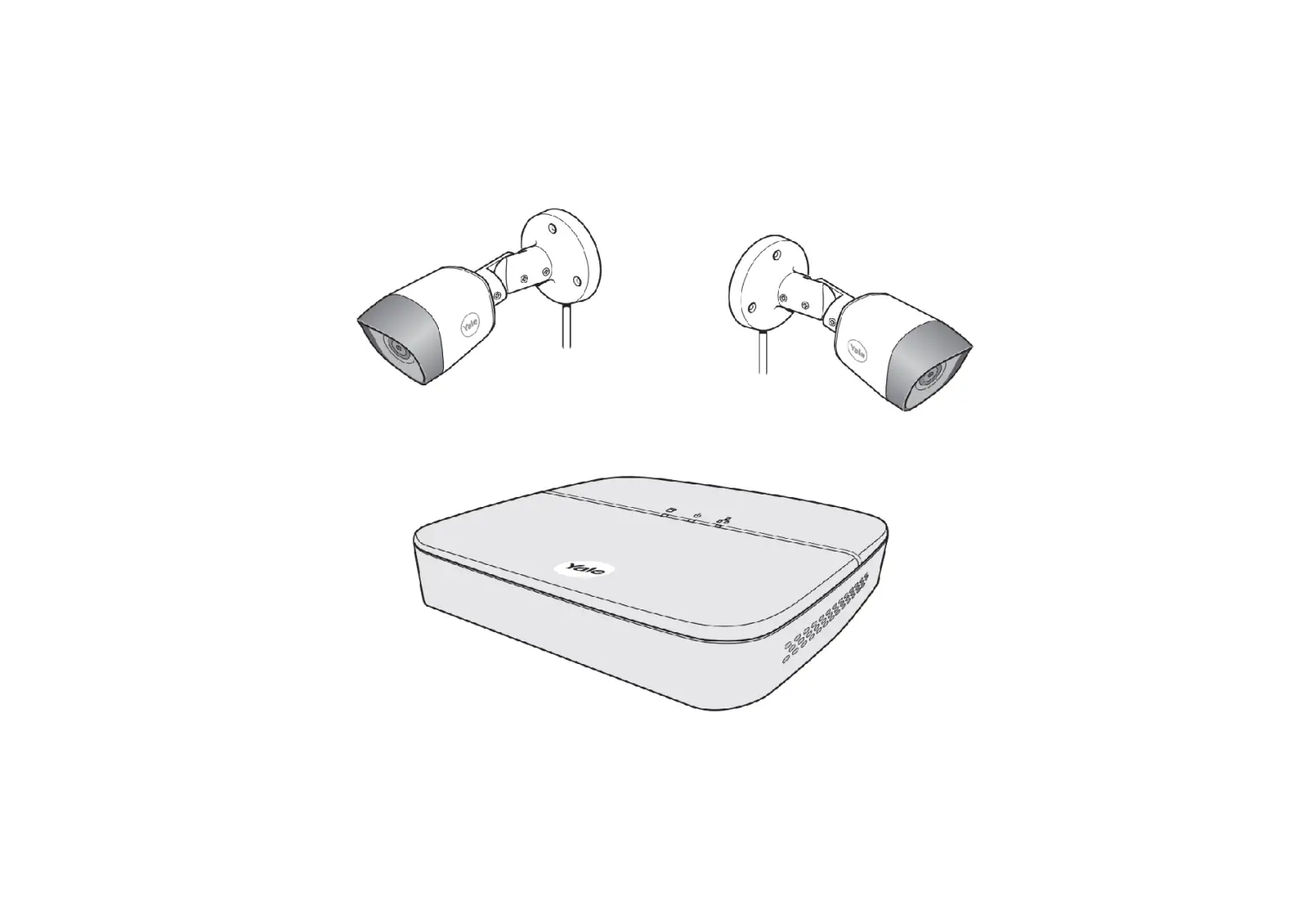
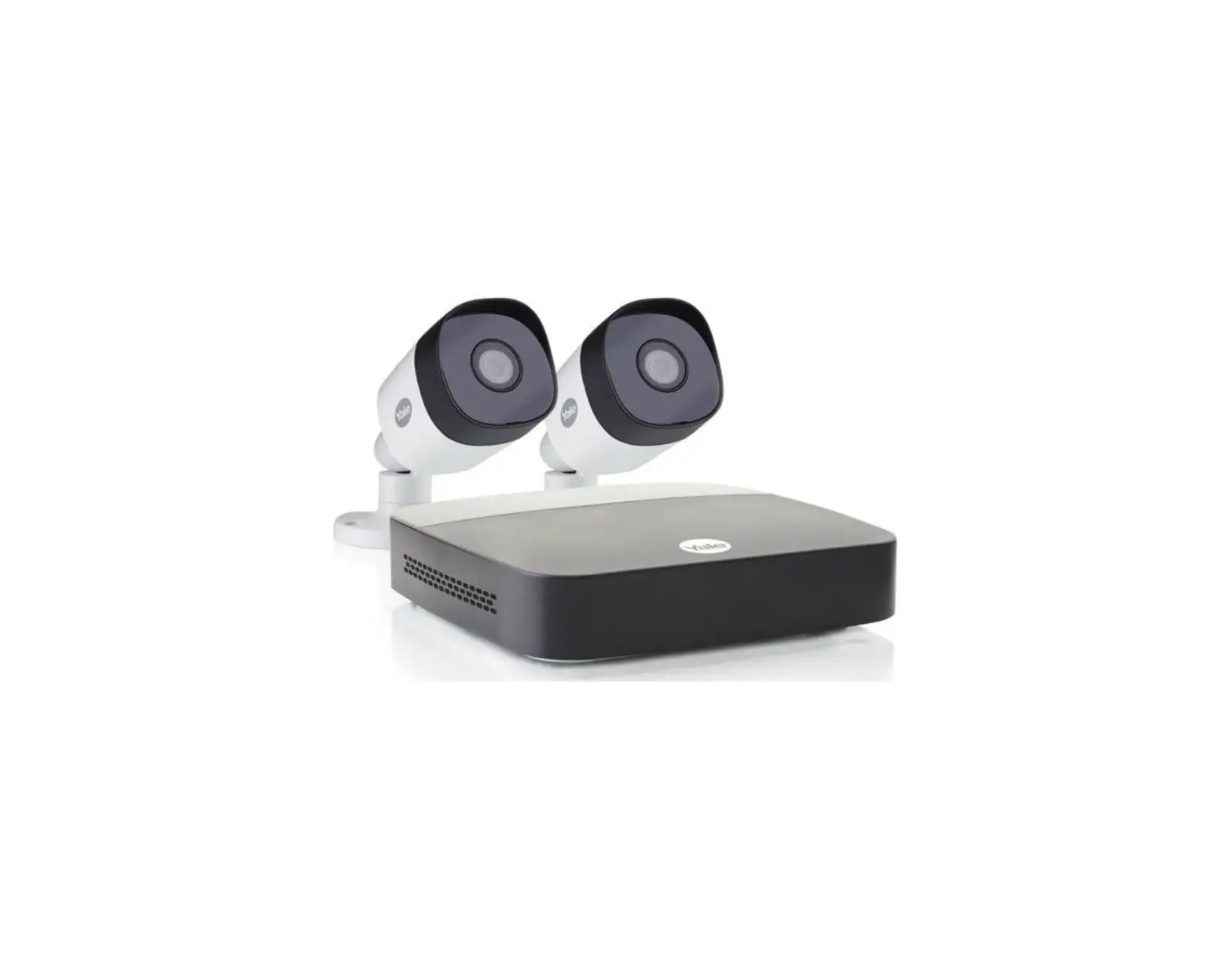
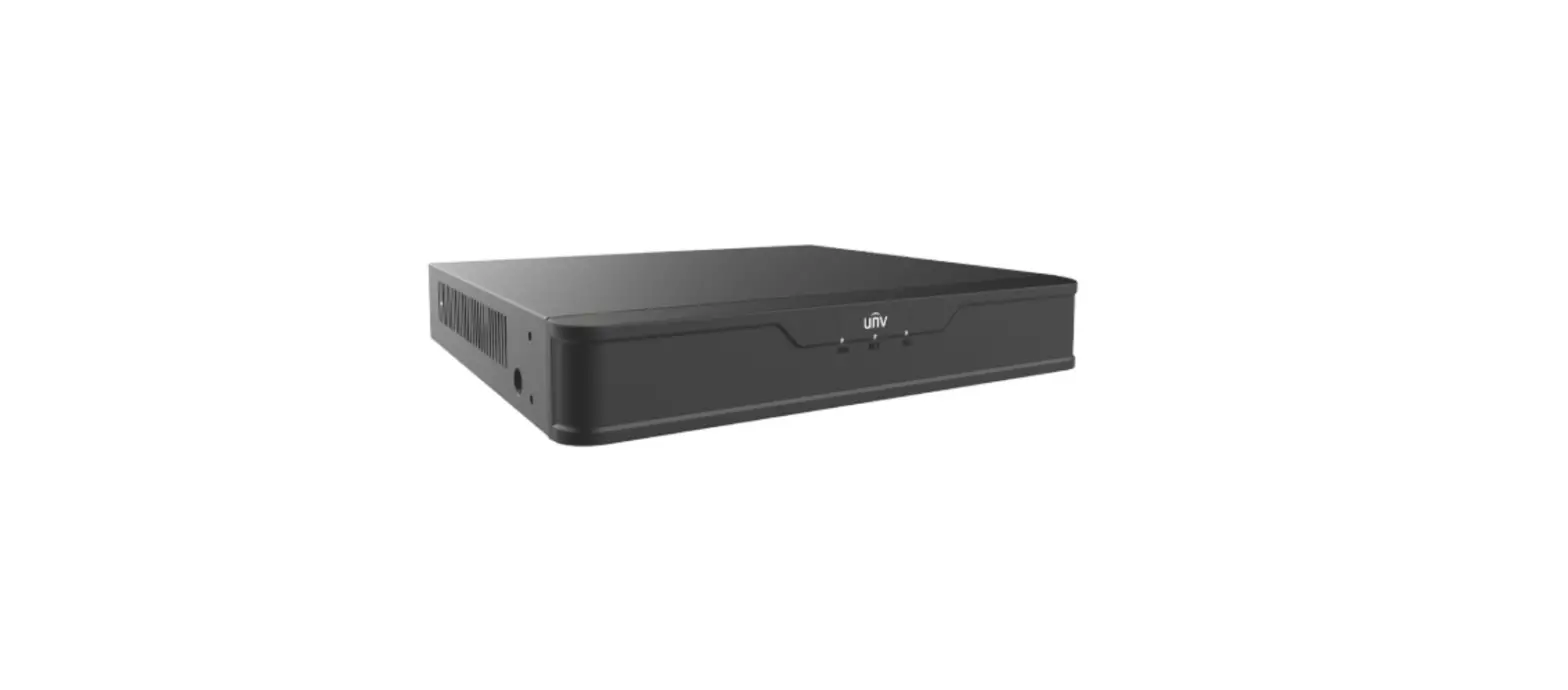
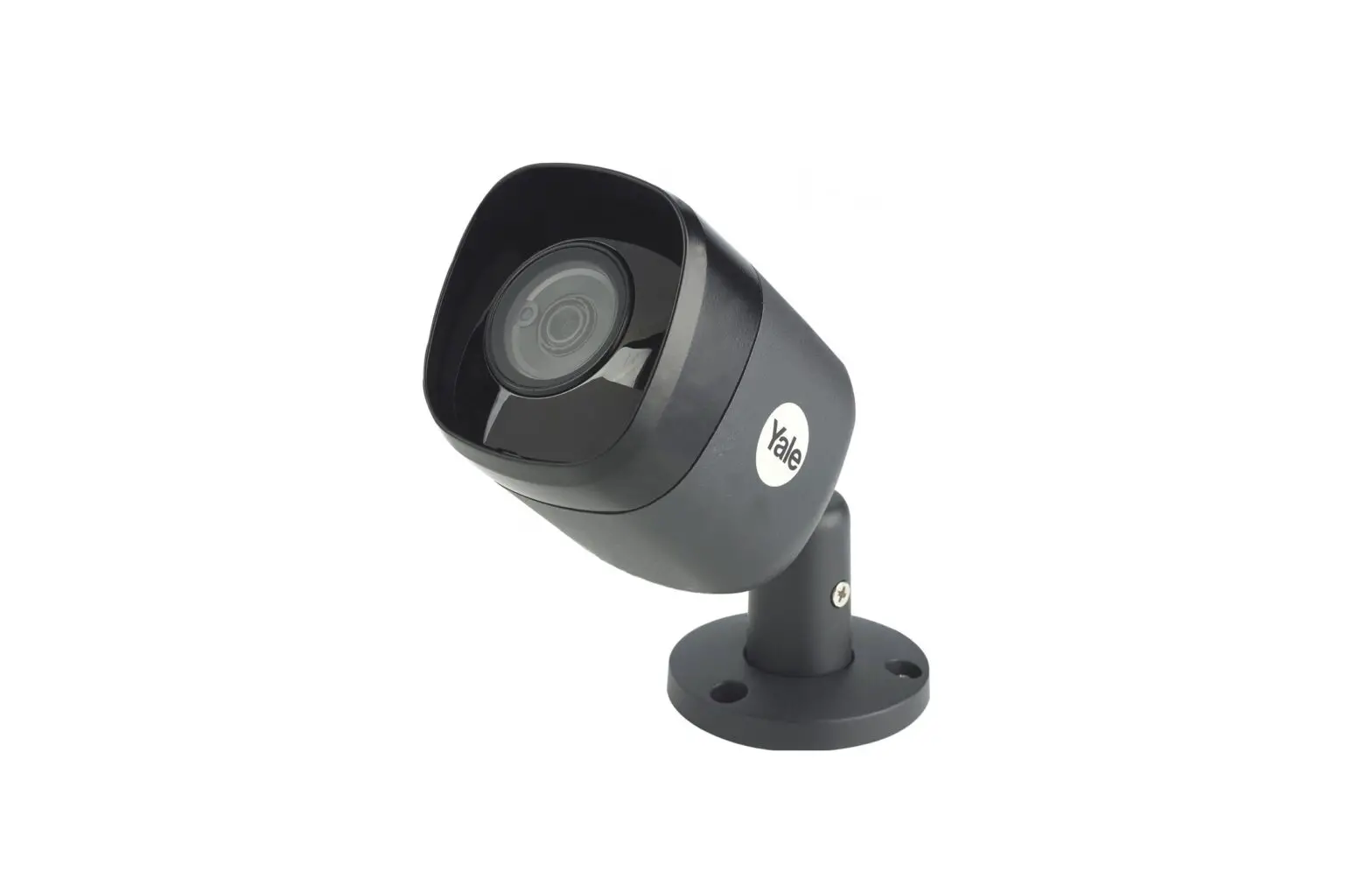
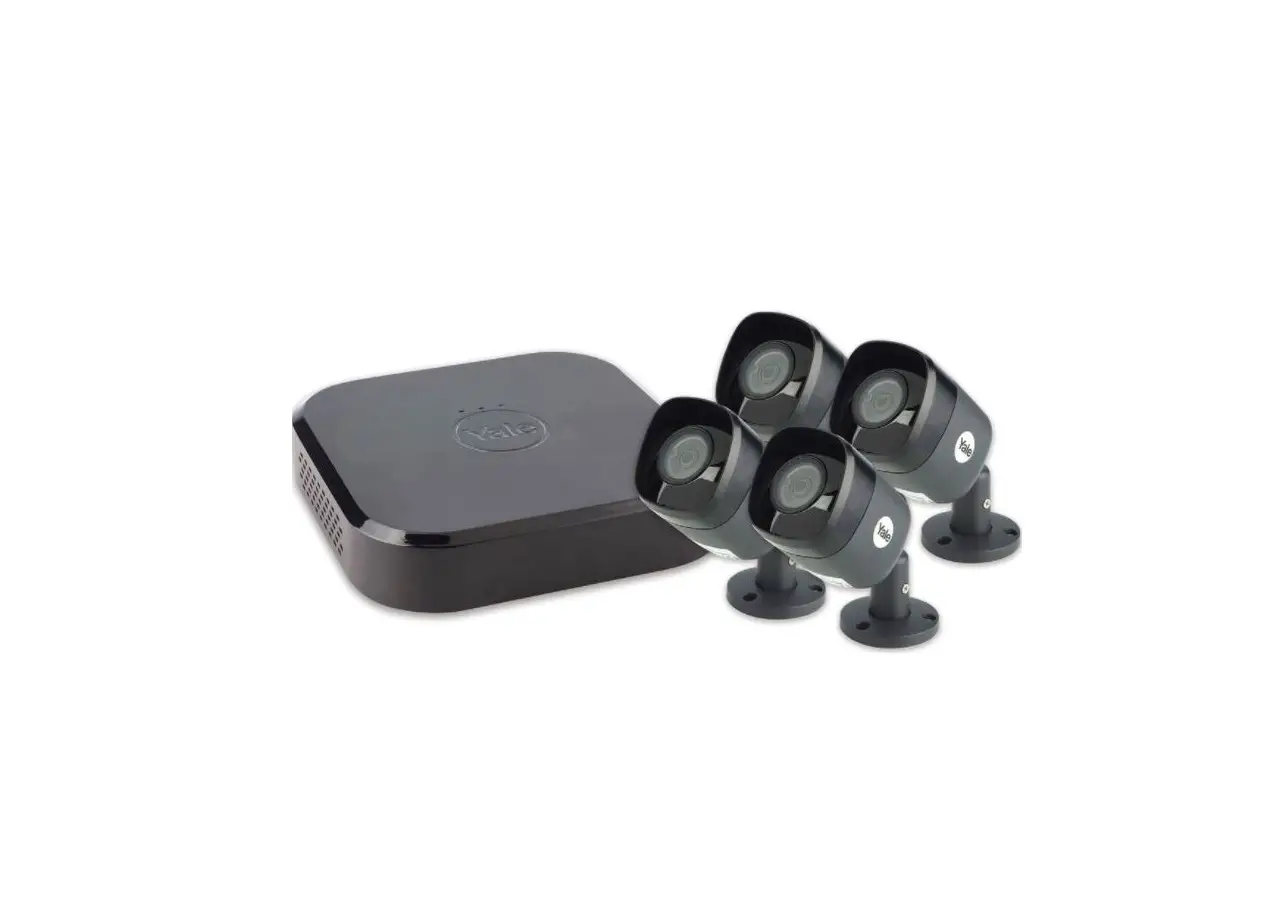
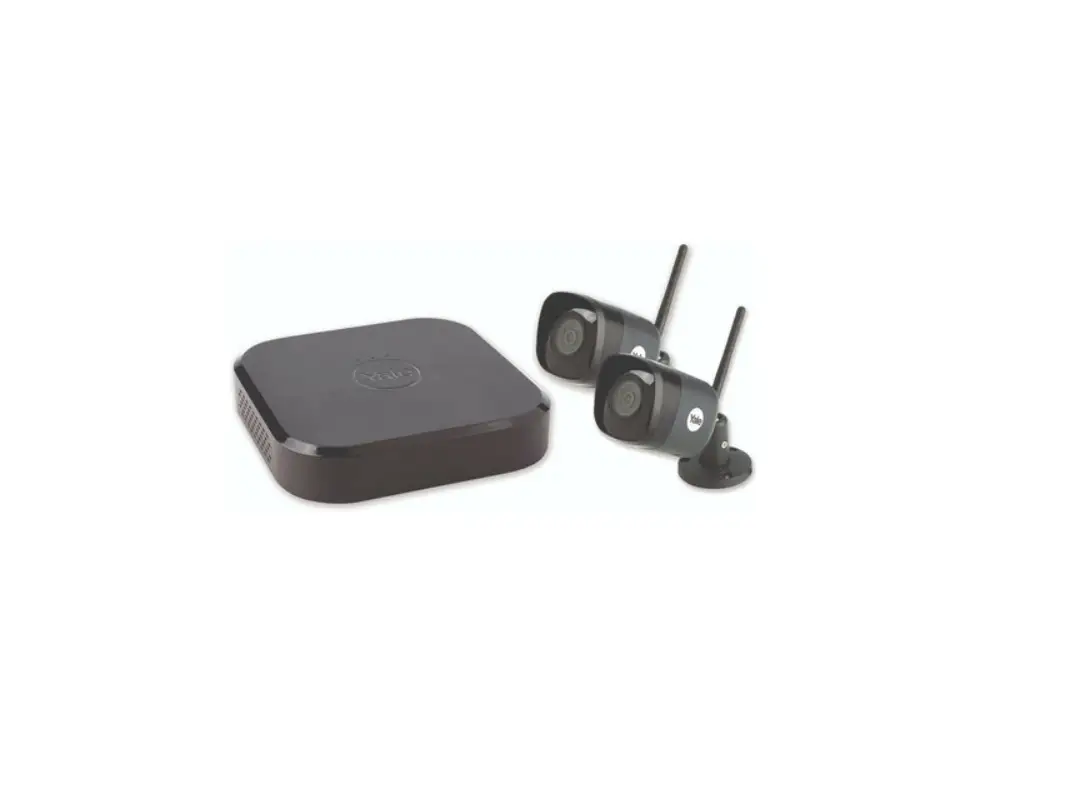
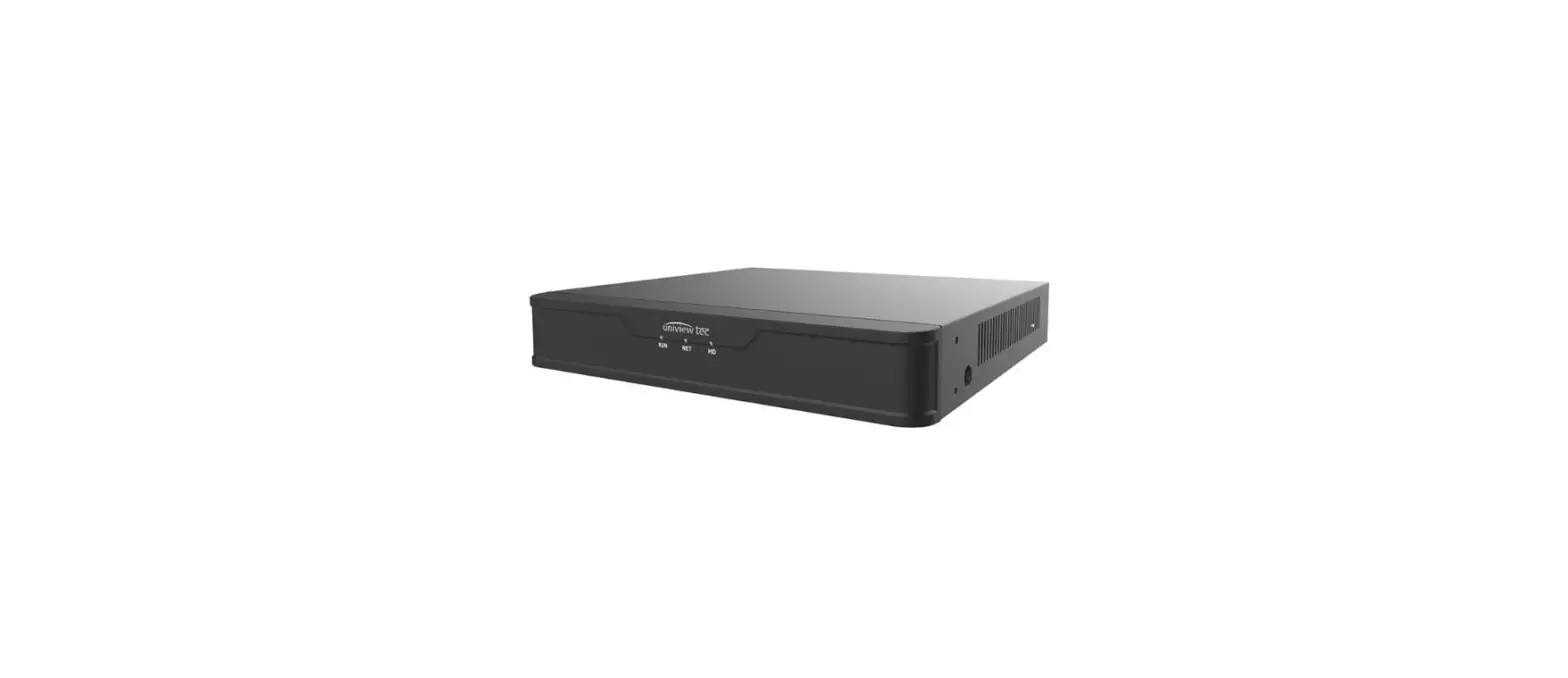
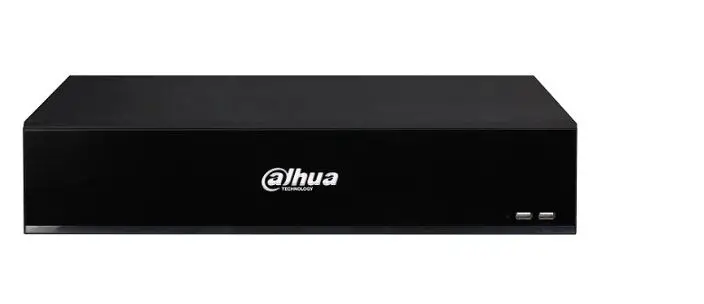
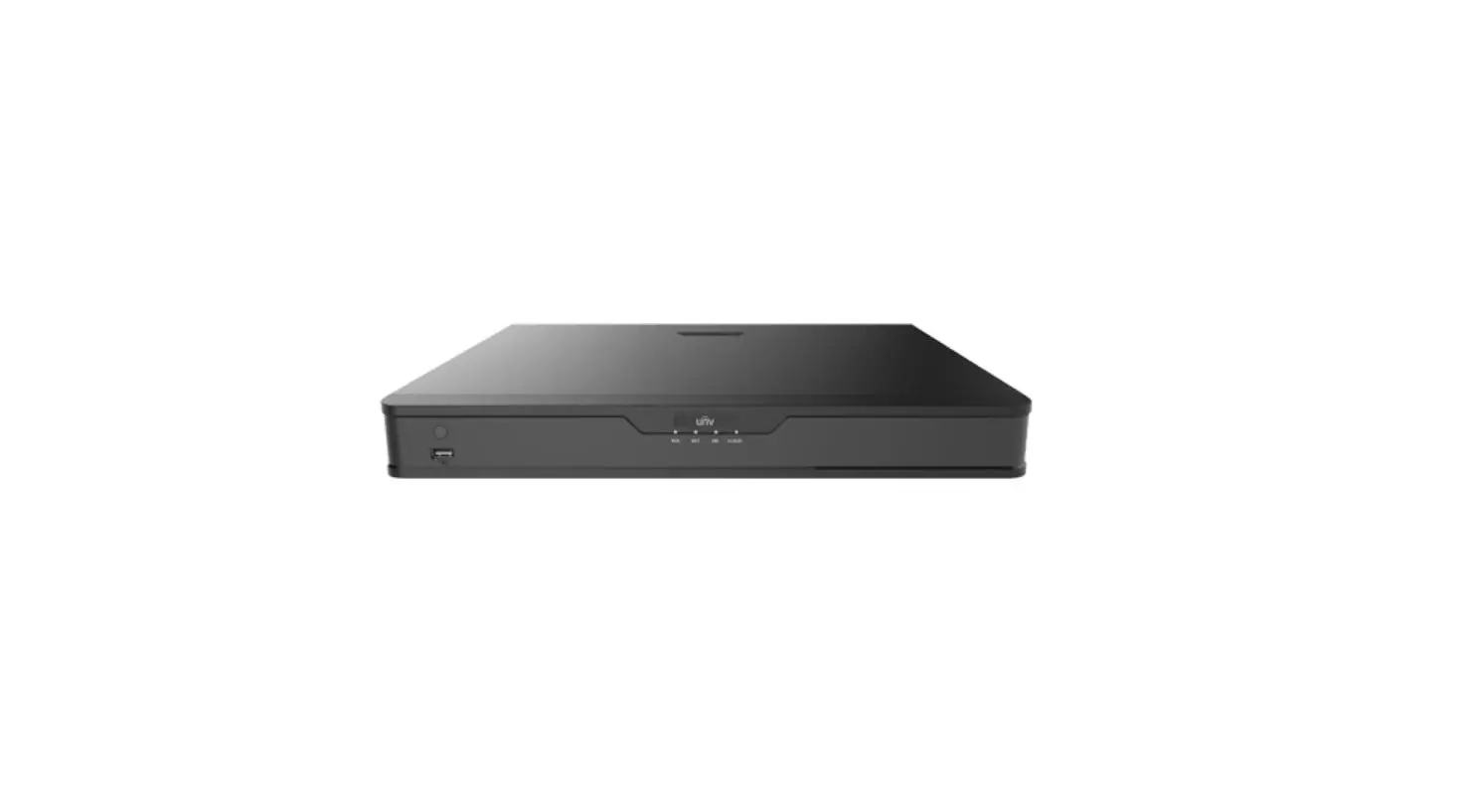
YSV-2CSMD-4CK Smart Motion CCTV Digital Video Recorder
Product Information
The Smart Motion CCTV system is available in different
configurations:
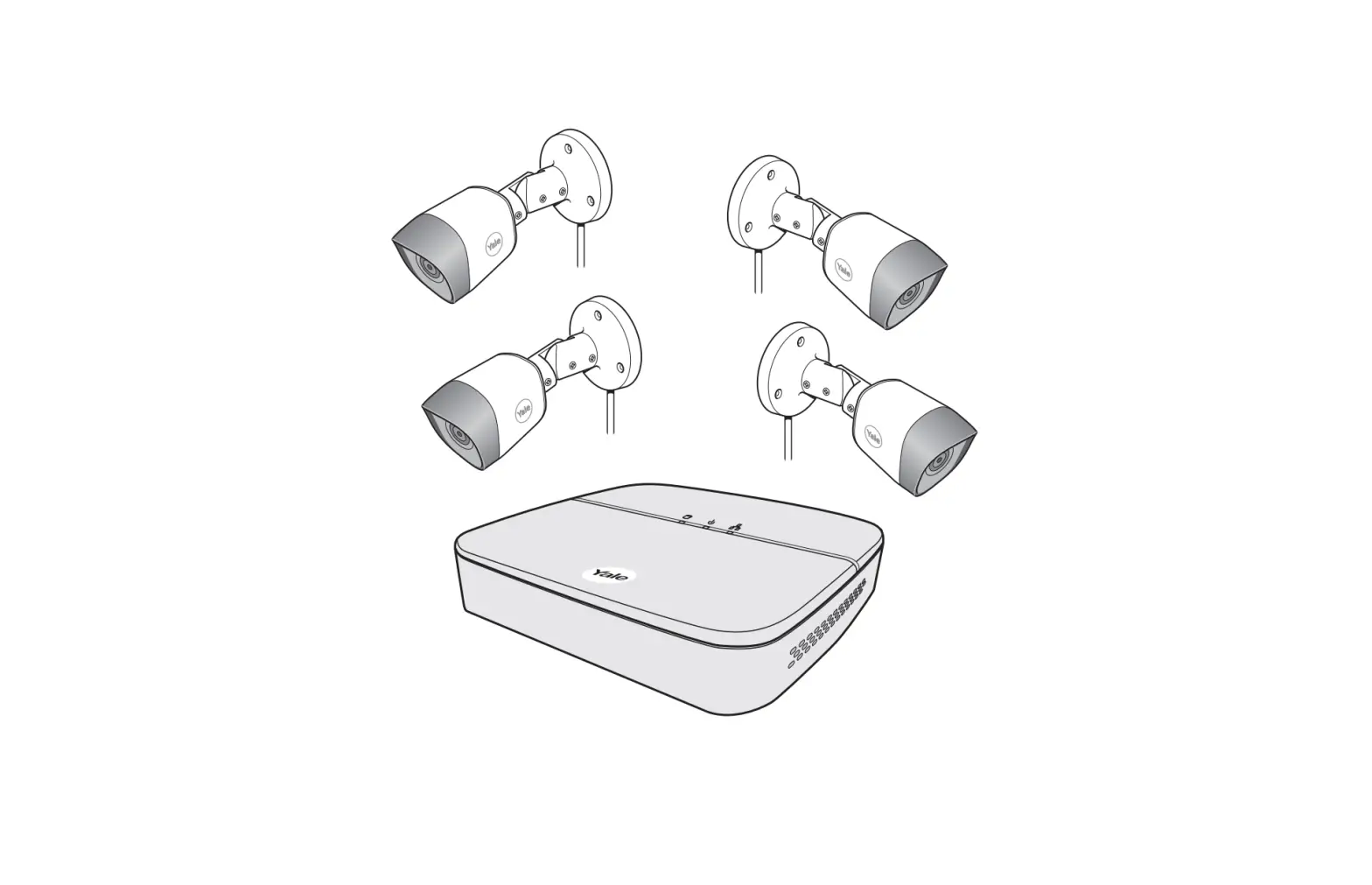
- 2 cam / 4 channel kit = YSV-2CSMD-4CK
- 4 cam / 8 channel kit = YSV-4CSMD-8CK
- Single Camera Extension Kit = YSV-1CSMD
This user guide provides instructions for setting up and using
the system for normal residential CCTV usage. The system is based
on a professional system and may contain advanced features and
settings that are typically not needed for residential use. The
manual may be continuously updated and can be accessed at www.yalehome.co.uk/support.
Product Usage Instructions
Plan Camera Locations and Connect Cables
Before setting up the cameras, it is important to comply with
local regulations for camera surveillance.
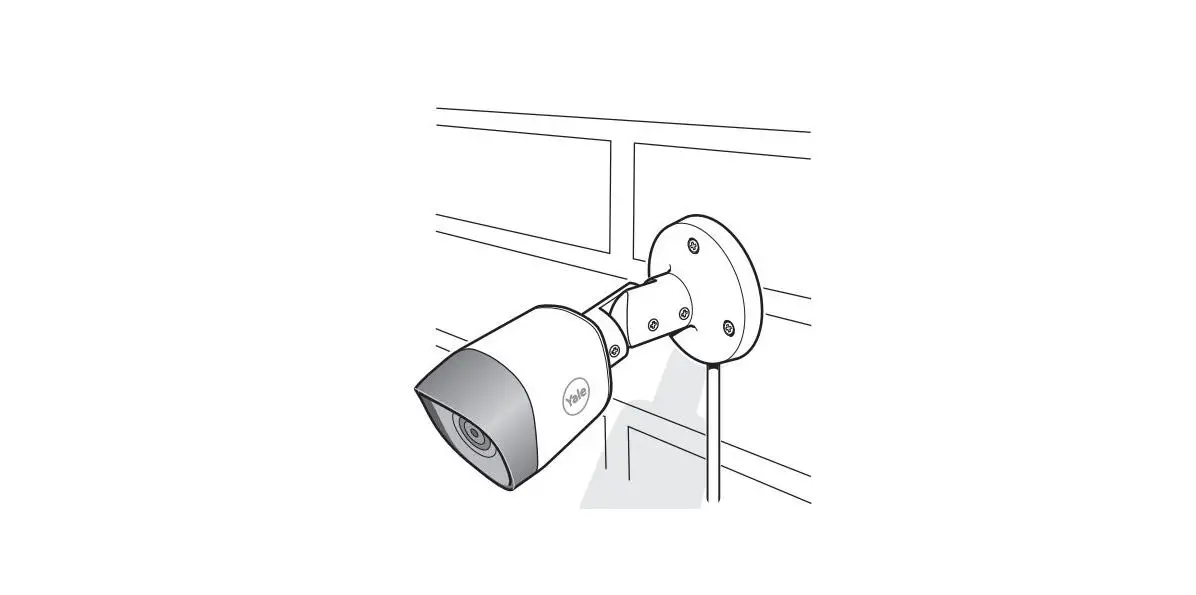
To plan the camera locations, refer to the quick start guide
included in your kit.
The XVR recorder can be connected to a TV or monitor with an
HDMI port. Alternatively, it can be connected to a VGA monitor (VGA
cable not included).
If the distance between your router and the planned location for
the XVR is too great for the Ethernet cable, we recommend
purchasing a Powerline Adapter to connect the XVR to your
router.
Download App – Personal Registration in the App
To download the app for Android or iOS, follow these steps:
- Click “Register” on the app.
- Enter your email.
- Choose a password.
- Click “Verification Code”.
- Enter the verification code.
- Click “OK”.
- Log in using your username or email and password.
Note: Check your Junk-Mail Box for any received mail.
Initial Set Up – XVR Set Up Via TV / Monitor
Follow the on-screen instructions to set up the XVR via a TV or
monitor:
- Choose your region, language, and video standard (PAL in UK and
Europe). - Set the time zone, date, and time.
- Choose a password and write it down as it will be your master
key to access vital functions in the system. - Choose a password hint.
- Decide whether to set an unlock pattern for security purposes
(recommended). - Enter your email address and enable the security questions
option. - Complete the security questions (recommended).
- Leave the auto-check box ticked to keep your system updated
when connected to the router. - Click “Next”.
Initial Set Up – Adding Cameras
Choose one of the two options:
- Click “NO” if you only have wired cameras. Wi-Fi cameras can be
added later if needed. - Click “YES” if you are also adding Wi-Fi camera(s) (sold
separately). Wi-Fi camera setup continues on the next page.
Smart Motion CCTV User Guide
2 cam / 4 channel kit = YSV-2CSMD-4CK 4 cam / 8 channel kit = YSV-4CSMD-8CK Single Camera Extension Kit = YSV-1CSMD
This manual will guide you through the standard settings and operations for normal residential CCTV usage. The system is based on a professional system and may contain
advanced features and settings that are typically not needed for residential use. This manual may be continuously updated and be available at www.yalehome.co.uk/support
Index
Plan the camera location Connect cables as described in the Quick Start Guide that was included in the Kit Initial camera set-up Adding WiFi/IP cameras to the system
Adding an additional WiFi camera after initial set up
03
04 05-06 07-09 10-11 12 13 14 15 16 17 18 19 20
03
1
Plan Camera Locations and Connect Cables
It is the users responsibility they make sure to follow the local regulations for setting up camera surveillance.
Plan the camera location
Connect cables according to the quick start guide that came with your kit.
(GB) Setting up – (DE) Einrichten – (FR) Configuration – (ES) Configuración – (IT) Impostazione
XVR recorder can be connected to a TV or monitor with a HDMI port. Can also be connected to a VGA monitor (VGA cable not included).
If the distance between your router & the planned location for the XVR (near a TV or monitor) is too great for the ethernet cable, we recommend purchasing a Powerline Adapter to connect the XVR to your router.
Download App – Personal Registration in the App
Scan QR Code to download App for Android or iOS:
1. Click `Register’
2. Enter email 3. Choose a password 4. Click `Verification Code’
1
5. Enter verification code 6. Click `OK’
NOTE: Also look for received mail in the Junk-Mail Box
7. Now you can log in: Enter your username or email
8. Enter your password 9. Click `Login’
7 8
9
Initial Set Up – XVR Set Up Via TV / Monitor Follow on-screen instructions
1 Choose Region, Language, Video Standard (PAL in UK and Europe)
2 Set Time Zone, Date and Time
3
‘ ” ; : &
Confirm Password Choose Password hint
Write down the password! This will be your master key to access vital functions in the system.
4
Click Skip if you do not want an unlock pattern, though we recommend keeping for security purposes.
Remember this pattern! This will be your quick key to access the system.
Email address
Initial Set Up – XVR Set Up Via TV / Monitor
5 Input email address and ensure the slider switch is coloured yellow. (recommend using the same one as used for the Yale View App) Enable the tab for security questions, yellow denotes it is enabled. Complete Security Questions (recommended) We strongly recommend inputting an email address in the instance the password is forgotten and a password reset is required.
Leave Auto Check box ticked. (This will automatically keep your system updated, when connected to the router).
Click Next
4
Initial Set Up – Adding Cameras
Choose one of the two options (can be changed later if you should want to add or remove cameras from your system)
A
B
Click NO if you only have wired cameras
(Wi-Fi cameras can be added later if needed)
Click YES if you are also adding Wi-Fi camera(s)(also known as IP cameras)
(Sold Separately)
Wi-Fi camera setup continues on next page
4a
If you want remote access to your system via the Yale View App, (recommended)scan the QR code on screen to connect toyour XVR System (If not click NEXT).
The App needs to be installed and registered before scanning.
Please Note: serial number shown in this manual is an example not the actual serial number.
Congratulations, your Yale CCTV is now ready to use! Please visit www.yalehome.co.uk/support for more information about your new CCTV system.
Click Next Click OK
The XVR system is now turned ON and cameras are recording. System is as default running in “General Mode”, which means that cameras are recording 24 hours a day and will overwrite the hard drive when full. Other “Modes” and backing up recorded video will be explained later in the manual. Go to page 9.
Initial Set Up – Adding Cameras
XVR unit needs to be connected to your router, before you can connect camera. 1 Connect Ethernet cables as described in the Quick Start Guide included in the box with the Kit. Additional WiFi cameras can be added later, via the main menu. Click Next
2 Click Next
3 All your cameras should be shown here. If any are missing, please check the power and ethernet cables are connected to the router and XVR, then click scan again
Click Next
4 Select which cameras you would like to add. You will need to enter your password for each existing Yale Camera.
Click Next
Initial Set Up – Adding WiFi Cameras
5 Select the router you want to connect to. Insert the WiFi password for your router.
You can now unplug the ethernet cable from your WiFi camera. It is now wirelessly connected to your router. Camera power can be unplugged and then plugged in again when mounted in the desired location, within range of the router.
6 If you want remote access to your system via the Yale View App (Recommended) scan the QR code on screen to connect to your XVR system. (If not click NEXT).
Scan code in the app to connect your Yale XVR.
Click Next
Please note: Serial number shown in this manual is an example not the actual serial number.
Congratulations, your Yale CCTV is now ready to use!
Please visit www.yalehome.co.uk/support for more information about your new CCTV system.
6 Click OK Wi-Fi camera setup is now complete.
The Yale Smart Motion CCTV Kit is flexible, enabling you to set the system according to your personal requirements, for example – select number of cameras, add WiFi cameras, choose camera settings, set detection area, schedule recordings, etc.
The following pages detail how to do this, step by step.
Main Menu Overview Once the initial set up is complete, you should see the Live View screen, which will show different channels relating to your CCTV kit, as image below.
Right Click in the Live View screen > brings up the Top Menu. Right Click anywhere else to take you to the < previous page
Add additional cameras after initial set up
Channel Windows can be rearranged to focus on a particular camera view. 1 Right Click anywhere on screen > Sequence 2 Drag channel boxes to switch channel views 3 Click Apply
Main Menu
Main Menu Overview
Search: Search for and playback recorded video by date and time. Or use the Smart Motion Detection feature to search by Human or Vehicle.
Main Menu page 1
AI: Smart Motion Detection (SMD) settings.
Main Menu page 2
Note: SMD – Smart Motion Detection works across all channels depending on how many channels the unit has (4 or 8).
Here you can personalise system settings and adjust recording event triggers.
Security: Here you can change your password or add a user
Setting Date, Time and Language
System settings: The instructions on this page are all accessed via the SYSTEM tab on the Main Menu
Setting System Language
Go to SYSTEM>General>Date & Time Set Year, Month, Date and Hour, Minutes Set your time zone according to GMT Click Save Click Apply
Ensure DST is selected appropriately. – It should be turned on (slider becomes yellow)
with the move into Daylight Saving Time in March. – It should be turned off when Daylight Saving Time
ends in October.
Go to SYSTEM>General>Basic Select the language from the drop down menu Click Apply
Synchronising WiFi camera time.
Setting Up Recording and Motion Detection
Setting up recording schedule for SMD – Smart Motion Detection – to detect Human, Vehicular or both.
Go to Main Menu
Step A: To set up a SCHEDULE (week planning) for recording and event triggers
Step B: To set up VIDEO Detection and motion triggers from recording. recording and event triggers
Please note that you need to mark the schedule for all Modes, for the system to record both general recording, and events triggered by Dual Detect Technology.
Step A: Schedule > Record Select Channel (Channel=Camera) or select All to have the same schedule for all cameras. Select Mode(s): General = Schedule video recording Motion = Schedule smart motion detection Alarm = Schedule alarm
Select Day(s) in the week or All Drag the coloured bars to select the required time frame (in hours) (Drag again to delete bar or press the erase symbol) Schedule can be amended for any/all modes and any/all days by clicking Once complete click OK. When you have scheduled recording for one Channel – click Apply and continue to next Channel.
Click Default to take you back to factory setting.
Step B: Video Detection > Motion Detection
Select Channel (Channel=Camera). Each channel needs to be set up separately. Motion Detection is enabled by default – indicated by yellow slider switch. 3 PIR is enabled by default (yellow slider denotes it is on) 4 Warning light is enabled by default, illuminating upon motion detection. 5 Click Setting to change the coverage & sensitivity in the cameras field of view. Default is the whole field of view set for 1 area and 1 level of sensitivity. This will show as a red grid, indicating the whole view is active.
5.1 Move cursor to the top of the screen to enable drop down menu. 5.2 Select a region. Up to 4 regions within the field of view can be
set with differing sensitivity levels. 5.4 Click or drag to select/deselect areas, for each region. 5.5 Select the sensitivity level. 5.6 Right click to exit this screen.
6 Apply and continue to next channel 7 Click Test to check motion detection is working as planned.
(Buzzer can be activated to test motion detection) Click Default to take you back to the factory setting.
14
Searching in Recorded Video
When you have setup your system, this menu is where you can find video recordings to investigate or document events.
Search for and playback recorded video by date & time or by searching for human or vehicular shapes
Select Year and Month Select Day
No changes can be made in the search window while video is playing. Stop video to change parameters.
For instructions on how to set up recording schedule to ensure that you record all modes (General, Motion, Alarm), please see p.13.
If you have WiFi camera(s) with wired camera(s), single view must be used to see the WiFi cameras. WiFi cameras are high resolution and can not be viewed at the same time as wired (HD 1080) cameras. They must be viewed in single view, separately.
15
Backing up a Video Sequence
Main Menu > BACKUP
External storage media, HDD or a USB memory stick, need to be plugged in to the USB port (back of the XVR unit)
1
Device name will appear in the window.
2
3
End
4
5
6
1 Select Year and Month 2 Select Day
3 4
5 6
Adding a WiFi Camera to your XVR
16
Adding a WiFi Camera to your XVR
Make sure the relevant Yale WiFi/IP camera has been paired with the same router as the CCTV and is working! See manual that came with WiFi camera.
1
2 3
If channel 5 (on a 4 channel XVR) OR channels 9 and 10 (on an 8 channel XVR) are used for a WiFi camera, this will disable the Smart Motion Detection functionality across ALL channels. To maintain this feature only use up to the maximum numbers of channels for your relevant model (4 or 8)
4
5
6 Click Search Device. All detected cameras will show in the upper table
7 Select required Camera
8
9
Selected camera should now be visible in the lower
table. Click the pencil symbol in the Modify column. Click modify to
10
get correct username/password for camera.
Username and password of the camera needs to be modified if they are not the same as XVR system’s username and password.
10
17
Moving WiFi Camera in the Channel List
Rearranging WiFi camera in channel list
How to move WiFi camera up the channels list for simpler overview when searching and in the App.
Main Menu > Camera
Go to Channel Type Decide which channel you are changing and tick the relevant box in the IP column. This will deselect this channel in the Auto column. Work down the channel list in order, connecting wired cameras first, then move onto any WiFi cameras. In this example there are 2 wired cameras, so the next available channel is number 3. 3 Click Apply 4 Click OK
System will then reboot.
After reboot Right Click > Main Menu > Camera Your cameras will have to be deselected and added again.
Go to Camera List Select the relevant camera by ticking the box. 3 Click to remove camera(s)
To reinstall the cameras please refer to section 10.
18
Setting Up Mail and App Notification
ON
OFF
You will receive a push notification every time motion is detected via the App. You can also adjust settings in the app, view live feed & view history.
If you would like to receive email notifications, please follow the below steps.
CCTV Alert
1 Go to Email 2 Slide to Enable (yellow denotes it is on) 3 Write your email in Email Address 4 Write something in Subject
(this will make it easy to recognise the email) 5 Click Apply 6 Click Test (the system will now send a test mail)
7
8
9 Select Channel and ensure that the enable box is turned on and highlighted yellow, set as default on the wired CCTV cameras
10
11
12
(the system will now send a test mail)
The system will now send you an email every time motion is detected.
19
System Information
1 Go to Rec Estimate 2 Check that all Cameras/channels are ticked. 3 Click select
4 5
If recording over-runs the hard drive capacity, it will as default overwrite the oldest recording.
Main Menu > Storage Warning this will erase all recordings on your hard drive. 11) Go to Disk Manager 22 Tick to select hard drive 3 Click Format 4 Slide to Yellow for YES 55 Click OK 66 Insert Password 7 (This will erase the data on your hard drive)
Click OK to accept The system will now restart.
20
Support
For further help & advice on how to set up your device please scan the QR code below, which will take you to the relevant Product Support Page, or please visit www.yalehome.co.uk/support.
Alternatively, you can contact our Customer Support Team directly. For more details, visit the website below.
www.yalehome.co.uk/contact-us
www.yalehome.co.uk
2 GUARANTEE www.yalehome.co.uk/guarantee YEAR
LEGAL GUARANTEE
Security & Risk Communications, Parkway Business Centre, Ballymount Rd Lower, Ballymount, Dublin, Ireland
ASSA ABLOY Opening Solutions UK & Ireland, School Street, Willenhall, West Midlands, WV13 3PW, UK
Part of ASSA ABLOY
THE YALE BRAND, with its unparalleled global reach and range of products, reassures more people in more countries
than any other consumer locking solution.
THE ASSA ABLOY GROUP is the world’s leading manufacturer and supplier of locking solutions, dedicated to satisfying end-user needs to security, safety and convenience.
Version: May23
 YaleHome | Protect Your Home The Smarter Way With Yale