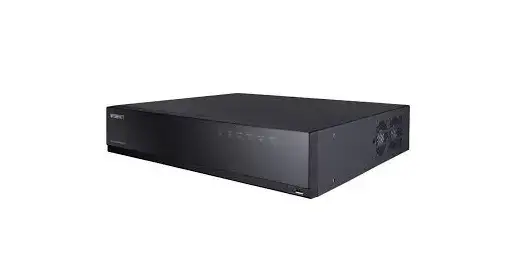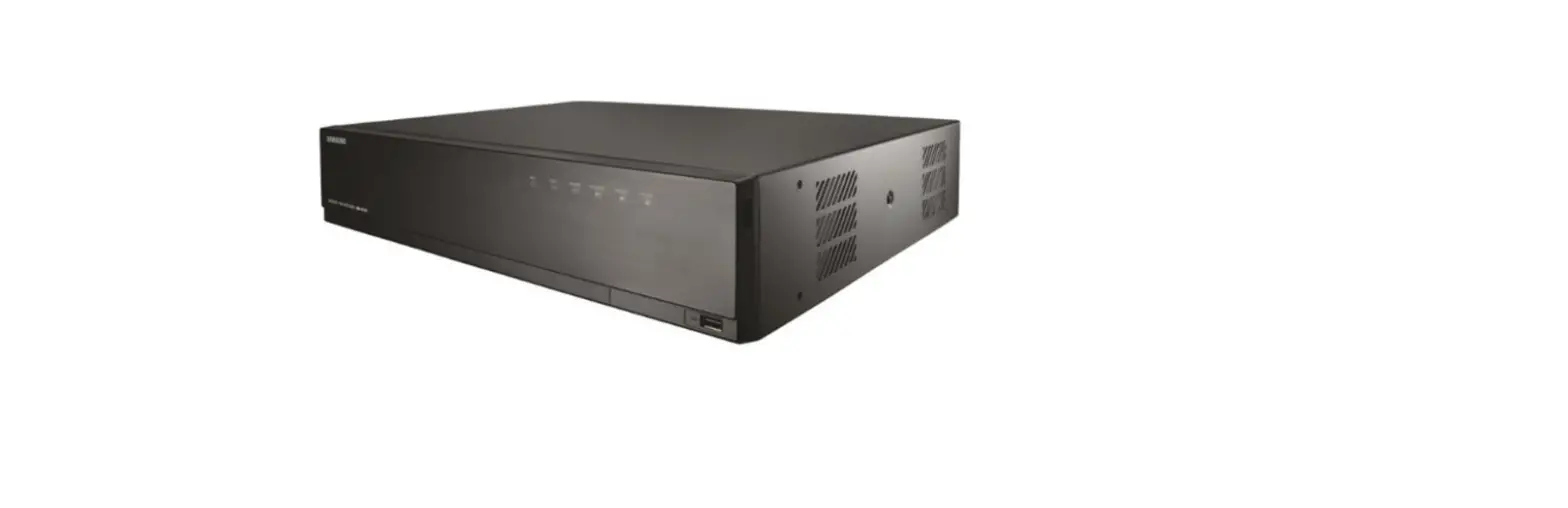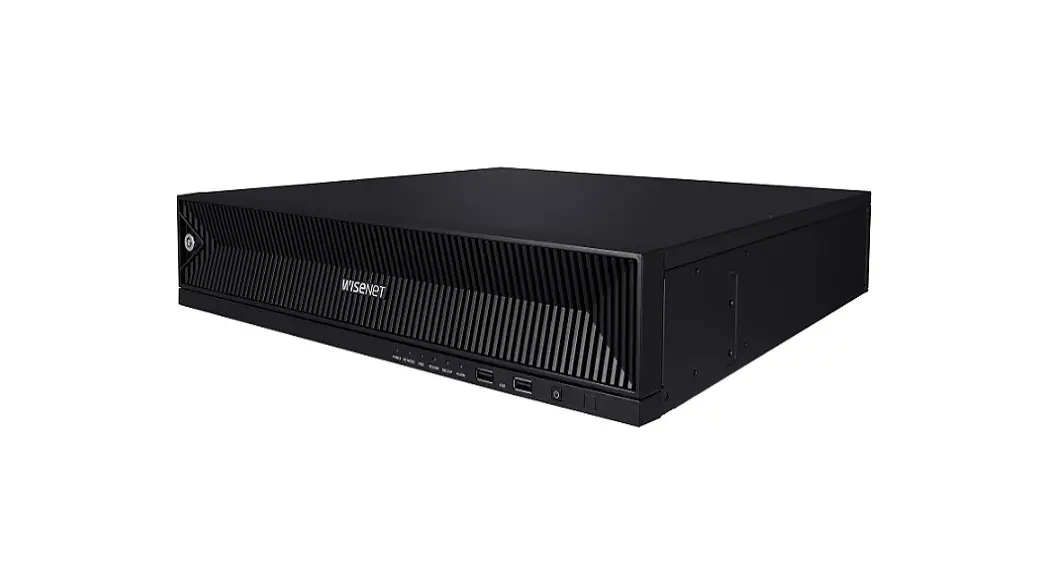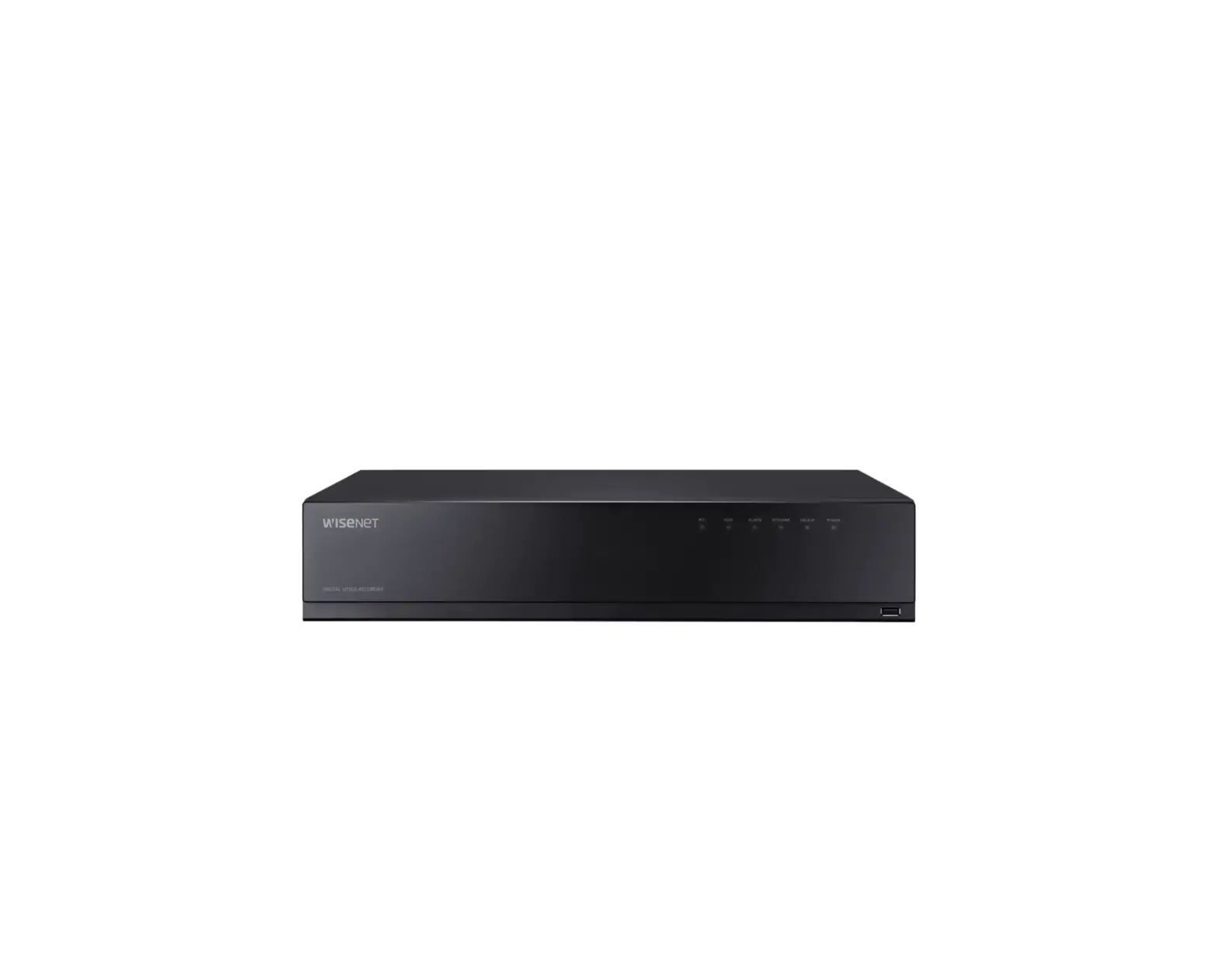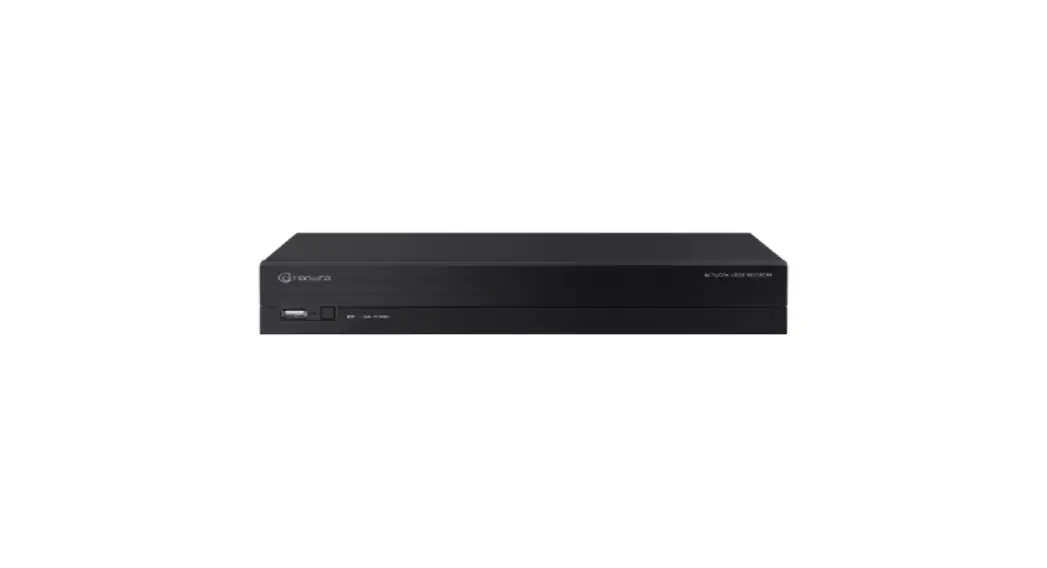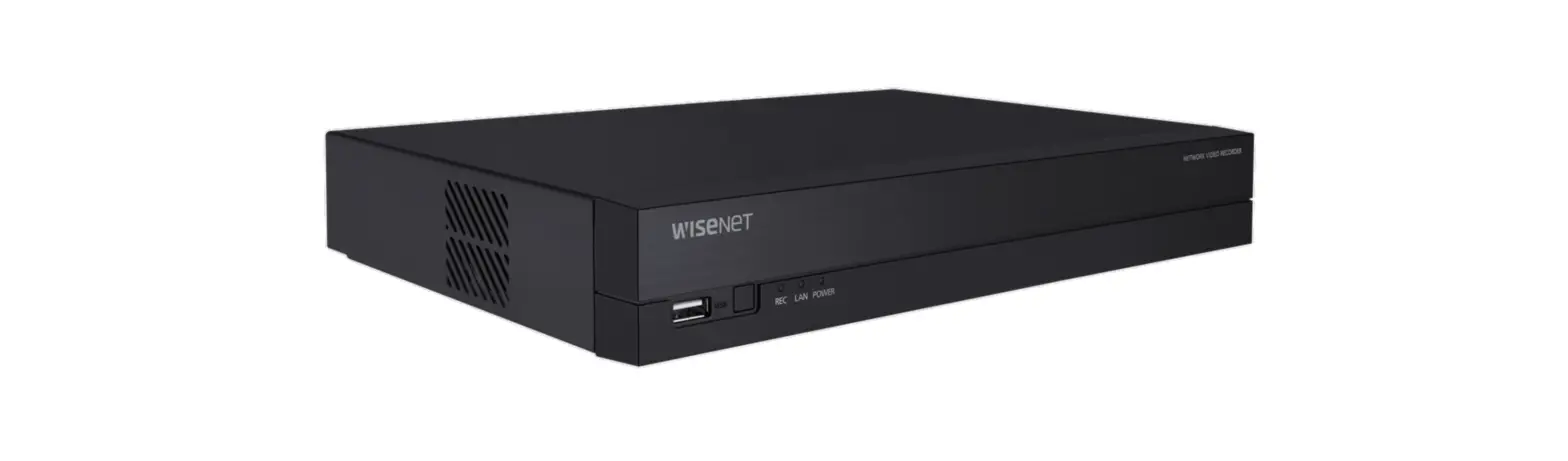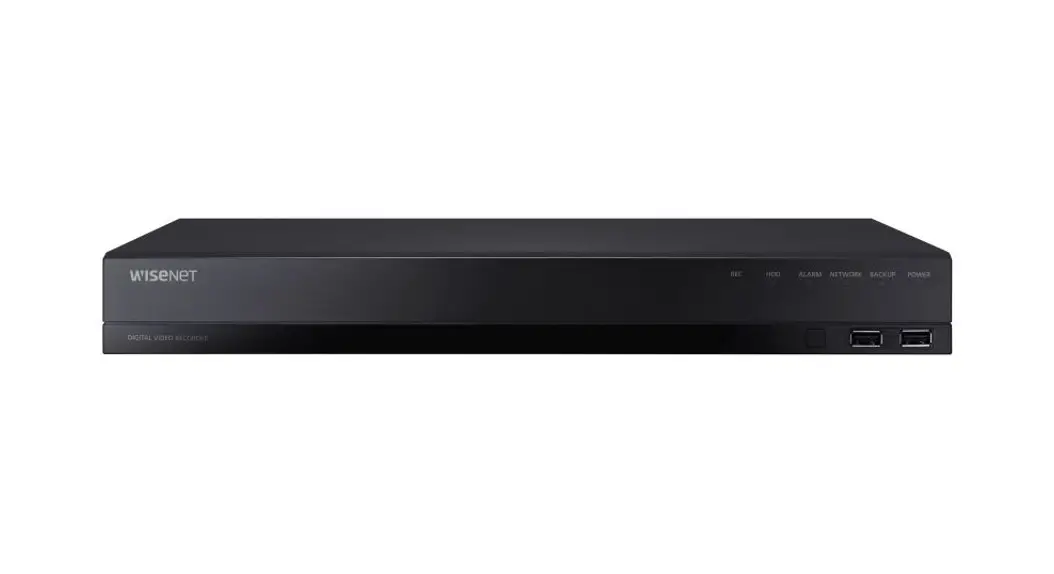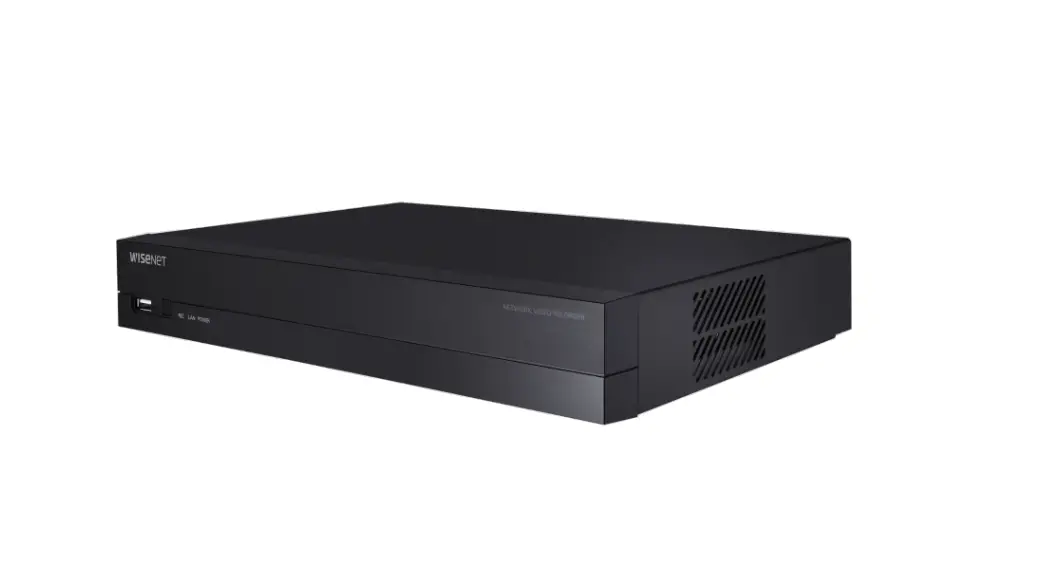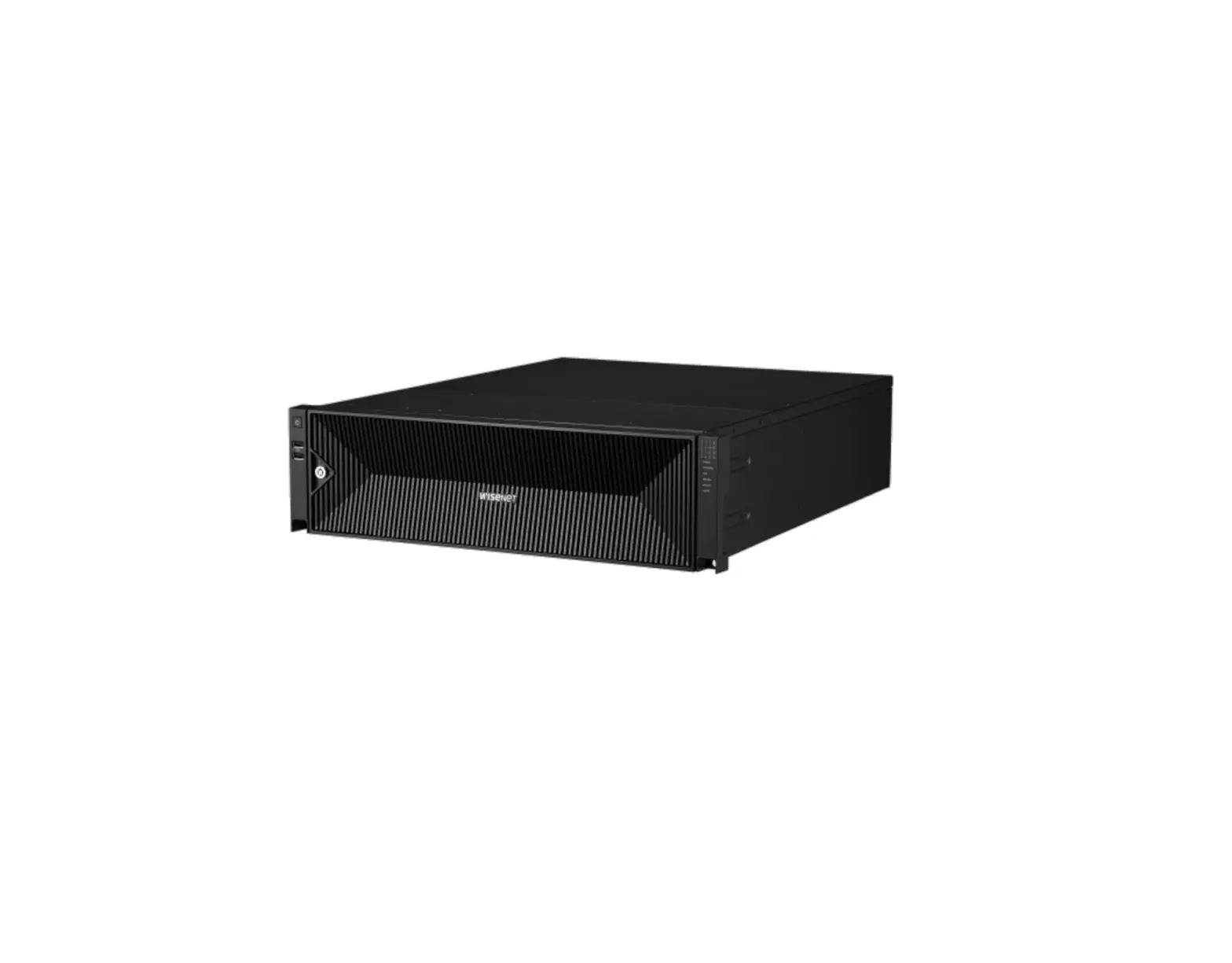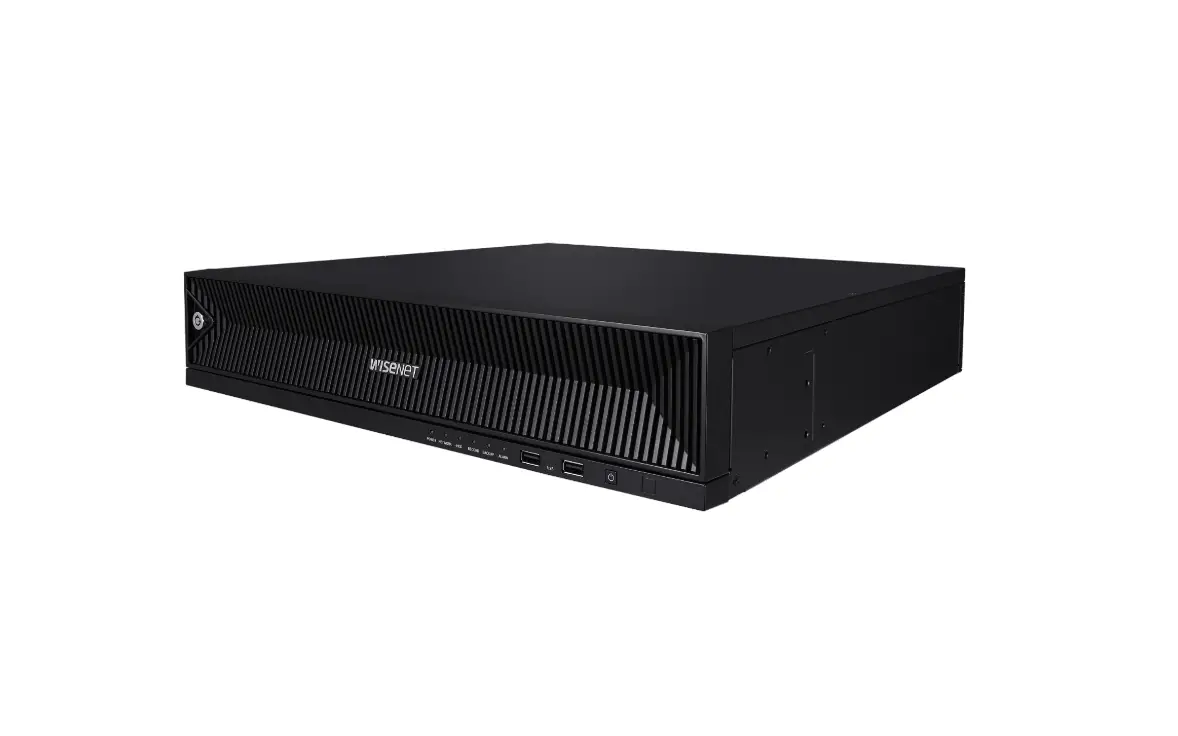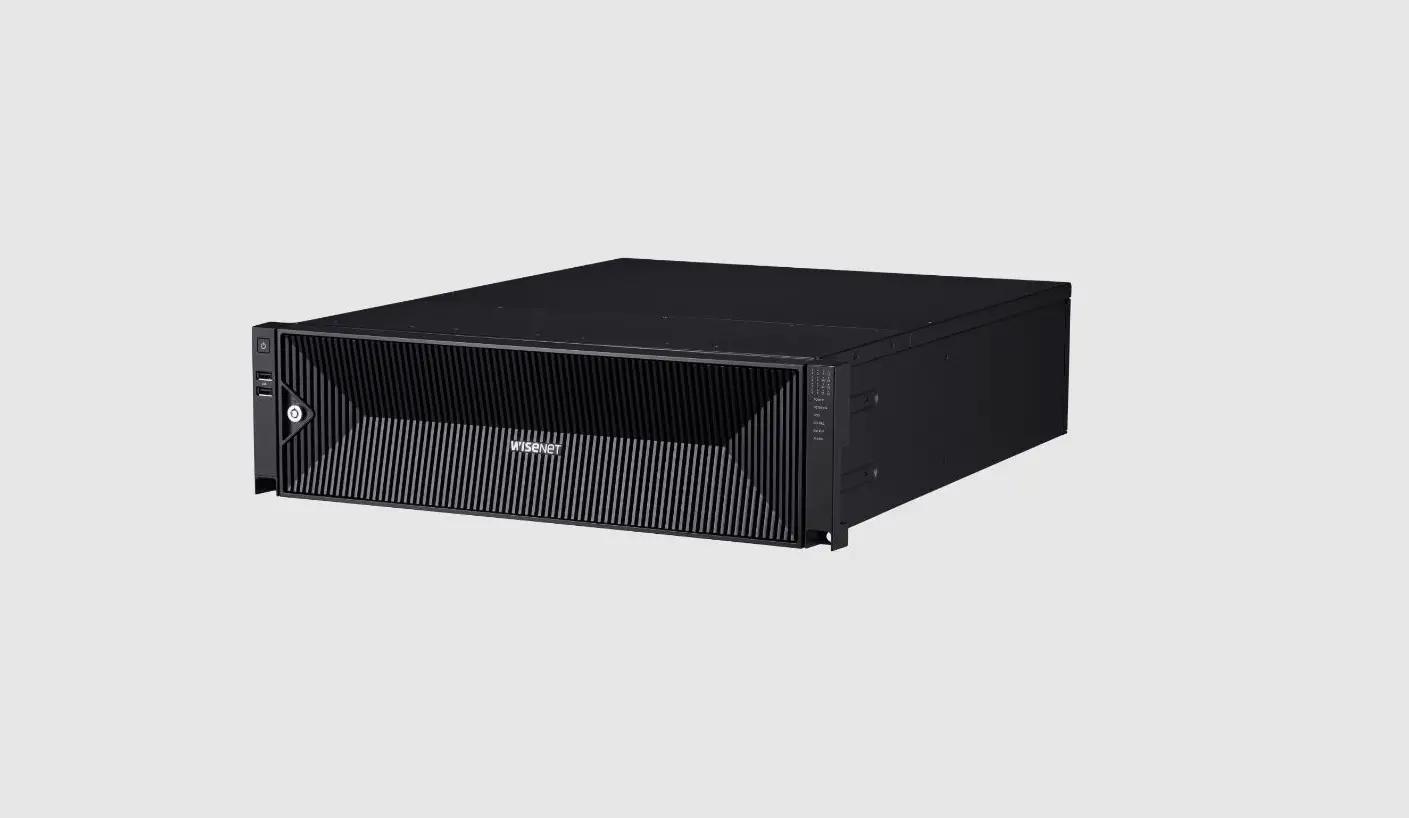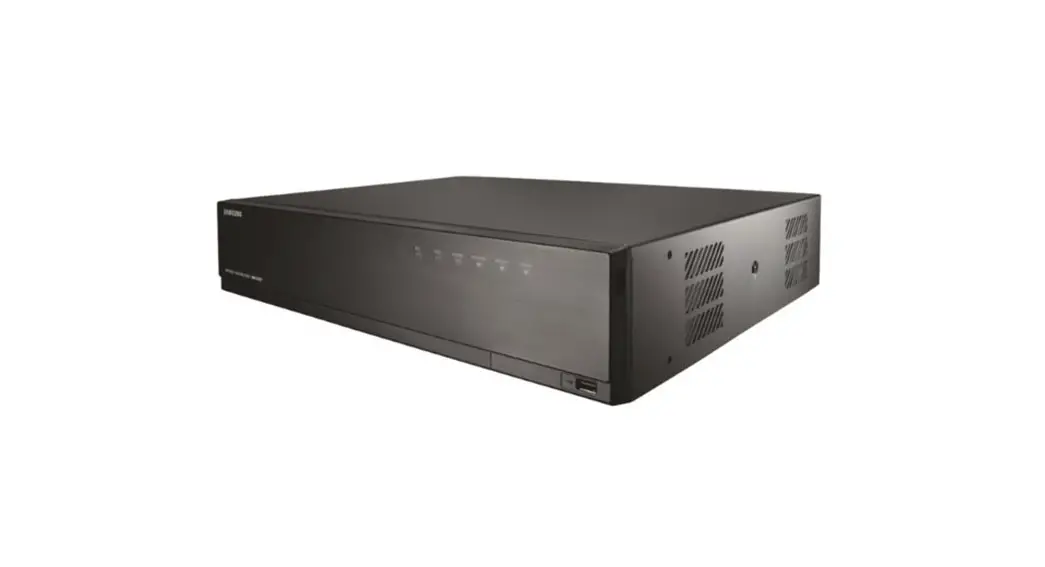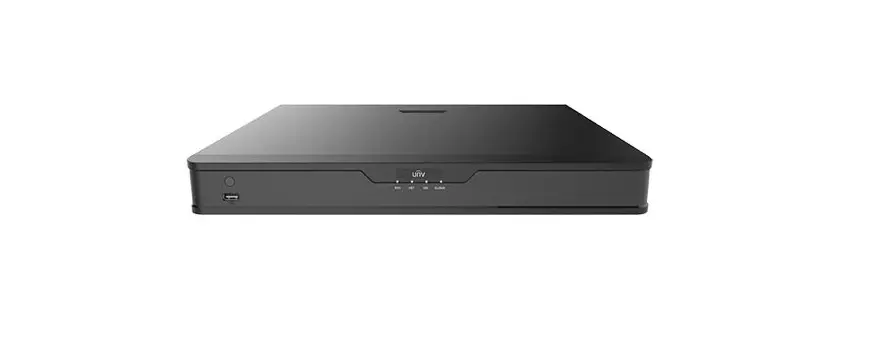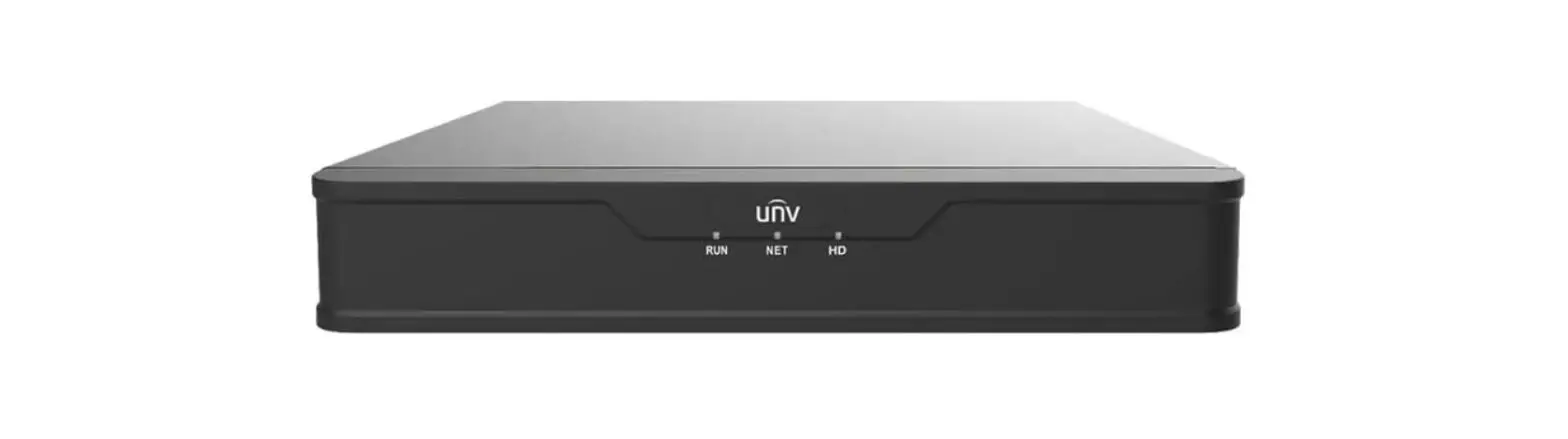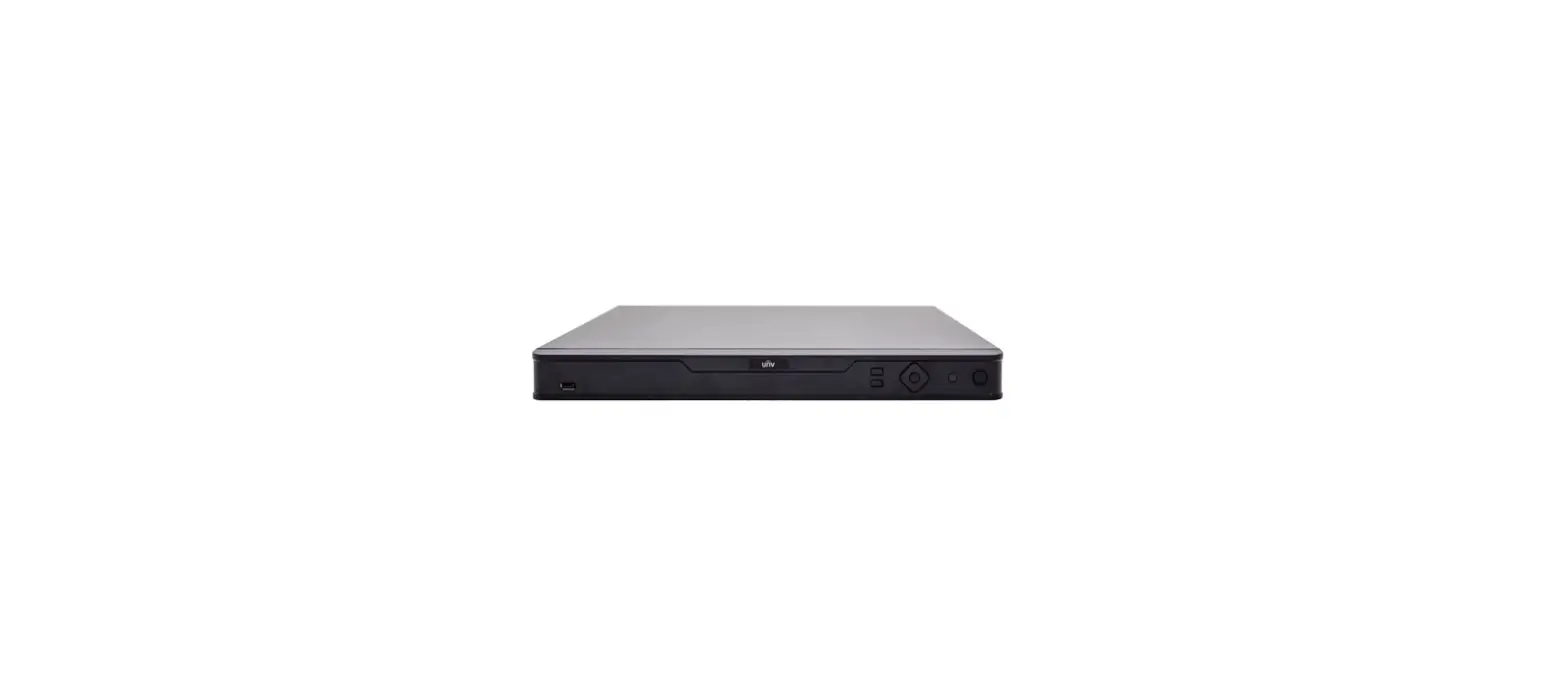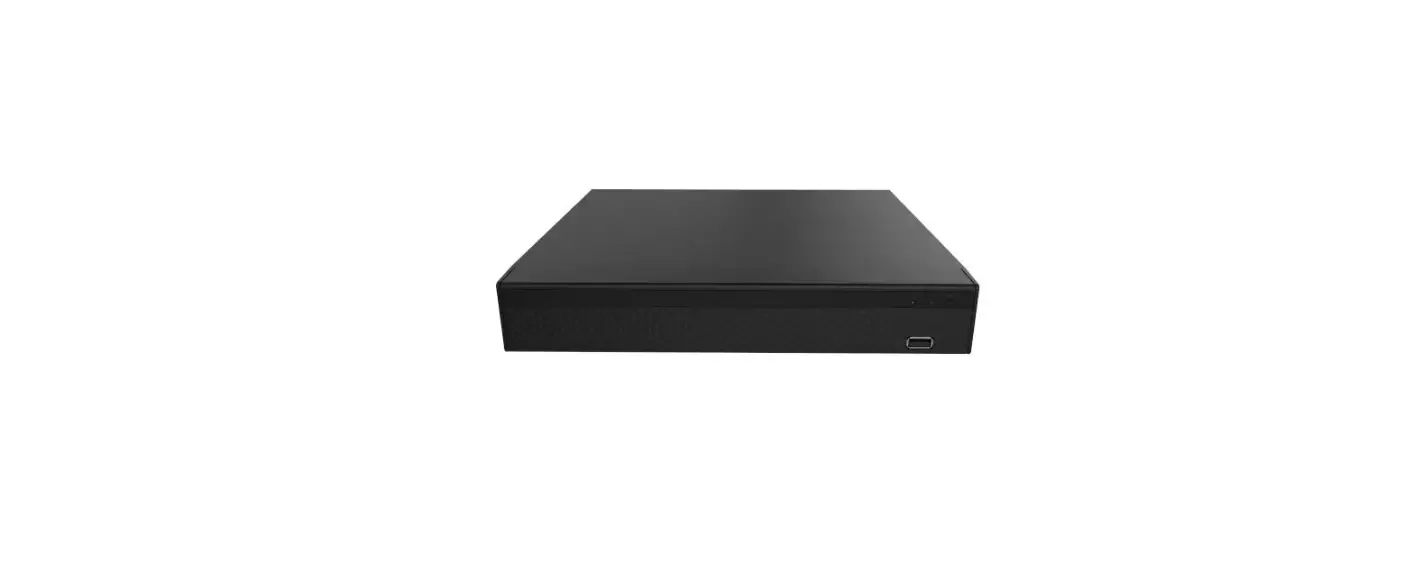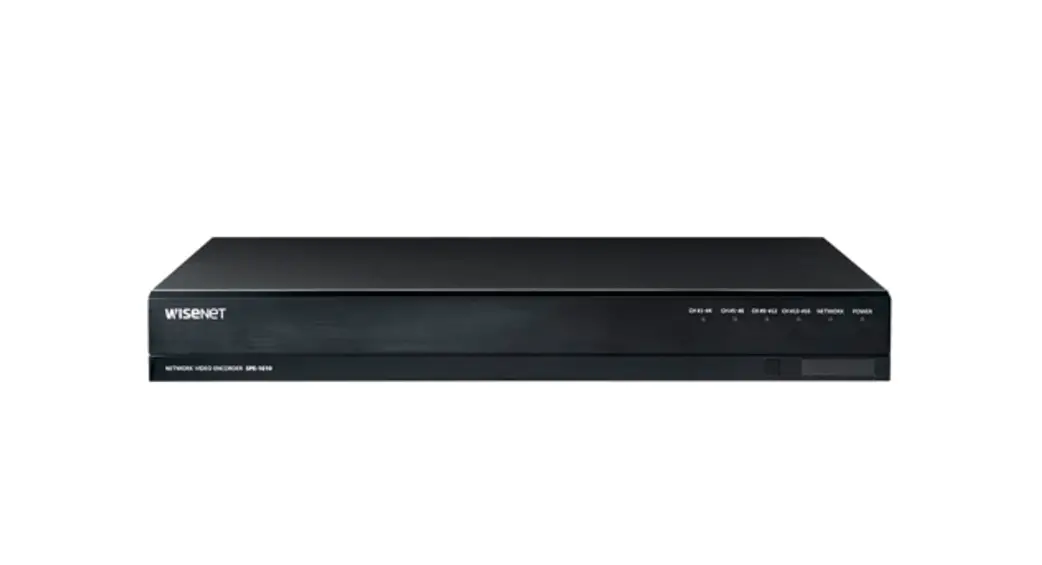
 Digital Video Recorder
User Guide
ARD-1610
ARD-810
ARD-410

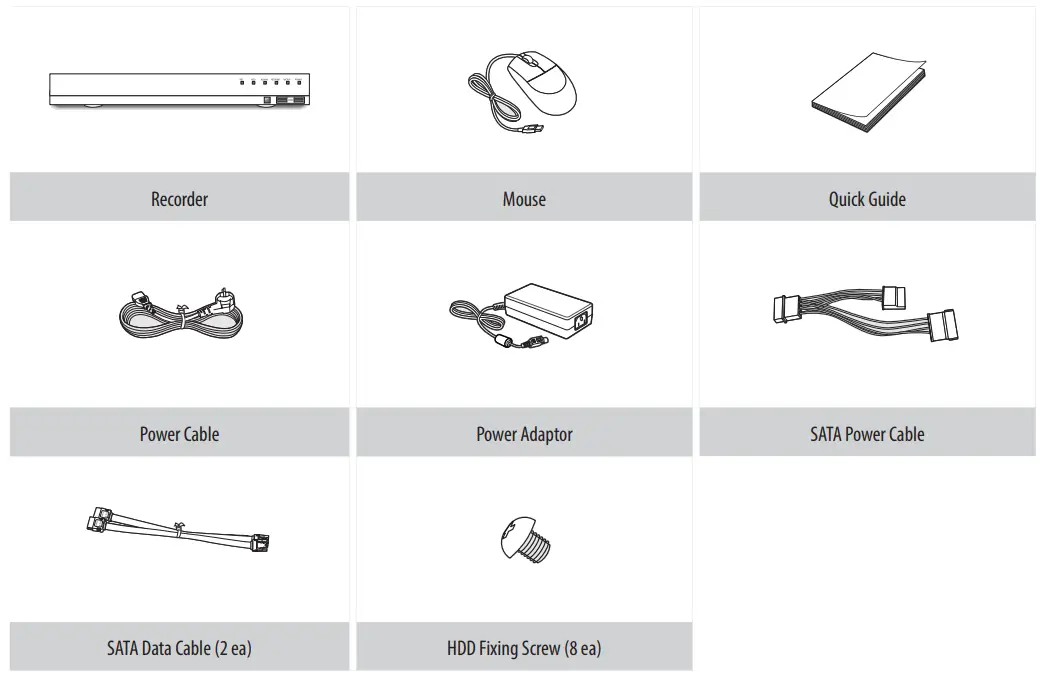
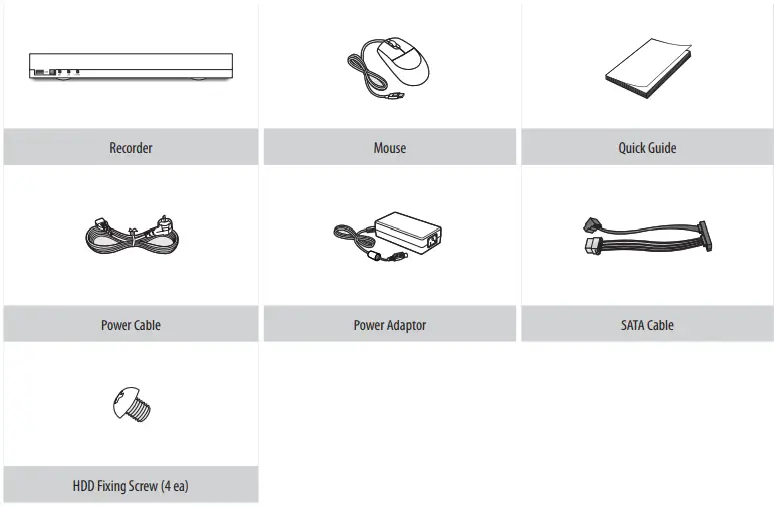
Package Contents
- The appearance of the components may differ from the image shown.
- Accessory category and quantity may differ depending on sales region.
- For some regions, HDD is not pre-installed. HDD Fixing Screw, SATA Cable quantity vary depending on the model.
ARD-1610
ARD-810/ARD-410
Installing the HDD
 If you are adding a new or previously used HDD to this product in addition to the HDD(s) originally installed, format the new HDD manually in the set before use.
- If you wish to replace or add an HDD, contact your dealer or our customer service first.
 If you are adding a new or previously used HDD to this product in addition to the HDD(s) originally installed, format the new HDD manually in the set before use.
ARD-1610
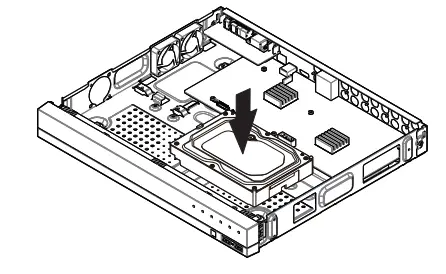
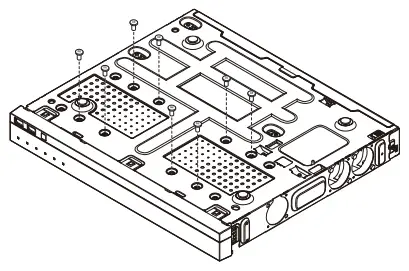
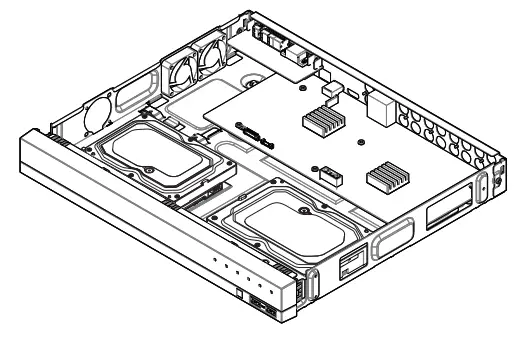
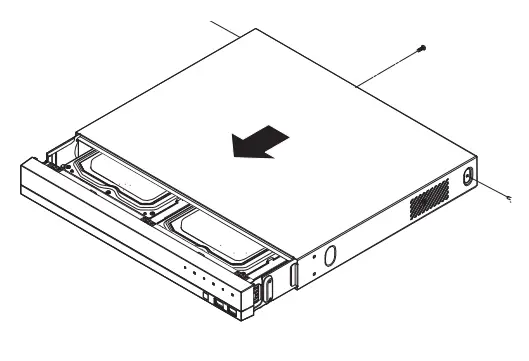
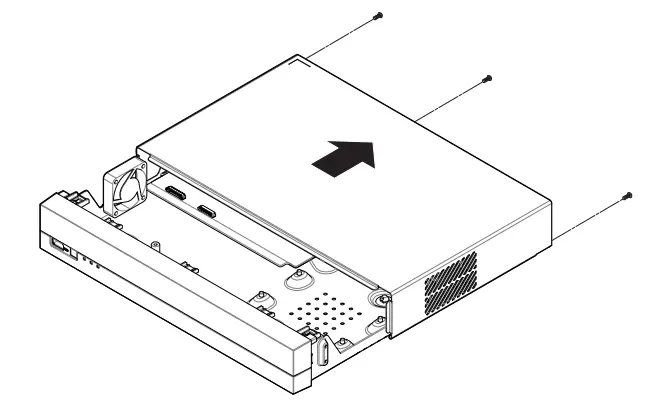
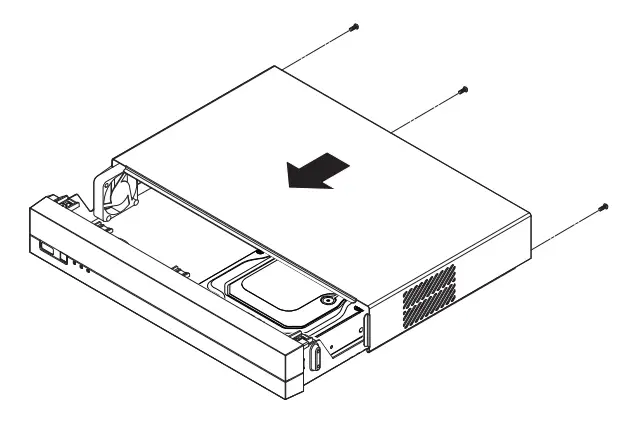
- Loosen the screws on the left/right sides and back and slide the cover back to remove it.

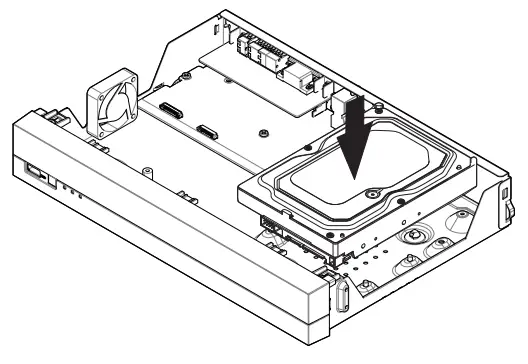
- Connect the SATA/power cable of the HDD to the connector on the motherboard.

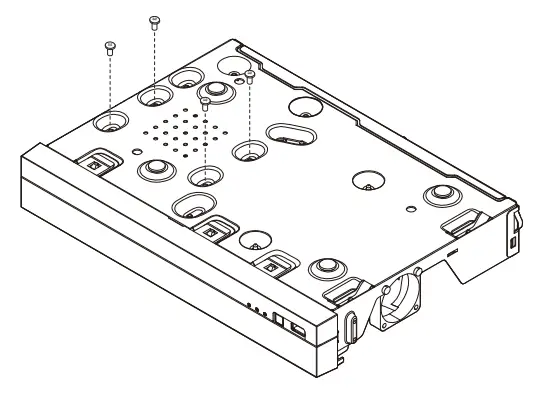
- Fix the HDD to the bottom of the recorder with screws.

- Check if there is any problem with the connection terminal and wiring inside the product.

- Close the cover and secure it with screws.

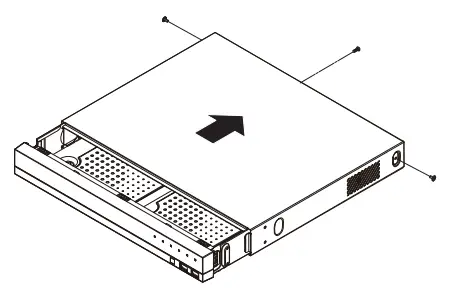
ARD-810/ARD-410
- Loosen the screws on the back and slide the cover back to remove it.

- Connect the SATA/power cable of the hard disk to the connector of the main board.

- Fix the HDD to the bottom of the recorder with screws.

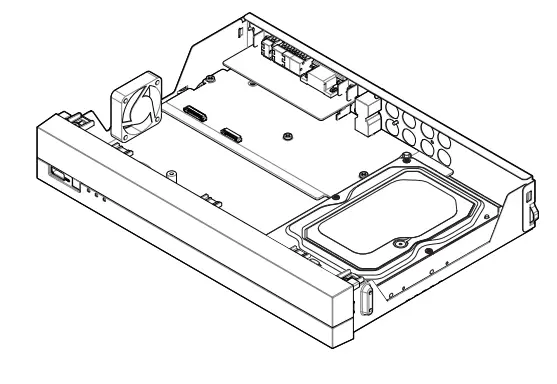
- Check if there is any problem with the connection terminal and wiring inside the product.

- Close the cover and secure it with screws.

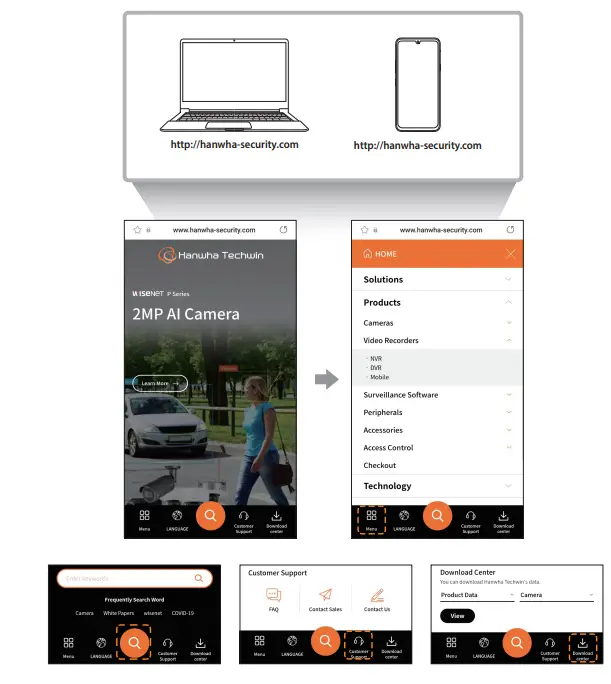
Using Product Information
You can check the product information/manual/firmware information/FAQ/HDD compatibility list on the homepage or mobile web of your smartphone.
Connecting to a Network Using a Router
If you want to add 1-3 PCs and recorders in an environment using xDSL/Cable modem, you can use the router with only one Internet line.
This guide is an installation guide for network beginners. Follow the instructions to set up your router, local PC, and recorder.
Connecting the cable
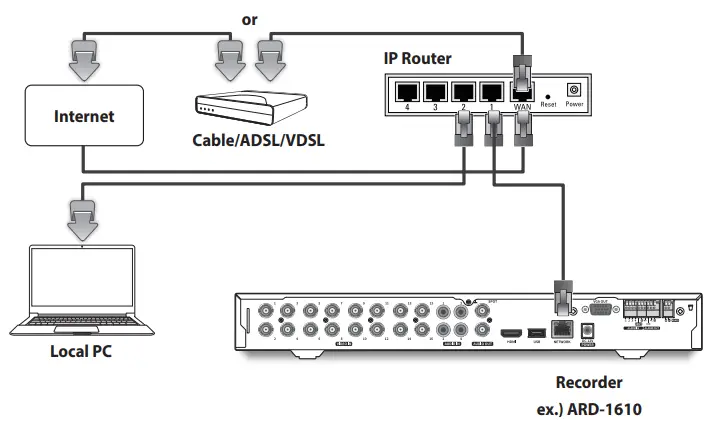
Connecting a router with PC
 ■ Refer to the router’s user manual.
Connecting a recorder and a router
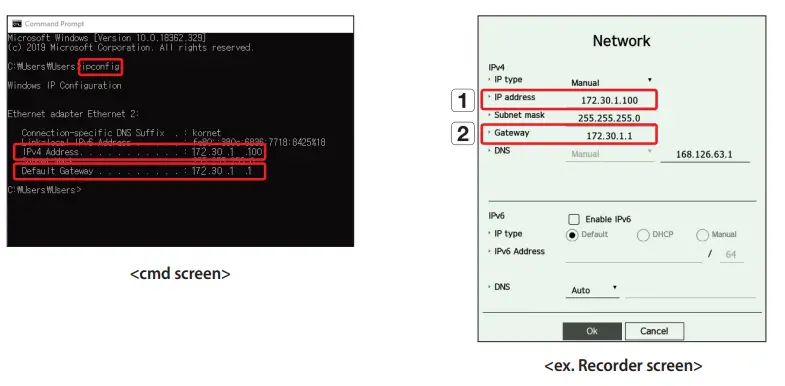
Move to <IP & Port> of the Recorder <Network> Setting menu, and set the 1 <IP address> and 2 <Gateway> in <Setup>.
※The <Default gateway> checked in the [cmd.exe] window of the local PC and the <Gateway> of the recorder must be the same.
※The first three numbers of the recorder <IP address> should match the first three of the <Default gateway> checked in the [cmd.exe] window of the local PC.
 Hanwha Techwin cares for the environment at all product manufacturing stages, and is taking measures to provide customers with more environmentally friendly products.
The Eco mark represents Hanwha Techwin’s devotion to creating environmentally friendly products, and indicates that the product satisfies the EU RoHS Directive.
 Correct Disposal of This Product (Waste Electrical & Electronic Equipment)
(Applicable in the European Union and other European countries with separate collection systems)
This marking on the product, accessories or literature indicates that the product and its electronic accessories (e.g. charger, headset, USB cable) should not be disposed of with other household waste at the end of their working life. To prevent possible harm to the environment or human health from uncontrolled waste disposal, please separate these items from other types of waste and recycle them responsibly to promote the sustainable reuse of material resources.
Household users should contact either the retailer where they purchased this product, or their local government office, for details of where and how they can take these items for environmentally safe recycling.
Business users should contact their supplier and check the terms and conditions of the purchase contract. This product and its electronic accessories should not be mixed with other commercial wastes for disposal.
 Correct disposal of batteries in this product
(Applicable in the European Union and other European countries with separate battery return systems.)
This marking on the battery, manual or packaging indicates that the batteries in this product should not be disposed of with other household waste at the end of their working life. Where marked, the chemical symbols Hg, Cd or Pb indicate that the battery contains mercury, cadmium or lead above the reference levels in EC Directive 2006/66. If batteries are not properly disposed of, these substances can cause harm to human health or the environment.
To protect natural resources and to promote material reuse, please separate batteries from other types of waste and recycle them through your local, free battery return system.

 Hanwha Vision - Global Vision Solution Provider