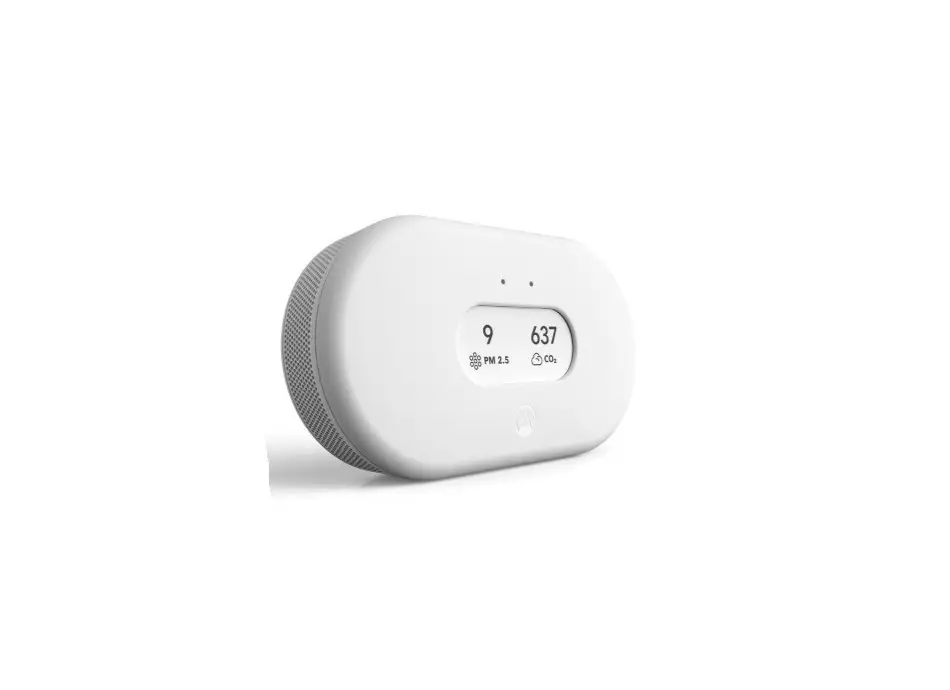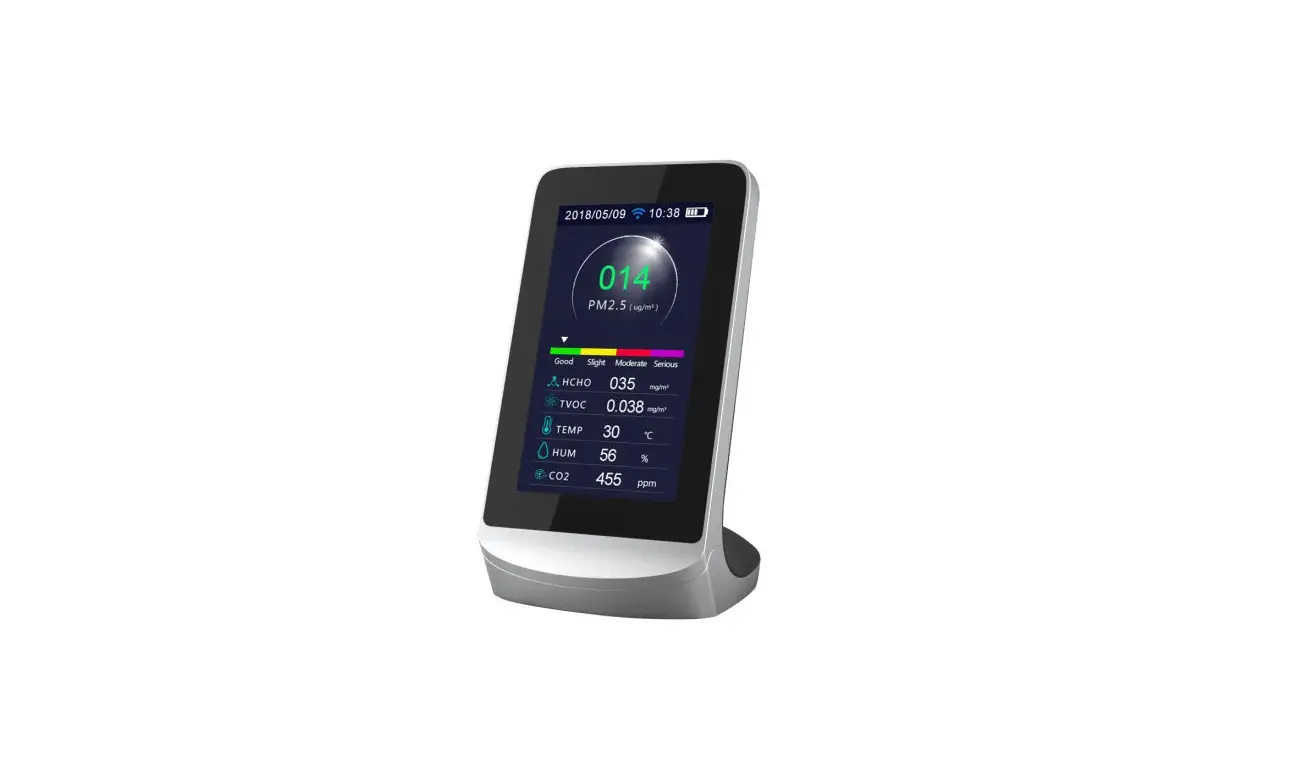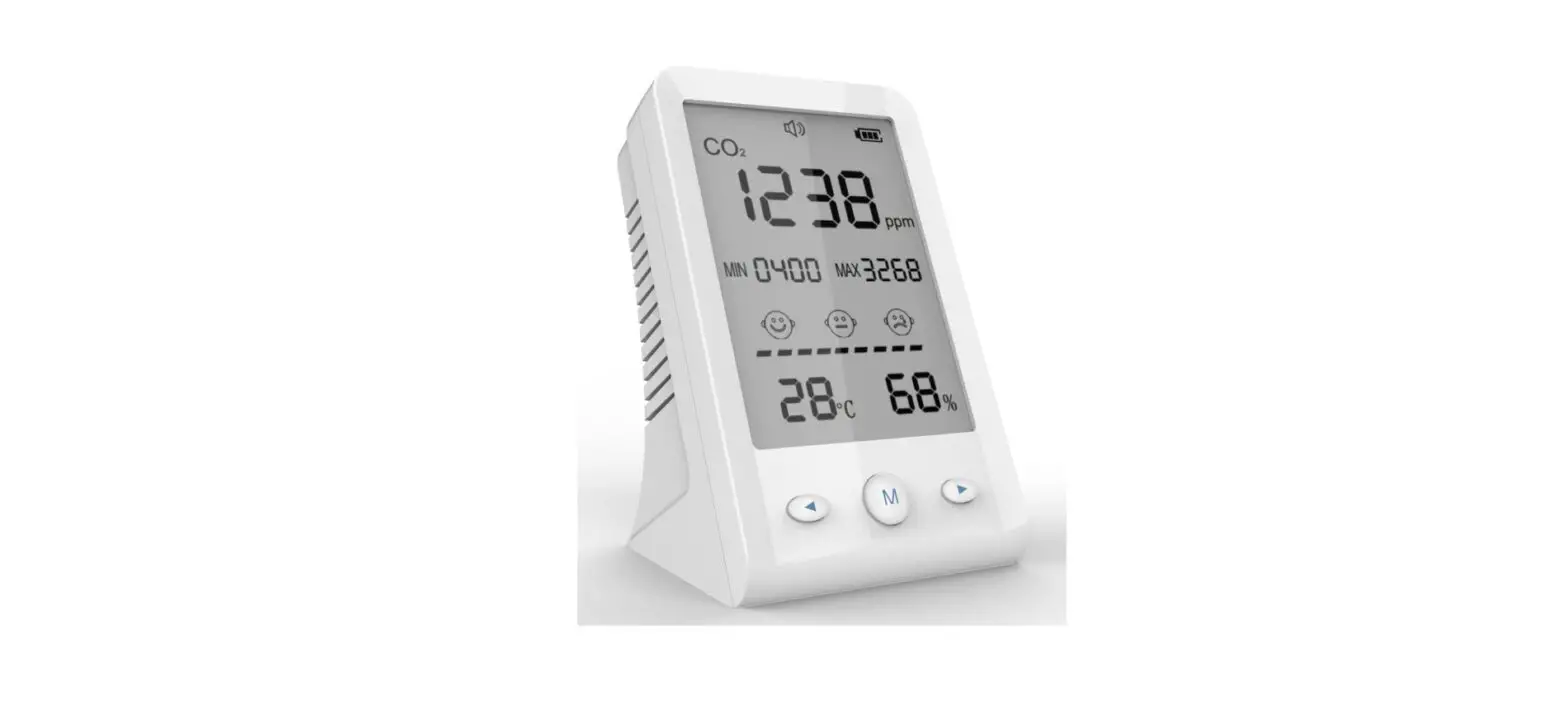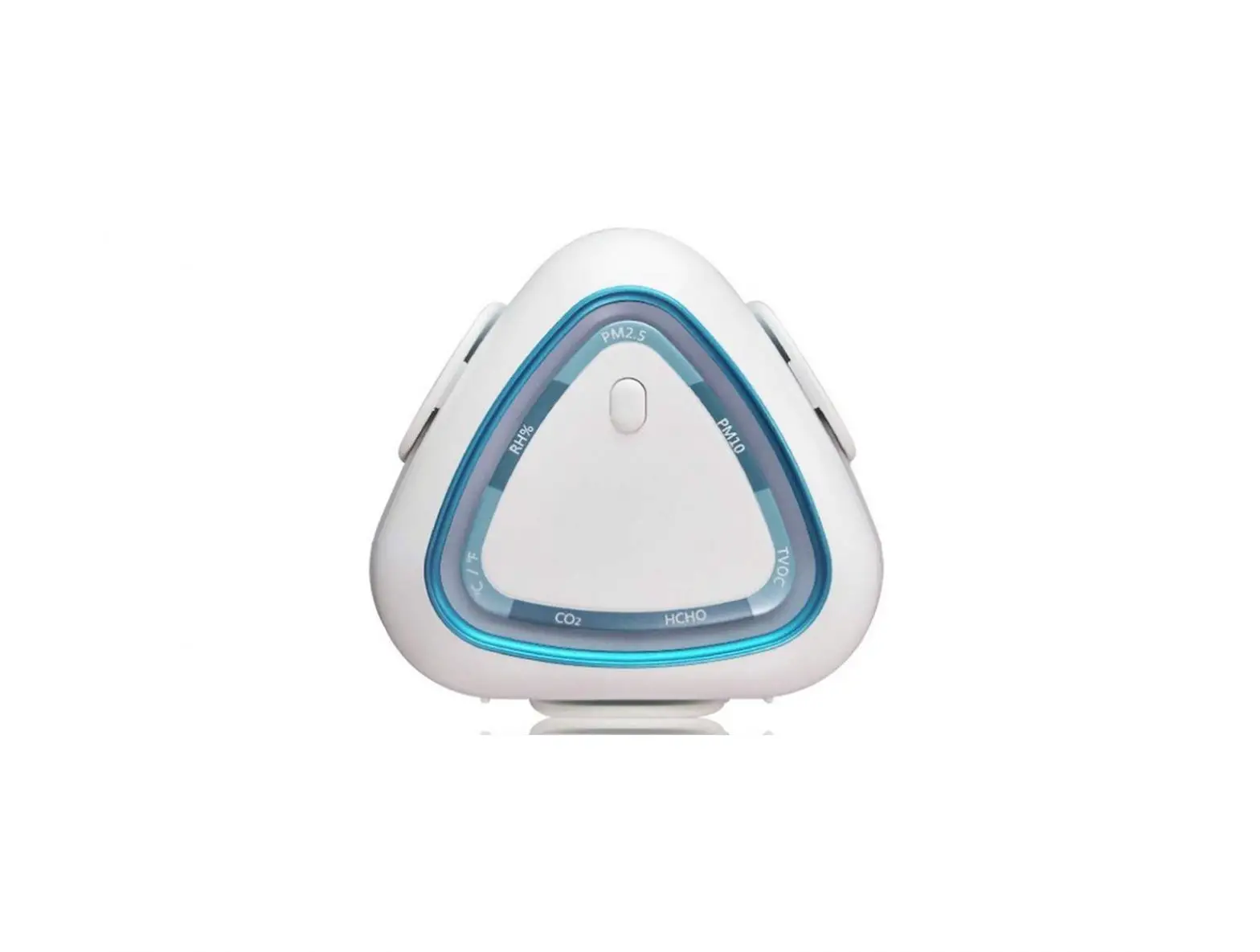
Air Mentor 2S Connected 7-in-1 Air Quality Monitor User Manual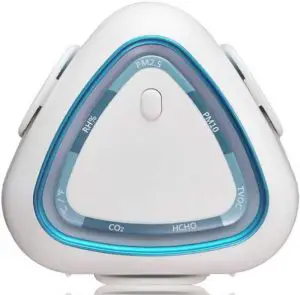
Hardware Introduction
 LED Breathing Light
- Functional Key
Long press for 5 seconds to force release current connected Bluetooth device.  Monitor Cap (with magnet)
- Bluetooth Connection Light

- WiFi Connection Indication
- Power Button
- DC In 5V/1A USB Power Connector

- Wall Hanging Strap
 LED Breathing Light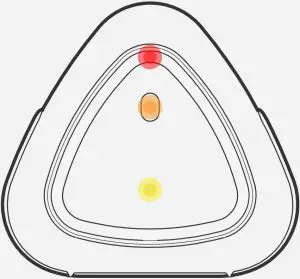
 Functional Key
 Monitor Cap (with magnet)
 Bluetooth Connection Light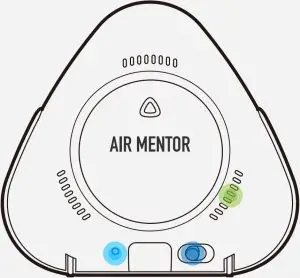
 WiFi Connection Indication
 Power Button
 DC In 5V/1A USB Power Connector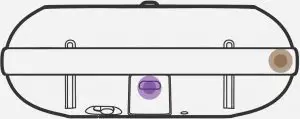
 Wall Hanging Strap
First Use
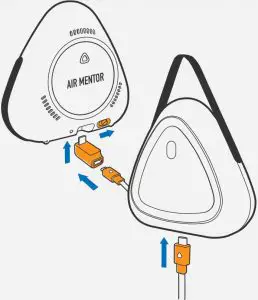
When use for the first time, please use our USB power supply and power cord accessories, after wired, please turn on the power on the back of Air Mentor 2S. Our LED breathing light will start flashing, 30 seconds later, Air Mentor 2S will start showing air quality color.
Air Mentor 2S is designed for long term monitoring, will monitor air quality all time real time.
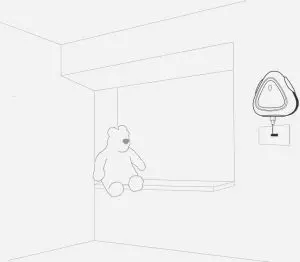
Wall Hanging
Air Mentor 2S shipped with our wall hanger kit, it’s designed to be easily installed on the wall.
App Installation & Connection
Please scan below QR Code to download Air Mentor 2S App. iOS and Android Apps are both provided.
After complete App installation, it will guide you to connect with your Air Mentor 2S.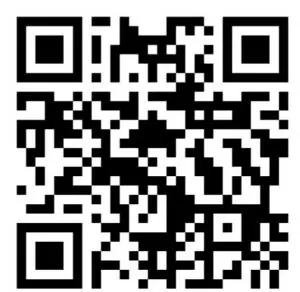


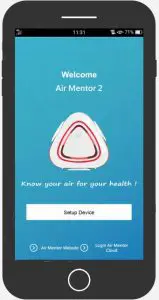
Setup smart phone App and Air Mentor 2S connection
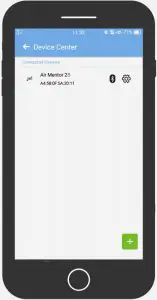
Every time you turn on Air Mentor 2S, LED will flash with blue, green, yellow, orange, red and purple in sequence, after 30 seconds, device will start air quality monitoring, temperature and relative humidity will reach environment status in 30 minutes.
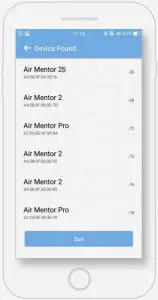
Turn on your smart phone Bluetooth (in your smart phone setup page) When users turn on Bluetooth connection, please choose Air Mentor 2S to connect with. If you have multiple Air Mentor 2S, App will prioritize all your Air Mentor 2S with distance list.
After setup Bluetooth connection, users can follow App guidance to further setup Air Mentor 2S WiFi connection. After completeness, users will be able to remotely check Air Mentor 2S measurements and all history data. Without WiFi setup, users can only receive and check air quality data from smart phone App.
WiFi Connection Indication
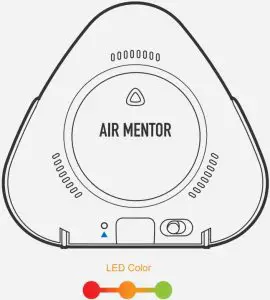
The light color shows WiFi connection status & cloud connection status.
- Red ‒ No connection established
- Orange ‒ Successfully connected with WiFi AP
- Green ‒ Successfully connected to Air Cloud
WiFi Setup Reminder
- Please connect your smart phone to your WiFi AP first.
- Air Mentor 2S only supports 2.4GHz WiFi connection, please make sure your WiFi AP supports this spec.
LED Breathing Light
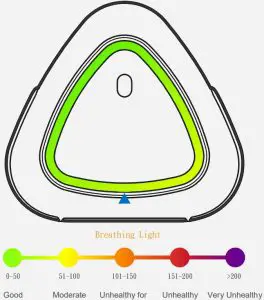
Sensitive Group
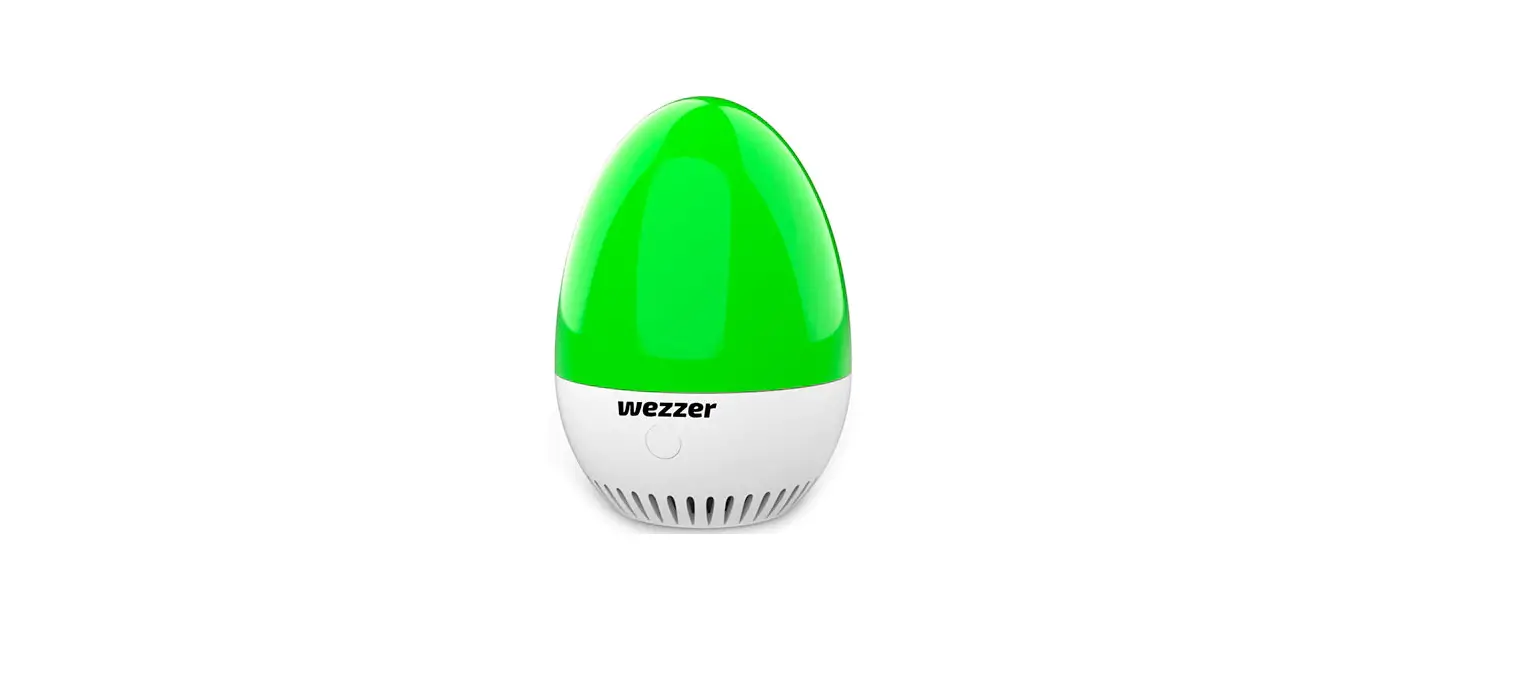
Air quality is shown by 5 breathing light colors; green, yellow, orange, red and purple. Breathing light color and frequency will change with air quality monitoring level.
Users can adjust breathing light brightness through App.
Warning
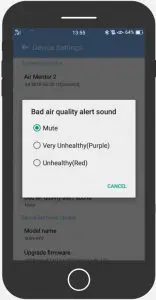
Air Mentor 2S will alert user along with air quality change, users can setup alarm level through App setup page.
Mute/Unhealthy (Red)/Very Unhealthy (Purple)
If the device is setup with WiFi connection, smart phone App will receive the relative air quality push notification.
Checking Air Quality Analysis
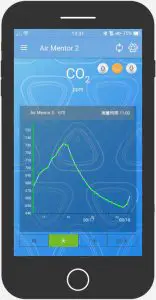
Air quality monitoring App will real time provide you with air quality status, analysis and improvement suggestions.
Knowledge Base

Our knowledge base provides all kinds of air quality related knowledge, and their influences to your health, we also provide users with proper suggestions.
App Update
App will remind users with update notification.
History Data
When Air Mentor 2S is correctly connected to Air Cloud, history data will automatically be stored at cloud side. Users can check them through App.
Limited Warrantee
Under normal use by following Air Mentor 2S user instruction, we provide one year limited warrantee from the date with your purchase.
Safety

- Please do not install device near heat source.
- Please do not put device on top of dangerous products.
- Please do not install or put device near water.
- Please do not dissemble device or remove seal.
How to set up the Bluetooth connection? Air Mentor 2S
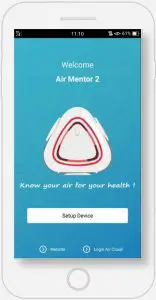
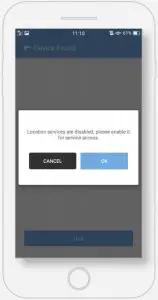
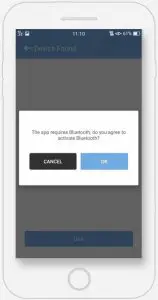
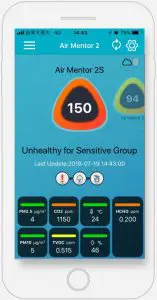
- Open the「 Air Mentor 2 」app and press the Setup Device button.

- Turn on your Smartphone location service access.

- Turn on your Smartphone Bluetooth.
- Choose your Air Mentor 2S to connect with.
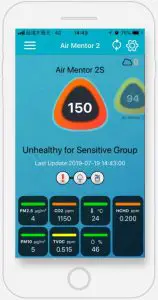
You can open the front triangle cover to get the device number. - After the Bluetooth setting is completed, you can see the Bluetooth icon at the upper right corner.
Black means app can receive Air Mentor 2S data.
How to set up the Wi-Fi connection? -Air Mentor 2S
- Turn on your Smartphone Wi-Fi and connect to your Wi-Fi Access Point, then press the Settings button to set up your device.

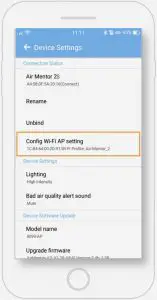
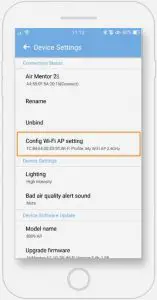
- At Device Settings page, Press Config Wi-Fi AP setting.
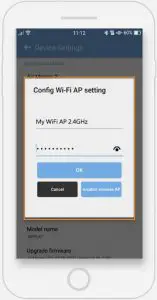
Only support 2.4GHz Wi-Fi connection. - Enter the password of your Access Point and connect.
Only support 2.4GHz Wi-Fi connection. - While waiting for connection, the Wi-Fi connection indication LED will change to red, orange and green in sequence.
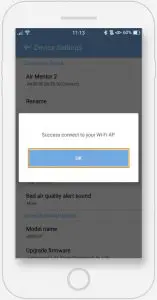
If the Wi-Fi connection is correct, the Wi-Fi connection indication will be green and the device will generate a long beep. - After the Wi-Fi setting is completed, the Wi-Fi information will be shown at Device Settings page.
How to Maintain
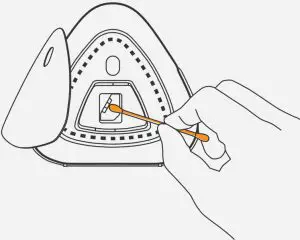
Open the cap, use dry cotton swab to wipe the sensor, recommend to clean the device every 6 months.
How to force release the Bluetooth connection with your smart phone?
When connected with smart phone, the ventilation hole on the back to Air Mentor 2S will flash blue light every 5 seconds. If users would like to force release the connection, users may long press the functional key for 5 seconds till users hear long beep.
Does Sensor Need Calibration?
All build-in sensors are designed with automatic calibration function.
Product Name | Air Mentor 2S | |
Dimension | 106 x 115 x 44.5 mm (height x width x depth) | |
Operating Temperature | 5 – 40 ℃ (41℉ – 104℉) | |
Power | DC 5V , 1A | |
Sensor | Particulate Matter |
|
| TVOC / Gas Pollution |
| |
| CO2 |
| |
| Temperature |
| |
| Humidity |
| |
| HCHO |
| |
Communication |
| |
Smartphone Requirements |
| |
Product Name: Air Mentor 2S
Product Number: 8099-AF
Nominal Voltage: 5V
Country of Manufacture: Taiwan,R.O.C
This device complies with Part 15 of the FCC Rules. Operation is subject to the following two conditions:
- this device may not cause harmful interference and
- this device must accept any interference received, including interference that may cause undesired operation.
This equipment been tested and found to comply with the limits for a Class B digital device, pursuant to part 15 of the FCC rules.These limits are designed to provide reasonable protection against harmful interference in a residential installation.This equipment generates, uses and can radiate radio frequency energy and, if not installed and used in accordance with the instructions, may cause harmful interference to radio communications. However, there is no guarantee that interference will not occur in a particular installation. If this equipment does cause harmful interference to radio or television reception, which can be determined by turning the equipment off and on, the user is encouraged to try to correct the interference by one or more of the following measures:-Reorient or relocate the receiving antenna.-Increase the separation between the equipment and receiver.-Connect the equipment into an outlet on a circuit different from that to which the receiver is connected.-Consult the dealer or an experienced radio/TV technician for help.
You are cautioned that changes or modifications not expressly approved by the party responsible for compliance could void your authority to operate the equipment.
FCC RF Radiation Statement:
- This Transmitter must not be co-located or operating in conjunction with any other antenna or transmitter.
- This equipment complies with FCC RF radiation exposure limits set forth for an uncontrolled environment. This equipment should be installed and operated with a minimum distance of 20 centimeters between the radiator and your body.