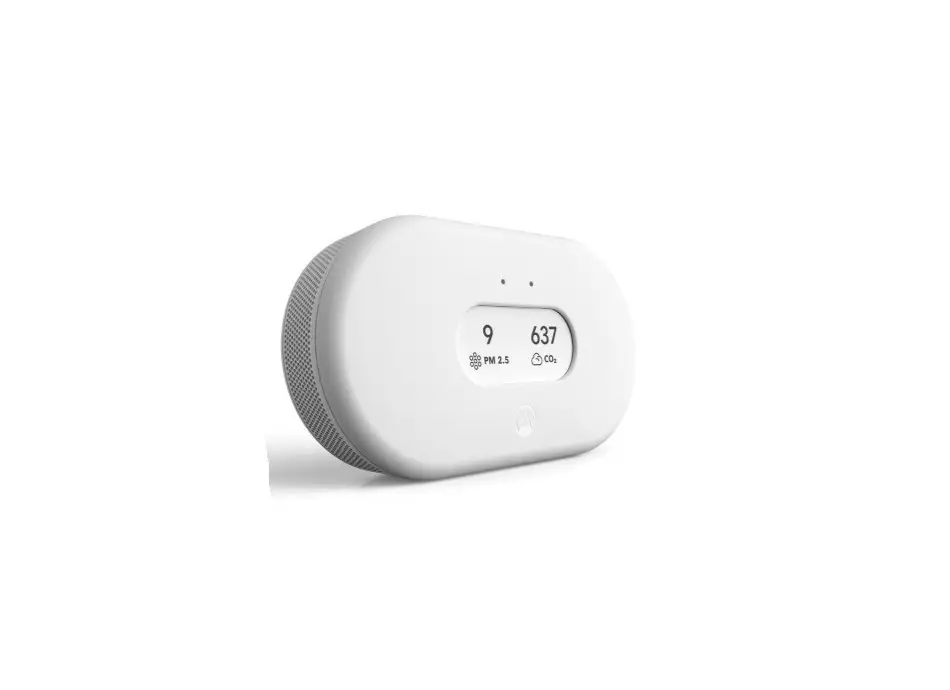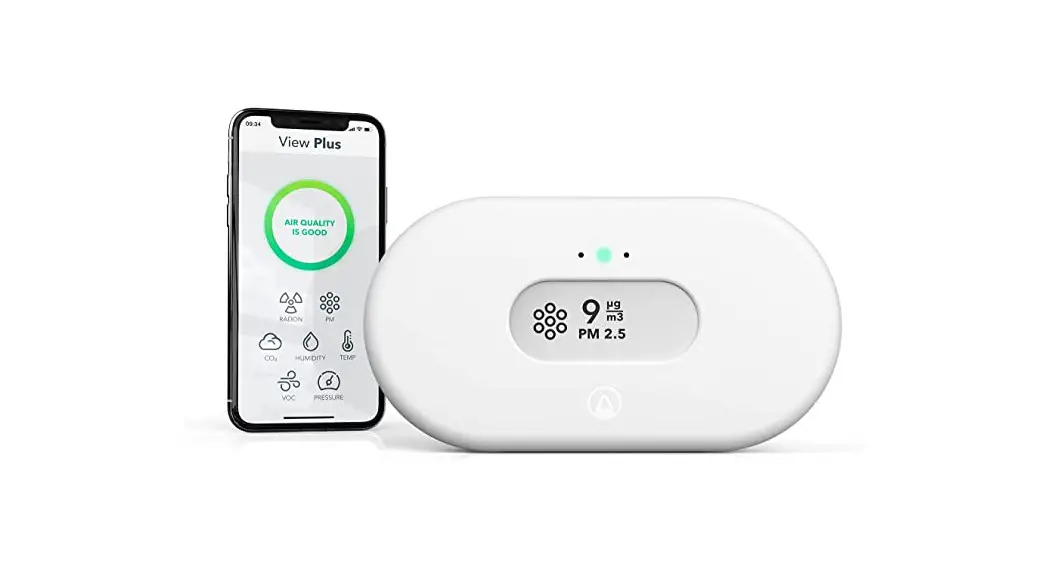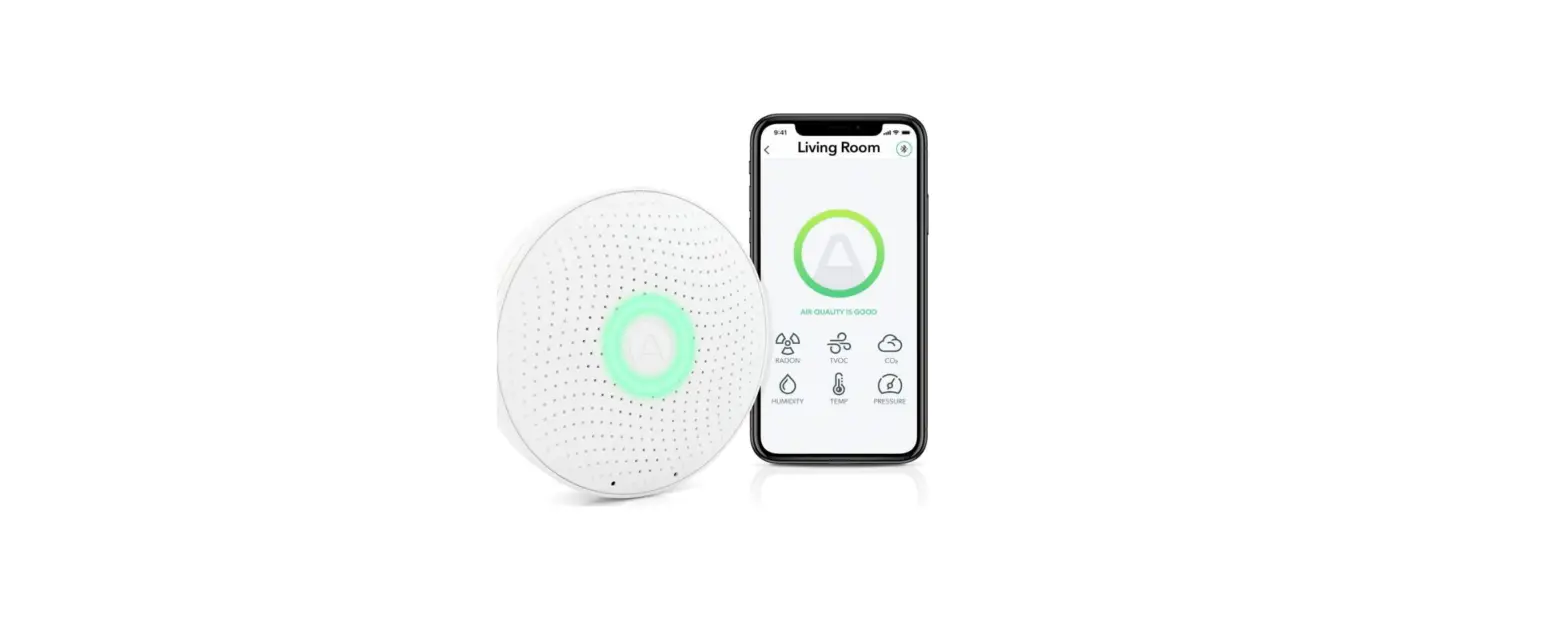

Airthings 2960 Air Quality Monitor
GET IN TOUCH
For technical support or if you have any questions or comments that we did not answer here, you can reach us the following ways:
- Chat bubble on the airthings.com website
- Visit our support forum help.airthings.com
WHAT’S IN THE BOX
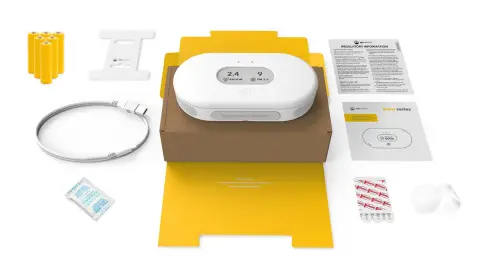
- Sleeve & hangtab x 1
- External box x 1
- Cable x 1
- Regulatory booklet x 1
- Batteries x 6
- Silica bag x 1
- 3M sticker x 3
- User manual x 1
- Translucent sticker x 2
FEATURES AND CONTENT
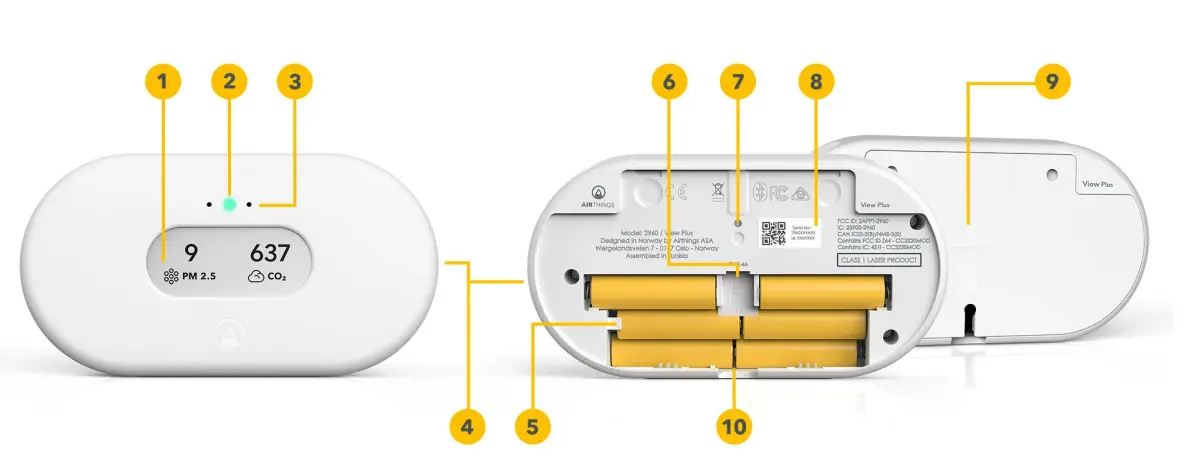
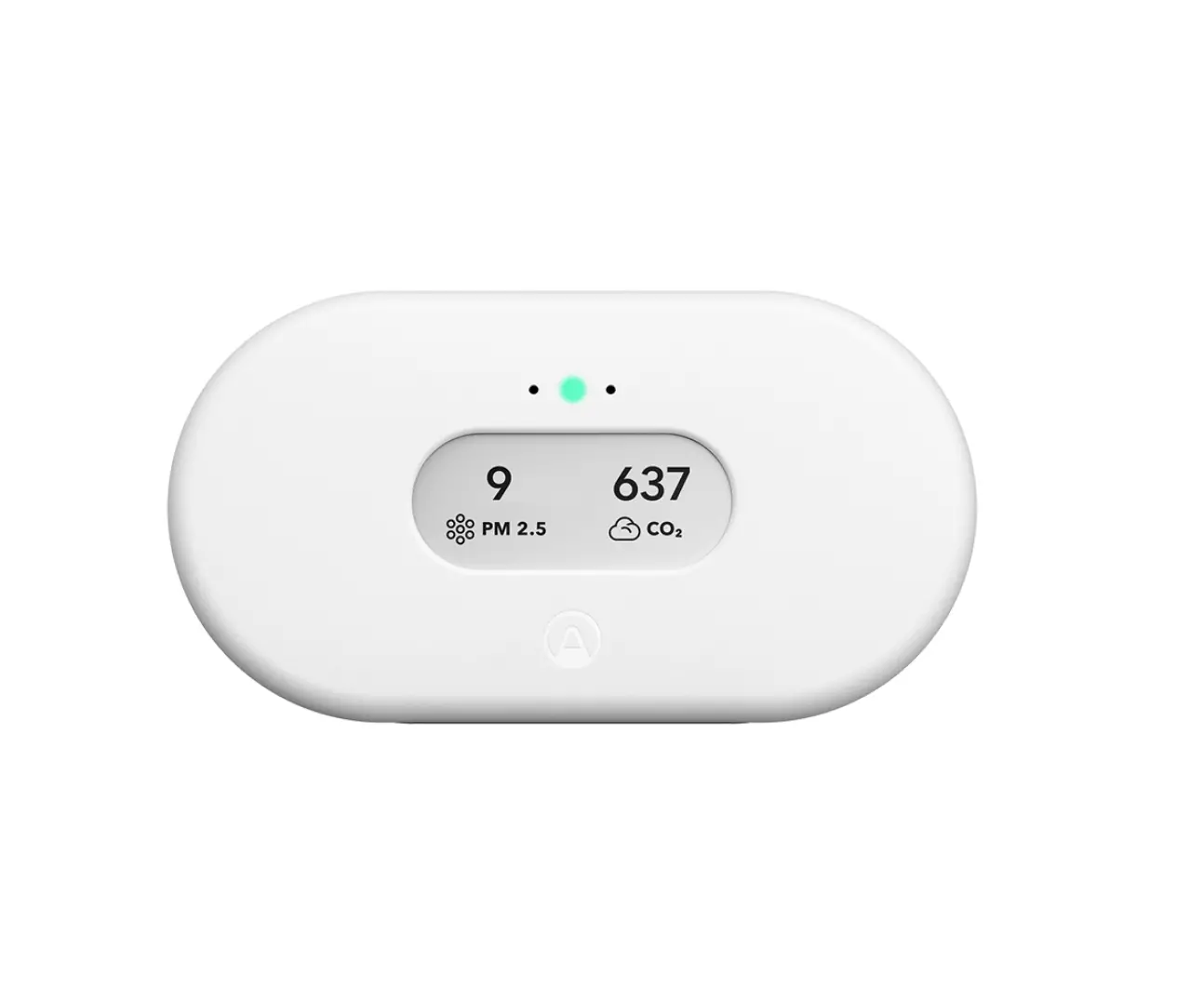
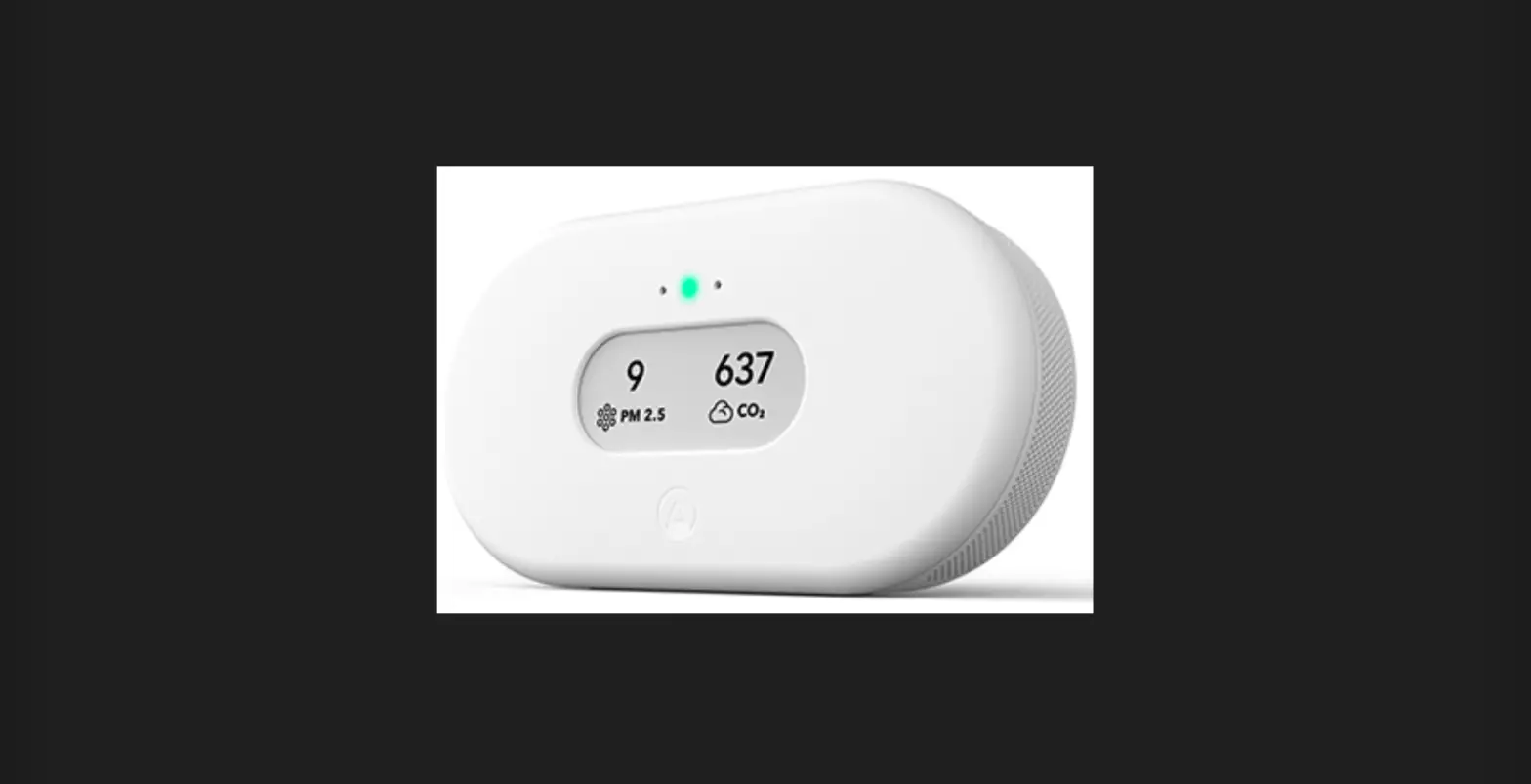
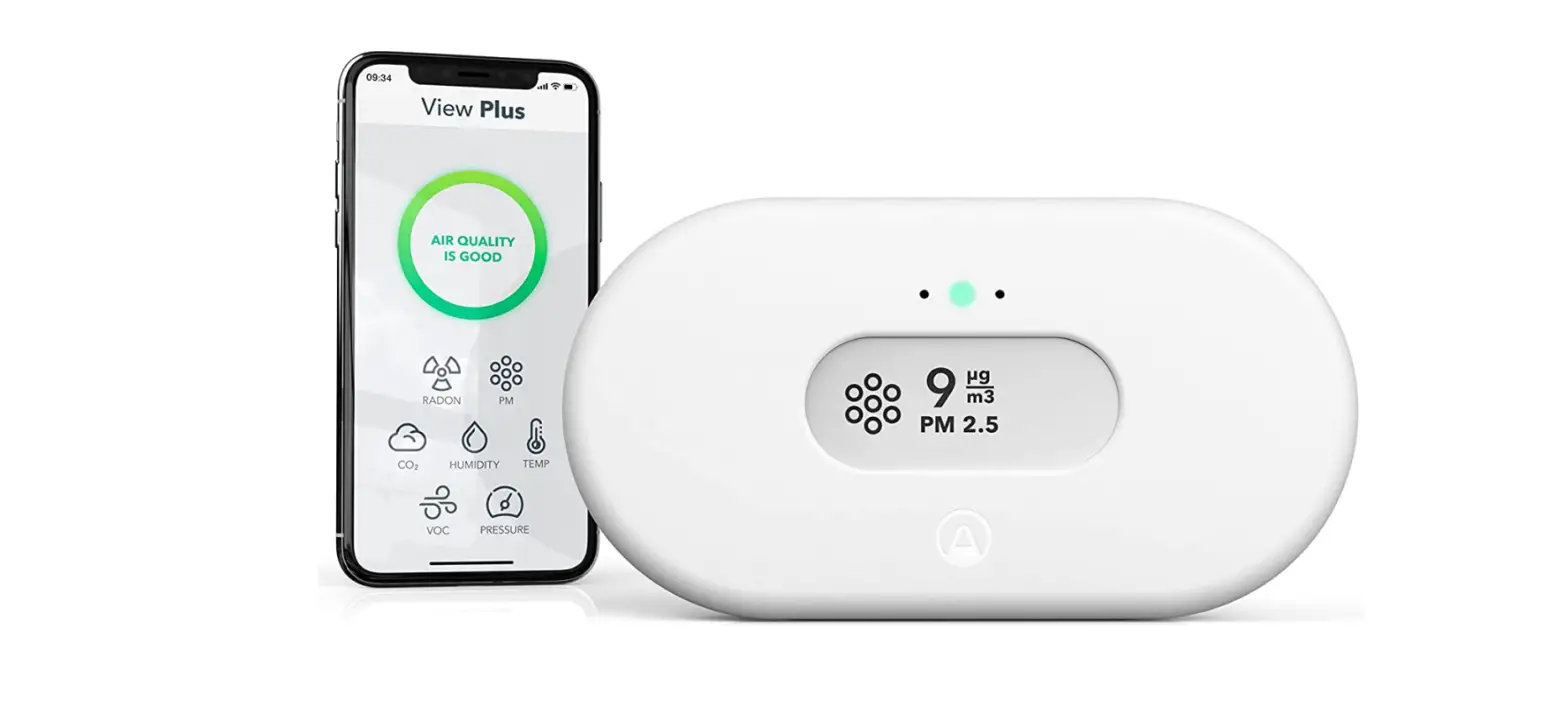
- Customizable display
- Glow signal
- Motion sensor
- Air inlets
- Battery compartment with 6 AA batteries (included)
- USB cable port
- Reset button
- Individual serial number
- Mounting bracket
- One-time battery tab
VIEW SERIES SETUP
- Download their things App
Download or update their things App from the Apple App Store or Google Play Storeand create an account.
- Setup
Pull the battery tab on the device and follow the in-app instructions to connect the device to your smartphone and your WiFi. You can also power your device using the supplied USB cable. There may be a firmware update when you start the device.
Note: You can leave the batteries in when powering over the USB, but the batteries will not be charged. Your device will automatically swap between battery power and USB power. - Placement

Your View device can be placed wherever you want to measure your air quality, such as on your nightstand, on the wall in the baby’s room, or on a shelf in the living room. It should be kept away from very dusty environments and performs best if cleaned with a dry or damp cloth once in a while. ViewPlus and View Radon should be kept out of damp environments above 85% humidity to avoid damage to the radon sensor.
To mount your View on a wall: Fix the mounting bracket to the wall. Make sure you use appropriate screws for your wall type. Do not place it close to vents or windows. Minimum 1 meter / 3 feet distance. - Calibration

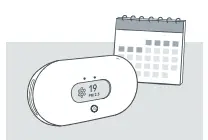
Some sensors will need time, usually around a week, to calibrate after power-up. See more details in the product sheet for your device.
The various sensors have different sample rates (how often it records a data point) and accuracy. The radon sensor in particular is built for long-term monitoring. Although you canread the early data samples, they are likely to be inaccurate. Radon will often vary significantly from day to day, and even month to month. Buildings can be diagnosed for radon measuring all living areas – e.g., living rooms and bedrooms – for at least one week. For a more accurate value, this should be followed by a long-term measurement (for at least 2months) in the room with thehighest radon value.

DAILY USE
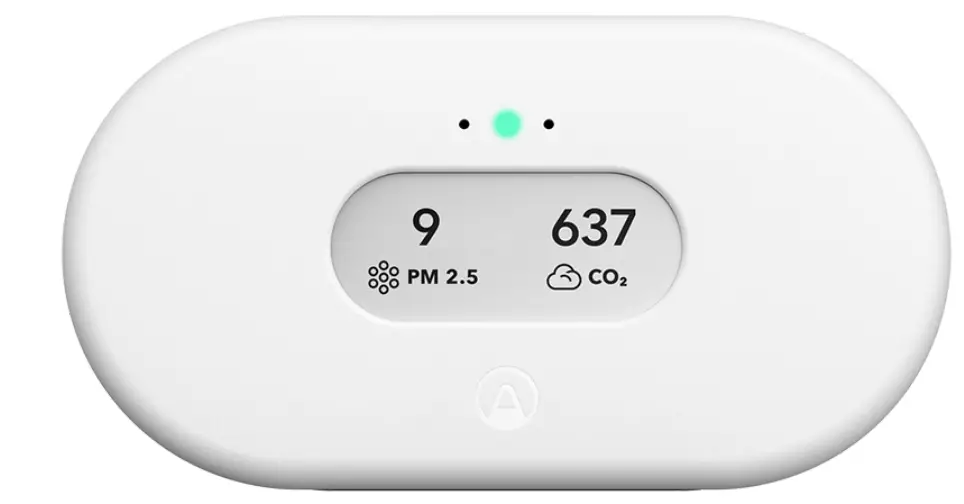
- Configurable Display
The display can be configured to show the sensor values you care most about. Configuration is done in the Airthings Dashboard or App. The display will update up to every 2.5 minutes, depending on the sensor sample interval and the sensors shown on the display. It will sometimes flicker completely to refresh itself. This is normal and does not mean your device is operating incorrectly.
Note: The calm tech, e-paper display does not require power to show an image. If your View device suddenly loses power, for example, if the USB connector is removed and there are no batteries in the compartment, then the display will simply keep displaying whatever image it had when the loss of power occurred. The display will update as normal when power has restored tothe product. - Using your View as a hub for other Airthings devices
When powered over USB, and connected to WiFi, your View device will act as a SmartLink hub for other supported Airthings devices (Wave Mini, Wave Plus, Wave Radon 2nd gen). This is a great way to keep all your Airthings devices continuously connected and accessible. Use their things App to select which Airthings devices to link to your View. - Reset button
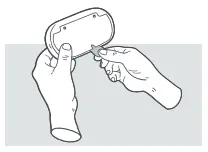
A short press of the reset button (for about half a second) will toggle through various useful information on the display. Note that a short press will not reset the device.
A long press of the reset button will reset your device completely, reverting it back to its factory state. This removes any locally stored personal data, such as your WiFi password. It will not remove the device from your online account. When you hold the reset button, a countdown will show up on the display letting you know when the reset will take place. If you release the button before the countdown has finished, the reset will be canceled. - Wave function
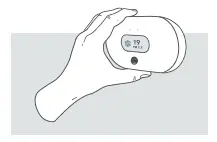
Wave in front of your device for a quick visual indication of your indoor air quality levels. The glow signal will light up according to the overall air quality (green means good, yellow means fair, and red means poor), and the display will change to show any levels that are fair or poor.
For details on sensor thresholds go to help.airthings.com - Airthings App
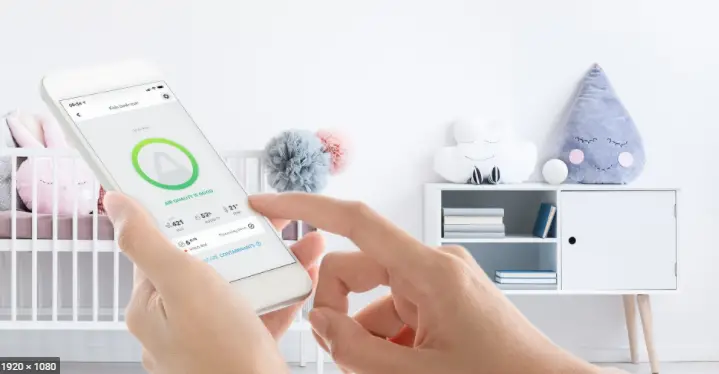
Your app will update automatically as long as your device is connected to a WiFi network. TheAirthings App includes sensor values, historical graphs, and long and short-term averages. Use the app to configure your View, set up notifications based on sensor values, and more. - Airthings Dashboard
The Airthings web dashboard lets you view, customize and analyze the sensor data from all of your devices at a glance. You’ll also have access to trends and advanced analytics. Find out more at airthings.com/dashboard - Sensors
Read more about how to use and interpret the values reported by the sensors in your View device here.
INTEGRATIONS
All Airthings View devices share data to your mobile device as well as the Airthings Dashboard—a free online platform that provides quick access to view, customize and analyze sensor datafrom multiple Airthings devices. Go to airthings.com/dashboard for more info.
The Airthings View offers the possibility to use Amazon Alexa and Google Assistant to read outyour latest sensor measurements from any Airthings device that is connected via a Hub orView product. Limitations to languages and regions apply. Please visit airthings.com for thelatest requirements and limitations.
The Airthings View also supports IFTTT, allowing users to create or access useful recipes fortheir device to follow, and integrate with third-party products.
Sign up for our newsletter for the latest updates.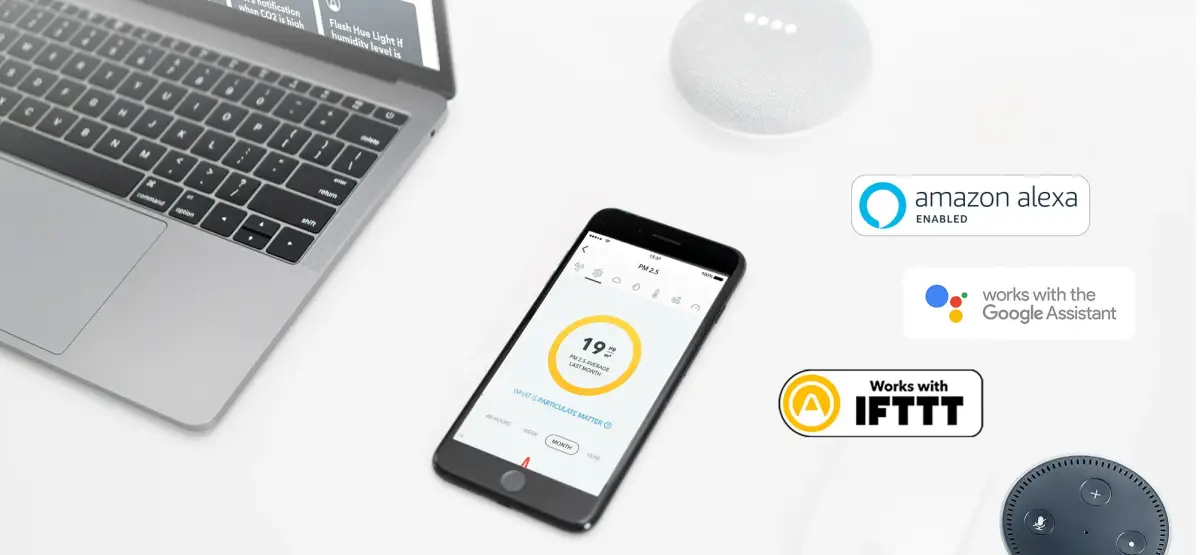
TROUBLESHOOTING
You can find answers to many common questions here: help.airthings.com
If you have other questions, you can contact the Airthings support team using the chat bubble on our web page, in the app, or by sending an email to [email protected]
|
CATEGORY |
PROBLEM / RESOLUTION |
| Adding to your account | I can’t find my View device when trying to add it to my app.
Bluetooth must be enabled on your smartphone. For Android, GPS location must be enabled for Bluetooth low energy to function properly. You are not close enough to the device or there is wireless interference. Keep your phone less than 1m / 3 ft away from the device and search for it again. The device is already registered to another account. |
| I am unable to connect my View to WiFi.
Your View device is only able to connect to 2.4 GHz WiFi networks. If you have a dual band router with both 2.4 GHz and 5 GHz bands, make sure they have different names. Also, make sure your router DNS settings are correct and that you are connecting to your primary network. | |
| Using your View as a hub for other Airthings devices | I don’t see my Wave device when linking it to the View.
Bluetooth must be enabled on your smartphone. For Android, GPS location must be enabled for Bluetooth low energy to function properly. You are not close enough to the Wave device or there is wireless interference. Keep your phone less than 1m / 3ft away from the Wave device and search for the device again. Exit the “Link device” screen and re-enter to try again. |
| I don’t see my other View device when linking it to the View. |
| A View device is only able to connect by WiFi, and cannot be linked to an Airthings Hub, or another View device acting as a hub. | |
| I don’t see data coming from the Wave devices when linked to my View.
Make sure the linking process was completed successfully in the app. The Wave device might be out of range. Move the device close to the View for an hour and check if the App device overview indicates a Hub connection by showing a signal strength bar, then move the Wave back to its place and verify signal strength in the app. If the connection stops again, you might need to move the Hub to a different place. Make sure your View is connected by WiFi. You can tell by checking that data from the View is regularly updated in the app. Also, make sure it is powered by USB. Your View will stop its hub functionality whenever it is only powered by batteries. | |
| I set my View to the wrong region. What should I do?
Please contact customer support to have it manually reset. After a region reset, any Wave devices must be unlinked and the View unpaired from your account before starting the setup over again. | |
| Display | My display is lickering at times
This is normal, and is an effect of the display technology used. |
| My View is without power and batteries, but the display is still showing. This is normal, and is an effect of the display technology used. | |
| My display is showing diferent values than those shown in the App.
The App can sometimes take longer to update than the display, especially if the device is powered by batteries. | |
| Noise from the device | My View will sometimes make a slight fan noise, is this normal?
View Plus and View Pollution uses a particle sensor with a small fan, which can sometimes be heard if held close to the ear or in a particularly quiet room. |
The Bluetooth word mark and logos are registered trademarks owned by Bluetooth SIG, Inc. and any use of such marks birthing is under license.
Copyright Airthings ASA, 2022
FAQS
What is the range of the View when used as a hub?
The View will typically be able to reach linked Airthings devices anywhere in most homes. Tests show that in most cases the range should be more than enough for a large family home. Range may vary
depending on wall and floor materials, wireless interference, placement, and other factors.
How many devices can be connected to a View used as a hub?
The View can support up to 10 devices being connected to it.
What devices can be linked to the View when used as a hub?
The Wave Plus, Wave Mini and Wave Radon devices can be linked to your View.
Wave 1st gen (serial number 2900x) and other View devices cannot be linked to the View. Ifyou own multiple View devices, these will send data to your account in the Airthings cloud over wifi independently.
Can I retrieve data locally from the View?
This is unfortunately not possible. The data is encrypted in transit to the Airthings cloud and retrieved again through the Airthings Wave app or web dashboard at https://dashboard.airthings.com.
Can I retrieve data over Bluetooth from the View, as I can with Wave devices?
No, View devices only support data transfer over WiFi. Bluetooth is only used for initial setup and configuration.
How often will Wave devices send data through the View when used as a hub?
The Wave devices send in data every 5 minutes. Radon data (24-hour rolling average) is sent every hour.
It is designed in Oslo, Norway and assembled in Tunisia
No, the feature of measuring PM 2.5 is meant for View Plus
You should never place your Wave Plus outdoors, it is designed for indoor use only and leaving it outside could damage the monitor if exposed to the elements outdoors.
When moving the Wave Plus to another room or different house you should use the “change room” in the app and update the newest location, this will trigger a new measurement and recalibrate the Wave Plus. If you’re changing a location altogether you can use the change location option in the app to do the same.
Your past measurements will be saved on your web dashboard at dashboard.airthings.com. Simply use the same log-in details as the Wave app to access your current and historical data.
No, you must have a cell phone in order to connected and sync with the Airthings Wave Plus. Take a look at our help center article here: https://help.airthings.com/en/articles/3119712-wave-plus-understanding-the-connectivity-and-compatibility-of-your-wave-plus
Yes, all over the place. Live ones too.
The lifespan of the Wave Plus and it’s sensors would be similar to that of a smoke detector so it should last for many many years if kept in the recommended operating environment.
Yes it does! The Airthings radon sensor is designed by our in-house CERN scientists, and it is the same radon sensor in any of our products that monitor radon.
No, this certainly does not mean that either one of your Wave Plus are broken 😀 – we have a help center article that addresses this here and explains why you would see different measurements between two monitors: https://help.airthings.com/en/articles/3727185-i-have-2-monitors-beside-each-other-and-they-show-different-radon-values-how-is-that-possible
Yes! There is an avilable integration with Home Assistant which uses our API https://www.home-assistant.io/integrations/airthings/
You should place your monitor where you spend the majority of your time in your home, so you can understand more about the air you breathe the most!
More on that on our dedicated article: https://help.airthings.com/en/articles/5367260-view-plus-where-to-place-your-view-plus
At this time we do not support HomeKit but this is considered with future products development.
As of right now, our monitors do not integrate with SmartThings. However, we collect all customer requests and are continuously trying to improve and expand our features, so keep an eye out for future developments!